
Claude Code Auto Compact: /autocompact, Threshold & Fixes
What auto compact does when your context window fills, how the /autocompact window works (now saved per model), when to compact vs clear, and what to do when compacting conversation runs slow.
TL;DR
- Auto compact summarizes older history when the conversation nears the context limit. Since v2.1.288, auto mode compacts long conversations instead of failing every tool call.
- /autocompact 500k sets the trigger window (100K–1M tokens) and — since v2.1.288 — saves it per model. /autocompact auto returns to the window tuned for your model.
- /context shows what is using space and the reserved Autocompact buffer. Compact when you are continuing one feature; /clear when you start something new.
- Compacting reads the whole conversation, so long sessions take a while. If it stalls, update Claude Code first — 2.1.288 fixed conversations failing with “Prompt is too long” instead of compacting.
Context Management in Claude Code
Channel: Anthropic · Claude3:31
Claude Code release notes — v2.1.288
Release notes: github.com/anthropics/claude-code
Set the auto-compact window — official documentation
Docs: code.claude.com/docs
Facts on this page are cross-checked against the official Claude Code docs and the v2.1.288 changelog; the screenshots come from the video above. Behavior described here matches Claude Code v2.1.288 (September 2026).
Screenshots are frames from Anthropic's "Context Management in Claude Code" video, used with attribution and linked back to the source timestamp on every step.
Auto compact, step by step
Know what fills your context
- 1
List what is loaded into context
Run /context and scroll the breakdown. MCP tools are loaded on demand, but their definitions, custom agents and skills each reserve tokens before you send a single prompt. Turning off MCP servers you do not need for the project is the cheapest space you will ever free.
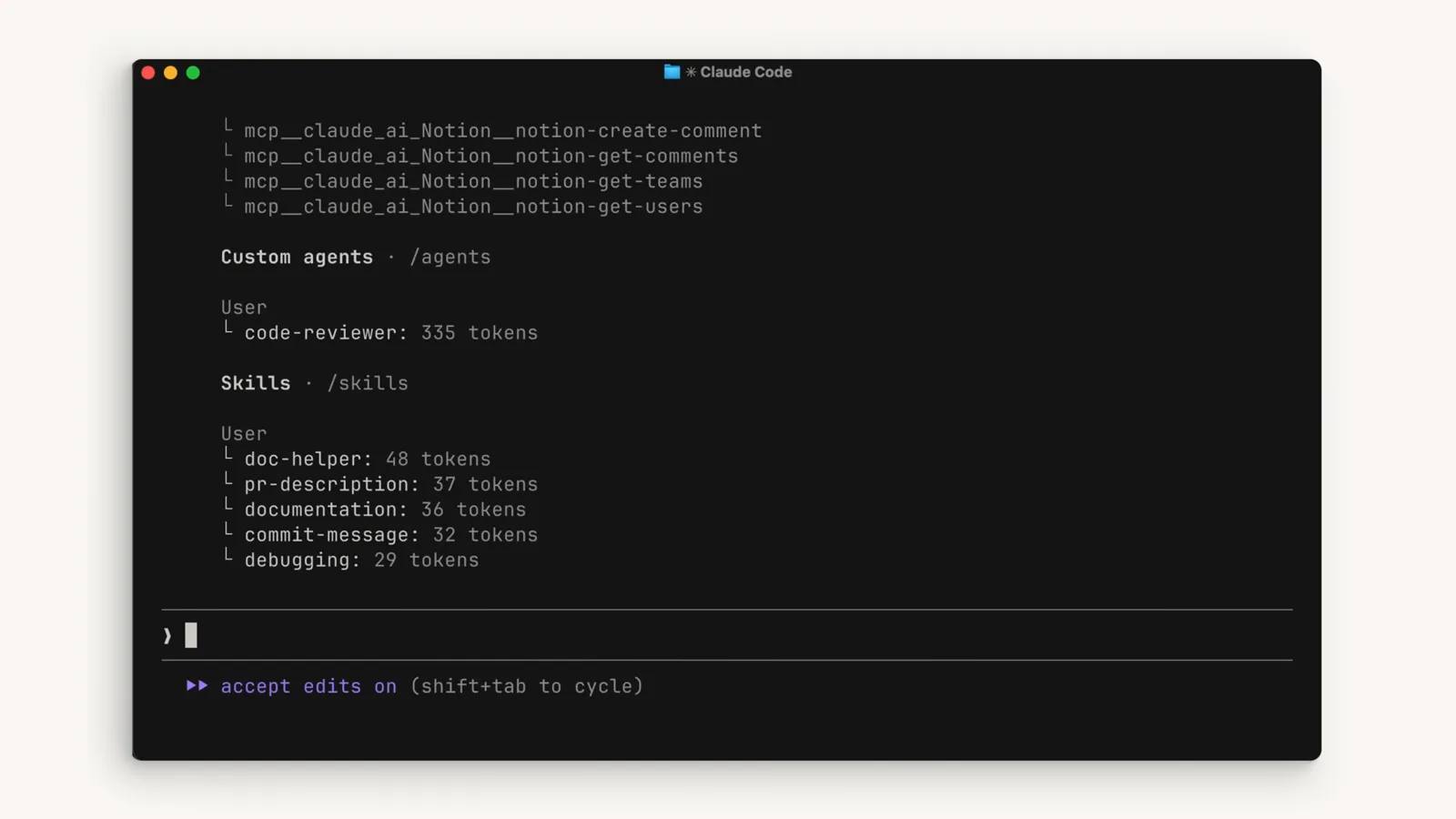
The /context breakdown shows MCP tools, custom agents and skills with their token costs before any work starts.Watch at 0:10 - 2
Read free space and the autocompact buffer
The top of /context shows the model's window and how much you have used — claude-opus-4-6 at 21k/200k tokens (11%) in this demo. The last row, Autocompact buffer, is the headroom Claude Code reserves so auto compact can run before the window is truly full.
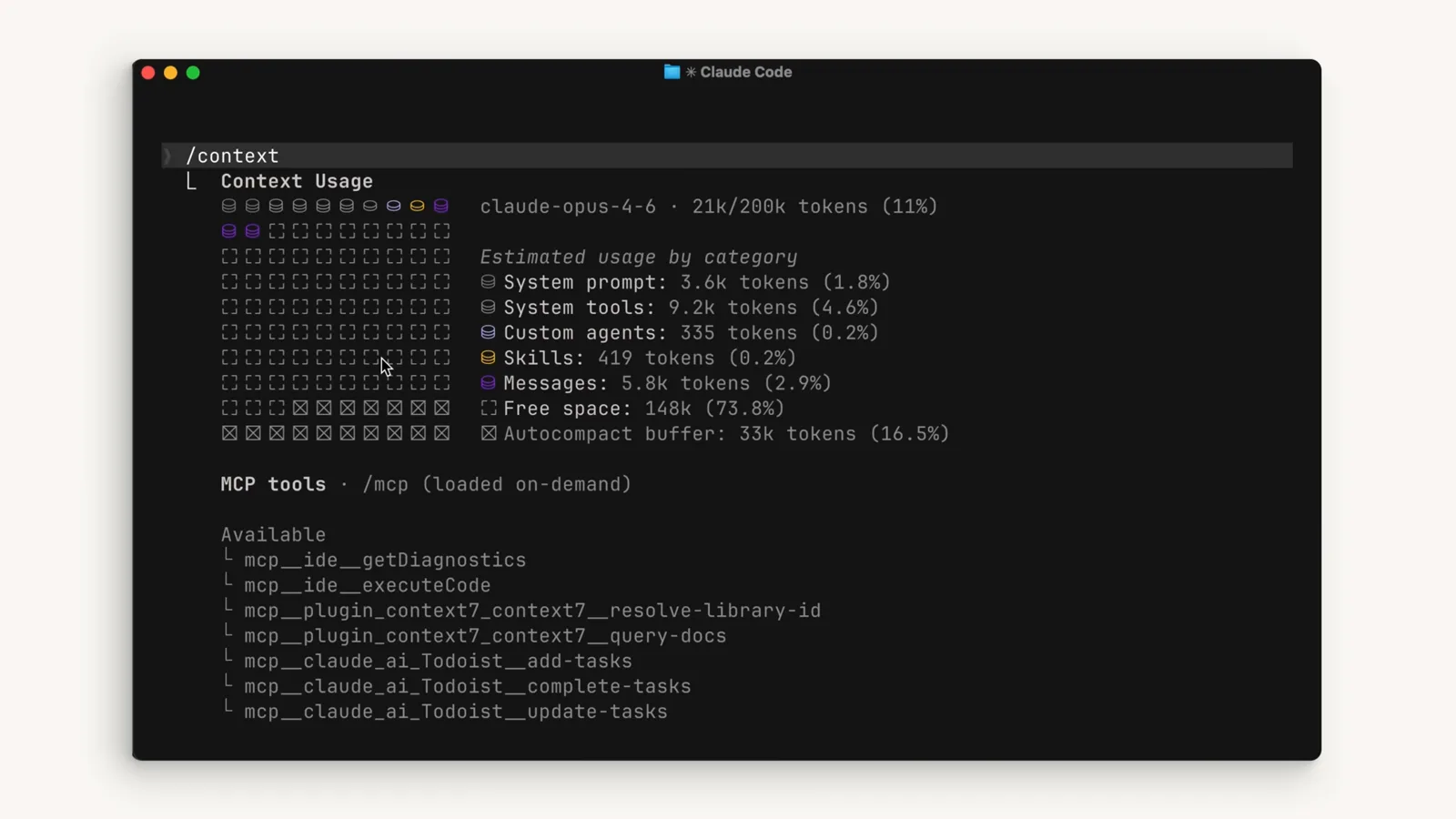
The Autocompact buffer row in /context is the space reserved for compaction — 33k tokens (16.5%) here.Watch at 2:38 - 3
Recognize a session that is filling up
Long sessions grow through tool results: each file read, code review finding and fix adds messages to the window. This demo session ran a code review, listed findings like missing input validation and a hardcoded JWT secret, then asked to fix them — exactly the kind of work that ends at the limit.
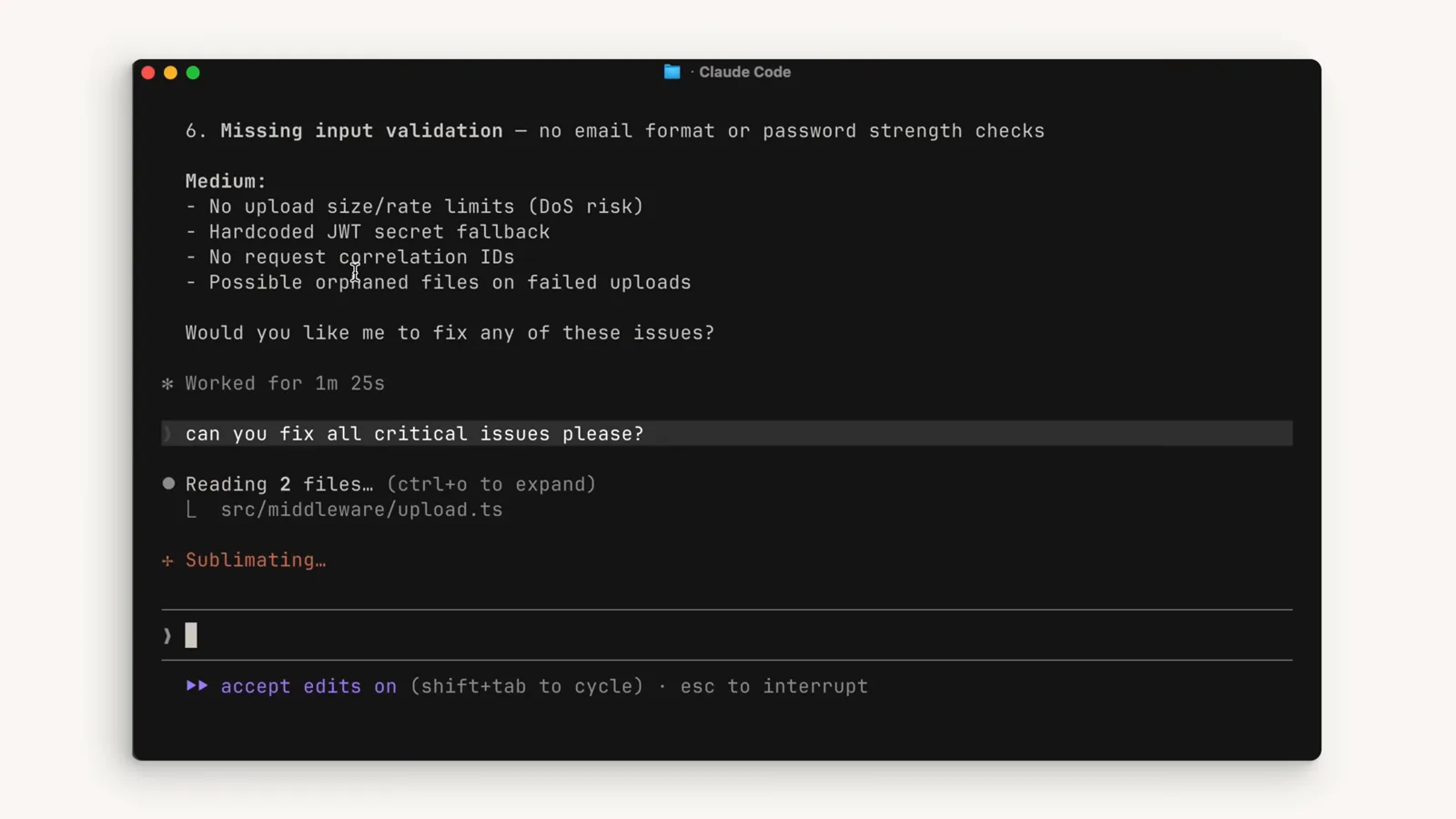
A code review with findings and fixes is typical long-session work that pushes the context window toward its limit.Watch at 0:24 - 4
Let the recap show what survives
When a conversation gets long, Claude Code's own recap — priority ranking, all user messages, pending tasks — shows what a summary has to preserve. Auto compact works the same way: your requests and key code snippets survive; old tool results are the first thing dropped.
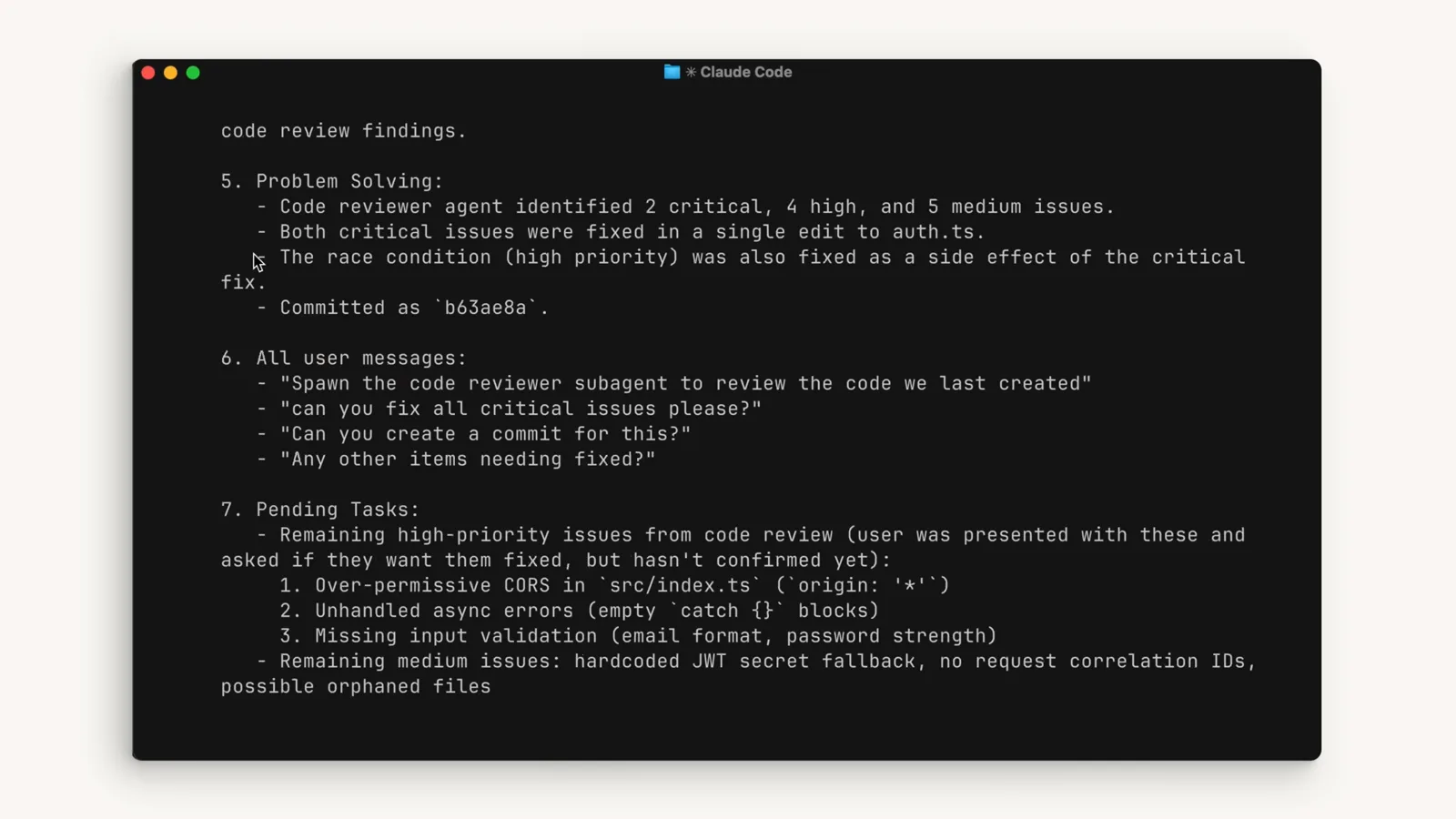
Priority ranking, user messages and pending tasks: the kind of state a compacted summary must carry forward.Watch at 0:50
Compact on purpose
- 5
Pick /compact from the slash menu
Type / and look at the descriptions: /clear “Clear conversation history and free up context”, /compact “Clear conversation history but keep a summary in context”. That one line is the whole difference — compact trades a summary for continuity, clear buys maximum space. /compact also accepts a focus instruction, like /compact Focus on the API changes.
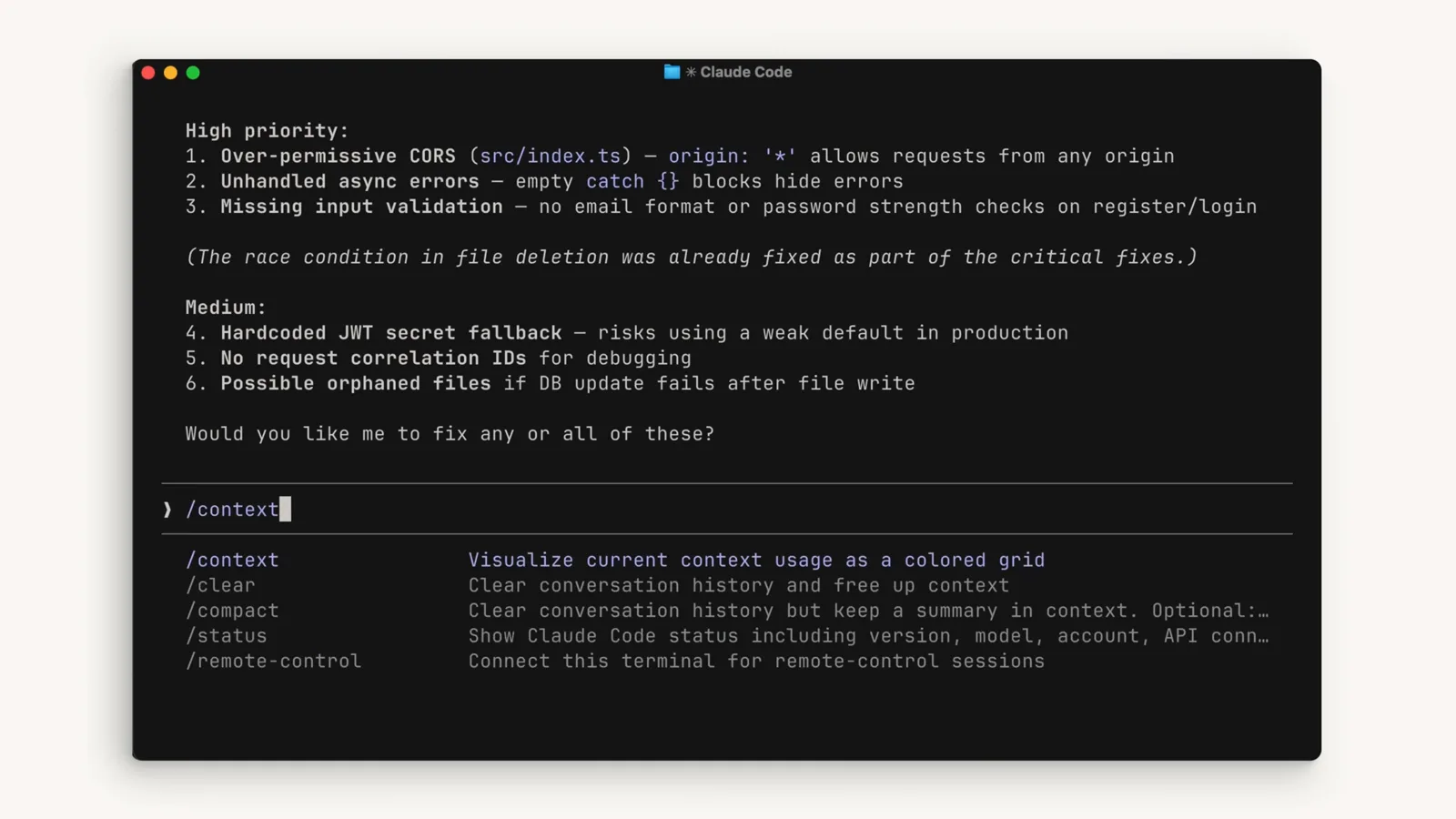
The slash menu states it plainly: /compact keeps a summary in context, /clear frees everything.Watch at 0:09 - 6
Watch the Compacting conversation spinner
Running /compact prints “Compacting conversation…” while the model reads and summarizes everything so far. Auto compact runs the same routine by itself near the limit — v2.1.288 also made auto mode compact long conversations instead of failing each tool call, so you no longer stall out mid-task.
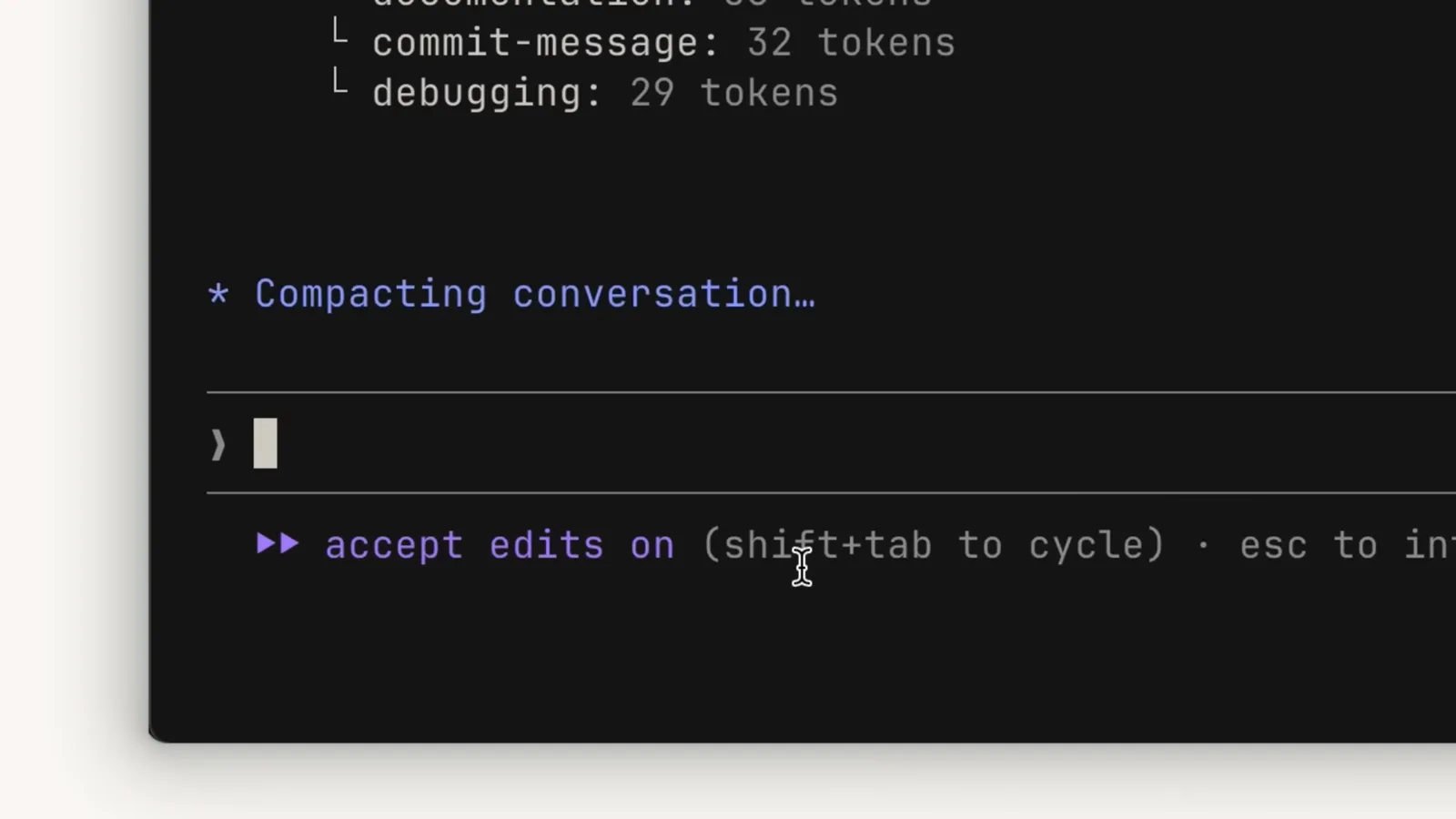
Compacting conversation… is the spinner you see whether compaction is manual or automatic.Watch at 0:46 - 7
Read the compact summary
The output starts “This session is being continued from a previous conversation that ran out of context”, then carries Primary Request and Intent, Key Technical Concepts and Files and Code Sections into the new window. You keep working with the summary in place of the full history.
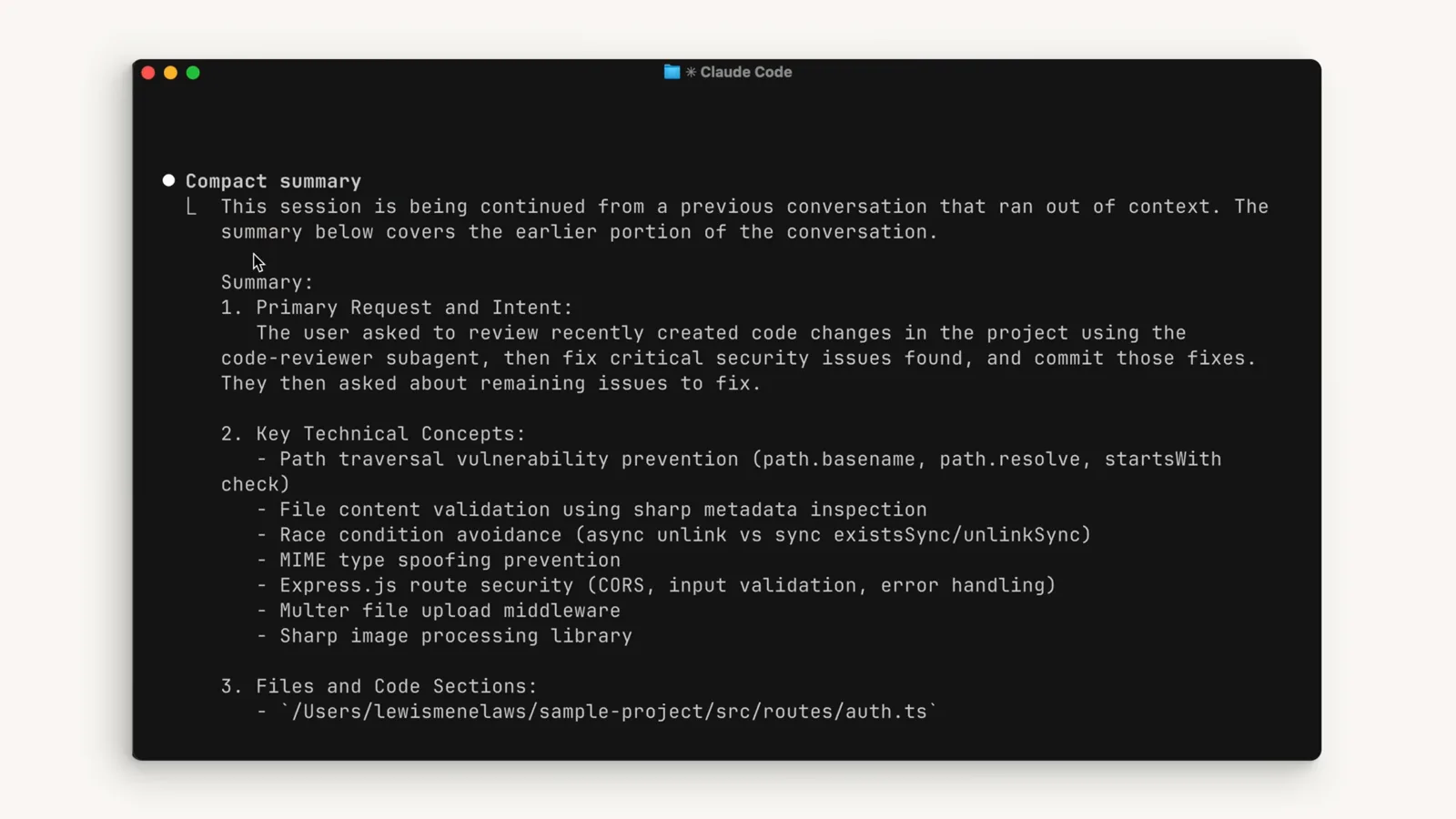
A compact summary opens by admitting the session ran out of context, then lists what was preserved.Watch at 0:48 - 8
Recover details from the full transcript
If the summary drops something you need, the compacted notes say exactly where to look: “read the full transcript at” a .jsonl path, plus Current Work and Optional Next Step sections. The docs' warning stands either way — detailed instructions from early in the conversation may be lost, so keep durable rules in CLAUDE.md.
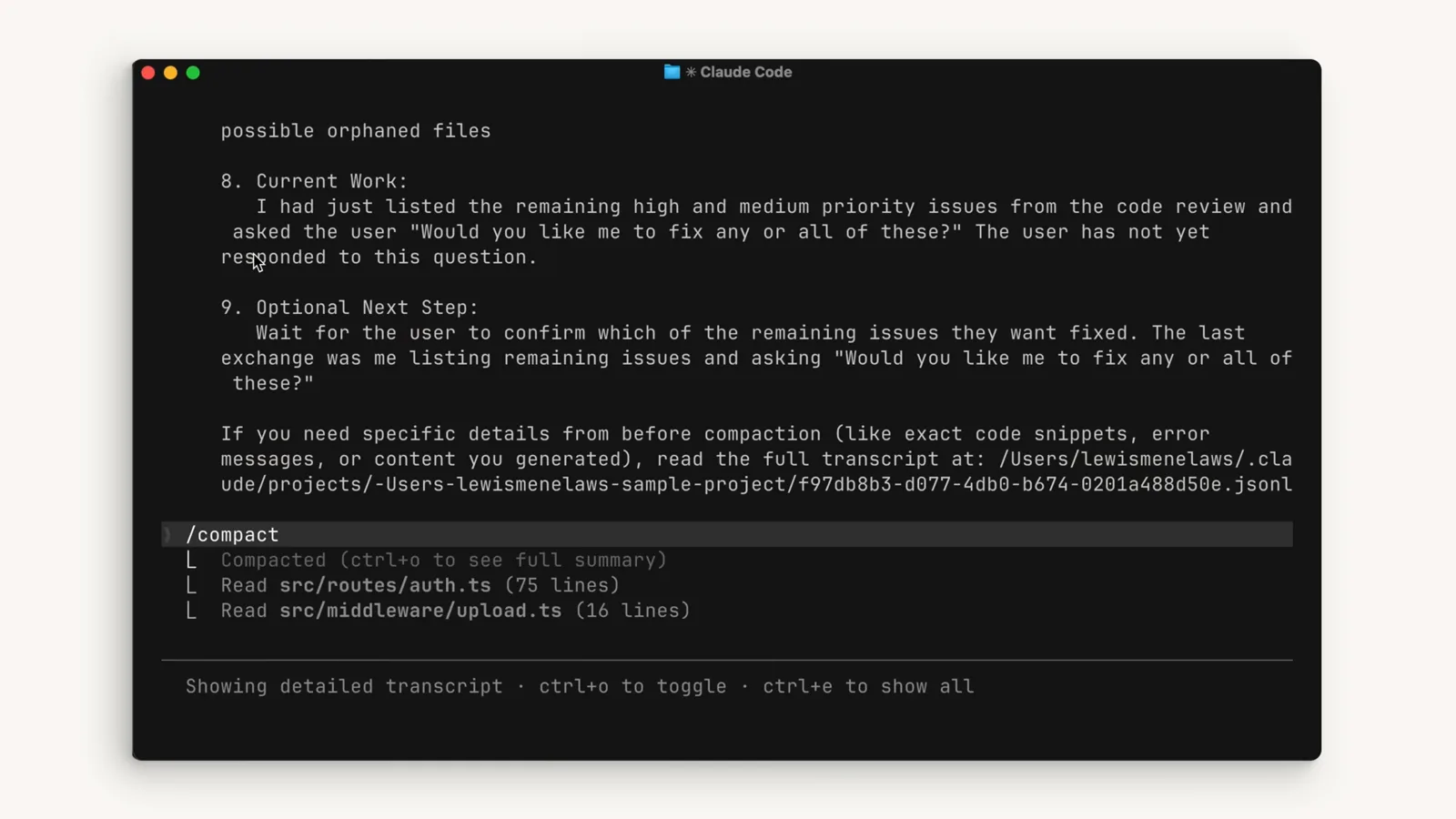
Current Work, Optional Next Step and the transcript path are your recovery points after compaction.Watch at 0:52
Clear, delegate, recover
- 9
Use /clear when the task is done
Starting a new feature? /clear wipes the conversation outright — the docs note it costs nothing, while compacting a large context is itself a large request. Run /rename first so the finished session stays findable with /resume, and put anything future sessions must know into CLAUDE.md.
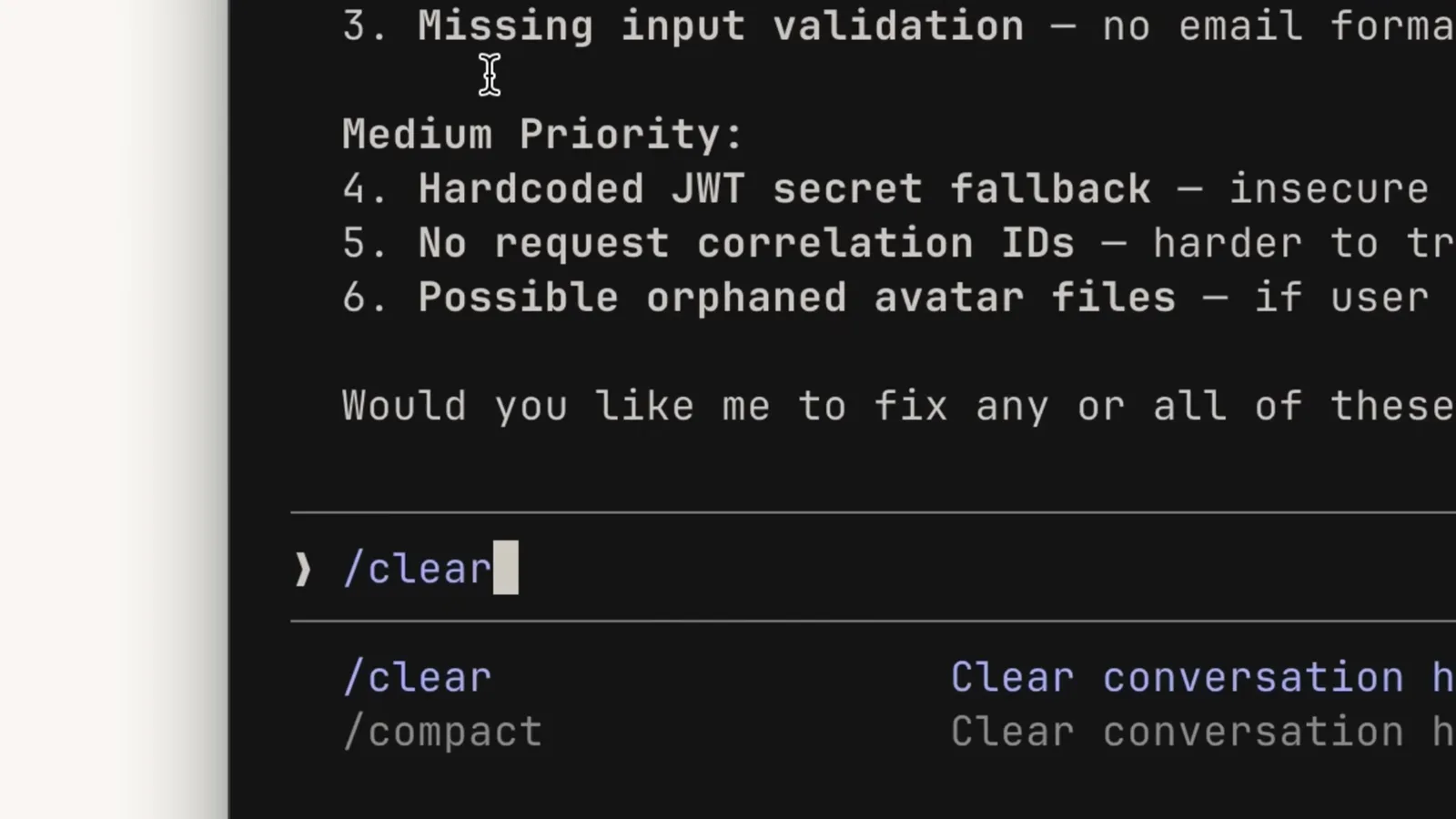
/clear starts fresh with no summary — rename the session first so /resume can still find it.Watch at 3:14 - 10
Delegate heavy reads to a subagent
Subagents run in their own context window and return only a summary to the main session. Spawning the code-reviewer subagent, as in the demo, keeps review output out of your window entirely — the docs' answer to “where is X?” style questions that only need the answer, not the journey.
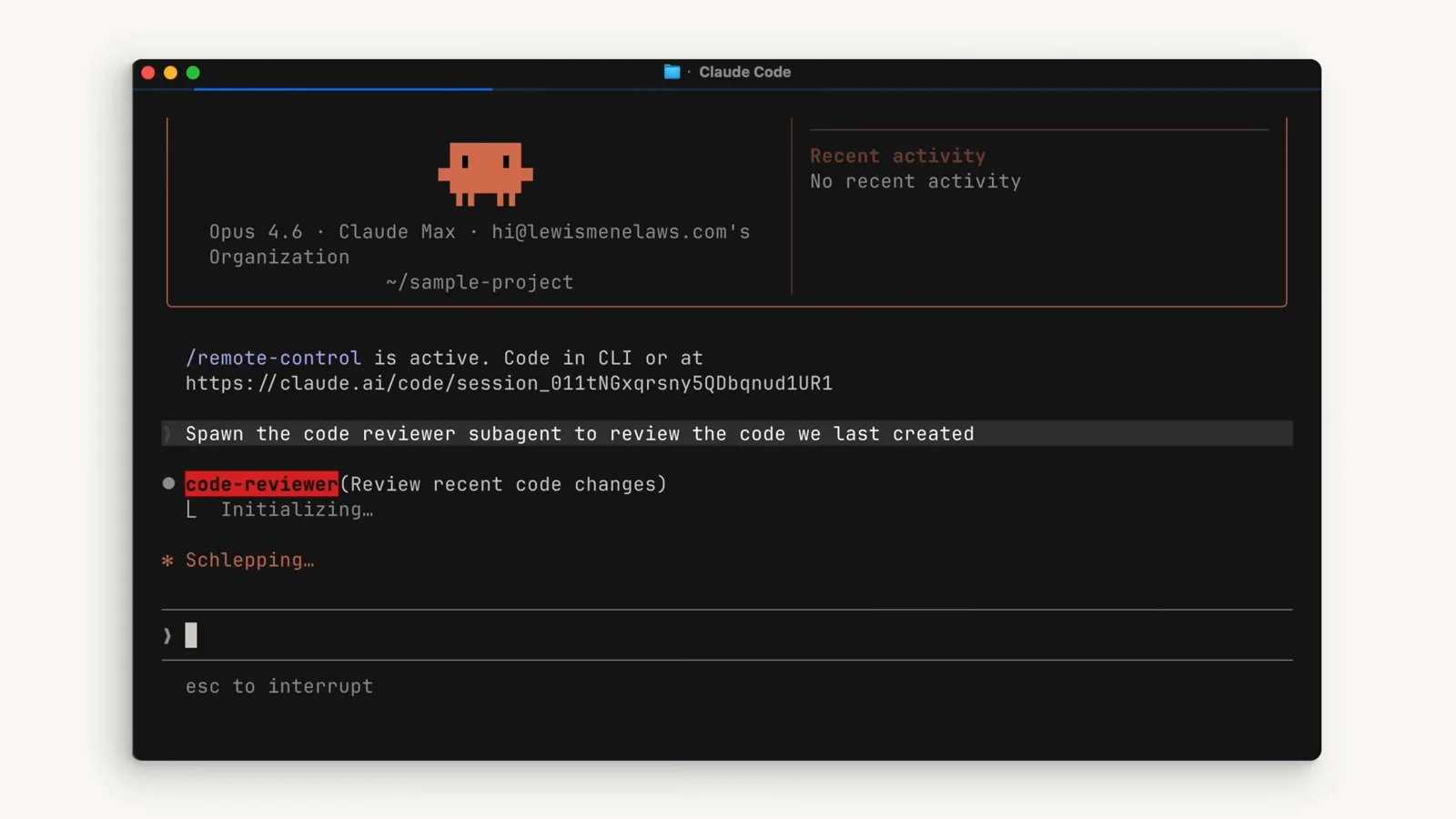
Spawning a code-reviewer subagent: the work happens outside your main context window.Watch at 2:50 - 11
Let the subagent work, keep the answer
While the subagent summarizes refactors and updates todos, your main window only receives the result. Fewer tool results in the main thread means auto compact triggers later — or never. That is the cheapest way to keep a long project from ever reaching the buffer.
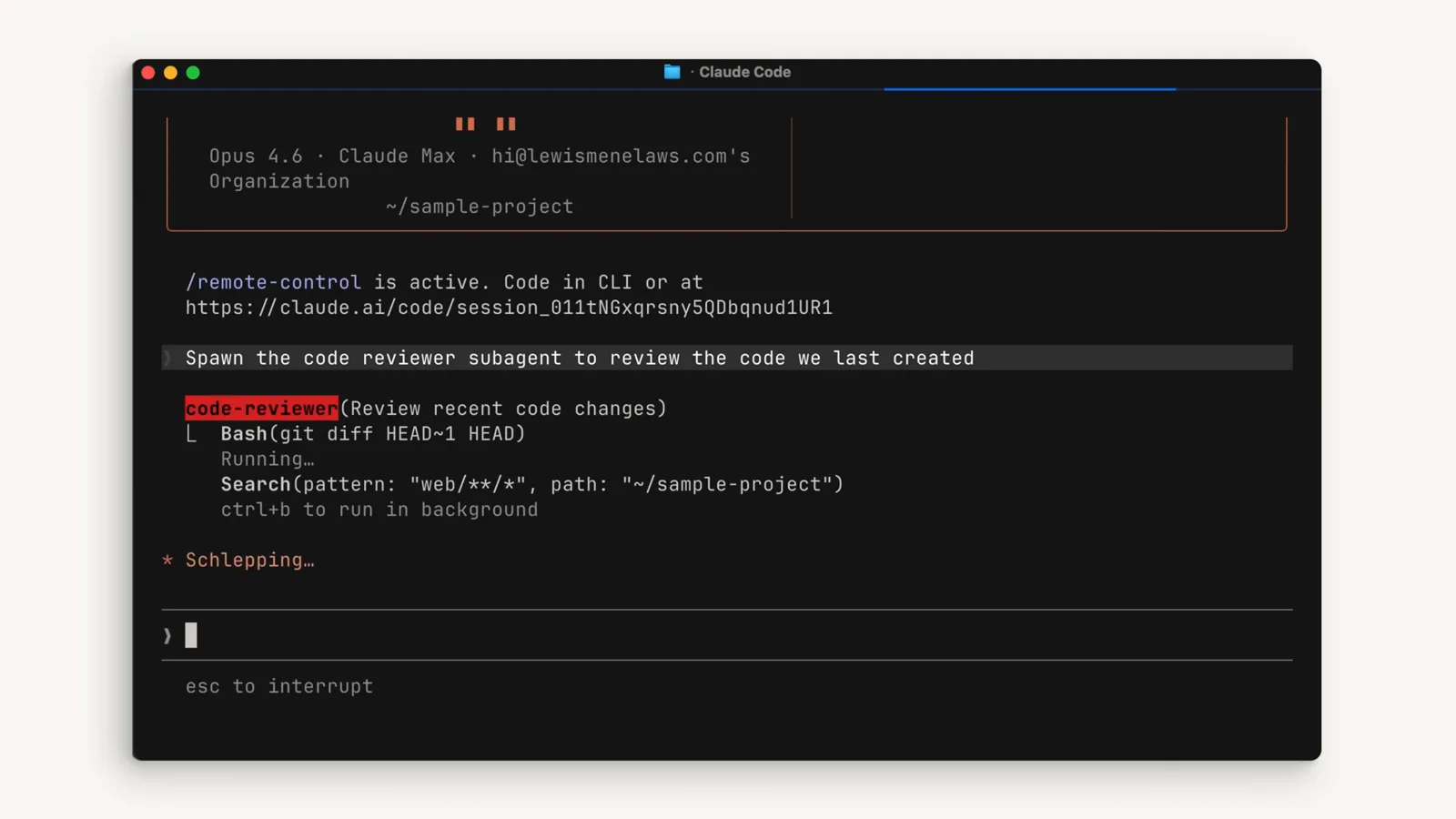
The subagent reports a summarized refactor back — the main session never stored the intermediate output.Watch at 2:53
Auto compact vs /compact vs /clear vs /rewind
Four commands occupy the same corner of Claude Code — they all reset or reshape the conversation — but they answer different questions. Here is when each one is the right answer.
- 1Auto compact (automatic) fires when the conversation reaches the context limit — or the /autocompact window you set. It summarizes older history so the session just keeps going; since v2.1.288 even auto mode compacts instead of failing tool calls on very long conversations.
- 2/compact (manual, keep summary) runs the same summarization on demand — “Clear conversation history but keep a summary in context”, as the menu says. Use it when you are over the window but continuing the same feature; add a focus like /compact Focus on the test output.
- 3/clear (fresh start) removes everything without a summary and costs nothing — compacting a large context is itself a large request. Use it when the plan is done and the next task is unrelated. /rename first so /resume can bring the old session back.
- 4/rewind (undo) is different in kind: double-Esc opens the rewind menu to restore code and conversation from an earlier checkpoint. Use it when you want to take back recent changes, not when you want to keep working past the context limit.
- 5Rule of thumb from Anthropic's own walkthrough: compact when you are going over the window but need continuity on the same feature; clear when you are starting something new; put what future sessions must remember in CLAUDE.md so it survives both.
One more distinction worth knowing: compaction is lossy by design. Your requests and key code snippets are preserved, but detailed instructions from early in the conversation may be lost — that is the price of the freed space, and the reason durable rules belong in CLAUDE.md rather than in chat history.
Compacting conversation slow or stuck? First aid
Compaction reads the entire conversation, so a big session takes a visibly long time to summarize — that alone is not a bug. These are the cases where something is actually wrong, and what to do.
- 1“Prompt is too long” instead of compacting — update Claude Code first. v2.1.288 fixed long conversations that failed with that error instead of auto-compacting when the last reply reported zero token usage. Older builds can stall at exactly this point.
- 2Compaction finishes and context refills instantly (thrashing). One huge file read or tool output can refill the window right after each summary; Claude Code stops auto-compacting after a few attempts and shows an error instead of looping. /clear, split the task, or send the heavy read to a subagent.
- 3A gateway or proxy rejects big requests. If your endpoint refuses anything over 200K tokens, set CLAUDE_CODE_AUTO_COMPACT_WINDOW=200000 so compaction triggers earlier, instead of letting sessions grow past what the gateway accepts.
- 4/autocompact says the value saved but did not apply. A higher-priority scope — managed settings, for example — is overriding it; the command tells you when that happens. The env var CLAUDE_CODE_AUTO_COMPACT_WINDOW beats everything, including /autocompact.
- 5It is genuinely just slow. Summarizing a near-full window is a large request; give it a minute before re-running /compact, and if you do not actually need the summary, /clear is instant and free. Keeping unrelated MCP servers off shortens every future compaction too.
If compaction keeps failing on the same session, the escape hatch is manual: /rename the session, /clear, and /resume it later — or continue from the compact summary the last run produced. Nothing on disk is lost; compaction only reshapes conversation memory.