
Claude Code background tasks: view, stop and manage them
Long-running commands, runaway subagents, sessions you want to keep working while you switch context — here is the complete control panel: Ctrl+B, /tasks, agent view, and every timeout and kill switch in between.
Quick answer
- Press Ctrl+B (twice inside tmux) to move a running Bash command to the background, or simply ask Claude to run something in the background.
- Use /tasks to see running background shells and subagents. The Ctrl+T task list is a different thing — it is not the background view.
- Whole sessions go to the background too: /bg detaches the current conversation, and claude agents opens agent view where you can watch, reply or stop each one.
- Background tasks stop after 30 minutes by default (2 hours max), are cleaned up when Claude Code exits, and can be disabled entirely with CLAUDE_CODE_DISABLE_BACKGROUND_TASKS=1.
Introducing agent view in Claude Code (official)
Channel: Claude — official YouTube channel0:39
The Explore → Plan → Code → Commit workflow (official)
Channel: Claude — official YouTube channel3:12
Claude Code v2.1.287 — Claude Mods and Agent Plugins
Channel: Claude Code Changelog2:13
Interactive mode & agent view — official docs
Docs: code.claude.com/docs
Screenshots come from Anthropic's official agent view announcement, the official Explore → Plan → Code → Commit walkthrough, and a typographic changelog recap of v2.1.287. Facts are verified against the official interactive-mode and agent-view documentation.
Frame timestamps deep-link back to the source videos. Claude Code is a trademark of Anthropic; this guide is independent and not affiliated.
Master background tasks step by step
Background a command
- 1
Know what counts as a background task
Two things run in the background in Claude Code: shell commands moved out of the way (a dev server, a long test run) and subagents working on their own while you keep typing. Both show up in the same views, and both eat the same timeout budget.
- 2
Background a command with Ctrl+B
While a Bash tool call is running, press Ctrl+B to push it into the background and get your prompt back — inside tmux press it twice, since tmux eats the first press. You can also just ask Claude in plain language to run the command in the background from the start.
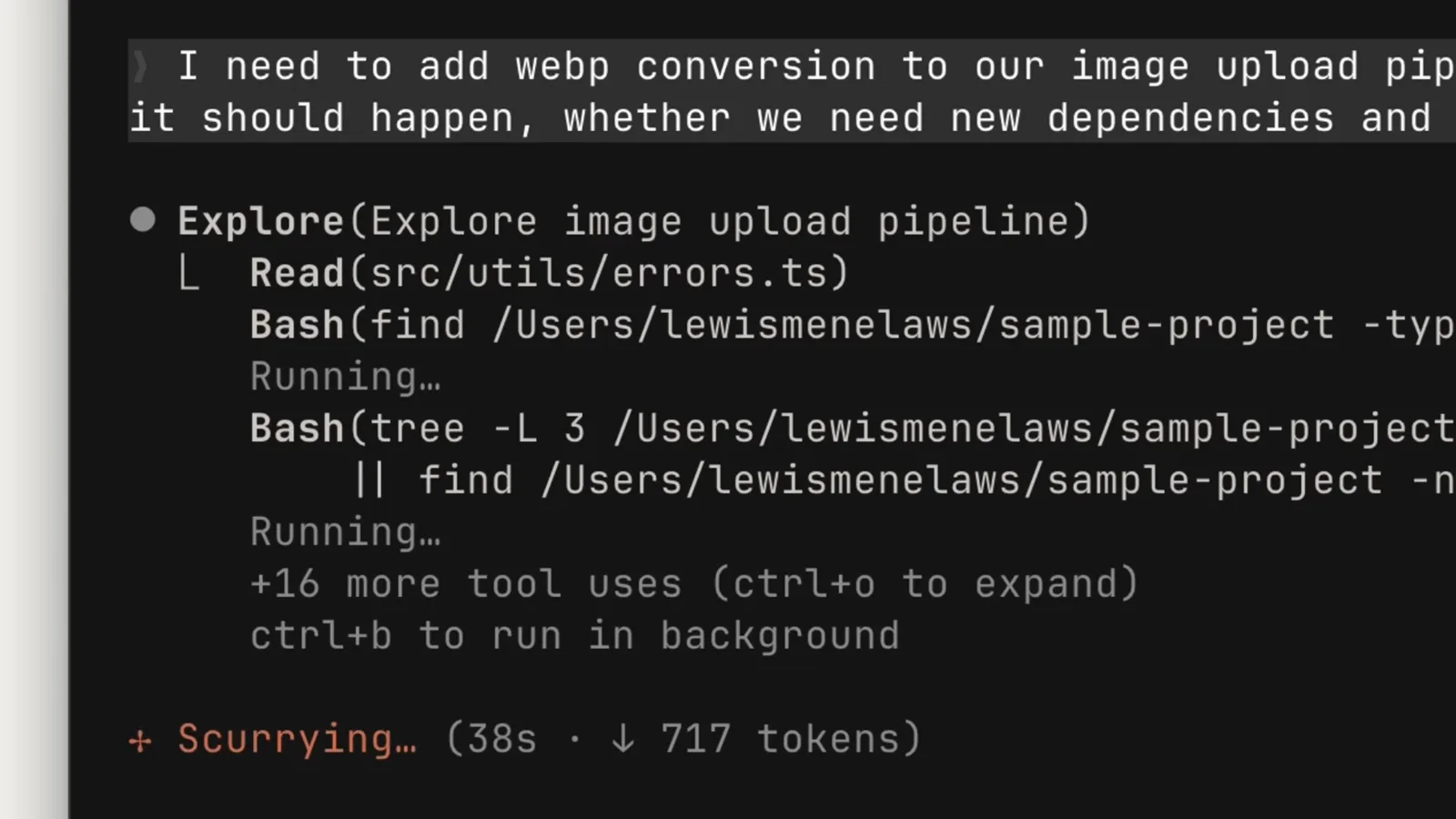
The official walkthrough showing a running Explore step with the ctrl+b to run in background hint right above the progress line.Watch at 2:42 - 3
Understand the timeout rules
A command that hits its timeout is moved to the background automatically — unless it starts with sleep. Background tasks run up to 30 minutes by default, or the timeout Claude asked for, with 2 hours as the hard maximum. Output beyond 5GB terminates the task.
Watch, stop and limit
- 4
See everything with /tasks
Type /tasks to list running background shells and subagents in this session. Don't confuse it with the Ctrl+T task list — that one pins sessions in agent view and has nothing to do with background shells.
- 5
Stop what you need to stop
Press Ctrl+X then Ctrl+K to stop all running background subagents in the session — press the combination twice within 3 seconds to confirm. Individual background shells can be killed from the /tasks view, and everything is cleaned up automatically when Claude Code exits.
- 6
Disable background tasks if you must
Set CLAUDE_CODE_DISABLE_BACKGROUND_TASKS=1 in your environment (or start in bare mode) and backgrounded commands simply stop at their timeout instead of keeping resources. On memory-pressured macOS and Linux machines, Claude Code may also reap tasks idle for 30+ minutes — CLAUDE_CODE_DISABLE_BG_SHELL_PRESSURE_REAP=1 turns that off.
- 7
In VS Code: background task cards
Since Claude Code 2.1.287 the VS Code extension can move running commands and sub-agents to the background and shows their shell output directly on agent map cards, so the workspace stays clean while tasks keep processing.
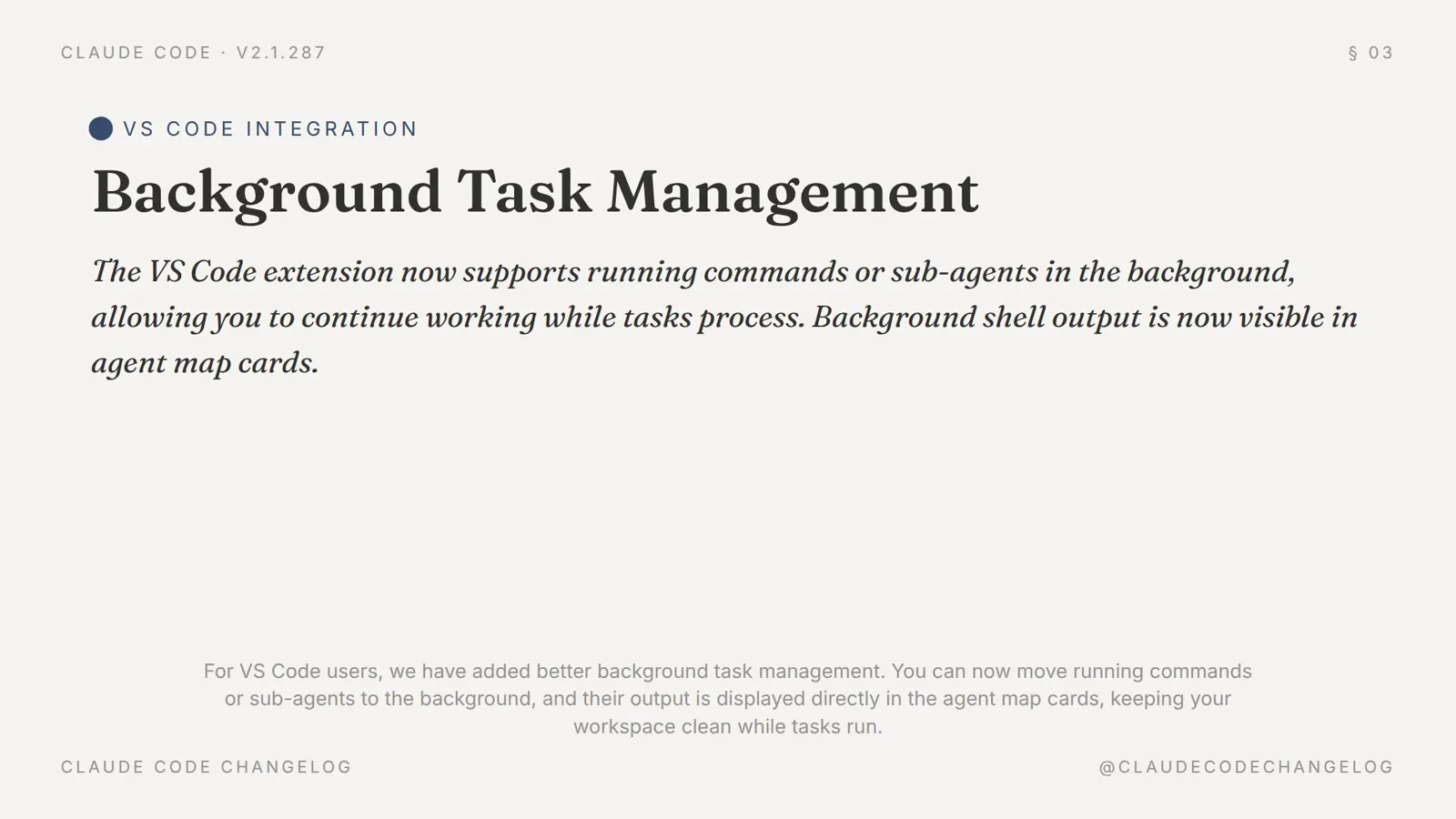
The v2.1.287 release notes: VS Code background task management puts background shell output right on the agent map cards.Watch at 0:58
Background whole sessions with agent view
- 8
Background a whole session with /bg
Type /bg (or /background) to send the current conversation to the background — optionally with a task attached, like /bg run the test suite and fix any failures. /fork copies the conversation into a new background session while the original keeps running.
- 9
Open agent view
Run claude agents from your shell to see every background session at a glance. Inside a session, pressing ← on an empty prompt backgrounds it and drops you into agent view in one step. Set defaultToAgentsView=true in /config if you want plain claude to open this view instead of a new chat.
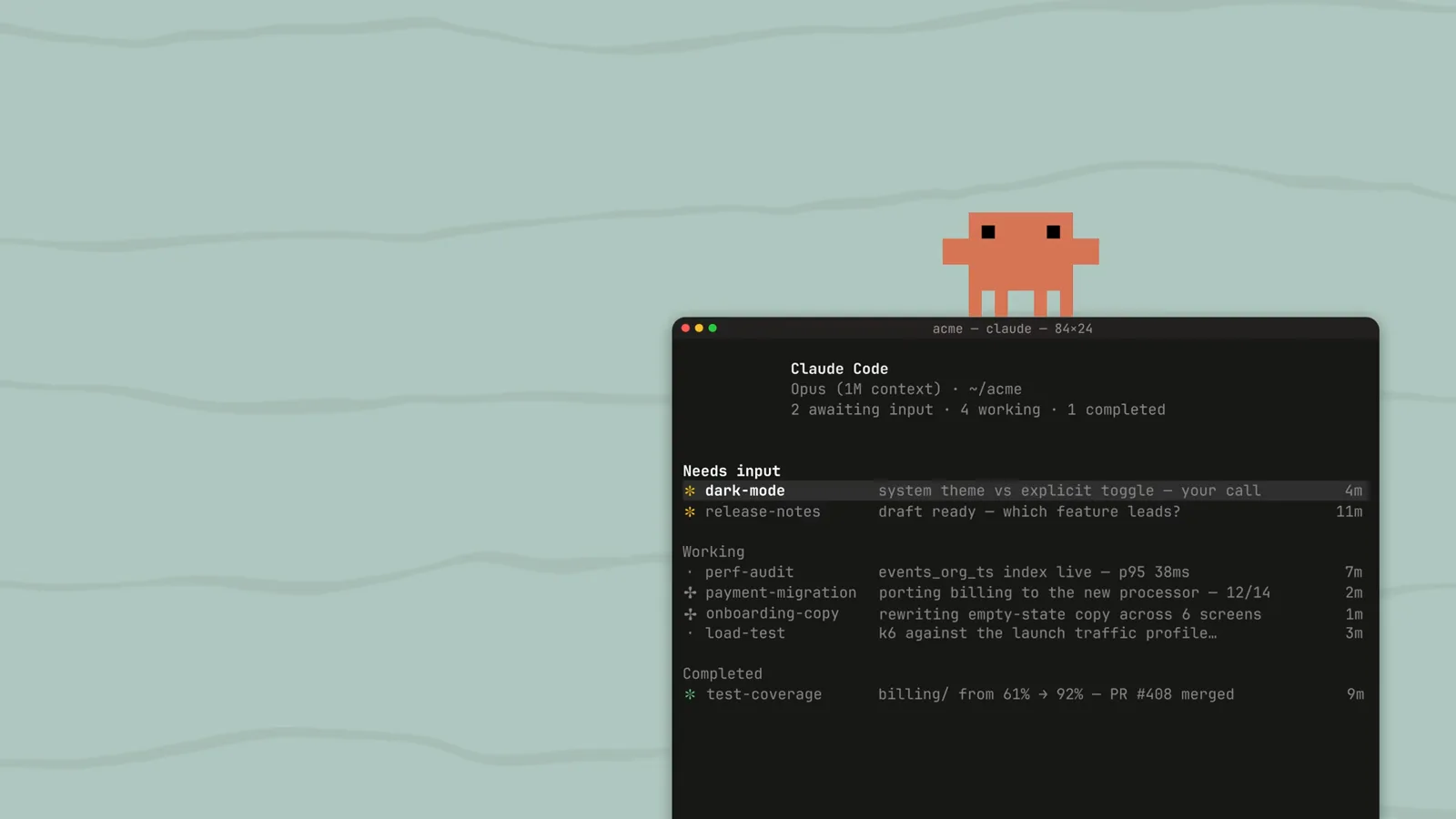
Agent view: one session needing input, five working, two completed — with a dispatch bar to start new background tasks.Watch at 0:14 - 10
Read the states at a glance
Sessions are grouped into Needs input, Working and Completed. Each row shows a generated summary and its age, and icon shapes tell you whether the process is alive, exited or sleeping in a /loop — so a quick scan tells you where your attention is needed.
The three groups in agent view: Needs input (dark-mode, release-notes), Working (pr-review, perf-audit, payment-migration), Completed (test-coverage).Watch at 0:17 - 11
Reply without attaching
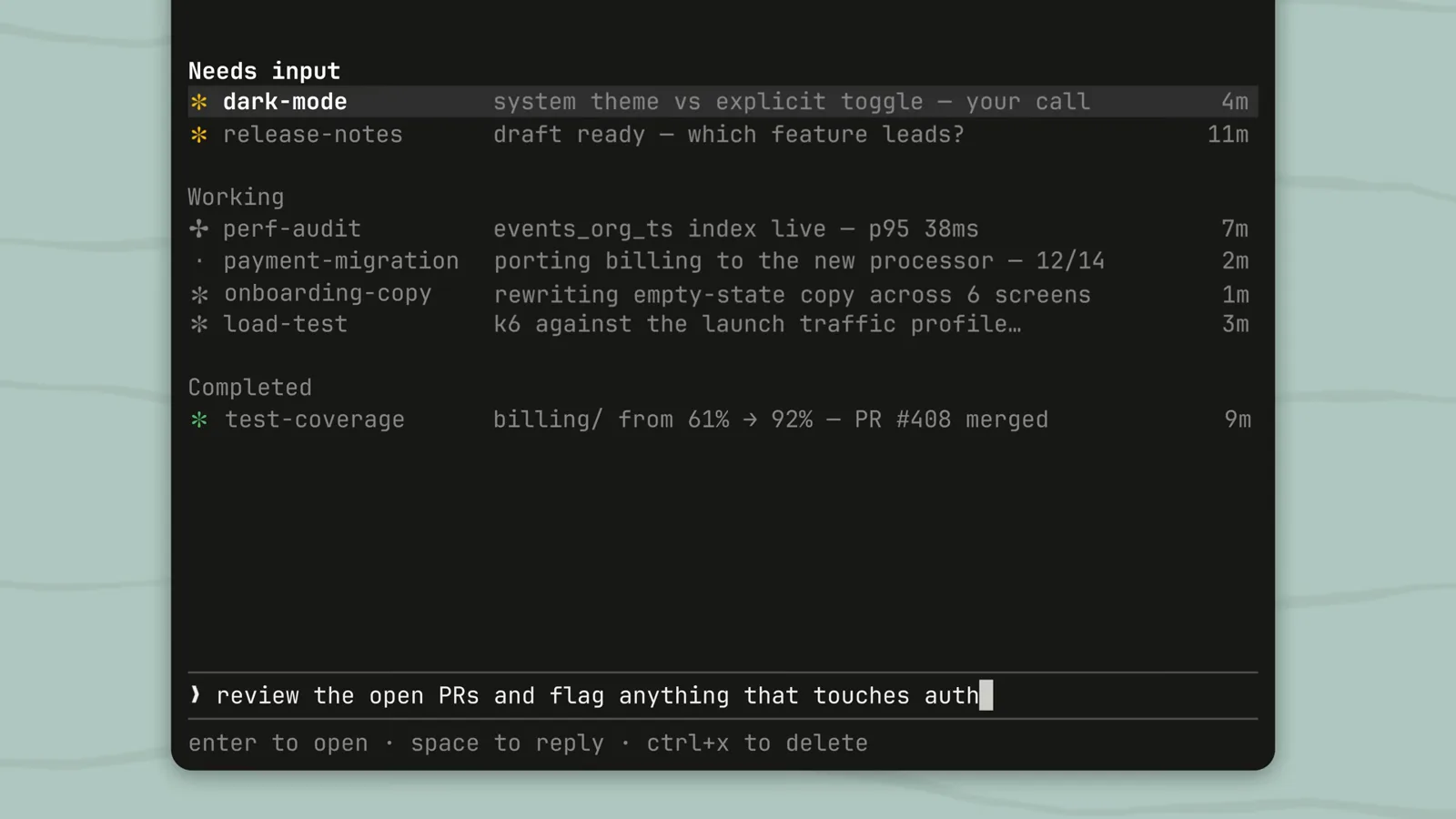
Press Space on a selected session to open the peek panel and reply inline — prefix a message with ! to run it as a shell command, or send /stop to stop that session. Enter attaches you to the session; ← detaches without stopping it.
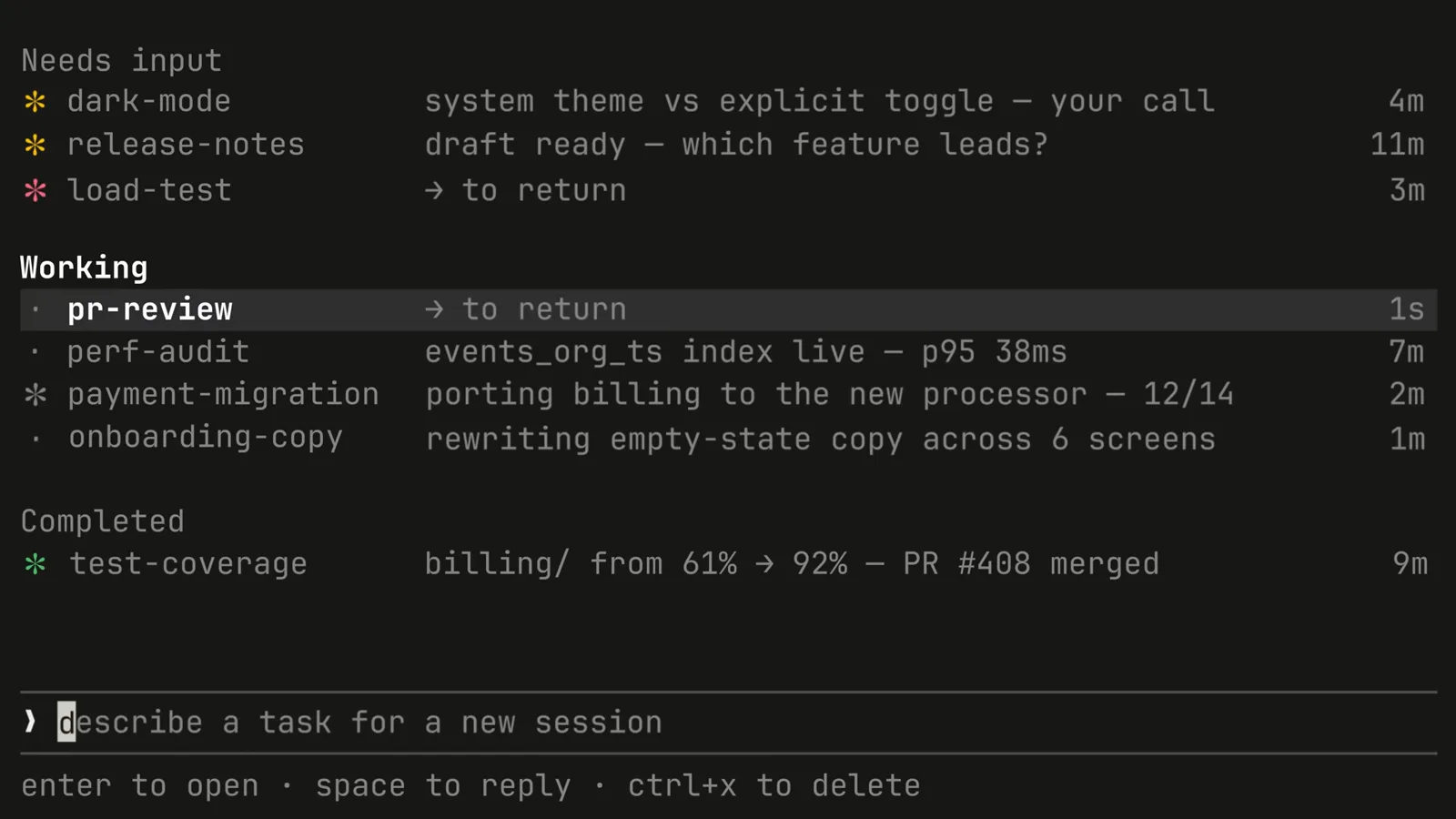
The peek panel replying inline to the pr-review session — enter to open, space to reply, ctrl+x to delete.Watch at 0:19 - 12
Find the right session fast
Agent view supports filters: n:<text> matches session names or first prompts (v2.1.287+), s:<state> filters by state, a:<name> by agent, and #1234 jumps straight to a pull request. Combine them, like s:blocked a:reviewer, and pin the sessions you never want reaped with Ctrl+T.
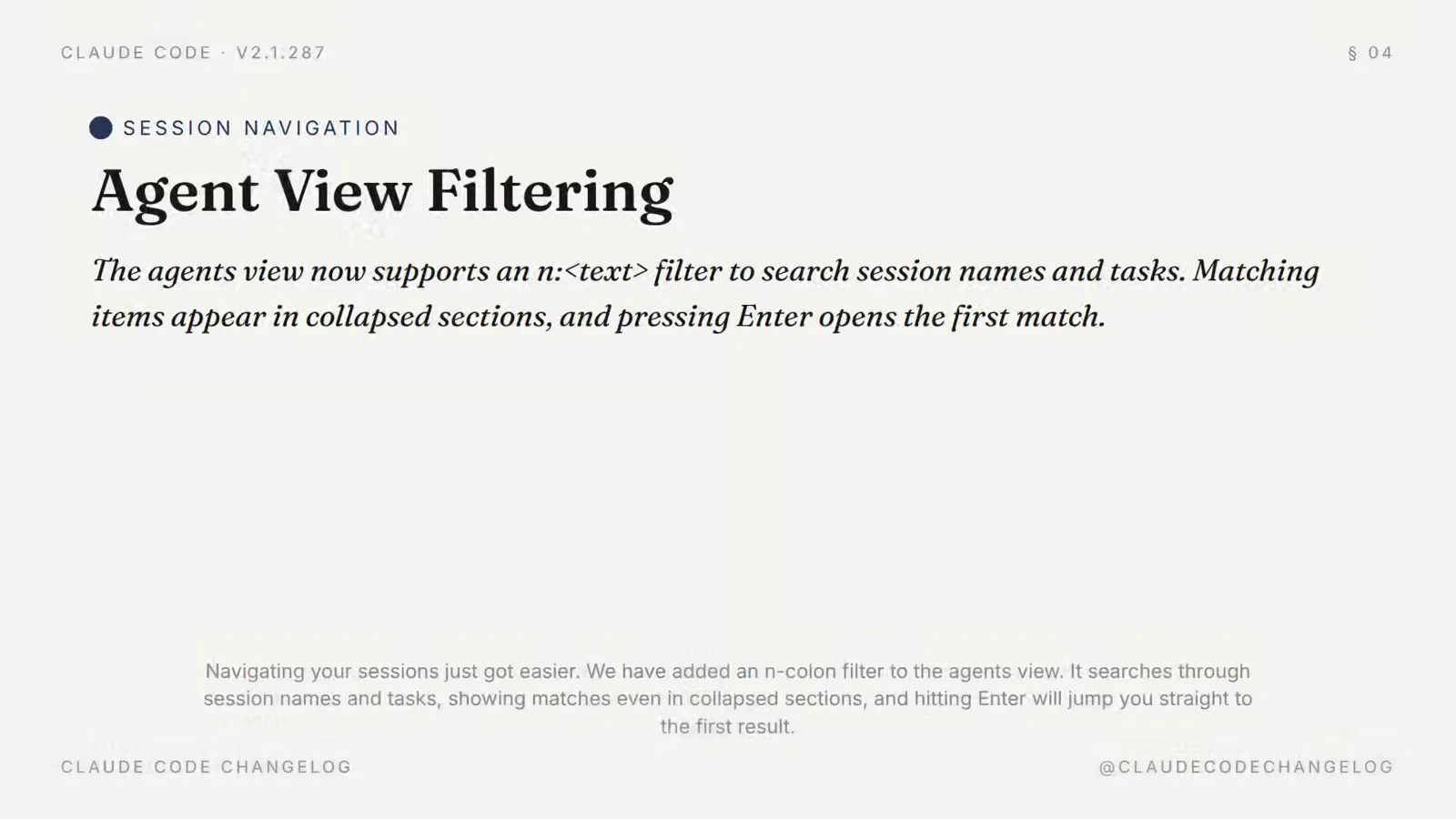
The n:<text> filter in agent view searches session names and tasks; pressing Enter opens the first match.Watch at 1:14
Background task keyboard cheat sheet
Every control that matters, on one list — print it and pin it next to your terminal:
- 1Ctrl+B — move the running Bash tool call to the background (press twice in tmux).
- 2/tasks — list running background shells and subagents in this session.
- 3Ctrl+X, Ctrl+K — stop all background subagents in this session; press twice within 3 seconds to confirm.
- 4/bg — background the current conversation, optionally with a prompt to work on.
- 5← on an empty prompt — background this session and open agent view.
- 6Space — peek panel: reply inline, ! runs a shell command, /stop stops that session.
- 7Enter / → attach to a session; ← or /exit detach without stopping it.
- 8Ctrl+T pin · Ctrl+R rename · Ctrl+S group by directory · Ctrl+X twice stop and delete.
Shell-side helpers round it out: claude attach, claude logs, claude stop and claude rm take a session id, and claude agents --json gives you the whole board for scripting.