
Claude Code plan mode: research first, approve, then code
Plan mode is the difference between steering Claude Code and course-correcting it. This walkthrough covers the Shift+Tab shortcut, what Claude may and may not do while planning, the approval options, and the mode table that tells you which mode to use when.
Quick answer
- Press Shift+Tab to cycle permission modes until the status line reads "plan mode on" — in that mode Claude researches and proposes, but does not edit your files.
- You can also type /plan in front of a prompt, or start with claude --permission-mode plan.
- Ctrl+G opens the proposed plan in your own editor so you can rewrite it before Claude touches any code.
- Approving a plan exits plan mode and switches the session to the mode you picked: auto mode, or manual edit approvals. Shift+Tab again leaves plan mode without approving.
The Explore → Plan → Code → Commit workflow (official)
Channel: Claude — official YouTube channel3:12
Permission modes — official docs (plan mode)
Docs: code.claude.com/docs
Screenshots come from Anthropic's official Explore → Plan → Code → Commit walkthrough; only clean screen segments were used — presenter segments were excluded. Every fact is verified against the official permission-modes documentation.
Frame timestamps deep-link back to the source video. Claude Code is a trademark of Anthropic; this guide is independent and not affiliated.
Run a full planning cycle
Get into plan mode
- 1
Understand what plan mode is for
The official Claude Code workflow is explore, plan, code, commit — and plan mode is where the first two steps happen fastest. Claude reads files, runs read-only exploration, and writes a plan of action before a single line of your code changes.

The official walkthrough's own framing: explore and plan first, so the code phase has fewer surprises.Watch at 0:20 - 2
Enter with Shift+Tab
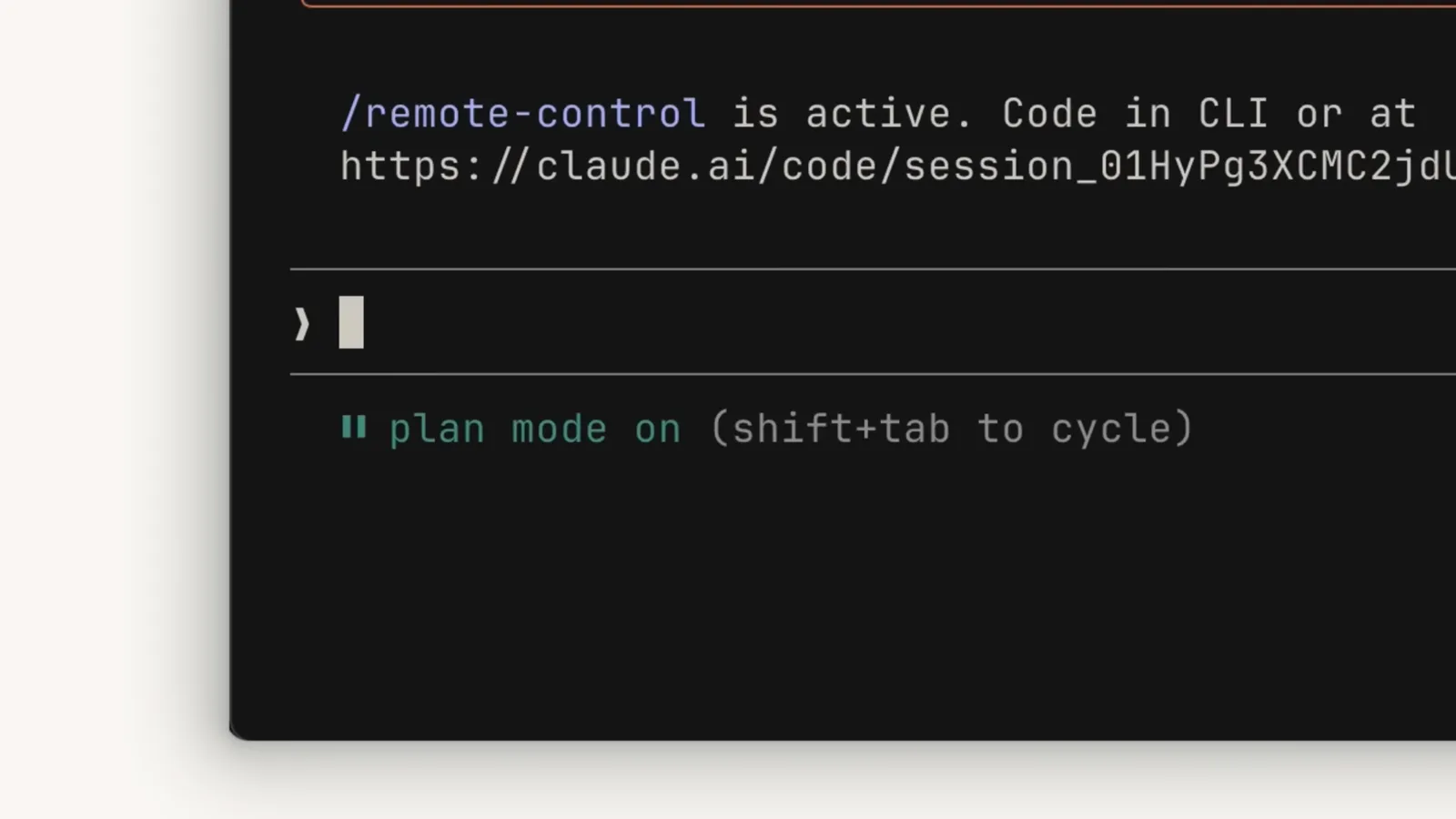
Press Shift+Tab to cycle permission modes and watch the status line: default (labeled manual), accept edits, plan mode, then optional bypass and auto. Stop when it reads "plan mode on". On Windows without VT input, Alt+M does the same. Prefer a prefix? Type /plan in front of your prompt instead.
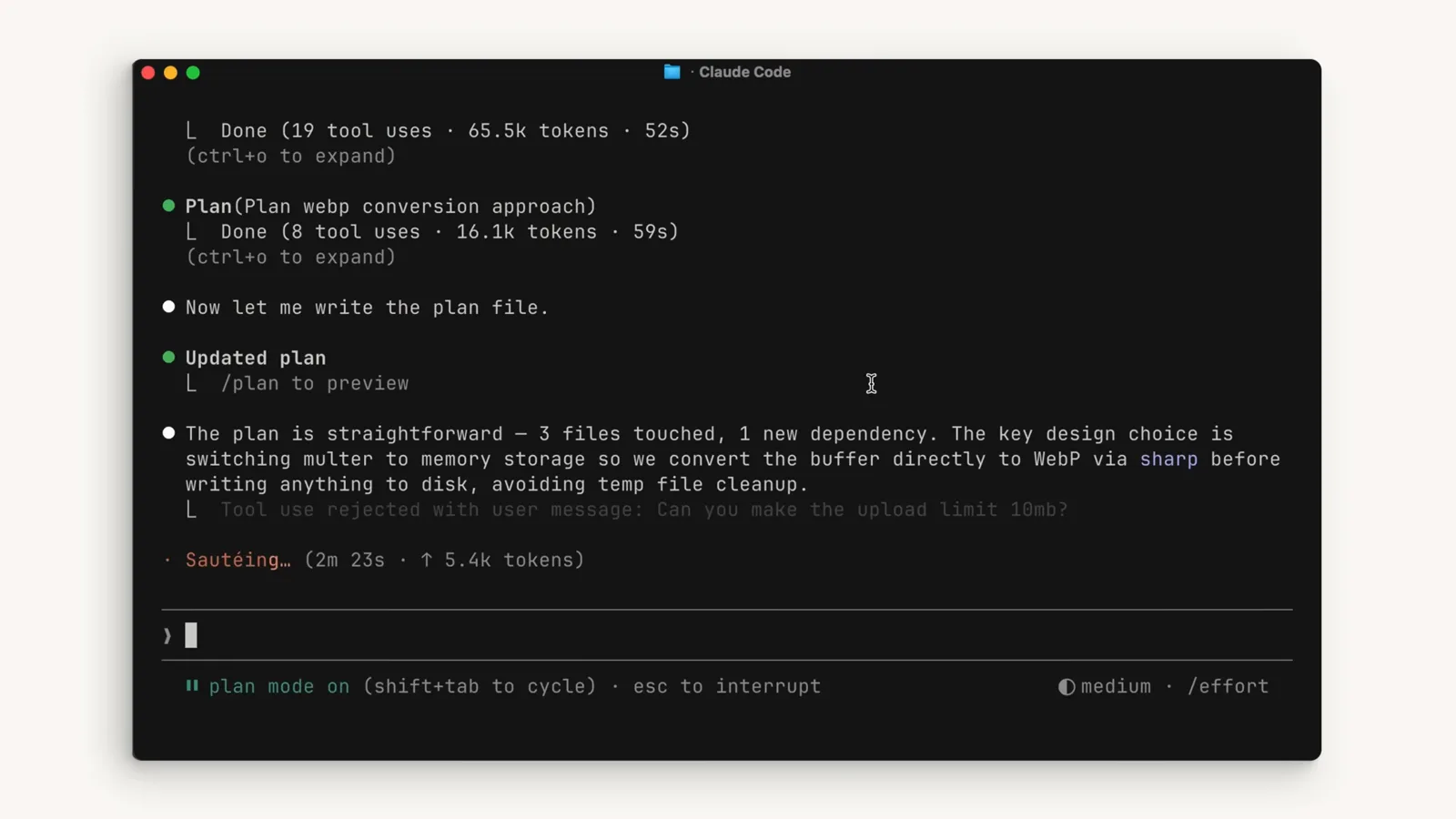
The status line flips to "plan mode on (shift+tab to cycle)" — the visible proof you are planning, not editing.Watch at 0:59 - 3
Know where plan mode sits in the cycle
The Shift+Tab cycle runs default → accept edits → plan, with bypass permissions (if enabled) and auto mode slotting in after plan; from auto, the first press jumps back to default. Each mode answers one question: how much may Claude do without asking you? The mode table below spells out every option.
Let Claude research and propose
- 4
Give Claude a research prompt
Describe the outcome, not the implementation: "I need to add webp conversion to our image upload pipeline. Figure out where in the pipeline it should happen, whether we need new dependencies, and how to approach it." Questions like where, whether and how steer Claude to investigate before proposing.
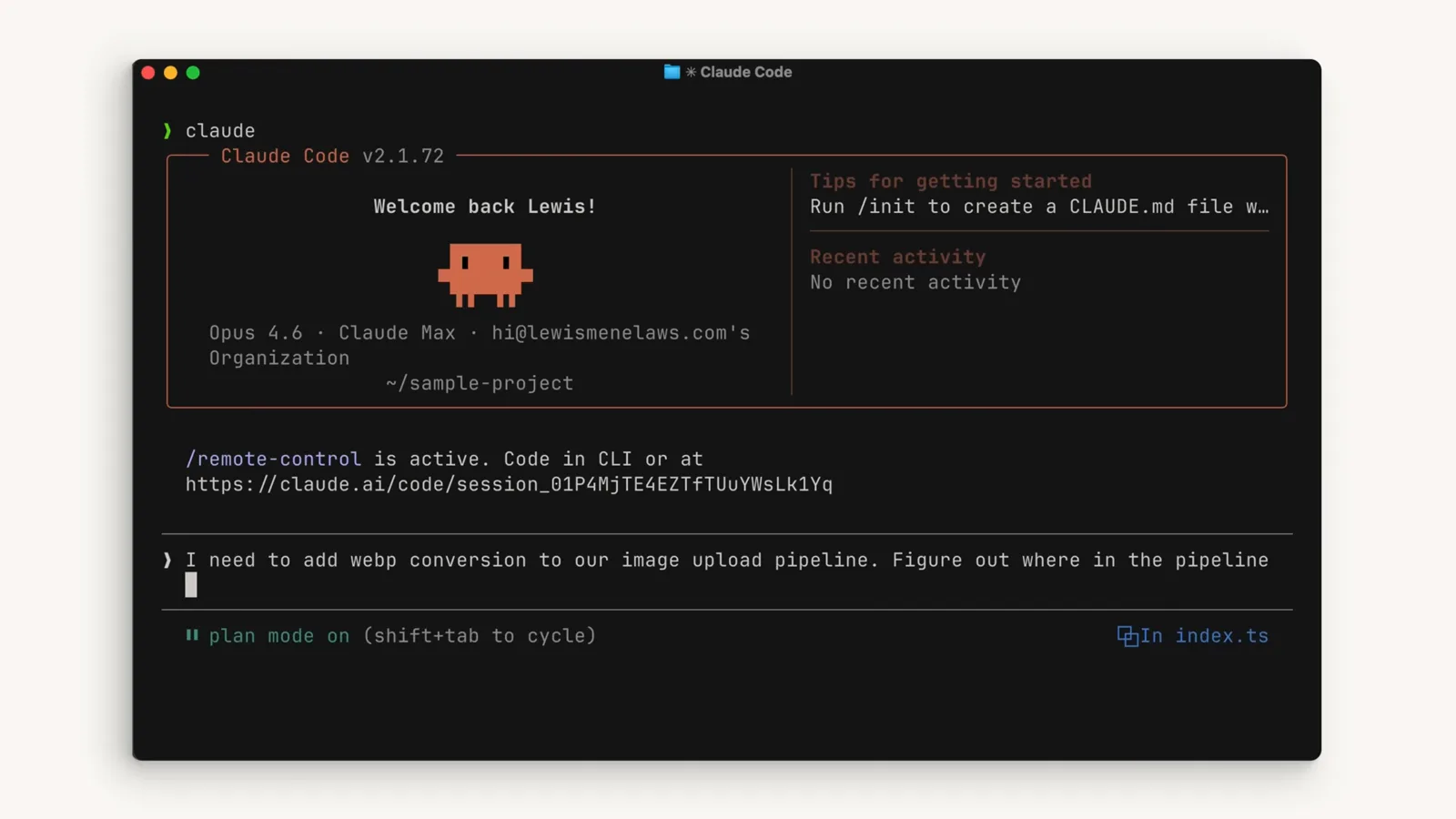
A real planning prompt from the official walkthrough, typed while the status line shows plan mode is on.Watch at 0:40 - 5
Let it explore — nothing gets edited
In plan mode Claude reads files and may run shell commands to explore; edits stay blocked until you approve a plan. It can even spin up Explore subagents to map the codebase — with auto mode available, a classifier reviews any non-read-only command instead of prompting you every time.
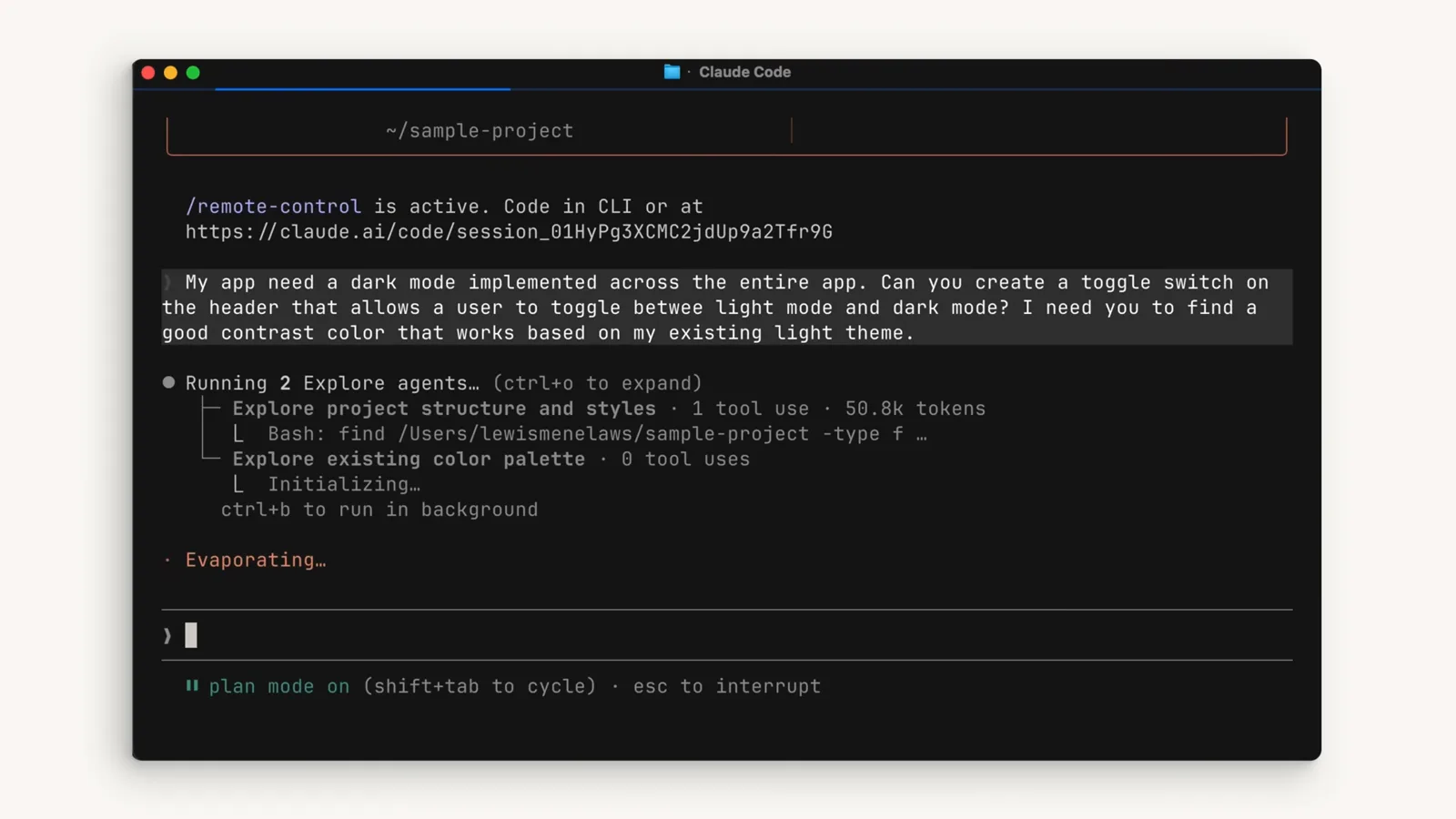
VS Code running Claude Code in plan mode with two Explore subagents mapping structure and styles while edits stay blocked.Watch at 2:50 - 6
Review the proposed plan
The plan comes back as concrete, file-by-file changes — add a dependency here, switch the upload handler there. This is the cheapest moment to course-correct: nothing has been written yet, and the discussion keeps the context that shaped the plan for the coding phase.
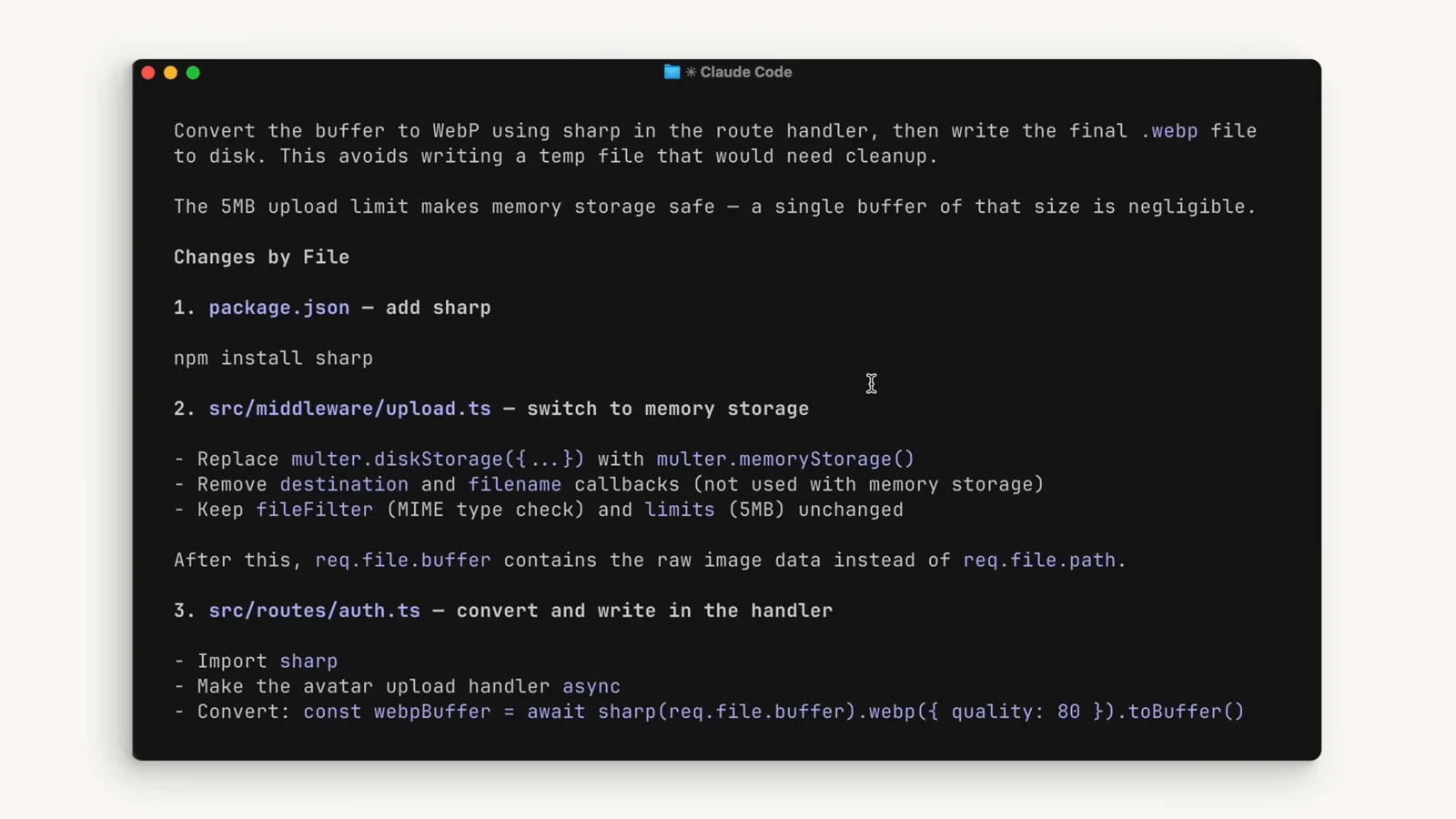
A proposed plan listing changes by file: add sharp, switch the upload route to memory storage, convert in the handler.Watch at 0:50 - 7
Edit the plan file with Ctrl+G
Don't like the wording? Press Ctrl+G and the proposed plan opens in your own editor (it lives under ~/.claude/plans/) so you can rewrite it directly before Claude proceeds. Claude also writes the refined plan to this file, which you can preview in the session.
The updated plan sitting in the session with plan mode still on — Claude writes and maintains the plan file as the discussion evolves.Watch at 0:34
Review, edit, approve — or bail
- 8
Pick the right approval option
Approving offers three paths: yes with auto mode (Claude keeps moving with background safety checks), yes with manually approved edits (you confirm each edit), or no — keep planning, which sends Claude back with your feedback. A fourth escape hatch is always available: type what to change instead of approving.
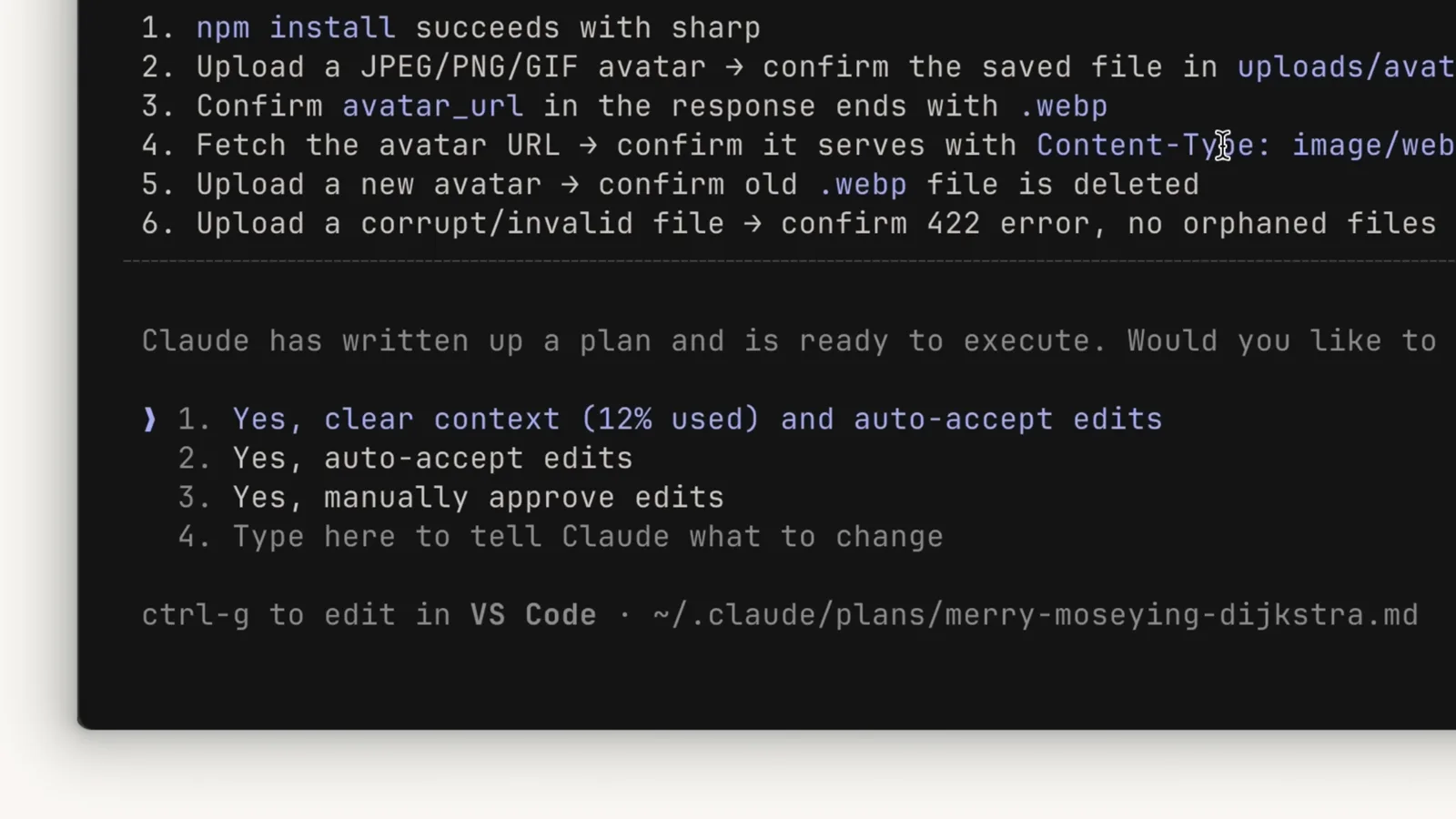
The plan approval prompt: auto-accept edits, manually approve edits, keep planning — plus ctrl+g to edit the plan file first.Watch at 1:20 - 9
Know what happens after approval
Approving exits plan mode and switches the session to the mode your choice describes. The session also gets a generated title based on the approved plan, so it is easy to recognize later in agent view or your session history.
- 10
Or leave without approving
Shift+Tab again exits plan mode without approving anything — the research stays in context, but no plan is accepted and no edits unblock. Launch-time alternative: claude --permission-mode plan starts a session already planning.
Habits that make plans better
- 11
Feed the plan better inputs
Plans are only as good as the ground truth you point at: keep a test suite Claude can run, add tools that let it verify its own work (the Claude in Chrome extension for UI work, for example), and write explicit success criteria into CLAUDE.md so every plan inherits them.
- 12
Build the plan-mode habit
Reach for plan mode whenever a task touches more than a couple of files, when you are unsure of the approach, or when the cost of a wrong turn is high. For one-line fixes, accept edits mode is faster. Course-correcting in the plan is always cheaper than mid-code.
Plan mode vs accept edits vs auto vs manual
Every Shift+Tab position, and what Claude may do without asking in each:
- 1default (labeled manual) — reads are free; everything else prompts you. The safe default.
- 2acceptEdits — file edits and common filesystem commands (mkdir, touch, mv, cp…) run without asking; you review via git diff afterwards.
- 3plan — reads plus read-only exploration; edits stay blocked until you approve a plan, then the session switches to the mode you chose.
- 4auto — everything runs, with a separate classifier model blocking actions that escalate beyond your request. Reduces prompts; does not guarantee safety.
- 5bypassPermissions — everything runs immediately with no safety checks; only appears if you enabled it, and admins can disable it entirely. dontAsk is a set-only mode that denies anything that would prompt.
Rule of thumb: plan for thinking, acceptEdits for trusted iteration, auto for long confident runs, manual for anything sensitive — and let the Shift+Tab status line, not habit, make the call.