
How to Update Claude Code (and Fix Updates That Won't Apply)
The claude update command, version checks, package-manager installs and every surface that needs its own update — with the official walkthrough as the visual source.
TL;DR
- Native install (the curl or PowerShell installer) updates Claude Code automatically in the background — you just restart to apply.
- Need it right now? Run claude update. On package-manager installs use brew upgrade claude-code or winget upgrade Anthropic.ClaudeCode instead.
- Check what you run with claude --version; claude doctor reports the result of the most recent update attempt.
- The terminal gets new features first, and the IDE extensions, desktop app and web each update on their own track.
Installing Claude Code (official walkthrough)
Channel: Claude — official YouTube channel3:02
Claude Code Plugins Explained In 7 Minutes
Channel: Software Engineer Meets AI7:21
Set up Claude Code — official docs (updates & channels)
Docs: code.claude.com/docs
Frames come from the official walkthrough and a clean screen recording; the step text follows the official setup docs.
Screenshots remain the property of their creators and are credited with deep links back to the exact timestamp.
Update Claude Code, step by step
Update the CLI
- 1
Make sure you are on the native install
The curl and PowerShell installers set up the native build, which updates itself in the background — checks happen at startup and periodically while running. If your copy came from Homebrew, WinGet, apt or npm, auto-update is off and step 7 is for you.
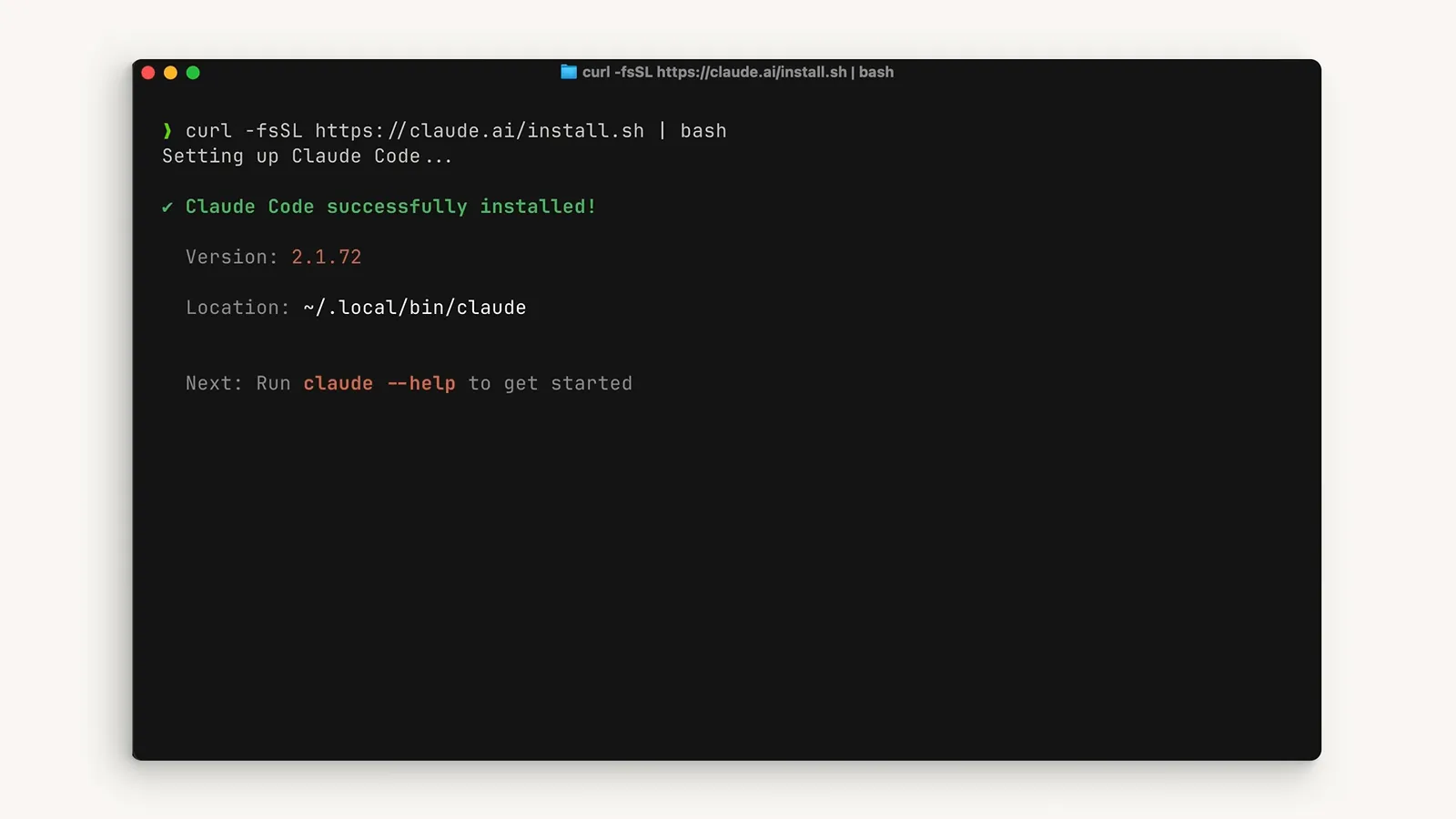
The native installer finishes with the version and install location right in the terminal.Watch at 0:23 - 2
Run claude update for an immediate upgrade
In any terminal, run claude update to fetch the latest build on the spot. A successful run reports the version you left and the one you landed on; if nothing newer exists it simply says you are up to date.
- 3
Confirm the version you are running
Run claude --version to print the exact build, for example 2.1.211. The startup banner of every terminal session shows the same version next to the model, so a glance is usually enough.
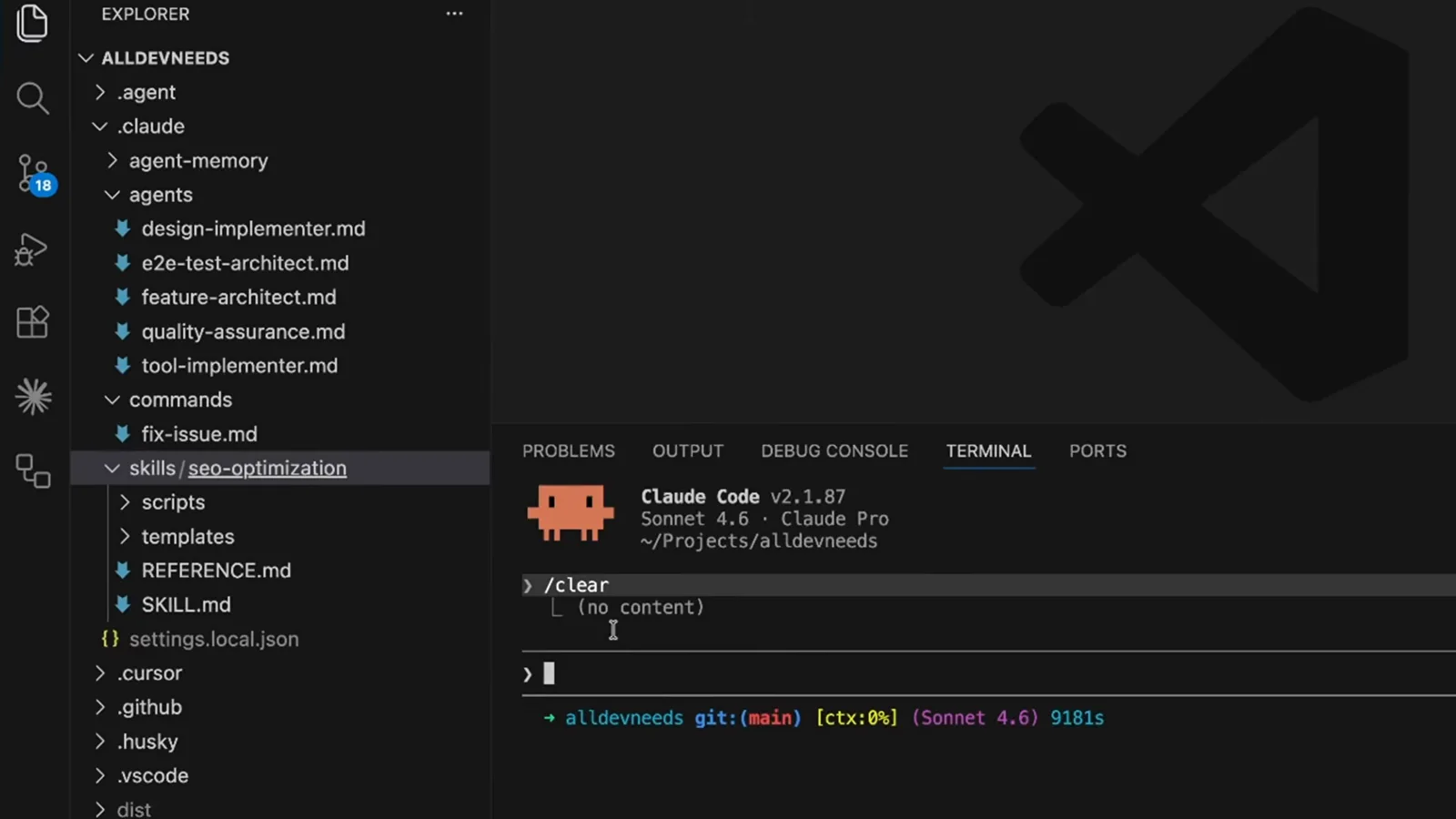
The session banner names the running version — here v2.1.87 on Sonnet 4.6.Watch at 5:31 - 4
Diagnose a silent failure with claude doctor
If auto-update seems stuck, claude doctor prints diagnostics including the result of the most recent update attempt. It is also the first thing to run when the npm global directory is not writable — the classic cause of failed updates.
Pick your update channel
- 5
Know which surface ships first
Anthropic ships features to the terminal first, with the IDE integrations close behind and desktop and web following. Chasing a feature announced this week? Update the CLI and work from the terminal.

The official walkthrough compares terminal, IDE, desktop and web side by side.Watch at 2:25 - 6
Slow down with the stable channel
Bleeding-edge builds are not for everyone. Set the autoUpdatesChannel setting to stable via /config or settings.json and you will ride a build that is roughly a week old, skipping releases with major regressions.
- 7
Put package managers on your schedule
Homebrew, WinGet, apt, dnf and npm installs never auto-update. Upgrade manually with brew upgrade claude-code, winget upgrade Anthropic.ClaudeCode, the apt upgrade command, or npm install -g @anthropic-ai/claude-code@latest — and avoid npm update -g, which the docs explicitly warn against.
Keep every surface current
- 8
Update the VS Code extension
The extension updates through the VS Code extensions panel like any other extension — search Claude Code, install the update, then reload the window. The extension drives the same CLI binary, so keep both current.
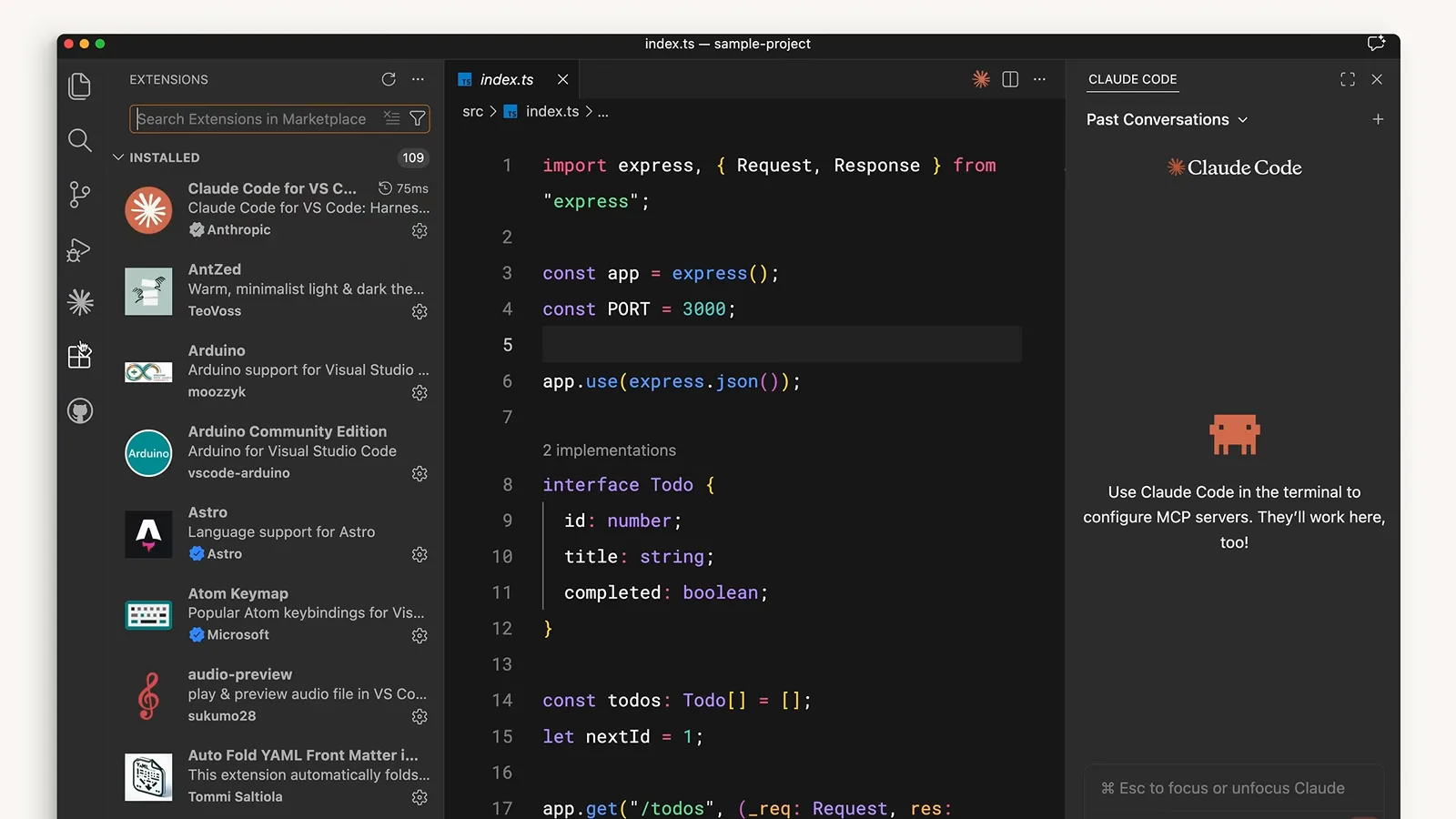
Claude Code for VS Code sits in the installed extensions list next to the Claude Code panel.Watch at 1:07 - 9
Update the JetBrains plugin
In JetBrains IDEs open Settings, then Plugins, then Marketplace, search for Claude Code and install or update from there. Restart the IDE when prompted so the new plugin version loads.
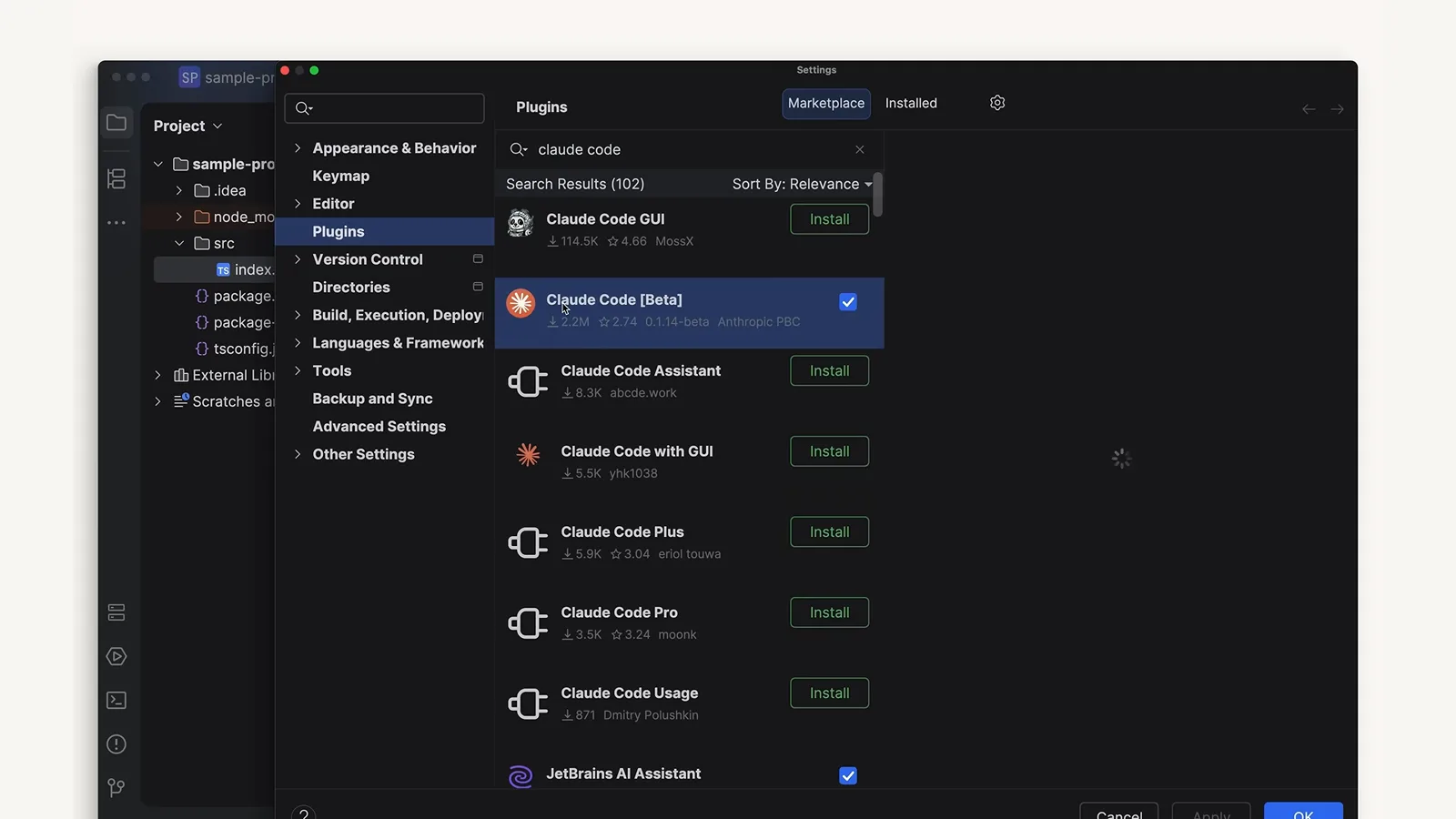
JetBrains Marketplace lists Claude Code with an Installed tick beside related community plugins.Watch at 1:37 - 10
Keep the desktop app current
The desktop app updates through its own in-app updater, and the Code toggle inside it runs sessions in a folder with permissions and optional cloud environments. Accept its update prompts so the bundled CLI does not lag behind your terminal.
The desktop surface gets its own section in the official walkthrough.Watch at 1:50 - 11
Understand the restart-to-apply prompt
Background updates never swap a binary out from under a running session. Claude Code applies the downloaded update the next time you start it, so the notice asking you to restart is expected behavior, not an error — finish your task, exit, and start again.
When an update will not apply
- 12
Fix an update that will not apply
Run claude doctor first — it flags permission problems, the failing update attempt and suggested fixes. Still stuck? Re-run the native installer to replace the binary in place, or read our Claude Code stuck and frozen fixes guide for the wider failure playbook.
Claude Code version commands, at a glance
Every command you need to check, fetch or troubleshoot a Claude Code version, in one list. All of them run in your regular terminal.
- 1claude --version — prints the exact build, for example 2.1.211.
- 2claude update — updates the native install immediately and reports the old and new version.
- 3claude doctor — install diagnostics, including the result of the most recent update attempt.
- 4brew upgrade claude-code — the manual upgrade path for Homebrew installs; run brew cleanup now and then to drop old versions.
- 5winget upgrade Anthropic.ClaudeCode — the manual path for WinGet; it can fail while Claude Code is running because Windows locks the executable.
- 6DISABLE_AUTOUPDATER=1 in the env block of settings.json turns background update checks off entirely.
Two more dials worth knowing: autoUpdatesChannel set to stable keeps you about a week behind the newest release, and managed settings for organizations can require a specific minimum or maximum version across every machine.