
OpenCode Plan Mode: Switch, Plan, Build (2026)
OpenCode plan mode explained: Tab between Plan and Build agents, read-only plans with clarifying questions, per-mode models, fixes when plan mode is missing.
TL;DR
- OpenCode ships two primary agents — Build and Plan. Press Tab to cycle between them; the status-line badge (Plan · Big Pickle, Build · MiMo) always shows which one is listening.
- Plan mode is read-only by design: file edits are denied or ask-gated and bash commands prompt, so you get repo analysis, clarifying questions and a plan document — zero modified files.
- Run /models per mode: a strong model (GLM-5.2 in our recording) for planning, a cheap free model (MiMo V2.5 Free) for building. Pin both with agent.model in opencode.json.
- Plan mode "missing"? Update the CLI, look for the status-line badge instead of a menu item, rebind Tab if your terminal eats it — and remember the desktop app is still beta.
13/13 - OpenCode - Plan mode Implementar funcionalidad
Channel: Fernando Herrera10:05
OpenCode Full Tutorial: Free Models, Skills & MCPs
Channel: Eric Tech23:11
Opencode Is Probably The Best Coding Agent I've Ever Used
Channel: DevOps Toolbox
Agents — official documentation
Official docs: opencode.ai/docs
Mode semantics — Tab cycling, per-agent models, Plan's permission restrictions, the --agent plan flag — are verified against the official agents documentation; the videos above are the visual and fact sources. The primary recording's model replies are in Spanish, so frames were picked where the UI tells the story.
Screenshots are attributed to their creators with deep links to the exact timestamps. No face-cam frames are used.
Use OpenCode plan mode, step by step
Part 1 — Meet the Plan and Build agents
- 1
Launch OpenCode and find the mode badge
Run opencode inside your project. The terminal UI opens with a status line under the prompt that reads Plan or Build followed by the active model — in the recording, Plan · Big Pickle OpenCode Zen. That badge is where plan mode lives: there is no separate plan-mode menu to hunt for. The footer hint (tab agents) even tells you how to leave.
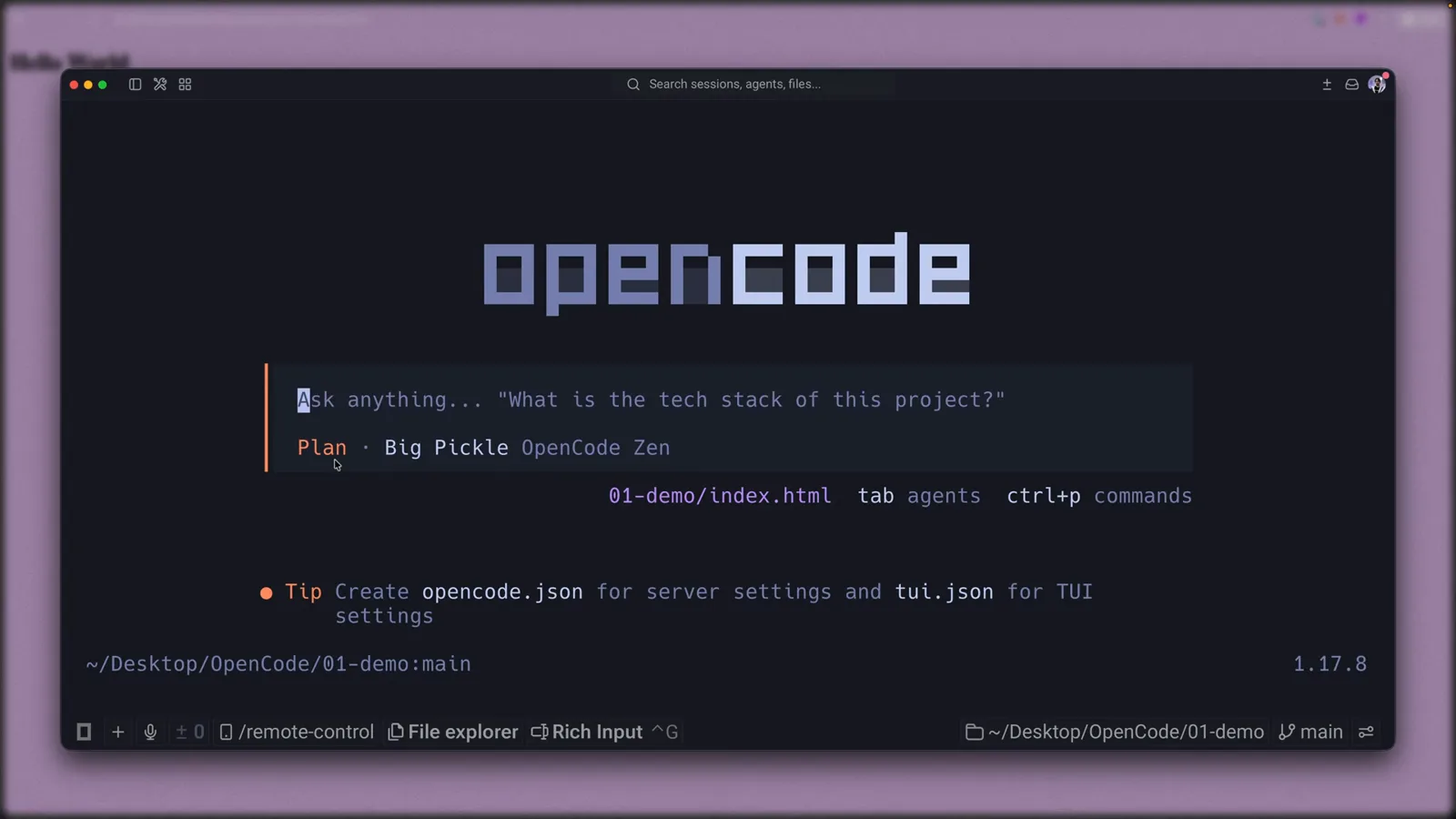
OpenCode's welcome screen, one Tab away from everything — the status line already reads Plan · Big Pickle OpenCode Zen.Watch at 0:50 - 2
Know what plan mode is (and what it refuses)
Plan is one of OpenCode's two primary agents. Build ships with every tool enabled; Plan is restricted — by default its file edits are denied or gated behind a prompt, and bash commands ask first. The docs describe it as the agent for when you want the LLM to analyze code, suggest changes, or create plans without making any actual modifications. Ask it to implement anyway and it says no — that refusal is the feature working.
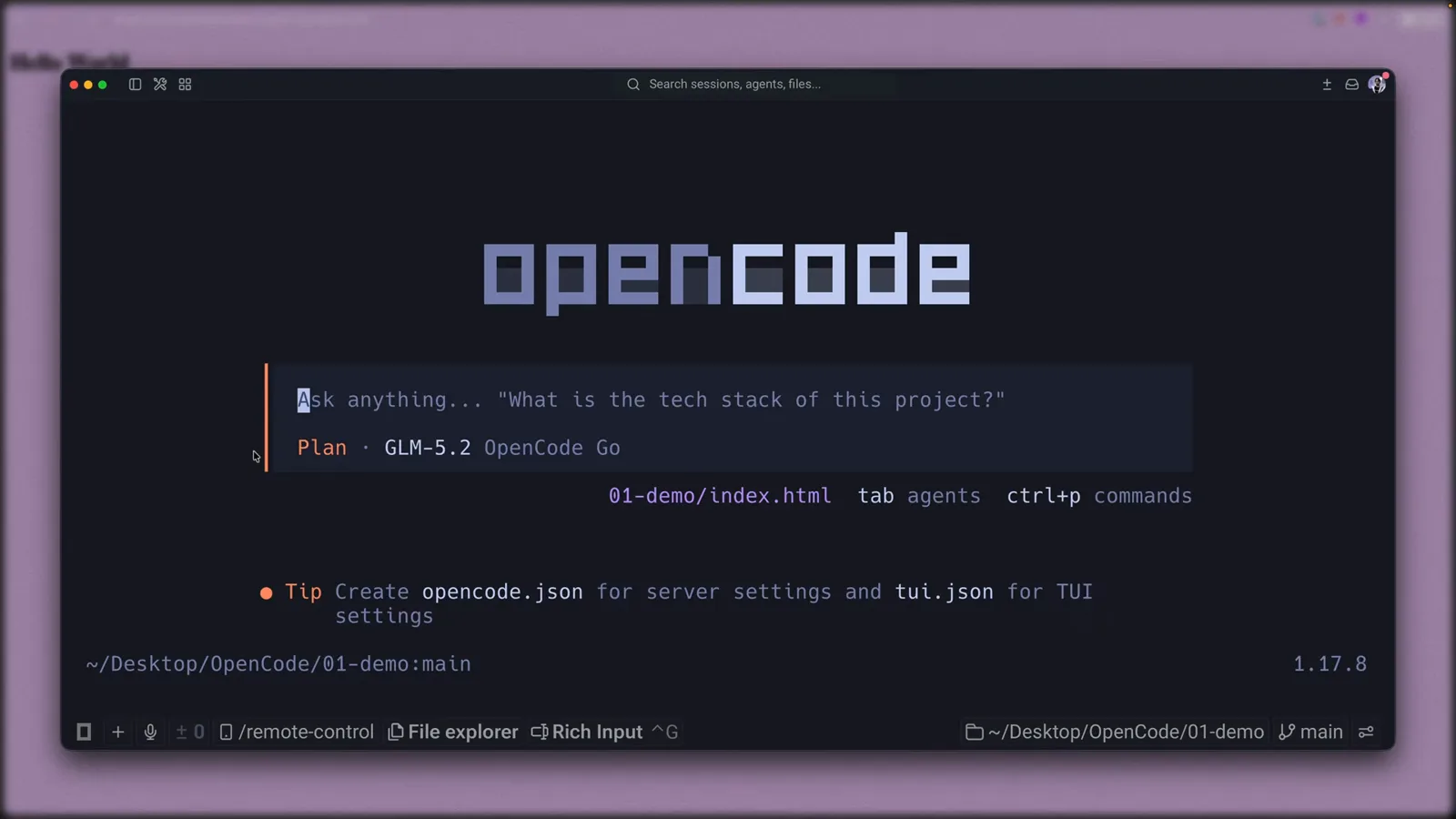
After a model switch the badge reads Plan · GLM-5.2 OpenCode Go — Plan keeps its own model, separate from Build's.Watch at 1:35 - 3
Switch agents with Tab
Press Tab to cycle Plan → Build → Plan; Shift+Tab cycles back. That's the agent_cycle keybind, and it's the entire switch — agent, model and permissions change together mid-conversation. Prefer menus? ctrl+x a opens the agent list, ctrl+p the command palette, and opencode --agent plan launches straight into plan mode from your shell.
Part 2 — Plan the work, read-only
- 4
Connect a provider so the picker isn't empty
A fresh install has nothing in the model list until you connect a provider. Run /connect — or pick Connect provider at the bottom of the model picker — and choose OpenCode Zen, the recommended low-cost subscription, or bring API keys for Groq, GitHub Copilot, Anthropic or Google. Free models like Big Pickle or MiMo V2.5 Free are plenty for this walkthrough.
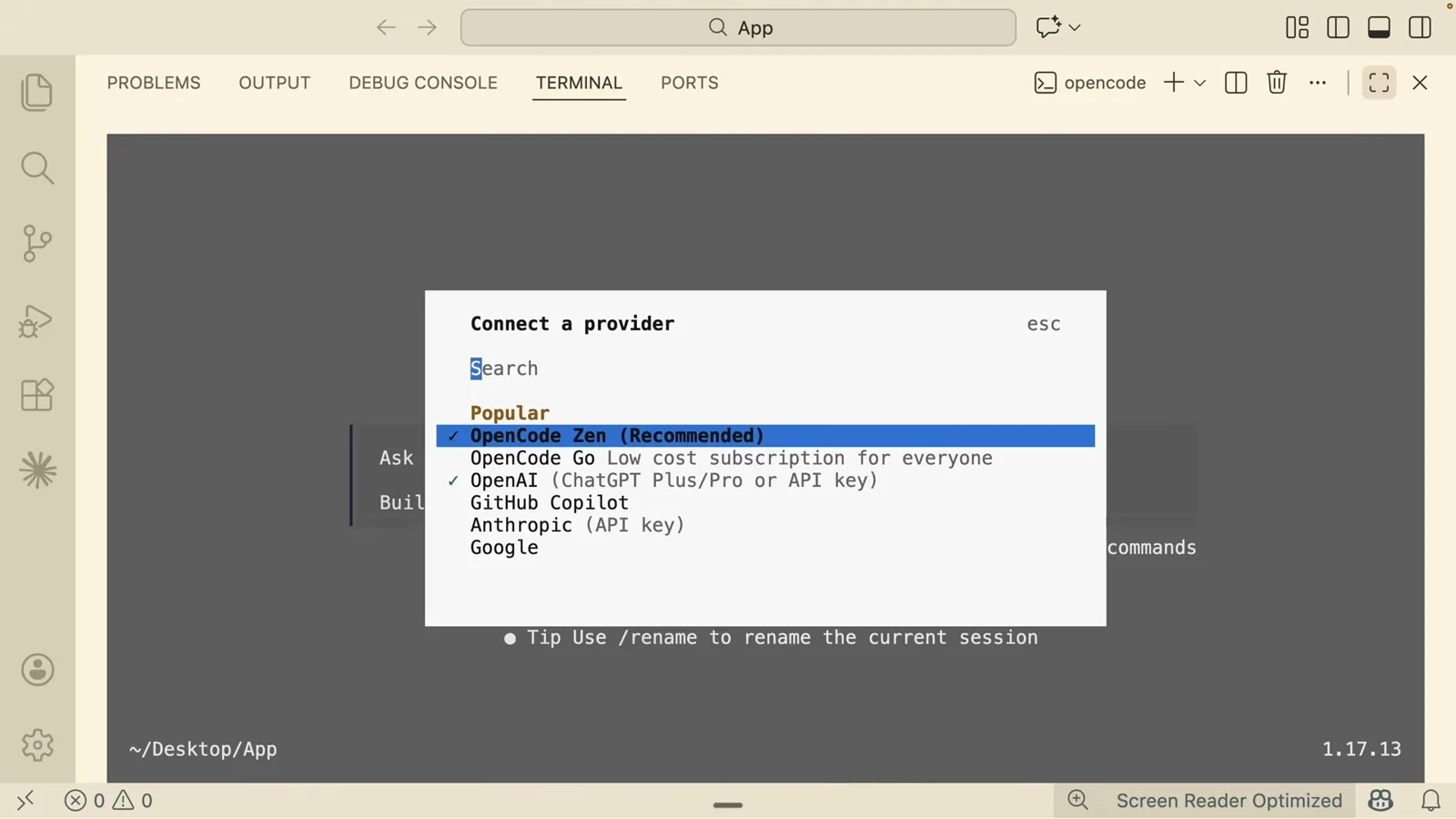
The Connect a provider dialog: OpenCode Zen recommended, with Groq, GitHub Copilot, Anthropic and Google below.Watch at 3:05 - 5
Give each mode its own model
Run /models while in plan mode and pick a strong model for planning — planning quality decides everything downstream. Then press Tab and run /models again to set a cheaper builder; the recording pairs GLM-5.2 for Plan with MiMo V2.5 Free for Build. To make the split permanent, set agent.model entries in opencode.json.
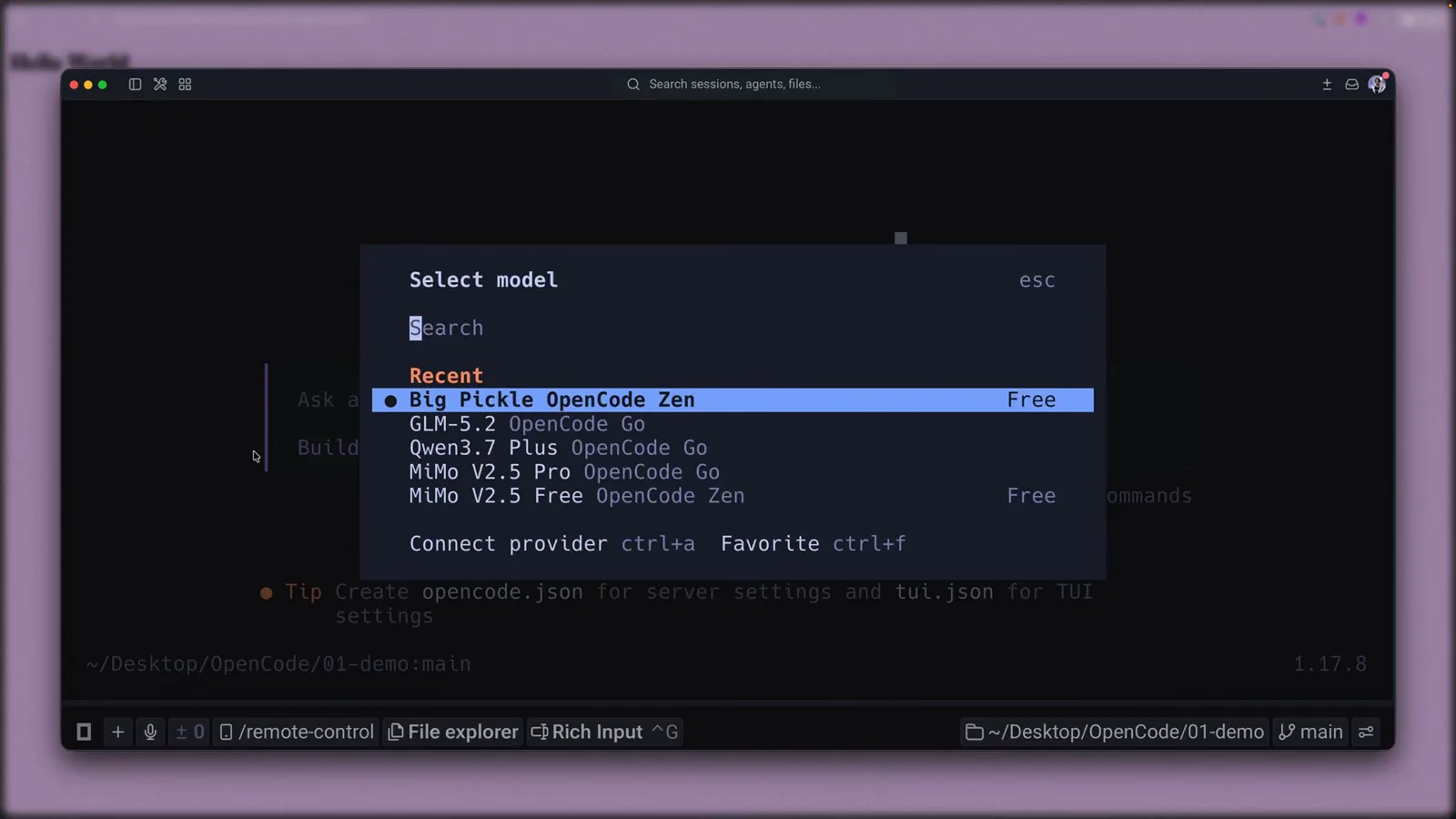
The Select model dialog with Free-tagged Zen models — the Recent list makes swapping twice a two-second job.Watch at 1:13 - 6
Send the task; answer the agent's questions
In plan mode, describe the outcome, not the steps — the recording asks OpenCode to install Tailwind CSS in a plain HTML project. The Plan agent inspects the repo read-only, then returns a multiple-choice dialog: CDN script tag, npm install, a standalone binary, or type your own answer. Arrow keys choose; free text works when none of the options fit.
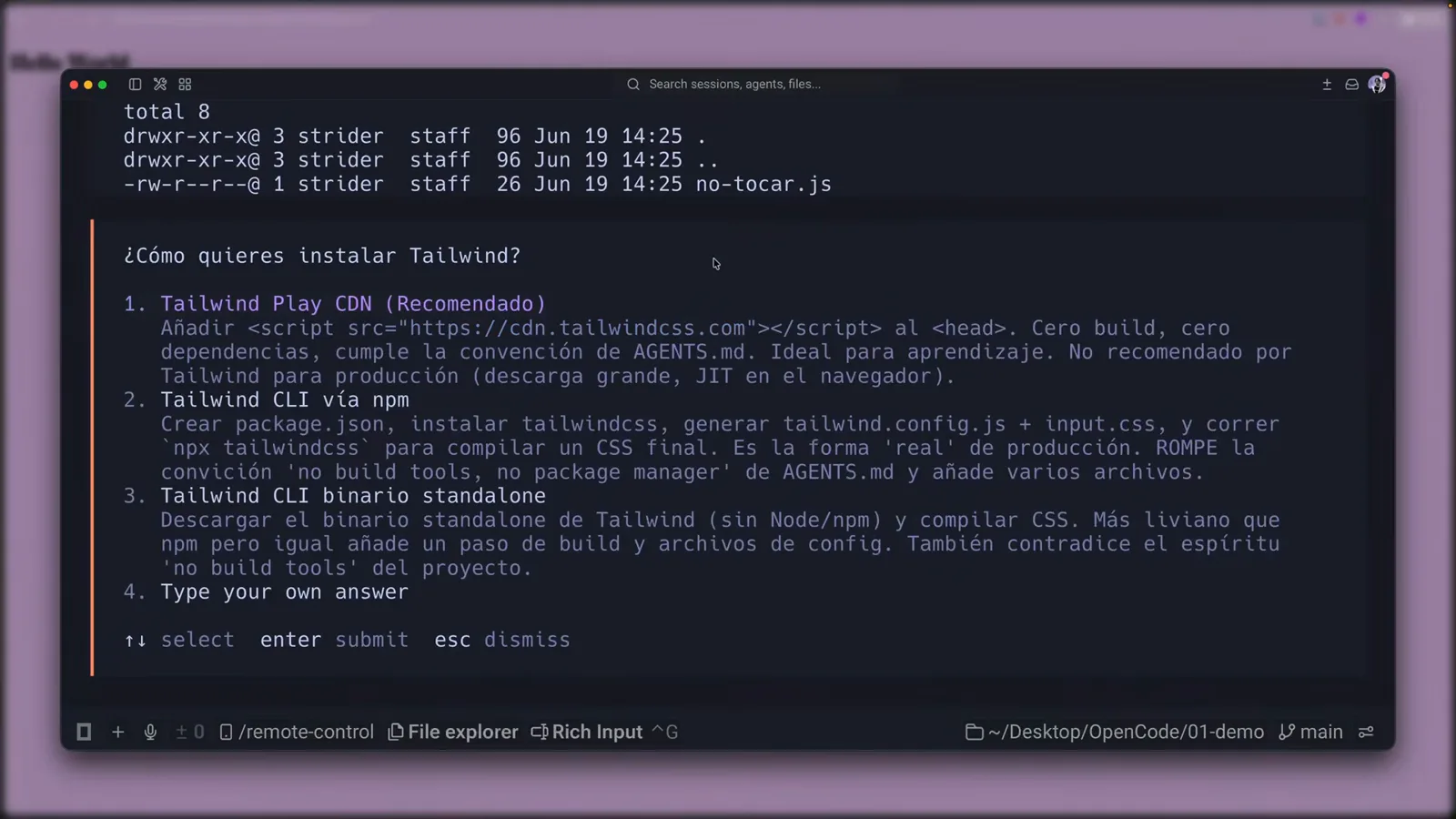
The Plan agent's clarifying dialog — four options plus an escape hatch for custom answers, all before any file is touched.Watch at 3:00 - 7
Read the plan: verification and trade-offs
The finished plan is a document, not a diff: current state, decisions, a verification checklist and a trade-offs section — the recording's plan flags that a Play CDN needs internet and is not for production. Nothing has been modified yet; the items you're reading describe what Build will do after you approve.
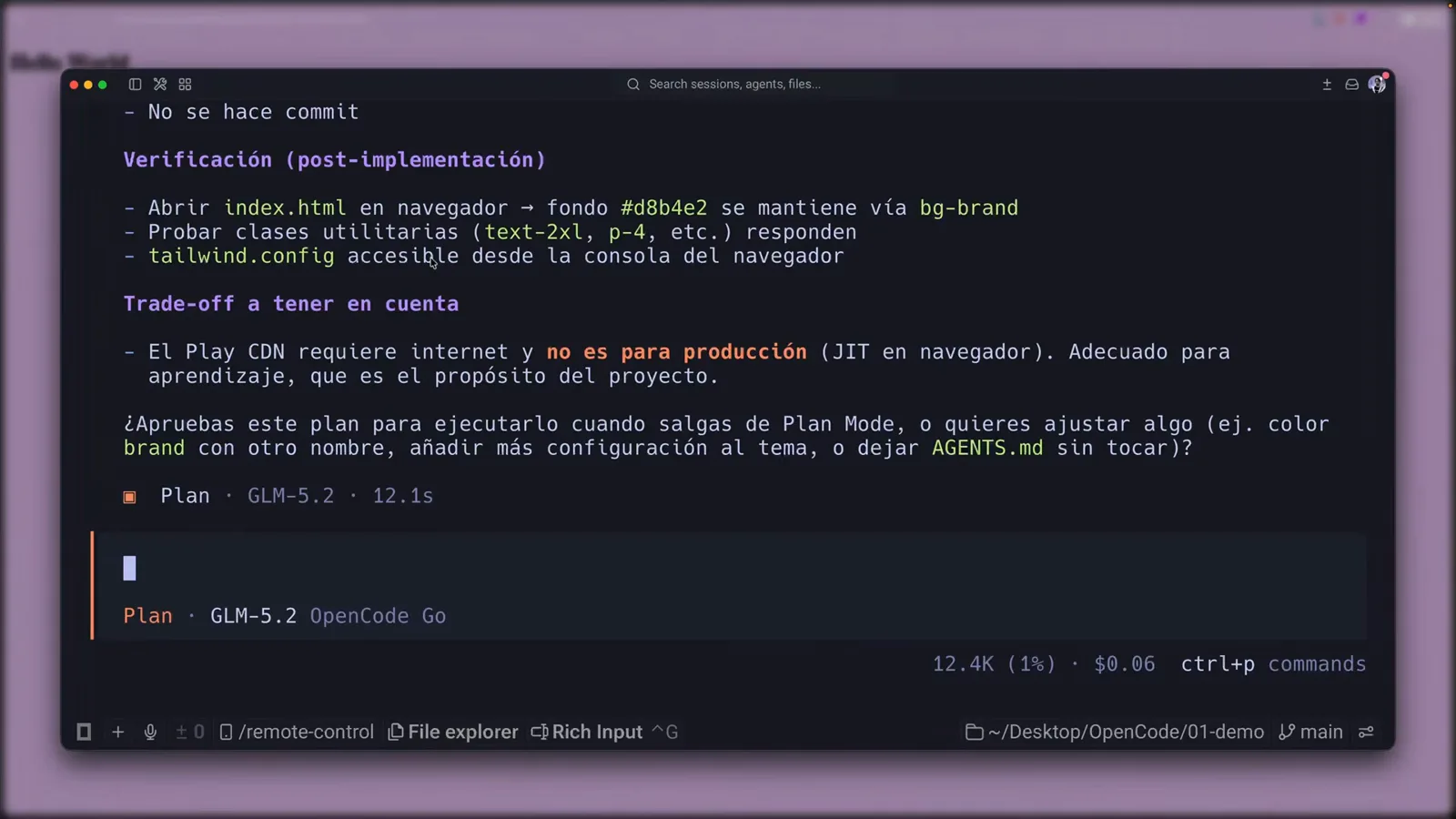
The plan's verification checklist and trade-offs sections — honest costs spelled out, and still zero modified files.Watch at 4:58 - 8
Approve; OpenCode queues it for Build
The plan ends with a hand-off question: try this plan when you leave Plan Mode, or adjust something first? Approving still edits nothing — Plan stays read-only until you switch agents. The status line still says Plan; the moment you Tab, the same conversation continues in Build with full file access.
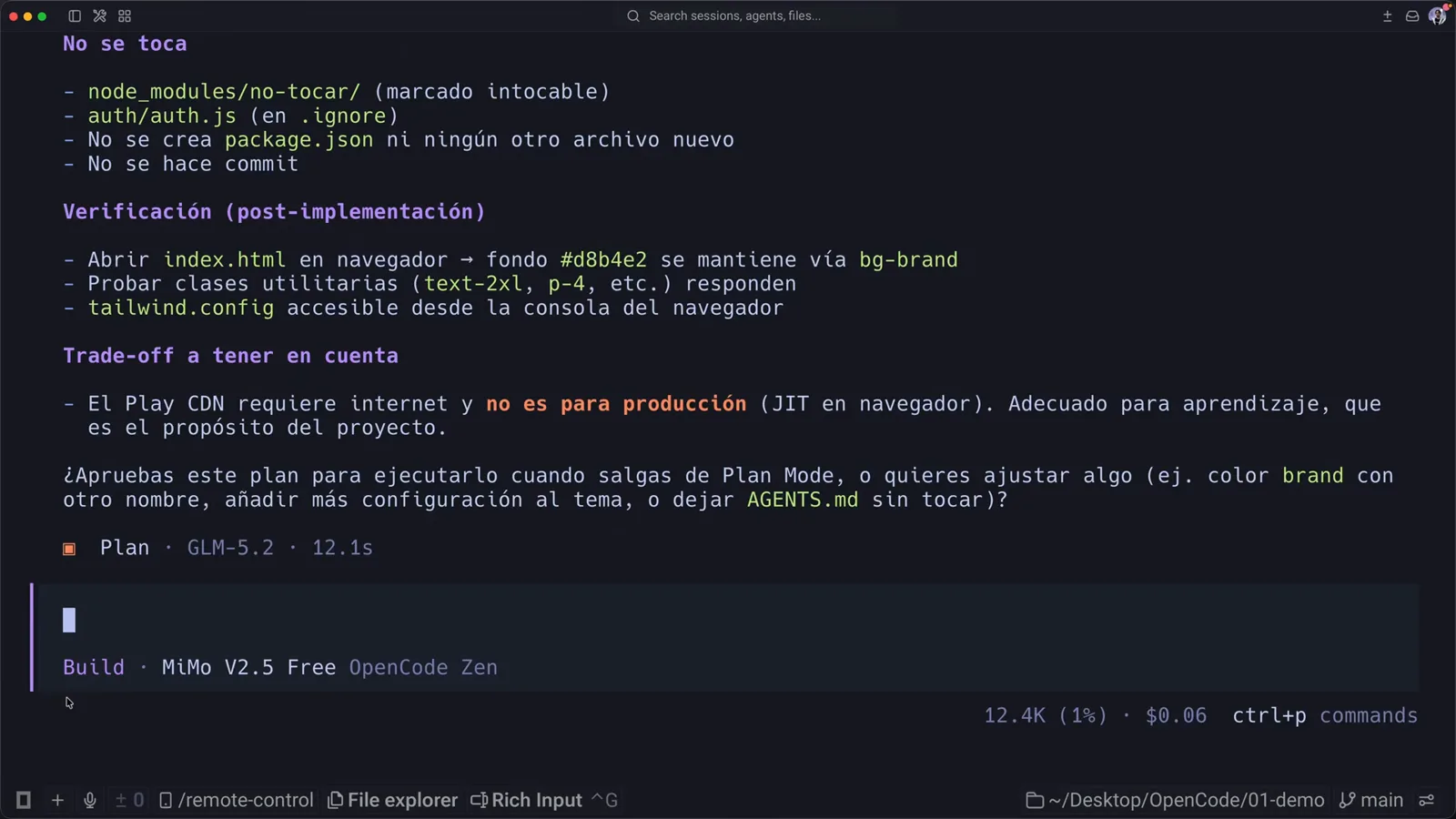
The full plan with its approval question beneath, and both Plan and Build badges visible in the status line.Watch at 5:10
Part 3 — Flip to Build and keep going
- 9
Tab to Build and let it implement
Press Tab — the badge flips to Build · MiMo V2.5 Free — then say implement it. Build has every tool: it edits index.html, writes the Tailwind config and works a todo list you watch tick over. Try the same command in plan mode and OpenCode declines; the todo list and edits only ever appear on the Build side.
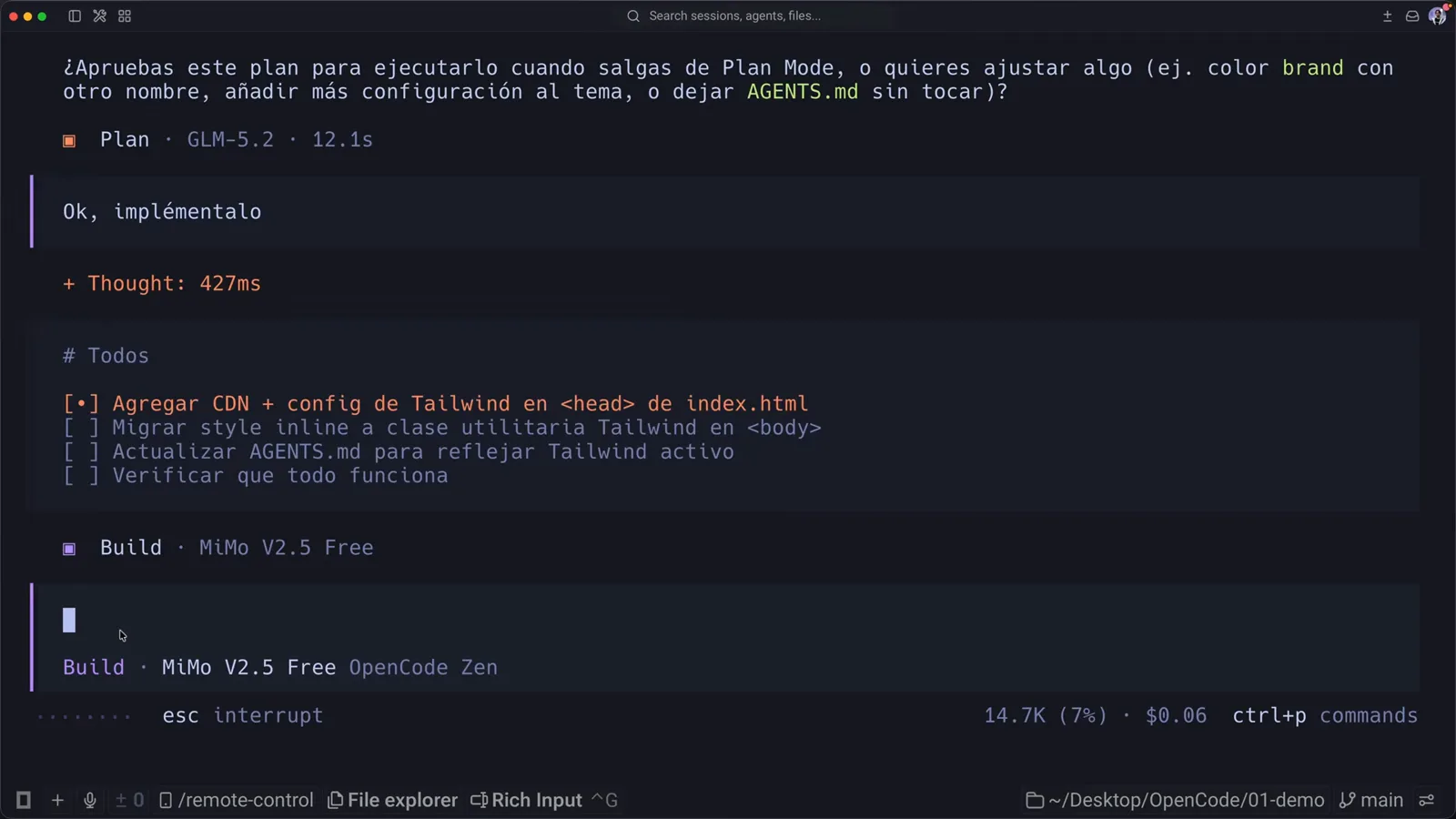
After Tab, the badge reads Build · MiMo V2.5 Free and a Todos list appears as implementation starts.Watch at 5:20 - 10
Keep sessions straight
ctrl+x l opens the session list: every conversation with its name and date, renameable with ctrl+r and pinnable for the ones you return to. Sessions live in OpenCode's global folder rather than the project, so they survive restarts — the recording hops between a scratch chat and the Tailwind session without losing a token of context.
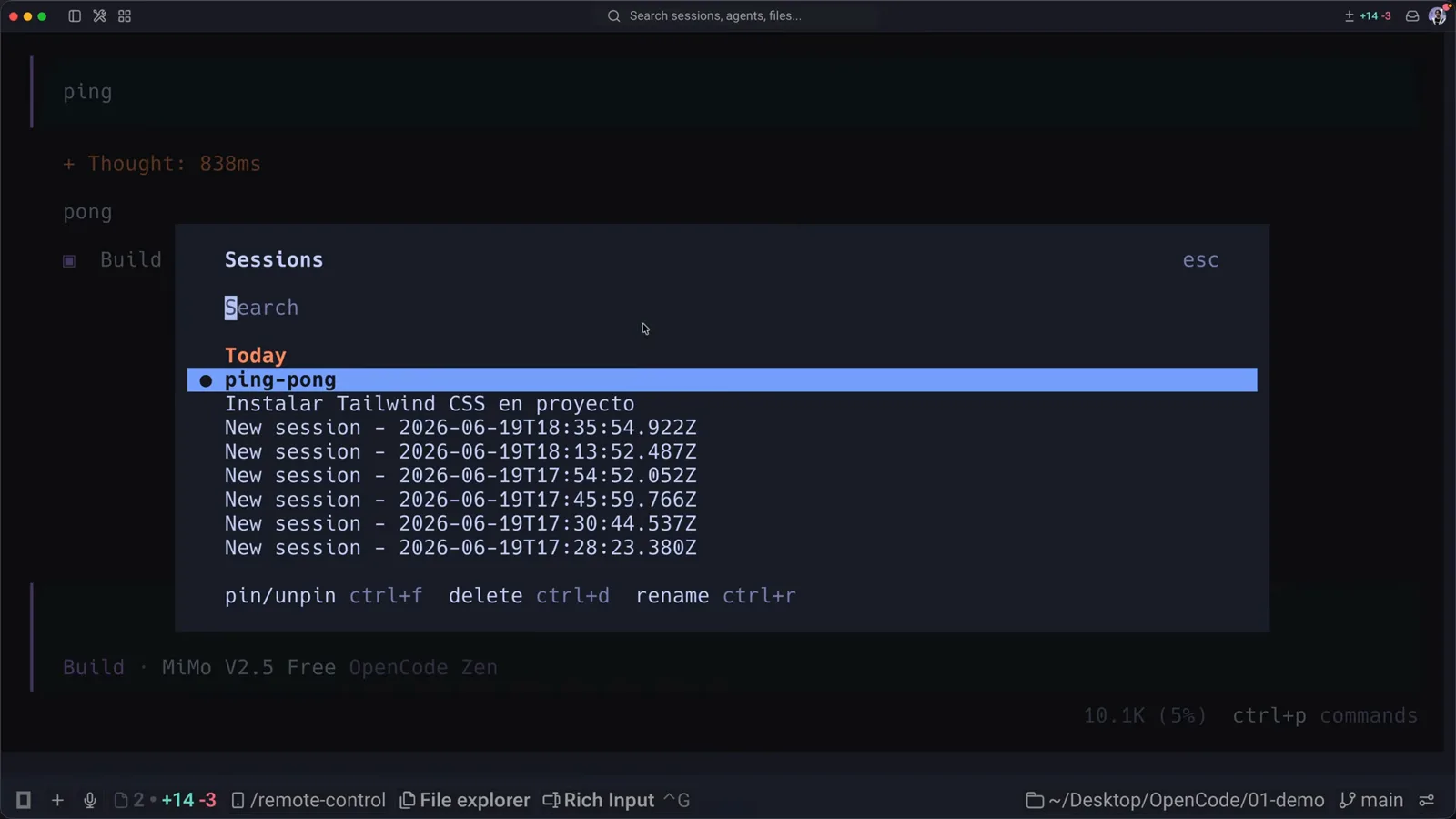
The Sessions dialog — named, dated conversations with pin, delete and rename shortcuts one keypress away.Watch at 9:05 - 11
Prefer windows and buttons? Desktop is beta
opencode.ai advertises a desktop app in beta on macOS, Windows and Linux next to the terminal. The Tab-and-badge flow in this guide is the TUI's, and the desktop beta is younger software — if plan mode looks different or missing there, update the app or run opencode in a terminal where the behavior is documented.
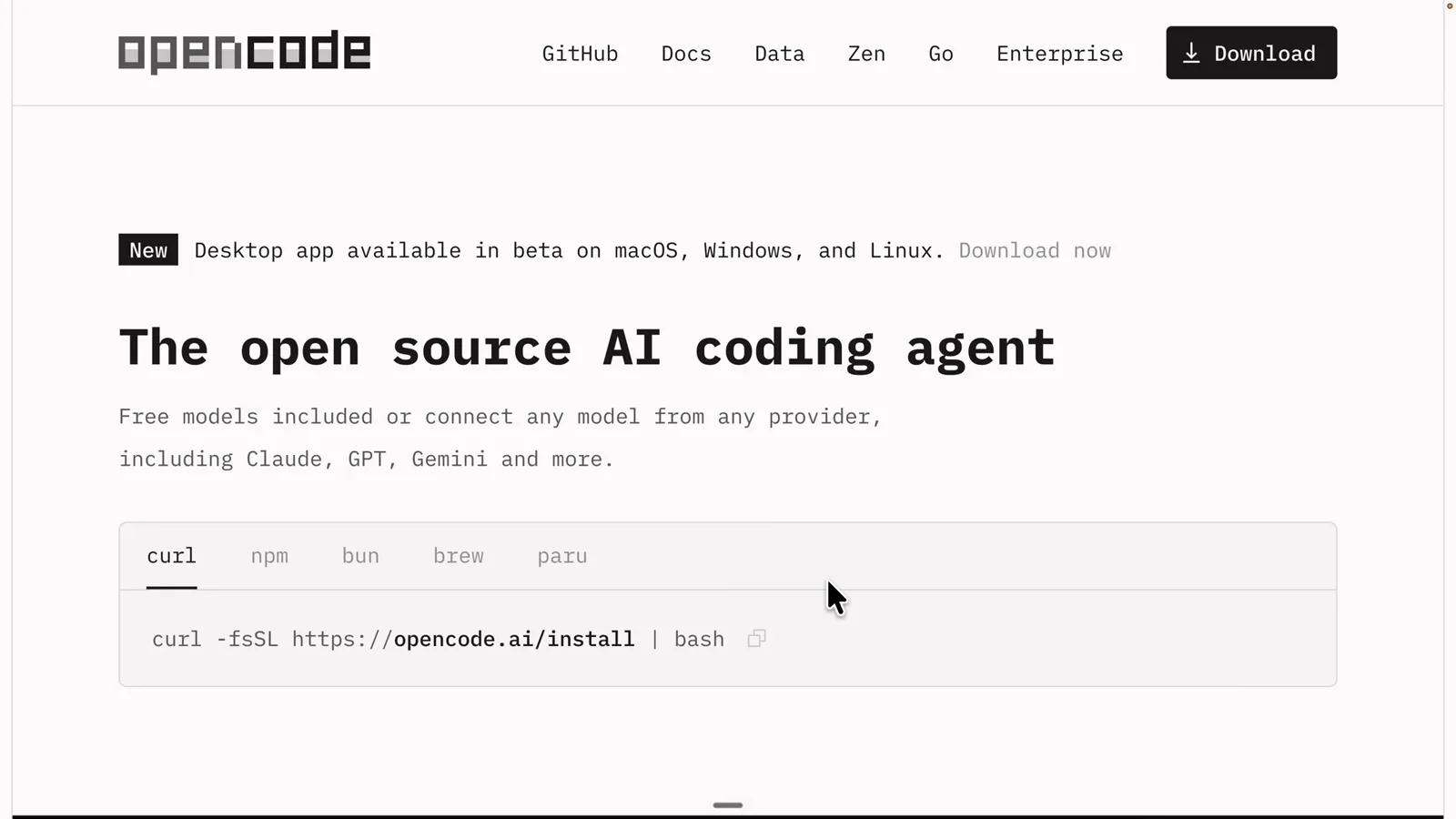
opencode.ai's own banner: the desktop app is available in beta on macOS, Windows, and Linux — the terminal stays the reference.Watch at 1:10
OpenCode plan mode vs. build mode
Both are primary agents sharing one conversation; what changes is what each may do and which model answers. The differences that matter:
- 1Permission to change things: Build enables every tool; Plan ships with file edits denied or ask-gated and bash prompting first. That's permission enforcement at the app layer — not a polite instruction the model can talk itself out of.
- 2Model per mode: /models applies to the active agent, so Plan can run a strong reasoner while Build runs a fast free model — GLM-5.2 and MiMo V2.5 Free in the recording. agent.model in opencode.json pins the split.
- 3Output shape: Plan answers with inspection summaries, clarifying questions and a plan document with verification steps and trade-offs; Build answers with edits, created files and a todo list.
- 4Switching cost: one Tab press, mid-conversation, reversible with Shift+Tab. The status-line badge always names the active agent, so a "plan mode not working" moment is usually just the badge quietly saying Build.
- 5Failure behavior: ask Plan to implement and it declines and restates the plan; ask Build and it edits immediately. Want changes? Tab first — that's the entire ceremony.
- 6Extensibility: both are built-in primary agents; custom agents you define in opencode.json or .opencode/agents/*.md join the same Tab cycle, so you can add your own review-only or planning flavors.
Compared with Claude Code's plan mode: same idea, different mechanics. Claude Code cycles Shift+Tab until it reads plan mode and gates edits until you approve; OpenCode's tell is the badge in the status line, and its per-agent model split is explicit configuration rather than incidental.
OpenCode plan mode gone or not working?
Most "plan mode not working" reports end at one of these — none need a forum thread:
- 1Your CLI is old. Agent cycling and per-agent models are recent; if Tab shows no Plan badge, check opencode --version and reinstall with curl -fsSL https://opencode.ai/install | bash.
- 2You're looking for a menu item. Plan mode has no settings screen — it's the badge in the status line. If the badge says Build, you're in build mode; one Tab press and it flips.
- 3Tab does nothing. Your terminal may swallow it. Use ctrl+x a (agent list) or ctrl+p (command palette) instead, and rebind agent_cycle in tui.json to something your terminal doesn't capture.
- 4You're in the desktop beta. The documented Tab flow belongs to the terminal; the desktop app is newer beta software on macOS, Windows and Linux. Update it, or run opencode in a terminal.
- 5A custom agent changed the cycle. Agents defined in opencode.json or .opencode/agents/ become primary agents too and join the Tab rotation — Plan may be one press further away, or your config renamed the default.
- 6Post-resume confusion. opencode -c reopens the last conversation, and the badge shows whichever agent is active now. Glance at the status line after resuming; if it surprises you, Tab fixes it in one press.
What doesn't break: model choice. Plan's read-only behavior comes from permission settings, so any connected model plans safely — a weak model just plans worse. If OpenCode ever edited files while the badge read Plan, that would be a bug to report; in practice, check the badge first because it's almost always Build.