
DeepSeek Harness Setup Guide
The model is the brain; the harness is everything wrapped around it — context, tools, plugins, MCP servers, permissions, memory. DeepSeek Harness installs in about five minutes and runs on any model you point it at: GLM, Ollama, even Claude. This walkthrough follows a real install frame by frame.
TL;DR — what you're setting up
- The model is the brain. The harness is everything around it: context, tools, plugins, MCP servers, permissions, memory. DeepSeek Harness ships all of it with every decision still open.
- Install takes about five minutes: one command in your terminal, and a local web dashboard opens automatically.
- You don't have to use DeepSeek's API. Add GLM, a free Gemini tier, a local Ollama model — or even your Anthropic key to run Claude inside the harness.
- Every run is traceable down to each tool call payload, and you can kill a task mid-flight and resume it with its context intact.
DeepSeek Harness Setup: A Free Claude Code You Own In 10 Minutes
Video by:Sharbel A.13 min
Screenshots in this guide come from the video above; copyright belongs to its creator, who is credited here and linked at each step's timestamp. The written steps are our own.
Quick start: install in about five minutes
- 1
Open the site and grab the install command
The DeepSeek Harness site fronts the project — "Everything is a plugin" is the literal design principle. Open the GitHub repo from the homepage buttons and copy the one-line install command.
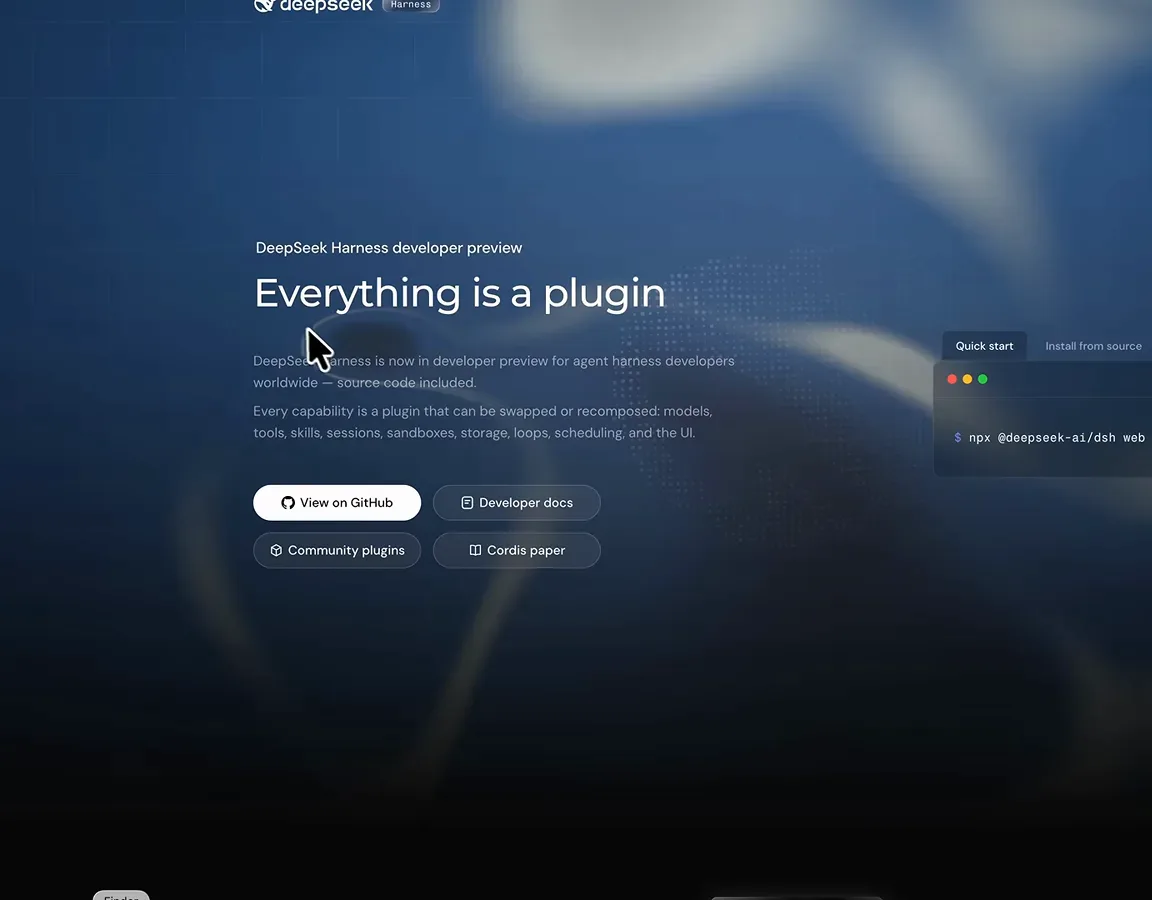
The project homepage links both the GitHub repo and the developer docs.Watch at 1:58 - 2
Run the install in your terminal
Paste the command and let it run — about five minutes. When it finishes, the terminal prints the local dashboard URL (http://127.0.0.1:3880) and opens your browser automatically. Add --no-open if you'd rather open it yourself.
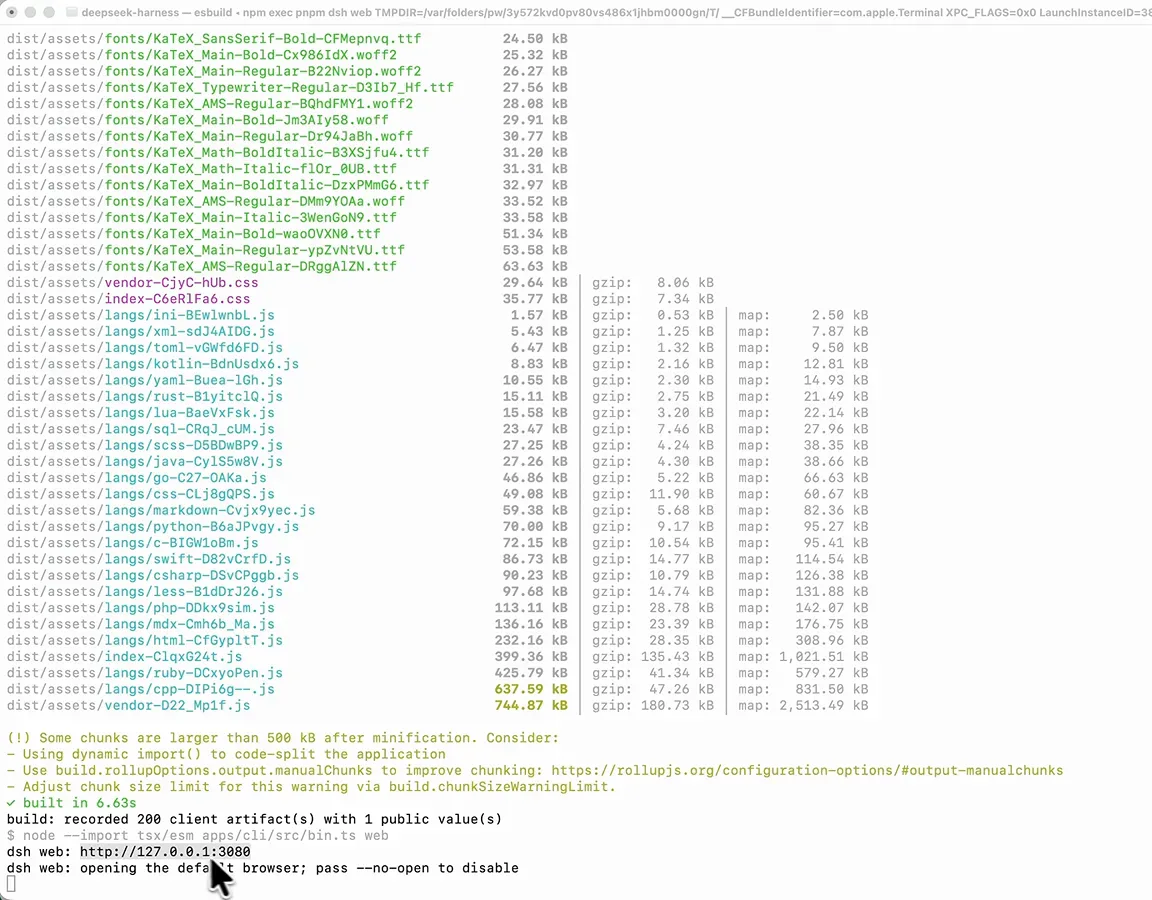
Install finished — the dashboard is served locally on port 3880.Watch at 2:37 - 3
Skip the API key prompt for now
First launch asks for an official DeepSeek API key. You don't need one: click "Configure later" and add whichever provider you actually use in the next step.
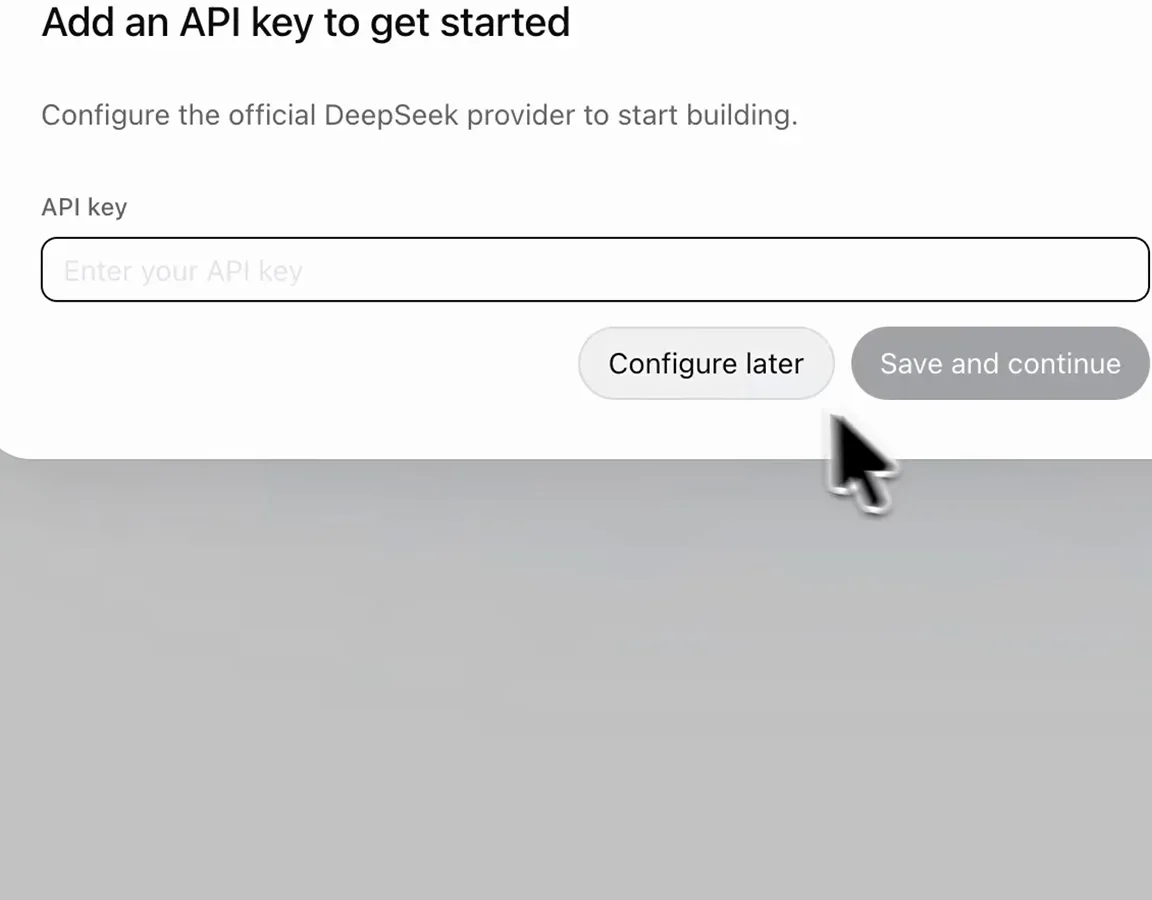
The first-run dialog — "Configure later" skips the official provider.Watch at 2:55
Connect any model you want
- 4
Add your first model provider
Go to Settings → Models → Add provider. In the video the author connects a GLM subscription (listed as Zai), but the same dialog accepts DeepSeek, OpenAI, Anthropic, Bedrock, Vertex, and more.
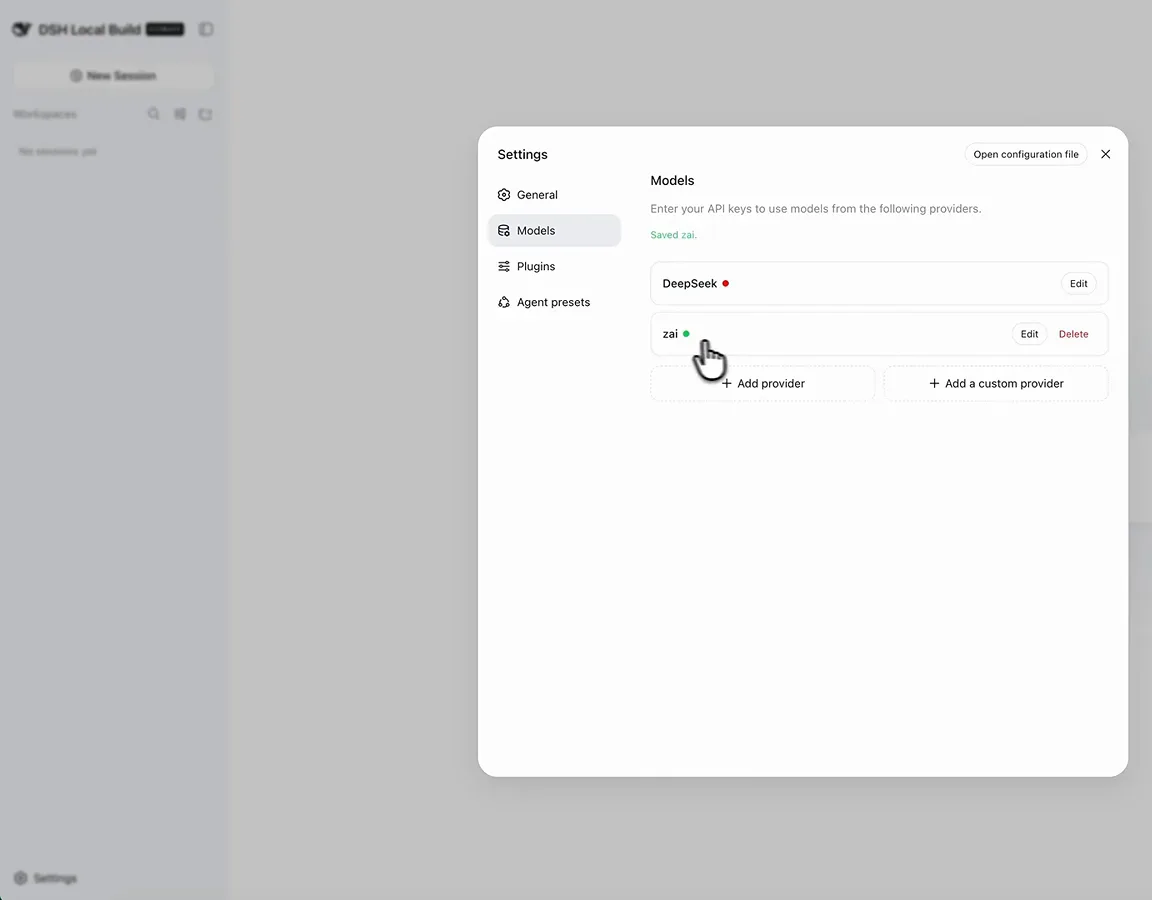
Two providers active — the model is a plugin, not a lock-in.Watch at 3:15 - 5
Or connect a local model with Ollama
"Add a custom provider" takes a provider ID, a display name, a base URL, and an API protocol (openai-completions works for Ollama). Local weights are the only genuinely uncapped free path — hosted free tiers all have limits.
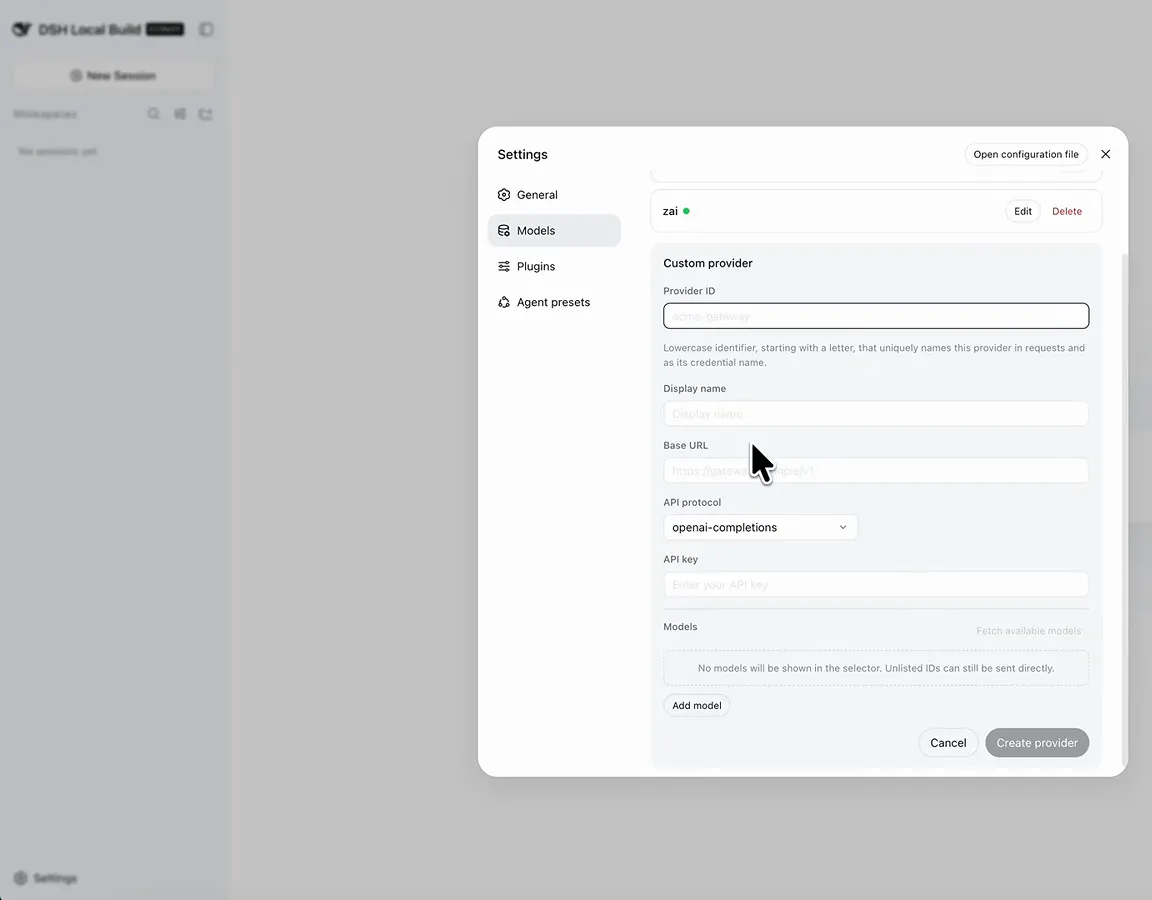
Custom provider form — point it at your Ollama base URL and create.Watch at 3:42
Everything is a plugin
- 6
Browse the plugin panel
Settings → Plugins lists every capability in the harness — commands, UI commands, feedback loops — each individually toggleable between Default and Enabled. The sidebar itself is a plugin too.
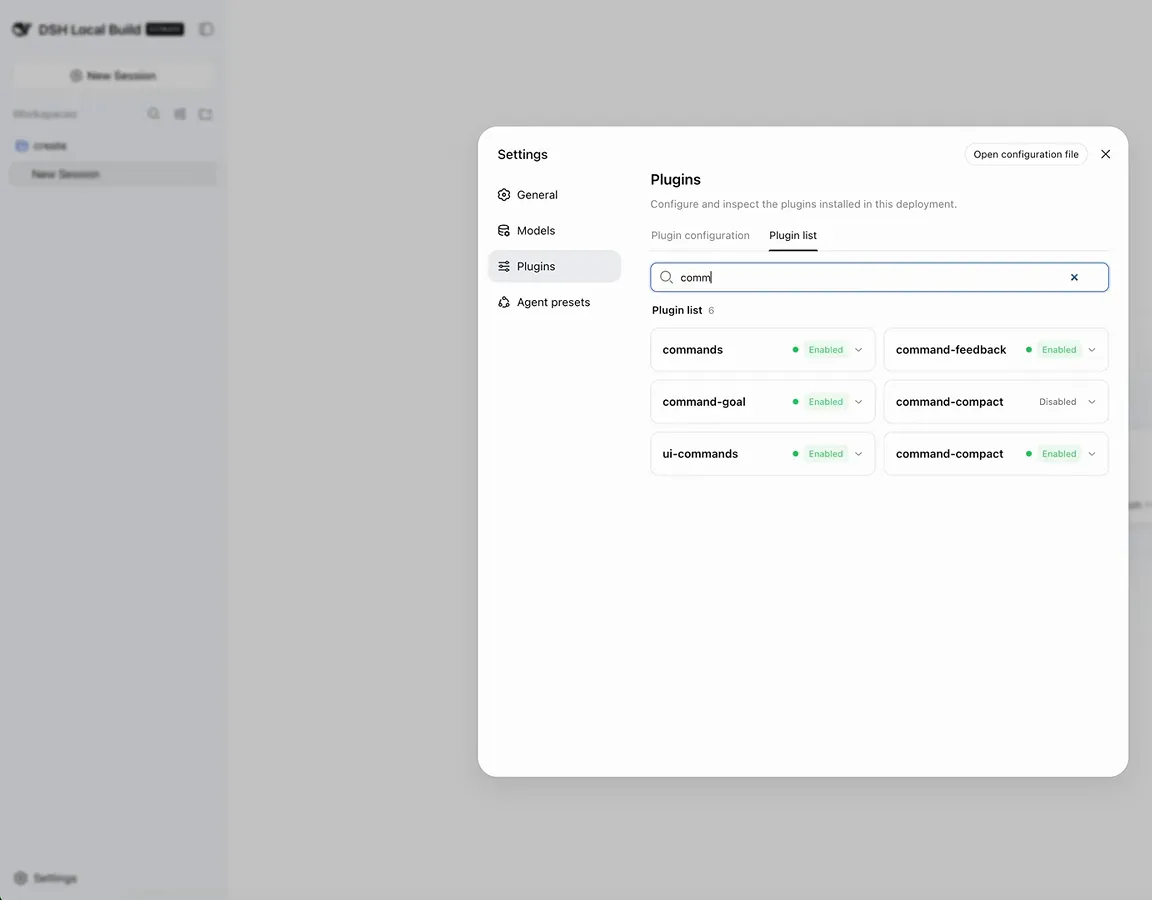
The plugin list — everything you see can be switched off.Watch at 5:32 - 7
Switch on creator mode
Creator mode is a preset that loads the plugin-development tooling automatically, so the agent can build plugins for you instead of just using them.
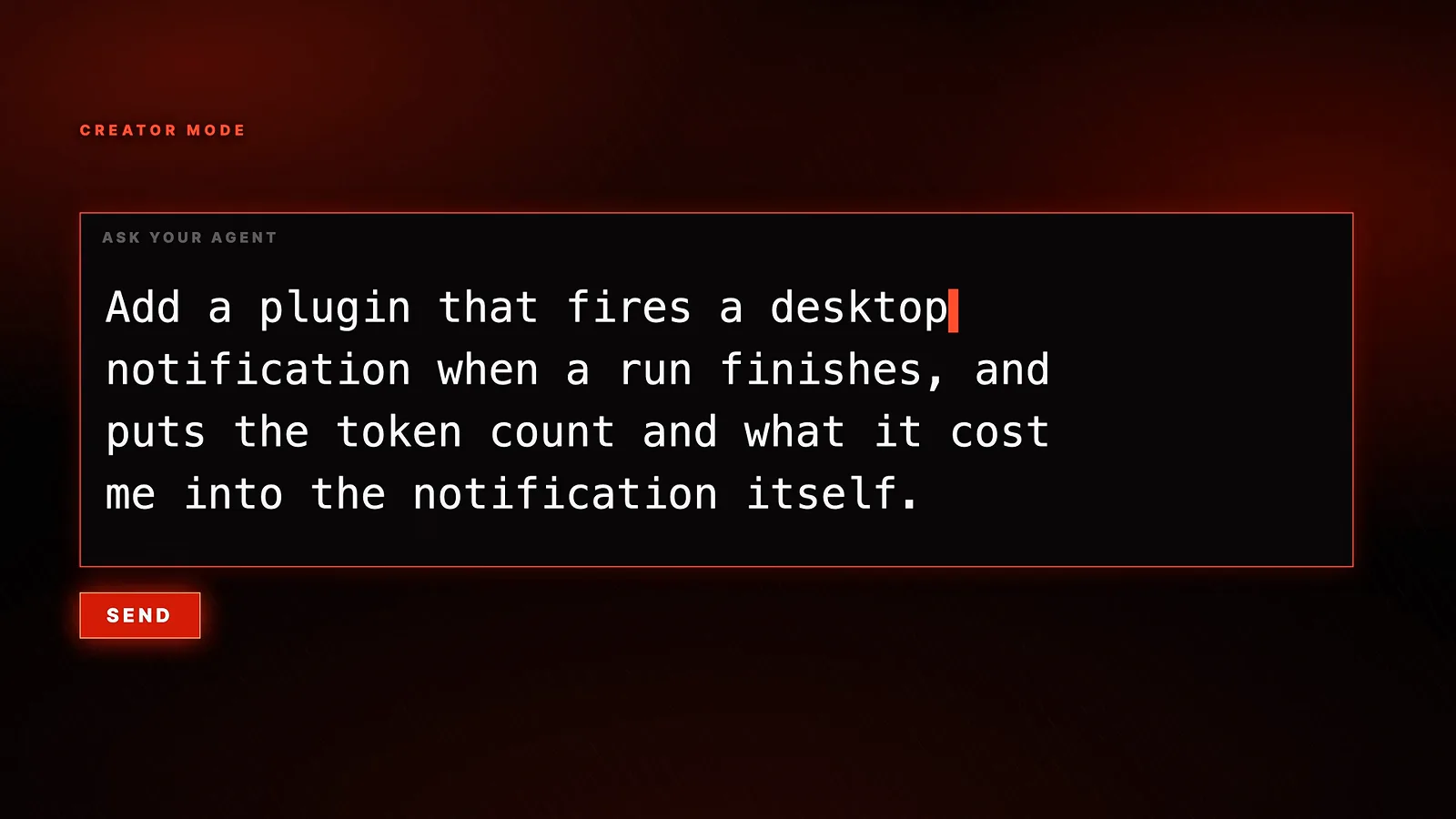
Creator mode preloads the plugin development tooling.Watch at 6:00 - 8
Ask for your first plugin in plain English
The plugin built in the video: "Add a plugin that fires a desktop notification when a run finishes, and puts the token count and what it cost me into the notification." Send it as a normal chat message.
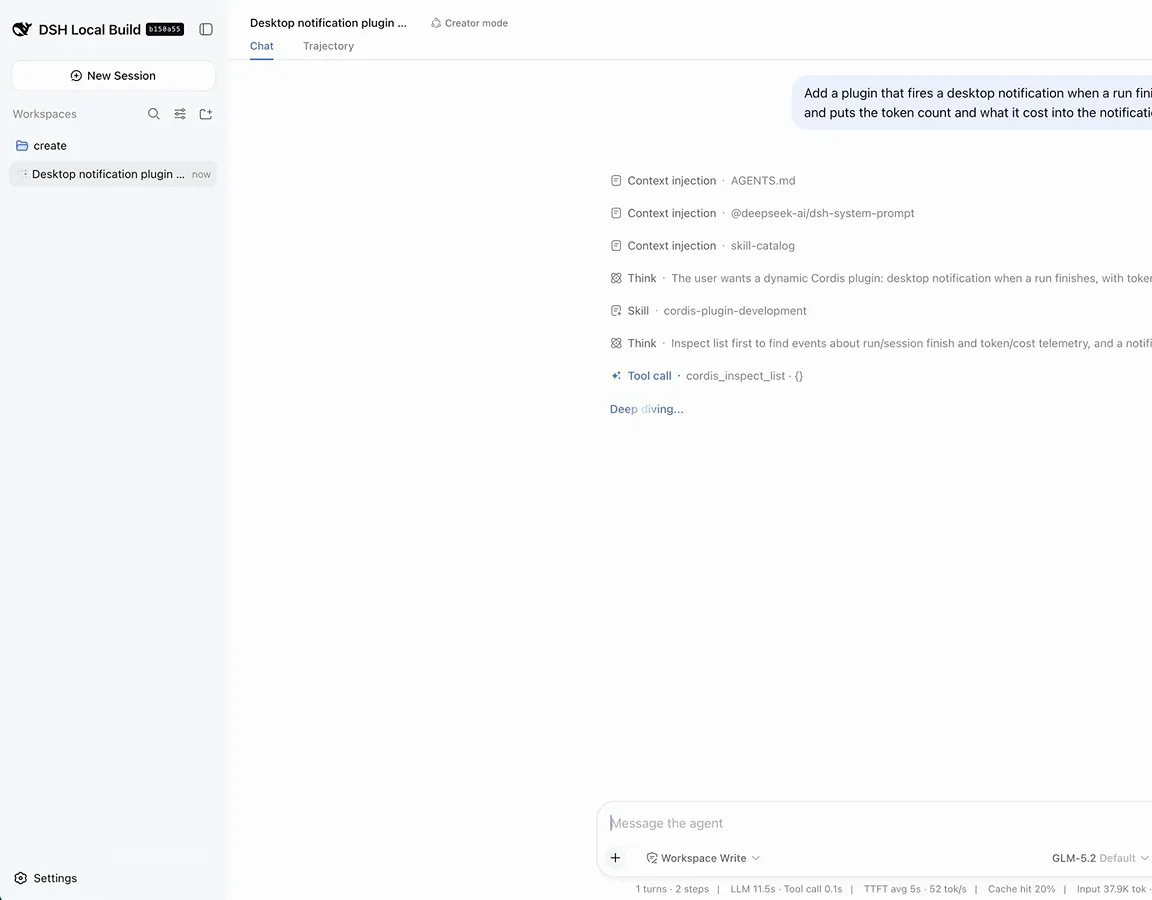
One sentence is a spec — the agent writes and installs the plugin.Watch at 6:08 - 9
Watch the plugin fire on the next run
When a run completes, the notification appears with the token count and cost. In the video the first version had unreadable black-on-black text — one follow-up message fixed the colors, and the plugin kept working.
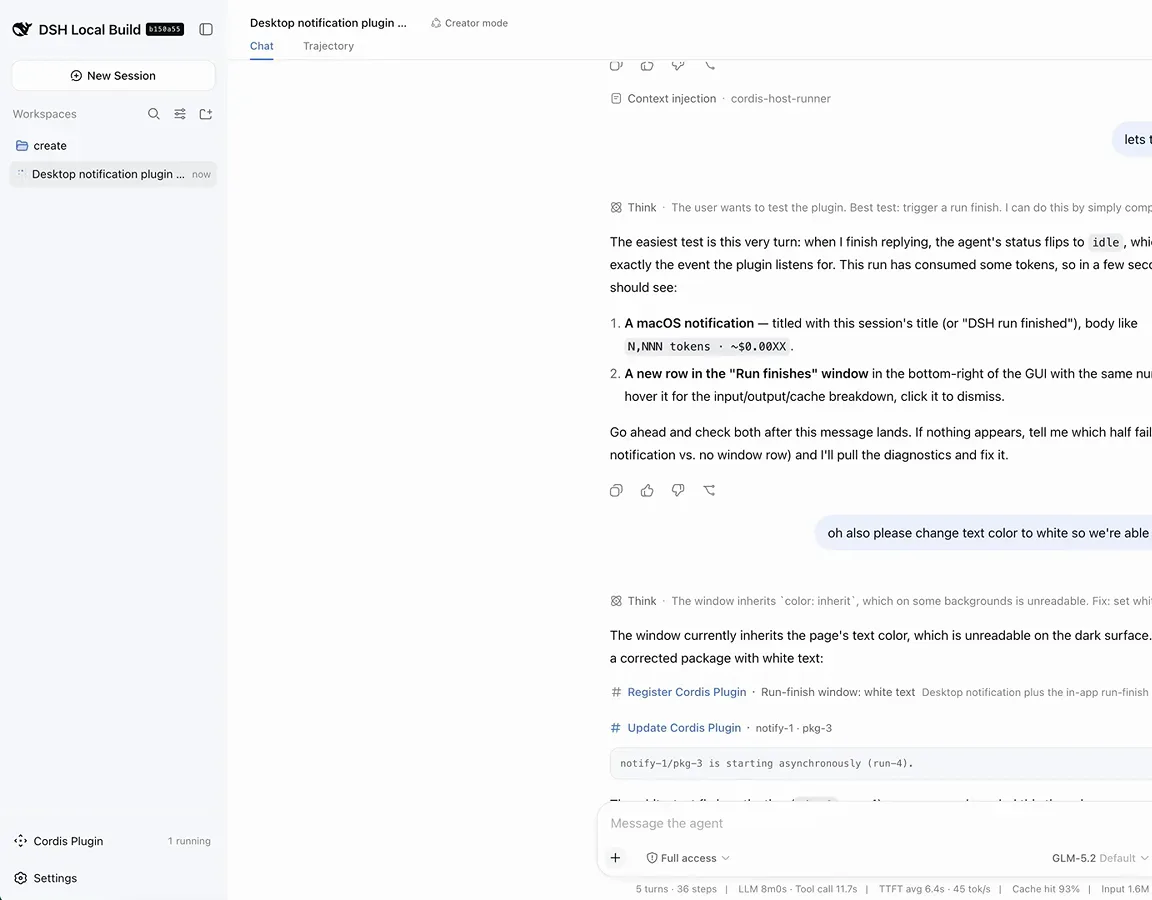
Run finished — the agent confirms the notification, stats included.Watch at 9:26
Trajectory: watch every call, resume any run
- 10
Open the Trajectory tab and read everything
Every run keeps a full trajectory: the exact system prompt, context injected word for word, which skills loaded and why, every tool call with its payload, result, and timing. Not a summary — the actual log.
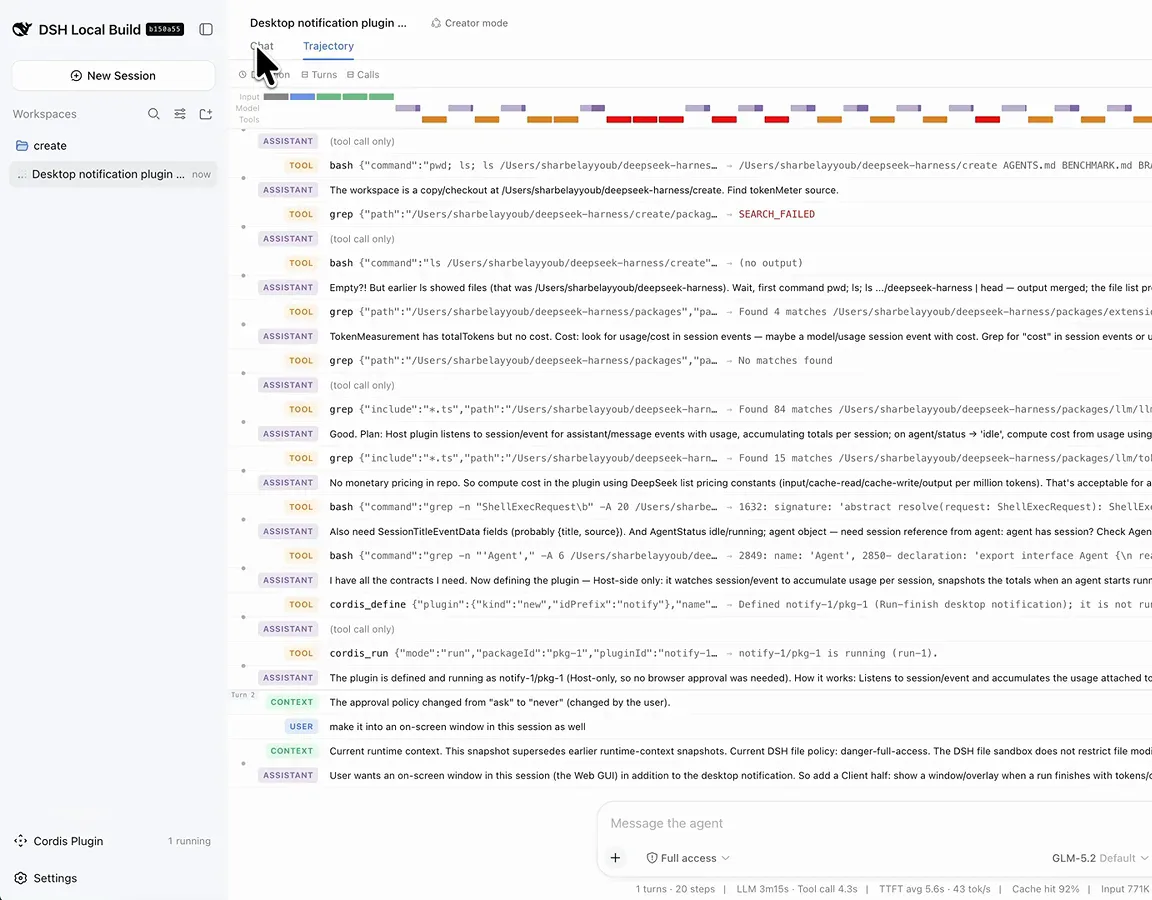
Color-coded turns plus every tool call with payload and result.Watch at 7:46 - 11
Kill a run mid-task — then resume it
Nothing is hard-coded, so nothing has to restart. Kill a run partway through and resume: the trajectory shows the workspace query that restores the same context, user preferences, and tool state. The README warns about breaking changes (it's a developer preview) — this is the safety net.
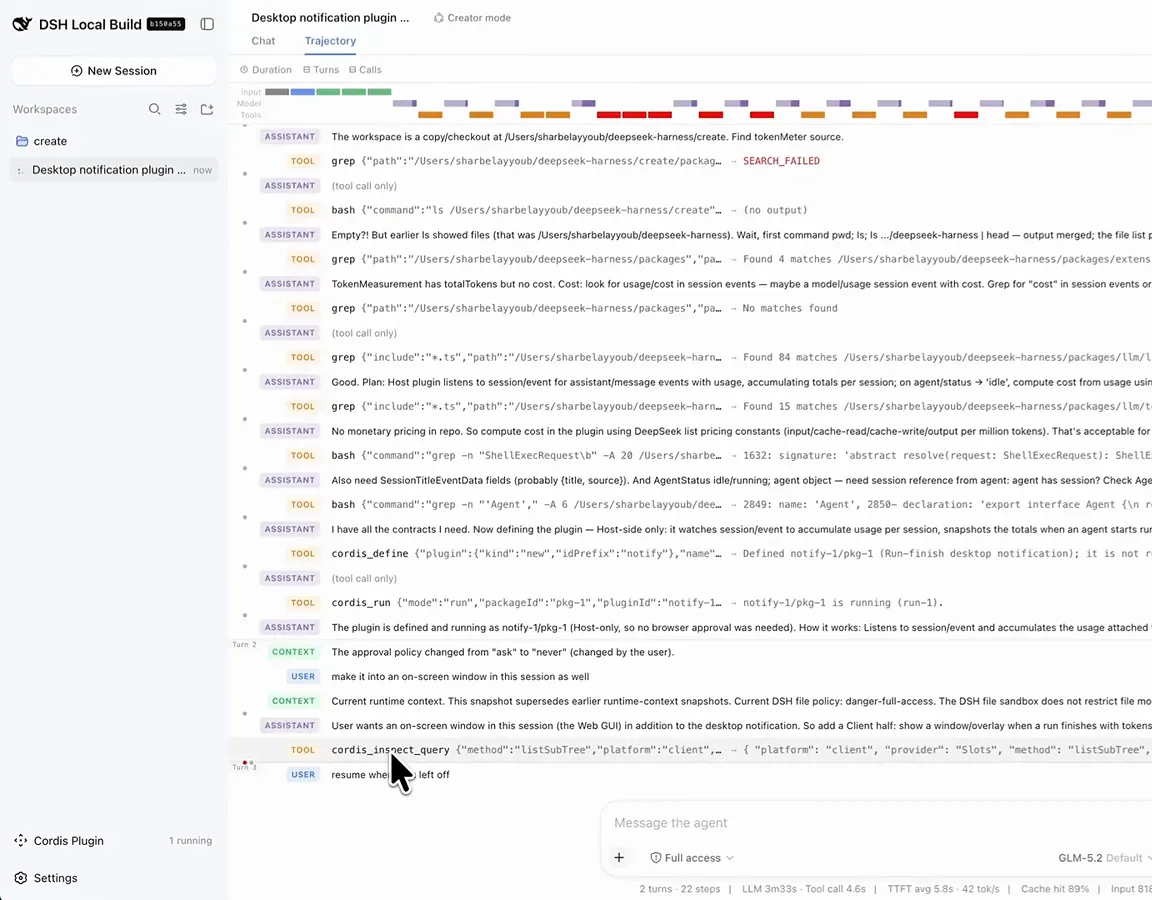
Resuming picks up the same context the killed run had.Watch at 8:02