
OpenCode Tutorial: Setup, DeepSeek and First Task
Install the open-source terminal coding agent, connect DeepSeek V4 Flash Free (or your own API key), scaffold a real app and master plan mode — 13 steps, every one illustrated with a real screenshot from a full walkthrough.
TL;DR
- Install with one curl command from opencode.ai, then run opencode inside any project folder.
- /connect links any provider — pick the free DeepSeek V4 Flash model or paste a DeepSeek, OpenAI or Anthropic API key.
- Plan mode reviews a numbered plan and asks questions before build mode touches a single file.
- /init writes an AGENTS.md whose rules every future session reads — commit it to git.
OpenCode Full Tutorial: Free Models, Skills & MCPs
Video walkthrough:Eric Tech23:11
DeepSeek V4 + OpenCode Is INSANE!
Model facts:Julian Goldie SEO9:51
Written steps verified against the official OpenCode docs (opencode.ai/docs) and DeepSeek's OpenCode integration guide (api-docs.deepseek.com): /connect → deepseek → API key → DeepSeek-V4-Flash, OpenCode v1.18.30 or newer.
Frames from the walkthrough videos are used with channel attribution; every step deep-links to the exact minute of the source recording. Text and screenshots selection are our own.
From install to first shipped task in 13 steps
- 1
Grab the one-line install command
Open opencode.ai and copy the install one-liner — curl -fsSL https://opencode.ai/install | bash — then paste it into your terminal. An npm package, Homebrew and Scoop installs exist too, but the curl script is the path every walkthrough follows, and it puts OpenCode on your PATH automatically.
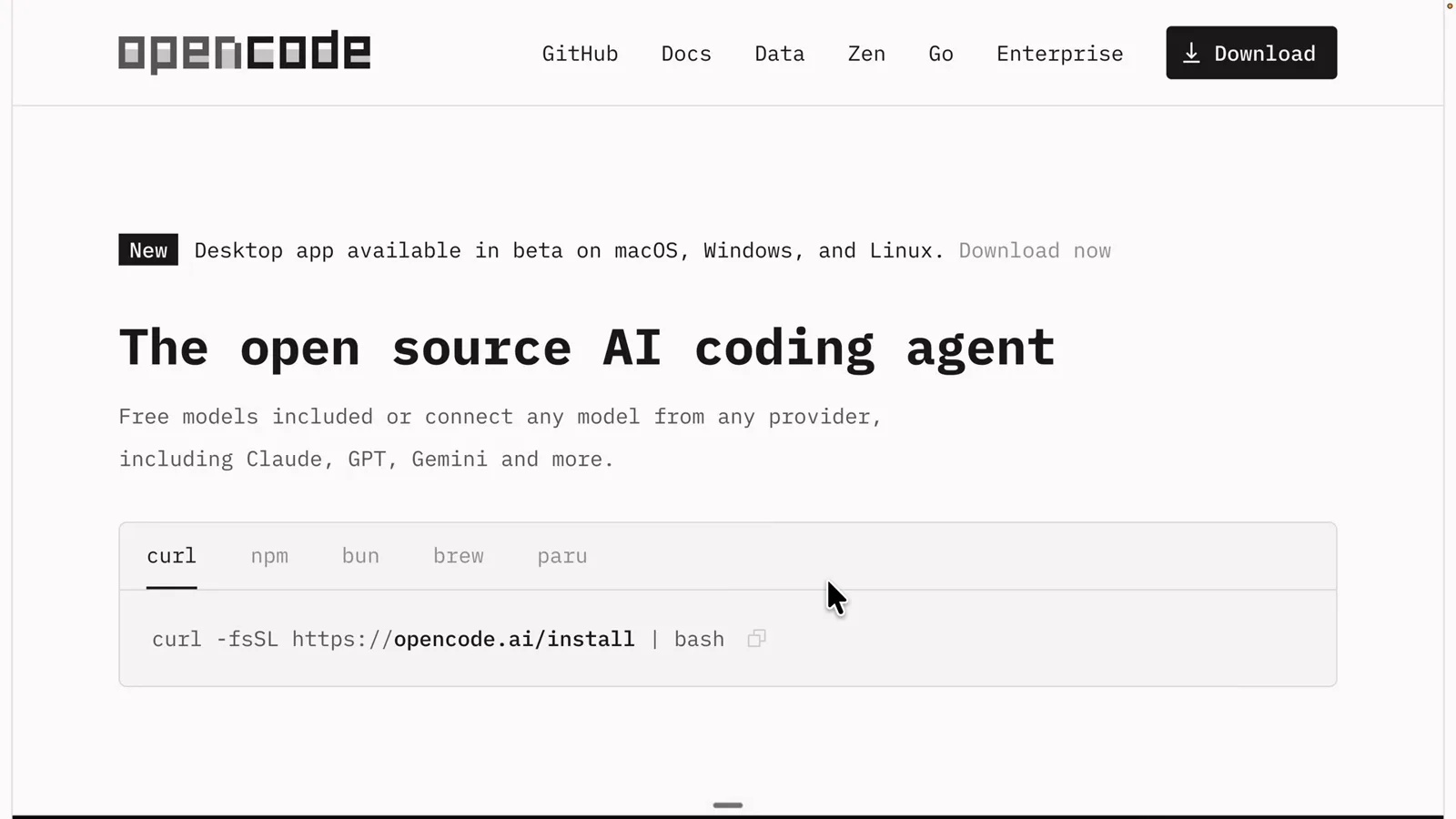
The opencode.ai install page lists the curl one-liner plus package-manager alternatives.Watch at 1:10 - 2
Let the installer finish, then open a fresh terminal
The script ends with two lines that matter: "Successfully added opencode to $PATH" and a quick-start hint — cd into a project, then run opencode. If the command answers "command not found", your terminal session predates the install; open a new one and it resolves.
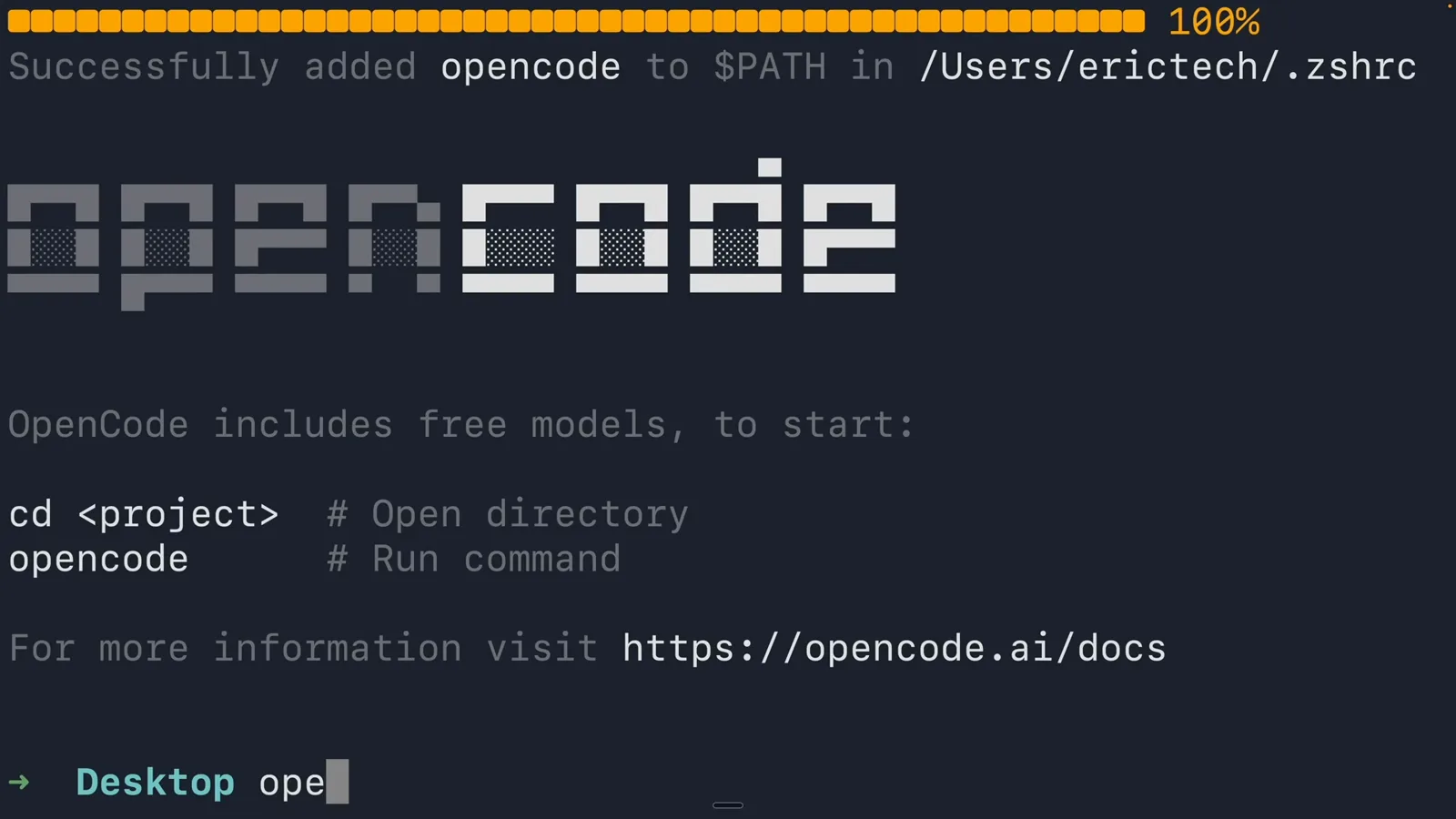
A finished install adds OpenCode to PATH and prints the quick-start hint.Watch at 1:30 - 3
Launch OpenCode inside a project
cd into any folder — or open the project in VS Code and use its integrated terminal — and run opencode. The welcome screen appears with an Ask anything prompt box, the active model in the Build badge at the bottom, and a tip: run /connect to add an AI provider. Ctrl+C exits.
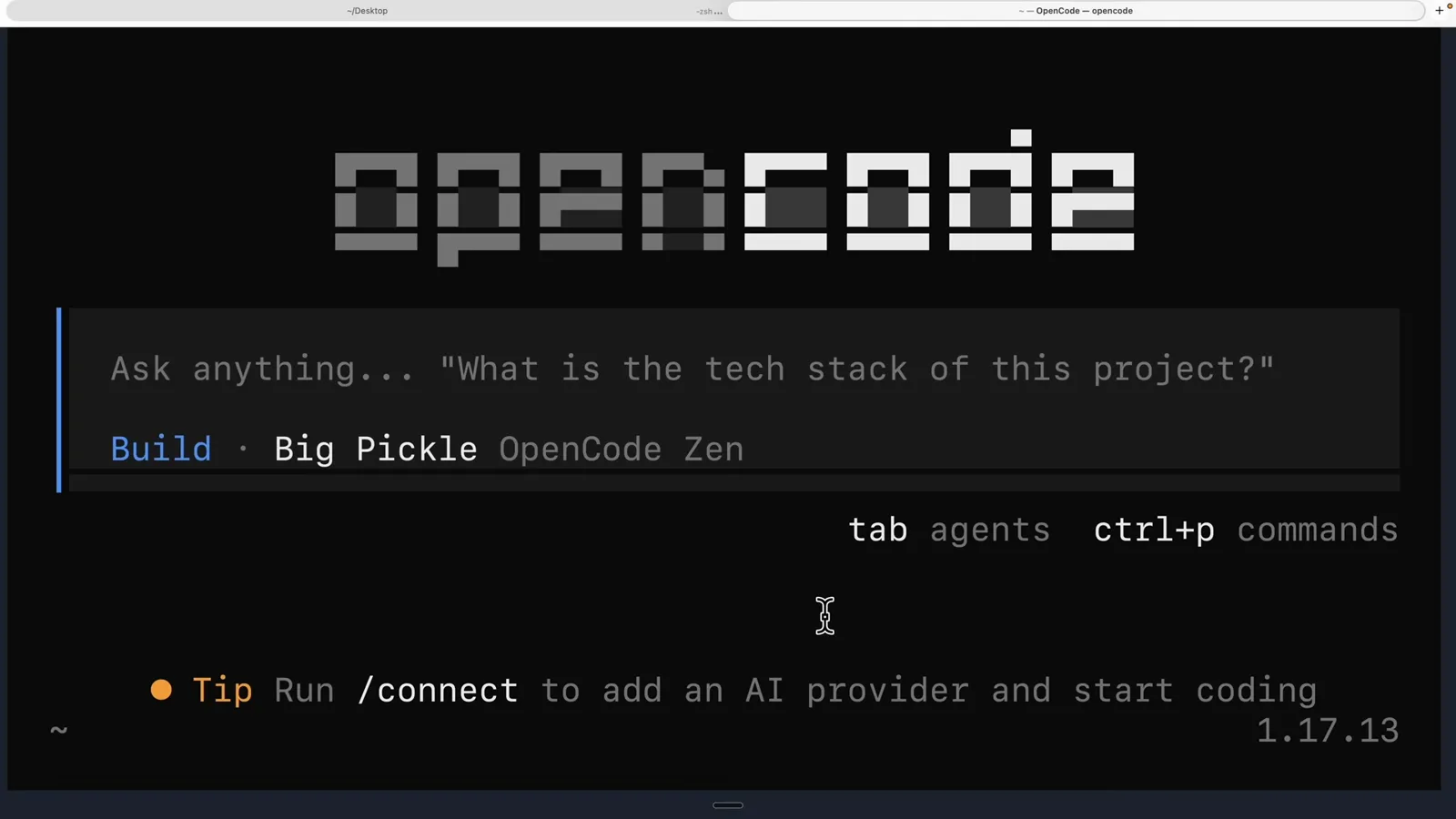
First launch: the welcome screen points you straight at /connect.Watch at 2:00 - 4
Run /connect and pick a provider
Type /connect in the input box. OpenCode lists every way to get a model: OpenCode Zen (recommended — one API key for a curated, tested model list), OpenCode Go (a low-cost subscription), plus OpenAI ChatGPT, Anthropic, GitHub Copilot and Google sign-in. Subscriptions cap your spend; API keys are pay-as-you-go.
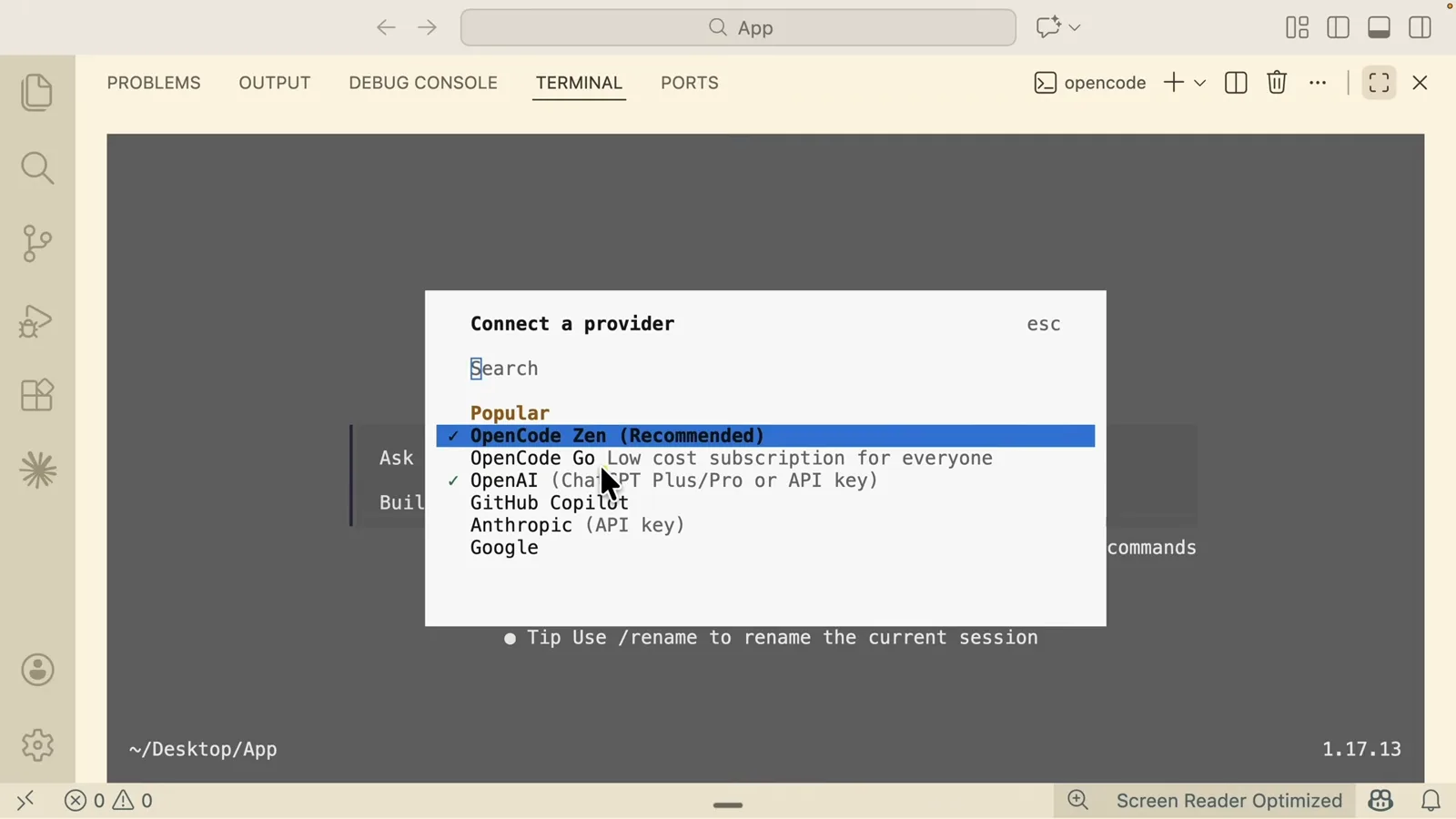
/connect lists Zen, Go and the big first-party providers side by side.Watch at 3:40 - 5
Create and paste an API key
Choosing OpenCode Zen opens an API key prompt with a link to the Zen console. Sign in, hit Create API Key, copy it, and paste it back into the terminal — issuing the key is free and you only pay for the tokens you use. The key is stored locally, so this happens once.
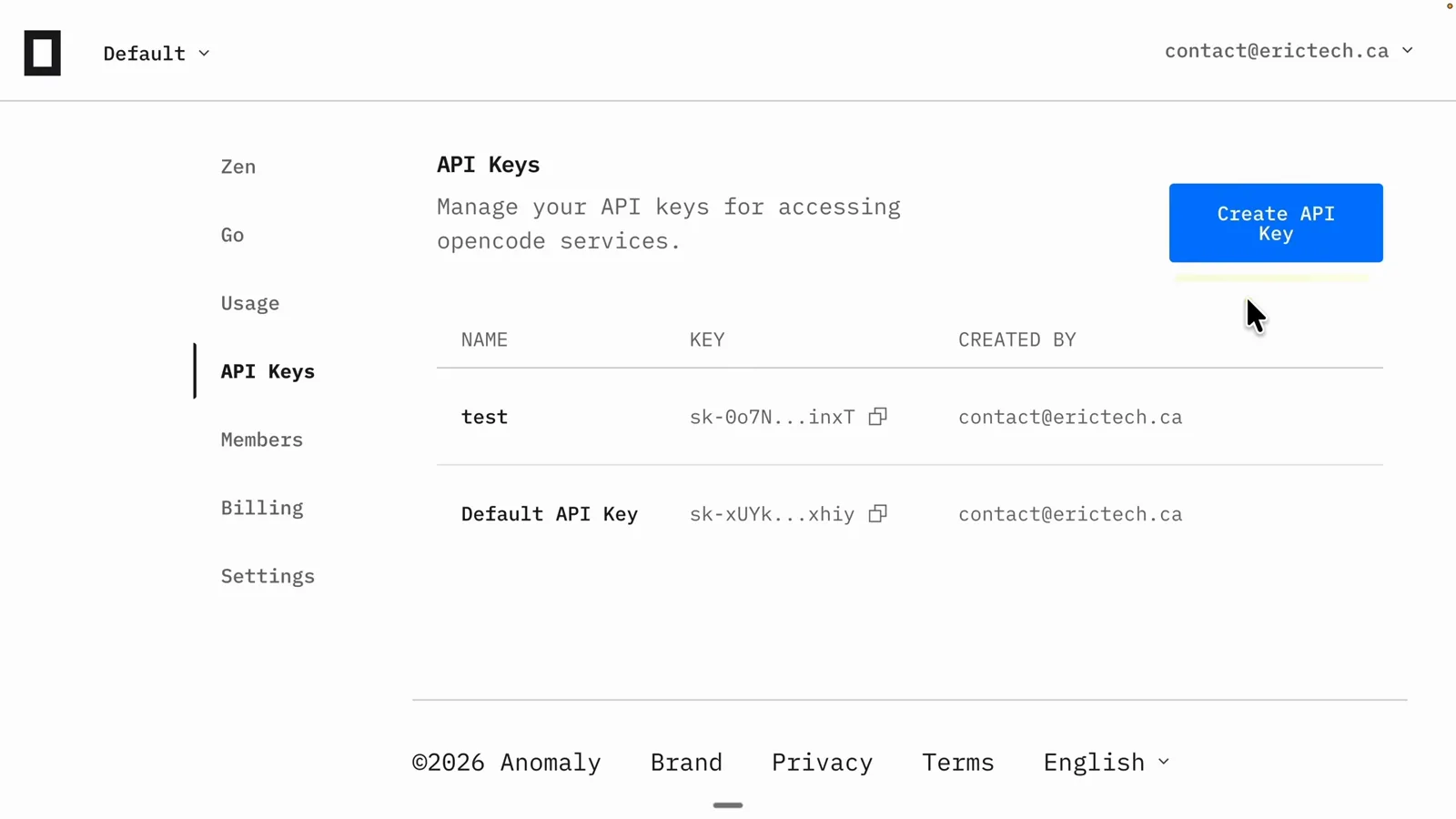
The Zen console issues the key that authenticates the terminal agent.Watch at 4:08 - 6
Select DeepSeek V4 Flash Free and say hi
Back in the model picker, free models carry a Free badge — scroll to DeepSeek V4 Flash Free, press Enter, and send "hi" to confirm the round-trip. Prefer your own DeepSeek account? DeepSeek's official guide uses the same flow: run /connect, choose the deepseek provider, paste an API key from platform.deepseek.com/api_keys and select DeepSeek-V4-Flash (OpenCode v1.18.30 or newer).
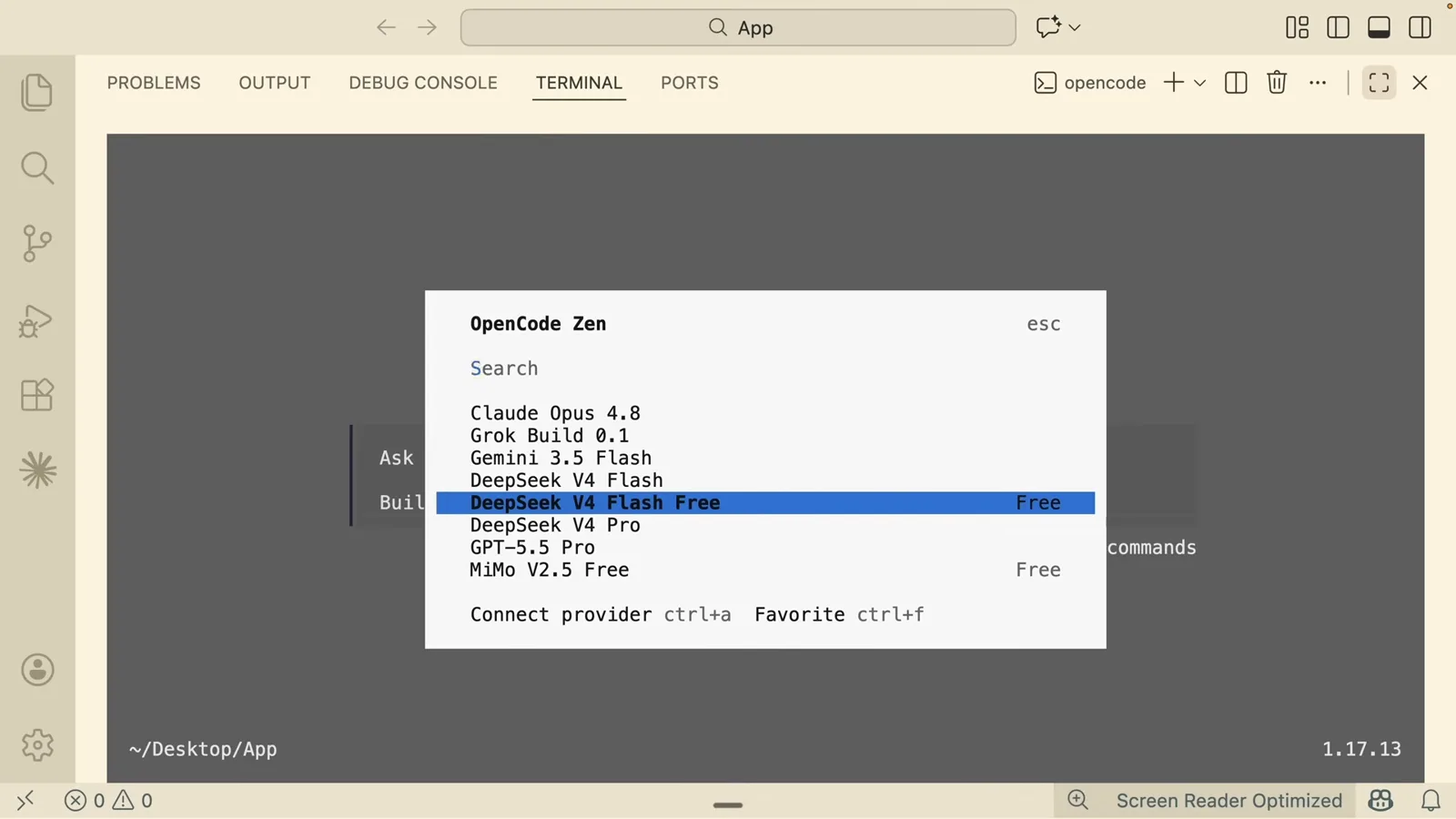
DeepSeek V4 Flash Free is one Enter away — no card required.Watch at 4:30 - 7
Start a clean session and brief a real task
The meter in the bottom-right shows how much context the current session has burned; /new starts a fresh one. Then describe something concrete — here: "scaffold a NestJS server application that prints hello world". OpenCode drafts a file list, writes the code and ticks through its todos. Double-tap Esc to interrupt, type continue to resume.
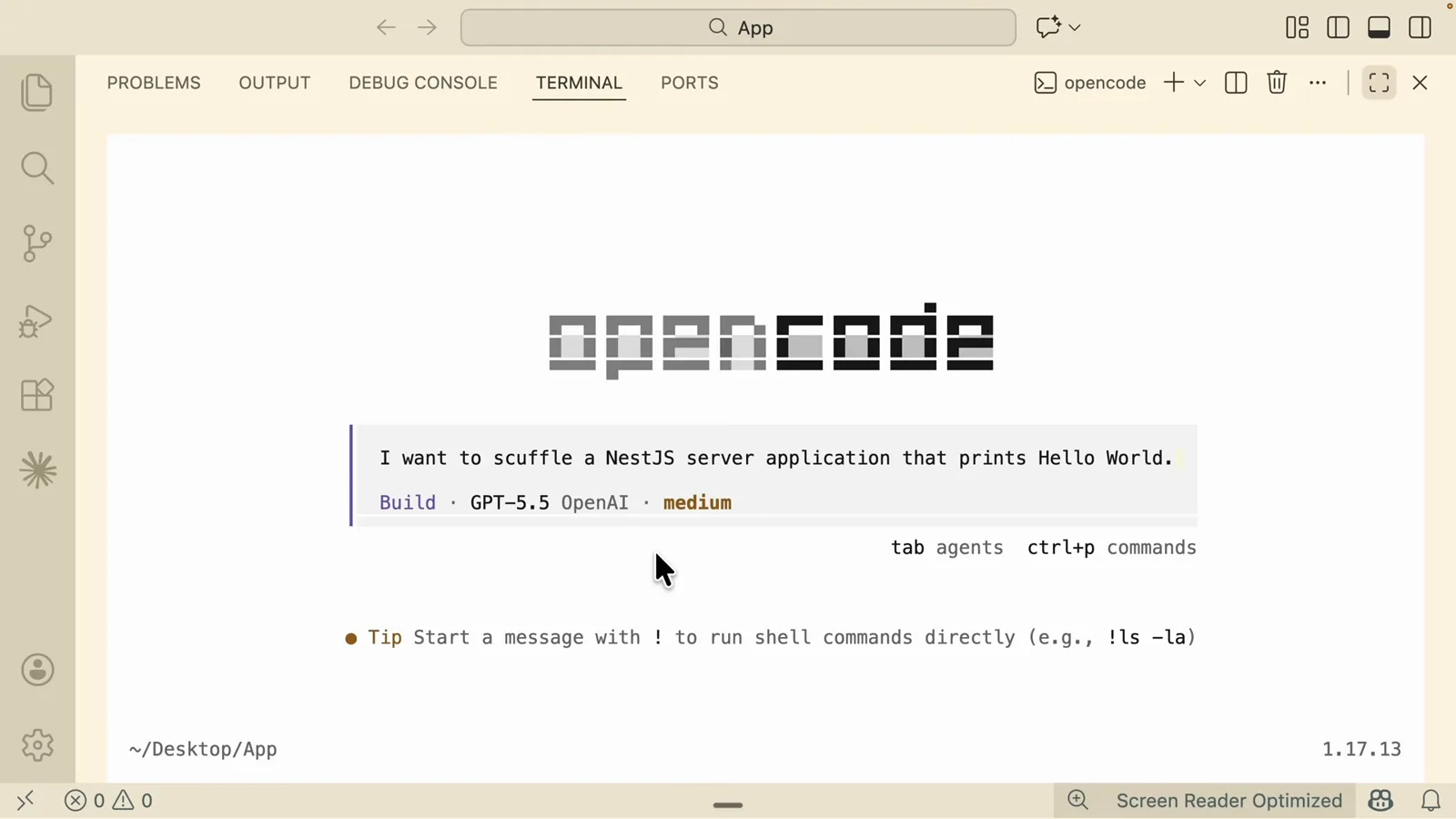
One sentence is enough to make OpenCode scaffold a whole app.Watch at 7:20 - 8
Verify the result actually runs
OpenCode closes with a summary: files created, install, build, and a runtime check that curls the server and prints the answer. Repeat it yourself in a second terminal — start the dev server and open http://localhost:3000 to see Hello World. The agent's report is a claim until you have seen the page load.
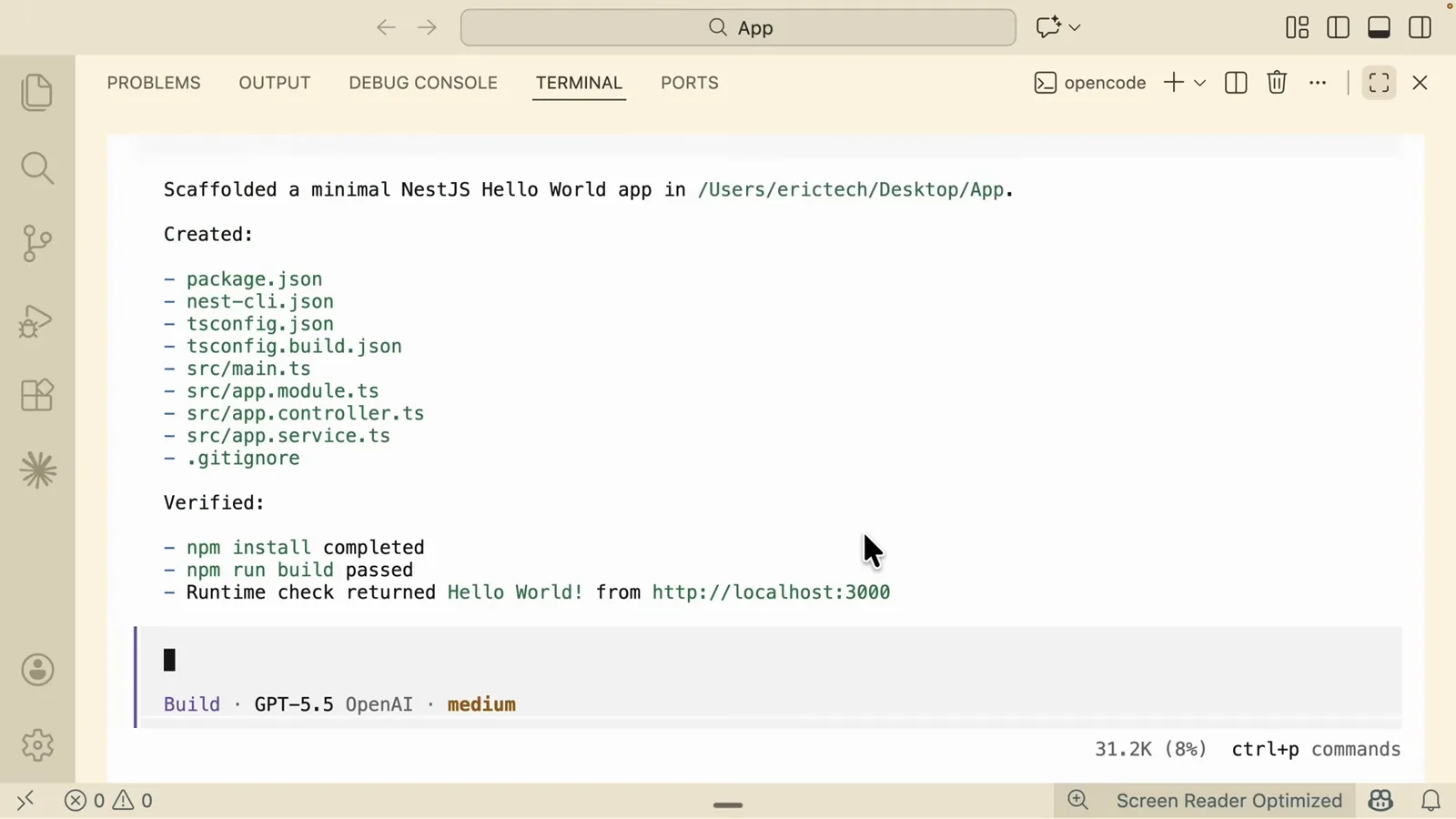
The scaffold summary ends with a runtime check that returned Hello World.Watch at 7:40 - 9
Tune reasoning effort with /variants
/variants opens the Select variant dialog: default, none, low, medium, high. Higher effort thinks longer and costs more; low is fine for mechanical edits. The active level shows next to the model name in the status bar, so you always know which mode you are paying for.
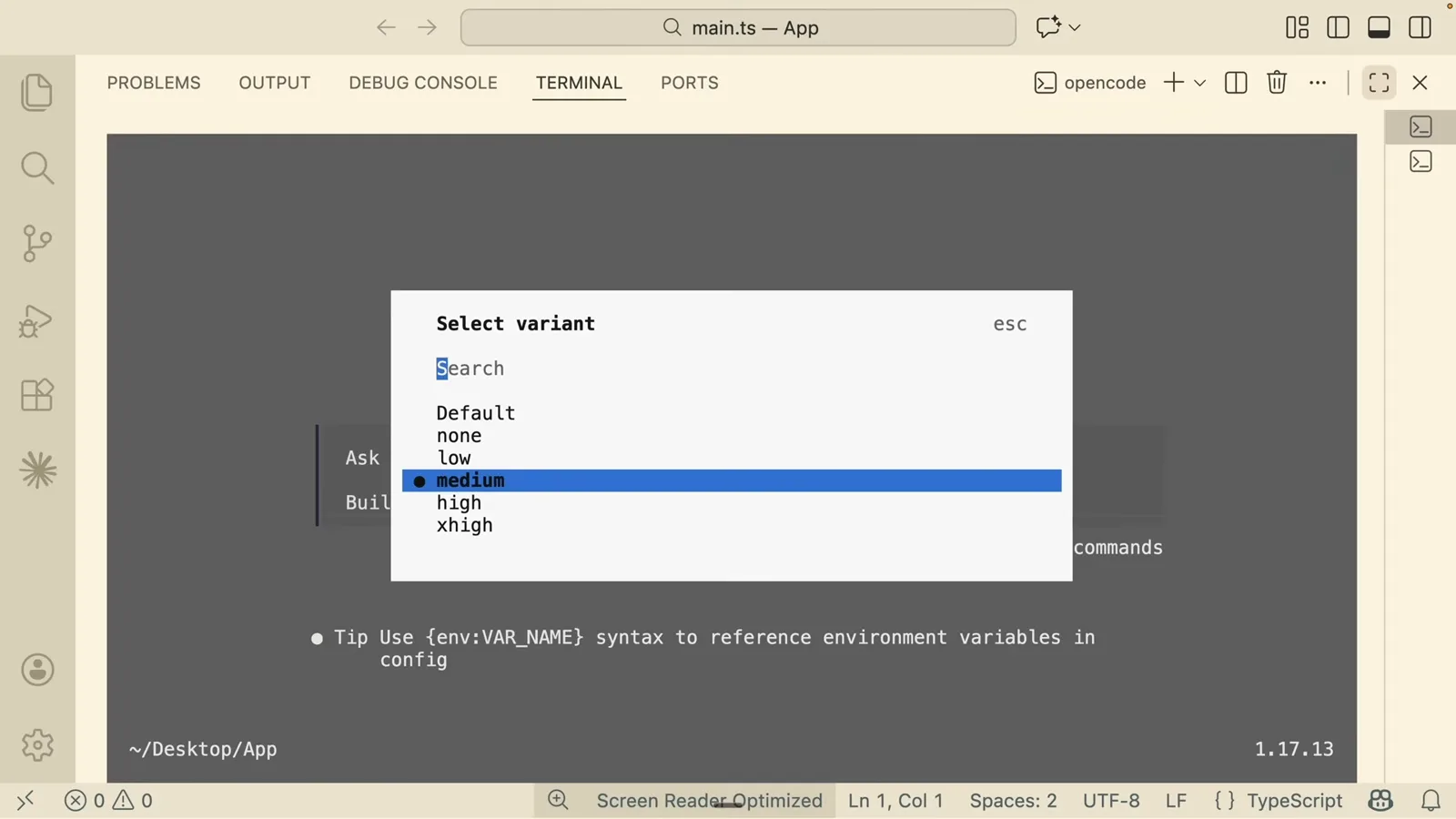
/variants switches reasoning effort without leaving the session.Watch at 8:34 - 10
Keep parallel tasks in separate sessions
/sessions lists every conversation in the project — switch with Enter, rename or delete with the shortcuts shown. Long-running work stays isolated: one session refactors while another drafts docs. /share turns a conversation into a public URL, /export writes it to a markdown file, /timeline rewinds to any earlier message.
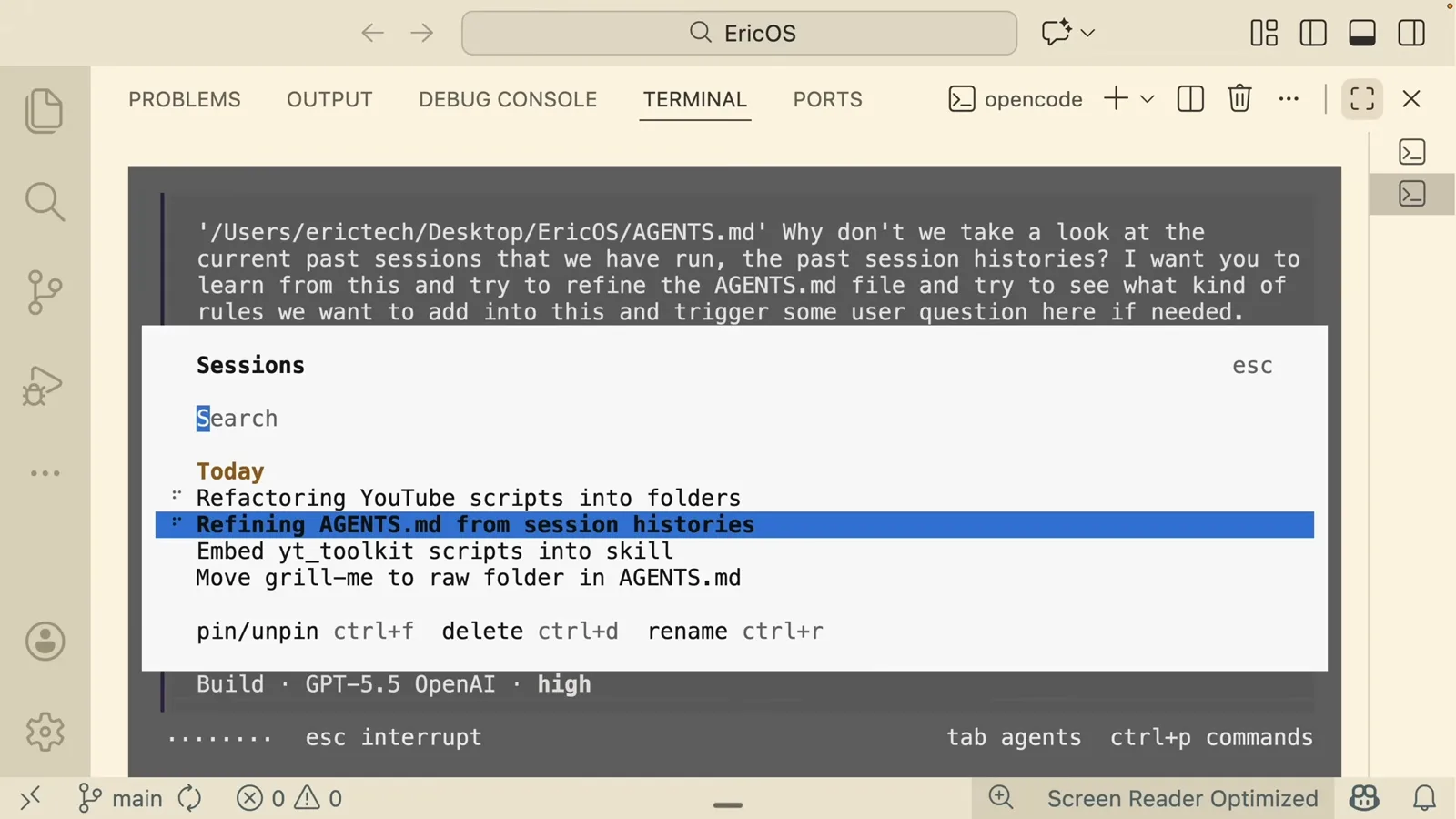
The sessions dialog keeps each task's history and context apart.Watch at 10:30 - 11
Plan before you build
Shift+Tab toggles plan mode — the badge flips from Build to Plan — and the agent reads instead of writing: it proposes a numbered plan and ends with clarification questions. (Current docs bind the same toggle to Tab; watch the indicator in the lower-right corner.) Answer, approve, switch back to build mode, and it executes exactly what you agreed.
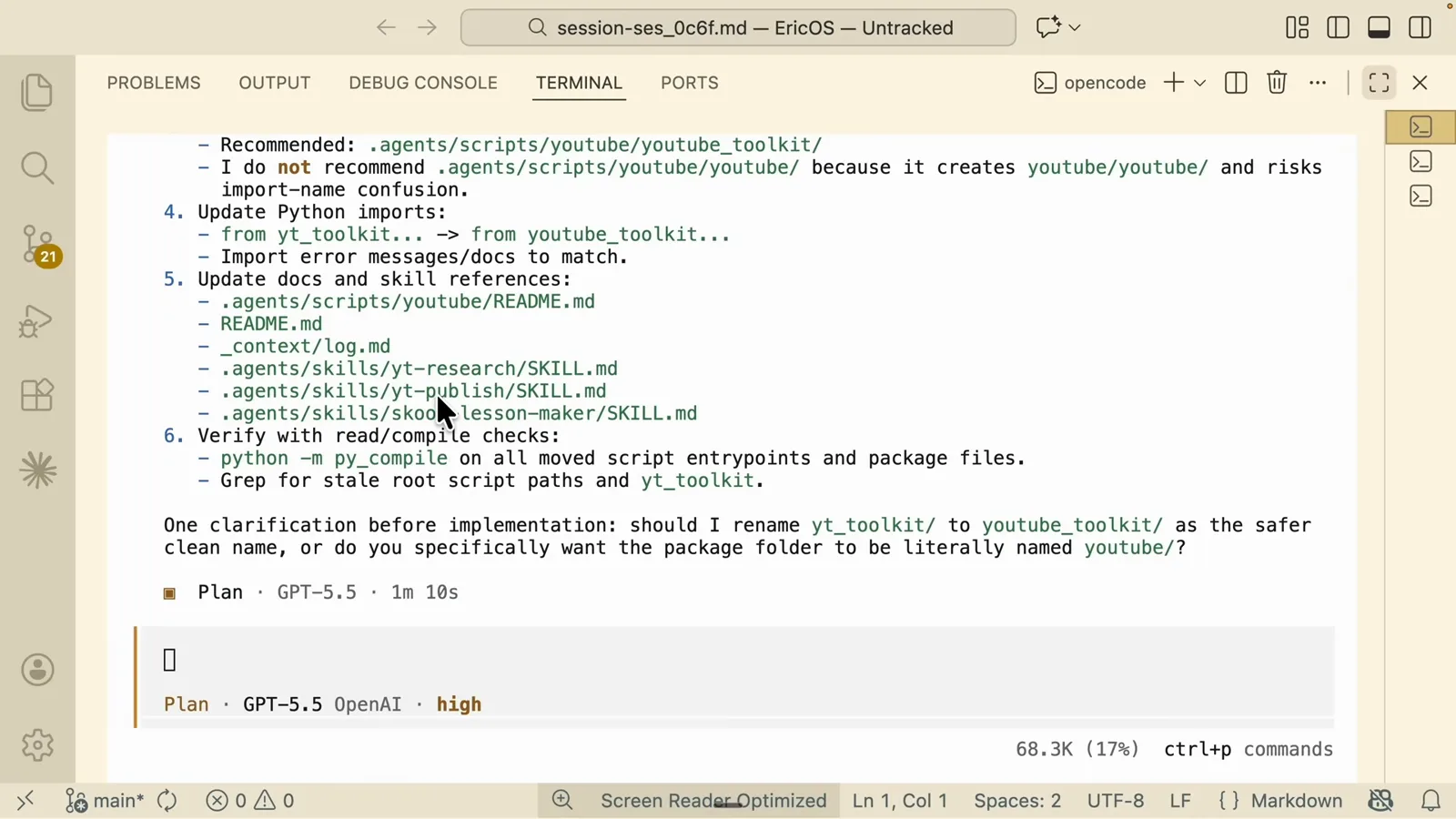
Plan mode ends with questions, not edits — approve before it builds.Watch at 13:29 - 12
Extend it with skills
Skills are reusable playbooks any coding agent can follow. Browse the leaderboard at skills.sh, pick one — Superpowers is the classic — and OpenCode installs it into the agents/skills folder after you approve the permission prompt. Restart OpenCode so it picks the skill up, then run /skills to list everything available.
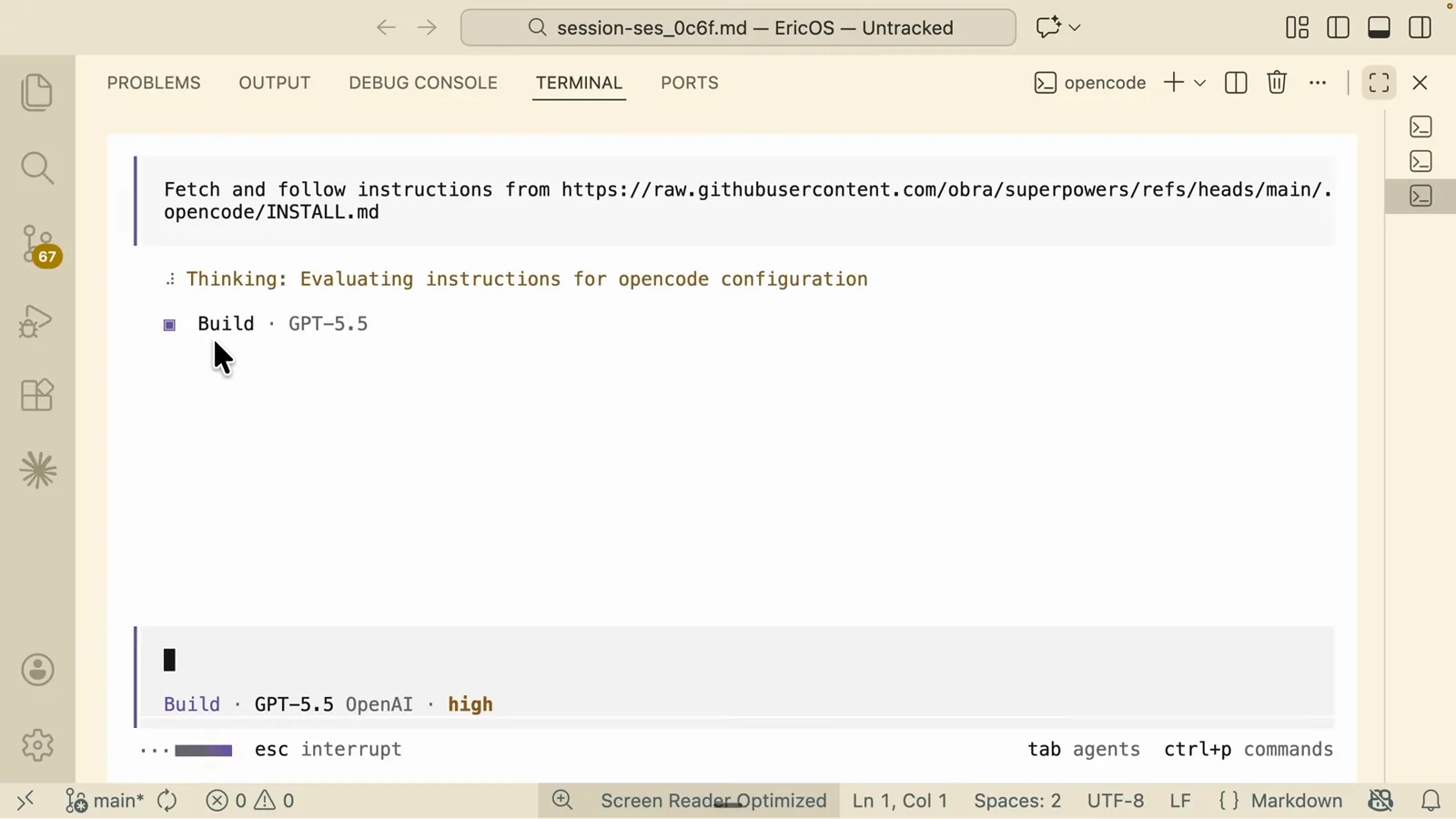
Fetching the Superpowers skill straight from skills.sh into the project.Watch at 15:55 - 13
Teach it your project with /init
/init analyses the repository and writes an AGENTS.md at the root: project rules, a folder map, conventions. Every later session reads it, so rules you add there — naming, forbidden paths, response style — apply automatically. The official docs recommend committing AGENTS.md to git so the whole team shares one agent config.
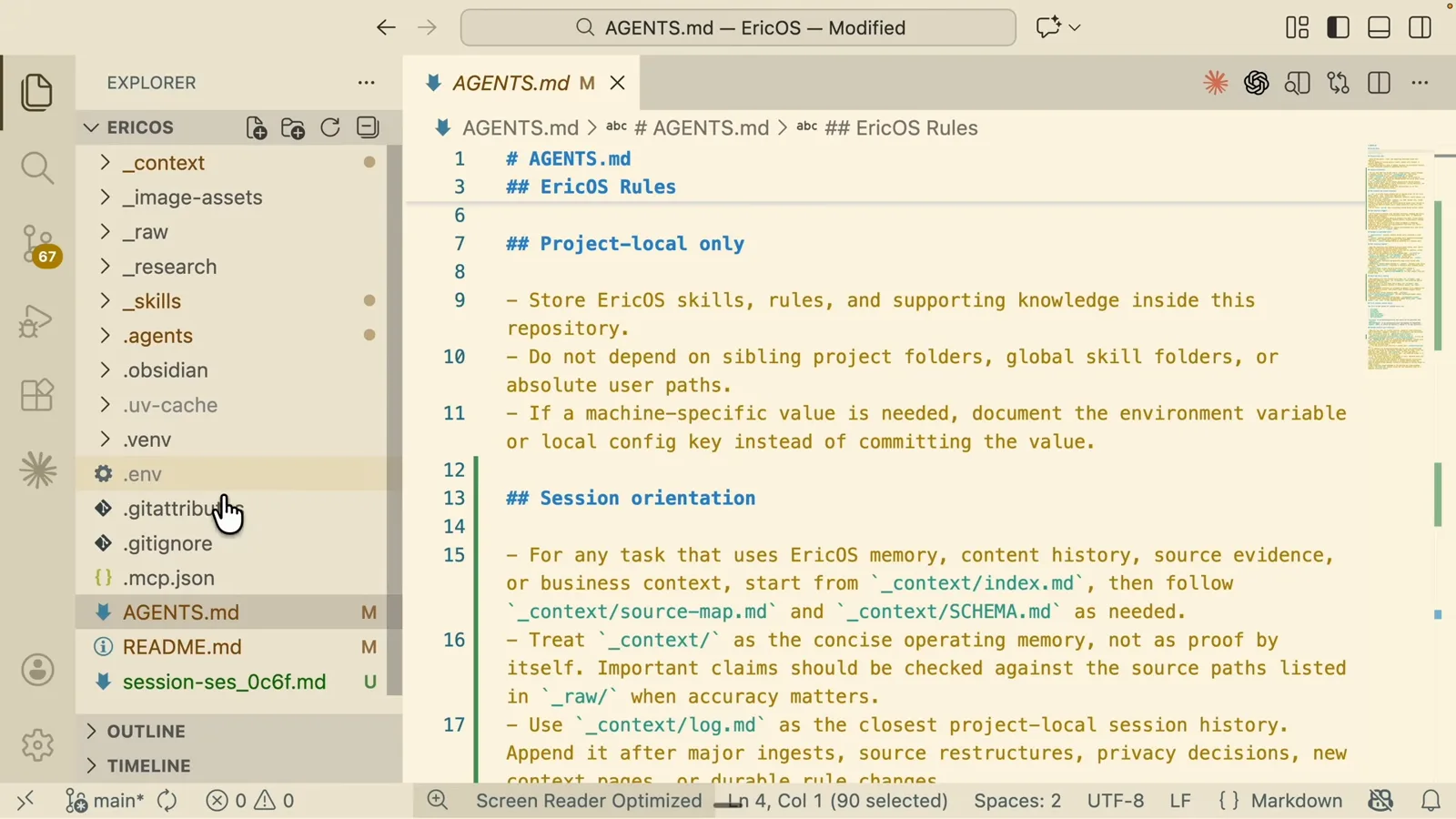
The /init-generated AGENTS.md stores rules every session inherits.Watch at 17:30