
OpenCode not working: fix PATH, blank screen & model errors
A diagnosis-first fix list for OpenCode — "command not found" on Windows, blank terminal windows, free-limit and provider errors, a model list that looks incomplete, and the VS Code extension — every fix shown on a real recording.
Quick answers
- "opencode: command not found" right after installing? The installer's bin folder is missing from PATH — export it in your shell profile (the video adds the .opencode/bin path for Git Bash) and open a fresh terminal.
- Install script throwing errors? It is a Bash script — running it from PowerShell fails on the -fsSL flag. Switch the VS Code default terminal profile to Git Bash first, then rerun curl -fsSL https://opencode.ai/install | bash.
- Terminal or desktop window opens black? Clear the corrupted data folder under .local/share/opencode (AppData\Local\share\opencode on Windows), end stuck processes, and relaunch — the recording shows the TUI rendering again within a minute.
- "Free usage exceeded" or provider errors? Open the model picker with /models and switch to another model, or re-authenticate with /connect. Run opencode auth list to confirm your credentials landed.
- Models missing from the list? Only connected providers show up. Add the provider with /connect, or curate the list with the model, disabled_providers and per-provider whitelist/blacklist keys in opencode.json.
Fix OpenCode Error in Antigravity Terminal (Git Bash + PATH Solution)
Channel:teacher account5:52
OpenCode docs — install, config & troubleshooting
Docs:opencode.ai/docs
Frames come from three screen recordings: the PATH fix above, a Windows blank-screen repair (xiXPoY2d4iw by Vũ Văn Hà), and a free-limit model switch (DX8MZFuu1BM by Free Code). Each step deep-links to its own video.
Video frames remain the property of their creators and are embedded here as step-by-step documentation with attribution and deep links.
Fix OpenCode step by step
Install & PATH — the "not recognized" stage
- 1
Get the official install command
Open opencode.ai and copy the command from the install box — curl -fsSL https://opencode.ai/install | bash — or switch the tab to npm, bun or brew. If OpenCode is "not working" because it was never fully installed, restarting from this official command beats debugging a half-copied one.
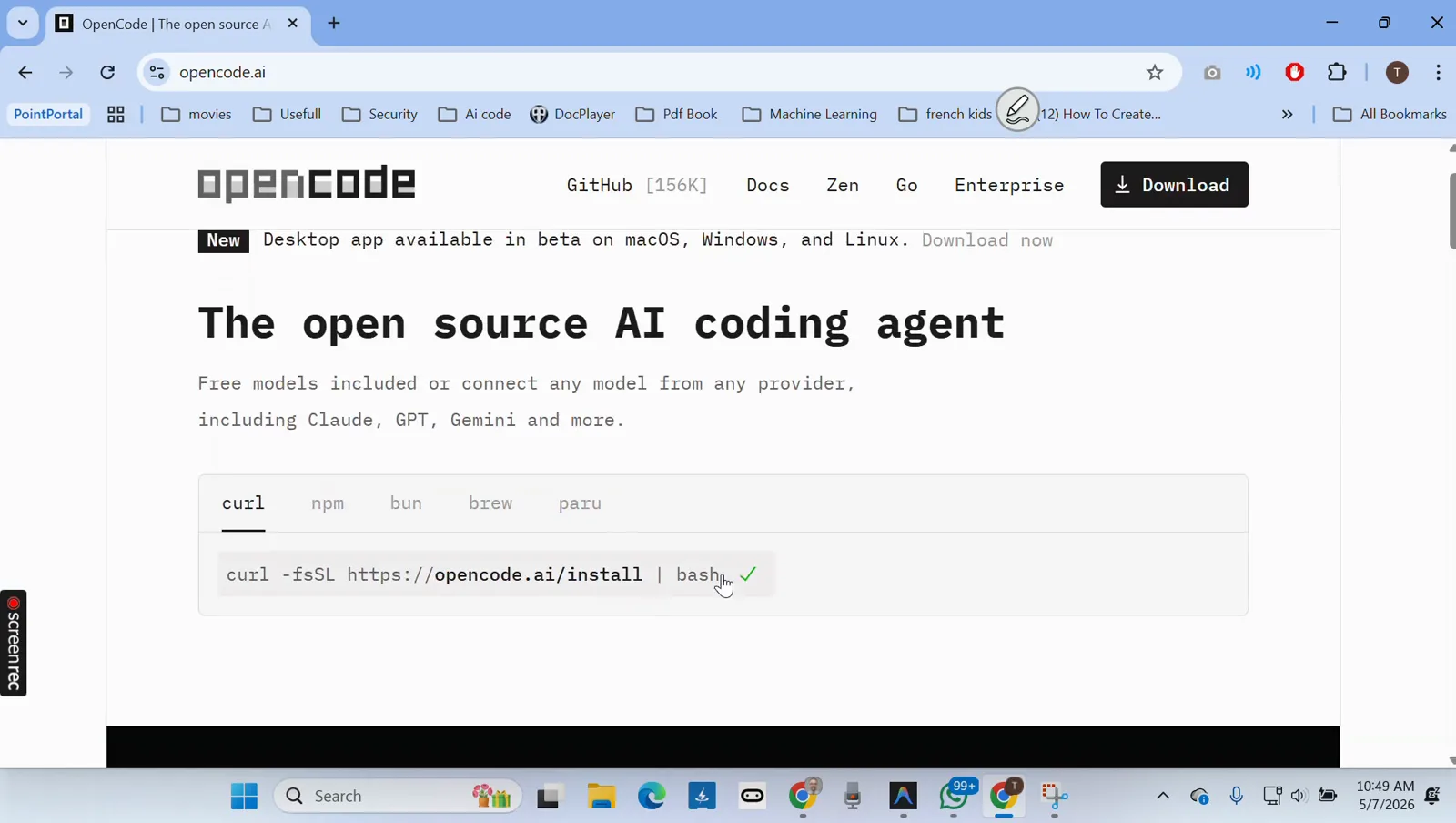
The opencode.ai install box with curl, npm, bun and brew tabsWatch at 0:08 - 2
Run the installer from a Bash shell, not PowerShell
The install script is written for Bash. Pasting it into PowerShell produces Invoke-WebRequest: A parameter cannot be found that matches parameter name 'fsSL', exactly as captured in the recording. The fix shown on screen: set terminal.integrated.defaultProfile.windows to Git Bash in the IDE settings.json so the command lands in a Bash shell.
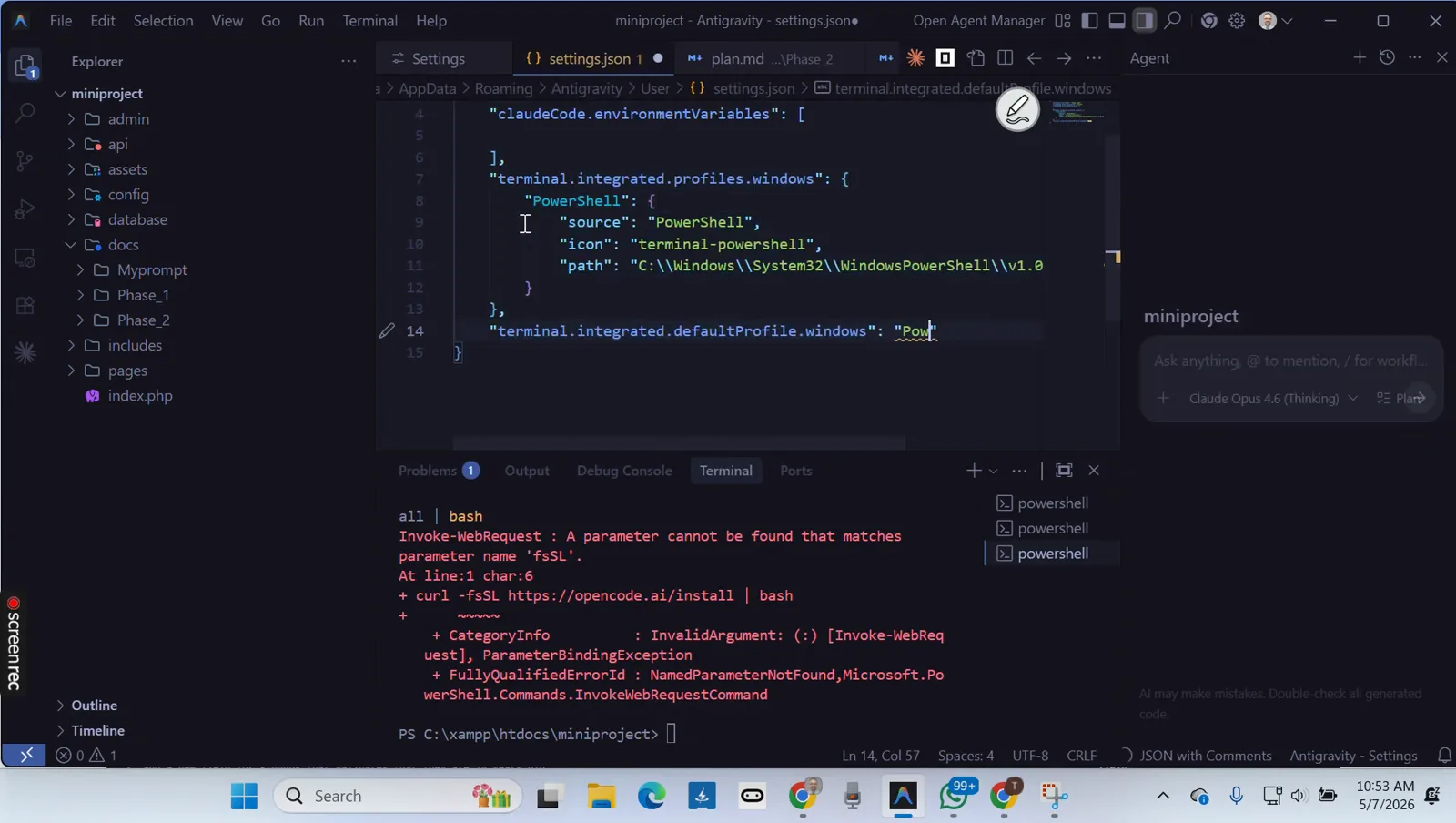
The -fsSL error PowerShell throws, next to the default-profile settingWatch at 1:32 - 3
Fix "opencode: command not found" by extending PATH
When the install finishes but the terminal still says bash: opencode: command not found, the binary's folder never reached PATH. The recording adds the .opencode/bin directory with export PATH=/c/Users/<you>/.opencode/bin:$PATH in Git Bash and then launches opencode again — the same export belongs in your ~/.bashrc to make it stick.
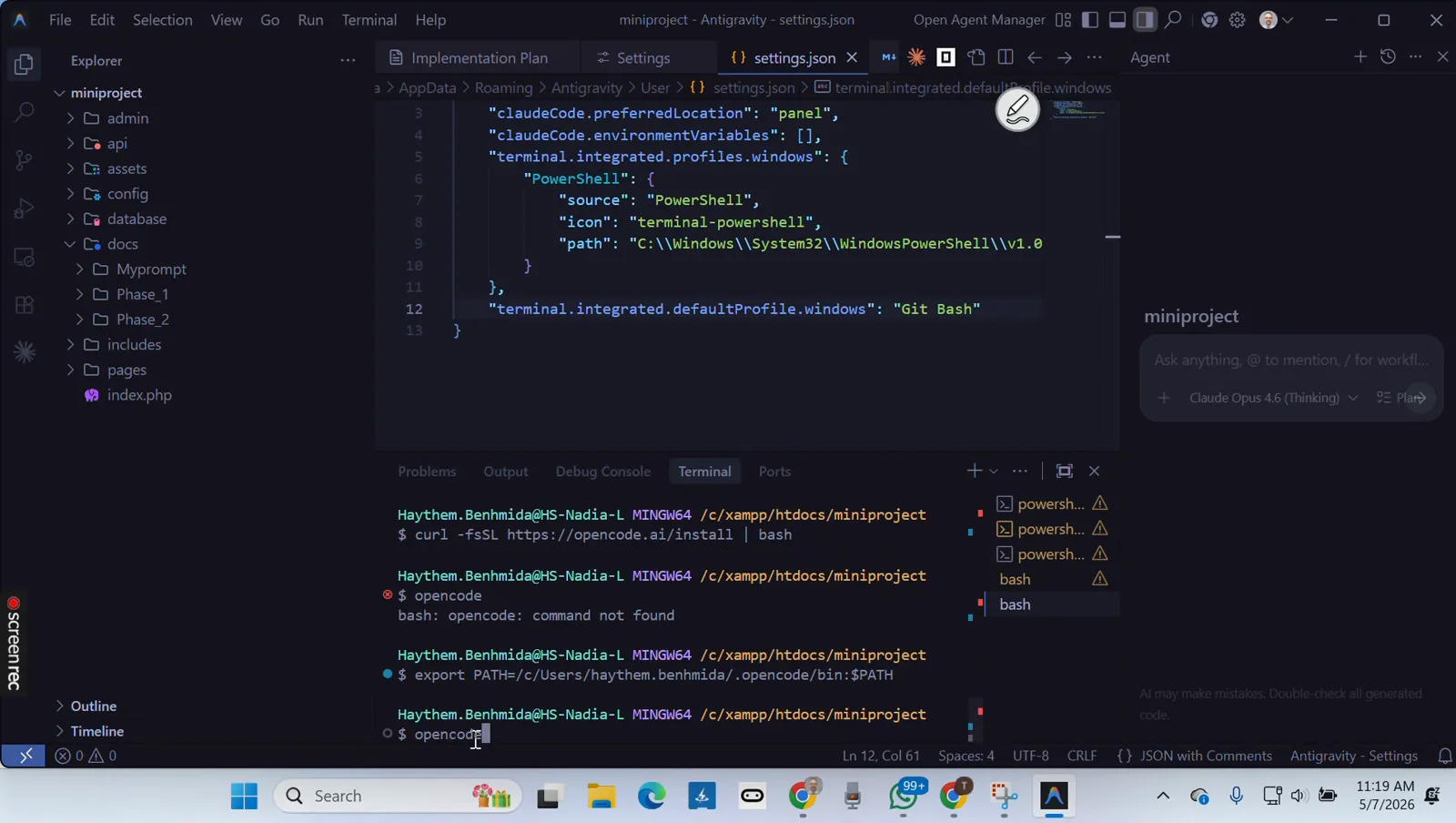
command not found, the PATH export, and the retry that worksWatch at 4:32 - 4
Re-run the installer in Git Bash and confirm
With Git Bash as the default profile, run curl -fsSL https://opencode.ai/install | bash again and let it finish. You can also install through npm with npm install -g opencode-ai, or choco and scoop on Windows. Reopen the terminal afterwards so the updated PATH is picked up.
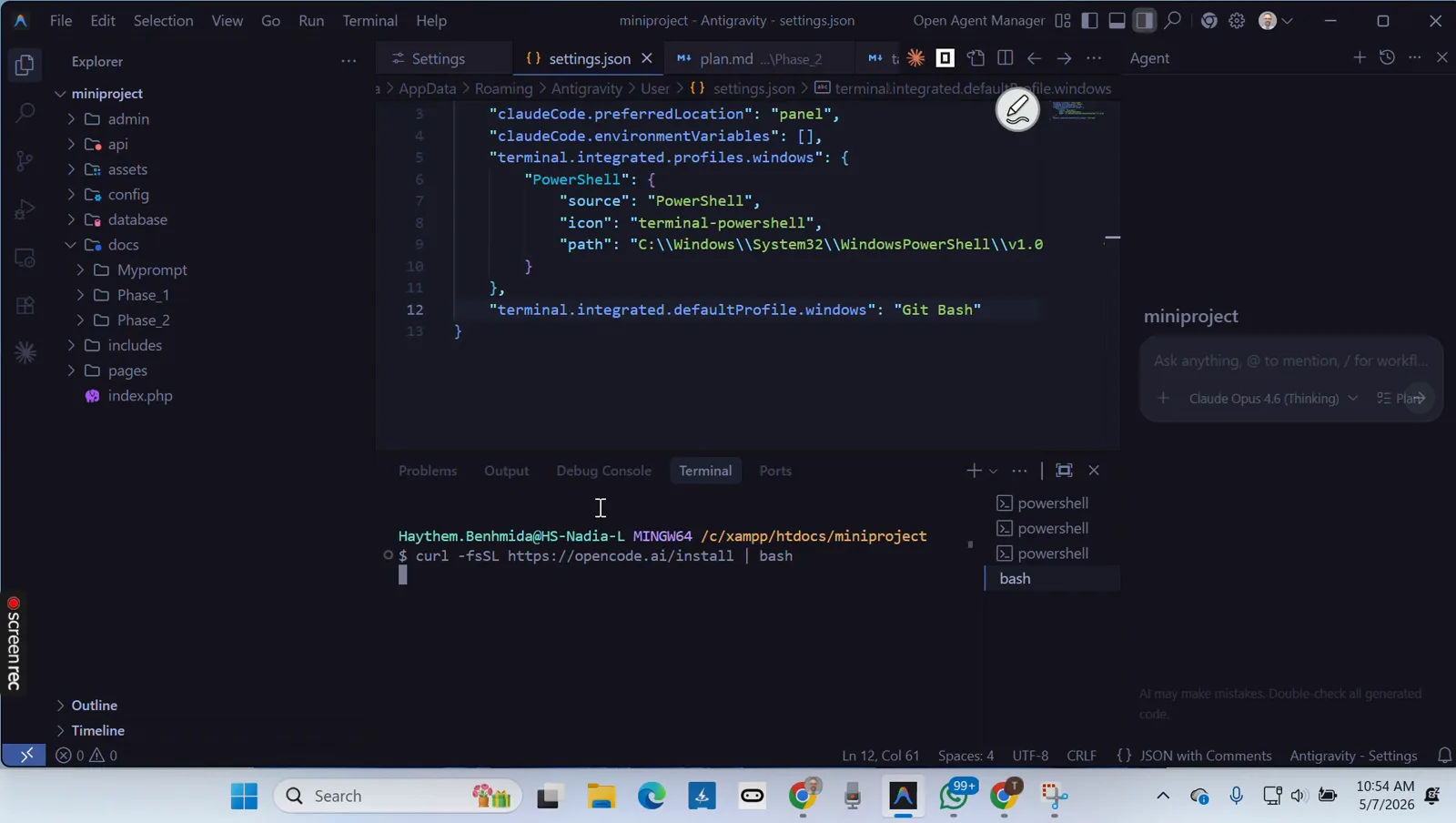
Git Bash as default profile while the install command rerunsWatch at 2:30
Blank screen & startup crashes
- 5
Recognize the blank-screen launch
A second failure mode: you type opencode, the window title changes, and the body stays black — no banner, no prompt. The recording shows exactly this dead window on Windows 11. Nothing is wrong with your input; the state on disk or a stuck process is blocking the TUI from rendering.
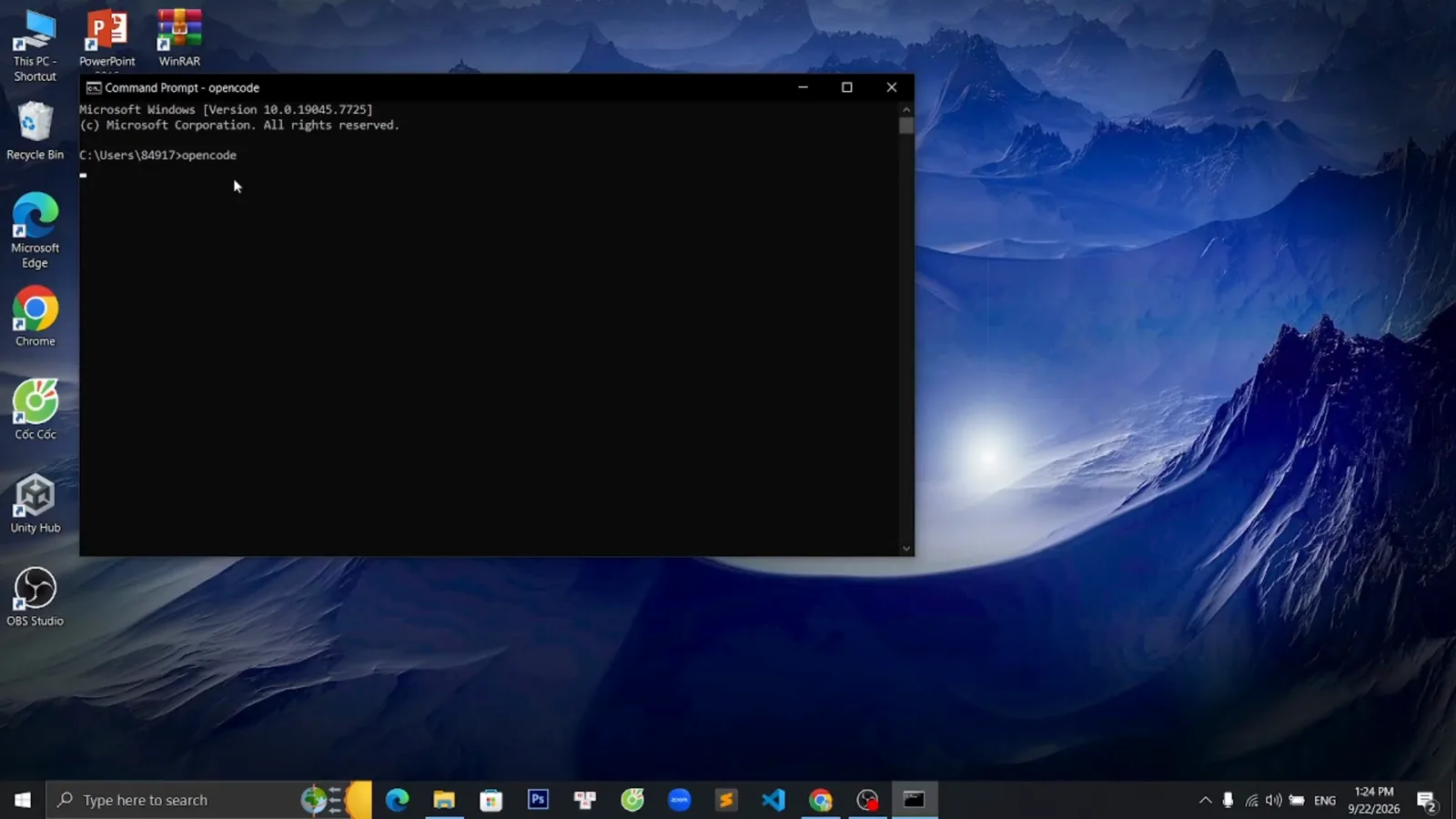
The blank Command Prompt window right after launching opencodeWatch at 0:09 - 6
Clear the corrupted data folder
The fix shown in the recording: close OpenCode, end any stuck instances in Task Manager, then delete the data folder at AppData\Local\share\opencode (that is ~/.local/share/opencode on macOS and Linux). It holds auth.json, logs and project state, so you will need to authenticate again afterwards — a small price for a working TUI.
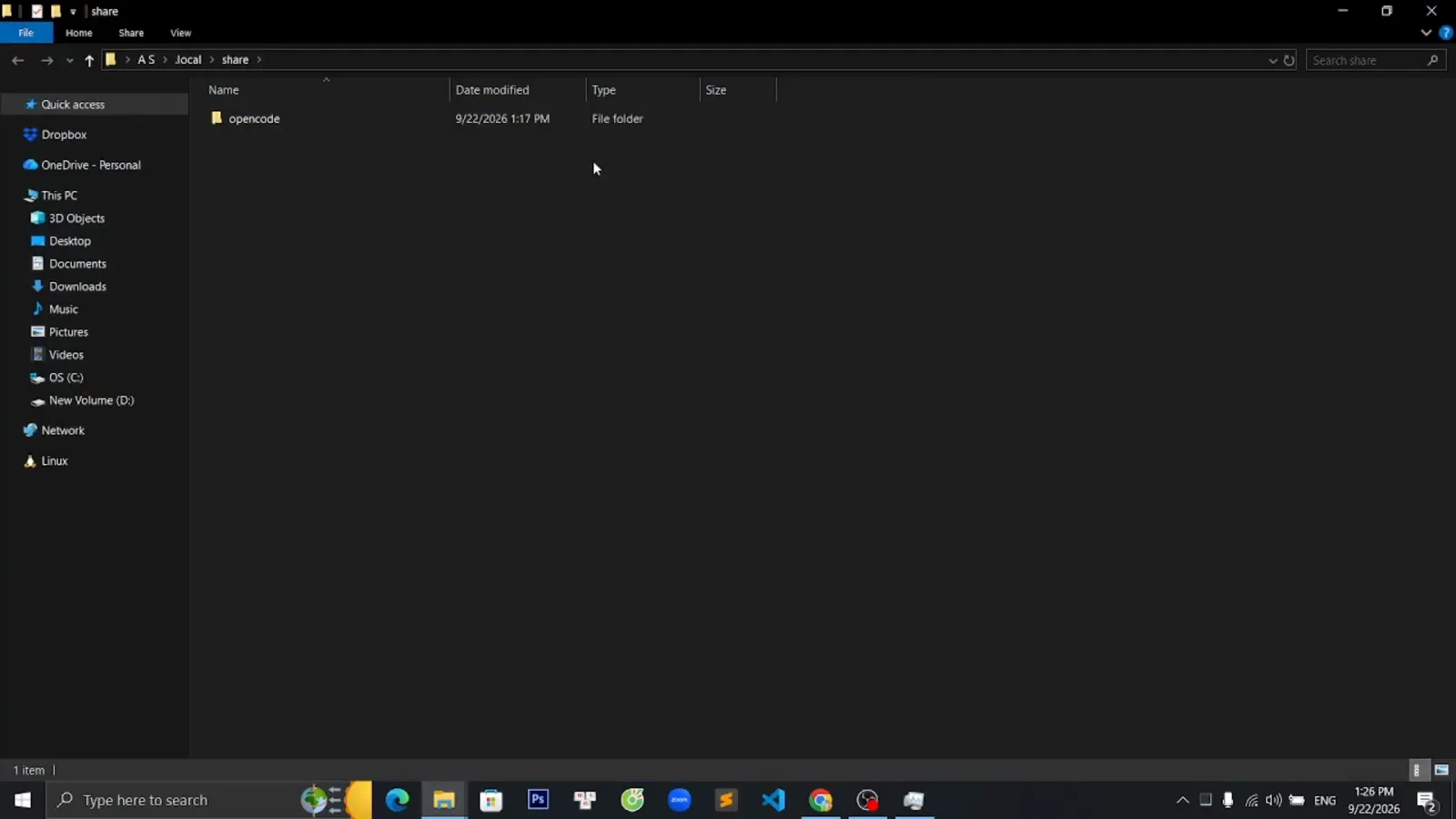
The opencode data folder under AppData\Local\share before deletionWatch at 0:28 - 7
Relaunch and confirm the TUI renders
Run opencode once more. The recording's next scene is the healthy terminal UI — banner, Ask anything prompt, and the tip "Run /connect to add an AI provider and start coding". If your window is still dark, start it with opencode --print-logs and check the newest file under the log/ folder for the failing line.
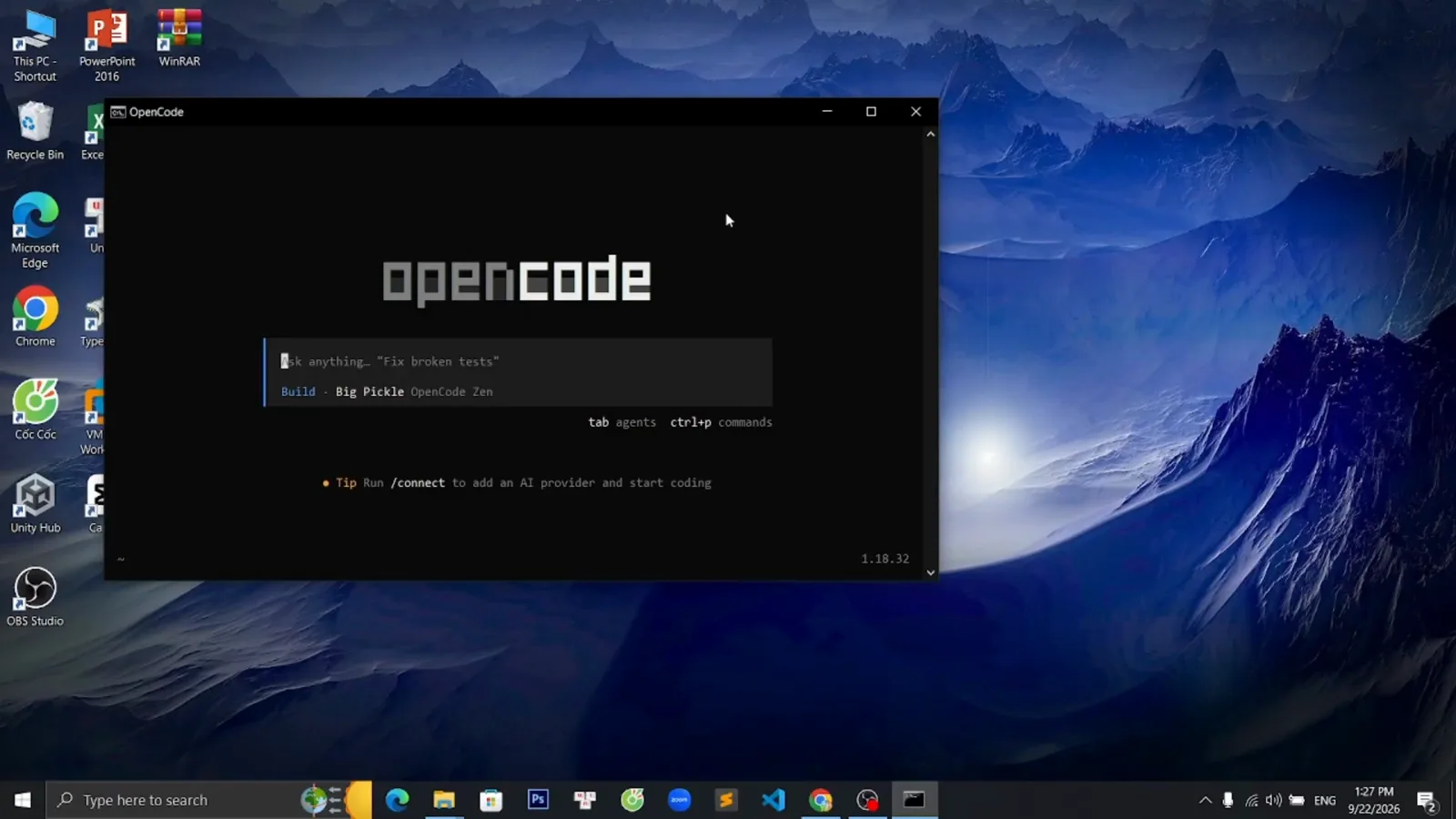
The OpenCode TUI restored after the state cleanupWatch at 1:09
Provider, model & IDE problems
- 8
Read the free-limit message before switching
When a bundled model's quota runs out, the session shows a red "Free usage exceeded, subscribe to Go [retrying…]" banner and stops responding. That is not a crash — the recording shows the session recovering the moment a different model is selected, so read the message as a signal to move to step 9.
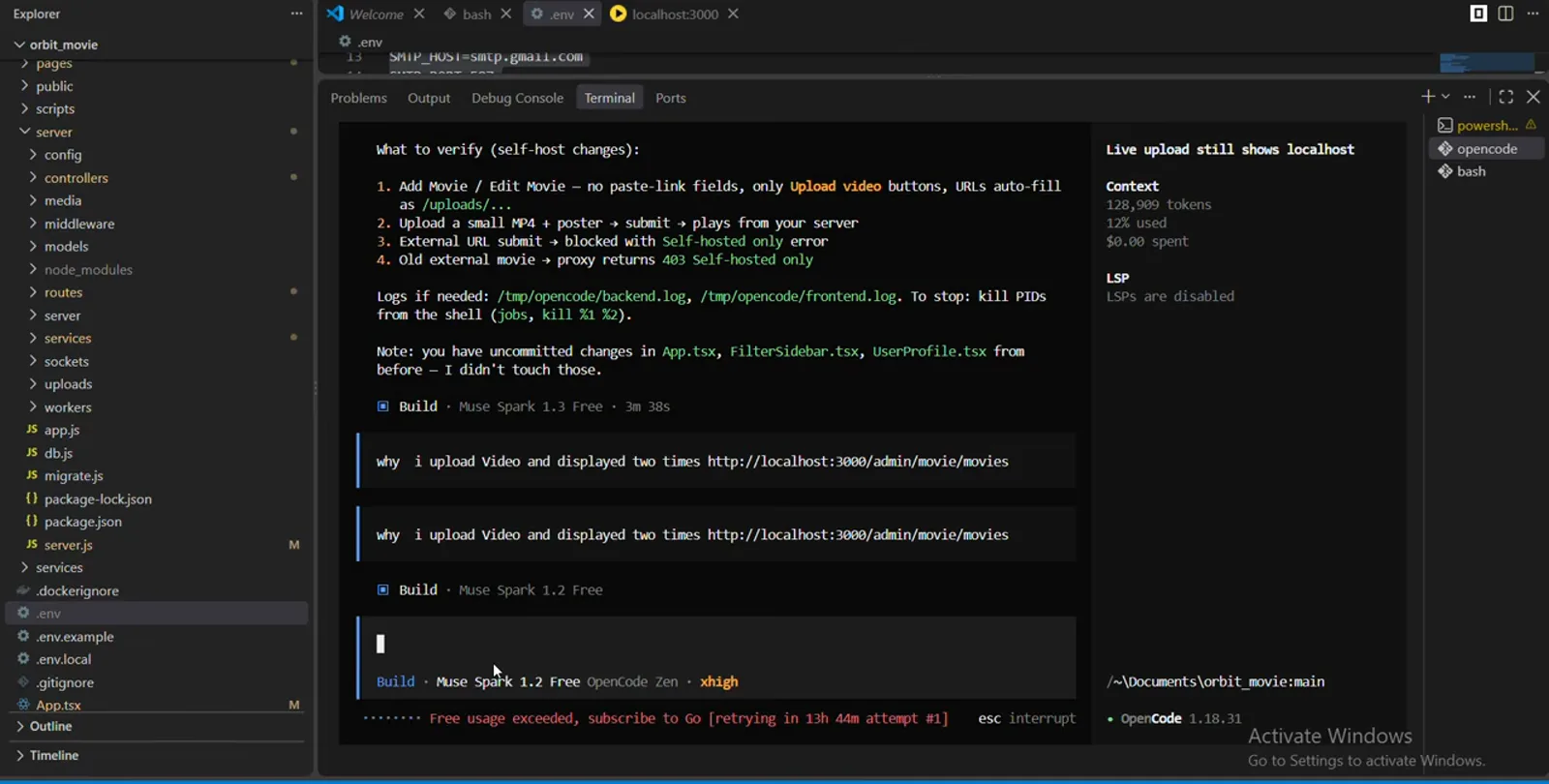
The Free usage exceeded banner and the current model lineWatch at 0:36 - 9
Open the model picker and pick another model
Run /models in the session (or opencode models from the shell) to list everything your connected providers expose. The recording picks another Free-tagged model from the OpenCode Zen catalog; any model you have credentials for is fair game, including Claude, GPT or Gemini once connected with /connect.
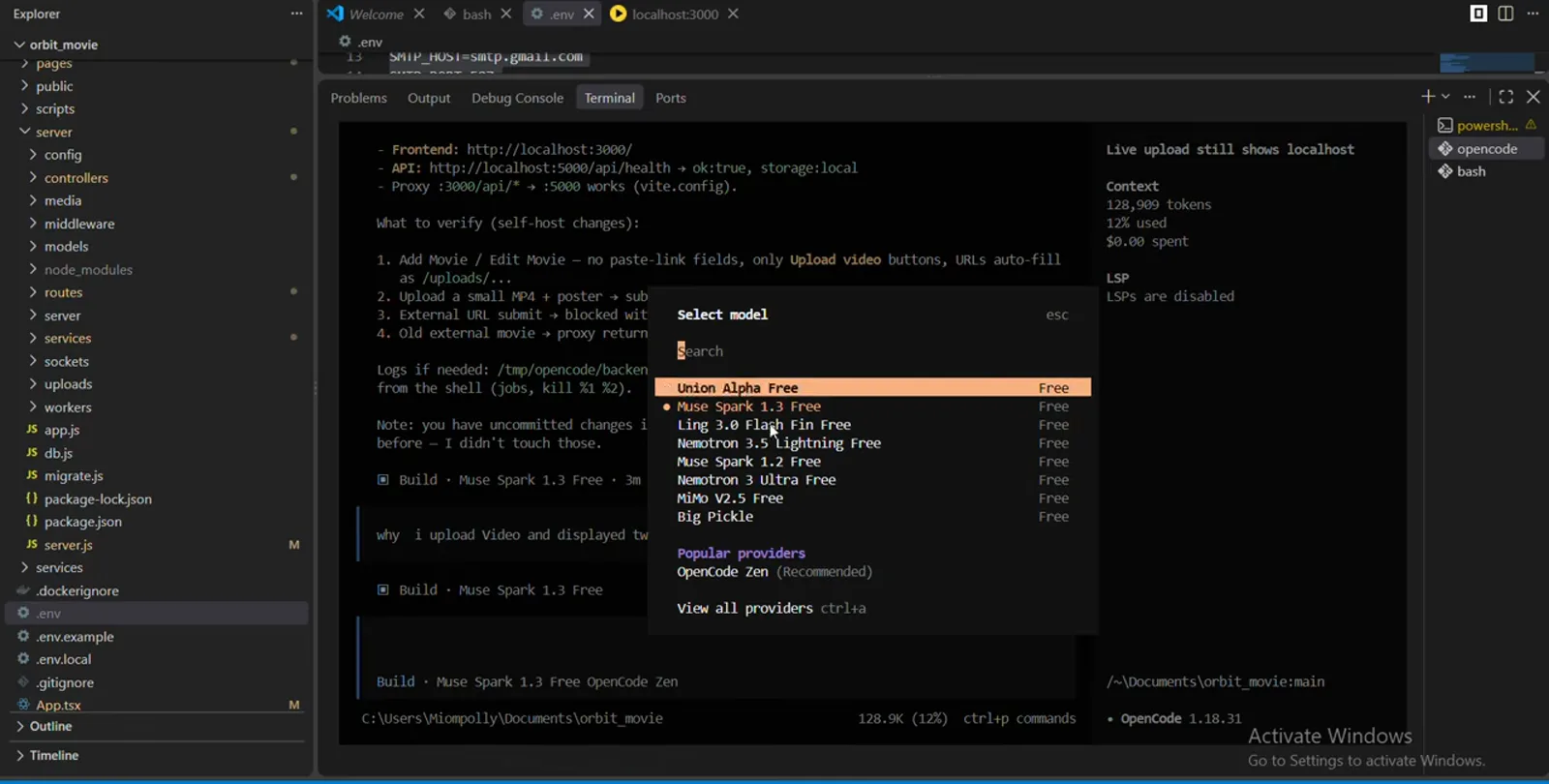
The Select model picker with Free-tagged models and providersWatch at 0:12 - 10
Pick a reasoning-effort variant if offered
Some models open a second Select variant dialog with Default, minimal, medium, high and xhigh options, as captured in the recording. Lower efforts answer faster and cost less; keep high for gnarly refactors. The choice applies to the current session, so it is a safe experiment.
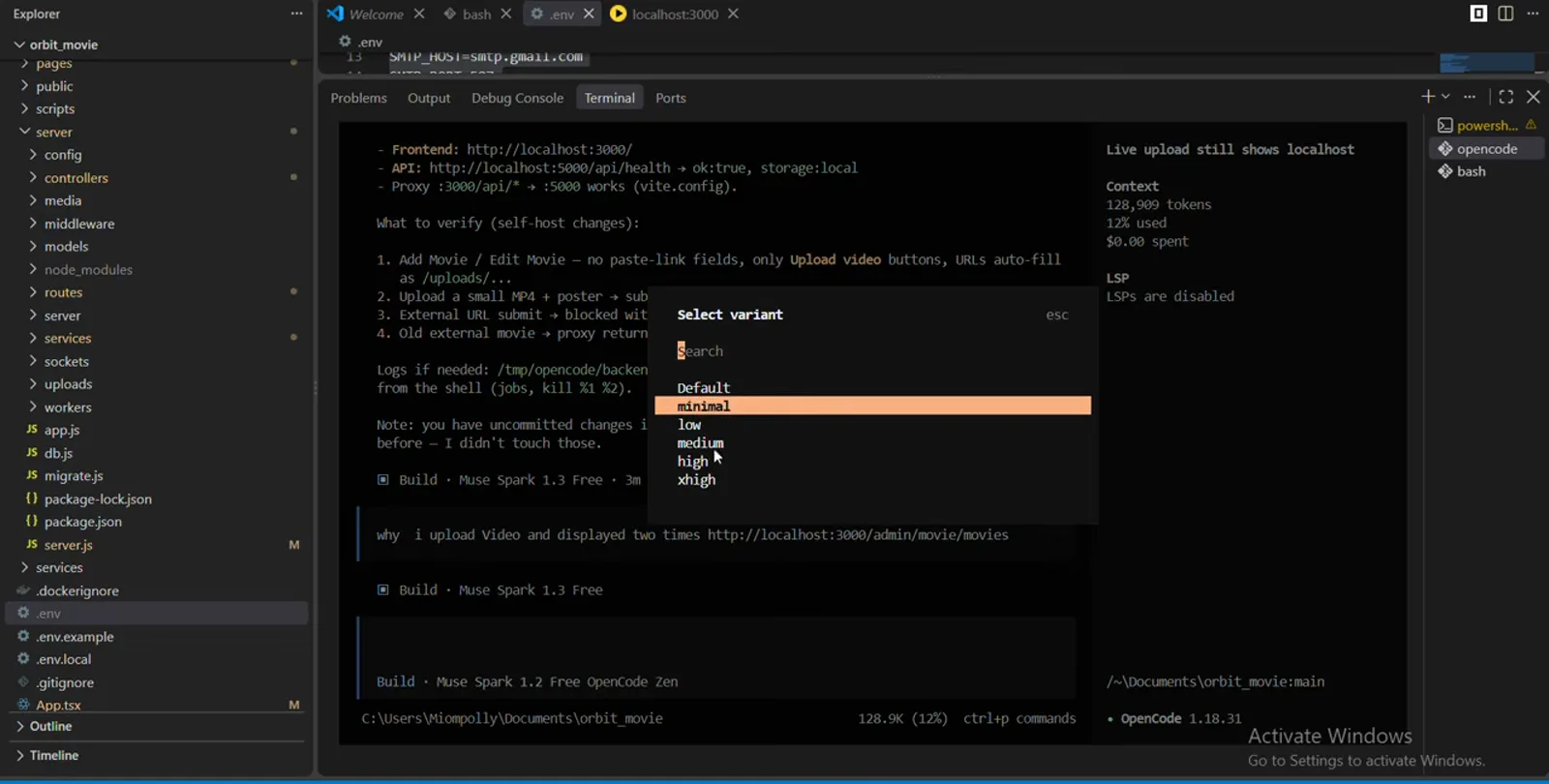
Select variant with minimal through xhigh reasoning optionsWatch at 0:20 - 11
Confirm the switch in the status bar
The status bar under the prompt names the active model — in the recording it reads Build · Muse Spark 1.2 Free · OpenCode Zen · xhigh after the switch, and the context panel shows tokens used and $0.00 spent. If a stubborn error persists even on the new model, re-authenticate with /connect and verify with opencode auth list.
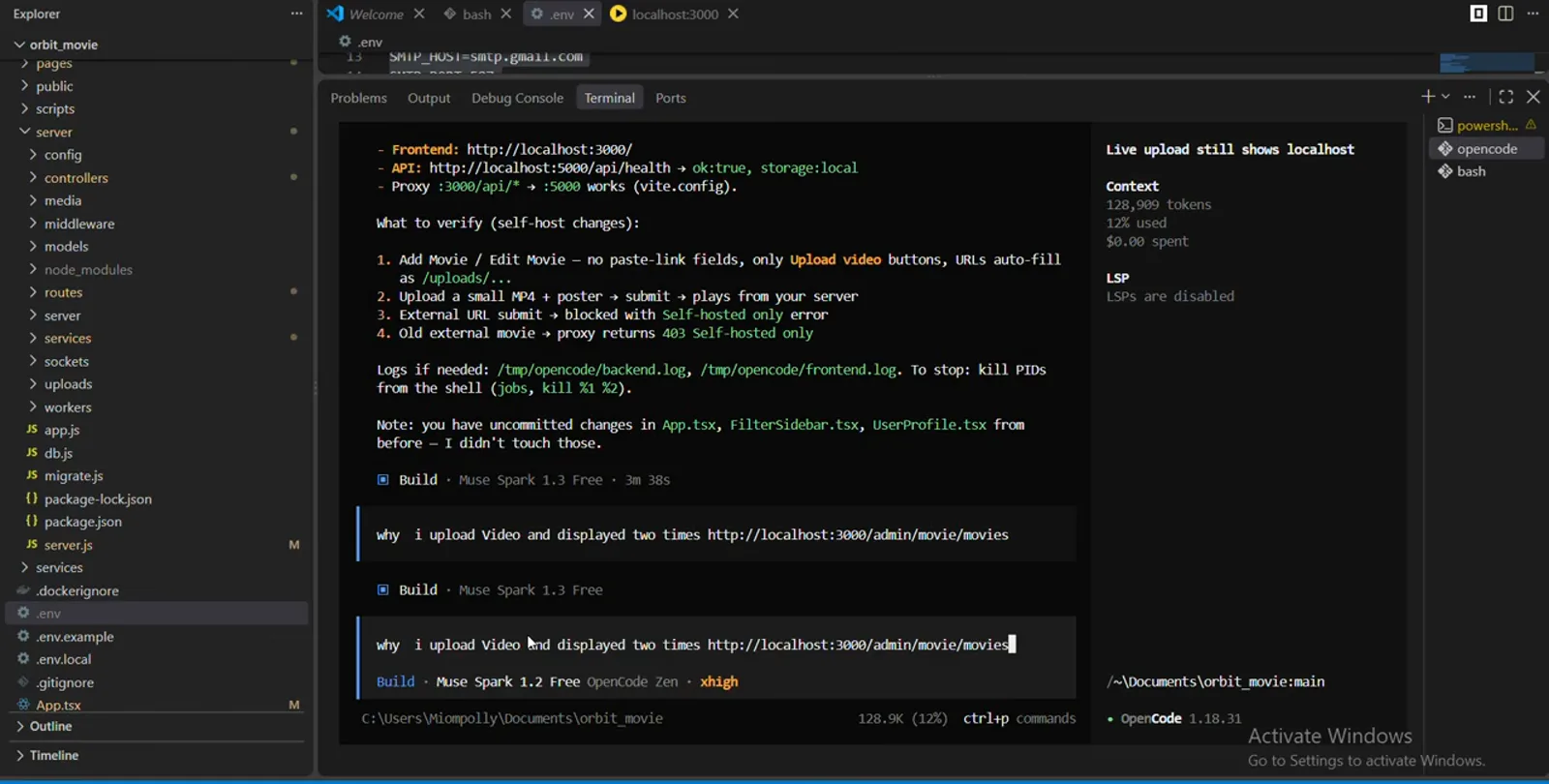
The status bar confirming the switched model and effortWatch at 0:30 - 12
Wire OpenCode into VS Code
For the "not working in VS Code" face: open the integrated terminal, run opencode, and the OpenCode extension installs automatically — the recording shows opencode for VS Code by SST in the Installed list. Afterwards Ctrl+Esc opens OpenCode in a split terminal; if that fails, search "OpenCode" in the Extensions Marketplace and install manually.
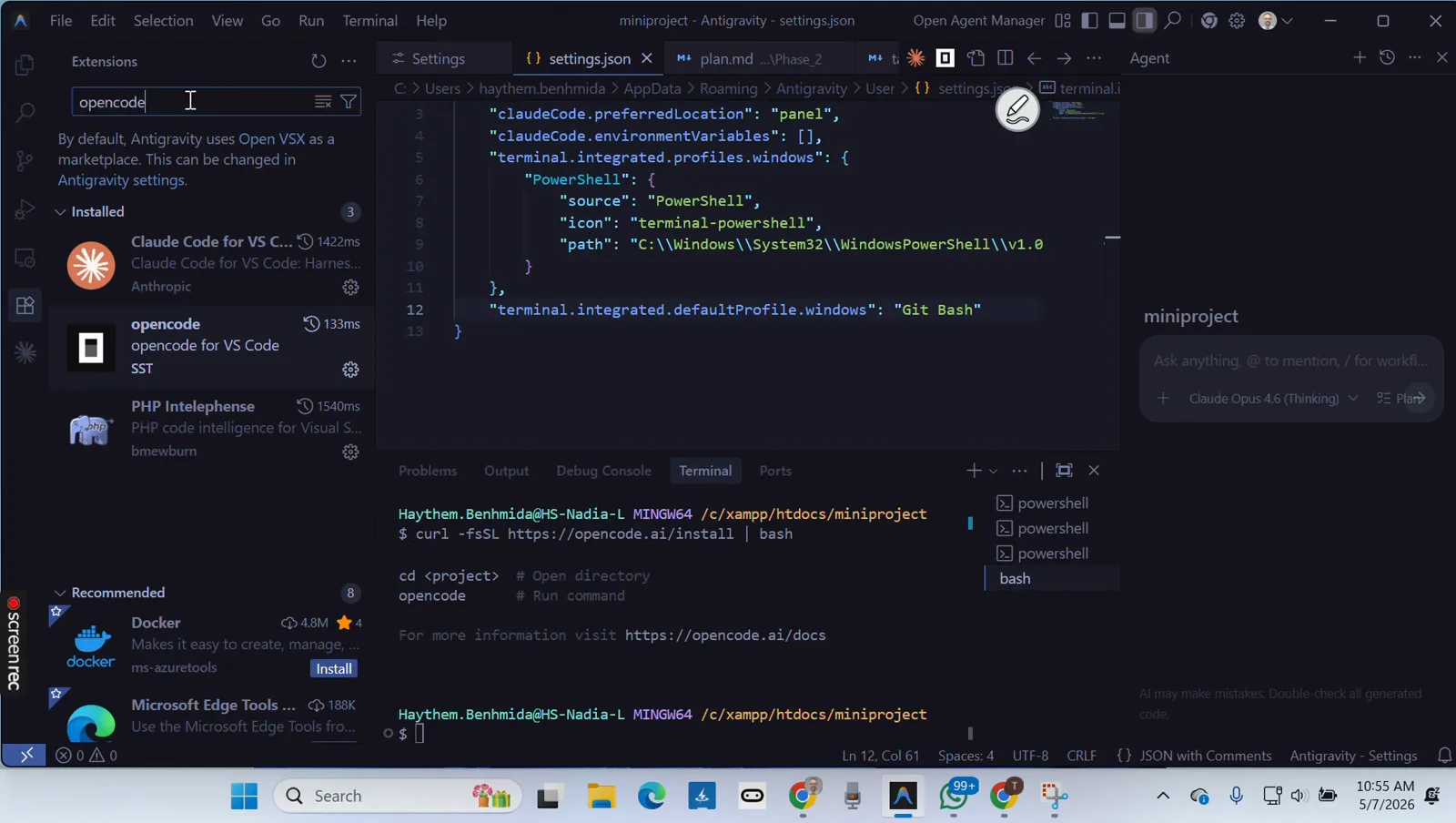
The installed opencode extension and the installer's run instructionsWatch at 3:02
Still broken? Work the checklist
If the three stages above did not cover your symptom, these are the remaining failure patterns — each mapped to the official docs so you fix the cause, not the symptom.
- 1Still "not recognized" after installing — every open terminal keeps its old PATH. Close and reopen the shell, and put the export line in ~/.bashrc (or set the Windows PATH via System Properties) so it survives restarts. npm users: make sure npm's global bin folder is on PATH too.
- 2Won't start at all — run opencode --print-logs to see the failure live, then read the newest log in ~/.local/share/opencode/log/ (Windows: %USERPROFILE%\.local\share\opencode\log). The app keeps only the last 10 logs, so the newest one is the relevant one. Try opencode upgrade when a stale binary is suspected.
- 3ProviderInitError or "invalid or corrupted configuration" — the docs prescribe wiping the data directory (rm -rf ~/.local/share/opencode) and re-authenticating with /connect. Same remedy as the blank-screen fix in step 6, arrived at from the error message instead.
- 4AI_APICallError mid-session — clear the provider package cache with rm -rf ~/.cache/opencode and restart so the provider SDK reinstalls. Check opencode auth list afterwards; expired or missing credentials are the second most common cause.
- 5Desktop app dead on Windows — update the WebView2 runtime, fully quit and relaunch, and clear any custom server.port / OPENCODE_PORT override. The docs recommend WSL for the smoothest experience on Windows, which also sidesteps most terminal-profile problems.
- 6Not showing all models — /models only lists providers you connected. Add one with /connect, and curate the catalog in opencode.json: set "model": "provider/model-id" as your default, hide providers with disabled_providers, or narrow a provider's list with its whitelist/blacklist options.
Working through the list in order fixes the overwhelming majority of "opencode not working" reports: PATH first, state second, providers and models third. When nothing helps, capture the newest log file and open an issue on the OpenCode repository — the maintainers ask for the log, not a screenshot.