
Gemini CLI Not Working: Fix Install, Auth & Startup Errors
What to do when Gemini CLI will not start, refuses your Google login, or dies with "'gemini' is not recognized" — the Windows PATH repair, the two real Google-account login failures, and the OAuth-vs-API-key decision, in the order that fixes them.
TL;DR
- "'gemini' is not recognized" after a clean npm install is a PATH problem, not a broken install. Run npm config get prefix, add the folder it prints (C:\Users\<you>\AppData\Roaming\npm) to your user PATH, then reopen the terminal.
- Login failing with "This account requires setting the GOOGLE_CLOUD_PROJECT env var"? Individual accounts on the free tier, AI Pro or AI Ultra should NOT need it — that requirement is for Workspace accounts, Code Assist license seats, under-18 accounts and unsupported regions.
- "Not eligible for Gemini Code Assist for individuals … 18 years old or older" means your Google account has no confirmed age. Verify your age on Google's Age status page, then run gemini and log in again.
- Still blocked after two failed logins? Skip OAuth and export a Gemini API key from AI Studio as GEMINI_API_KEY — it has its own free tier. Authentication failures exit with code 41.
How to Fix Gemini CLI is Not Recognized Error in Windows (Step by Step)
Channel: Web Tech Knowledge4:38
Several error issues encountered when logging into Gemini CLI with a Google account
Channel: AttackOnLife2:56
Troubleshooting — official documentation
Official docs: google-gemini.github.io
Authentication setup — official documentation
Official docs: google-gemini.github.io
Every command, error message and dialog on this page was checked against the official Gemini CLI authentication and troubleshooting docs. The Windows recording is the visual source for the install and PATH repair; the macOS recording contributes the two real Google-account login failures and the age-verification flow that clears them.
Screenshots belong to their creators and deep-link to the matching timestamp; no facecam frames are used.
Fixing Gemini CLI, step by step
Part 1 — "'gemini' is not recognized": repair the Windows PATH
- 1
Reproduce the exact failure first
In the recording, npm install -g @google/gemini-cli finishes cleanly — "changed 577 packages in 4m" — and typing gemini still returns "'gemini' is not recognized as an internal or external command, operable program or batch file." Same in the VS Code terminal. That wording is the signature of a PATH problem: the package installed, but Windows has no idea where npm put the launcher.
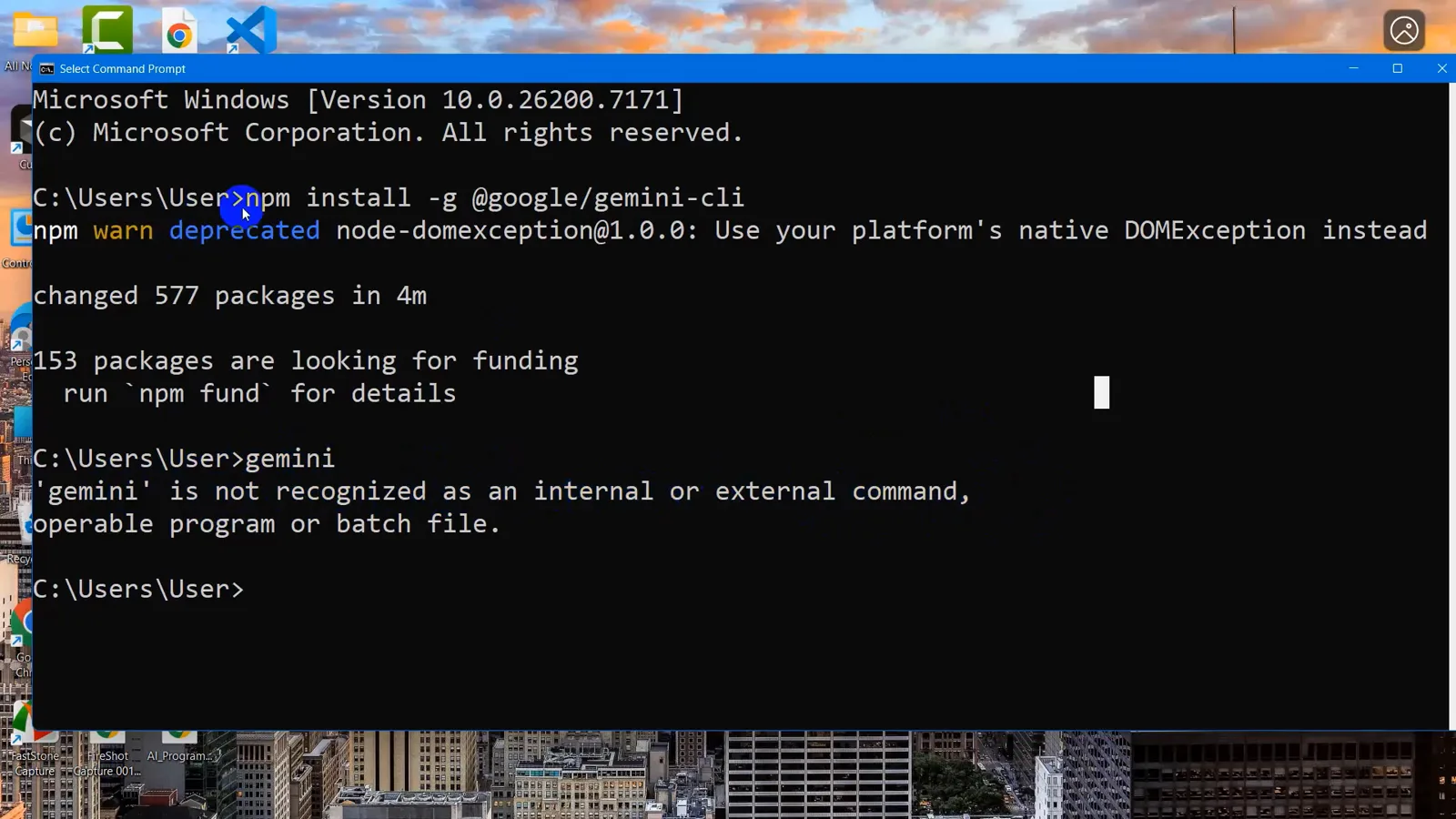
577 packages installed, yet gemini returns "is not recognized" — a PATH symptom, not a broken install.Watch from 0:08 - 2
Ask npm where it installs global launchers
Run npm config get prefix. It prints the folder npm uses for global packages — here C:\Users\User\AppData\Roaming\npm. That exact folder is what the gemini command lives in, and what your PATH is missing. Write it down or keep it in the clipboard.
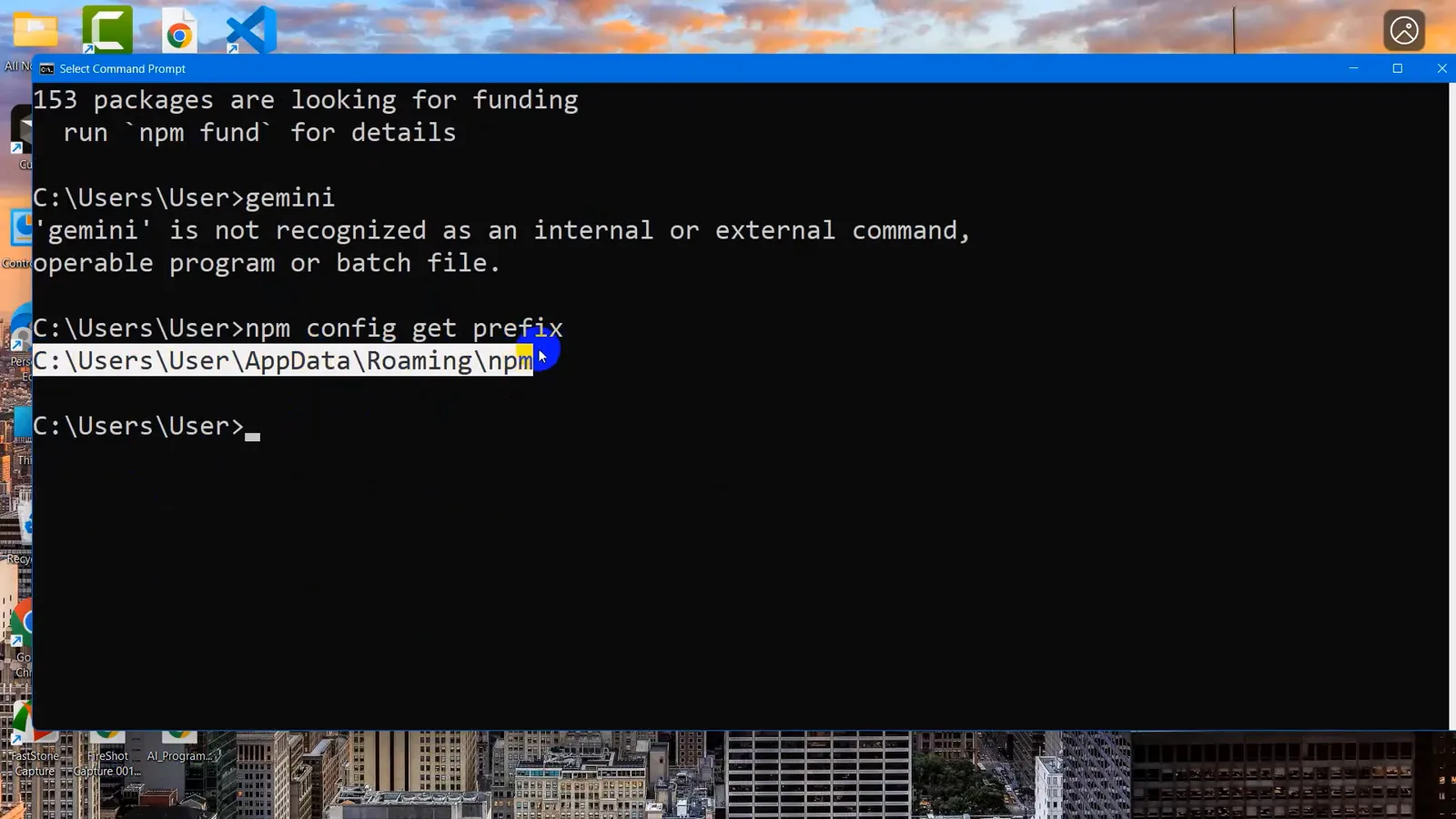
npm config get prefix prints C:\Users\User\AppData\Roaming\npm — the folder PATH needs.Watch from 0:54 - 3
Unhide AppData in File Explorer
The npm folder sits under your user profile's AppData directory, which Windows hides by default. In File Explorer at C:\Users\User, open View > Show and tick Hidden items — the recording does exactly this and AppData appears in the list straight away.
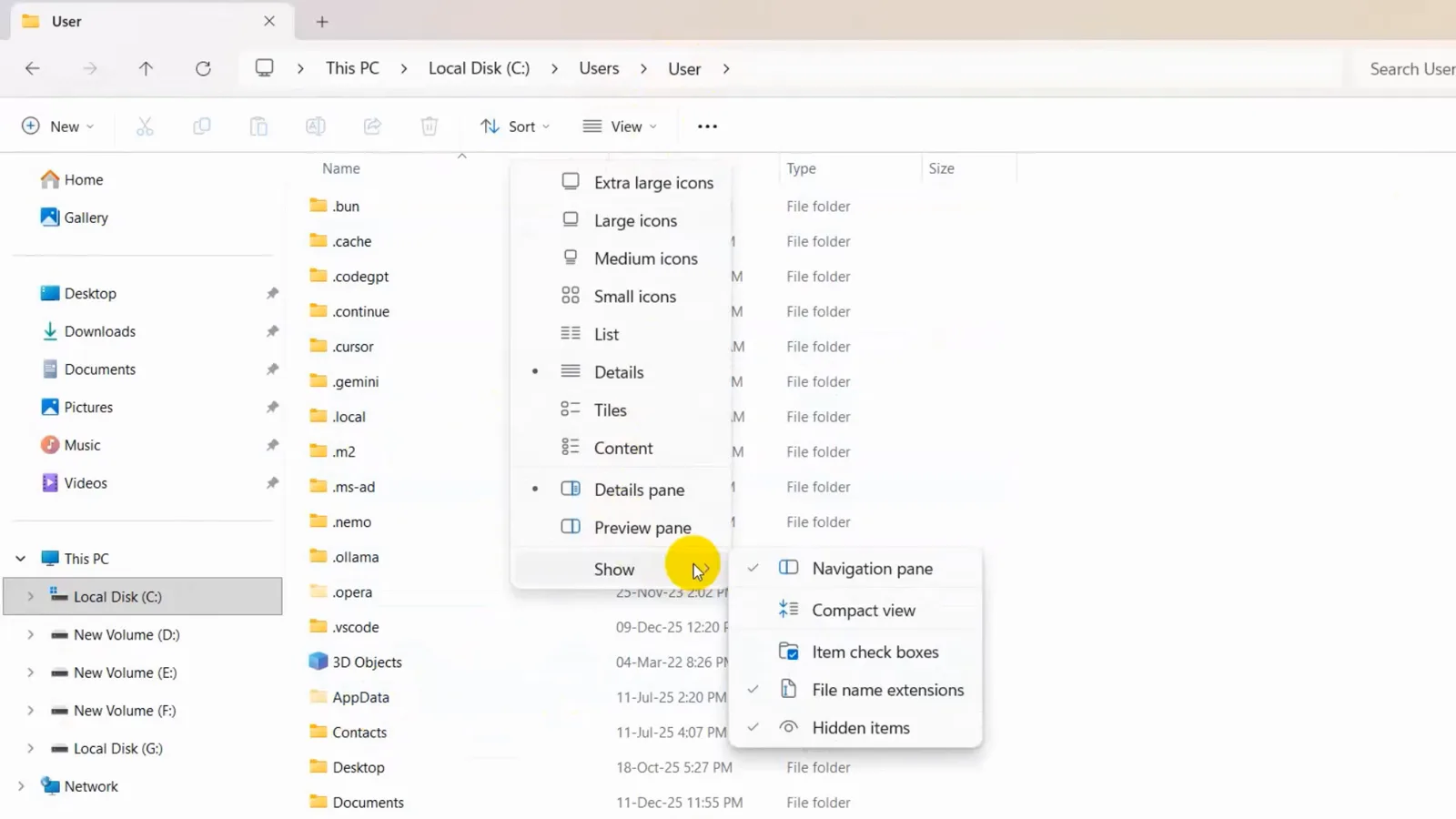
View > Show > Hidden items makes the AppData folder visible under C:\Users\User.Watch from 1:30 - 4
Confirm the launcher exists in the npm folder
Navigate to AppData > Roaming > npm. Inside sits gemini.cmd — the Windows Command Script that the gemini command should run — next to gemini (the shell script for Unix shells) and node_modules. Its presence proves the install succeeded and only PATH is broken.
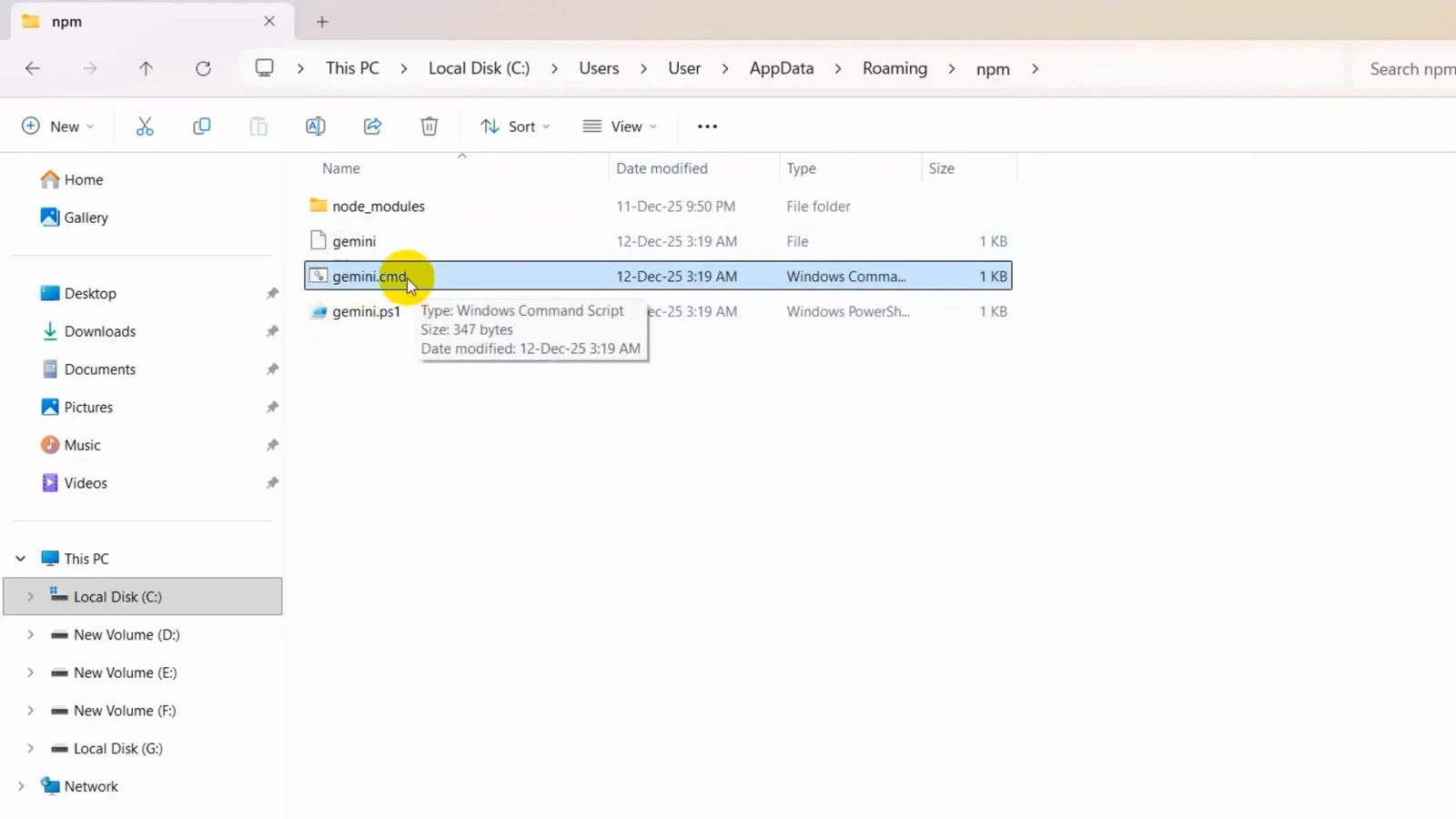
gemini.cmd, a 347-byte Windows Command Script, sits in AppData\Roaming\npm.Watch from 2:02 - 5
Open the Environment Variables dialog
Search the Start menu for "environment variables" and open "Edit the system environment variables", then click the Environment Variables button. The lower half is System variables; the upper half — where the recording points the cursor at PATH — is User variables for your account. User PATH is the right place for a per-user npm folder.
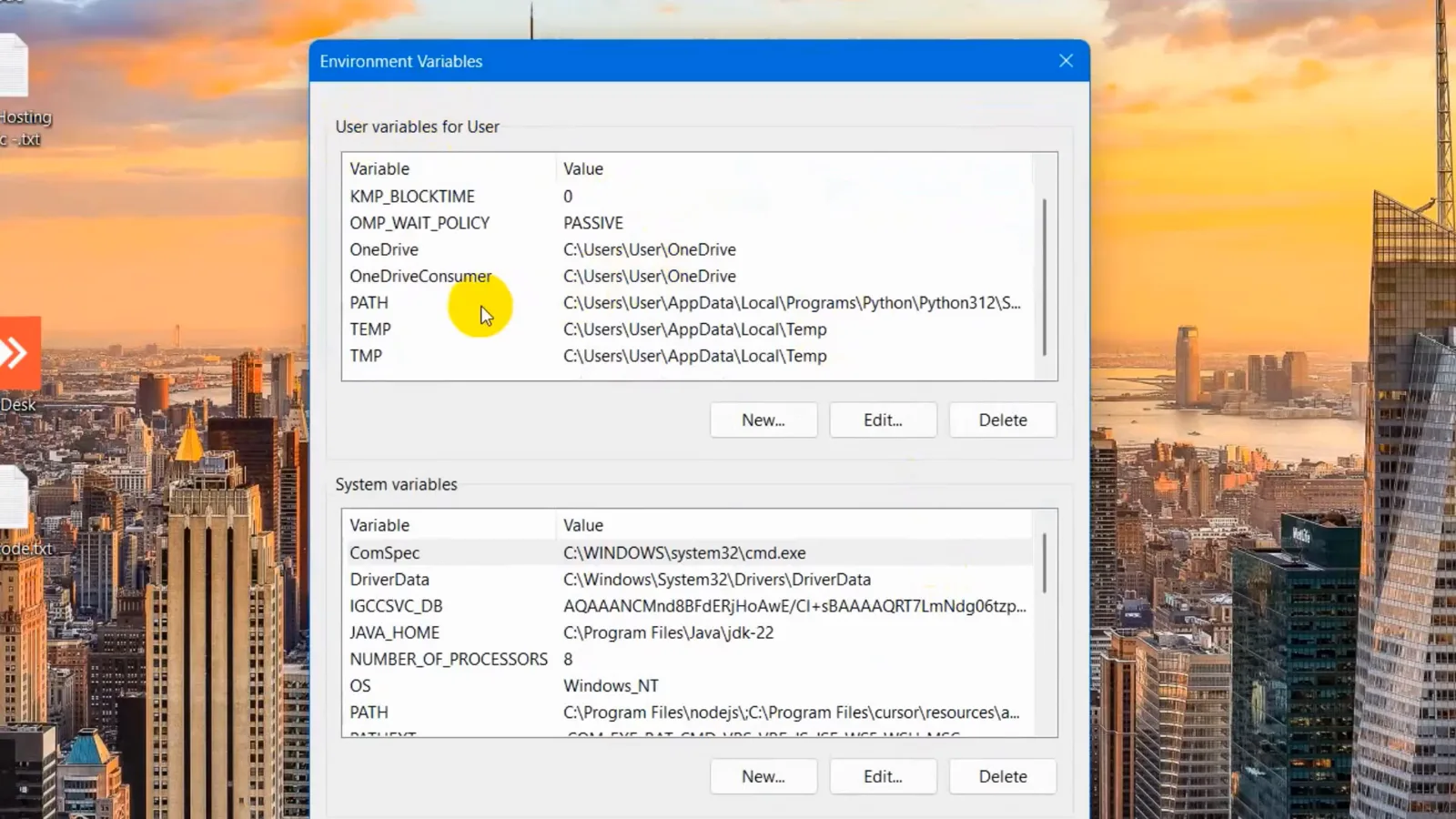
Environment Variables dialog with the cursor on PATH under User variables.Watch from 2:38 - 6
Add the npm folder as a new PATH entry
Select PATH, click Edit, then New, and paste the npm prefix from step 2 — C:\Users\User\AppData\Roaming\npm. Confirm with OK on every open dialog. In the recording the list already holds Python, Ollama and VS Code entries; the new empty row goes underneath them. Order does not matter for this fix.
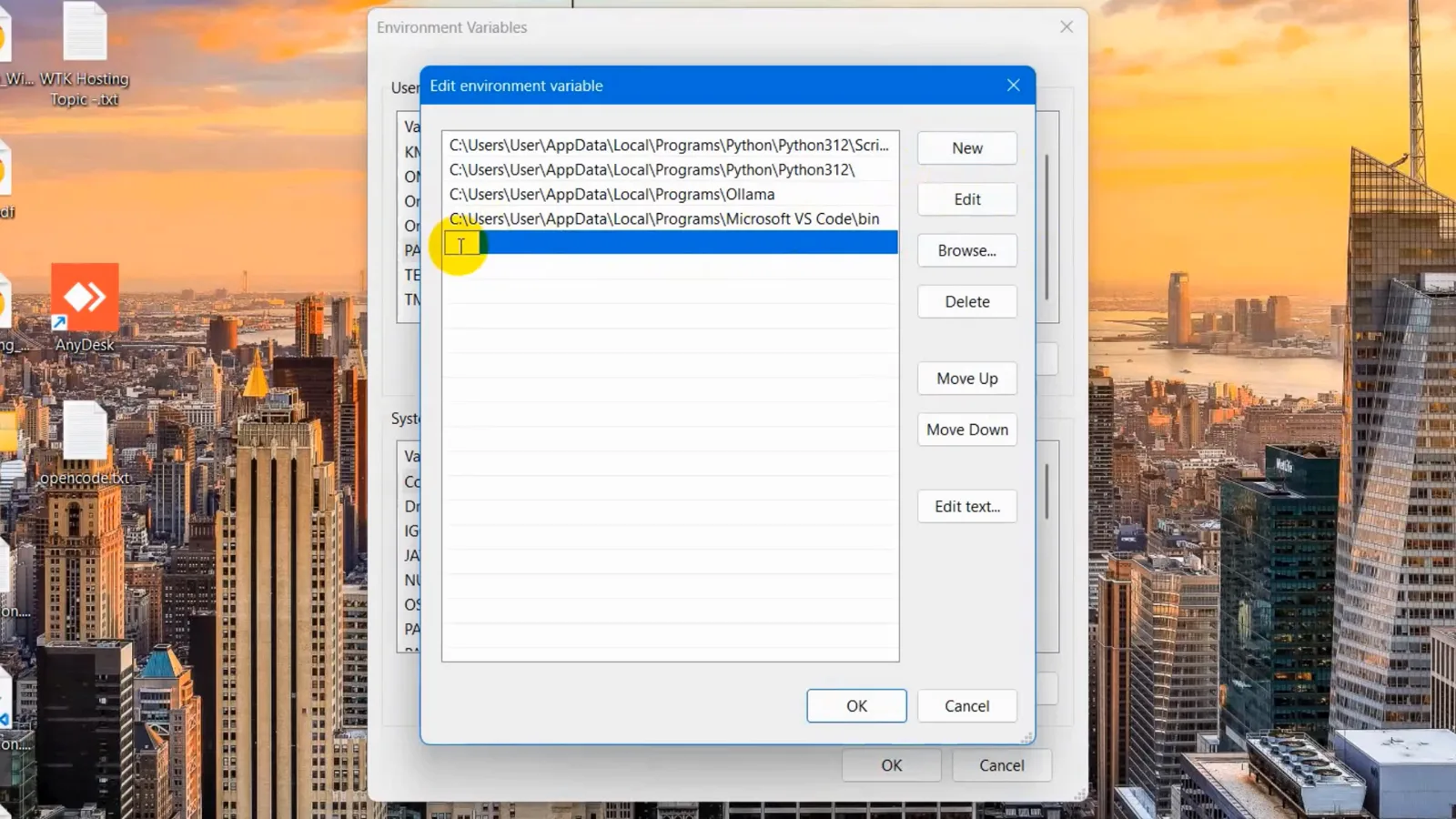
Edit environment variable dialog: a fresh empty PATH entry selected, ready for the npm folder.Watch from 3:01
Part 2 — Login fails: clear the two Google-account errors
- 7
Recognize the two Google-account login errors
PATH fixed, gemini now starts and asks how to sign in — pick "Login with Google". The second recording shows the two failures that stop real logins. Error one: "Failed to login. Message: This account requires setting the GOOGLE_CLOUD_PROJECT or GOOGLE_CLOUD_PROJECT_ID env var." Error two: "Failed to login. Message: Your current account is not eligible for Gemini Code Assist for individuals. To use Gemini Code Assist for individuals you must be 18 years old or older."
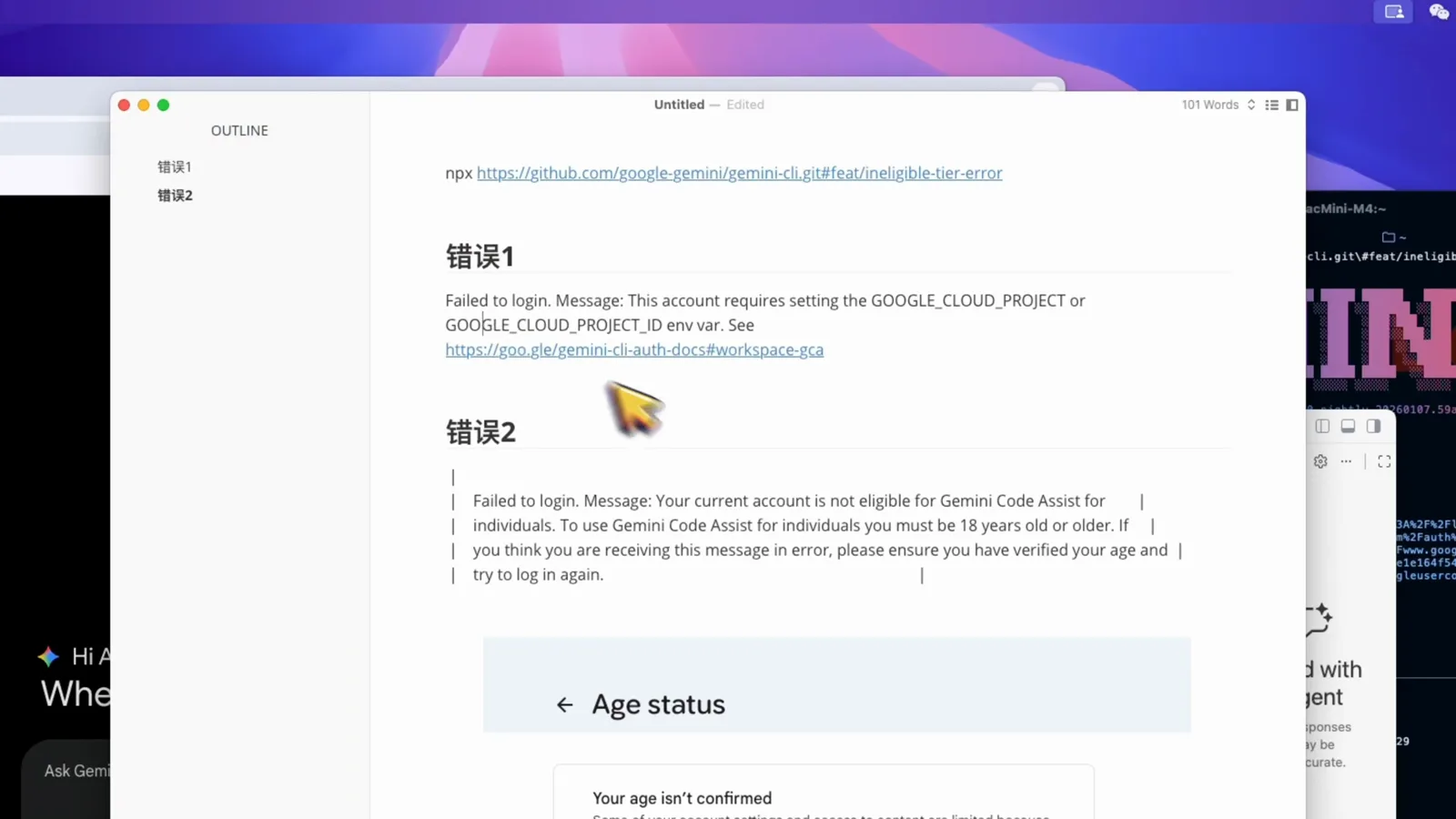
Both Failed to login messages verbatim: the GOOGLE_CLOUD_PROJECT requirement and the 18+ eligibility rejection.Watch from 0:35 - 8
Don't set GOOGLE_CLOUD_PROJECT unless you must
The maintainers' discussion #13516, "Clarifying Authentication and Google Cloud Project Settings", shown in the recording, settles when the variable is needed: you should NOT set it if you sign in as an individual with a free account, AI Pro or AI Ultra. It is required for Workspace accounts, Code Assist license seats, users under 18 and accounts outside supported free-tier regions. If you set it while on a personal plan, unset it and log in again.
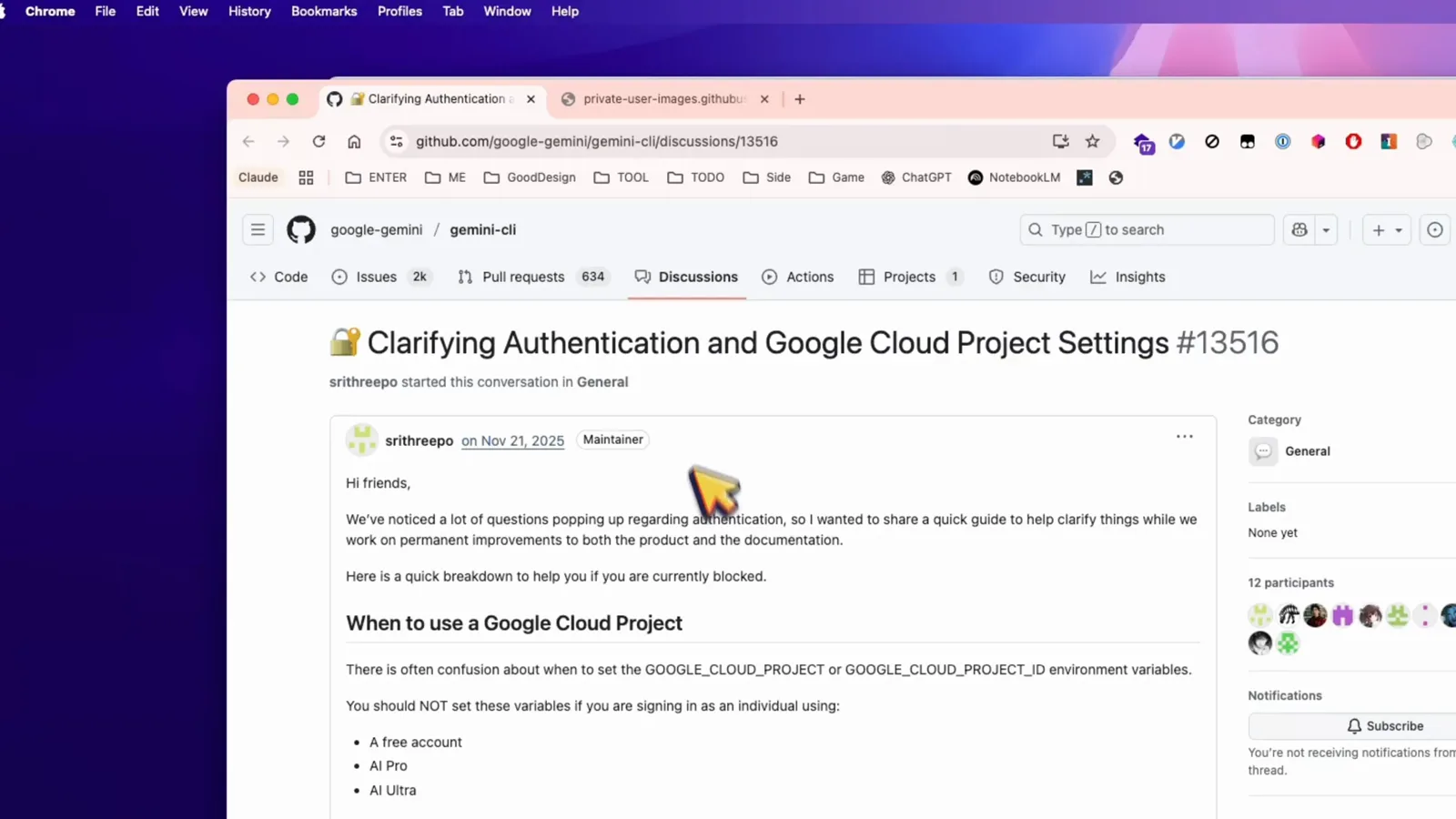
gemini-cli discussion #13516: when NOT to set GOOGLE_CLOUD_PROJECT for free, AI Pro and AI Ultra accounts.Watch from 1:05 - 9
Verify your age if Google rejected the login
The "not eligible … 18 years old or older" rejection is not about your real birthday — it is about a confirmed one. The recording's account had no verified age, so Google shows the Age status page with "Your age isn't confirmed" and a blue Verify your age button. Complete that flow (the creator used a passport), then rerun gemini and choose Login with Google — the same login now succeeds.
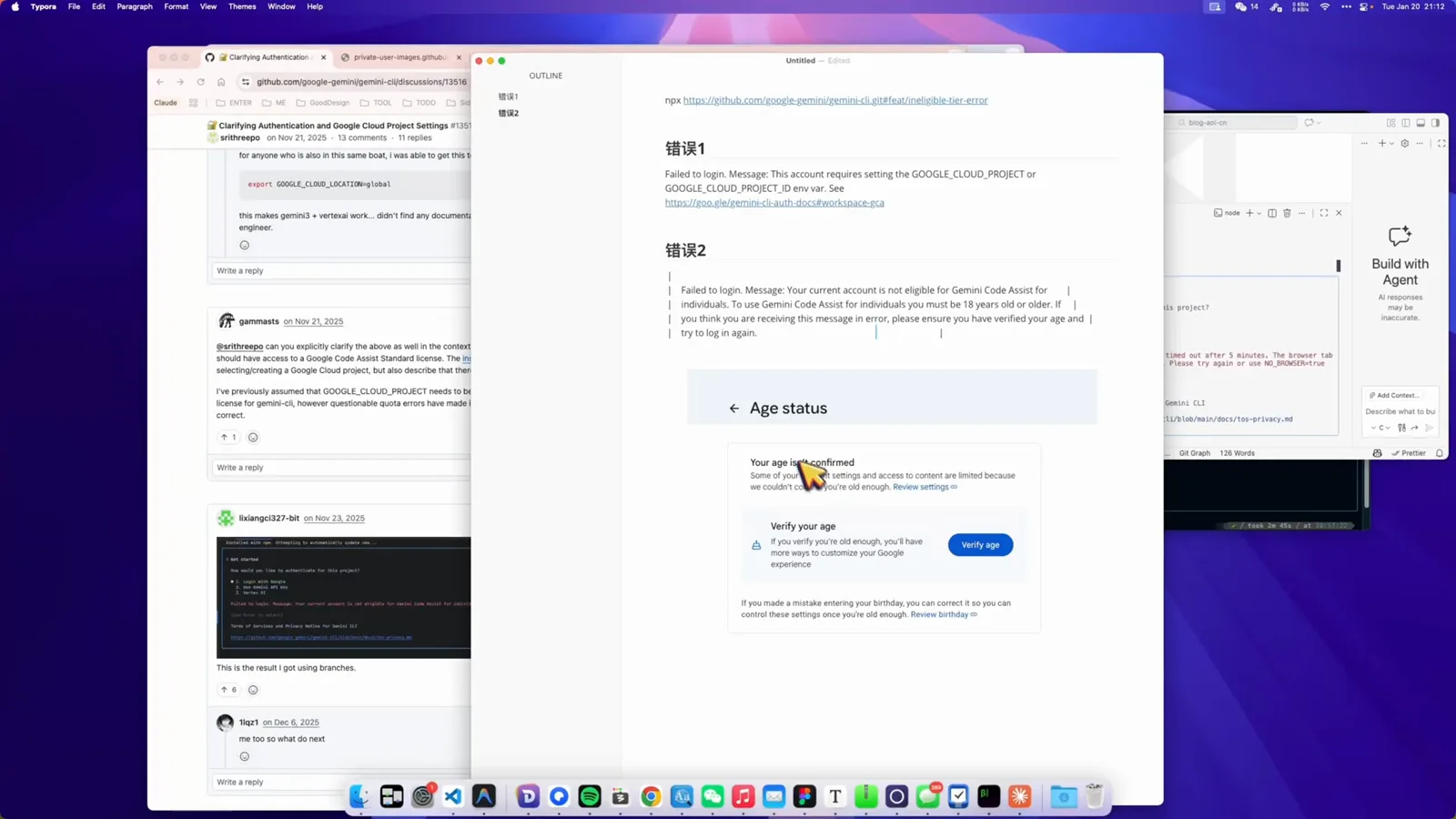
"Your age isn't confirmed" with the Verify your age button — clear it once and the login passes.Watch from 1:35
Part 3 — Prove the fix in a fresh terminal
- 10
Relaunch in a brand-new Command Prompt
Terminals opened before the PATH edit keep the old PATH, so close every open window and start a fresh Command Prompt. Type gemini: the ASCII GEMINI banner appears with "Tips for getting started" and, because this session runs in the home directory, the note recommending a project-specific directory — a warning, not an error.
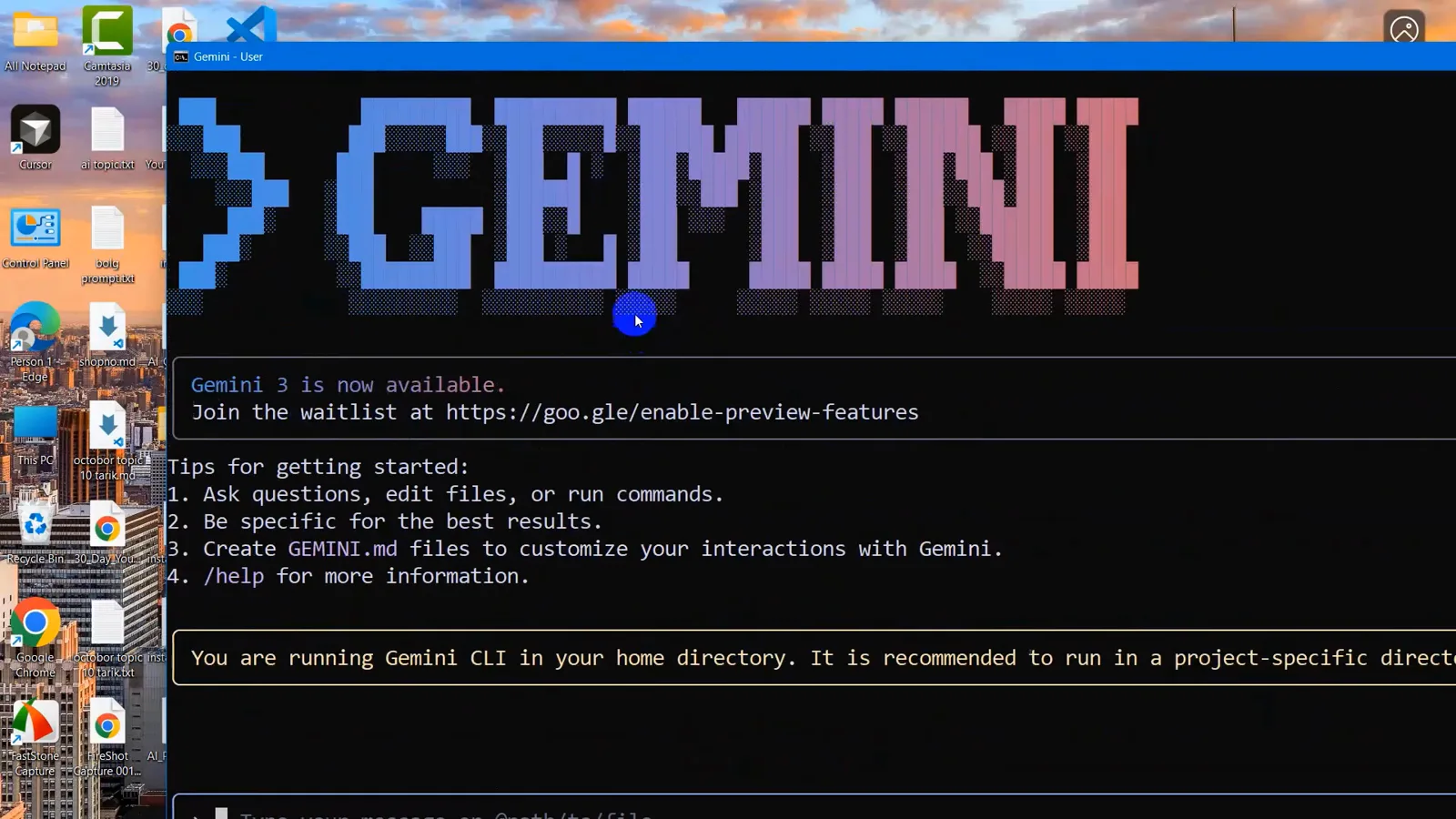
First successful launch: the GEMINI banner and getting-started tips in Command Prompt.Watch from 4:08 - 11
Confirm it works in VS Code too
The recording finishes in VS Code: with the terminal already open in a real project folder (G:\TestProject), gemini prints the banner, shows "no sandbox" in the footer and parks the cursor at "Type your message or @path/to/file". If VS Code was running during the PATH edit, close and reopen it first — same rule as Command Prompt.
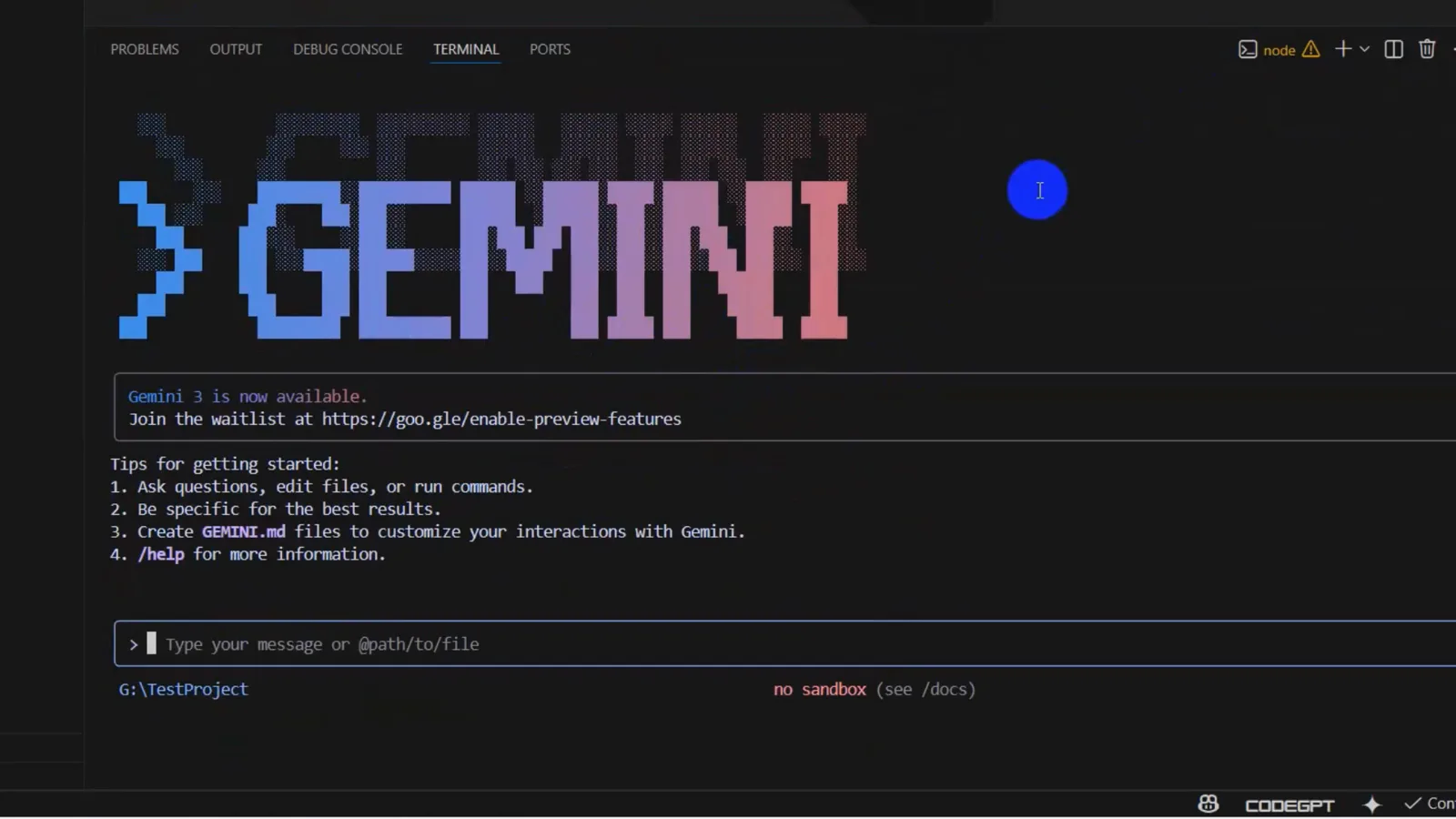
VS Code terminal in G:\TestProject with the GEMINI banner and the input box ready.Watch from 4:32
Gemini CLI still not working — the slower causes
PATH and the two login errors cover most reports. When Gemini CLI is still stuck, slow or erroring after that, work down this list:
- 1Reinstall instead of guessing. The official troubleshooting docs route PATH/npm breakage straight back to npm install -g @google/gemini-cli@latest, and the recording double-checks that Node.js itself is still present in the System PATH — a deleted Node or a half-updated npm leaves gemini.cmd pointing nowhere.
- 2Stuck on "Initializing" or waiting for auth? That screen waits for the OAuth browser flow to finish. If no browser tab opened, rerun gemini and complete Login with Google in the tab it describes; a proxy or offline network leaves it hanging on this exact step.
- 3Authentication keeps failing? A failed login exits with code 41, and cached Google credentials live in ~/.gemini (oauth_creds.json alongside settings.json). Delete the cached credentials, rerun gemini, and log in cleanly instead of retrying a broken session.
- 4OAuth cannot finish at all? Switch methods. The auth dialog's third option is a Gemini API key from Google AI Studio: export it as GEMINI_API_KEY and the CLI skips the browser flow entirely. The docs recommend Google login first, but the API key has its own free tier and no age or project requirement.
- 5Model access or quota errors? Workspace-linked Gmail accounts can fail to activate the free Code Assist tier ("Request contains an invalid argument") — the docs' workarounds are setting GOOGLE_CLOUD_PROJECT to a real project ID or moving to the API key. Free-tier usage limits reset; paid AI Pro/Ultra plans raise them.
- 6Not working in VS Code specifically? It is the stale-terminal rule again: VS Code inherits PATH at launch, so a window opened before the edit never sees the npm folder. Close and reopen VS Code (or at minimum kill its terminal) and retry gemini there.
Nothing above matches? Read what the CLI itself recorded: logs and settings live under the ~/.gemini directory, rerunning with --verbose prints more detail, and the official troubleshooting page ends where the maintainers do — search the gemini-cli GitHub issue tracker, then open a new issue with your version and the full error text.