
How to Use DeepSeek in Cursor with Your Own API Key
Add DeepSeek to Cursor in nine illustrated steps: register, create an API key, add deepseek-coder as a custom model, point Cursor at the OpenAI-compatible endpoint and verify — for pennies instead of a subscription.
The short version
- Cursor doesn't ship with DeepSeek — you add deepseek-coder as a custom model under Settings → Models and point the OpenAI-compatible base URL at https://api.deepseek.com.
- You need one DeepSeek account for everything: the chat, the API platform and the key. The key is shown only once at creation, so copy it immediately.
- DeepSeek's official integration doc prescribes the whole recipe: disable every built-in Cursor model, add deepseek-coder, paste your key — done.
- Cost math: Cursor Pro is $20/month flat; DeepSeek's API is pay-as-you-go — roughly $0.27–$0.30 per million input tokens and $1.10–$1.20 per million output tokens.
How To Add Deepseek To Cursor Tutorial
Channel: Genix2:07
Screenshots come from the recording above (February 2025 — the DeepSeek site has since been redesigned, but the Cursor workflow is unchanged). Model names, the base URL and current prices were cross-checked against DeepSeek's official documentation at api-docs.deepseek.com in September 2026: the served model IDs are now deepseek-flash and deepseek-v4-pro, and the OpenAI-compatible base URL is https://api.deepseek.com.
Video by the Genix channel on YouTube, referenced as still frames with deep links for this walkthrough. DeepSeek and Cursor are trademarks of their respective owners.
Set up DeepSeek in Cursor, step by step
- 1
Create your DeepSeek account at deepseek.com
Open deepseek.com and click Start Now. If you don't have an account yet, that button starts registration; if you do, the same button signs you in. One account covers everything — the chat, the API platform and the key you'll create later for Cursor.
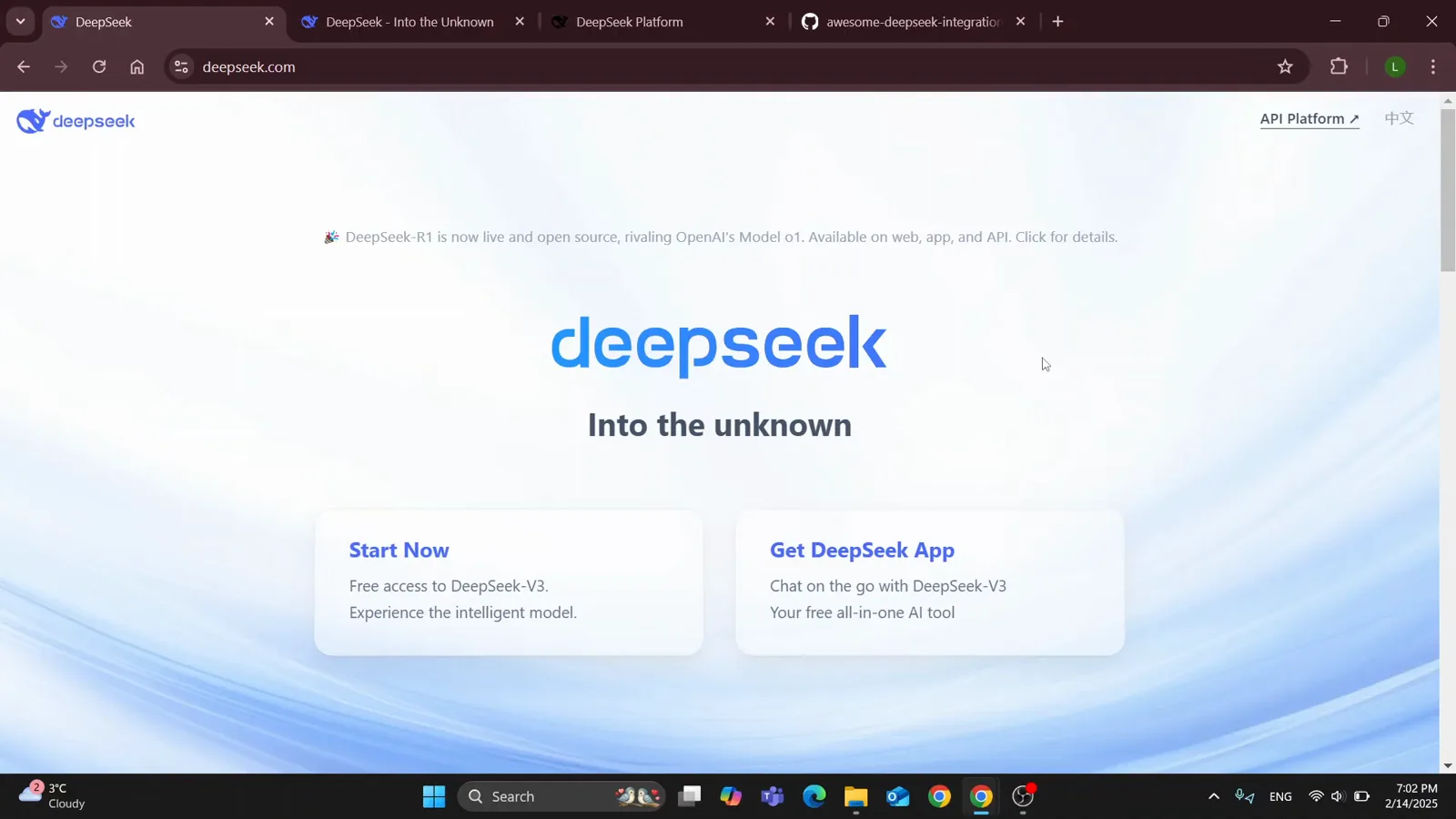
The deepseek.com landing page — Start Now leads to both sign-in and registration.Watch at 0:20 - 2
Sign in and confirm you land in the chat
After logging in, the recording opens chat.deepseek.com with the "Hi, I'm DeepSeek" greeting and an empty message box. Nothing to configure here — this is just your proof the account works. The same credentials open platform.deepseek.com, where Cursor's API key lives.
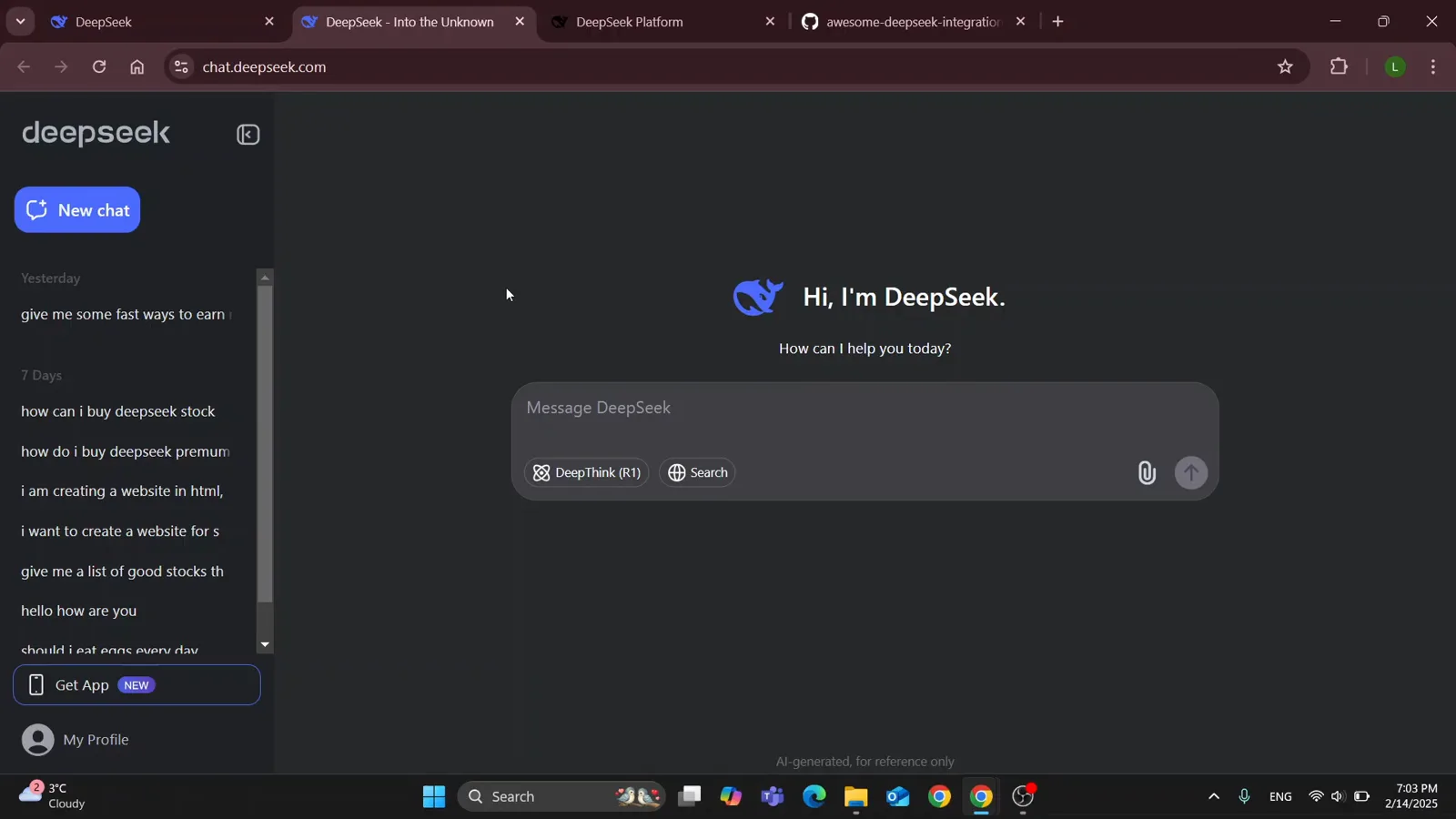
A fresh chat session right after signing in — the account is ready.Watch at 0:52 - 3
Open DeepSeek's official Cursor integration doc
The tutorial follows a page DeepSeek maintains on GitHub: the awesome-deepseek-integration repository, docs/cursor folder. Keep it open next to Cursor so you can copy the exact model name and URL instead of typing them from memory.
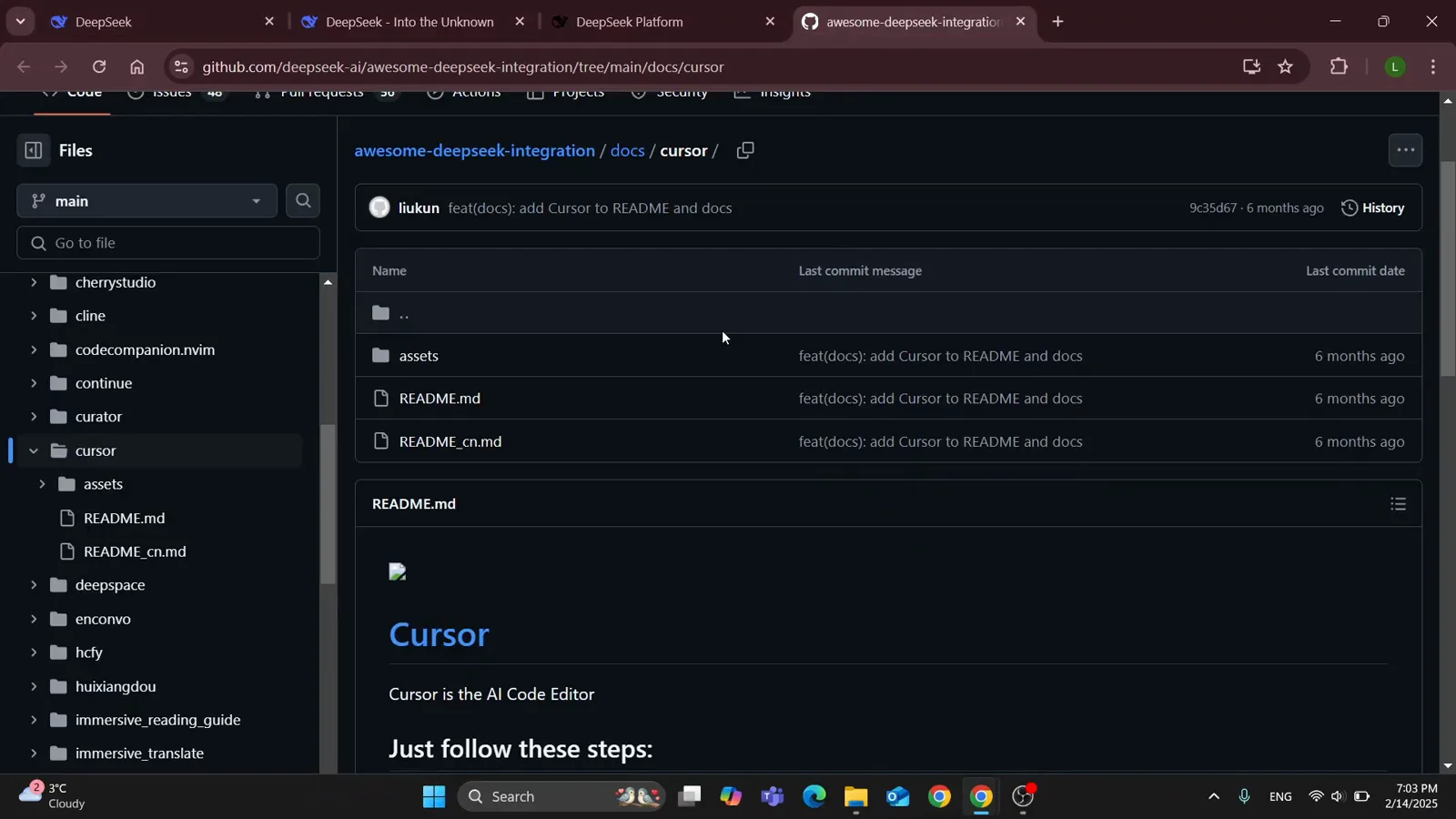
DeepSeek keeps a per-editor integration doc; the Cursor section is short and copy-paste friendly.Watch at 0:58 - 4
Follow the doc's three-step recipe
DeepSeek's README condenses everything into three lines: 1) in Cursor Settings disable all models, 2) add deepseek-coder as a new model, 3) in the OpenAI API Key field add the DeepSeek URL and paste your API key. The doc prints https://api.deepseek.com/beta; the current API docs give https://api.deepseek.com as the OpenAI-compatible base — both reach the same service.
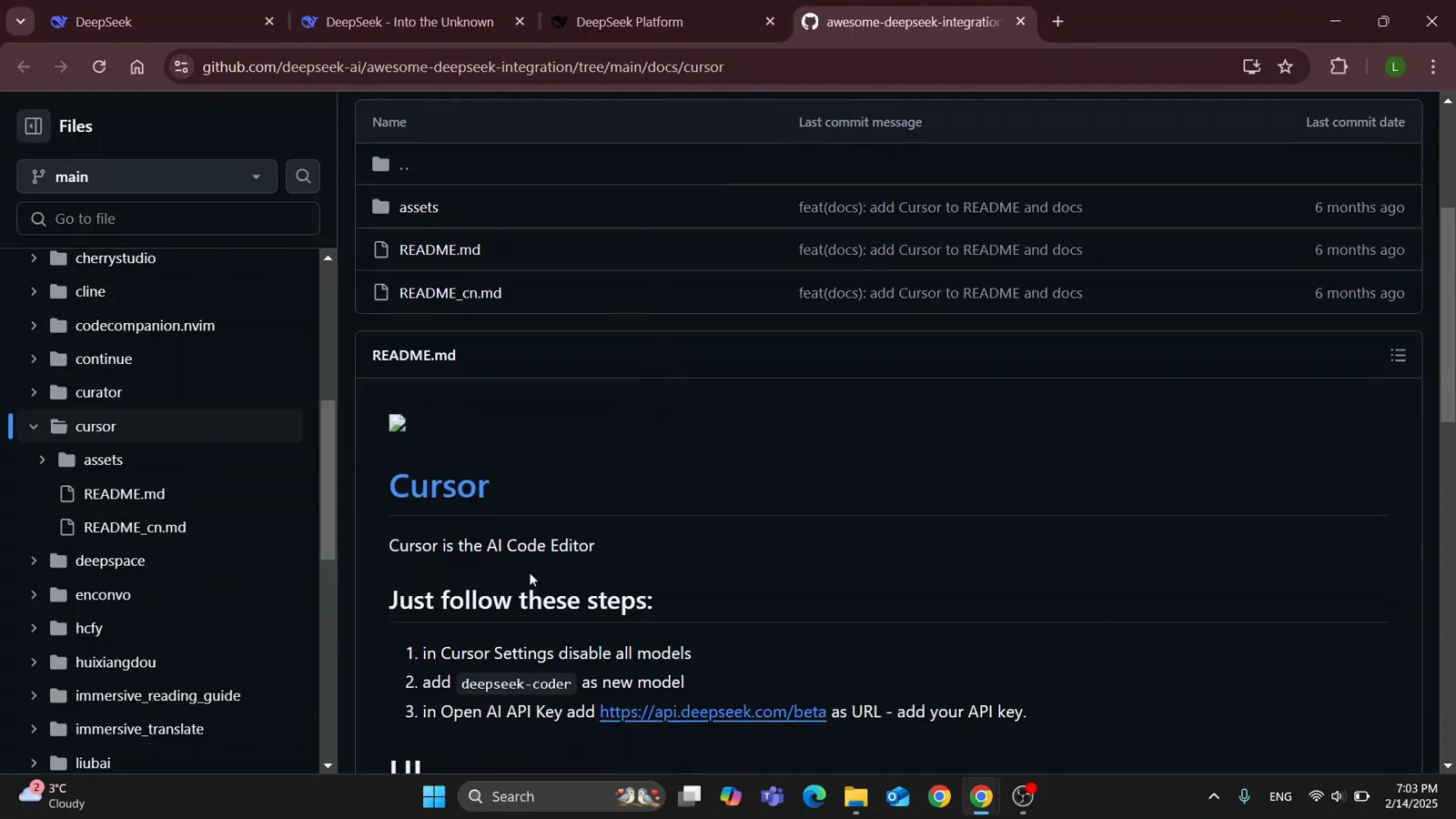
The whole integration, as DeepSeek documents it: disable, add, connect.Watch at 1:02 - 5
In Cursor Settings → Models, switch the built-ins off
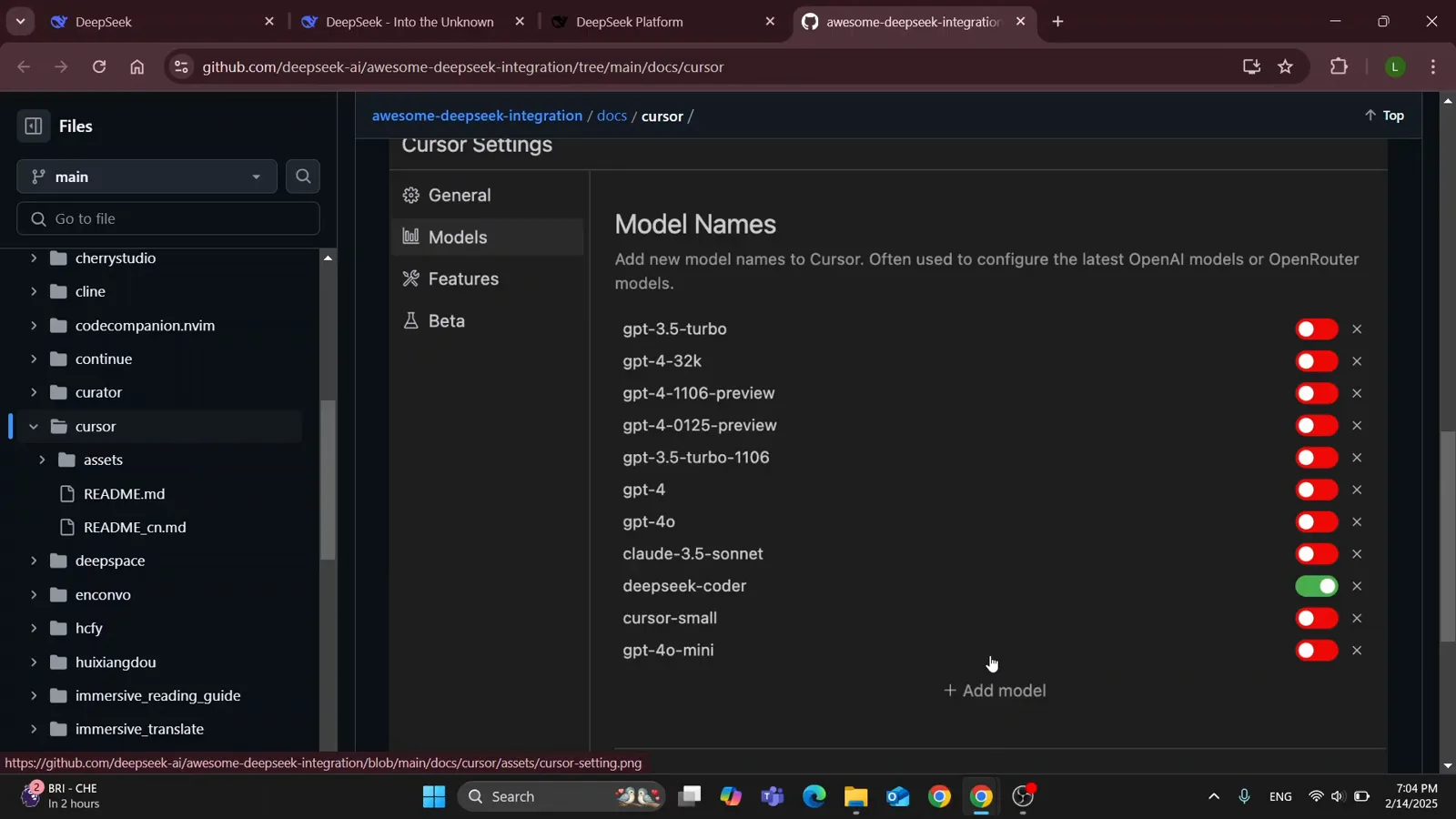
Open Cursor's Settings and go to Models. The Model Names list shows every model Cursor offers, each with a toggle. Work down the list and switch them off — red means Cursor won't route requests there. The doc's embedded screenshot captures the panel mid-pass with gpt-3.5-turbo going dark.
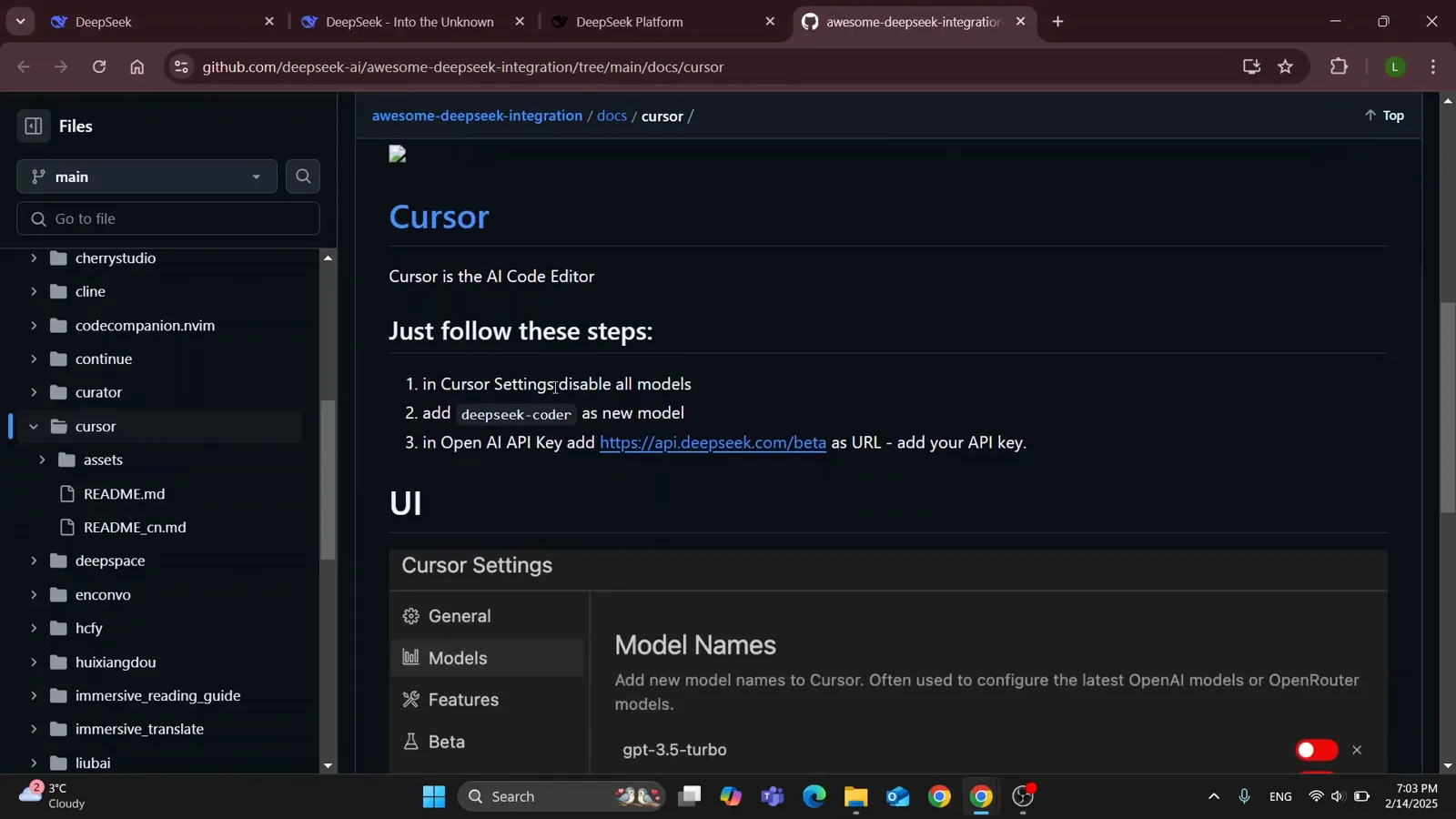
Every red switch is a built-in model you're temporarily retiring.Watch at 1:10 - 6
Add deepseek-coder and keep it the only active model
Click + Add model, type deepseek-coder exactly as the doc spells it, and flip its toggle on. When you're finished, the list should read all red except one green row — the state shown in the tutorial. With a single enabled model, Cursor has nowhere to route but DeepSeek.
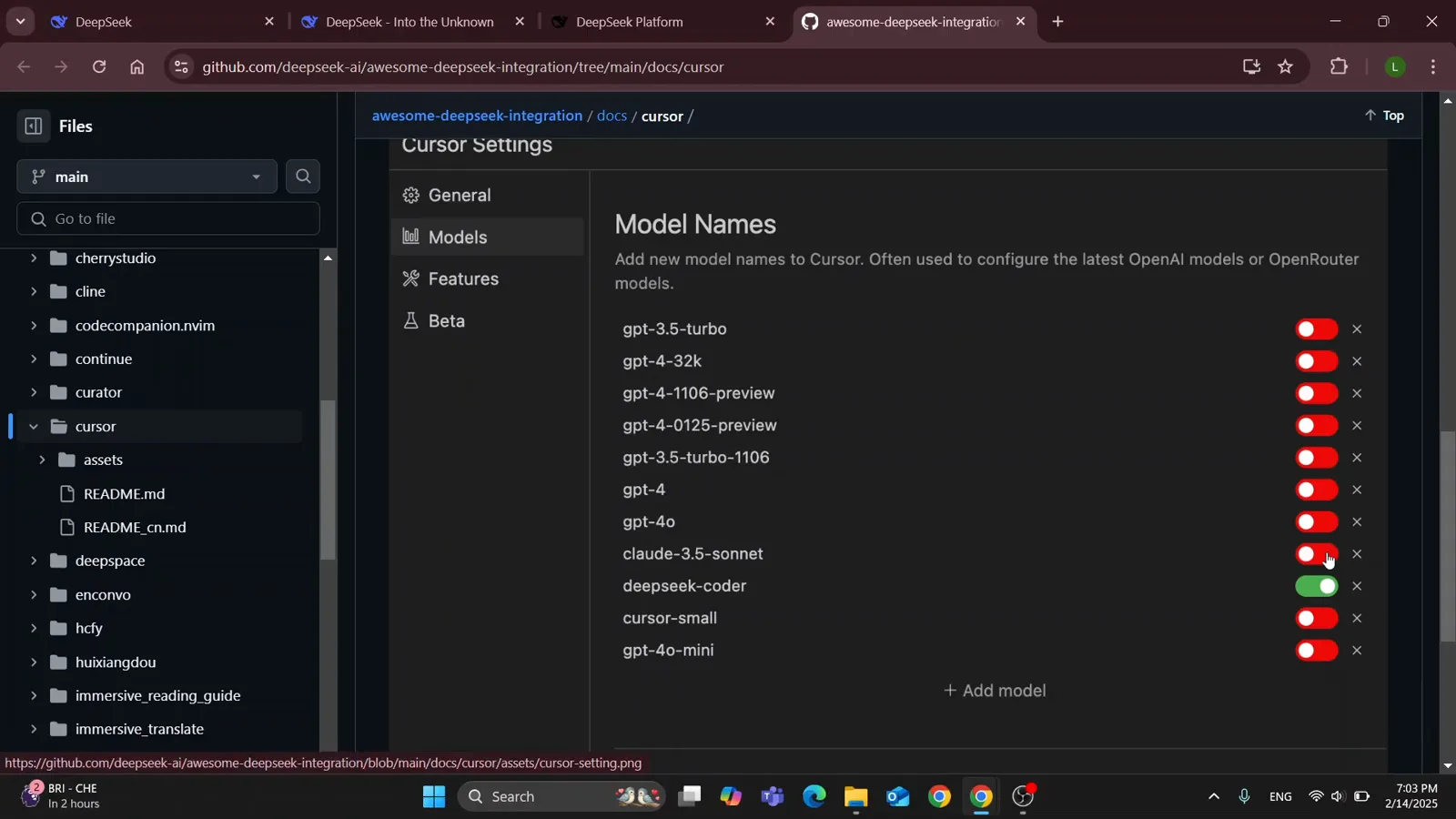
One green toggle among red ones: deepseek-coder becomes the only model Cursor uses.Watch at 1:14 - 7
Create your API key in the DeepSeek platform
Back on deepseek.com, click API Platform in the top-right corner and sign in with the same account. In the platform's left sidebar open API keys, then click Create new API key. The platform only shows the sk- key once at creation — copy it somewhere safe before you close the dialog.
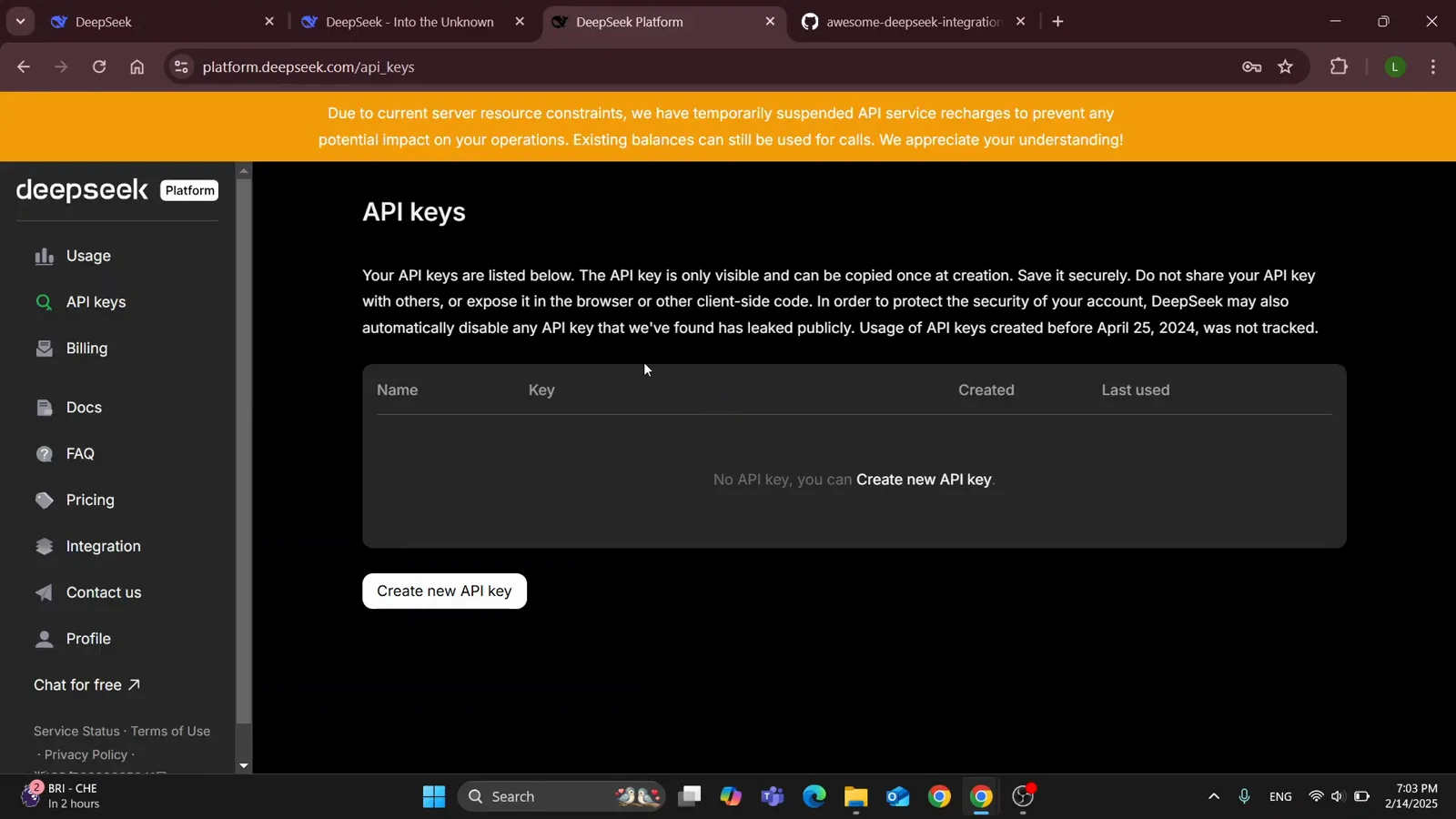
The API keys page before the first key exists — one button starts it.Watch at 1:34 - 8
Check your balance and know the rates before the first call
The recording also passes through the platform's Usage page: topped-up balance, granted balance and monthly expenses all read $0.00 until you pay. The API is pay-as-you-go. At recording time DeepSeek's own banner quoted $0.27 per million input tokens and $1.10 per million output for deepseek-chat; the September 2026 docs list deepseek-flash at $0.30 input / $1.20 output per million at peak — half that off-peak. Set against Cursor Pro's flat $20 a month, light usage wins by a mile.
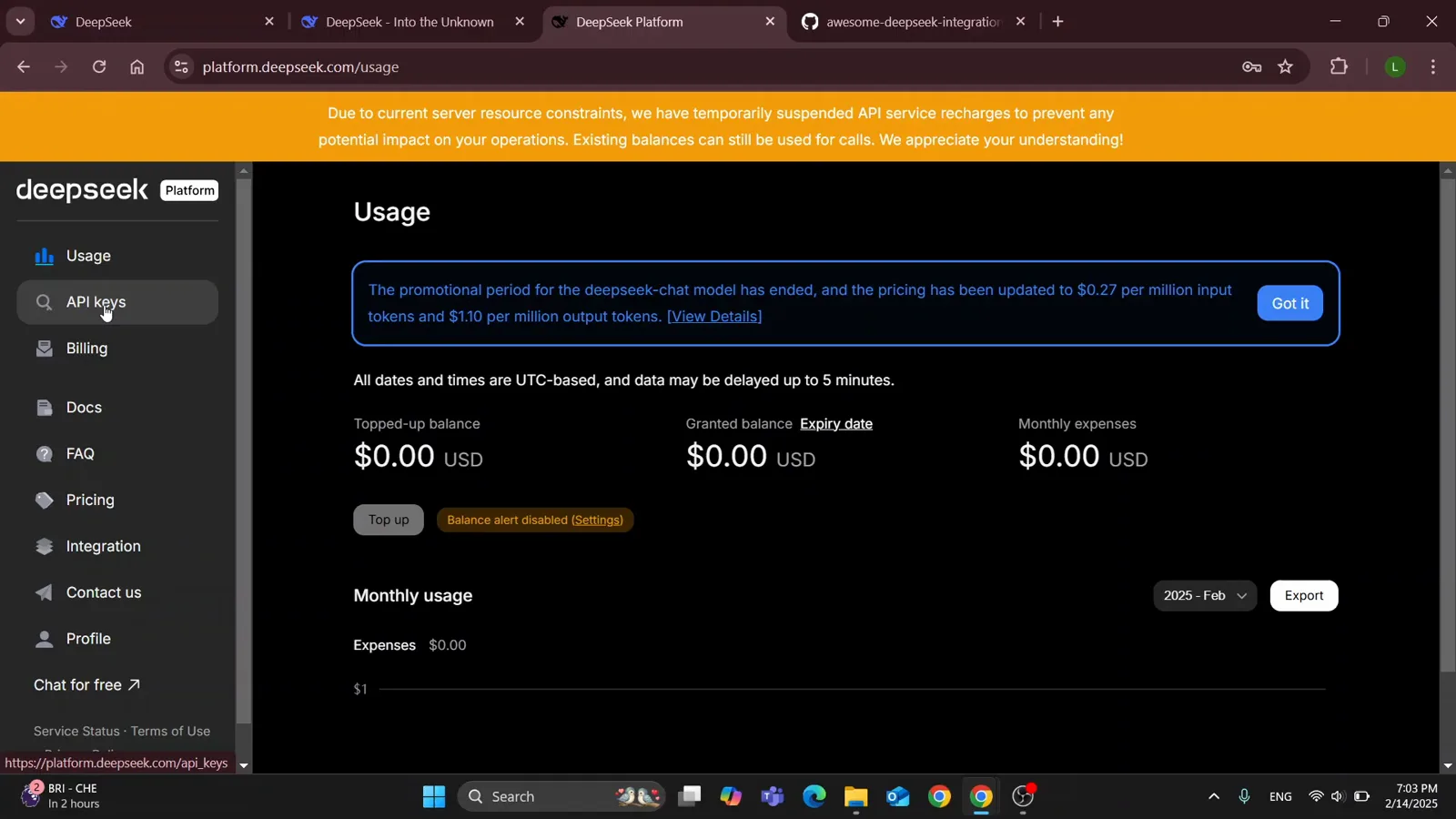
Zero balance, zero mystery: top-ups and spend both live on the Usage page.Watch at 1:42 - 9
Wire the key into Cursor and pick your model
Back in Cursor Settings → Models, find the OpenAI API Key section: enable it, paste your sk- key, and set the override base URL to https://api.deepseek.com (the doc's /beta form also works). Cursor now routes model calls to DeepSeek — the green deepseek-coder row is the tutorial's end state. In the editor's model picker across Chat, Agent and inline edits, deepseek-coder is the entry you select.
End of the tutorial: deepseek-coder enabled, everything else dark.Watch at 1:54