
Copilot sandbox mode: the illustrated how-to
Local sandboxing keeps GitHub Copilot's shell commands, file tools and network calls inside an OS-level box. This walkthrough follows GitHub's official demo: enable it with /sandbox, shape the policy, switch it off, and hand whole sessions to the cloud.
TL;DR
- Sandbox mode runs Copilot's shell commands, file tools, MCP and LSP servers inside an OS sandbox — restricting files, network and credentials without a VM or container (macOS Seatbelt, Linux bubblewrap, Windows ProcessContainer).
- In the Copilot app, sandboxing is off by default: open app settings, pick the project and turn on "Sandbox new sessions". In the CLI, run /sandbox enable (experimental).
- Run /sandbox to shape the policy — General, Filesystem and Network tabs in the CLI; additional read/write, read-only and denied paths plus network and credential switches in the app. Changes apply to new sessions, or /restart-session.
- copilot --cloud moves the whole session into a GitHub-hosted cloud sandbox; you rejoin it from the github.com/copilot/tasks link or the repo's Agents tab. Local sandbox settings don't apply to cloud sessions.
How to run GitHub Copilot in local and cloud sandboxes | demo
Channel:GitHub (official channel)1:31
GitHub Copilot Sandboxes are SO COOL
Channel:Gwyneth Peña-Siguenza1:50
Local sandboxing in the GitHub Copilot app (public preview)
Docs:github.blog/changelog
Configuring local sandboxing in the GitHub Copilot app
Docs:docs.github.com
About cloud and local sandboxes for GitHub Copilot
Docs:docs.github.com
Frames in this guide come from GitHub's official sandbox demo — a clean terminal recording. The walkthrough text was written from the video plus GitHub's docs; setting names are quoted verbatim.
Screenshots remain the property of their creators and are used with attribution as visual references. Local sandboxing is in public preview — names and behavior may change.
The walkthrough: 12 steps
1 · Turn on local sandboxing
- 1
Start Copilot in your repo
Launch the Copilot CLI in your project. Sandboxing is an experimental CLI feature — the banner shows the /experimental badge, and the status bar carries the sandbox indicator you'll learn to read.
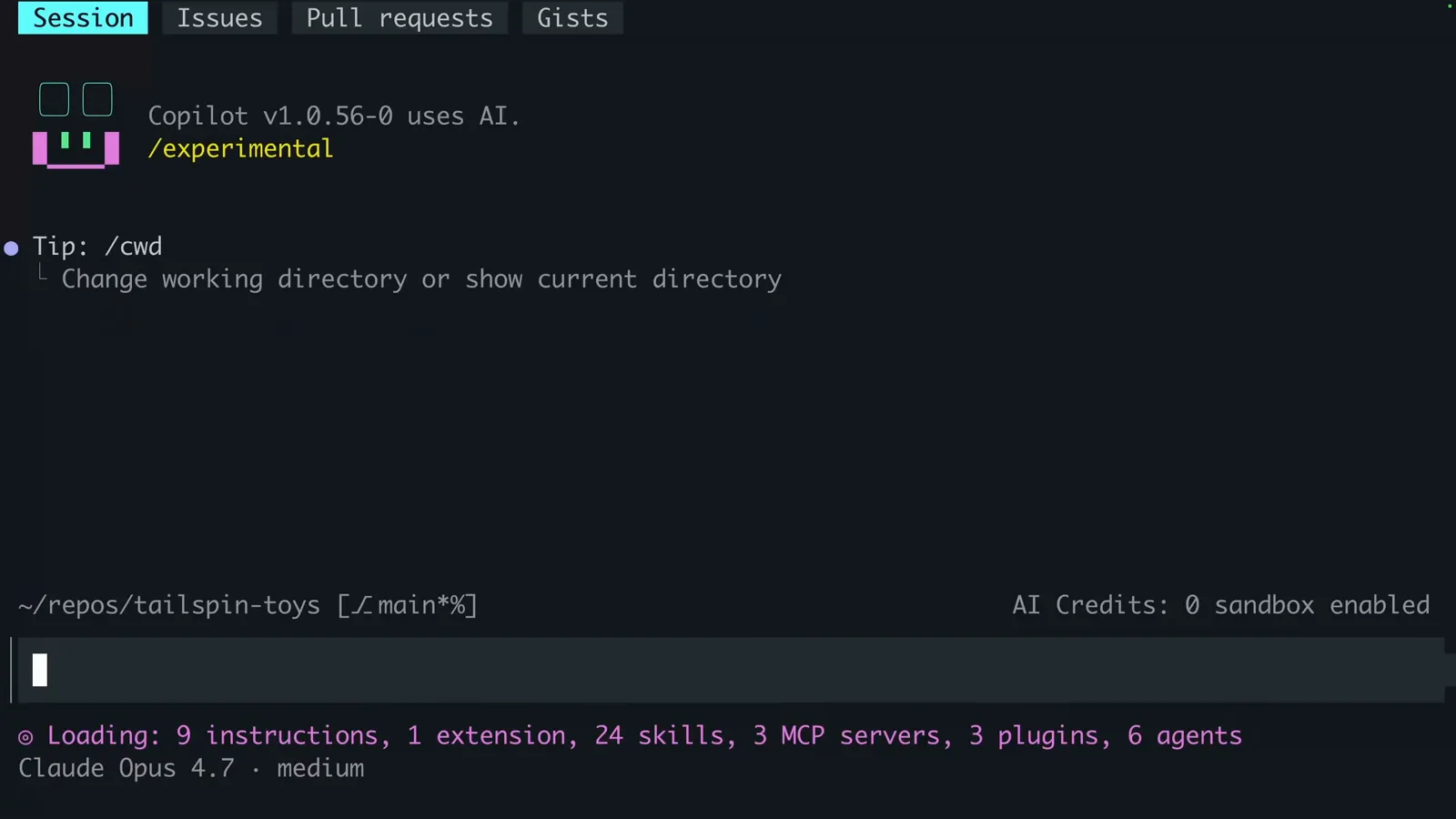
Copilot CLI starting up with the /experimental badge and the sandbox indicator in the status bar.Watch at 0:08 - 2
Run /sandbox enable
Type /sandbox and the command palette offers exactly two switches: enable and disable. Pick enable — sandboxing applies to this Copilot session and every shell command it runs.
![Copilot CLI slash-command menu listing /sandbox enable and /sandbox disable above the /sandbox [enable|disable] prompt hint](/images/guides/copilot-sandbox-tutorial/copilot-sandbox-tutorial-sandbox-enable-autocomplete.webp "Copilot CLI slash-command menu listing /sandbox enable and /sandbox disable above the /sandbox [enable|disable] prompt hint")
The /sandbox autocomplete offering enable and disable.Watch at 0:24 - 3
Confirm the session is sandboxed
Copilot prints "Sandboxing has been enabled." and the status bar now reads "sandbox enabled" next to your AI Credits. From here on, agent-run commands execute inside the sandbox.
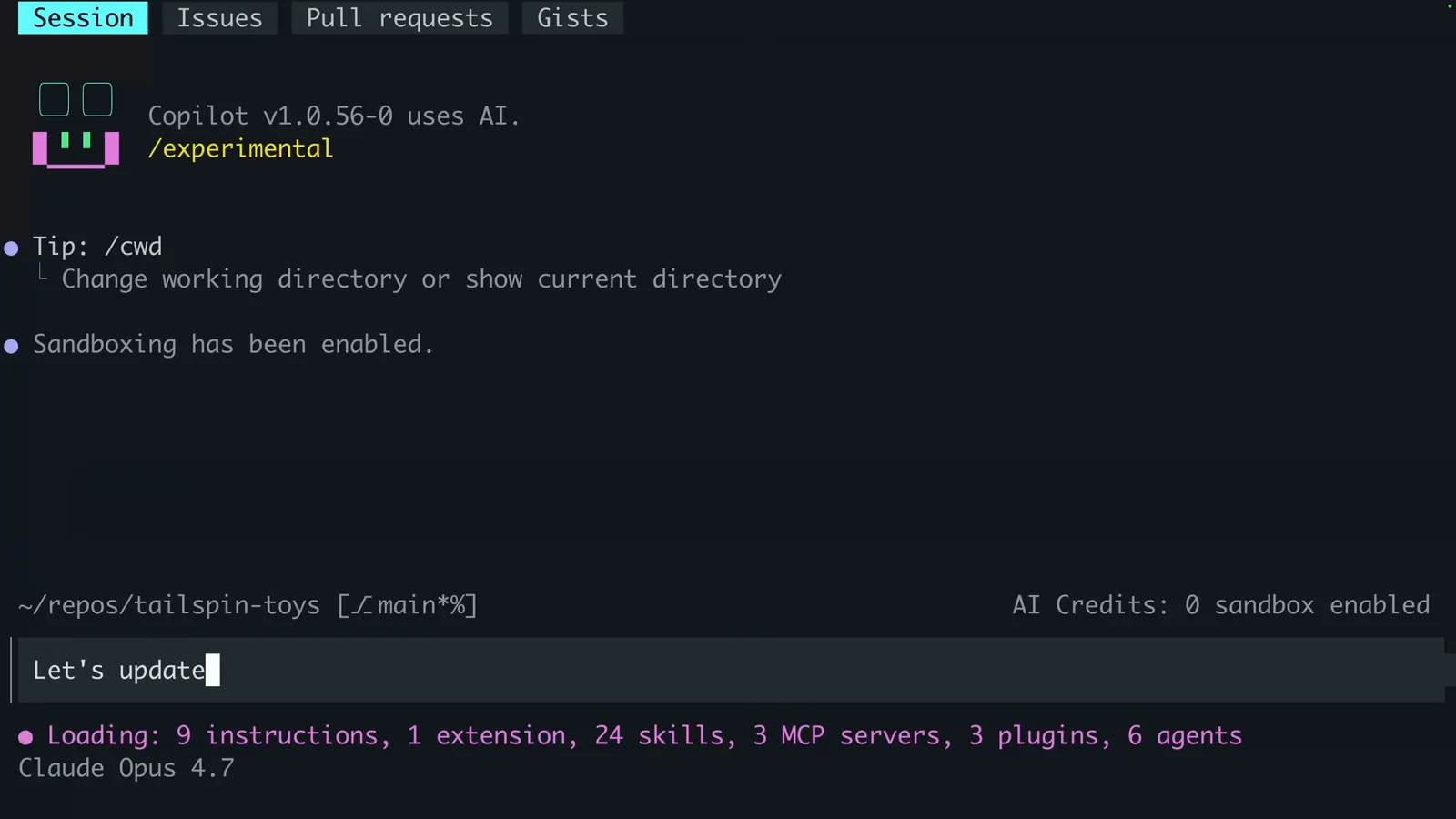
"Sandboxing has been enabled." — the confirmation you want to see.Watch at 0:12
2 · Shape what the sandbox can reach
- 4
Open /sandbox to shape the policy
Running bare /sandbox opens the Configure sandbox panel, stored in settings.json under `sandbox`. The General tab decides what runs inside: shell commands, MCP servers, LSP servers, and macOS Keychain access for git and gh credential helpers.
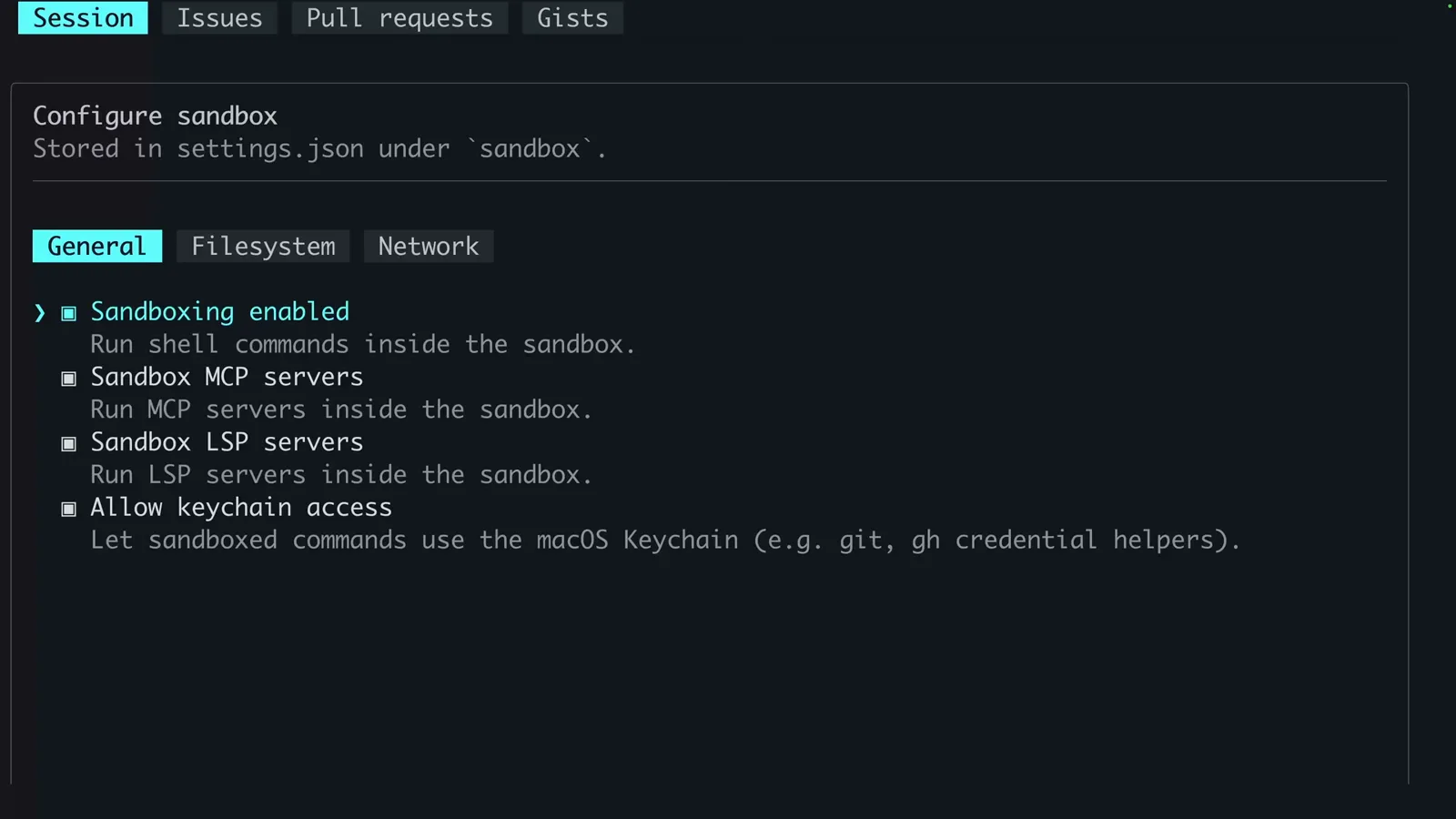
The General tab: shell, MCP and LSP servers plus keychain access.Watch at 0:30 - 5
Scope the filesystem
The Filesystem tab auto-adds your working directory to read/write paths and can reset permissions when the sandbox exits. Tool paths like ~/.nvm and ~/.npm are mounted read-only — extend the list if your toolchain needs more.
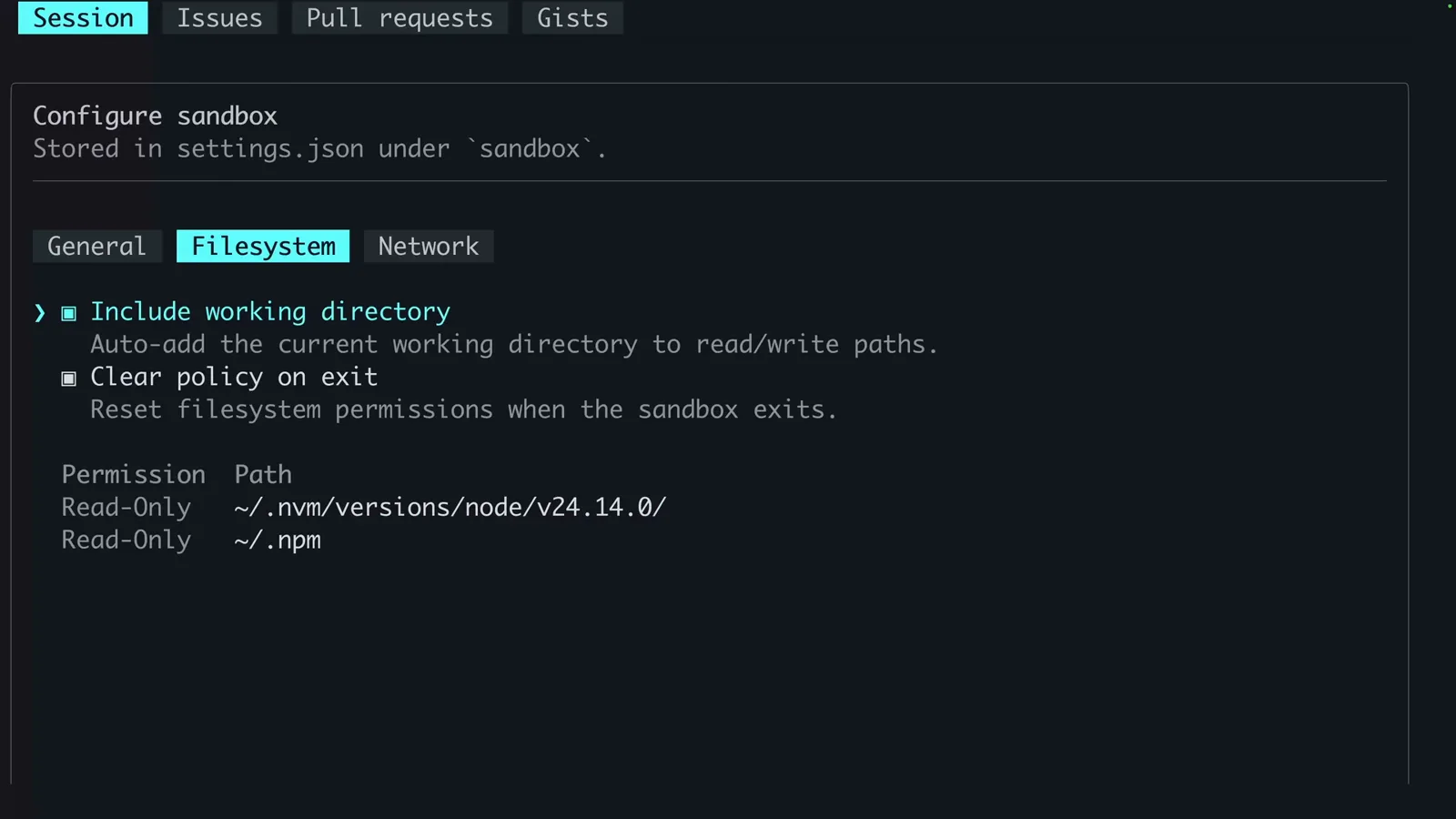
Read-only paths for nvm and npm, with the working directory auto-included.Watch at 0:32 - 6
Scope the network
The Network tab shows the three levers: allow outbound internet, allow the local network, and a per-host Access list. Tighten this first if the task doesn't need downloads.
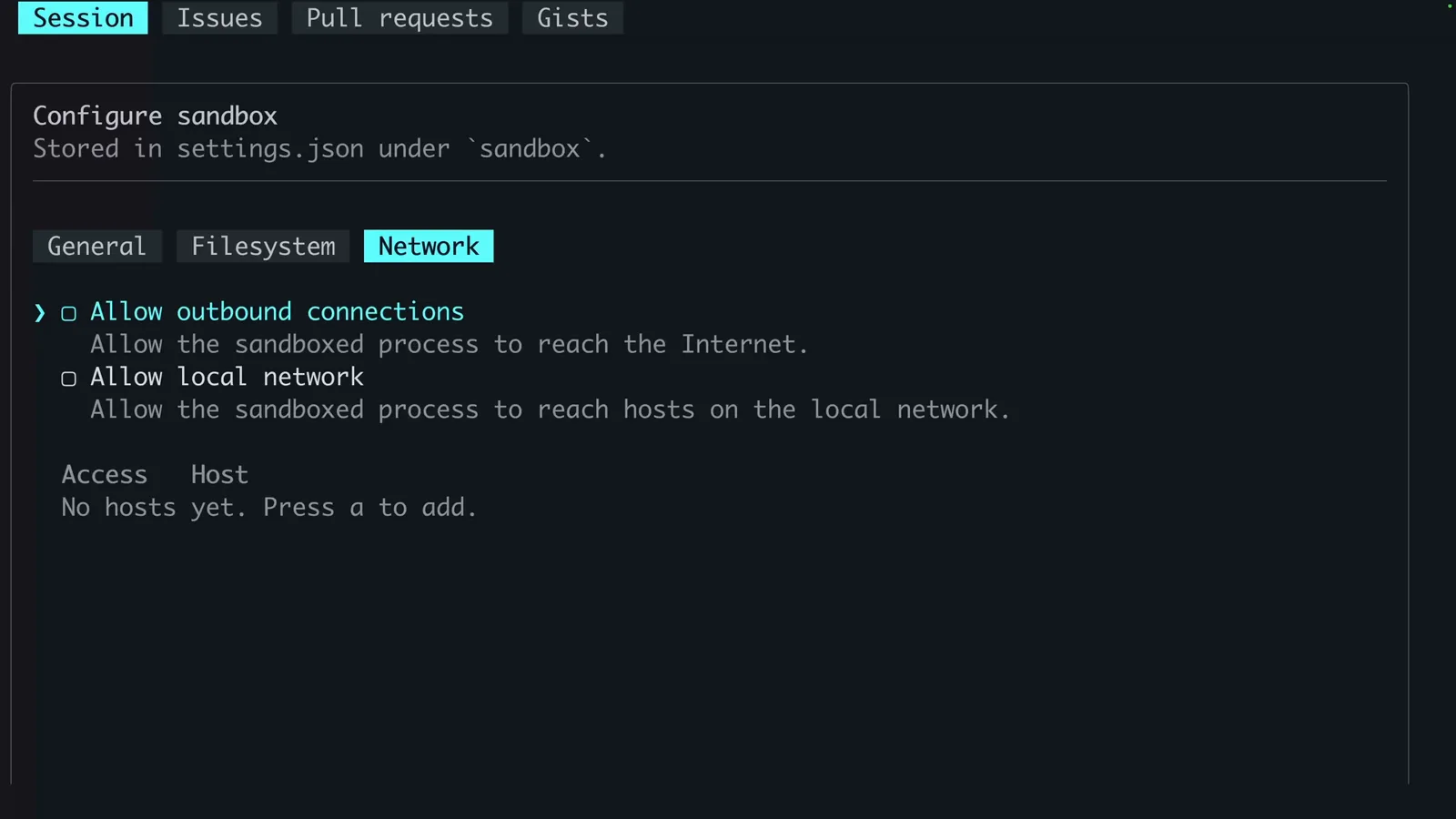
Network policy: outbound, local network, and a per-host allowlist.Watch at 0:36 - 7
Code normally — commands stay sandboxed
Work as usual. The agent plans, edits and runs commands while the status bar keeps showing "sandbox enabled". If a command needs something the policy denies, Copilot fails loudly instead of silently escaping the box.
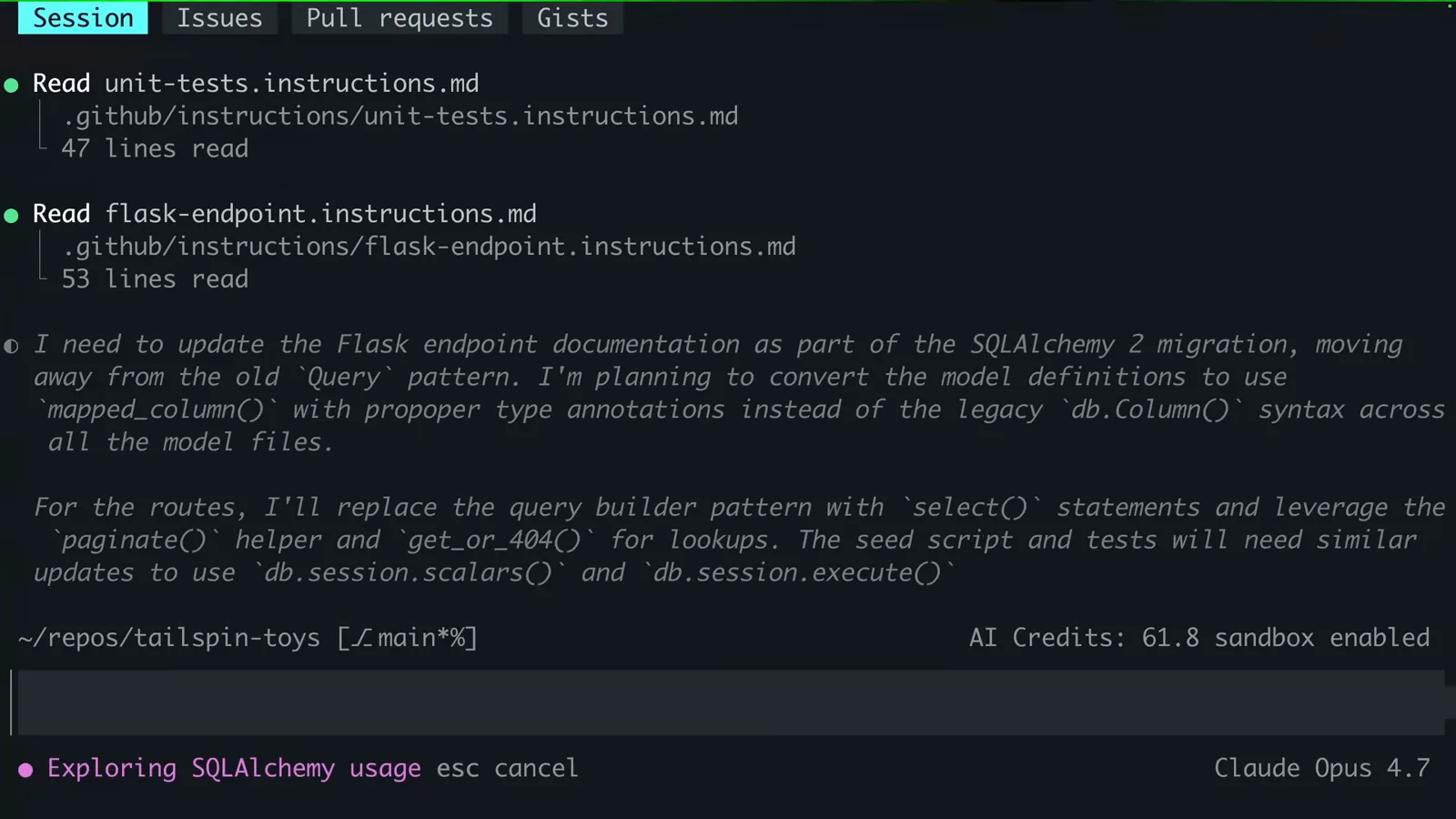
A SQLAlchemy migration planned and executed with "sandbox enabled" in the status bar.Watch at 0:20
3 · Work, switch off, or go cloud
- 8
Switch back with /sandbox disable
Need a step outside the box? /sandbox disable turns sandboxing off — "Sandboxing has been disabled." appears and the sandbox badge leaves the status bar. You can flip it back and forth as the task demands.
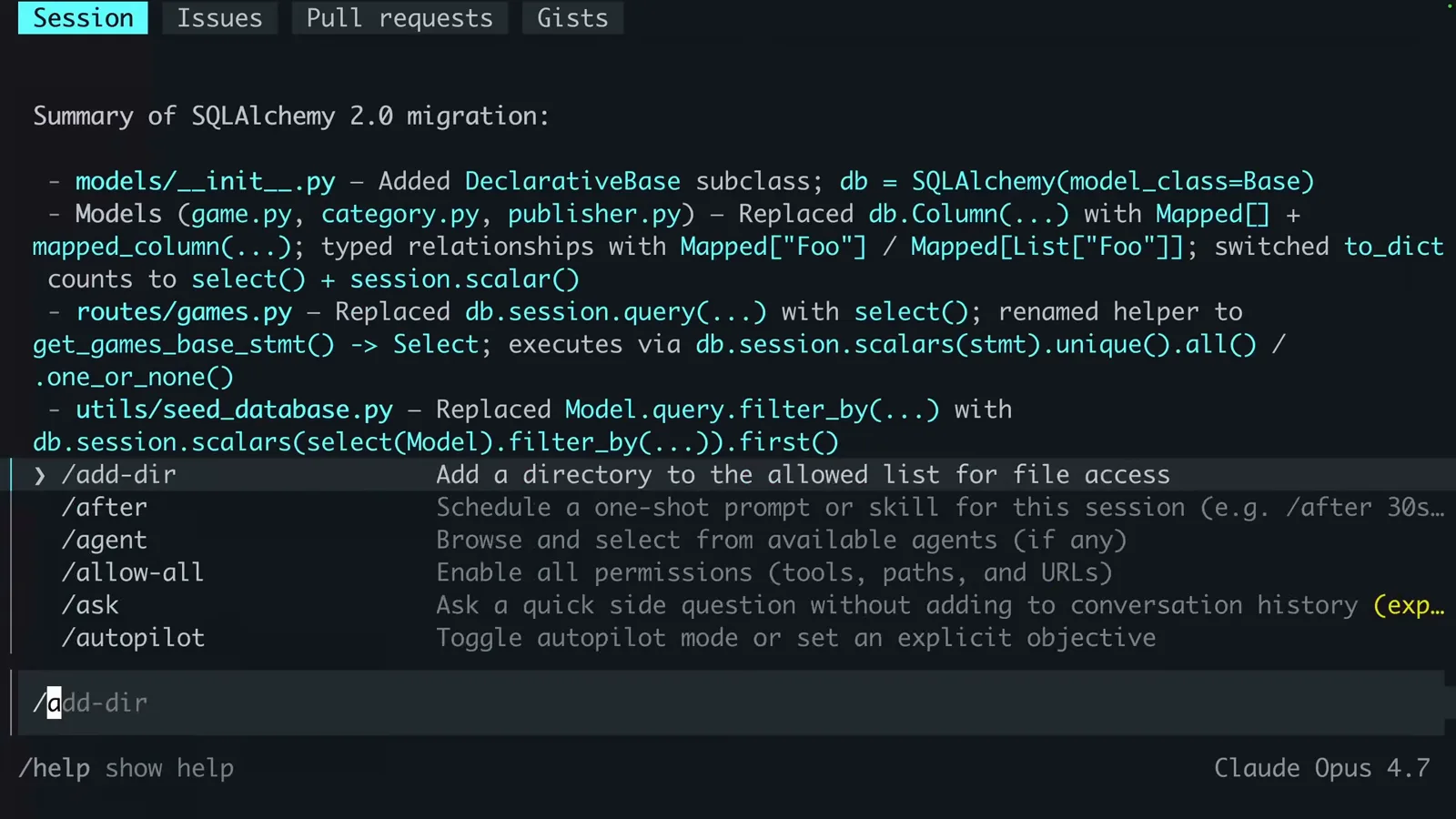
"Sandboxing has been disabled." — note the sandbox badge is gone from the status bar.Watch at 0:38 - 9
Launch a cloud sandbox with copilot --cloud
For heavier work, start Copilot with the --cloud flag (the official demo pairs it with --yolo; GitHub's docs show --cloud --experimental). The session runs in an ephemeral GitHub-hosted environment instead of your machine.
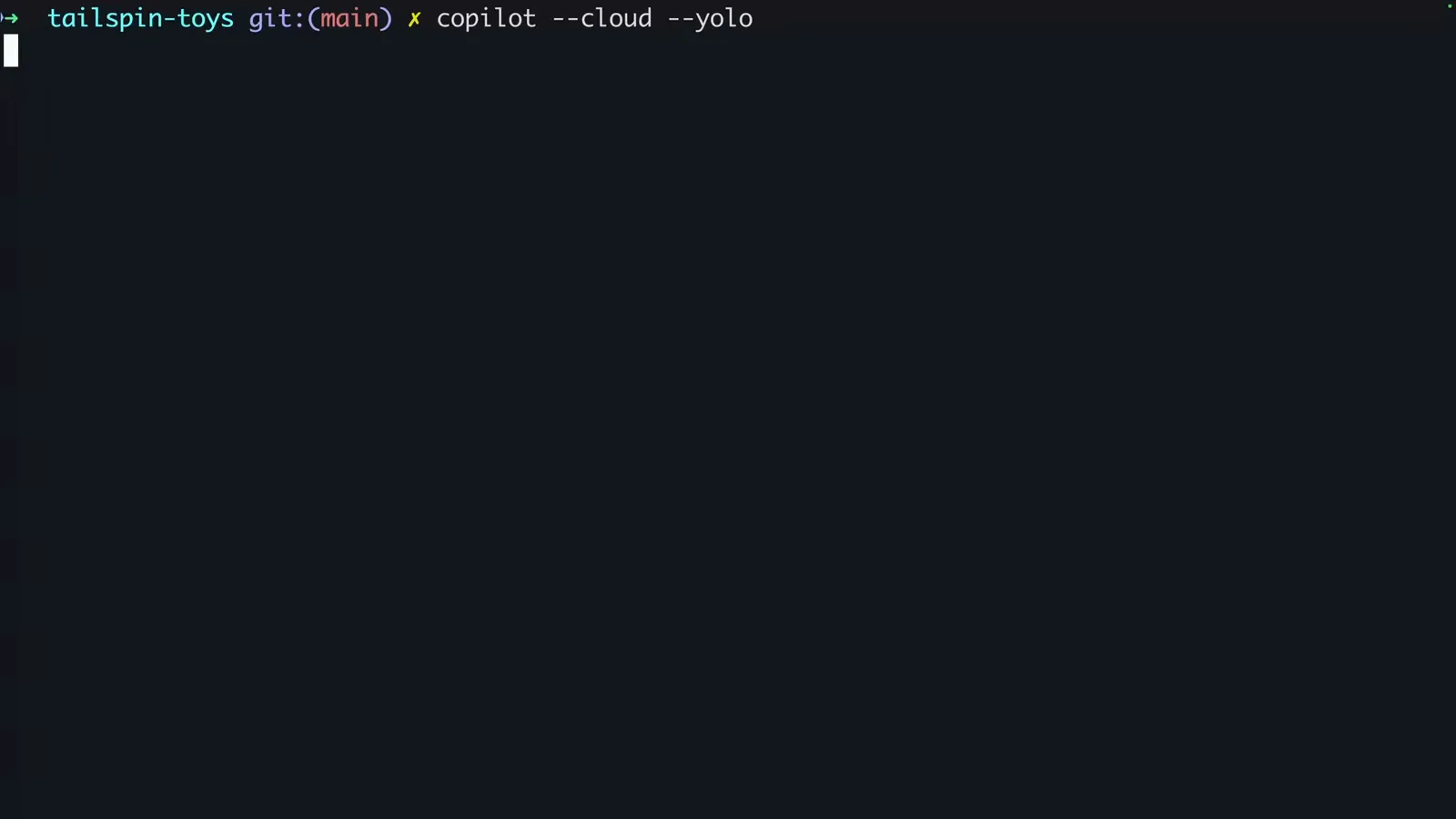
copilot --cloud --yolo — the whole session is about to leave your laptop.Watch at 0:50 - 10
Grab the remote-control link
Once the remote session is provisioned, Copilot connects remote control and prints a github.com/copilot/tasks/... URL — ctrl+e shows a QR code. The working tree lives at /workspaces/<repo> inside the cloud sandbox.
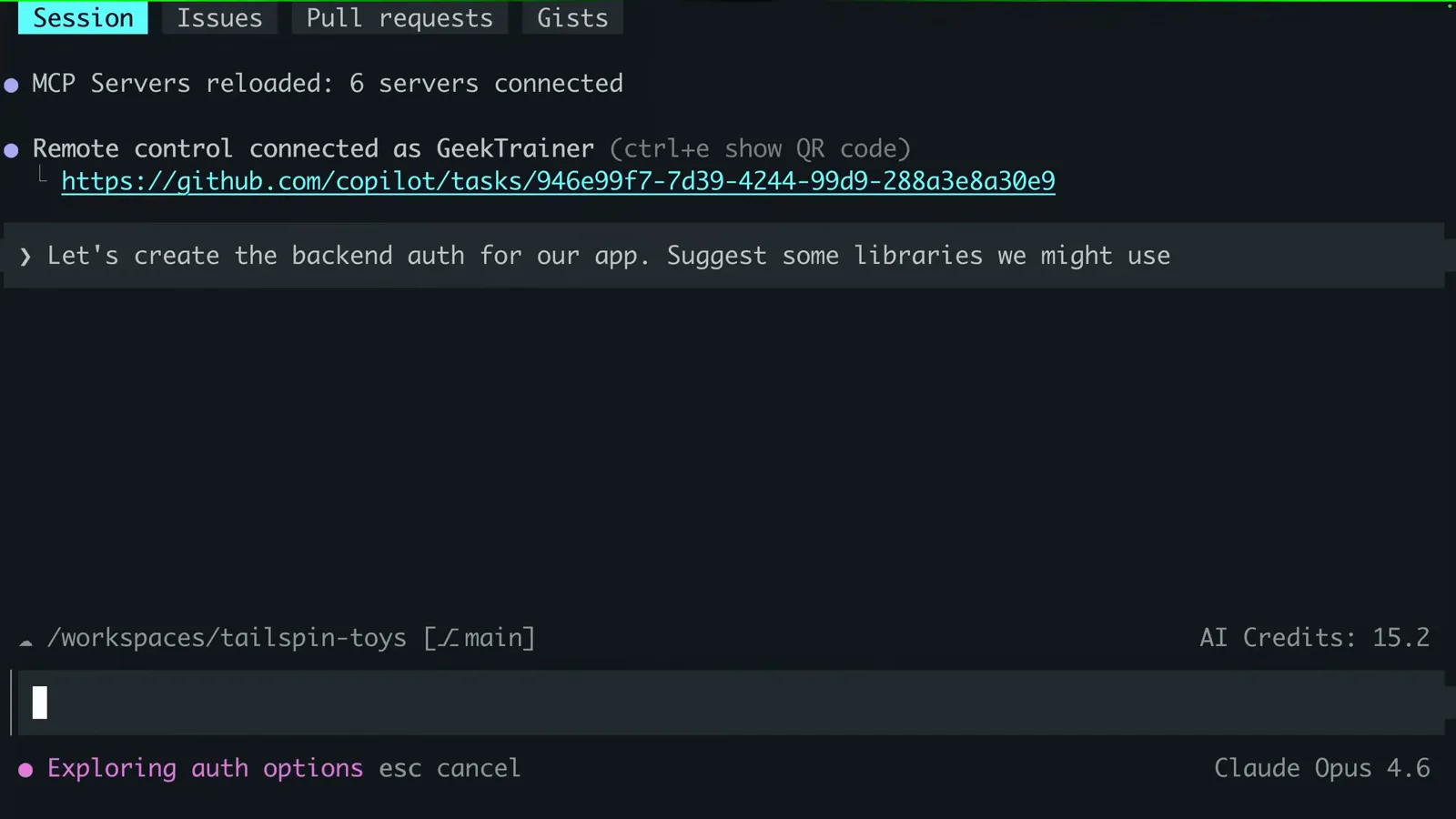
Remote control connected, with the session URL and QR-code shortcut.Watch at 1:00 - 11
Let it build and test in the cloud
The agent creates files, installs dependencies and runs your test scripts inside the cloud sandbox — here creating test_auth.py and running the backend suite. Your machine stays idle while credits tick in the status bar.
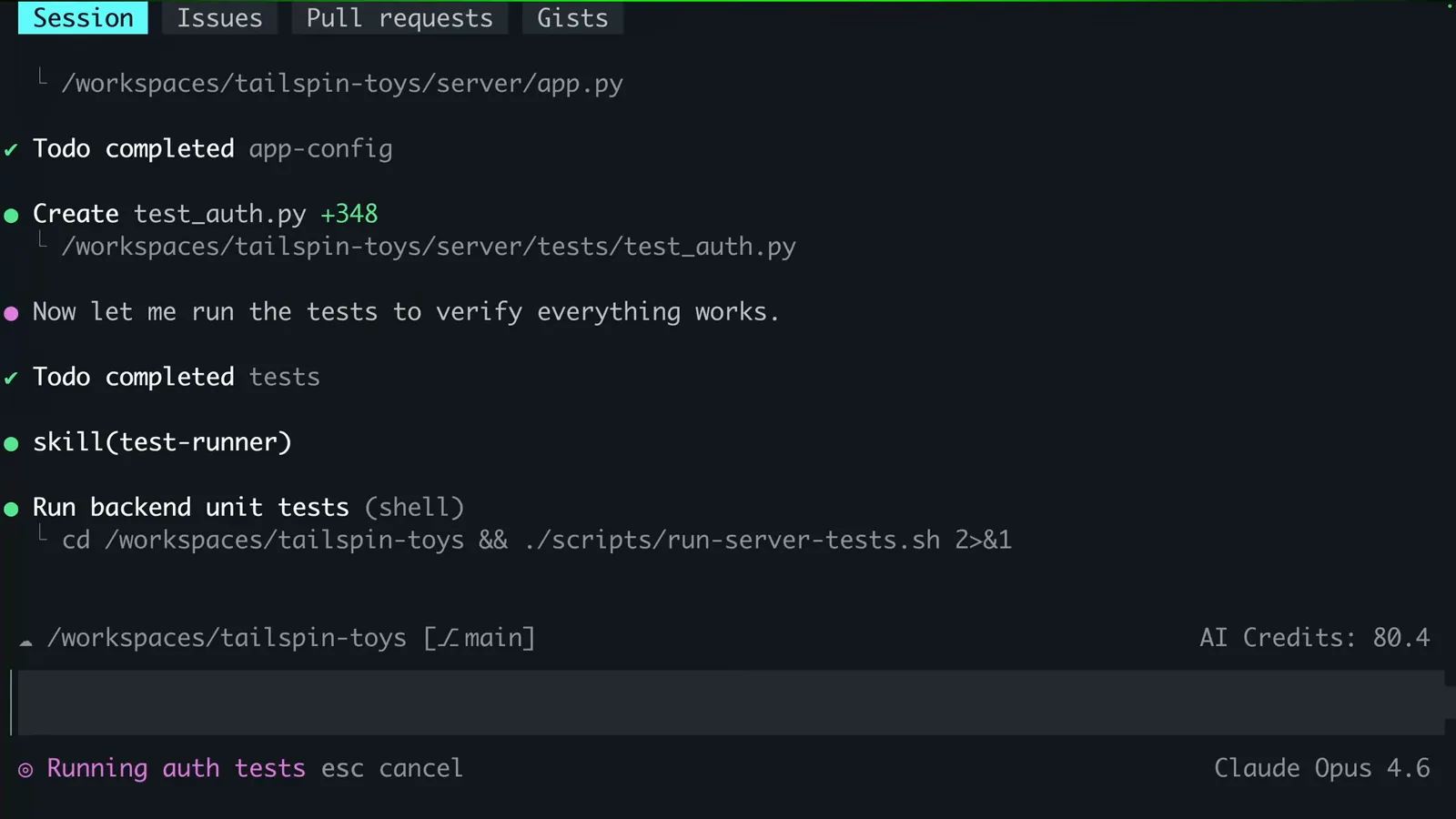
Tests running in the cloud sandbox, 80.4 AI Credits spent so far.Watch at 1:10 - 12
Monitor and rejoin from GitHub.com
The session shows up under the repo's Agents tab as a Remote CLI session — watch progress, send messages from the browser, and resume later with copilot --resume, which lists both local and remote sessions.
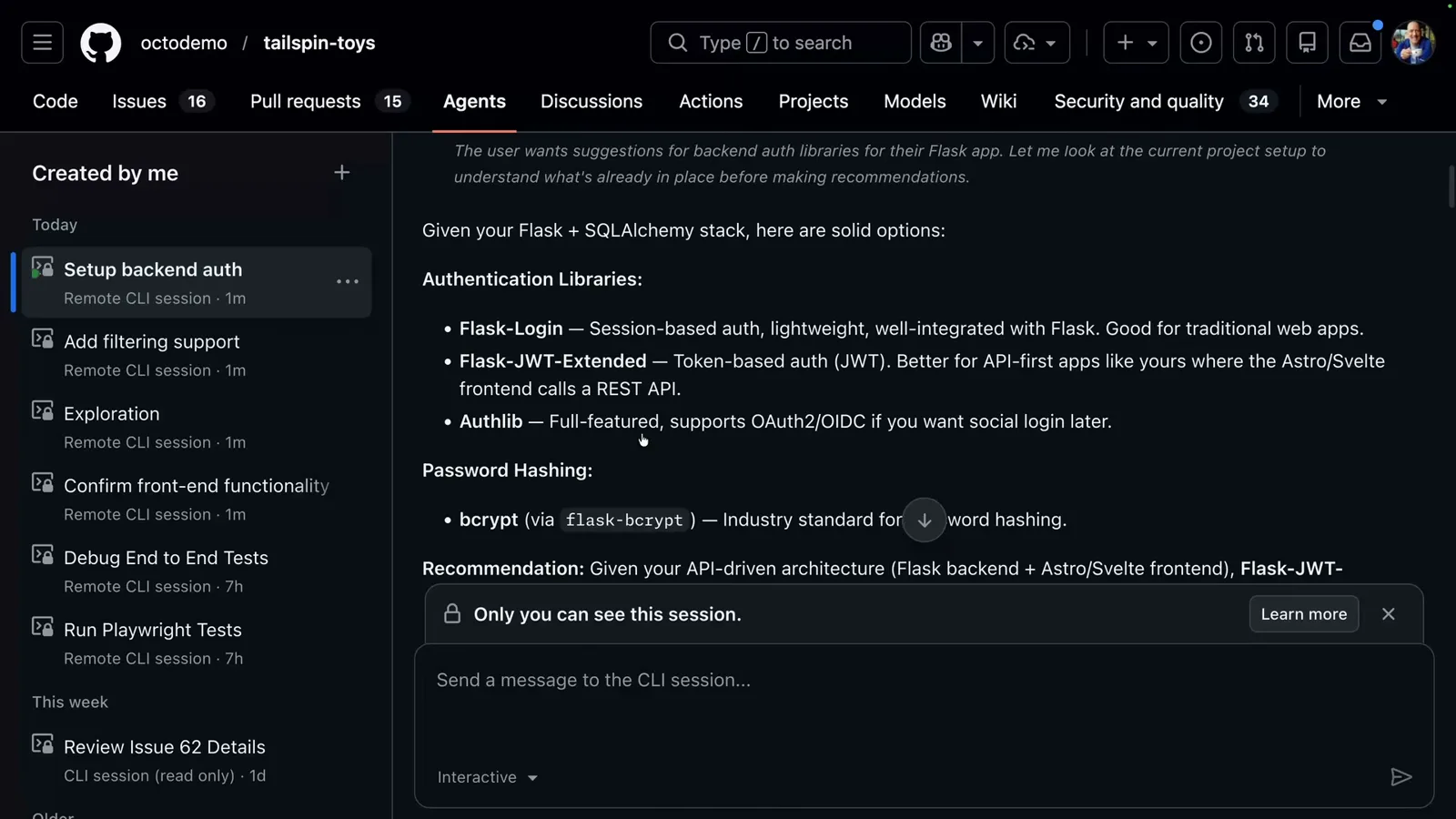
The tailspin-toys Agents tab tracking the cloud session live.Watch at 1:14
Where the settings live: Copilot app vs Copilot CLI
Local sandboxing exists on two surfaces, and their settings are configured separately — changing one never changes the other.
- 1Copilot app: off by default. Open app settings, select the project, and under "Sandbox" turn on "Sandbox new sessions". The project policy describes what a sandboxed session may request.
- 2Copilot app policy: filesystem access starts at read/write for the workspace and working directory, with additional read/write, additional read-only and denied path lists; network access covers outbound internet and the local network; credentials cover git and GitHub CLI.
- 3Copilot CLI: sandboxing is experimental — start with --experimental (or run /experimental on), then use /sandbox enable, /sandbox disable, or bare /sandbox to open the configure panel. Settings persist in settings.json under `sandbox`.
- 4Slash commands are context-sensitive: /sandbox on or /sandbox off during an active session is a session-only override, while entering it before a session starts changes the project default. Use /restart-session to apply policy changes without losing history.
- 5Cloud sessions are their own world: local sandbox settings don't apply to cloud sandbox or remote-host sessions, and cloud sandboxing must be enabled by an org or enterprise owner before it appears.
The CLI demo in this guide shows the fastest path; the app's per-project toggle is the durable default once you know the policy you want.
When the sandbox says no: fail-closed by design
The sandbox is built to fail closed — if the OS can't enforce the policy you asked for, the command errors out instead of running unsandboxed.
- 1Unsupported platform or policy: if the requested policy can't be enforced, the sandboxed shell fails with an error — it never silently falls back to running without a sandbox.
- 2"Sandbox unavailable": the app flags the problem and offers a Retry sandbox button once you've fixed the underlying issue.
- 3The escape hatch: a "Run outside the sandbox?" prompt can offer to cancel, run once outside, or switch sandboxing off for the session — "Re-enable sandbox" flips it back. It ends on restart and never changes project defaults.
- 4Enterprise owners can have the final word: managed settings can block the outside-sandbox escape hatch, and enforcement fails closed there too.
Platform notes: macOS 15+ is recommended (Seatbelt); Linux needs bubblewrap 0.5.0+ on PATH plus slirp4netns, util-linux 2.35+, iptables and /dev/net/tun; Windows uses the BaseContainer tier of ProcessContainer, where a denied path that can't be guaranteed makes the command fail with an unsupported-policy message.