
How to Assign an Issue to the Copilot Coding Agent
The complete 2026 walkthrough: hand a GitHub issue to Copilot's coding agent — now documented as the cloud agent — watch it plan, open a draft PR and run tests inside GitHub Actions, then review, iterate and merge. Every step is matched to the exact minute in the source videos.
TL;DR — assigning issues to Copilot in 2026
- Assigning is one click: open the issue, click Assignees, pick Copilot. The agent reacts with an eyes emoji, starts an ephemeral GitHub Actions environment and opens a draft PR you can follow from the issue timeline.
- GitHub's docs now call it the Copilot cloud agent — the same product the UI and blog posts still call the coding agent. Both names work in search, support threads and this guide.
- You need a paid Copilot plan and write access to the repo. Free-plan accounts don't see Copilot in the assignees list; on Business and Enterprise an admin must enable the policy first.
- Reviewing stays human: Copilot requests your review when it finishes, @copilot comments send changes back, and the PR only merges after a human approves. The demo run in this guide finished in 8m 14s.
Use GitHub Copilot Coding Agent to Solve Open Issues in a GitHub Repository
Channel: :The Code Wolf13:00
How to Get the Most Out of the Copilot Coding Agent
Channel: :GitHub1:56
How the GitHub Copilot coding agent works | GitHub Checkout
Channel: :GitHub6:58
Starting GitHub Copilot sessions
Docs: :docs.github.com
About the Copilot cloud agent
Docs: :docs.github.com
Frames in this guide come from the two clean screen recordings credited above; every still was checked at full size. The GitHub Checkout interview is used as a fact source only — its screen segments carry a presenter camera overlay, so no frames were taken from it.
Screenshots are used for identification and commentary. "Use GitHub Copilot Coding Agent to Solve Open Issues in a GitHub Repository" © The Code Wolf; "How to Get the Most Out of the Copilot Coding Agent" and "How the GitHub Copilot coding agent works" © GitHub. All product names are trademarks of their respective owners.
Assign, track and merge: the 13-step walkthrough
Before you assign the issue
- 1
Open the repo's Issues tab and pick a well-scoped task
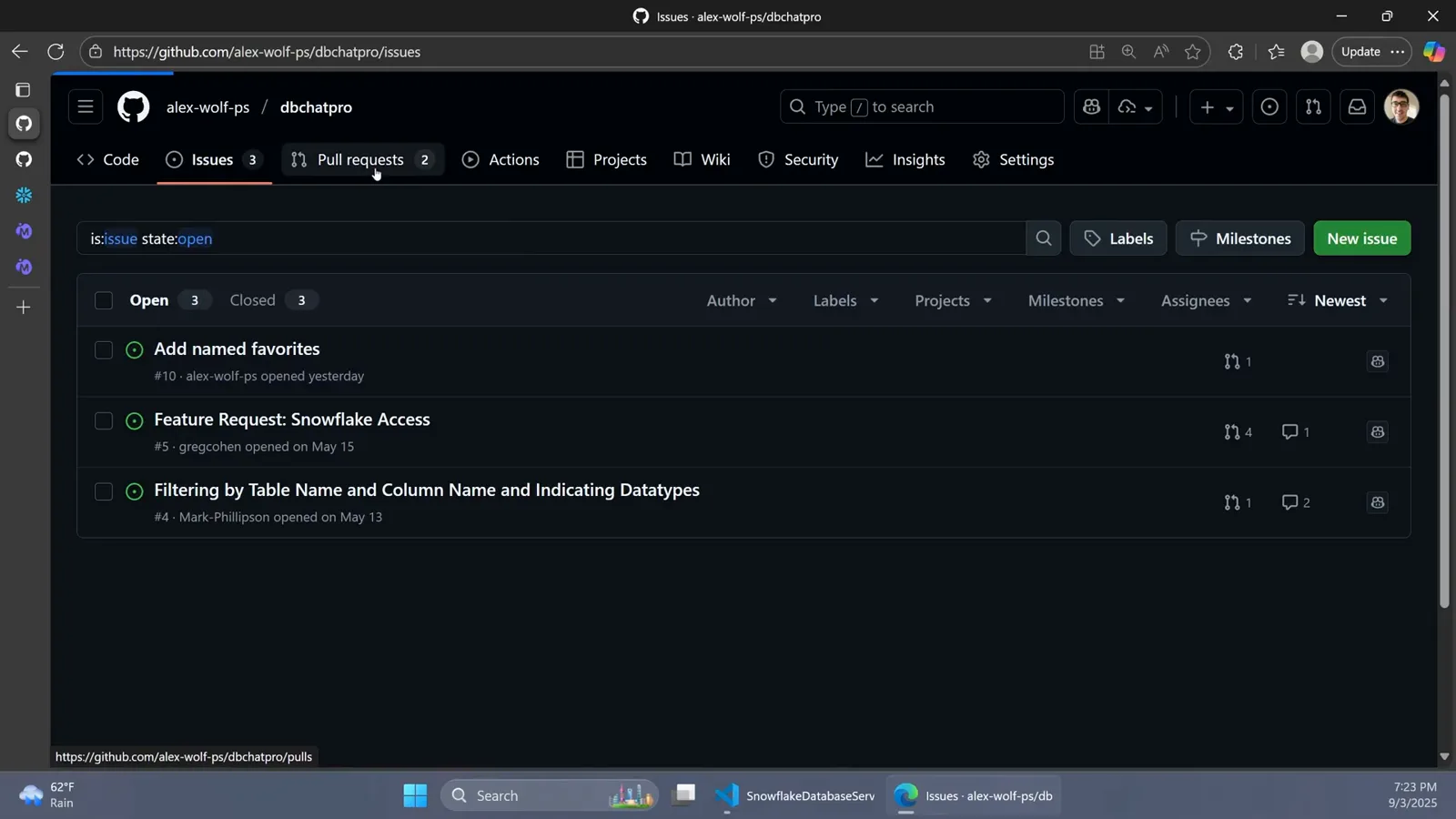
Issues usually come from your product owner, your team or the community. In the demo repository three are open — a Snowflake connector, sortable columns and named favorites. Any of them is a single-PR-sized feature, which is exactly the size the coding agent handles best. You can assign several issues at once; each gets its own session and draft PR.
The demo repo's Issues tab with three open community feature requests.Watch at 9:31 - 2
Write the problem and acceptance criteria into the issue
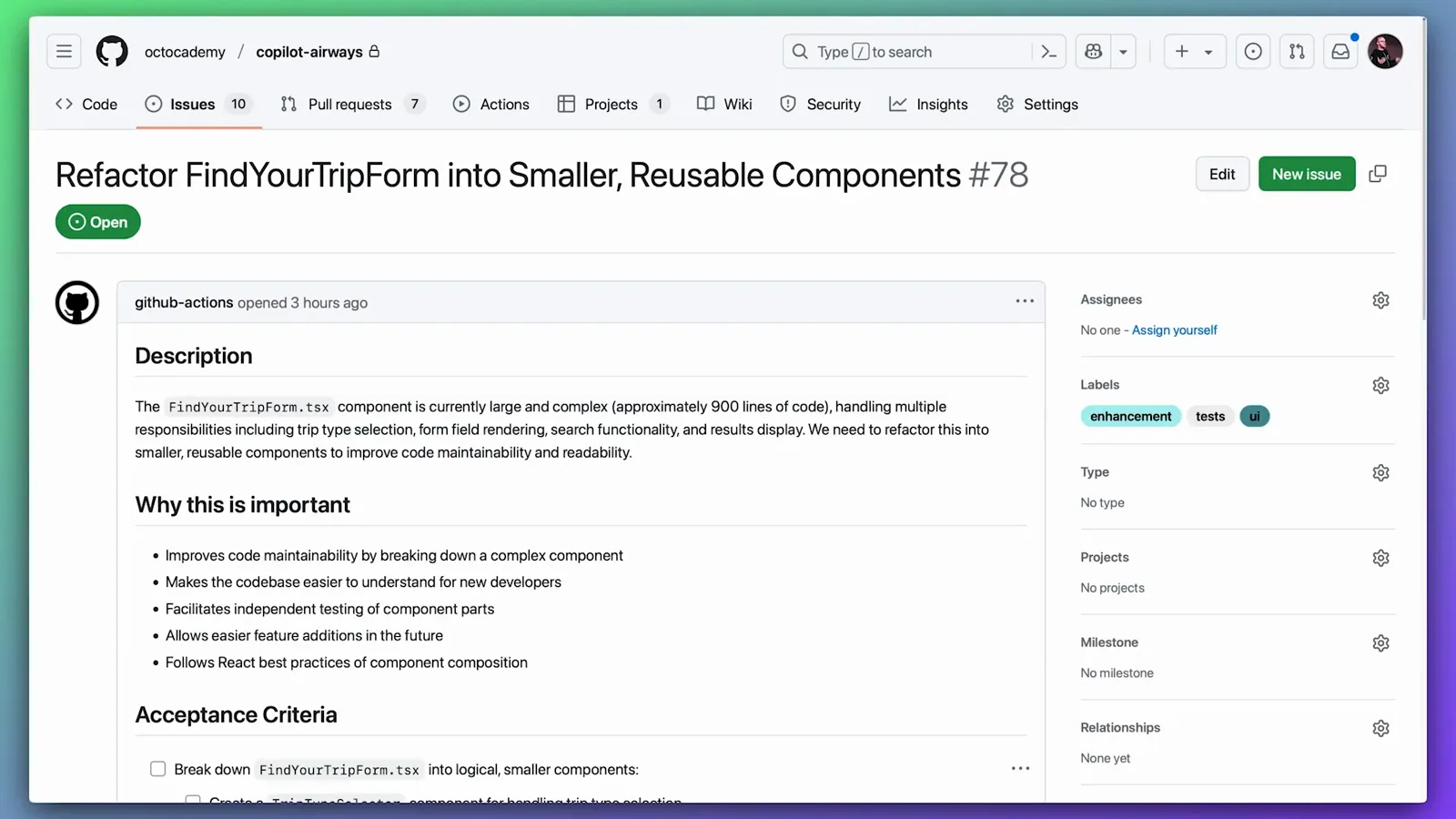
Copilot only sees the issue title, description and comments that exist when you assign it. A good issue states the problem, why it matters and the acceptance criteria — GitHub's own example lists bullet-point criteria that make success checkable. Anything you forget can be added later, but only as a comment on the pull request Copilot raises, because it doesn't re-read the issue afterwards.
A well-scoped issue: description, motivation and checkable acceptance criteria.Watch at 0:17 - 3
Check the agent is enabled for your account
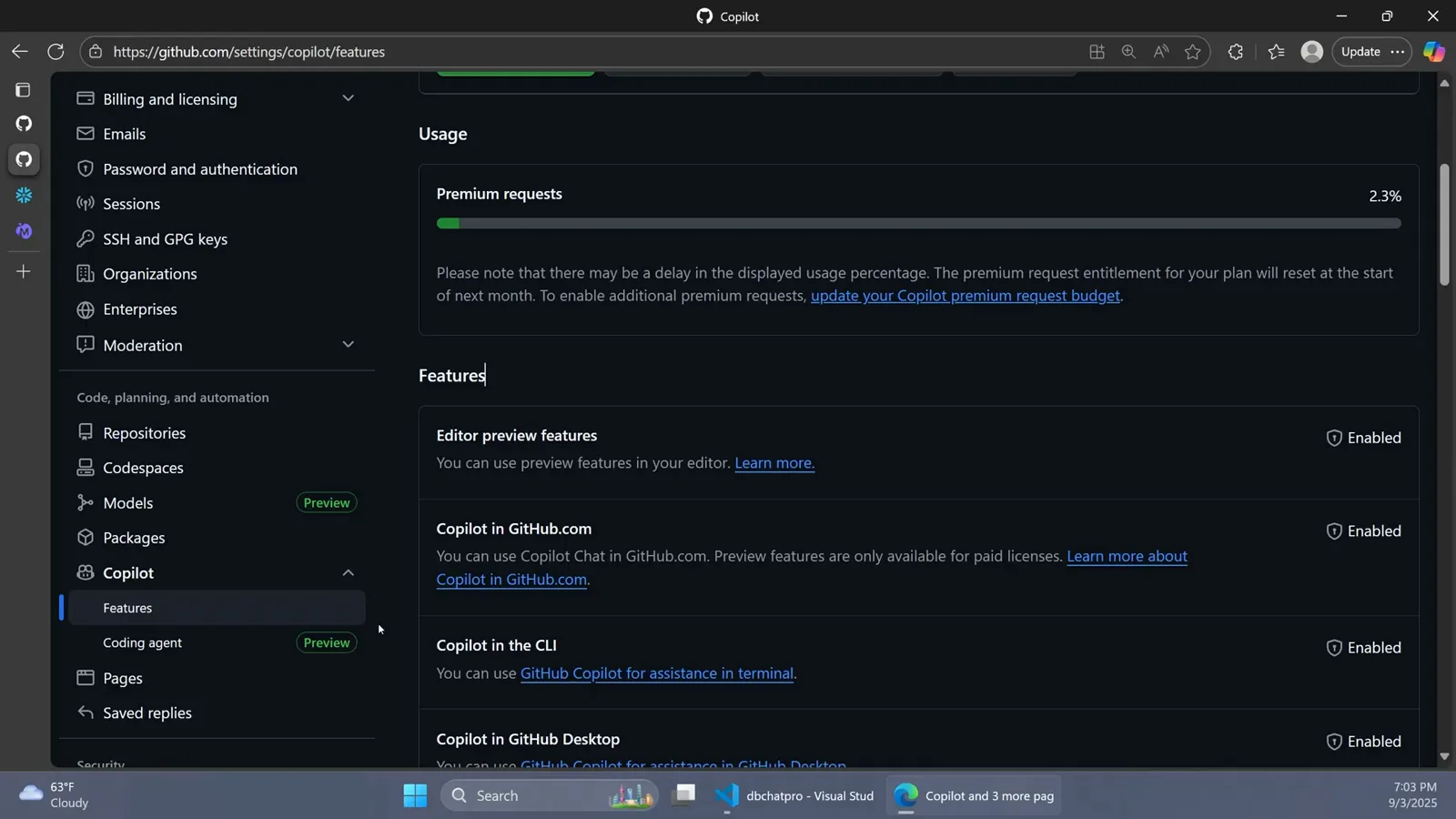
You can only assign issues to Copilot through a paid Copilot plan. Check github.com/settings/copilot/features — the personal settings page lists Coding agent (Preview) under Copilot in the sidebar, next to the Enabled toggles for Copilot in the CLI, Chat in GitHub Mobile and the other editor preview features. On Copilot Business or Enterprise an administrator must enable the policy for the organization before the option appears.
The Copilot features page where Coding agent (Preview) shows its enabled state.Watch at 4:00
Assign the issue to Copilot
- 4
Open the Assignees menu and pick Copilot
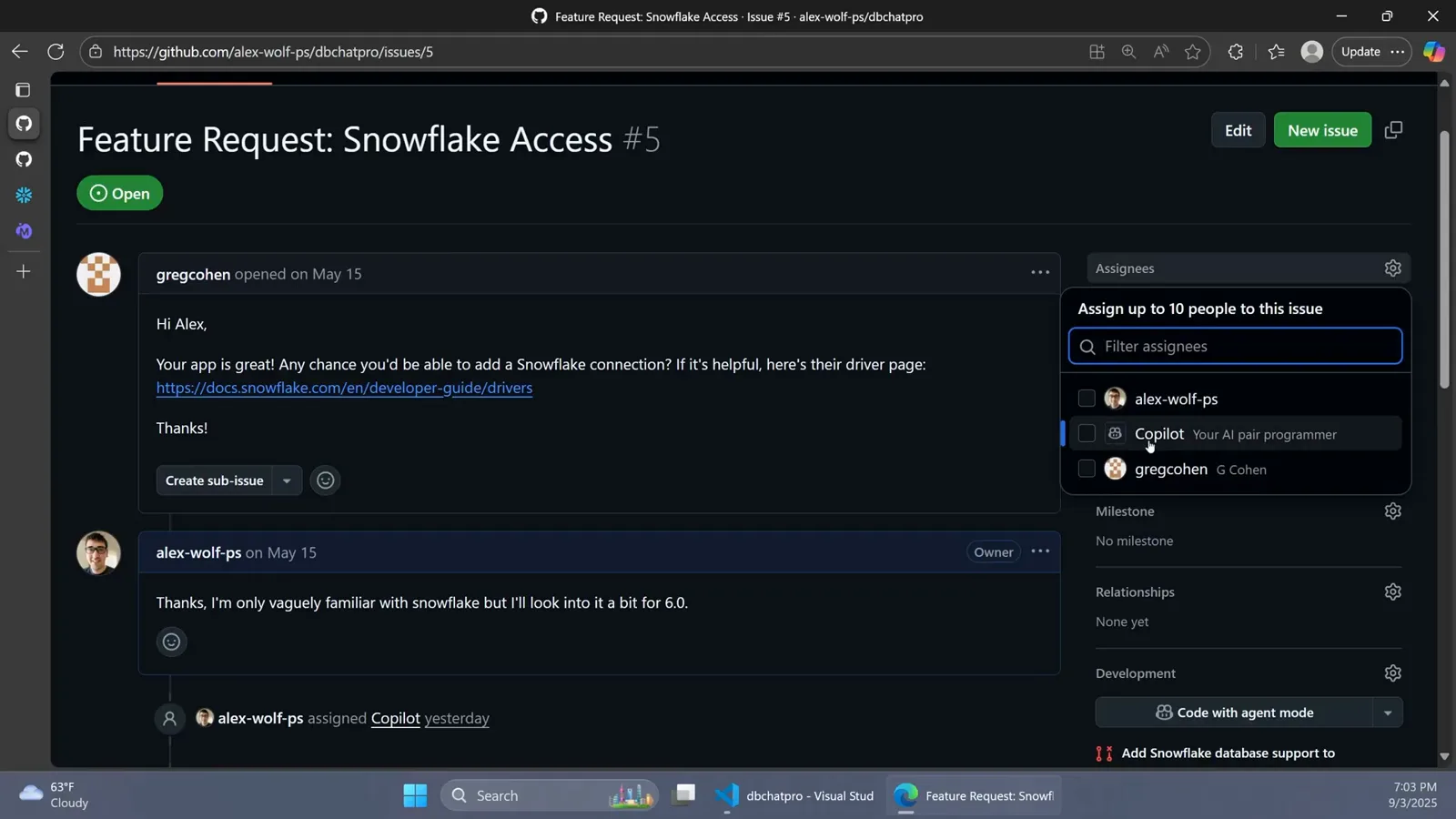
Open the issue and click Assignees in the right-hand sidebar. The dropdown lists people plus additional options — including Copilot, subtitled "Your AI pair programmer". Select it the same way you would a teammate; the docs note that assigning issues to Copilot is in public preview and subject to change. Prefer the keyboard? gh agent-task create (GitHub CLI 2.80.0 or later, public preview) starts the same kind of session from your terminal.
The Assignees dropdown with Copilot — Your AI pair programmer — highlighted.Watch at 4:16 - 5
Confirm the assignment and set optional guidance
Copilot now sits beside any human assignees. The assign dialog also offers an optional prompt field for context, constraints or specific requirements, dropdowns to change the target repository and starting branch — you need write access to the selected repo and the cloud agent must be enabled there — plus custom agent, AI model and reasoning pickers. Everything is optional: assigned with no extras, Copilot starts from the issue text alone.
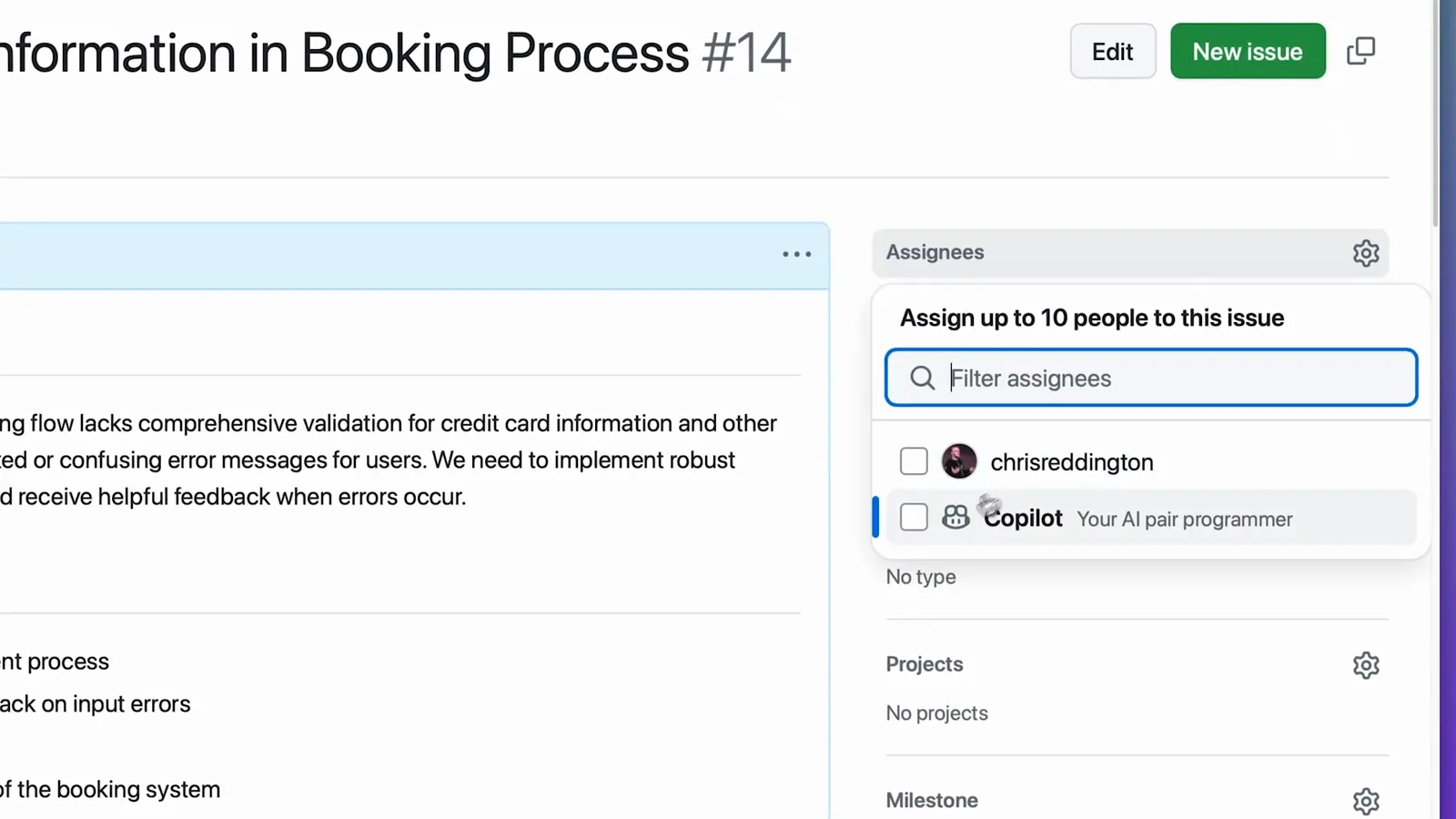
Official GitHub footage of Copilot being picked from the Assignees dropdown.Watch at 0:04 - 6
Watch the timeline confirm Copilot picked it up
Within seconds the issue reacts: Copilot adds an eyes reaction and a "Copilot has started work" event lands on the timeline. In this recording you can see the assignment events, Copilot's own comments and — a minute later — "Copilot linked a pull request that will close this issue" pointing at the new WIP draft. You'll also get email updates as the session progresses.
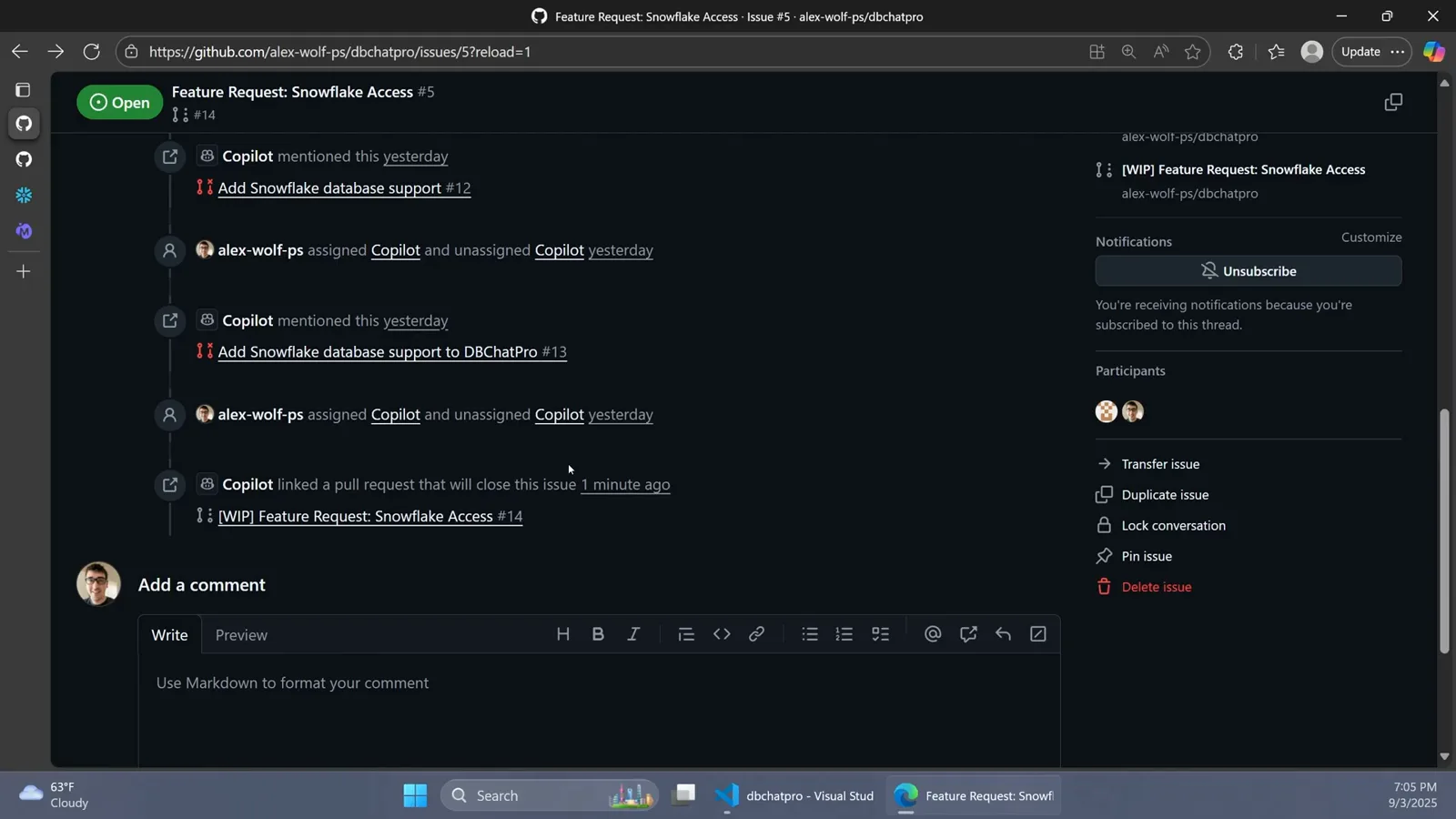
Issue timeline: assignment events, Copilot comments and the linked WIP pull request.Watch at 5:22
Track the background run
- 7
Follow the run in GitHub Actions
The cloud agent works in an ephemeral environment powered by GitHub Actions. Open the Actions tab and you'll find a run named after the issue — here "Fixing issue #5" — with a copilot job whose steps read Prepare Copilot, Start MCP Servers, Processing Request, Clean Up and Save Data. A reviewer may need to click "Approve and run workflows" before Copilot's pushes execute your CI.
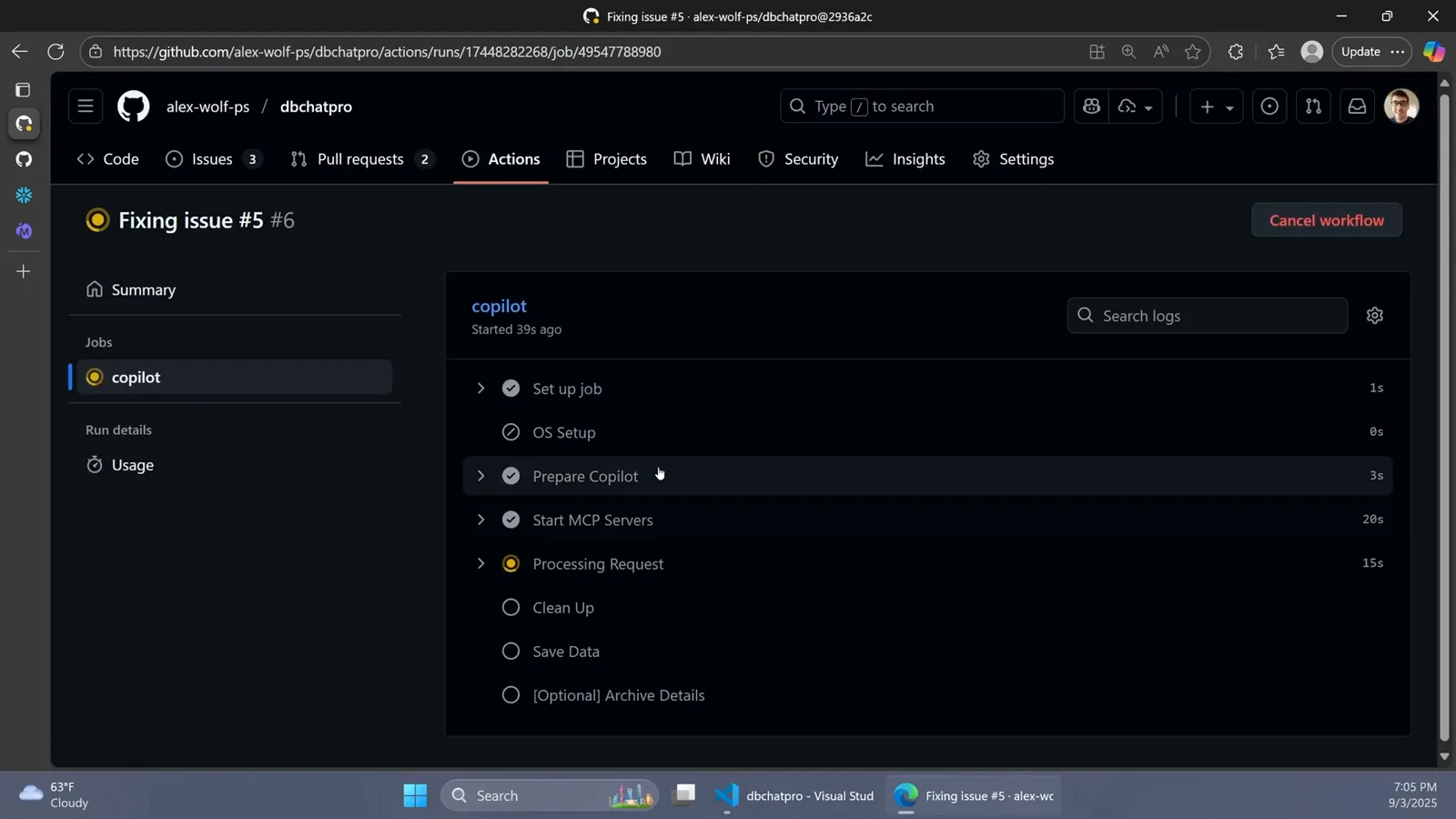
The copilot job's live steps inside the GitHub Actions run for the issue.Watch at 5:00 - 8
Open the draft PR Copilot raises
Copilot doesn't stay silent until the end — it opens a draft pull request immediately and keeps updating it. The issue timeline links straight to it ("a pull request that will close this issue"), and the PR body starts as a copy of the issue, then fills in with the agent's plan and checked-off progress as it works. Keep an eye on it like a teammate's branch.
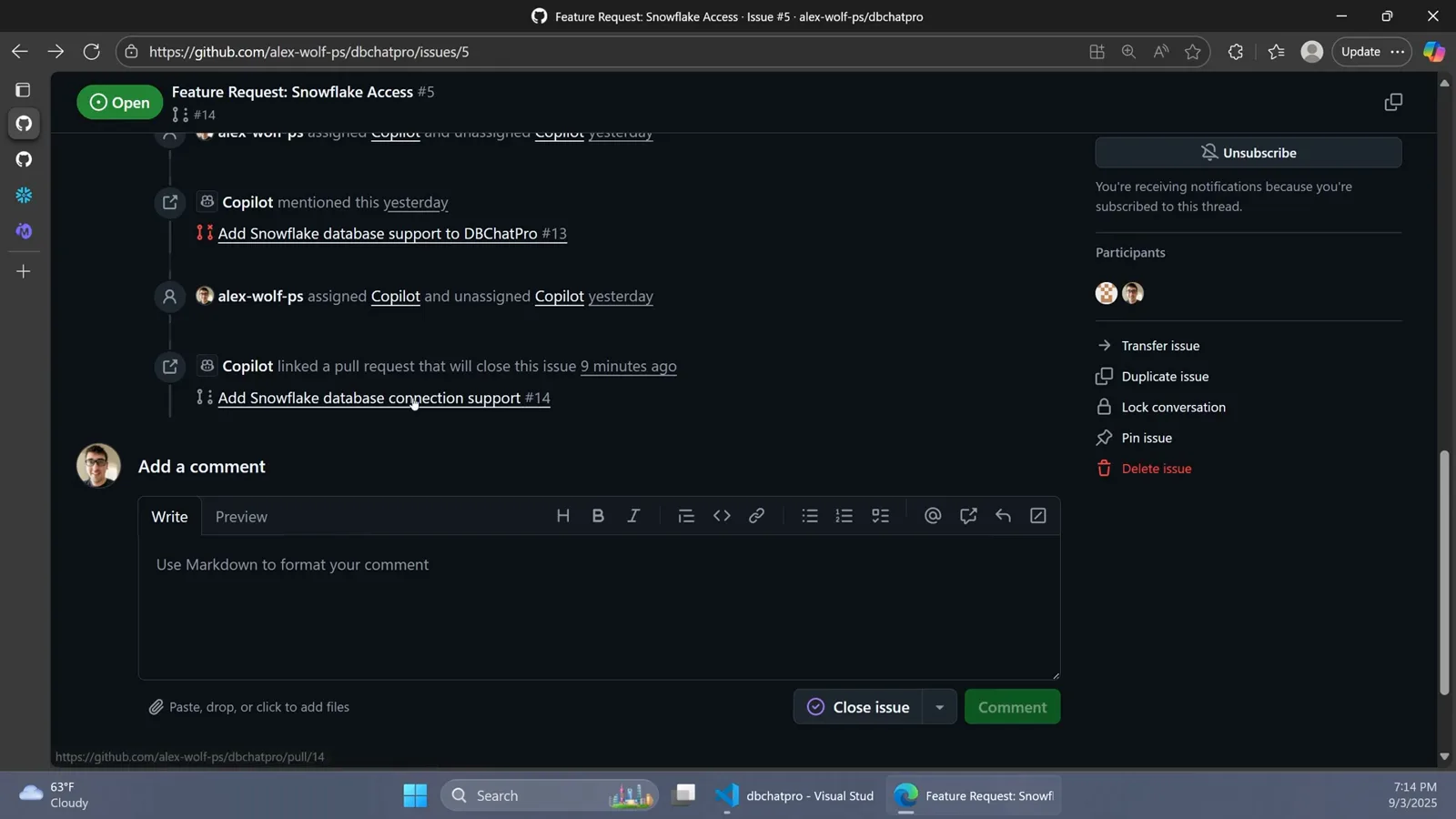
The issue timeline's linked-pull-request event pointing at the new draft PR.Watch at 5:31 - 9
Read Copilot's PR notes
When the session finishes, the draft pull request reads like a good colleague wrote it: "Copilot wants to merge 3 commits into main from copilot/fix-5-4", a What's Added section breaking down core implementation, UI integration and system integration, plus a Connection String Format section. The sidebar shows "Copilot is done — completed after 8m 14s". This run took about nine minutes end to end.
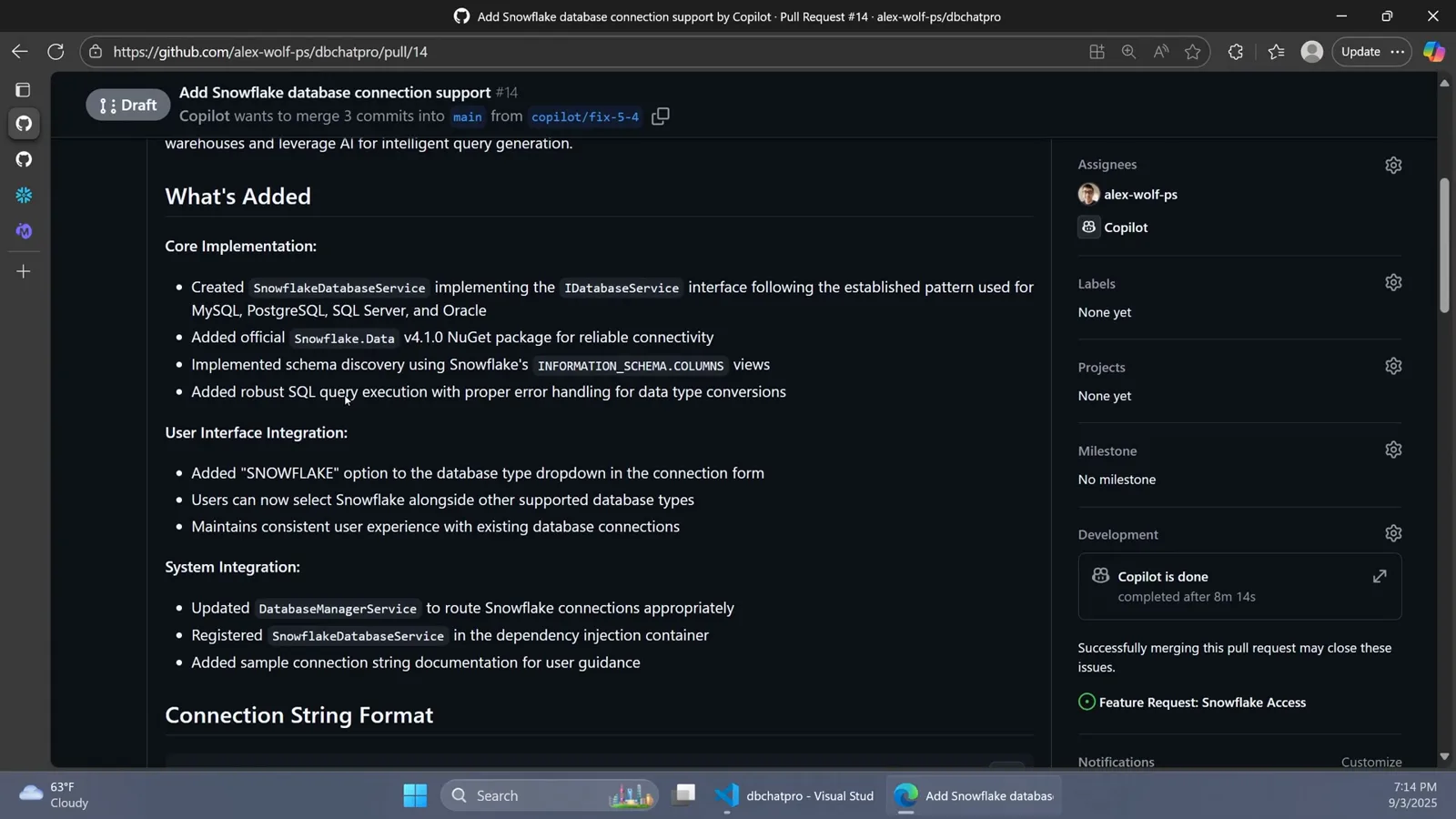
The draft PR's self-written description with the completion time in the sidebar.Watch at 5:38
Review, iterate, merge
- 10
Inspect the Files changed diff
The Files changed tab shows every commit the agent made: here six files, including a new SnowflakeDatabaseService.cs with 119 added lines — headed by a comment noting it was generated by AI — the NuGet package added to the csproj, and the service registered for dependency injection just like its Oracle, PostgreSQL and SQL Server siblings. Read it exactly as you would a colleague's PR.
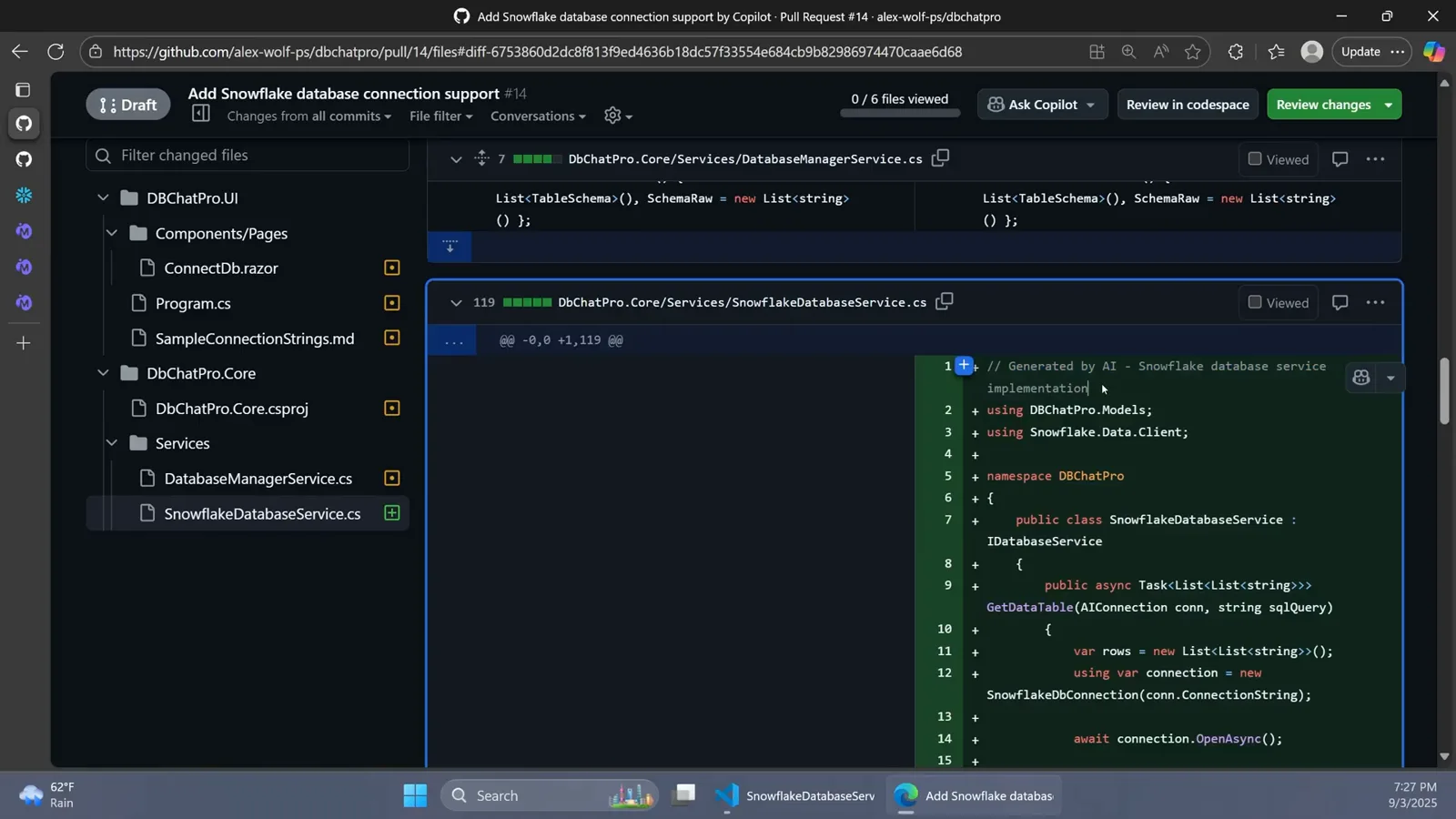
Files changed on pull request 14: six files and the new generated service.Watch at 12:15 - 11
Review when Copilot requests it
Finished sessions notify you — a banner reads "Copilot requested your review on this pull request" with an Add your review button. Comment on any line or leave a normal review; Copilot picks up review comments and @copilot mentions from people with write access and pushes new commits to the same PR. Follow-ups are faster because it remembers context from earlier sessions on that pull request.
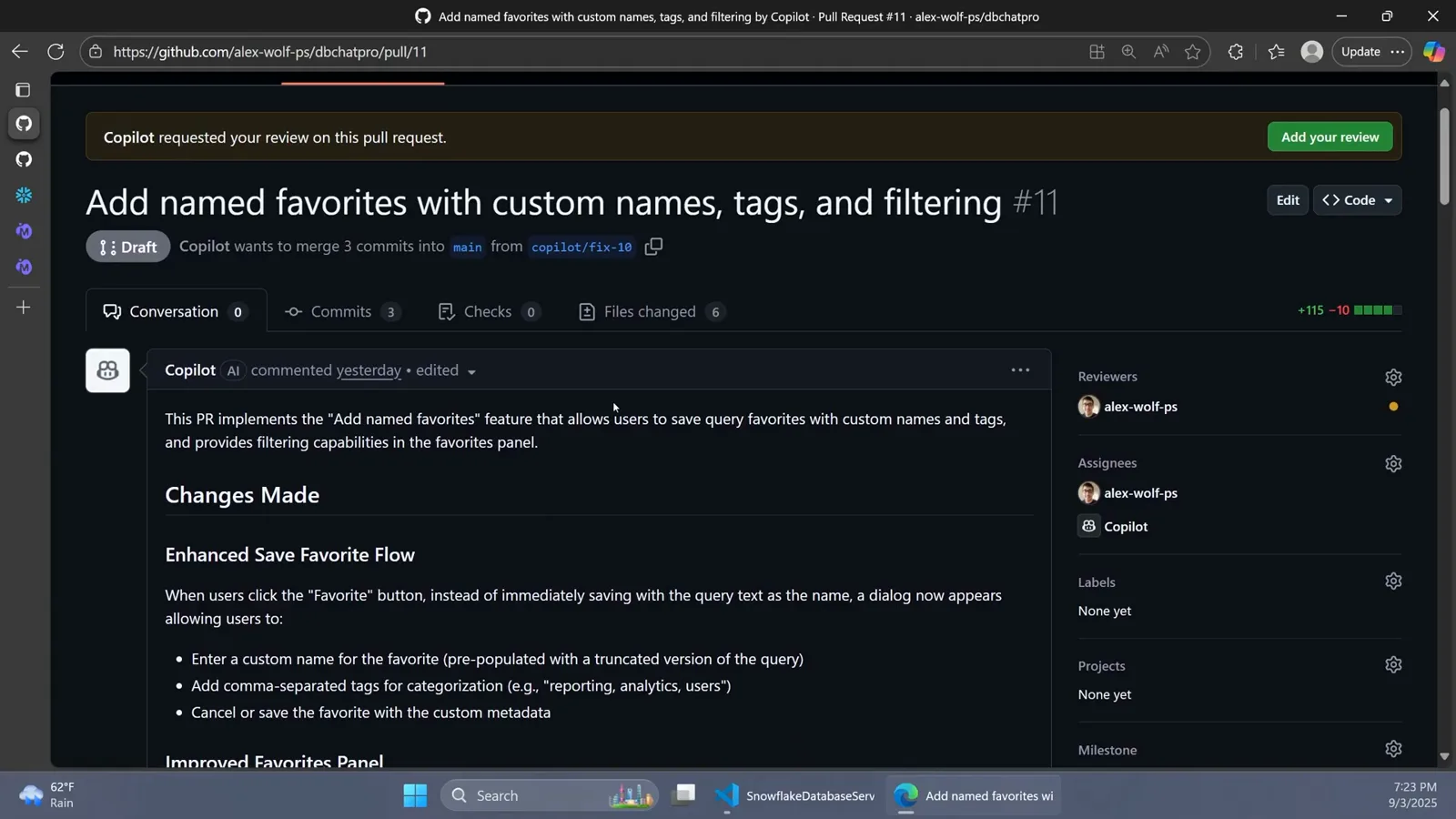
The review-requested banner above Copilot's own changes-made summary.Watch at 9:38 - 12
Merge like any other pull request
Once the diff looks right, merge normally. The merge box even reminds you what closing the PR will do: "Successfully merging this pull request may close these issues" — linking the Snowflake feature request the agent worked from. Human approval is the gate; the agent never merges on its own, and CI runs may need the "Approve and run workflows" click before they execute on Copilot's commits.
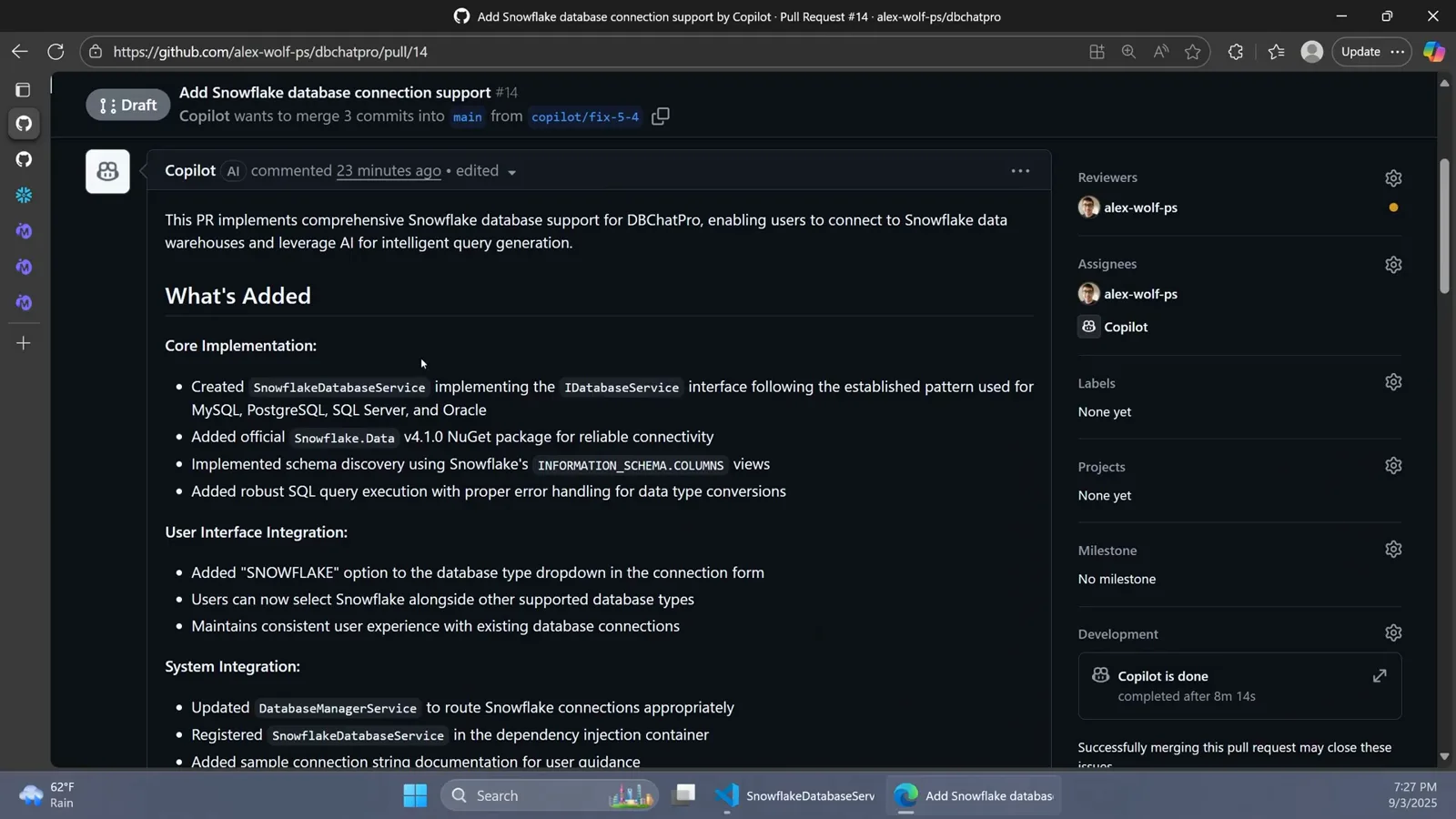
The merge box linking the pull request back to its originating issue.Watch at 12:45 - 13
Steer future runs with copilot-instructions.md
For standing rules, add a .github/copilot-instructions.md file — conventions, build/test/lint steps, repo layout. GitHub's own example sets Code Standards and a Required Before Each Commit checklist starting with npm run lint; the Code Wolf demo asks for thorough AI-attributed comments and the next generated diff follows it. MCP servers for tools beyond GitHub — Notion, Linear, databases — are configured from the repository's Copilot settings page.
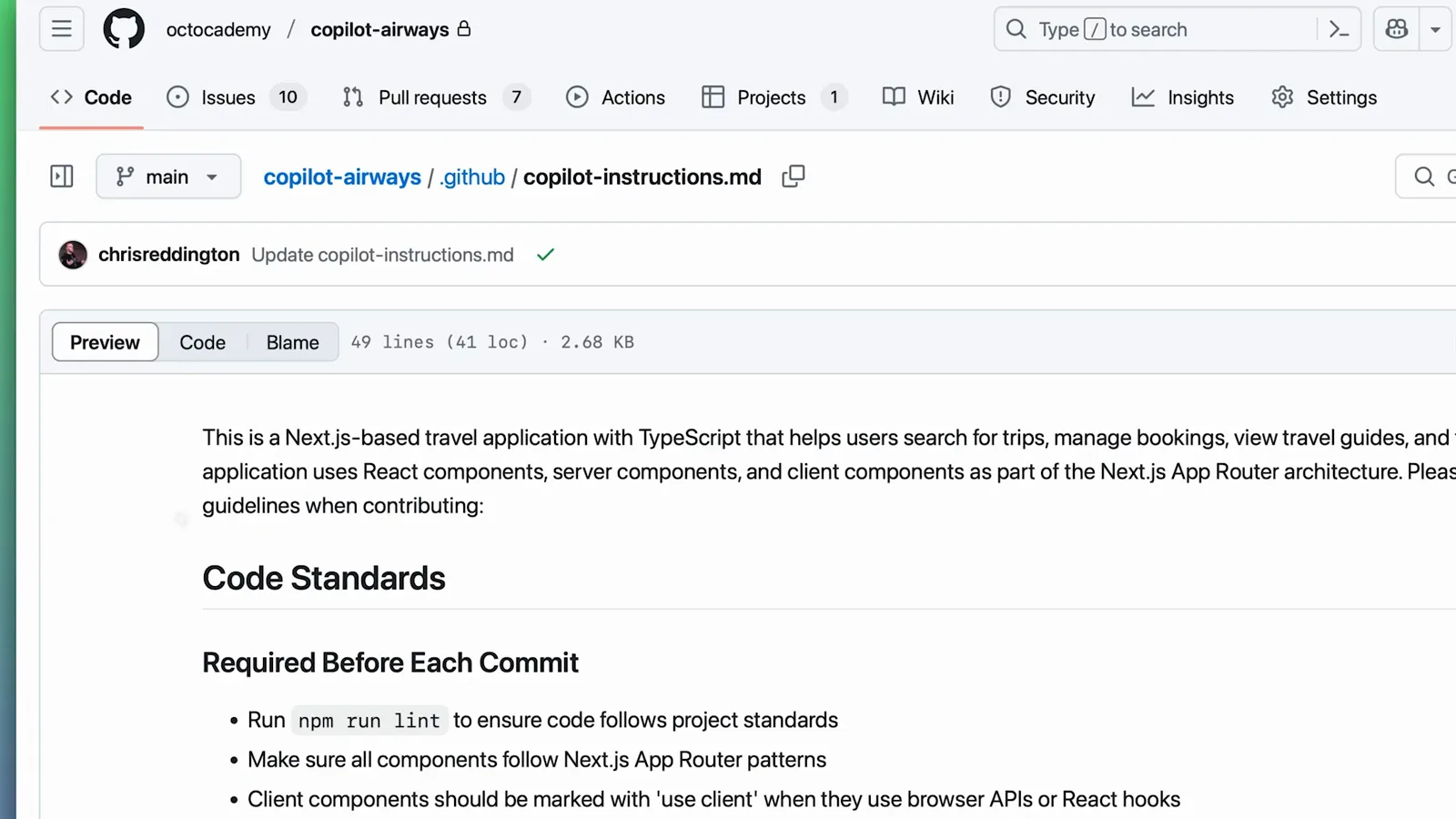
A copilot-instructions.md file with code standards the agent follows.Watch at 0:47
Prerequisites: plans, permissions and the enable switch
Three things gate the Assignees → Copilot option. First, the plan: per GitHub's docs, "Copilot cloud agent is available for all paid Copilot plans" — Pro, Pro+, Business and Enterprise. Accounts on the free plan don't see Copilot in the assignees list at all, which is the most common reason people think the feature is missing.
Second, enablement. Personal accounts can check the features page of their Copilot settings (github.com/settings/copilot/features), where Coding agent (Preview) appears under Copilot in the sidebar. On Business and Enterprise "an administrator must enable the relevant policy" before anyone in the org gets the option — if it's missing in an org repo, that's an admin conversation, not a bug.
- 1A paid Copilot plan (Pro, Pro+, Business or Enterprise) — free-plan accounts have no assign-to-Copilot option
- 2Write access to the target repository — you can only select repos you can write to where the cloud agent is enabled
- 3The agent enabled: github.com/settings/copilot/features for personal accounts, an org-level policy for Business and Enterprise
- 4GitHub Actions available on the repo — the agent runs in an Actions-powered ephemeral environment, and Enterprise Managed Users can't use it in personal repos
Third, know the runtime: assignments are in public preview, each session executes in a GitHub Actions ephemeral environment with a hard 59-minute cap, and internet access from the sandbox is firewalled by default. Sessions that stall time out after the hour — the fix is to unassign and reassign the issue.
Session logs: how to watch a background agent work
Every session keeps a log trail in three places. The issue timeline records the assignment, Copilot's comments and the linked draft PR. The Actions tab shows the copilot job's internal steps — preparing the environment, starting MCP servers, processing the request, cleaning up. And the PR itself becomes the agent's status page: the body starts as a copy of the issue, then fills with a plan that gets ticked off as work lands.
You don't have to poll. Copilot emails you when the draft PR is up and again when it requests your review, and the eyes reaction plus the "Copilot has started work" timeline event confirm within seconds that a session actually started. The docs' session-log view goes further: you can track the work live and even open the pull request in one click from the logs.
In the demo, a moderate feature — a full Snowflake database connector across six files — completed after 8m 14s of agent time, with the PR link appearing on the issue about nine minutes after assignment. Simple edits usually come back in a couple of minutes; treat anything still running near the hour as stuck and reassign.
Iteration and guardrails: comments, instructions and MCP
The assign-and-review loop assumes Copilot's first draft won't be perfect. Five levers shape the output without you ever opening an IDE:
- 1@copilot comments — mention @copilot in a PR comment (write access required, open PRs only) and it starts a follow-up session on the same PR; individual review comments can be delegated with Fix with Copilot or batched together
- 2copilot-instructions.md — a .github/copilot-instructions.md file carries your conventions, build/test/lint commands and commit rules into every session; GitHub's own example ships a Required Before Each Commit checklist
- 3MCP servers — configured from the repo's Copilot settings, they hand the agent tools beyond GitHub; GitHub's Checkout demo shows it reading a Notion product spec through MCP
- 4The optional prompt at assign time — context, constraints and specific requirements that ride along with the issue
- 5Custom agent, model and reasoning pickers — choose a different setup per session from the assign dialog or change the default in settings
Guardrails stay on your side: changes are confined to one repository per session, the agent can't approve or merge its own work, workflows it triggers wait for "Approve and run workflows" unless you allowlist them. The PR review you perform is the safety net — the merge button is never the agent's to press.