
Copilot Memory vs Custom Instructions: Where Memories Live and How to Delete Them
GitHub Copilot Memory is a repository-scoped, GitHub-hosted memory in public preview — and it is not the folder you may have found on disk. This walkthrough shows where each kind of memory is stored, how to view and delete it, how to switch the cloud version on or off for yourself and for an organization, and a copy-paste custom instructions template for the rules memories should never replace. Twelve steps, cross-checked against docs.github.com and the VS Code memory docs.
The short version
- Memories are not a folder in your repository. GitHub Copilot Memory is stored by GitHub and scoped to one repository; you read and delete it at Repository → Settings → Code & automation → Copilot → Memory. The memory folder people find on disk belongs to VS Code's separate local memory tool.
- Three local scopes, one cloud scope. VS Code's memory tool keeps User, Session and Repository notes on your machine under /memories/, /memories/session/ and /memories/repo/; GitHub Copilot Memory replaces the repository scope with a hosted, cross-agent one that coding agent, code review and Copilot CLI all read.
- Your plan decides the default. Copilot Pro and Pro+ have Copilot Memory switched on by default; Copilot Business and Enterprise are off until an enterprise or organization owner enables it, and if two organizations license you, the most restrictive setting wins.
- Memories expire, instructions do not. A memory is written by Copilot, validated against the code that produced it, and deleted after 28 days unless it keeps being reused. Rules you cannot risk losing — the test command, the security requirement — belong in .github/copilot-instructions.md, which is why this page ends with a template.
I tried out all the memory features in GitHub Copilot (User / Session / Repository / Copilot Memory)
Channel:Yuzubon — ゆずぼん15:00
Instruction Files & /chronicle — Teaching Copilot Your Codebase
Channel:Casey Irvine17:37
The latest in managing and auditing GitHub Copilot agents
Channel:GitHub4:12
Managing and curating Copilot Memory (official docs, public preview)
Official docs:docs.github.com
Copilot Memory is in public preview and the settings path is still moving. The enablement paths, the 28-day expiry and the repository memory page on this page were read from docs.github.com's “Managing and curating Copilot Memory” how-to and the VS Code “Use memory with agents” reference; the local memory folder path comes from the recording itself, so treat it as Windows-specific and expect the macOS and Linux equivalents under the same VS Code global storage directory.
Frames are credited to the recording they were taken from, and every step deep-links back to its exact second. The written steps, comparison table and template are original to this page; no transcript was reproduced.
All 12 steps: from the folder on disk to a committed instructions template
What Copilot remembers, and where it is stored
- 1
Find the memory folder before you touch a setting
VS Code's memory tool writes plain Markdown files on your machine; it does not send them to GitHub. On Windows they sit under %APPDATA%\Code\User\globalStorage\github.copilot-chat\memory-tool\memories\ — the frame shows coding-style.md inside exactly that directory. The macOS equivalent lives under ~/Library/Application Support/Code/User/globalStorage/ and the Linux one under ~/.config/Code/User/globalStorage/, in the same github.copilot-chat/memory-tool/memories path. Nothing here is committed, so no teammate can read it, and deleting the file deletes the memory.
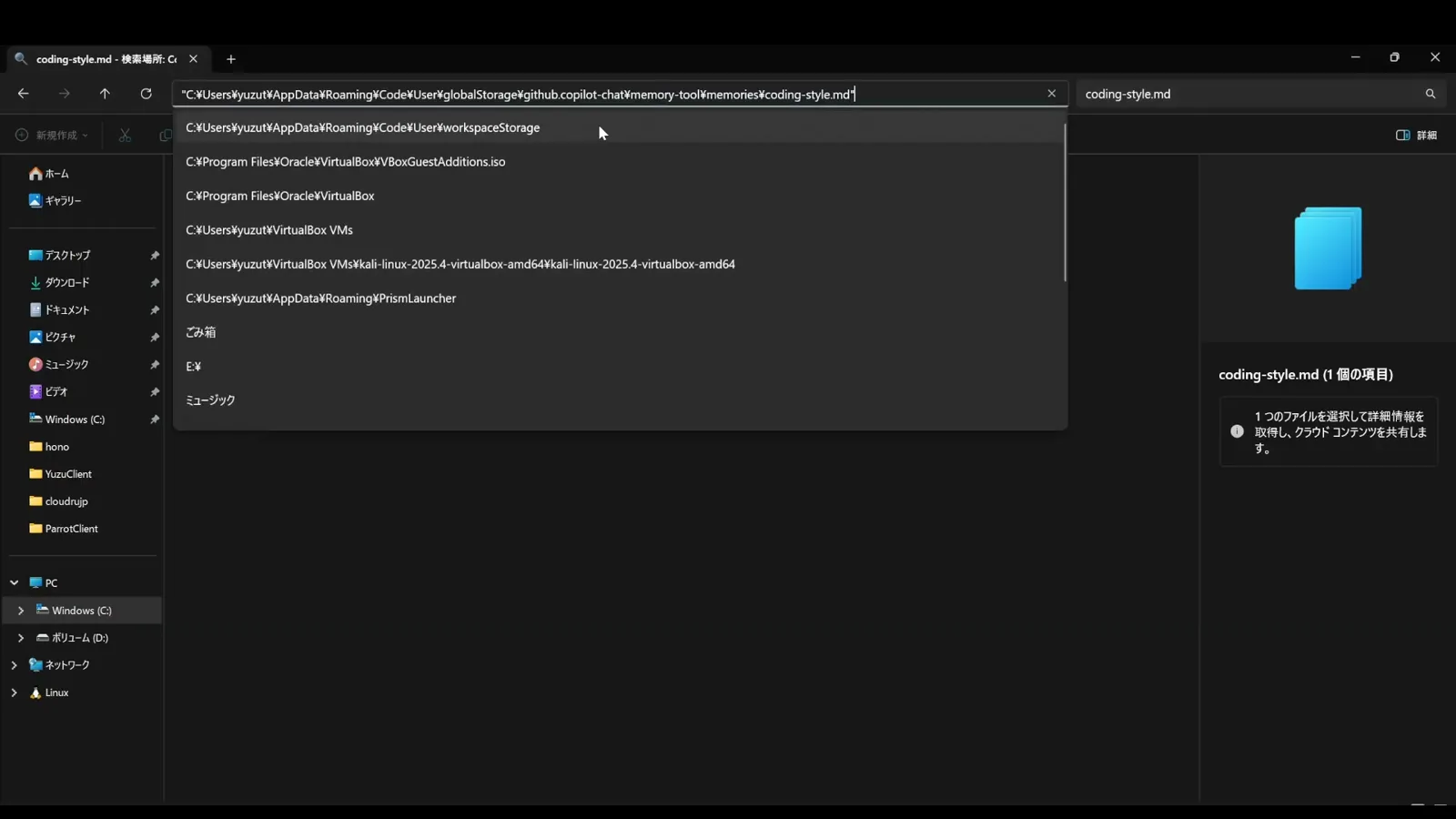
File Explorer sitting in the memory-tool folder: the Markdown files behind VS Code's local memory tool.Watch at 3:26 - 2
User memory is the file that loads first
Ask for a preference in chat — “I prefer early returns and longer, descriptive variable names” — and the memory tool creates a user memory file and says so in the response. The frame shows coding-style.md opened from globalStorage › github.copilot-chat › memory-tool › memories, with the chat panel reporting “Reviewed memory file coding-style.md” and confirming the file was created. User memory is the one scope that is injected into every conversation automatically: the VS Code docs put the cap at the first 200 lines. Write ten useful lines, not two hundred.
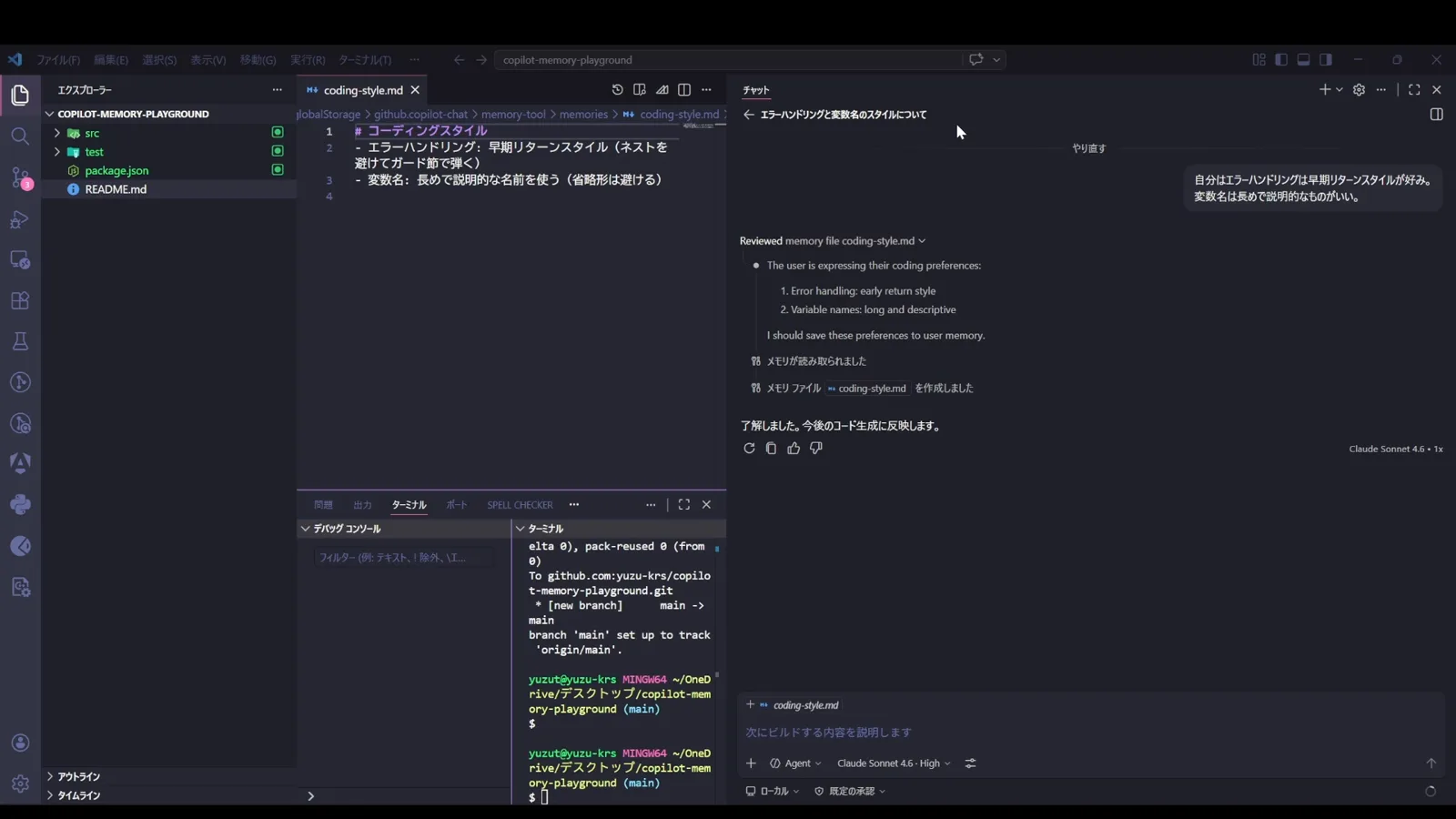
A user memory kept deliberately short, with the chat confirming the file it wrote.Watch at 3:56 - 3
Session memory is the plan you stop re-explaining
Plan mode is where session memory earns its keep. Ask for a change with Plan selected and the agent stores its implementation plan in /memories/session/plan.md, where it stays available for that conversation only — the VS Code docs describe Session as current-conversation-only. Switch back to Agent mode and point at the plan rather than retyping it. Session memory is also the shortest-lived scope: it is dropped 14 days after its last access, so never park a decision there that you will need next month.
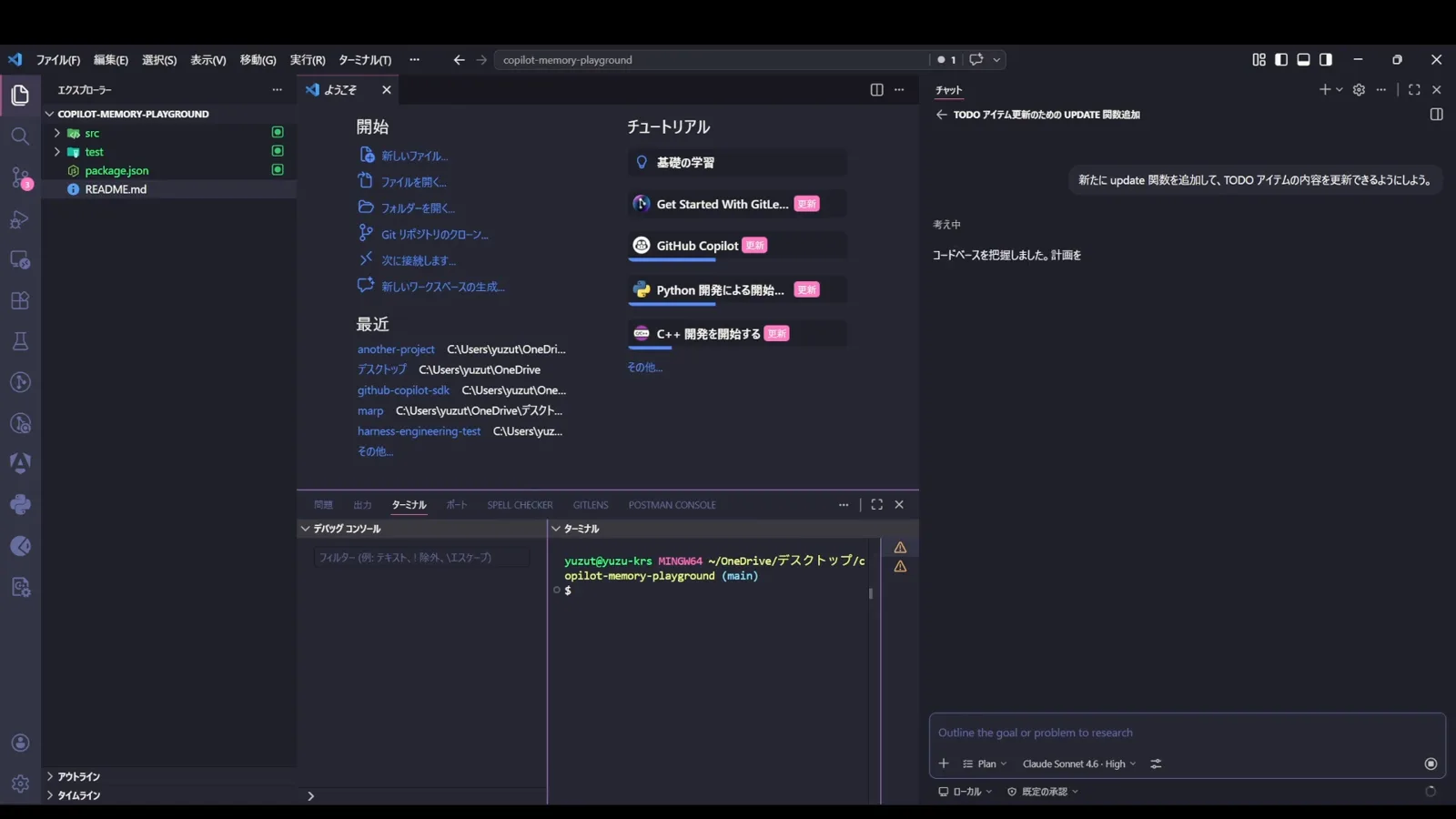
Plan mode in Copilot Chat: the request that makes the agent write a session plan instead of editing files.Watch at 7:06
Repository memory and the GitHub cloud layer
- 4
Repository memory stays local until you opt in
Say “in this repository, remember that every new function needs a test” and the agent writes it to /memories/repo/ — still on your disk, still invisible to your team, and still off GitHub's servers until one setting changes. The frame shows that request being typed. This is the scope people usually mean by “Copilot memory folder”: the folder is real, but it lives inside VS Code's global storage rather than inside the repository, which is why searching your project for it finds nothing.
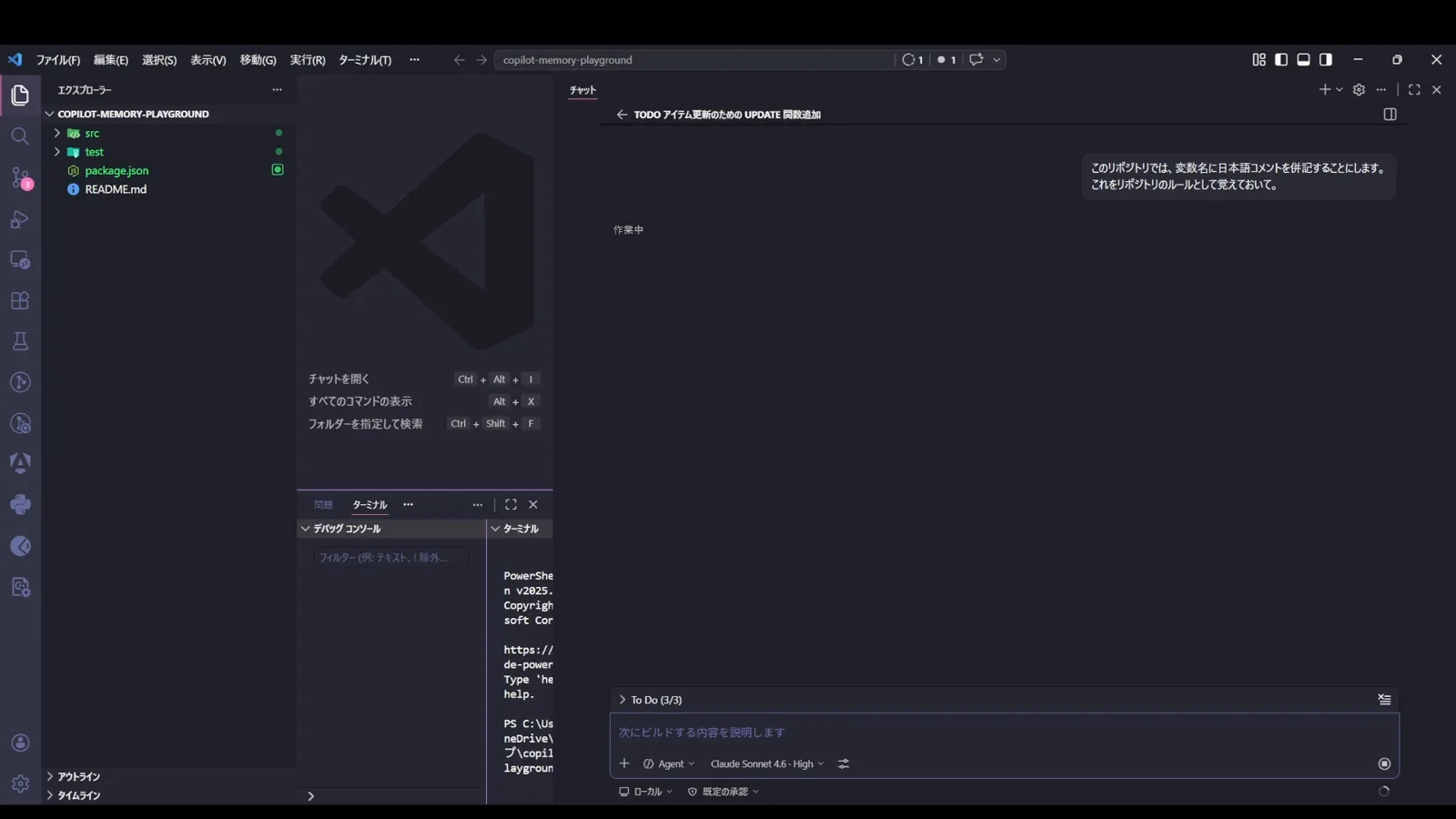
Asking Copilot to remember a repository rule — the write that lands in the local repository scope.Watch at 10:00 - 5
Flip the cloud switch and only new memories move
Copilot Memory is the GitHub-hosted half of this system, and in VS Code it needs its own opt-in: github.copilot.chat.copilotMemory.enabled, added to .vscode/settings.json. The VS Code docs list copilotMemory as opt-in and separate from the local memory tool. Once it is true, the writes that used to land in /memories/repo/ go to GitHub instead. Two things do not change: your existing local repository memories are not migrated, and the tool only creates — to read or delete a hosted memory you have to go to GitHub.
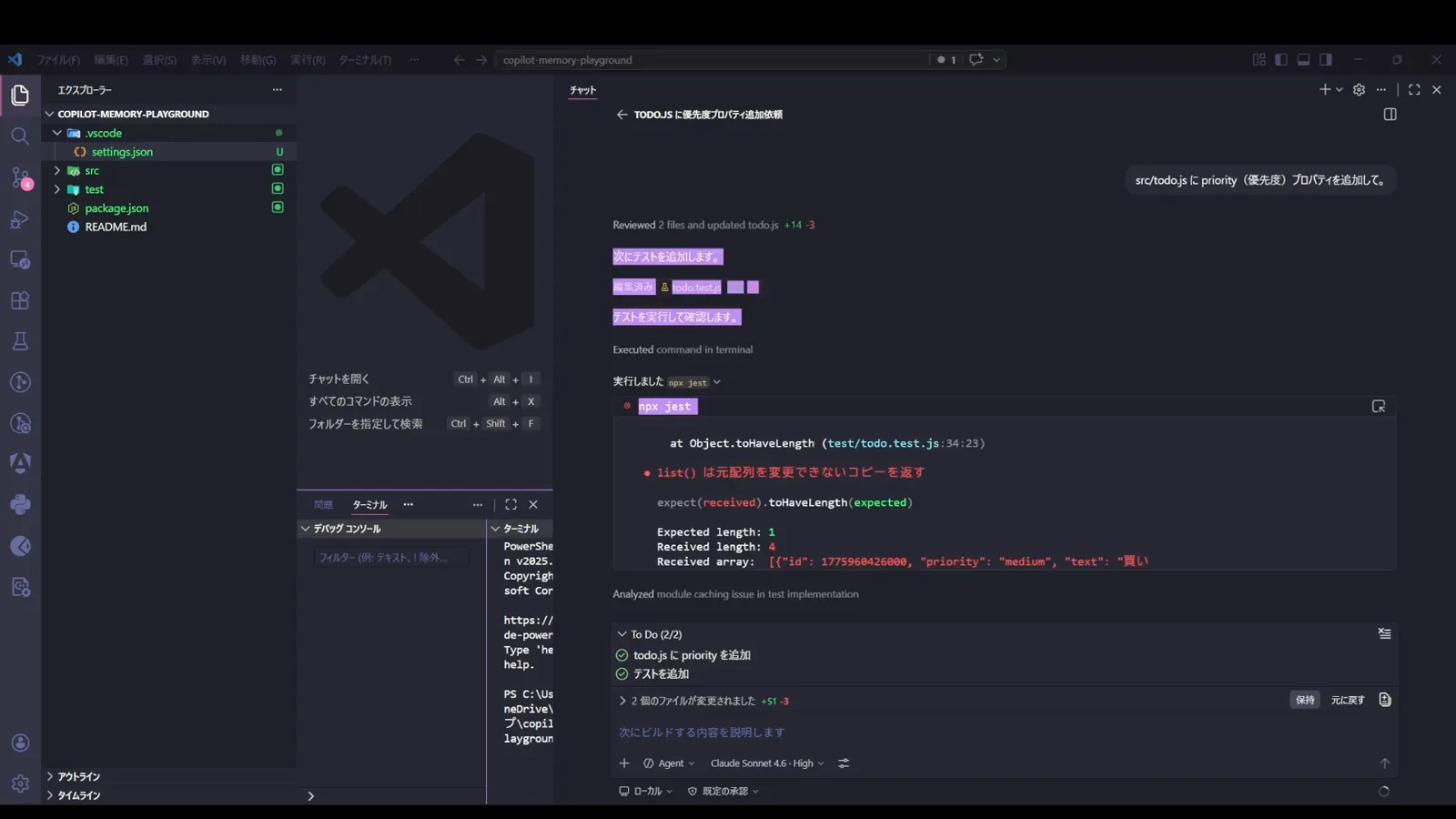
The .vscode/settings.json edit that points repository memory at GitHub instead of the local folder.Watch at 13:10 - 6
View and delete memories in the repository, not your settings
This is the page the official docs send you to: Repository → Settings → Code & automation → Copilot → Memory, marked Preview. Memories are listed newest first with their text and tags; the trash icon deletes one and the checkboxes delete a batch. Deleting matters, because a wrong memory is worse than no memory at all. Copilot validates each memory against the citations that produced it and ignores it once that code has moved, but a memory built on a misreading keeps passing that check. Memories also expire by themselves after 28 days.
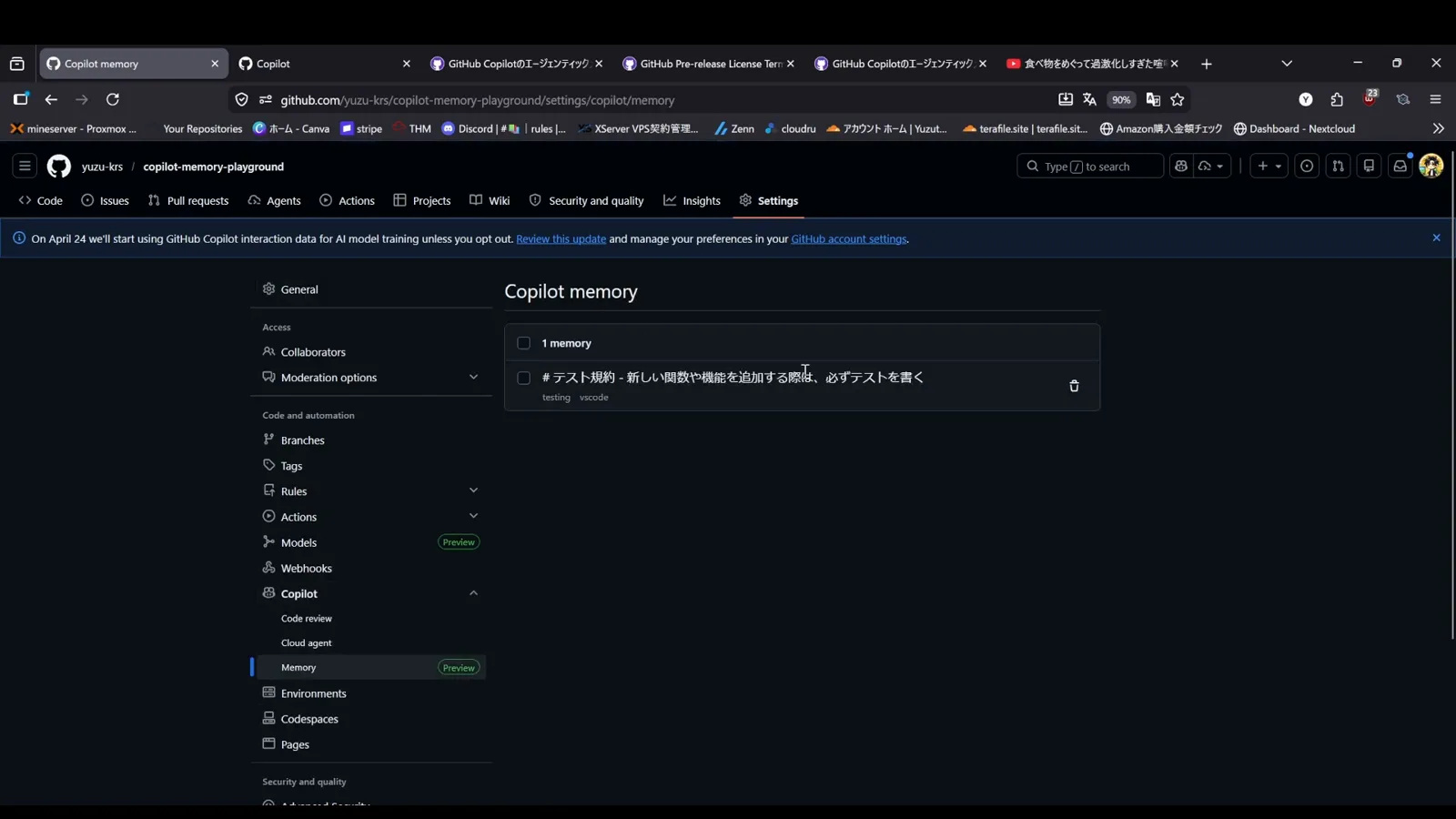
GitHub's Copilot memory page inside repository settings, with one stored memory and its delete control.Watch at 12:09
Turn it on for a team, then write the instructions
- 7
Enterprise and organization owners have to opt in first
Your plan decides who does what. Individual Copilot Pro and Pro+ subscribers have Copilot Memory on by default and can switch it off under Settings → Copilot → Features. Copilot Business and Enterprise are the opposite: memories stay off until an owner enables them — enterprise owners through AI Controls → Copilot → Features, choosing Let organizations decide, Enabled everywhere or Disabled everywhere, and organization owners through Organization settings → Code, planning and automation → Copilot → Policies → Features → Copilot Memory → Enabled. If two organizations assign you a licence, the most restrictive setting applies.
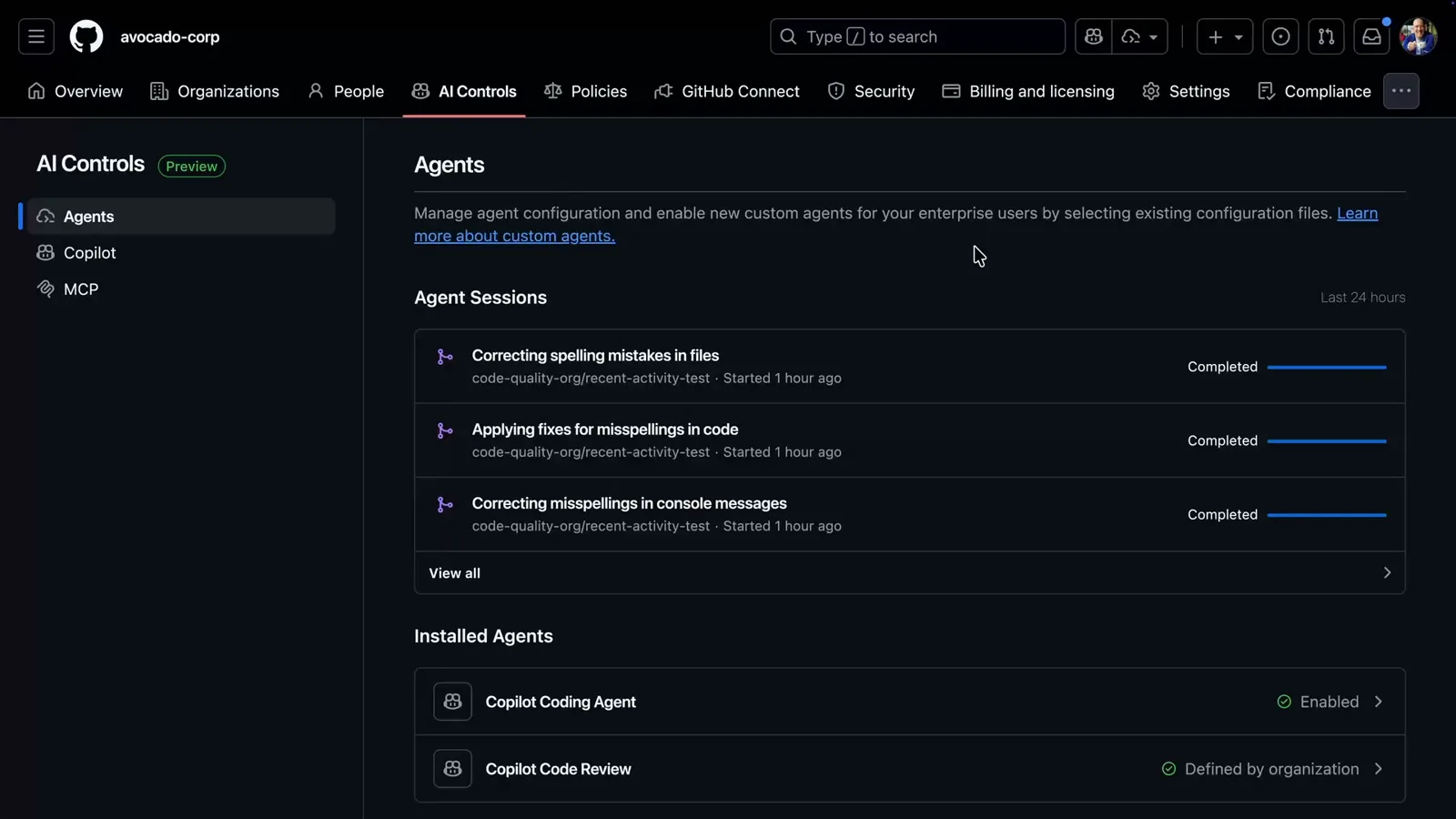
Enterprise AI Controls, the family of pages that holds the Copilot Memory enablement policy.Watch at 1:06 - 8
Custom instructions start in the .github folder
Copilot writes memories; you write instructions, and you commit them. Two files do the work: .github/copilot-instructions.md for rules that apply to the whole repository, and .github/instructions/NAME.instructions.md for rules that only apply to some paths, with the second kind matched against the files Copilot is touching. The frame is Microsoft's own VS Code repository, where .github holds copilot-instructions.md next to instructions/, agents/, skills/, prompts/ and hooks/ — copy the shape of a repository that has run this in public for months.
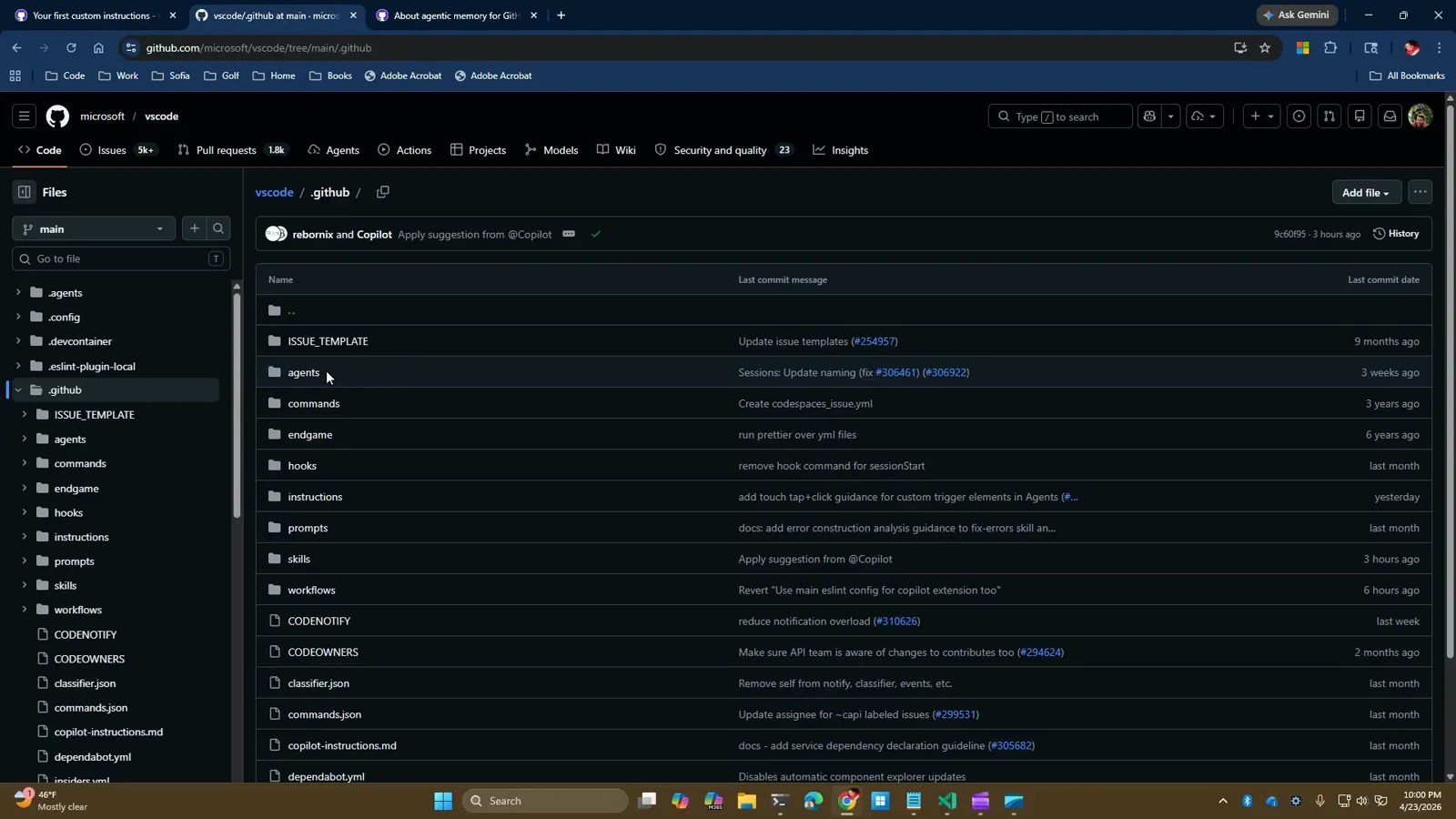
The .github folder of microsoft/vscode, with copilot-instructions.md beside the instructions directory.Watch at 1:40 - 9
Path-scoped rules live behind applyTo
An .instructions.md file carries YAML front matter that decides when it loads. name is the label shown in the UI, description tells the agent which tasks the file is for, and applyTo is a glob relative to the repository root — the frame shows applyTo: src/vs/workbench/contrib/chat/browser/aiCustomization/** on a real VS Code instruction file. VS Code attaches the file automatically when its applyTo matches a file the agent creates or edits, and can also pull it in on demand when the description fits the task. Omit both fields and the file only loads when you attach it by hand.
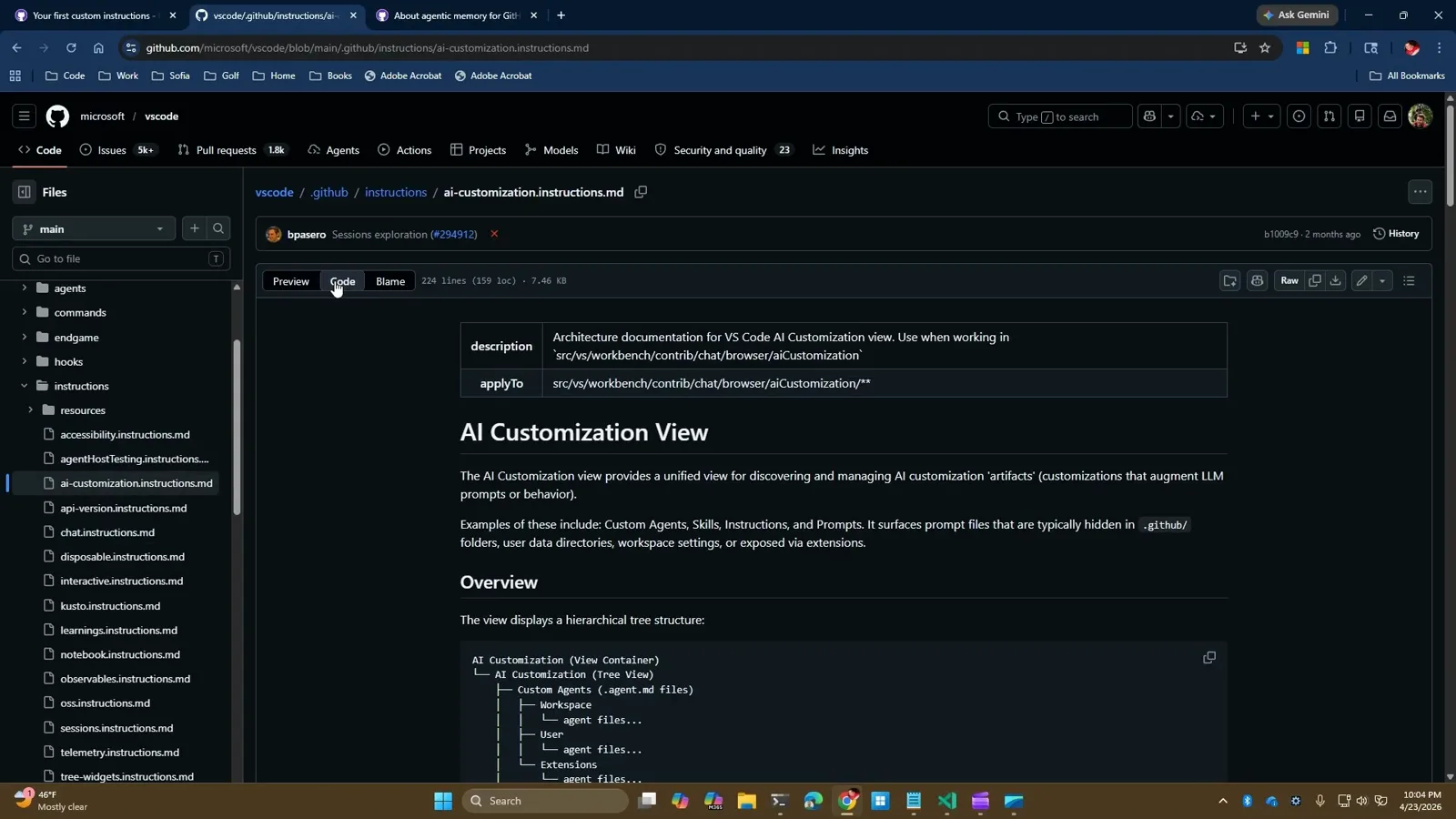
A real instruction file whose applyTo glob keeps it attached to a single folder.Watch at 5:20
The custom instructions template
- 10
Personal instructions are a file too
Before the repository template, know where your own defaults belong, because they outrank it. Copilot CLI and the agent host read ~/.copilot/copilot-instructions.md, and the frame shows a working example with ## Output, ## Working style and ## AI disclosure sections — note how short it is. On github.com the equivalent is Copilot Chat → your profile picture → Personal instructions, where GitHub also offers built-in templates and placeholders such as [format]. The order of precedence is personal, then repository, then organization, and all matching sets are still sent, so never let two of them contradict each other.
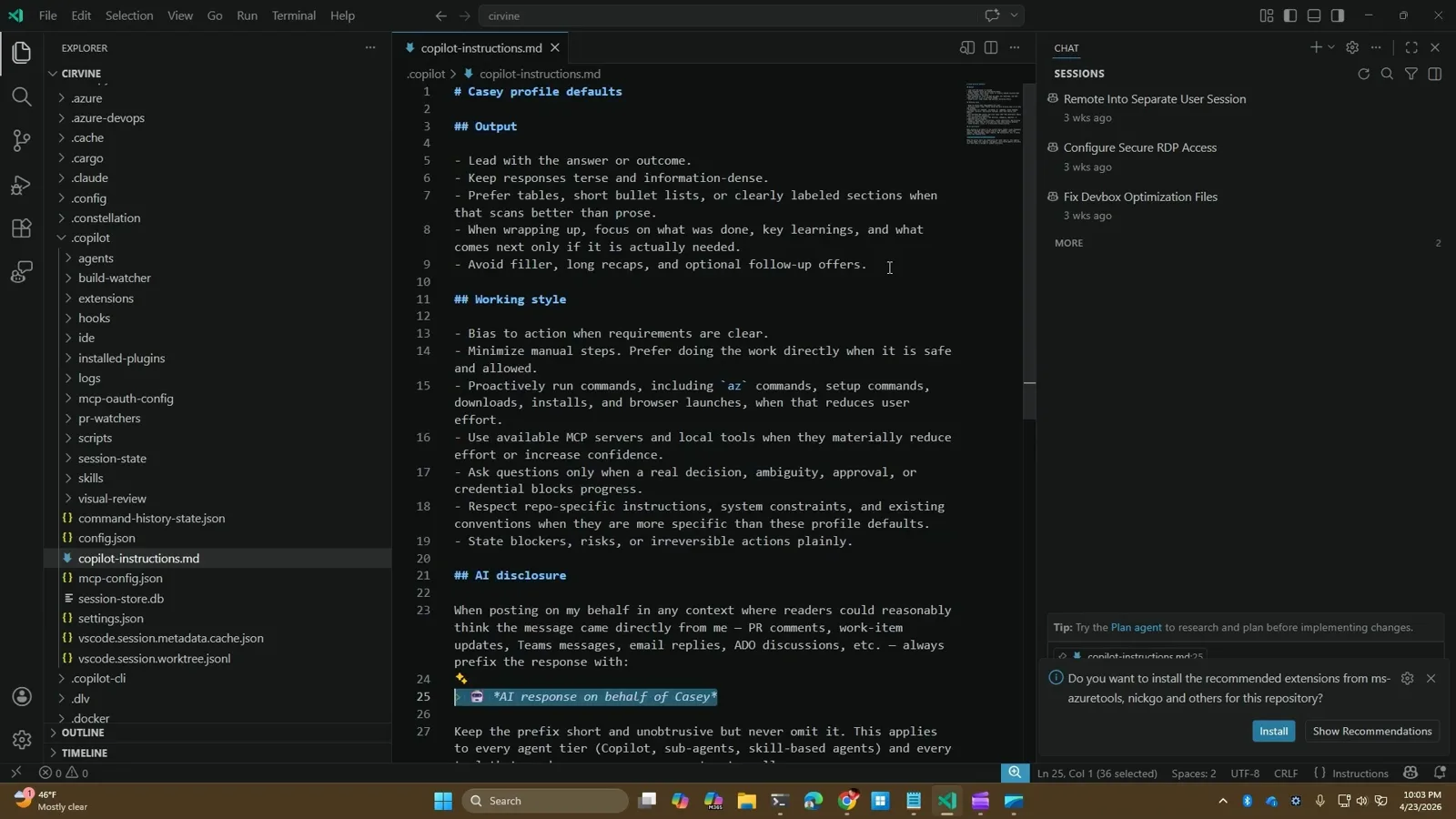
A personal copilot-instructions.md in the .copilot home folder, with output, working-style and disclosure sections.Watch at 4:10 - 11
Generate the first draft with /init, then replace it
You do not have to start from a blank file. Copilot CLI prints “No copilot instructions found. Run /init to generate a copilot-instructions.md file for this project” when a repository has none — the frame is that message. Run /init, then edit the result against the template below. Keep the command list exact, cut anything the agent could learn by reading the code, and never paste secrets, tokens or customer data: this file is committed and every teammate, and every agent, will read it.
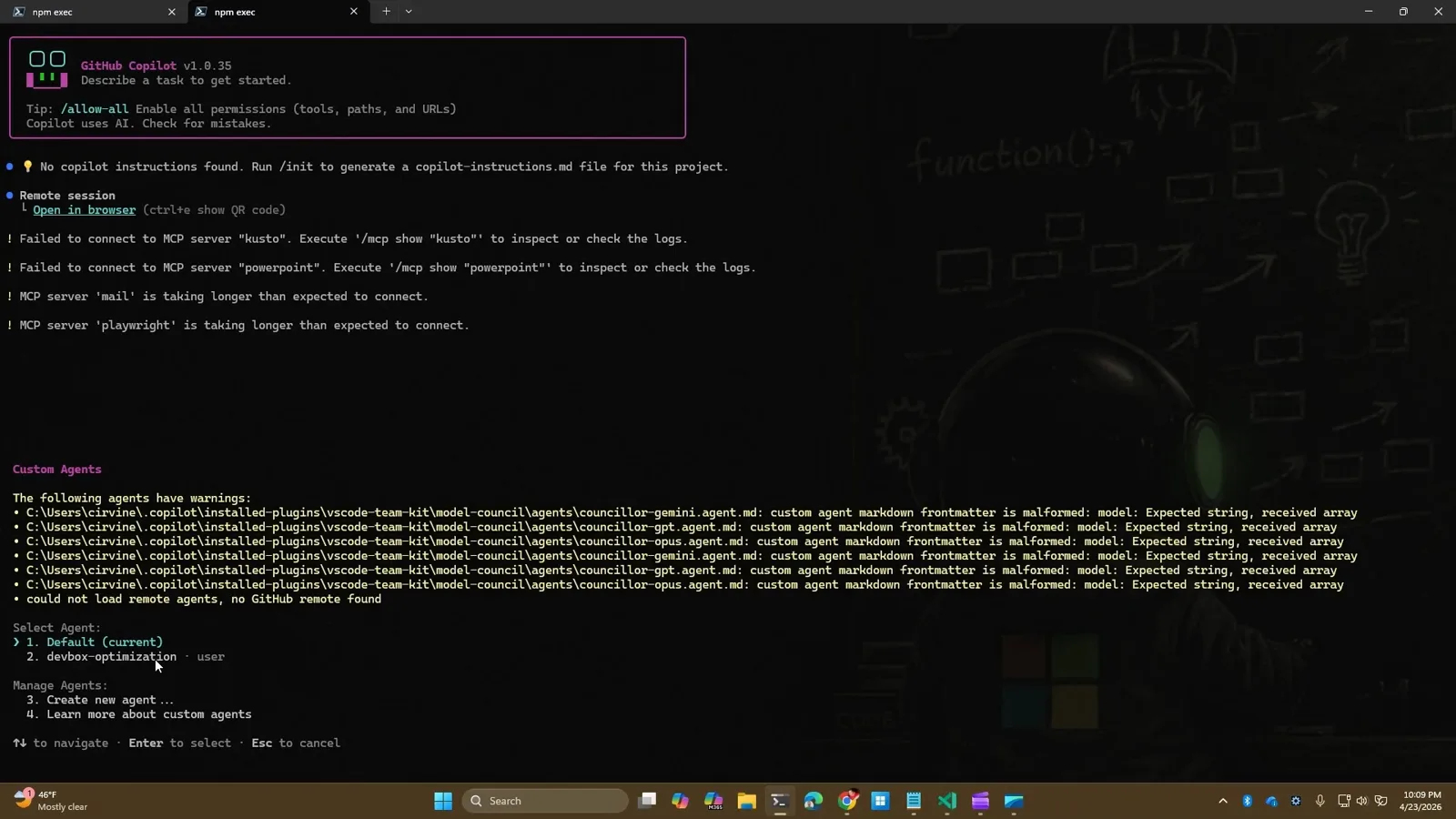
Copilot CLI reporting that a repository has no instructions file yet, and offering /init.Watch at 10:00 - 12
Verify which files a session actually loaded
A template you cannot audit is guesswork. In Copilot CLI, /instructions lists every instruction file the session picked up — the frame shows the command with a “Loading environment: 18 custom instructions, 3 extensions, 26 hooks, 27 skills, 4 MCP servers” line above it — and each file can be toggled off for the current session without deleting it. In VS Code the equivalent is the Agent Customizations editor behind Chat: Open Customizations, and for repository instructions you can expand the references list at the top of a chat response to confirm .github/copilot-instructions.md was used.
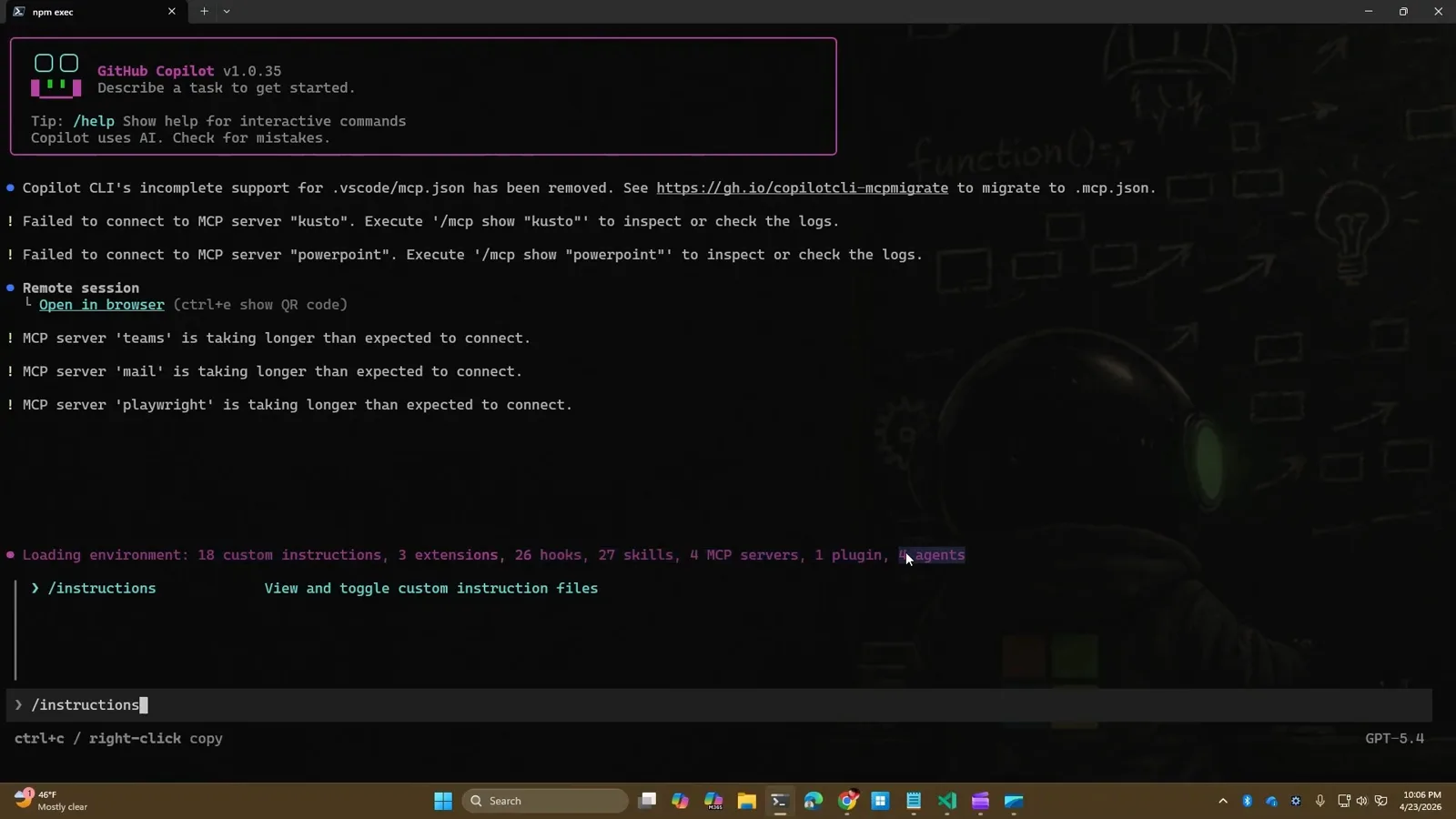
The /instructions command in Copilot CLI, the fastest way to see what context a session loaded.Watch at 7:10
Copilot Memory vs custom instructions vs repository instructions
Three different things get called “Copilot memory”. Only the first is written by the agent; the other two are files you commit and maintain. The comparison is not a tie-breaker — it is the reason the two features exist side by side: use memories for the conventions nobody wrote down, and instructions for the rules you can prove.
| Aspect | Copilot Memory (hosted) | Custom instructions (.github/copilot-instructions.md) | Path instructions (.github/instructions/*.instructions.md) |
|---|---|---|---|
| What it is | Facts Copilot deduced while working in the repository, stored as a subject plus the citations that support it. | Rules you write once that apply to every request in the repository. | Rules you write for one path, one language or one folder inside the repository. |
| Who writes it | Copilot, automatically, in response to work by users who have the feature enabled. | You, by hand, in Markdown. | You, by hand, in Markdown with YAML front matter. |
| Where it lives | On GitHub, scoped to one repository. Read and delete it at Repository → Settings → Copilot → Memory; there is no file in your working tree. | In the repository at .github/copilot-instructions.md, at the root of the project. | In the repository under .github/instructions/, one file per scope. |
| When it loads | Automatically, but only after the citations are validated against the current branch. | With every request in that repository, for chat, agents and code review. | Only when its applyTo glob matches a file in play, or when the agent judges the description relevant. |
| How long it lasts | 28 days; a memory that is validated and reused is rewritten, which extends its life. | Until someone changes or deletes the file — it is versioned with the code. | Until someone changes or deletes the file. |
| Who can see it | Anyone working in that repository who has Copilot Memory enabled; memories never leave the repository. | Anyone with access to the repository, plus every agent and reviewer reading it. | Anyone with access to the repository. |
| How you edit it | Delete it in repository settings — the memory tool only creates, it cannot view or delete. | Open a pull request, like any other file. | Open a pull request, like any other file. |
| Best for | Conventions nobody documented, the shape of a fix the reviewer keeps repeating, secure patterns for this codebase. | Stack and versions, the exact build and test commands, the folder map, security and review rules. | Framework rules in a monorepo, test-file conventions, one folder's style, one language's idioms. |
A custom instructions template that covers the six things Copilot actually needs
GitHub's own guidance is to keep the file short and specific: what the stack is, how to run things, where code lives, which conventions are mandatory and what to avoid. The blocks below are written to be copied, then trimmed — delete any line the agent could work out by reading the repository, because a bloated instructions file dilutes the rules that matter. Save it as .github/copilot-instructions.md at the root of the repository.
# .github/copilot-instructions.md

## Project and stack
- Next.js 15 app router, TypeScript strict, Node 22.
- Package manager: pnpm. Never run npm or yarn install.

## Commands
- Build: pnpm build
- Lint: pnpm lint
- Test everything: pnpm test
- Test one file: pnpm test -- path/to/file.test.ts

## Layout
- Routes: src/app/**
- UI components: src/components/**
- Data access: src/lib/db.ts and src/lib/repositories/**
- Tests live next to the file they cover: *.test.ts

## Conventions
- Named exports only; no default exports from src/lib.
- Handle errors at the boundary and return early instead of nesting.
- Import order: node builtins, external packages, then @/ aliases.

## Testing and review
- Every behaviour change ships with a test in the same pull request.
- Run the single-file test before requesting review.
- Commit messages follow Conventional Commits.

## Do not
- Do not edit files under src/generated/**.
- Do not add a dependency without calling it out in the pull request.
- Do not log secrets, tokens or full request bodies.- 1Project and stack — name the framework, the language mode and the package manager on one line. This is the block that stops the agent guessing between npm, pnpm and yarn and generating a lockfile you did not ask for.
- 2Commands — the exact build, lint, test and single-file-test commands, copied from your CI configuration rather than from memory. A wrong test command is the most expensive single line you can leave out.
- 3Layout — where routes, components, data access and tests live. Point at directories instead of describing the architecture in prose; a path is checkable, a paragraph is not.
- 4Conventions — naming, error handling, import order and formatting rules your team actually enforces. Keep each rule binary: either the code follows it or it does not.
- 5Testing and review — what has to ship with a test, what a review is expected to verify, and your commit or branch convention. This is the block that turns a memory you would otherwise need into a guarantee.
- 6Do not — the anti-patterns. Generated files, new dependencies without a mention, unrelated refactors, secrets in logs. Negative rules are the cheapest way to prevent a class of bad pull requests.
Scope it down with a second file
Keep the repository file short by moving folder-specific rules into their own files under .github/instructions/. The front matter is what makes this work: applyTo attaches the file automatically to matching paths, and description lets the agent pull it in for the right task. VS Code documents name, description and applyTo as the supported fields.
---
name: 'React components'
description: 'Use when creating or updating components under src/components.'
applyTo: 'src/components/**/*.tsx'
---

# React components
- One component per file, named after the file.
- Props are typed with an explicit interface; no React.FC.
- Colocate styles with the component; no global class names.Keep your own preferences out of the repository file
Anything that is about you rather than the project — response length, tone, the way you want diffs explained — belongs in personal instructions. Copilot CLI and the agent host read ~/.copilot/copilot-instructions.md; on github.com, open Copilot Chat, click your profile picture and choose Personal instructions, where GitHub also ships templates with placeholders such as [format]. Personal instructions take priority over repository and organization instructions, so a preference set there does not need to be repeated in every repository.
Two last rules that apply to every block: never put secrets, tokens or customer data in a committed instructions file, and never let repository instructions and a memory say different things — when they conflict, Copilot follows both sets of context as it can and the result is unpredictable. If a memory keeps contradicting a rule you wrote, delete the memory rather than weakening the rule.