
Codex CLI MCP servers: add, configure, and authenticate
MCP servers hand Codex new tools — up-to-date docs, your database, your GitHub repos. This walkthrough runs codex mcp add for a local stdio server, switches to a remote server with --url and OAuth, inspects the config.toml entries behind both, and shows the checks that prove a server actually works.
TL;DR
- Codex reads MCP servers from ~/.codex/config.toml (global) or .codex/config.toml (project). Each entry is a [mcp_servers.<name>] table with command/args for local stdio servers or url for remote ones.
- codex mcp add context7 -- npx -y @upstash/context7-mcp installs a stdio server without touching the file; codex mcp add <name> --url https://mcp.example.com/mcp registers a remote one.
- Remote servers authenticate in the browser on first connect (Codex prints Detected OAuth support and opens the consent screen), or later via codex mcp login <name>.
- Verify with /mcp inside the TUI or codex mcp list in the shell. Codex 0.160.1 additionally preserves SYSTEMROOT, TEMP and TMP when launching remote stdio servers with remote env vars.
OpenAI Codex + MCP: How to Install MCP Servers in Codex (Step by Step)
Channel: Nathan Sebhastian8:48
OpenAI Codex Tutorial #9 - MCP Servers
Channel: Net Ninja6:46
How to Add MCP Servers to OpenAI Codex CLI
Channel: Snyk9:14
Connect Codex to an MCP server — official documentation
Official docs: developers.openai.com/codex
Every command, file path and config key on this page is verified against the official Codex MCP documentation; the videos above are the visual and fact sources, including the OAuth consent screens and the desktop app MCP menu.
Screenshots are attributed to their creators with deep links to the exact timestamps. No face-cam frames are used.
Add MCP servers to Codex, step by step
Part 1 — Your first stdio server
- 1
Pick a server from the official MCP docs
Open developers.openai.com/codex/mcp — Codex's own documentation keeps the current command syntax, and the CLI and IDE extension share this configuration. The docs list ready-made servers worth trying first: Context7 for live library documentation, Figma, GitHub, and more. There are hundreds of MCP servers; for a first test pick something read-only like Context7.
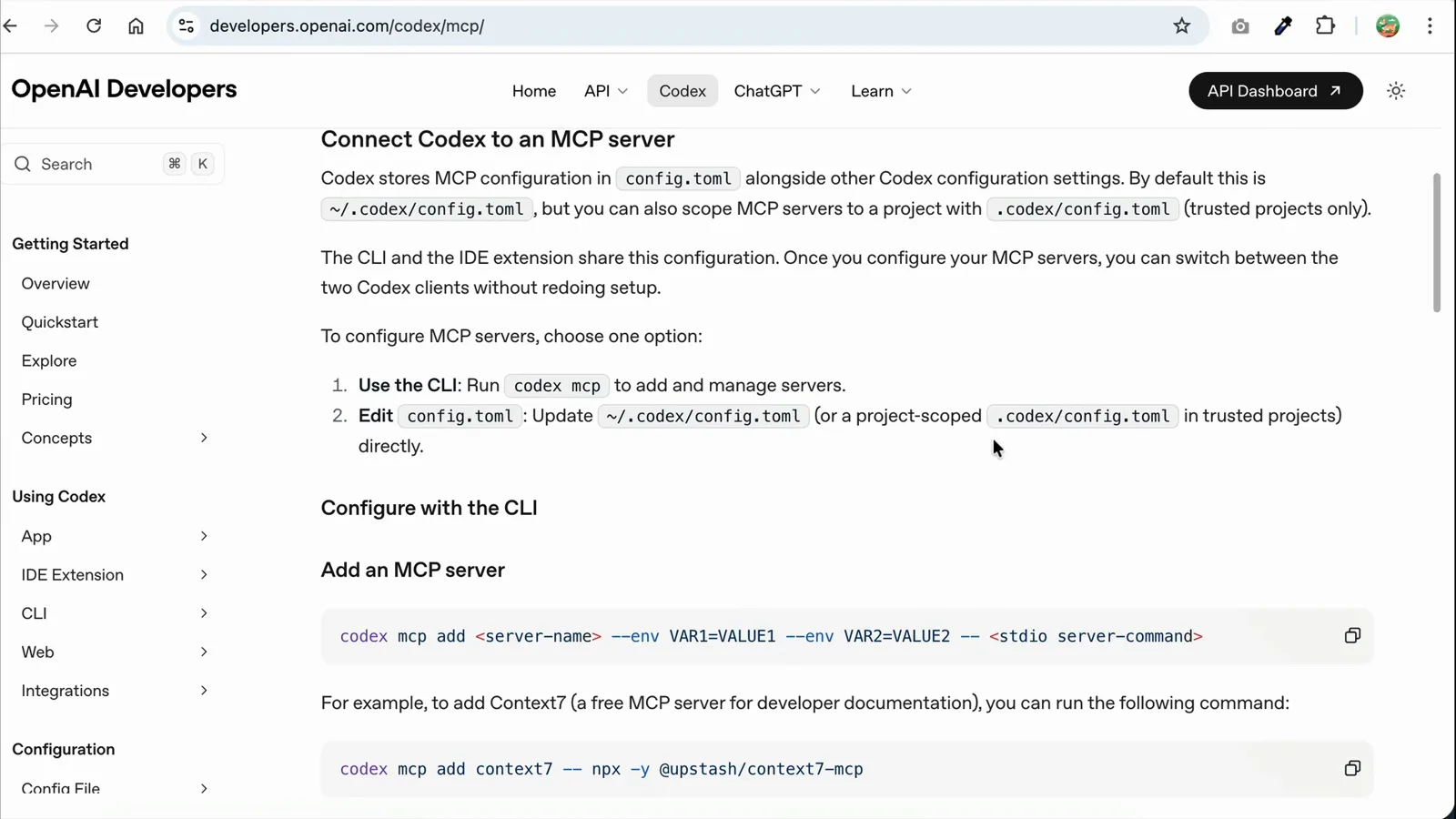
The official Connect Codex to an MCP server page, with the codex mcp add syntax and a ready-to-copy Context7 example.Watch at 0:20 - 2
Install it with codex mcp add
Copy the example and run it in your terminal: codex mcp add context7 -- npx -y @upstash/context7-mcp. Everything after the double dash is the command that launches the server process. Codex replies "Added global MCP server 'context7'" — global meaning it went into your user-level config and is available in every project.
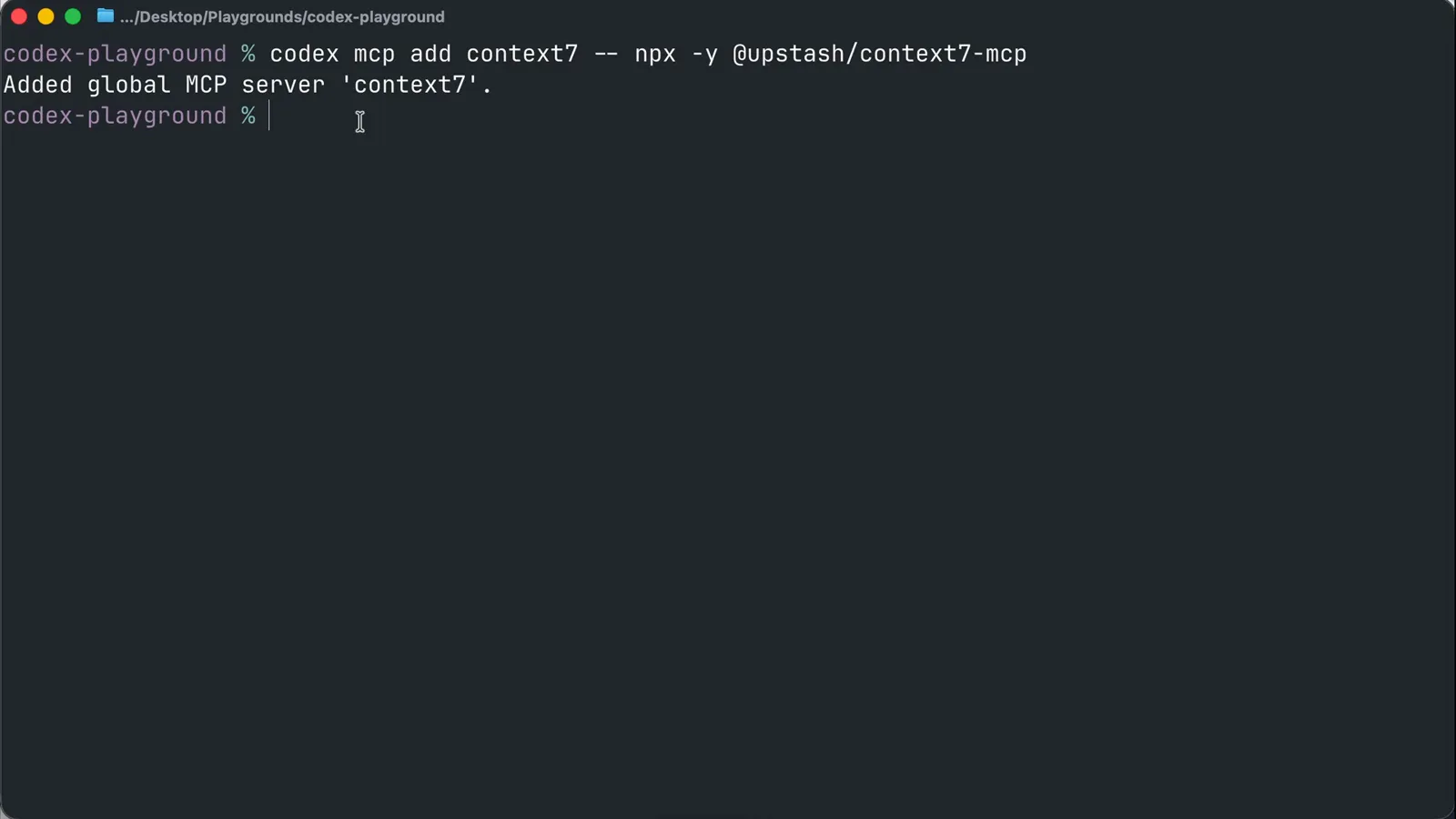
One command, no file editing: the CLI confirms the server was added to the global config.Watch at 0:45 - 3
See what the CLI wrote to config.toml
codex mcp add is just a generator for ~/.codex/config.toml. Open the file and you will find [mcp_servers.context7] with command = "npx" and args = ["-y", "@upstash/context7-mcp"]. Entries can also be written by hand: add an env table for API keys, or set startup_timeout_sec (default 10) and tool_timeout_sec (default 60) for slow servers. Hand-editing is exactly the route the Snyk and Net Ninja videos in the source card take.
- 4
Launch Codex and verify with /mcp
Start codex in your project and type /mcp. The MCP Tools panel lists every configured server with its status, the exact launch command, and the tools it exposes — Context7 shows query_docs and resolve-library-id. Anything missing here means the entry landed in the wrong file or failed to start.
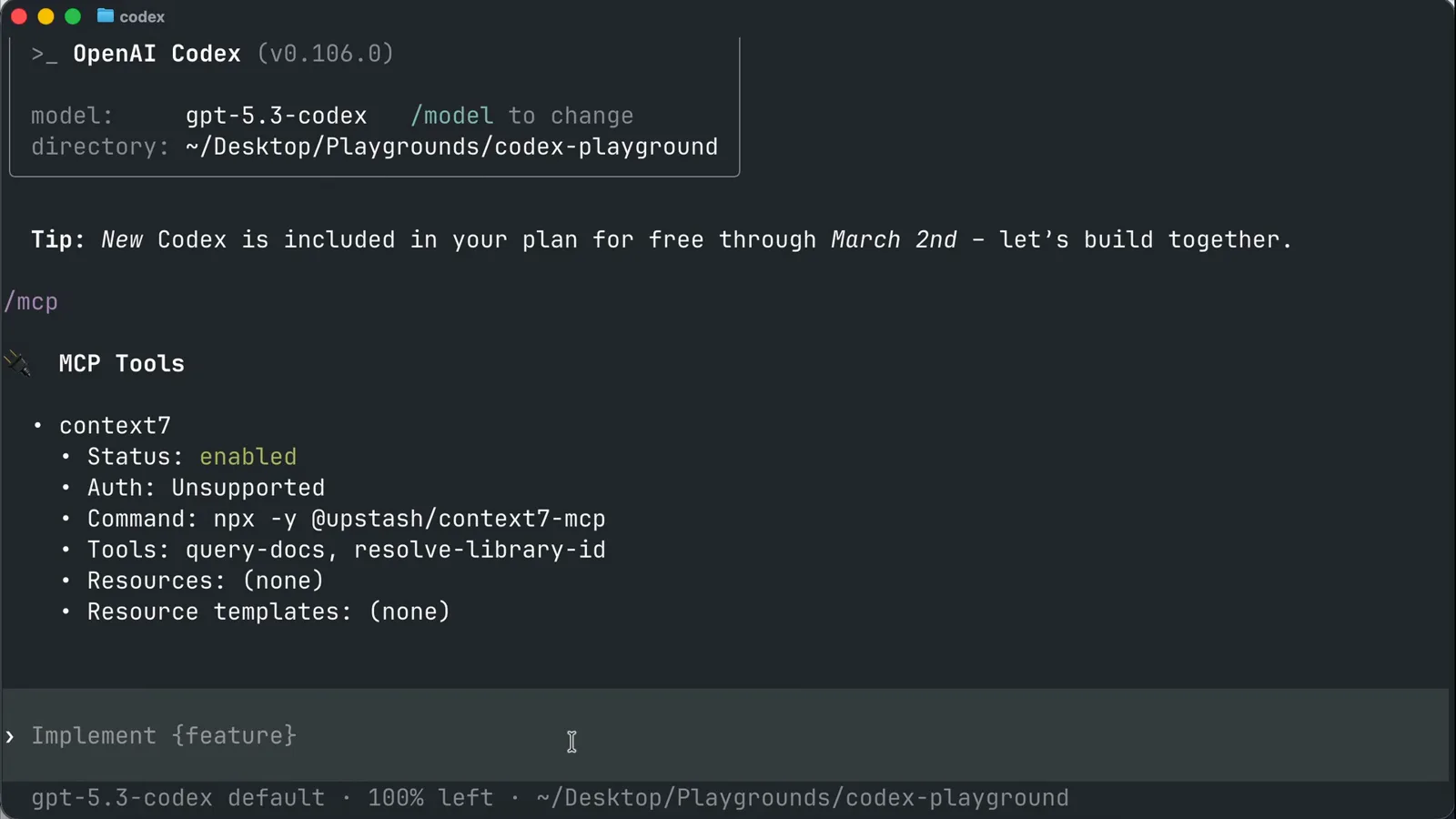
The /mcp panel inside the Codex TUI: context7 is enabled and its two tools are listed by name.Watch at 1:05
Part 2 — Use it, then go remote
- 5
Make a prompt that actually uses the server
MCP tools are invoked on demand, so ask for something that needs them: "Use Context7 to check the current Tailwind CSS setup docs". Codex resolves the library, pulls the docs through the MCP server, and cites the sources in its answer. Watching the tool calls scroll by is your proof the server works end to end.
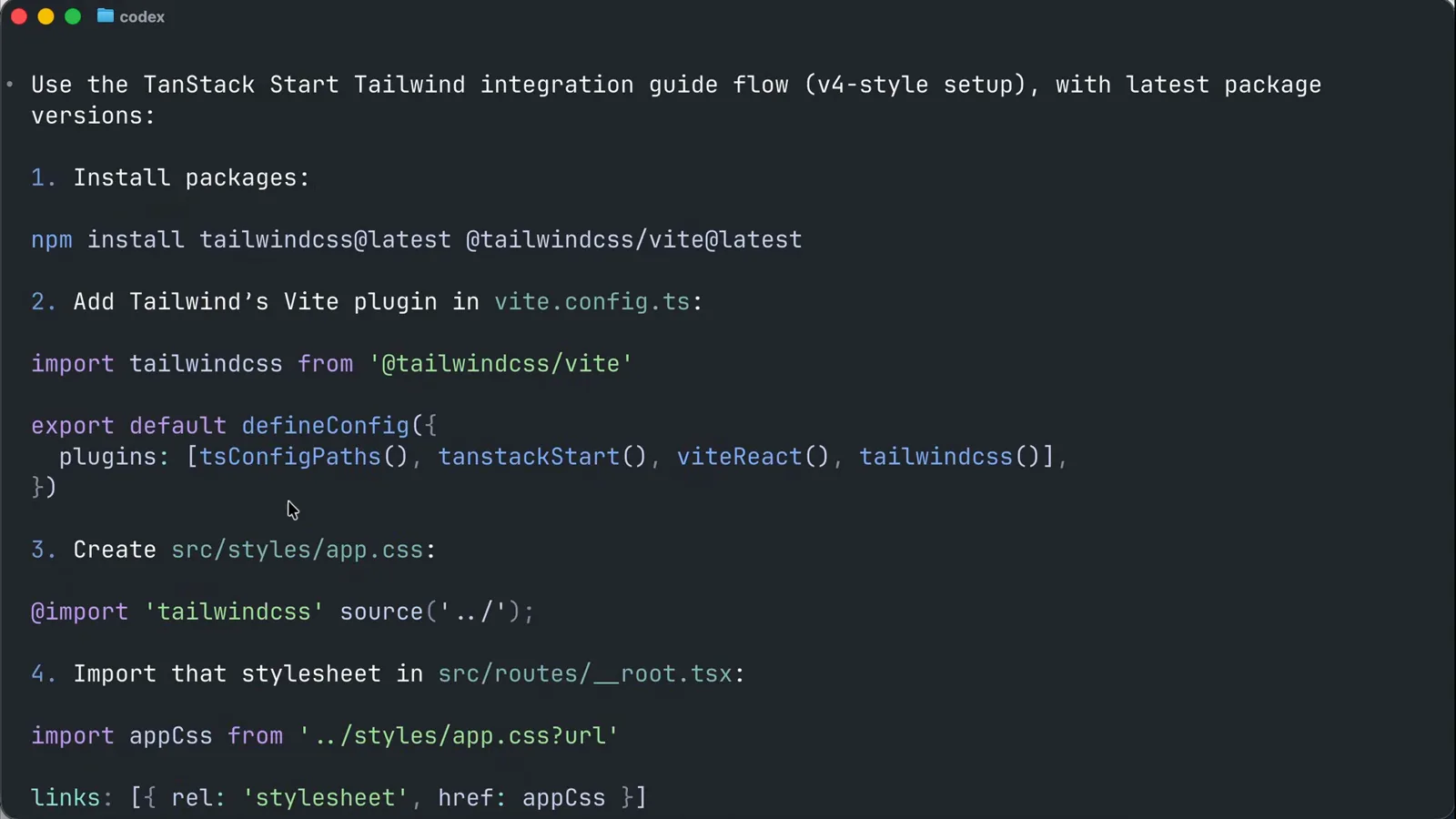
Codex's answer cites the exact Context7 documentation URLs it pulled through the MCP server.Watch at 1:30 - 6
Add a remote server with --url
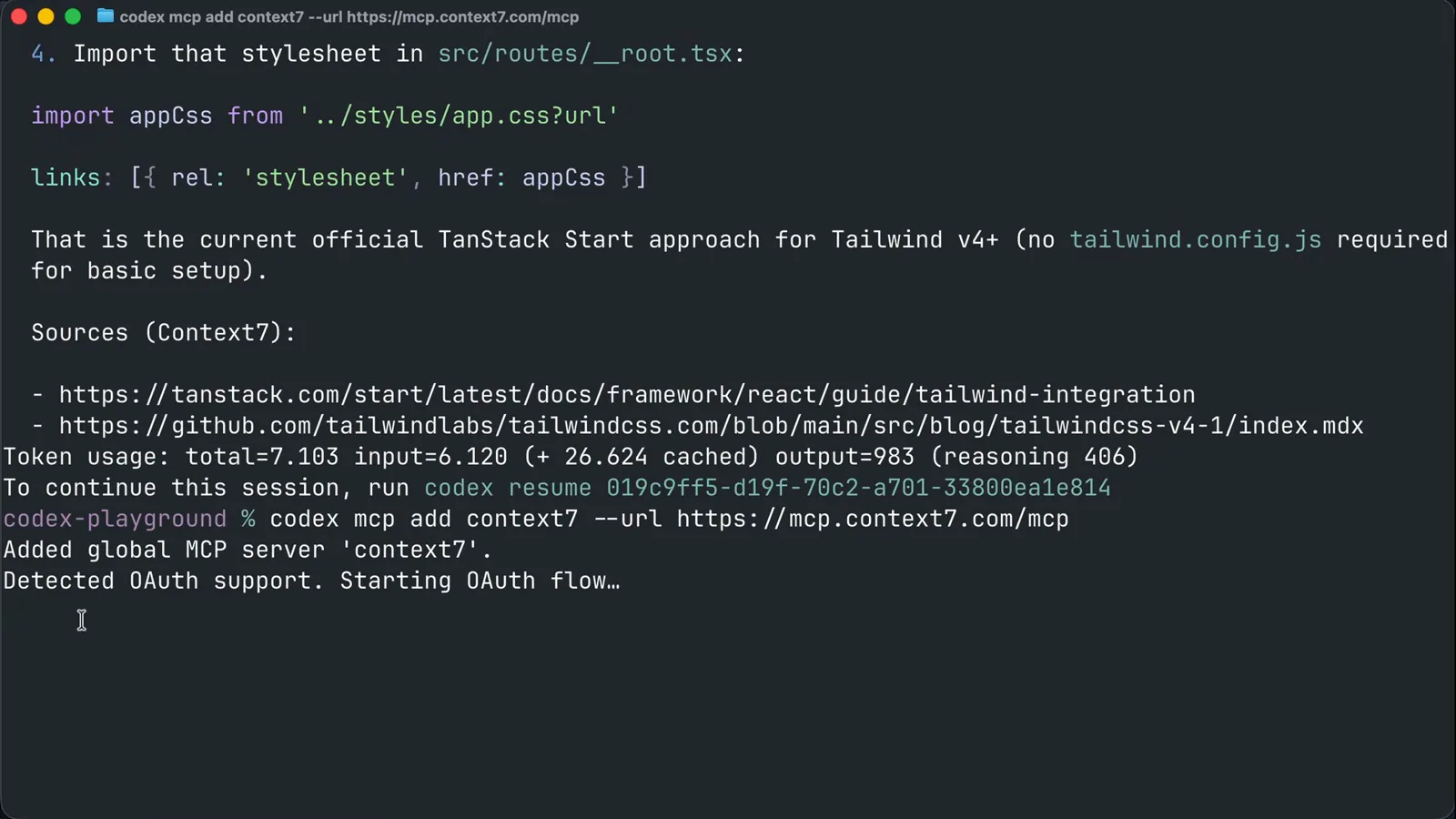
Many providers also host their MCP server remotely — no local process, no npx. Register one with codex mcp add context7 --url https://mcp.context7.com/mcp. Codex detects OAuth support automatically, prints "Detected OAuth support. Starting OAuth flow...", and opens your browser to authorize. In config.toml the entry is just url = "https://mcp.context7.com/mcp" under [mcp_servers.context7].
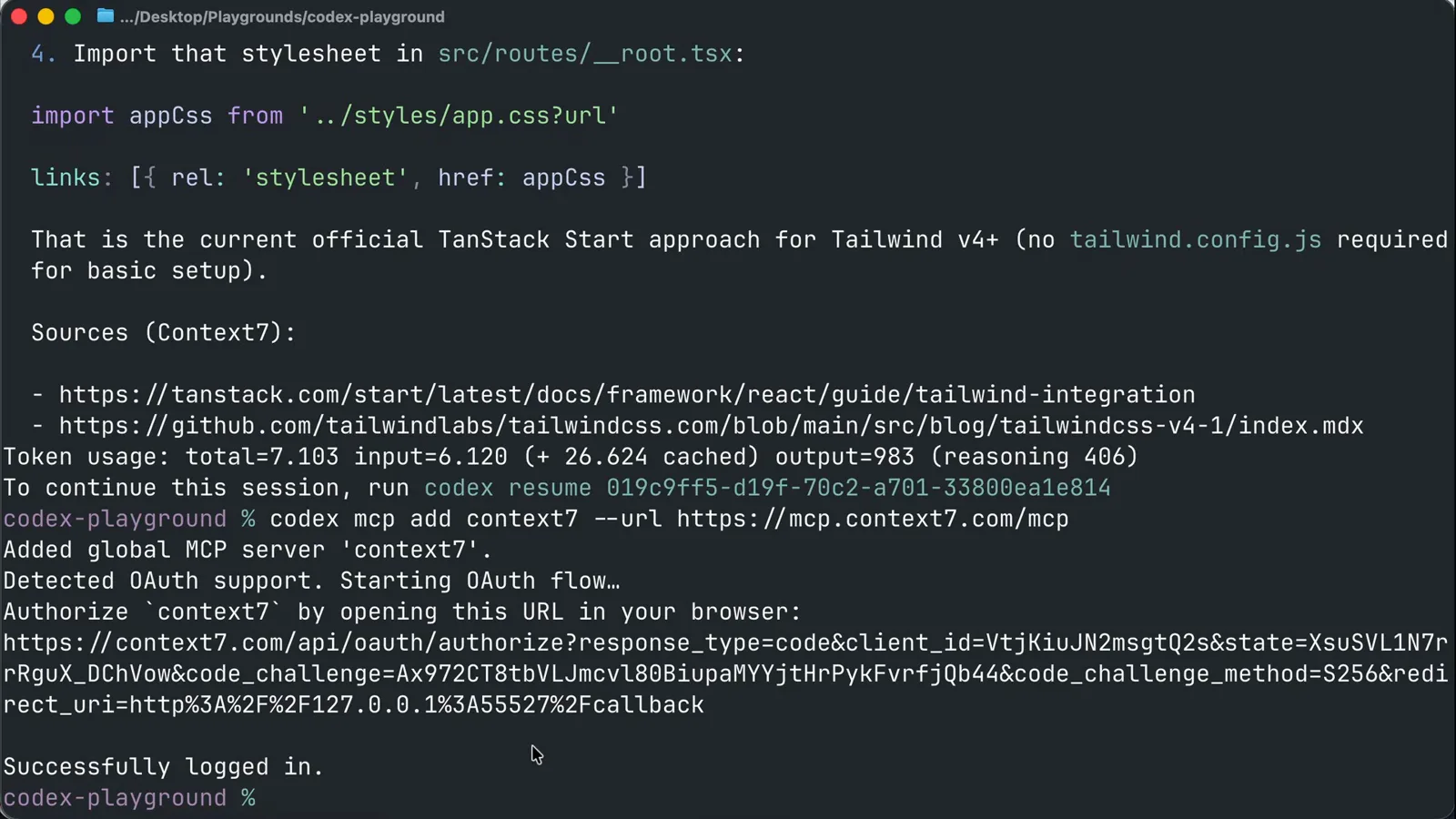
The full remote flow in one terminal: the --url add, the OAuth detection, the authorize URL, and Successfully logged in.Watch at 2:22 - 7
Approve the OAuth consent screen
The browser asks whether Codex may access your account on the provider's behalf. Review the requested scopes, click Allow, and the terminal confirms "Successfully logged in". For servers that ship no OAuth flow, authenticate separately with codex mcp login <name>; token-based servers instead take bearer_token_env_var pointing at an environment variable.
Context7's consent screen: review the scopes Codex requests, then Allow.Watch at 2:02 - 8
Scope a server to one project with .codex/config.toml
Servers that only make sense in one repo — like DBHub, a stdio server that speaks to your database — belong in project config. Create a .codex folder in the repo, add a config.toml with the [mcp_servers.dbhub] entry, and pass your connection string through the --dsn arg (adjust it from the docs' Postgres example to MySQL or whatever you run). Commit it and teammates get the same server; the folder must be a trusted project for it to load.
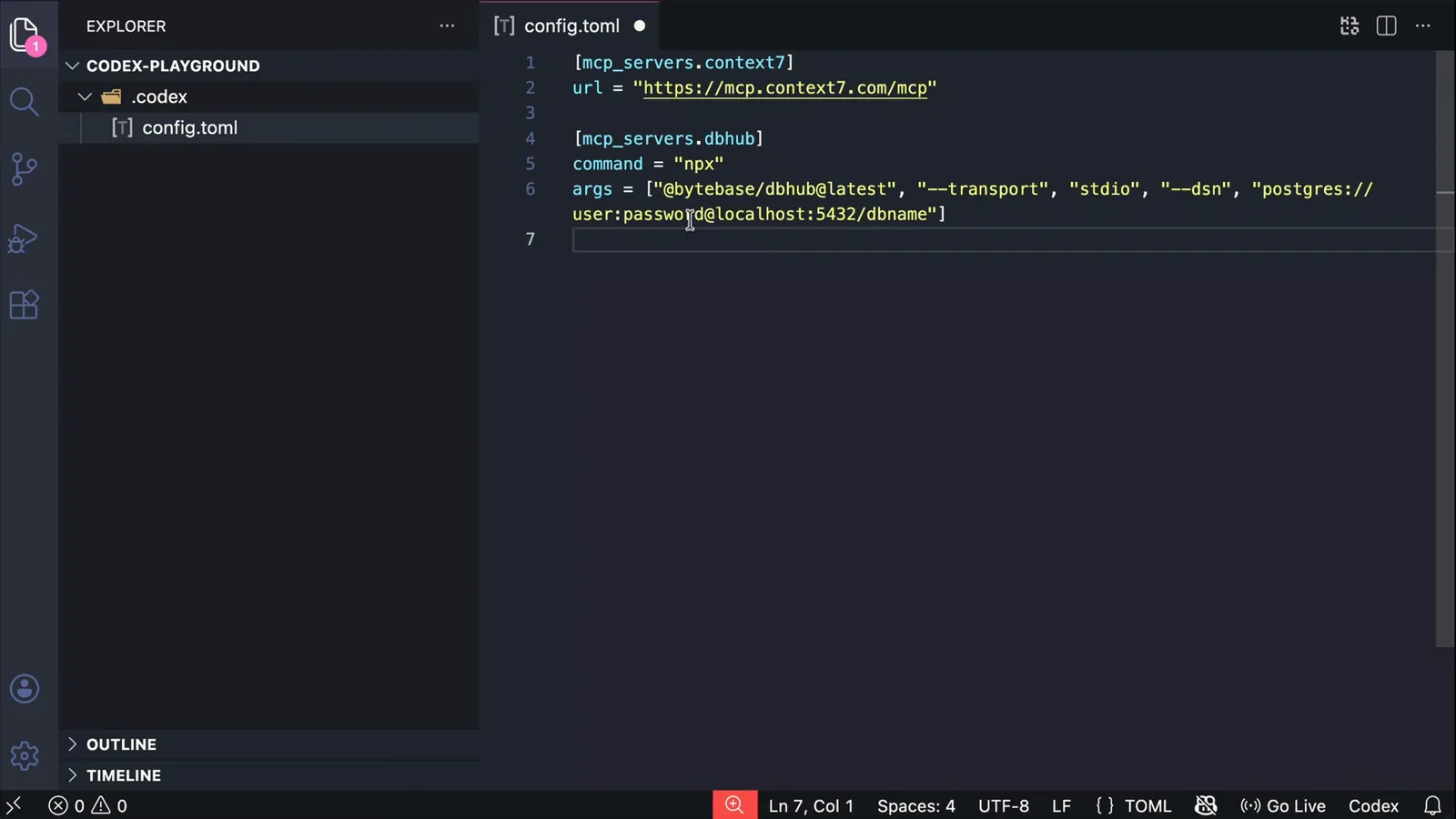
A project .codex/config.toml: DBHub runs over stdio with the repo's database DSN in the args.Watch at 3:30
Part 3 — Real servers and day-2 control
- 9
Query your database through MCP tools
With DBHub configured, ask Codex about the database: "Find the Petco database and explain the tables", then "What is the best selling product?". Codex calls the server's describe_table and execute_sql tools, asks permission before running SQL, and answers with real numbers from your data. This is the fastest way to debug schemas and validate data while working on a backend.
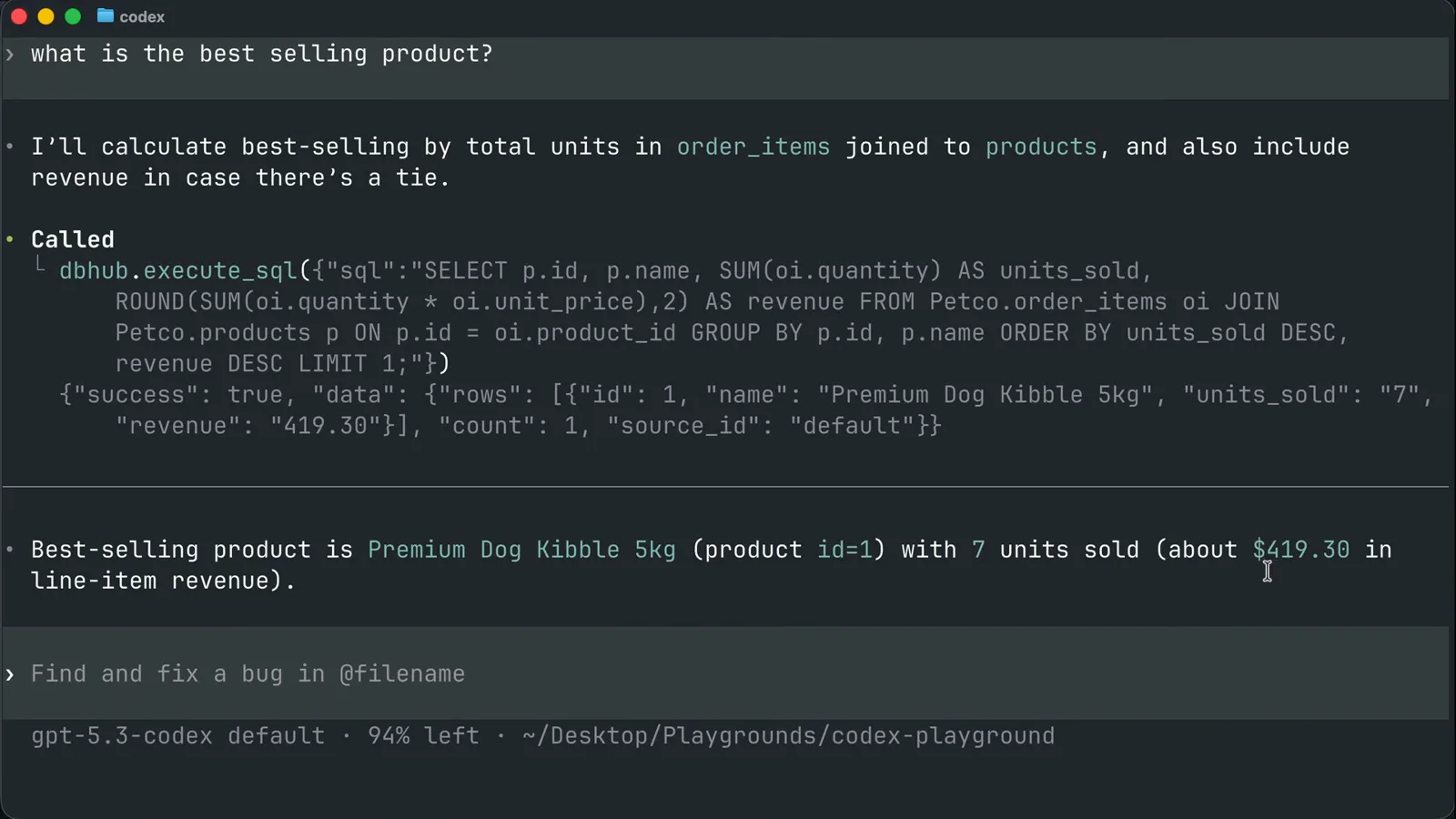
Codex ran dbhub's execute_sql tool and answered with the best-selling product and its revenue.Watch at 4:40 - 10
Connect GitHub with its remote MCP server
The github/github-mcp-server README documents the Codex setup: add a [mcp_servers.github] entry with url = "https://api.githubcopilot.com/mcp/", then authenticate either through OAuth or by exporting a personal access token as an environment variable (create a fine-grained PAT under GitHub Settings, Developer settings, granting Administration and Contents). Remote-first servers like this one and the Figma MCP server follow the same pattern as step 6.
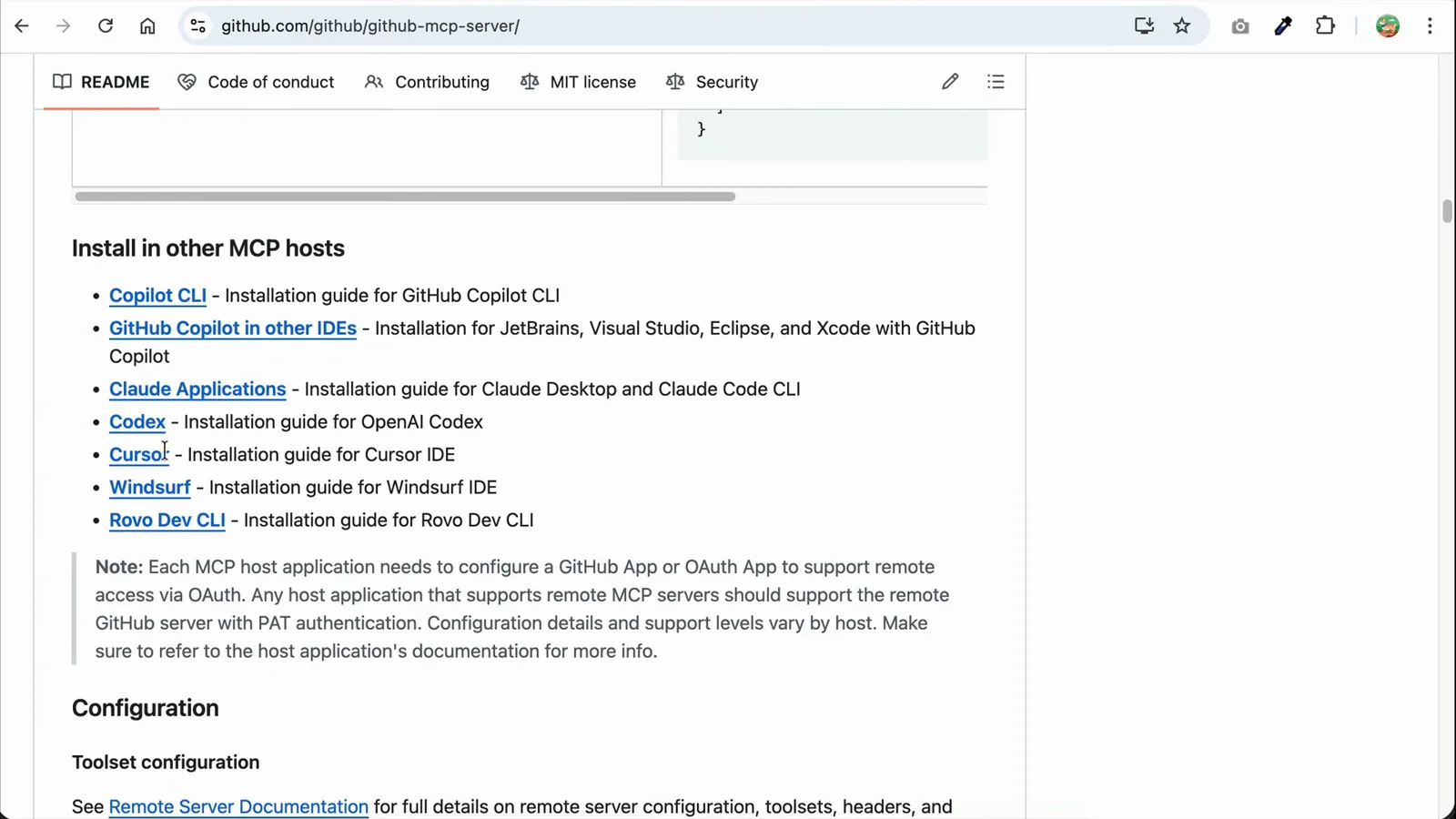
GitHub's MCP server install guide: the Codex CLI entry plus the OAuth/PAT authentication note.Watch at 5:22 - 11
Relaunch and put the tools to work
Restart codex and watch the banner: "Starting servers (0/3): context7, dbhub, github". Now a single instruction like "Fork the openai/codex repo to my account" is enough — Codex picks GitHub's fork tool, asks for approval, and does it. No per-task setup: the tools are simply part of every session from now on.
- 12
Manage servers with codex mcp list and the desktop app
codex mcp list prints every configured server from the shell; removing one means deleting its block from config.toml and re-running the command to confirm. The desktop app and IDE extension read the same ~/.codex/config.toml, so servers installed here show up in the desktop app's Settings, MCP servers page with on/off toggles.
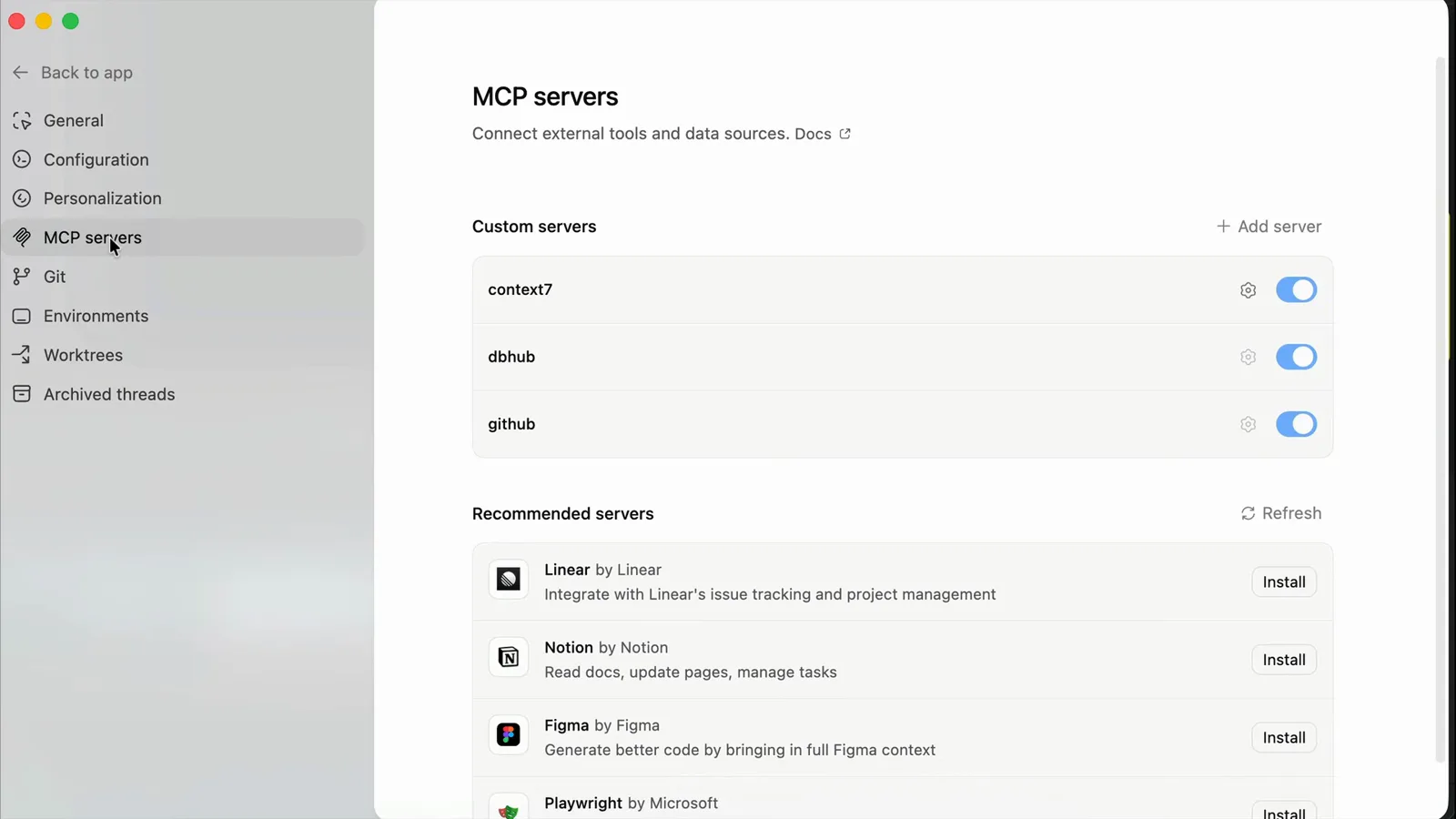
The Codex desktop app's MCP servers settings: context7, dbhub and github with toggles, plus recommended servers.Watch at 7:30
Local stdio vs remote MCP servers in Codex
Both kinds live in the same [mcp_servers.*] tables and appear in the same /mcp panel — the difference is where the server runs and how it authenticates. Pick per server, not per project.
- 1Local stdio: Codex launches a process itself with command and args — typically npx or a binary. It runs on your machine, so it can reach localhost services like a dev database (that's how DBHub queried MySQL in the walkthrough), but you provide the runtime and the updates.
- 2Remote: Codex talks to a hosted url over streamable HTTP. No process to keep alive and auth is centralized — OAuth by default, or bearer_token_env_var and http_headers for token-based setups. The docs' own example is [mcp_servers.figma] with url = "https://mcp.figma.com/mcp".
- 3Remote-executed stdio: an experimental middle ground. Setting experimental_environment = "remote" on a stdio entry moves its execution to a remote executor, with env_vars deciding which variables travel — including entries marked source = "remote". This is the path Codex 0.160.1 hardened.
- 4Scope: codex mcp add always writes the global ~/.codex/config.toml; project-specific servers go into .codex/config.toml inside the repo (trusted projects only). Global for tools you want everywhere, project for anything carrying environment-specific credentials.
- 5Controls that apply to both: startup_timeout_sec (default 10) and tool_timeout_sec (default 60) for slow servers, enabled/disabled_tools to allow-list what Codex may call, and required = true if a server must come up or Codex should refuse to start.
A practical default: read-only documentation servers like Context7 can be global; anything that touches credentials or data — DBHub, GitHub with a PAT — belongs in project config where it can be reviewed and revoked with the repo.
Configured but not working: the usual suspects
Most MCP failures in Codex are scope, timeout, or authentication problems — in that order. Walk this list before touching the server itself.
- 1Server missing from /mcp: check which file you edited. Global entries live in ~/.codex/config.toml; project entries in .codex/config.toml and only for trusted projects. Running codex mcp list from the shell shows what Codex can actually see.
- 2Server times out at startup: default startup_timeout_sec is 10 seconds, and a cold npx download of a big package can easily exceed that. Pre-install the package or raise startup_timeout_sec on the entry.
- 3Tool calls fail with 401/403: the credential is missing or stale. Run codex mcp login <name> for OAuth servers, or set bearer_token_env_var and export the variable. After fixing, /mcp should show the server as enabled again.
- 4Remote stdio server crashes with odd Windows-related errors: before 0.160.1, launching a remote stdio MCP server with explicitly configured remote environment variables could drop SYSTEMROOT, TEMP and TMP, breaking the Windows executor's startup environment. Update to 0.160.1 or later.
- 5Server starts but answers are wrong or empty: many hosted servers need their own API key even over OAuth — Context7, for example, wants an API key passed via env. Check the provider's docs for the exact env name and add it to the entry's env table.
Two useful levers while debugging: set required = true on a server you depend on so Codex never starts silently without it, and enabled = false to switch one off without deleting its config.