
Codex Voice Mode Tutorial: Enable /voice in Codex CLI and the Desktop App
Codex voice mode has two halves: the experimental /voice command inside Codex CLI v0.155.0 — which F8 also starts — and voice in the ChatGPT desktop app's Codex workspace. This 15-step walkthrough covers both: flip the flag, press F8 or run /voice, mute with Ctrl+X, dictate over the live waveform, press Transcribe and send — then work the checks that bring back a missing voice button.
TL;DR — what Codex voice mode is
- Codex voice mode is two surfaces. In Codex CLI it is the experimental /voice command shipped in v0.155.0, which F8 toggles and Ctrl+X mutes. In the ChatGPT desktop app it is dictation into the Codex workspace — live waveform, then Transcribe and send — plus a separate real-time session that answers out loud.
- Voice in a regular chat is separate from voice in Work or Codex. The desktop experience needs the official app on macOS or Windows, an up-to-date build and the right workspace — a web browser or an unofficial wrapper will never show it.
- The desktop flow is short: switch the top-left workspace selector to Codex, tap the microphone on the Do anything composer, speak the brief, then press Transcribe and send. The transcript lands in the thread as an ordinary prompt and the agents take it from there.
- If the voice button is missing, work the list in order: update the app, confirm the workspace, check plan and workspace eligibility (admin settings and gradual rollouts can gate it), then allow the microphone in macOS Privacy & Security or Windows Settings.
ChatGPT Voice Missing in Work or Codex? Check App & Access
Video walkthrough:TechFix Guides3:30
Codex CLI v0.155.0 — ChatGPT & Codex changelog
Product facts:learn.chatgpt.comChangelog
Steps 4-6 and 12-14 are stills from TechFix Guides' availability checks; steps 7-10 and 15 are stills from Developers Digest's Codex desktop walkthrough, including the dictation flow. What the /voice flag, the F8 toggle and the Ctrl+X mute shortcut do comes from the official Codex CLI changelog for v0.155.0 and the shipped TUI keymap defaults. Steps 1-3 are documented from those primary sources — no clean screen recording of the terminal session exists.
Frames are credited screenshots from the source videos, each deep-linked to its timestamp. This guide's text is original — not a transcript.
Codex voice mode, step by step
1 · Turn on /voice in Codex CLI
- 1
Update Codex CLI to v0.155.0 or newer
The /voice command arrived with Codex CLI v0.155.0, so the version is the gate. Update the CLI and confirm the running version before you touch any settings — voice ships only in supported builds, and that same release bundles the signed voice resources macOS needs. Steps 1 to 3 all happen in the terminal; the desktop app takes over at step 4.
- 2
Flip voice on in /experimental
Voice ships behind an experimental flag. Inside a Codex session, run /experimental and switch voice on in the list. That flag is what makes /voice exist — skip it and neither the command nor the microphone controls in the composer strip appear.
- 3
Start a session with /voice or F8, mute with Ctrl+X
Run /voice, or press F8, and Codex opens a live voice conversation in the terminal — F8 is the built-in default for the toggle_voice action, so it works without typing anything. Spoken turns arrive as a live transcript in split-flap tiles, and Ctrl+X toggles the microphone mute mid-session, so you can think out loud without dictating every pause. Neither key is fixed: the TUI reads tui.keymap.chat.toggle_voice and tui.keymap.chat.toggle_voice_mute from your config, so if Ctrl+X already does something else for you, rebind it instead of losing it. Press F8 again to stop the session — the desktop experience in the next group is a separate surface with its own entry points.
2 · Get the desktop app into the Codex workspace
- 4
Switch the desktop app to the Codex workspace
The workspace selector sits in the top-left corner of the ChatGPT desktop app. Open it and pick Codex — the entry labelled For developers, listed under Work, which is where the app starts by default. Voice in Work or Codex is a separate desktop feature, so being in the right workspace is the first real requirement; then open a harmless test project and see whether the voice control appears.
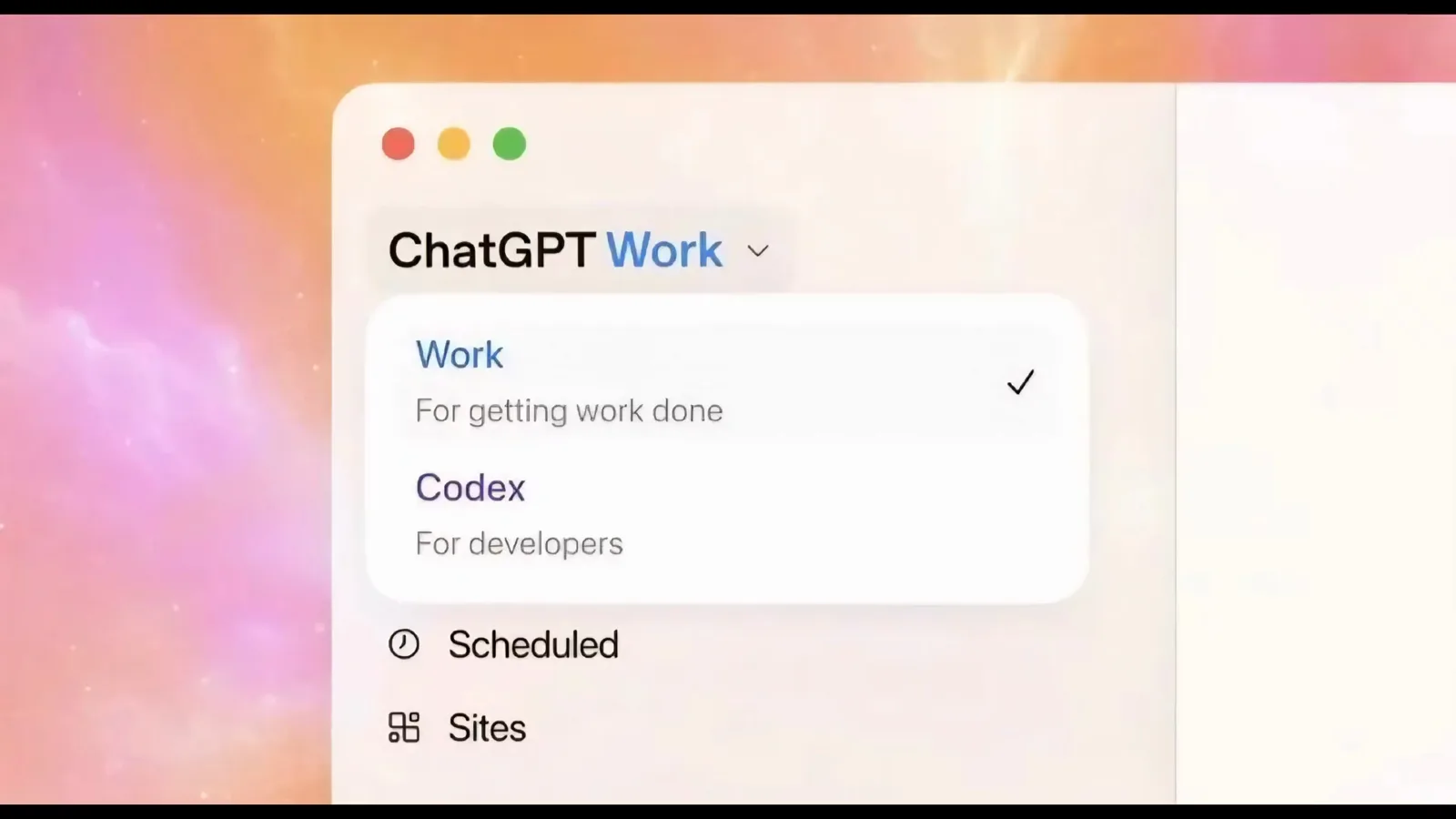
The workspace menu with Codex — For developers — sitting under a ticked Work.Watch at 1:51 - 5
Know why chat voice is not Codex voice
The sidebar carries a Work and Code segmented toggle resting on Work, above New chat, Search chats, Plugins, Automations and Project. Voice in a regular chat is separate from voice in Work or Codex: having the microphone in a normal conversation does not make it show up here. That is why a working voice button in chat can still be absent in the Codex workspace.
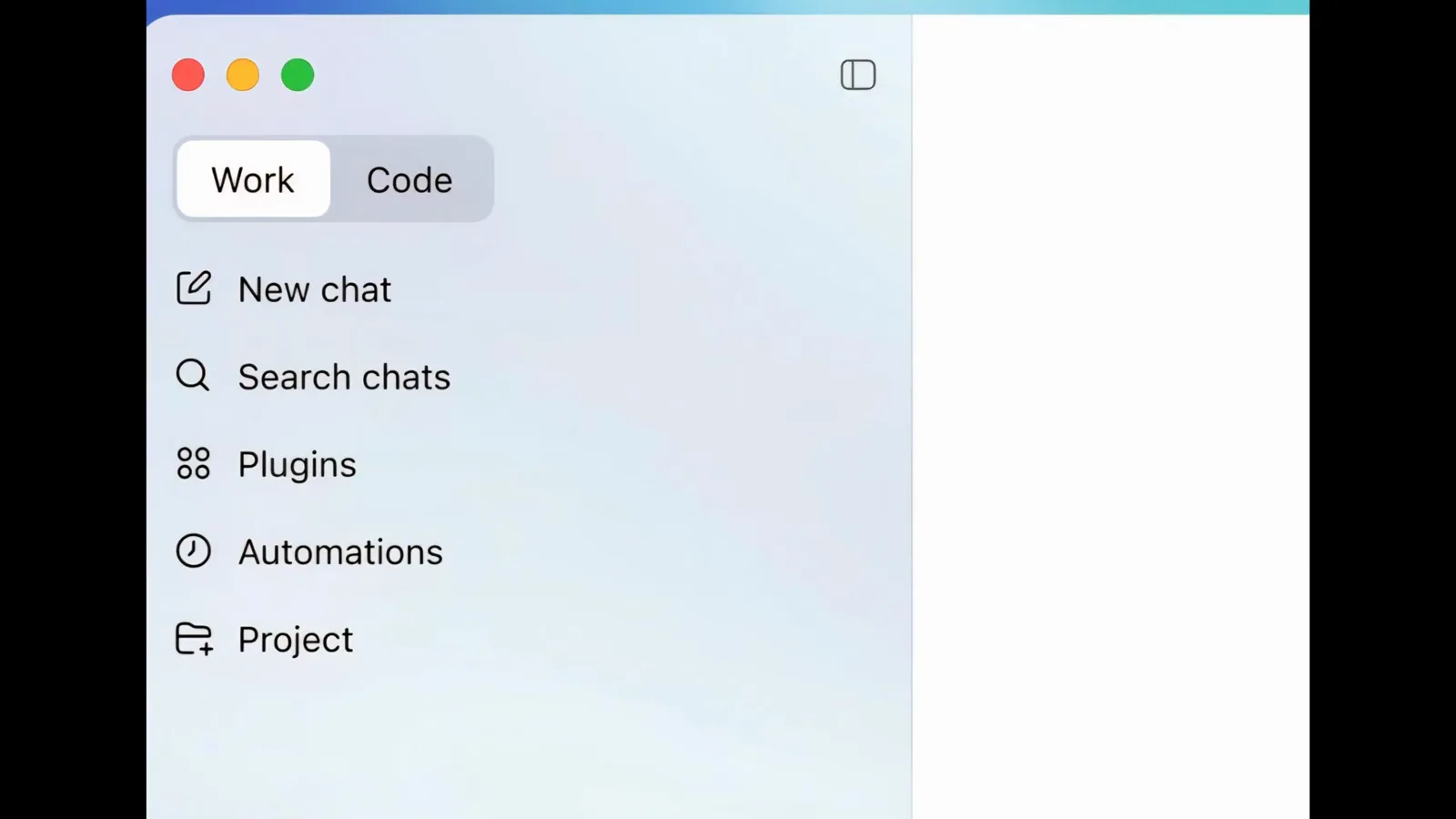
The sidebar's Work / Code toggle, resting on Work above New chat and Project.Watch at 3:00 - 6
Update the ChatGPT desktop app build
An outdated build hides the feature. Open the app's info card — the recording shows Version 1.2024.130 above the Message ChatGPT composer — then check for updates, install the latest version and restart. The feature is designed for the official desktop app on Windows or macOS, not a web browser or an unofficial wrapper.
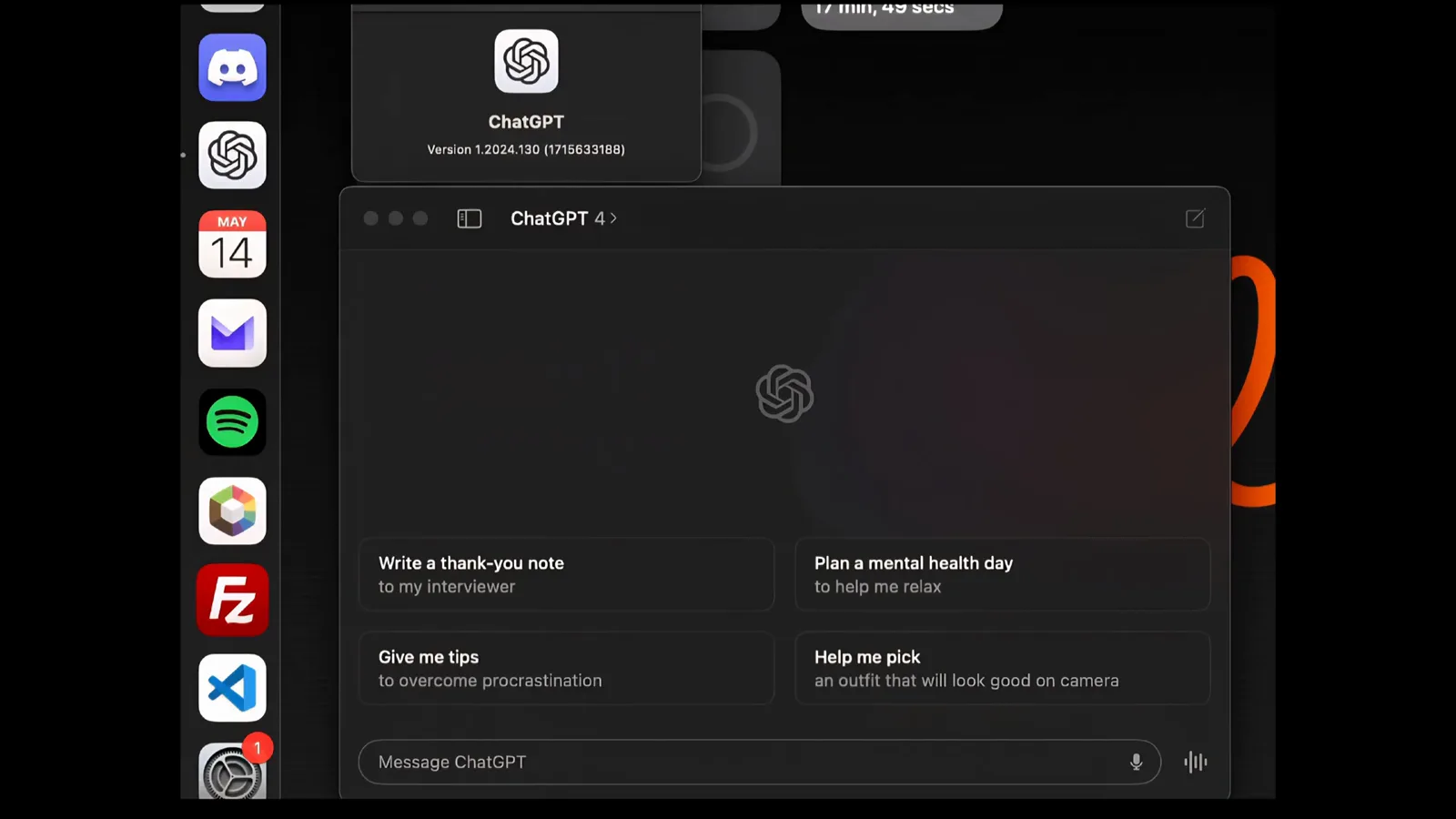
The app info card reading Version 1.2024.130 above the composer's microphone button.Watch at 1:00 - 7
Find the microphone button in the Codex app
Open the Codex desktop app. The home screen asks What should we work on? over an empty Do anything composer, with a project picker underneath and the microphone button at the right edge of the box. That microphone is the dictation entry point — every step after this happens from it.
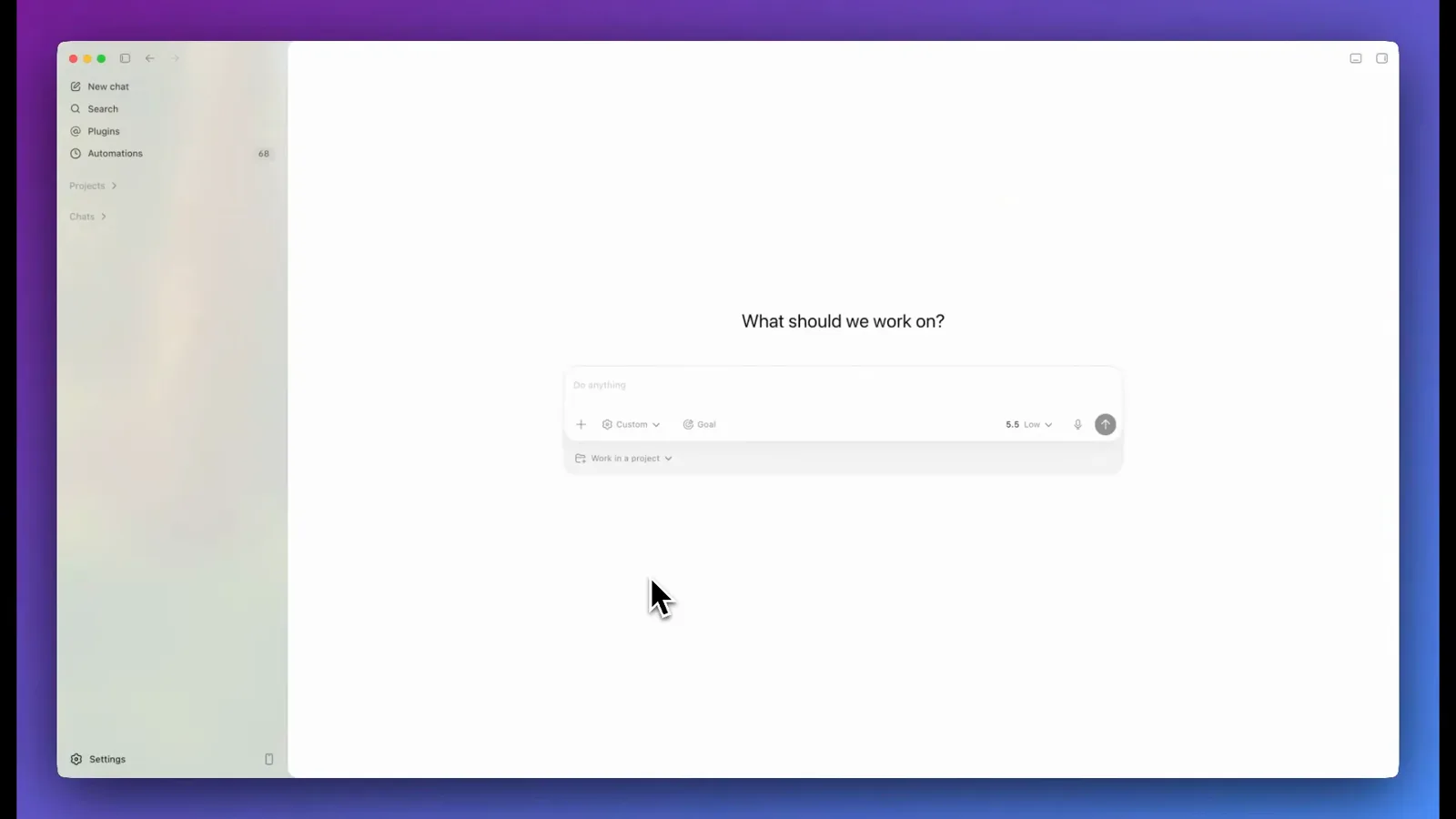
The Codex home screen: Do anything composer, project picker, microphone at the right.Watch at 2:50
3 · Dictate, send and talk
- 8
Record your brief over the live waveform
Tap the microphone and the composer becomes a recorder: a live waveform draws as you speak, an elapsed timer counts up — 0:03 here — and a stop square ends the take. Speak the brief in one pass; the recording replaces typing, so you can describe the whole job without touching the keyboard.
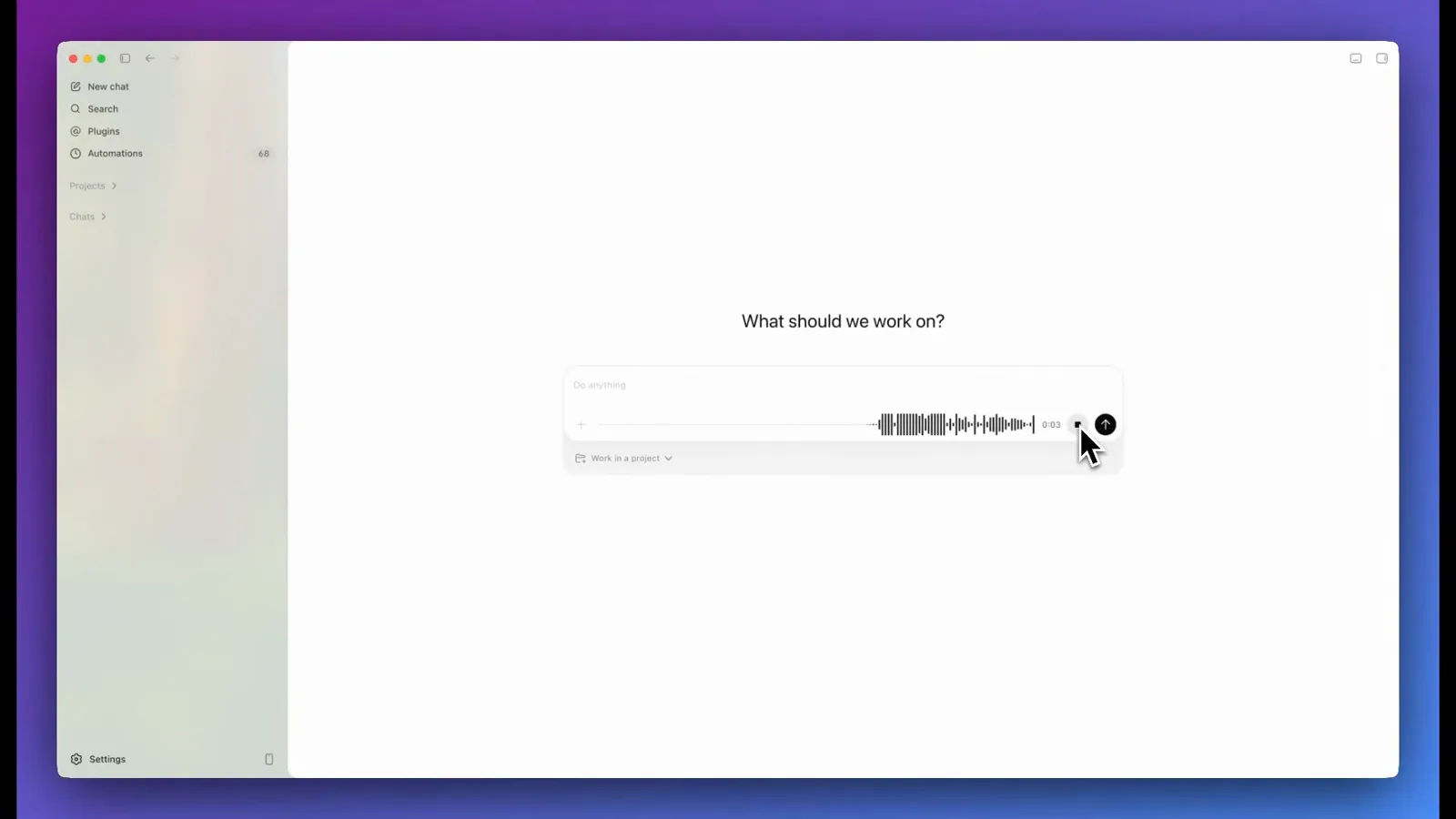
Recording under way: live waveform, 0:03 timer and the stop square in the composer.Watch at 2:55 - 9
Press Transcribe and send
When you stop, hovering the send button reveals the Transcribe and send tooltip — the timer reads 0:21 in this take. Press it and Codex transcribes the recording and submits the text as your prompt in one motion. Nothing goes out until you press it, so re-record first if you stumbled.
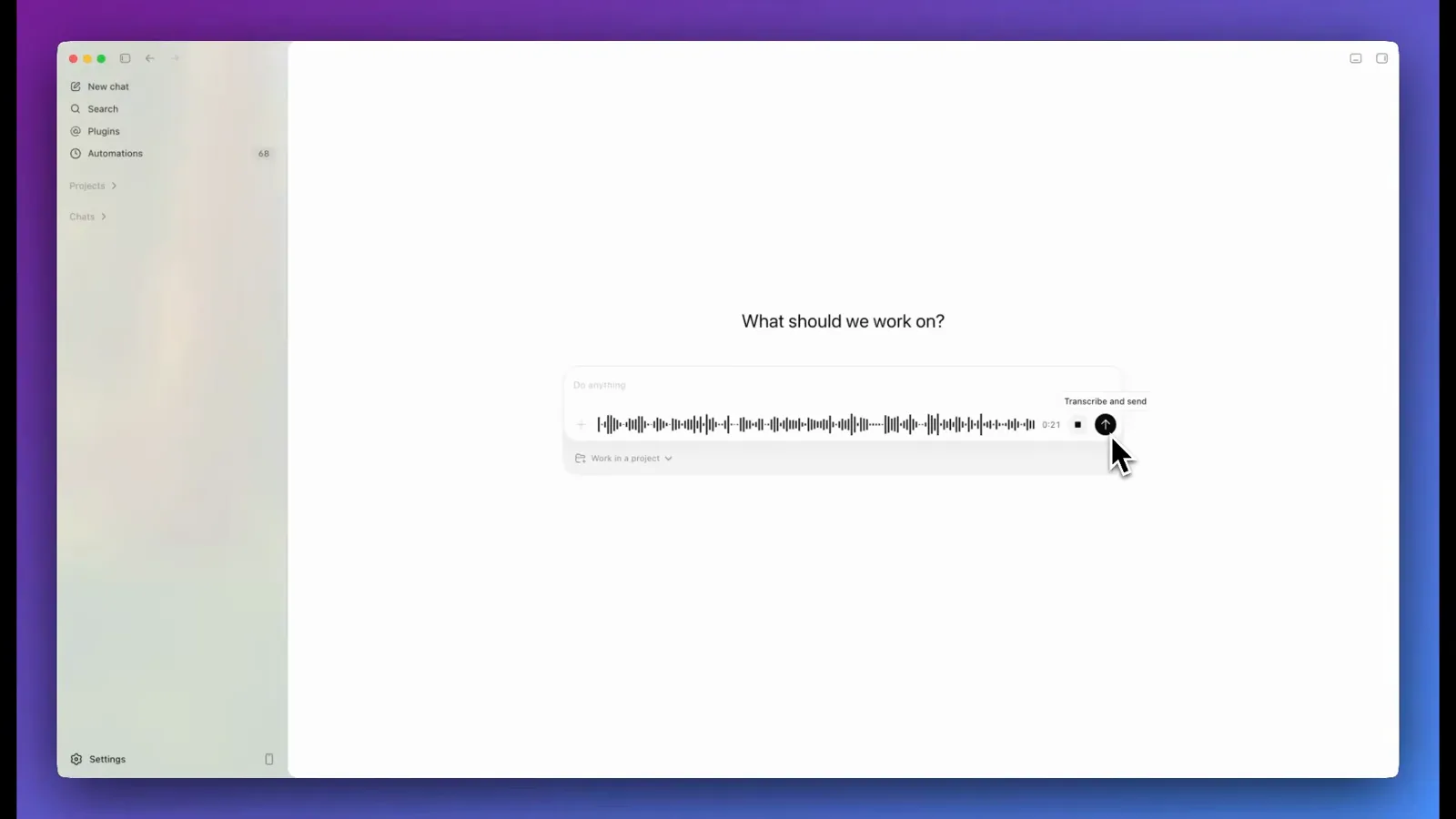
The Transcribe and send tooltip over the send button at 0:21 of dictation.Watch at 3:10 - 10
Let the dictated brief run as a normal prompt
The transcript lands in the thread as an ordinary prompt — the dictated brief asks for a neo-brutalist Next.js SaaS landing page with three parallel developer agents, exactly as spoken. Codex treats it like typed text and the agents get to work, each in its own context window. Dictation changes the input, not what Codex can do with it.
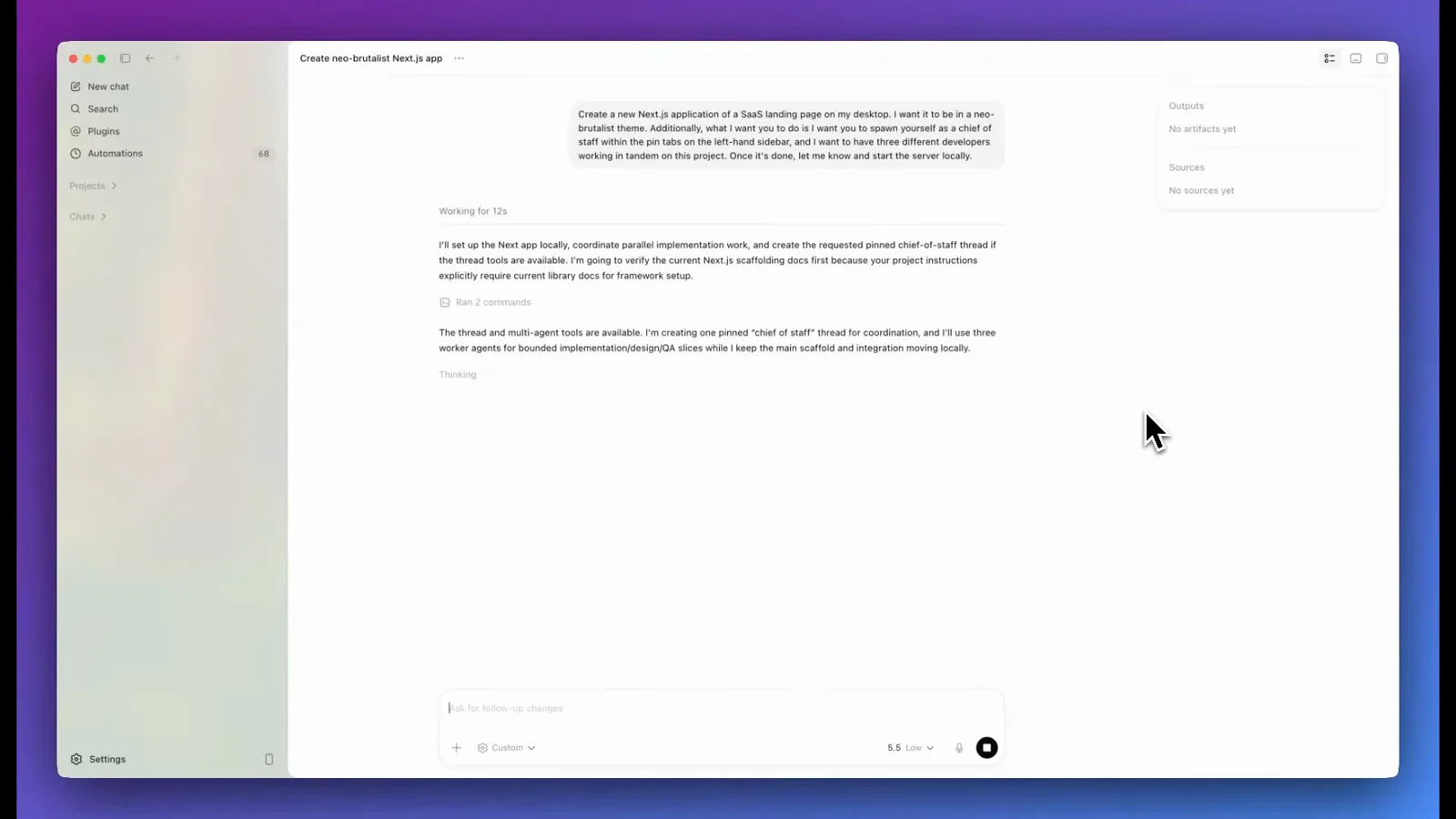
The dictated SaaS-landing-page brief sitting in the thread as a normal prompt.Watch at 3:15 - 11
Try real-time voice instead of dictation
Dictation is not the only mode. A separate real-time voice session answers out loud while it works — in Riley Brown's hands-on test it reads your screen, researches live while you talk and spins up background tasks, and it will not send messages or spend money unless you explicitly ask. The full-screen view is a glowing orb with a microphone mute button beside hang-up: mute mid-session and keep talking to the room without ending it.
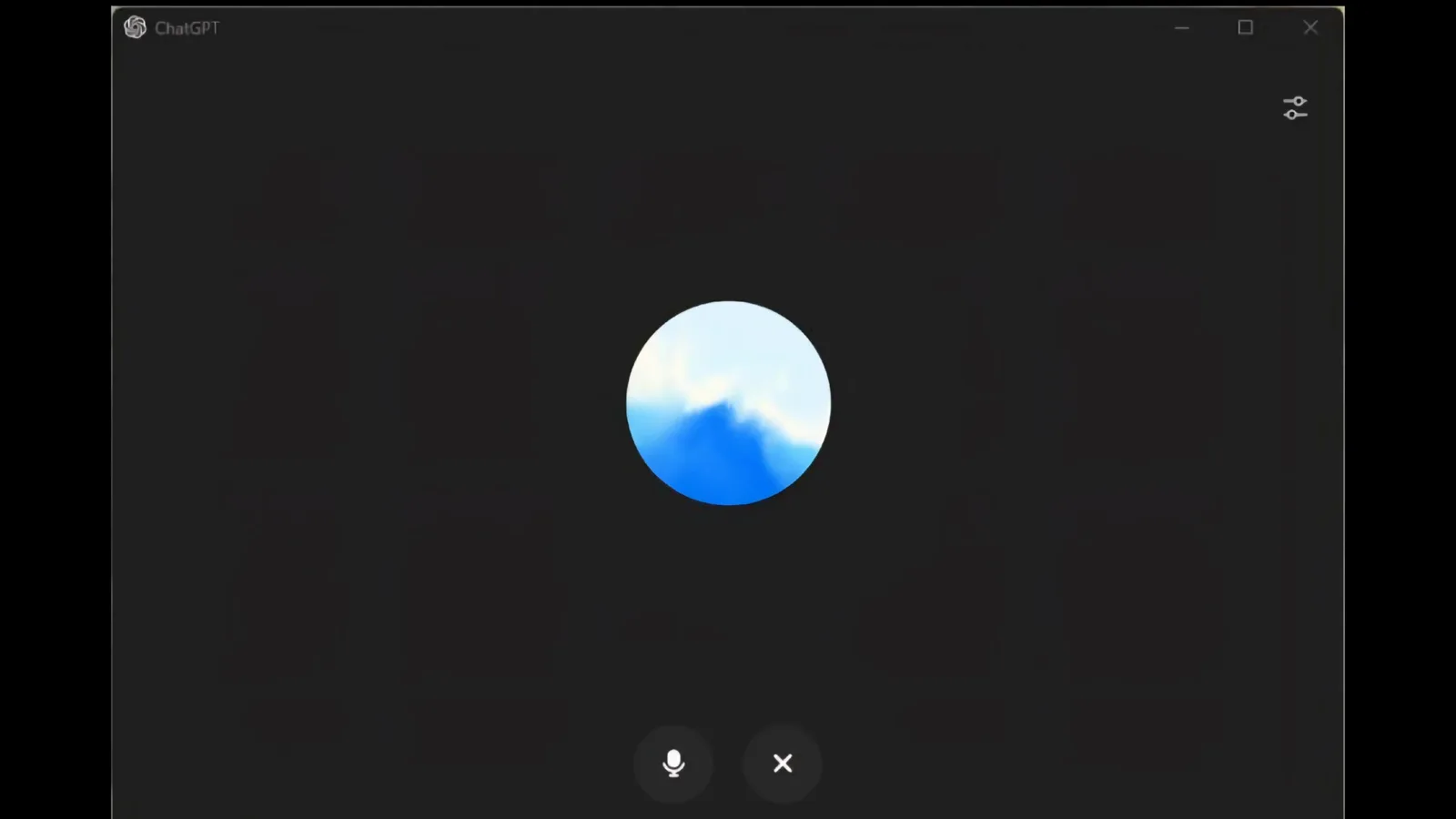
The full-screen voice session: glowing orb with mute and hang-up underneath.Watch at 0:30 - 12
Choose the voice and the spoken language
Open Settings in the ChatGPT desktop app and stay on the General tab. The Voice row carries a Play control and a voice picker — Spruce in this build — so you can hear what Codex will sound like before you commit to it, and the Spoken language row above it rests on Auto-detect, with the note that a language that is not listed may still be supported via auto-detection. If dictation keeps transcribing the wrong words, set Spoken language to the one you actually speak.
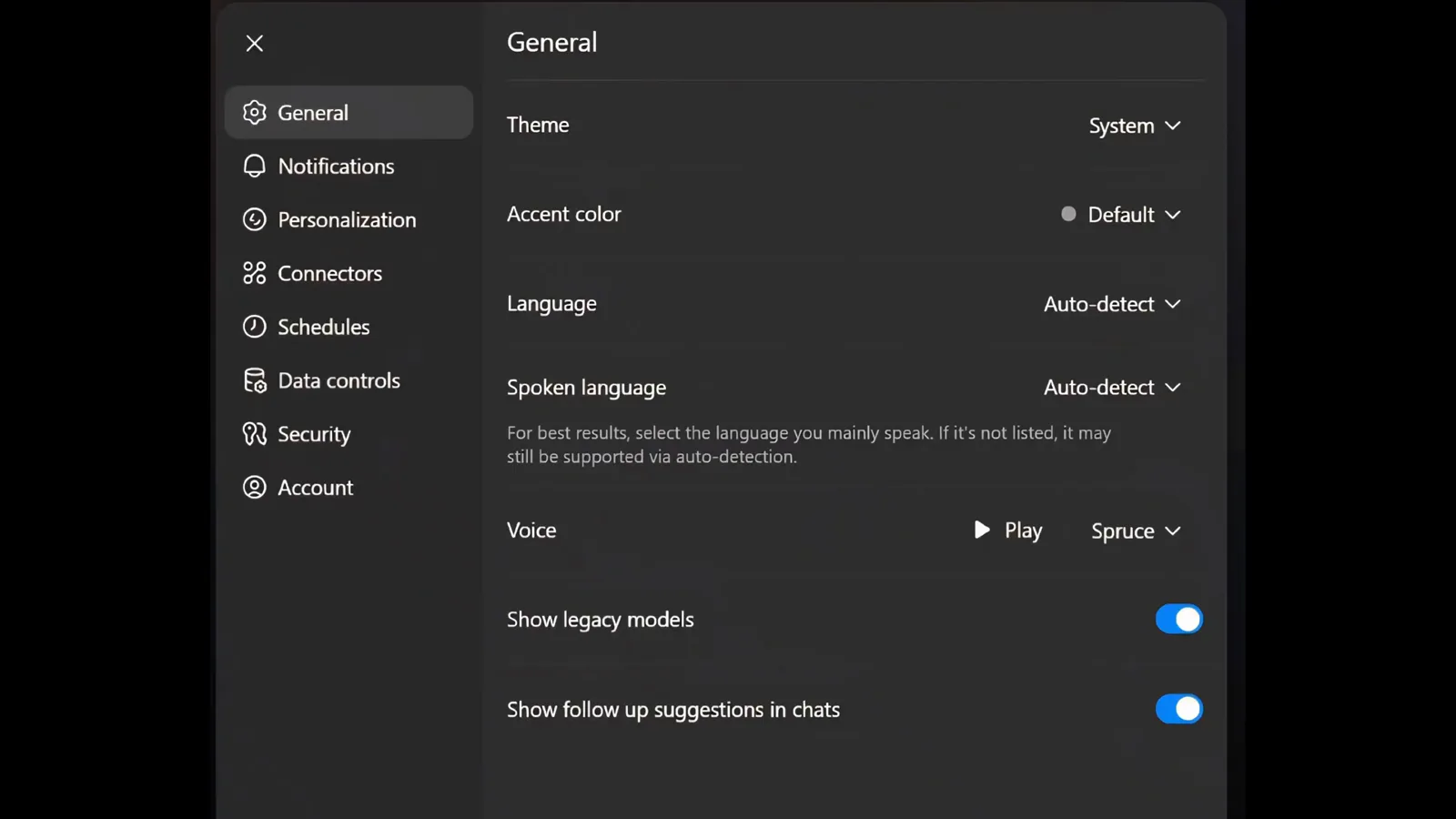
Settings > General: the Voice row with Play and Spruce, and Spoken language on Auto-detect.Watch at 1:02
4 · Fix microphone permissions and see the result
- 13
Allow the microphone on macOS
On macOS, open System Settings, then Privacy & Security, then Microphone, and switch the ChatGPT desktop app on — the pane lists every app that has asked, GarageBand, Slack and zoom here. Restart the app after granting it. Only enable the permissions you actually need; the source walkthrough warns against granting your whole disk or sensitive folders just to restore a voice button.
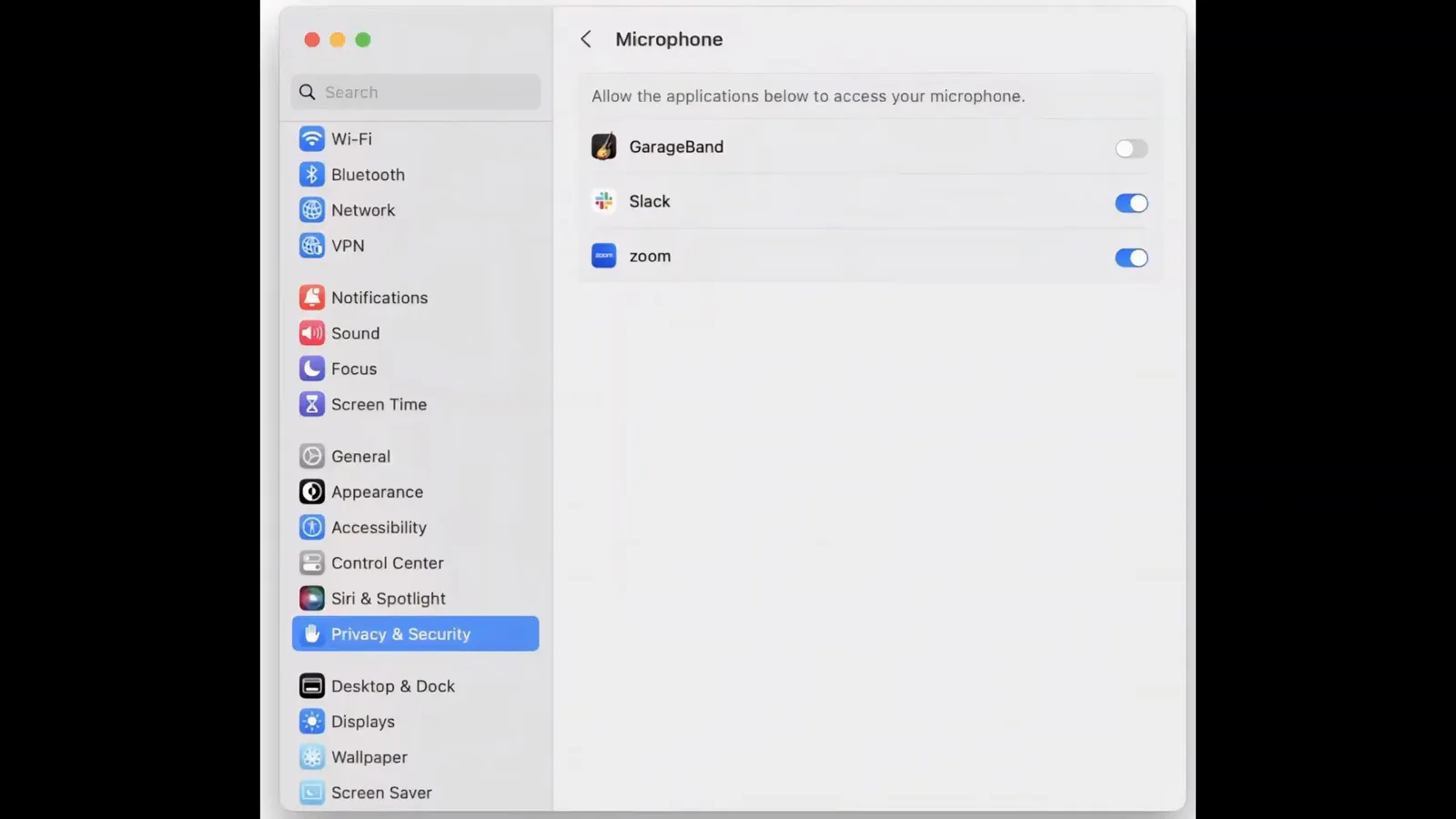
The macOS Microphone pane where the ChatGPT app gets permission to hear you.Watch at 2:30 - 14
Allow the microphone on Windows
On Windows, open Settings, then Privacy, then Microphone: turn Let apps use my microphone on, then check the per-app switches beneath it — Microsoft Edge, OneNote, Voice Recorder and Xbox in this pane. Make sure the ChatGPT desktop app's own switch is on too. Depending on your workflow, screen and system audio recording or accessibility permissions may also be requested.
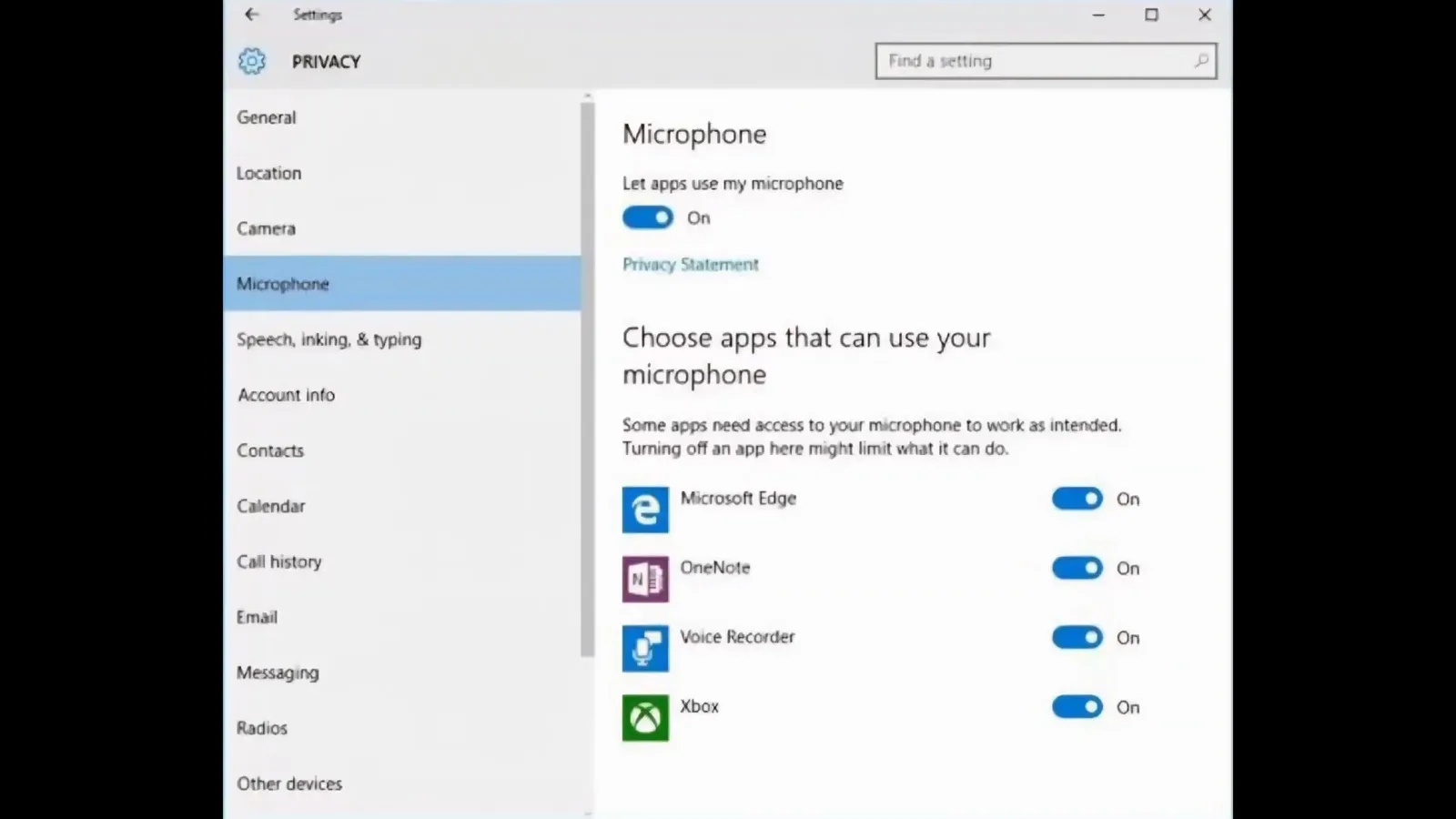
Windows' Microphone settings with the master switch and per-app toggles.Watch at 2:40 - 15
Open the result in the in-app browser
Back in Codex, the spoken work ends somewhere visible: the in-app browser preview runs the generated localhost landing page beside the agent thread. The three developer agents in the demo built it from the dictated brief, each in its own context window. Expand the browser pane and the annotation feature lets you click any element and queue feedback — no keyboard required there either.
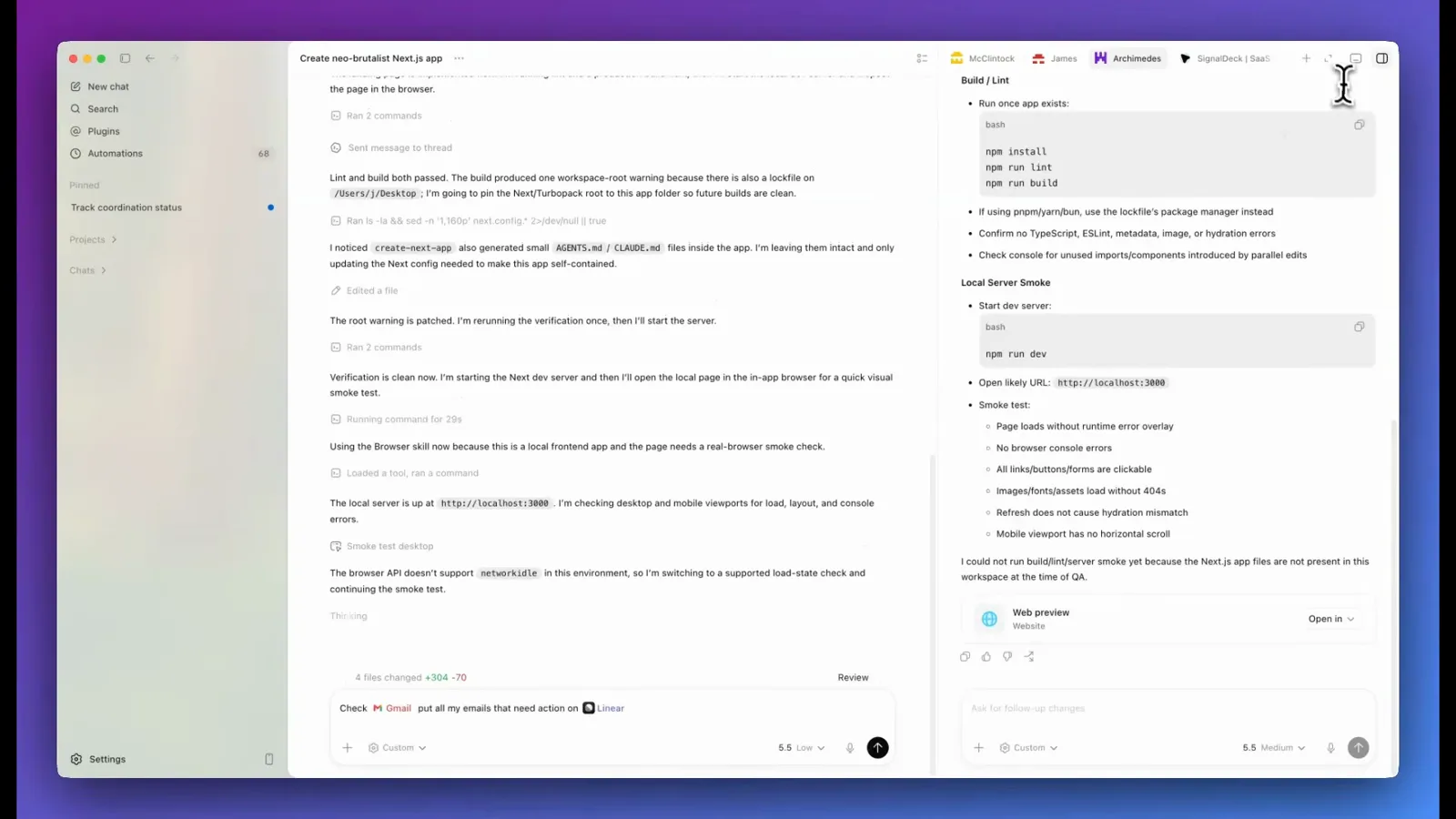
The thread reporting the local server up on localhost:3000, with the Web preview card beside it.Watch at 4:40