
Claude Code Worktrees: Run Parallel Sessions Without Conflicts
One command gives every Claude Code session its own full copy of your repo. Learn claude --worktree, the .claude/worktrees layout, subagent worktree isolation, exit cleanup, and where manual git worktree add still wins.
TL;DR
- claude --worktree (short form -w) starts your session inside a fresh copy of the repo at .claude/worktrees/<name>, checked out on a branch called worktree-<name>.
- Launch more sessions in other terminals to work in parallel — every session edits its own directory while sharing the same Git history and remote.
- Subagents get worktrees too: ask in natural language, or set isolation: worktree in a .claude/agents/*.md frontmatter to make it permanent.
- On exit, clean unnamed worktrees are removed automatically and work in progress prompts to keep or remove; merge results with a normal git merge of worktree-<name>.
Claude Code Worktrees in 7 Minutes
Channel: Developers Digest7:10
I'm using claude --worktree for everything now
Channel: Matt Pocock7:57
Worktrees — official documentation
Official docs: code.claude.com/docs
Every flag, path and cleanup behavior on this page is verified against the official worktrees documentation; the videos above are the visual and fact sources, including the exit keep/remove prompt and the push-to-main gotcha.
Screenshots are attributed to their creators with deep links to the exact timestamps. No face-cam frames are used.
Use Claude Code worktrees, step by step
Part 1 — Your first isolated session
- 1
Prepare a Git repo with at least one commit
Worktrees branch off existing history, so the worktree feature needs a real Git repository. In a fresh folder run git init, create a file (the demo just runs touch index.html), and commit it. Skip this and Claude Code has nothing to branch from.
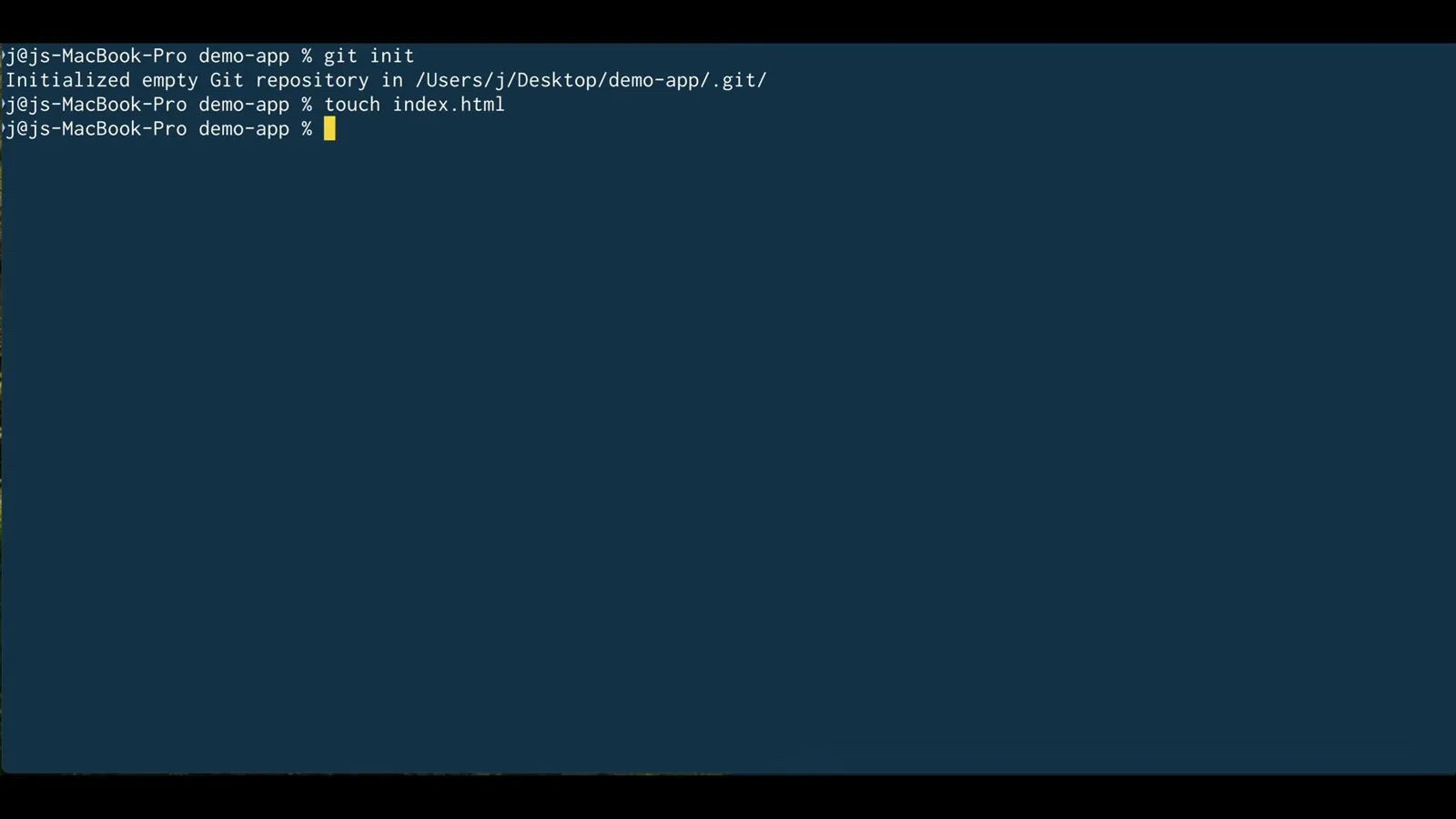
git init plus touch index.html — one commit is all the worktree feature needs before claude --worktree will run.Watch at 1:06 - 2
Know what a worktree actually is
A Git worktree is a second working directory with its own checked-out files and branch that shares the repository's history and remote. Unlike switching branches, nothing gets stashed: the main checkout and every worktree stay usable at the same time, which is exactly what parallel agents need.
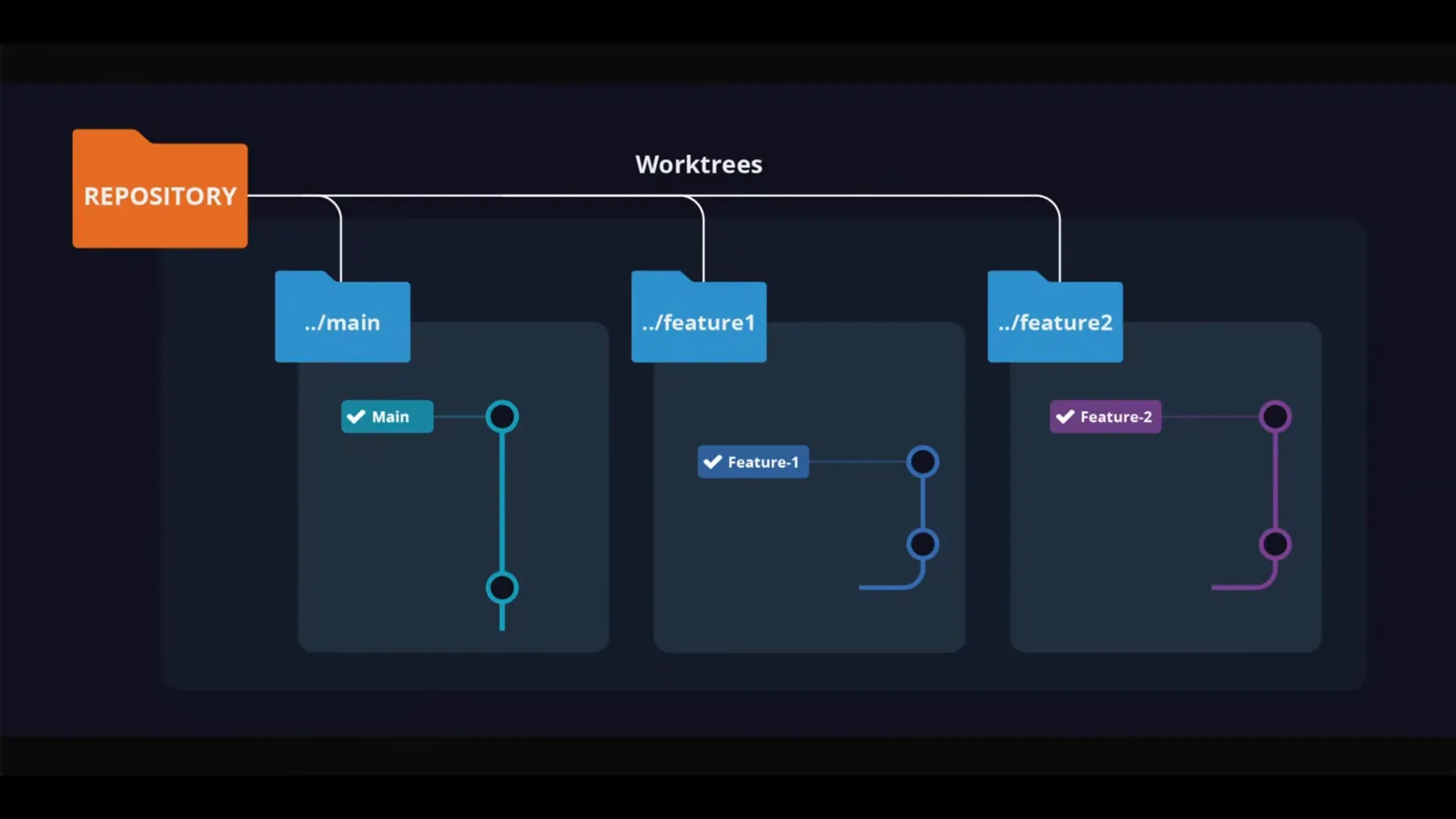
One repository, many working folders: ../main, ../feature1 and ../feature2 each sit on their own branch at the same time.Watch at 0:30 - 3
Launch Claude Code with --worktree
From inside the repo run claude --worktree (or the short form claude -w). Claude Code creates .claude/worktrees/<name>, generates a name like bright-tumbling-rabbit when you don't pass one, and drops the session straight into that copy. In the desktop app you pick the worktree option when starting a session instead.
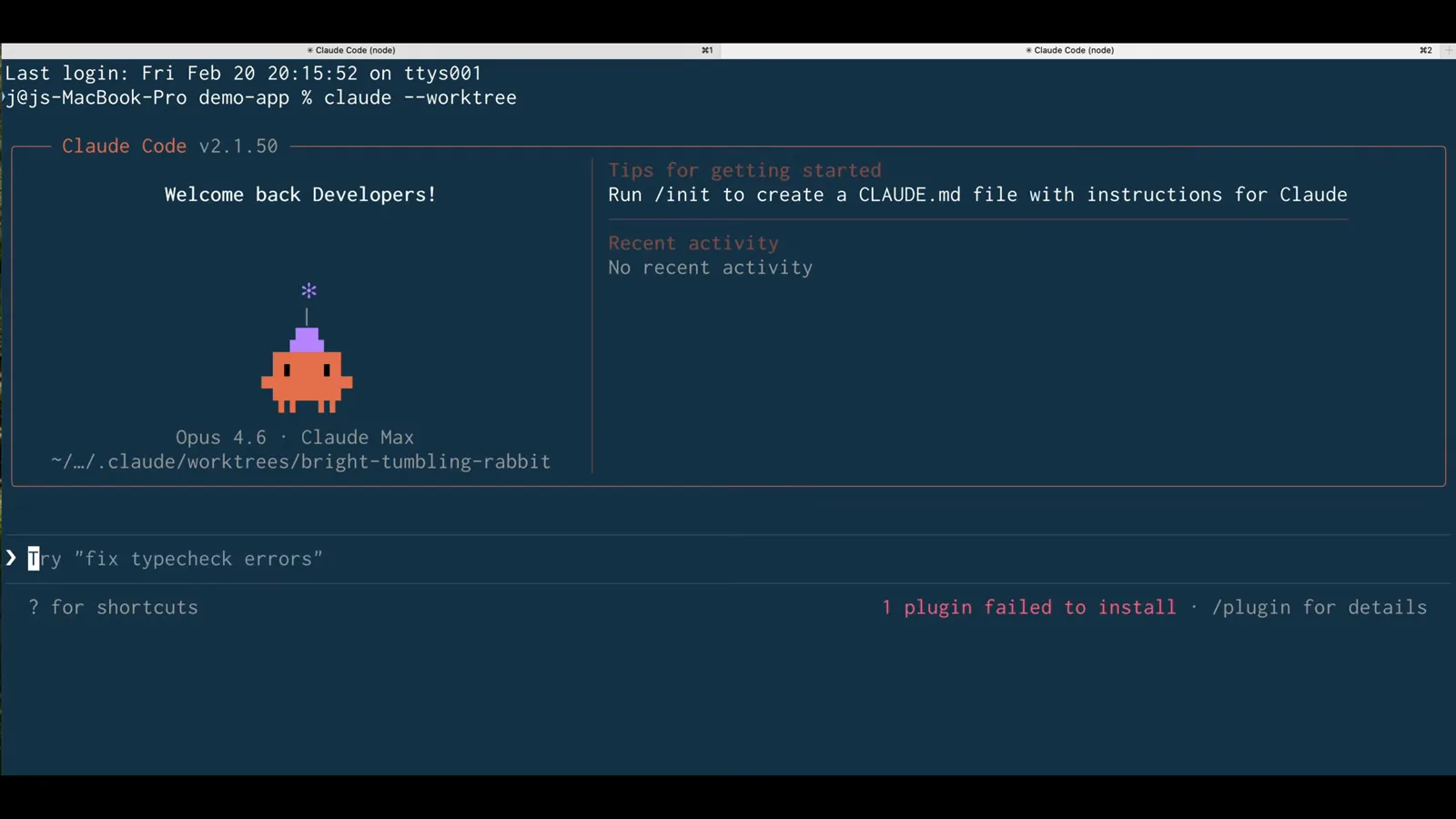
The welcome banner shows the session's working directory is already inside .claude/worktrees — everything from here happens in the copy.Watch at 1:22 - 4
Open a second session for your second task
Run claude --worktree again in another terminal. With no name you get another independent worktree; pass the same name twice to reopen the same one. Two agents can now edit the same project simultaneously because each one only sees its own directory.
Part 2 — Where your files and commands live
- 5
Inspect the full copy under .claude/worktrees
Open the folder in your file manager: each worktree is a complete checkout with its own index.html, its own .claude/settings.local.json and its own git file, while the heavy object database stays shared in the main .git. That's why spinning up another copy is nearly free.
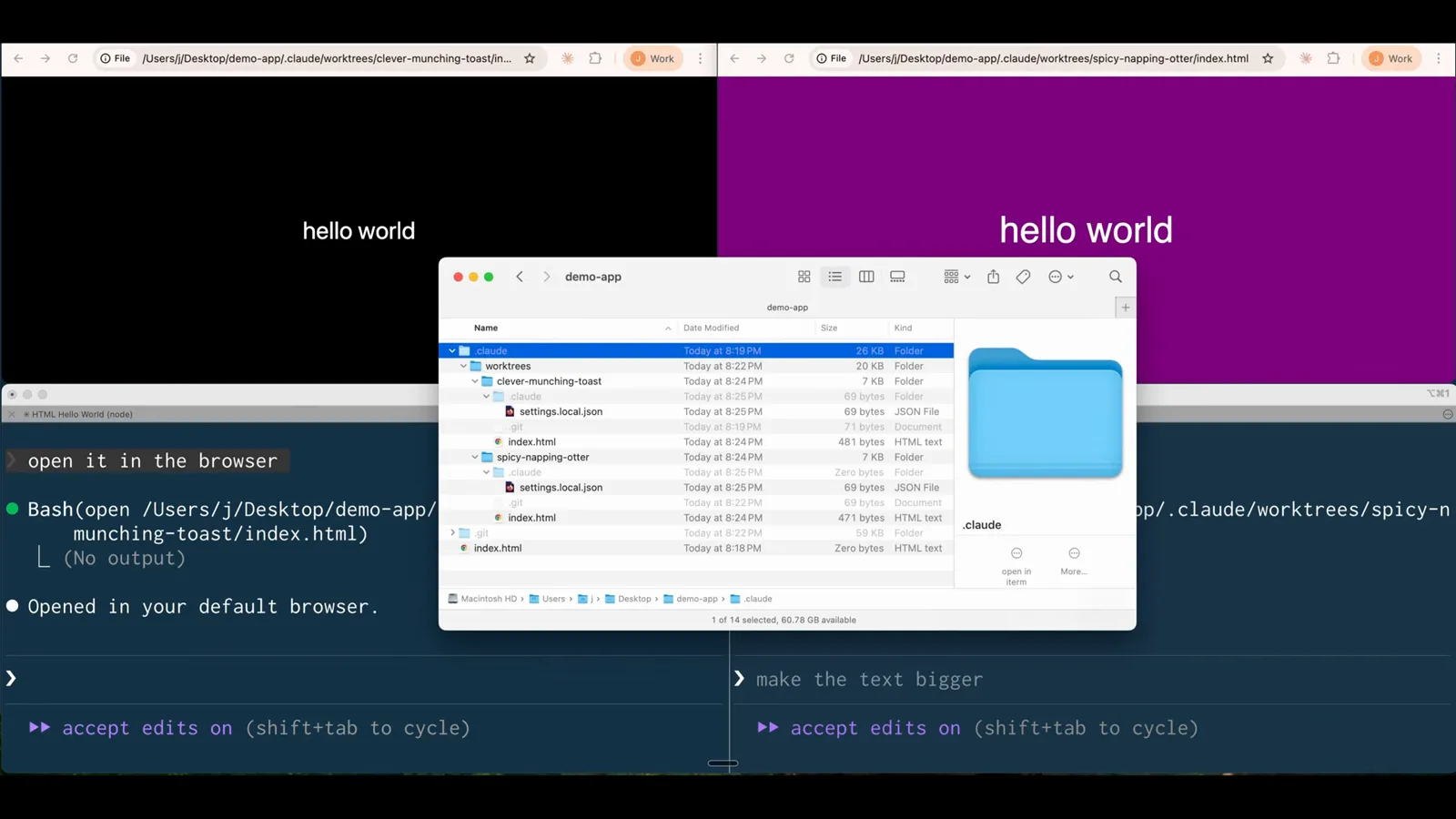
Two worktrees on disk — clever-munching-toast and spicy-napping-otter — each a full project copy with its own git folder and index.html.Watch at 1:50 - 6
Confirm commands stay inside the worktree
When the first session opens its page in a browser, the permission prompt shows the path points into .claude/worktrees/clever-munching-toast — not your main checkout. Claude Code also blocks subagents from editing the main checkout directly, and one of those isolation checks can't be turned off.
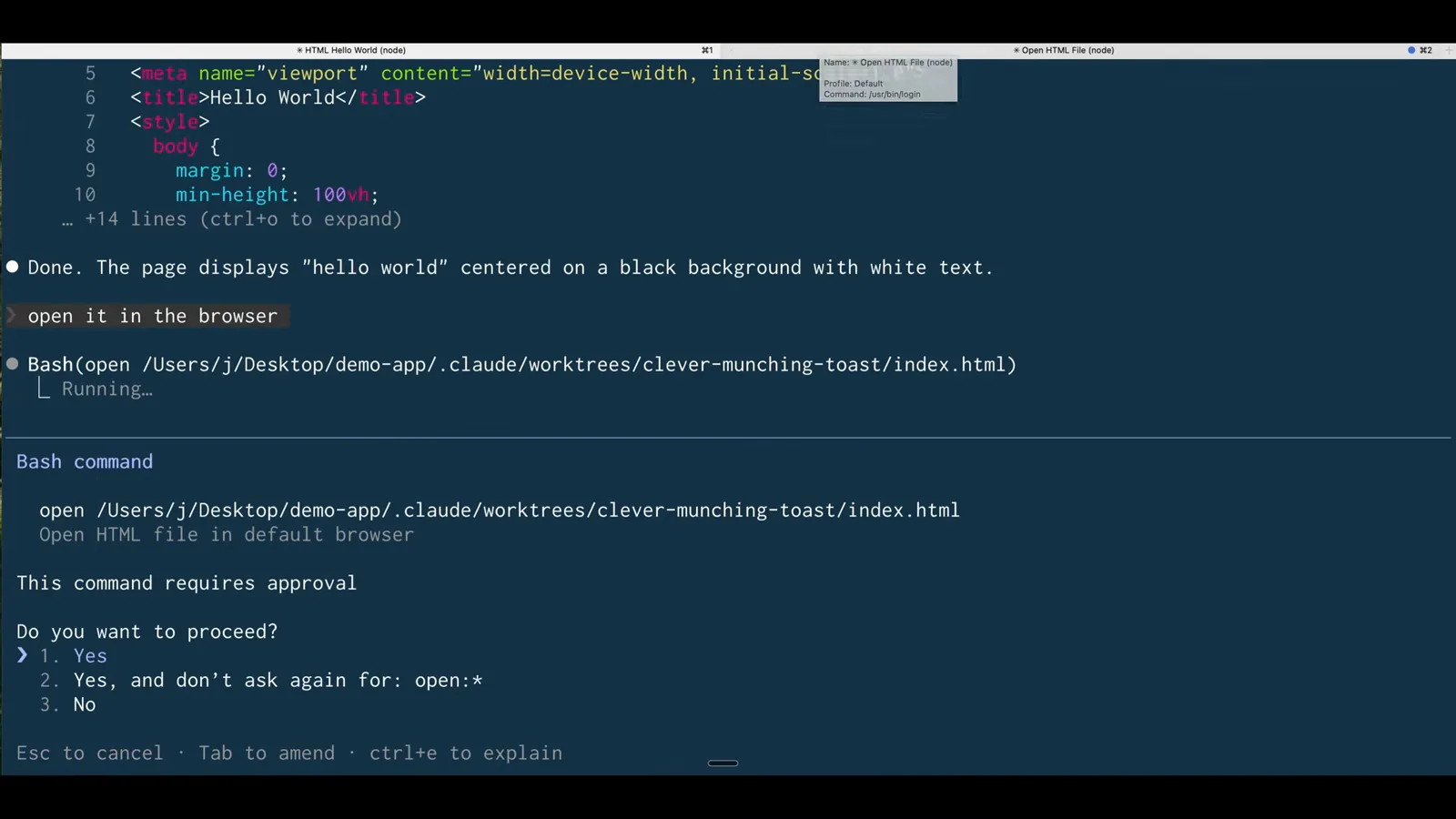
The approval dialog names the exact worktree path, proving session one only ever touches its own copy of the project.Watch at 1:42 - 7
Name worktrees or branch from PRs (optional)
claude --worktree feature-auth creates a predictable named worktree, and running the same name again reopens it instead of creating a duplicate. You can also pass a quoted PR number (claude --worktree "#1234") or a GitHub/GitLab PR URL to get a worktree of that pull request under .claude/worktrees/pr-<number>.
Part 3 — Parallel subagents and cleanup
- 8
Ask for parallel subagents with worktree isolation
Isolation scales beyond terminals. One prompt — "spawn five different sub-agents to create five variations, and leverage git worktree isolation" — makes Claude Code spawn Task agents, each in its own isolated worktree, working on the same repo at the same time without collisions.
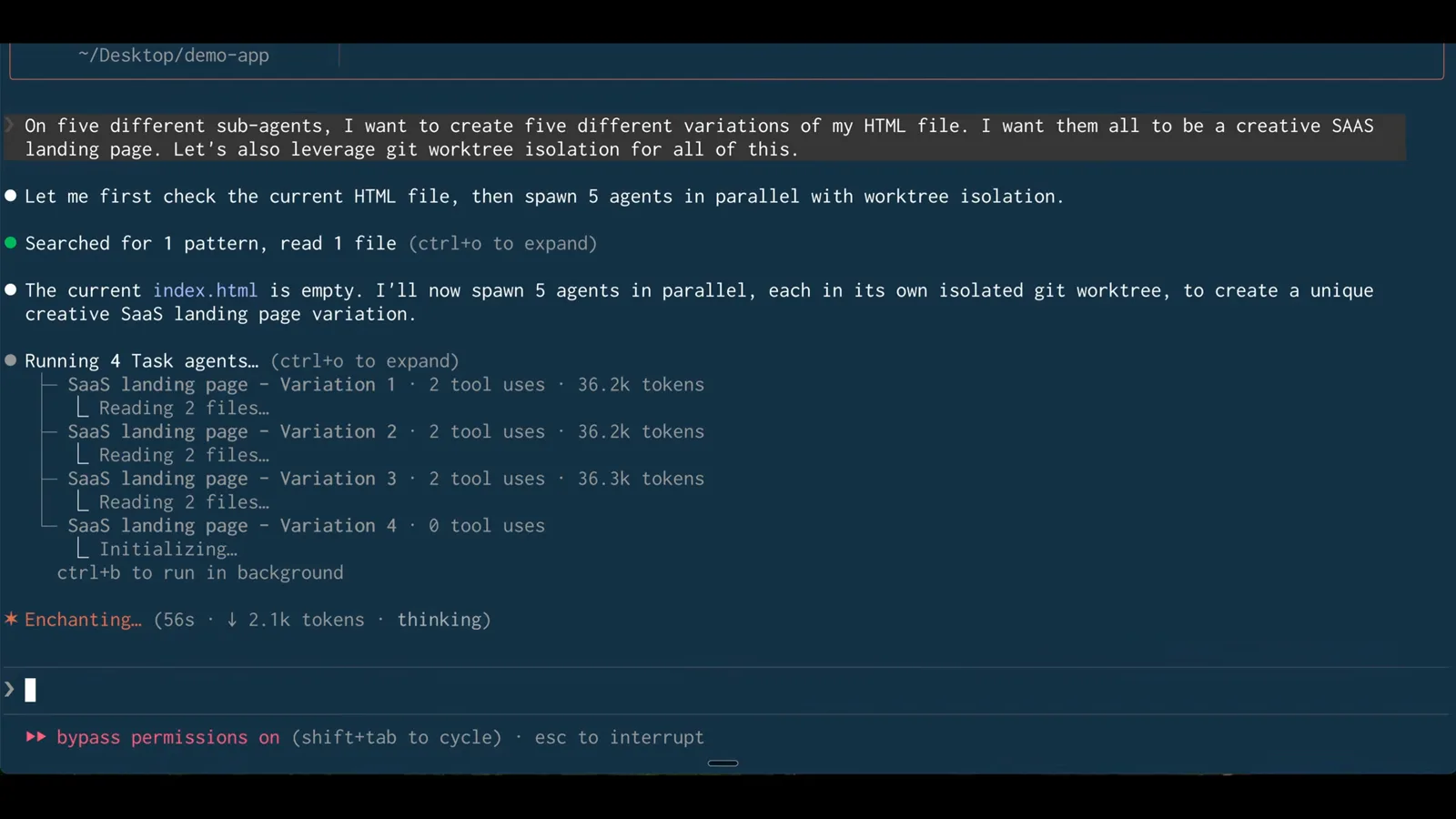
Five Task agents spawning in parallel, each announced as working in its own isolated git worktree.Watch at 2:42 - 9
Watch each agent run in its own lane
The task list shows all five variations with tool uses and token counts, so you can see progress without opening five terminals. Subagent transcripts stay off the main thread's context, which keeps the orchestrating session small while the agents do the heavy lifting.
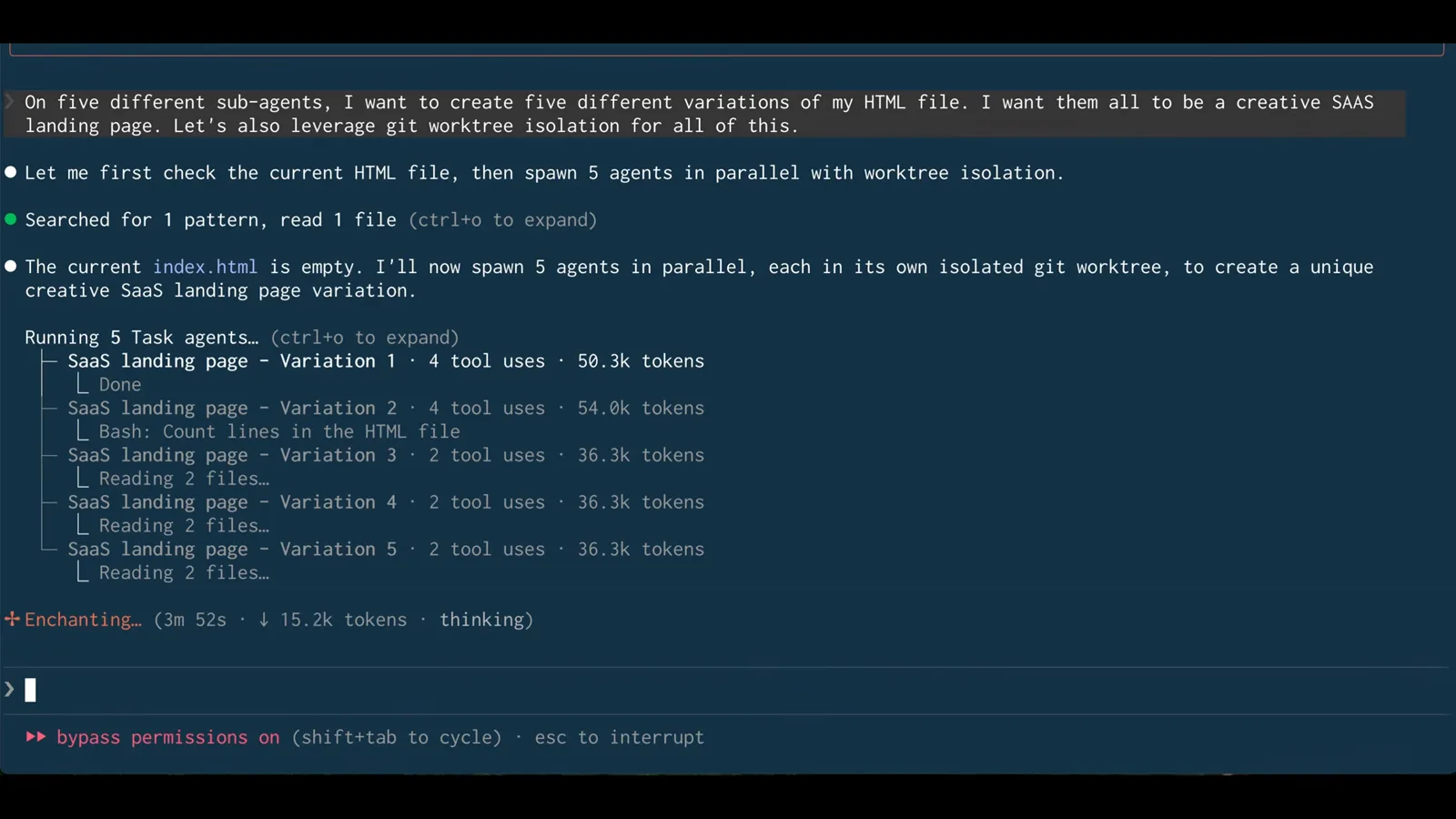
All five subagents mid-run — Variation 1 already done at 50.3k tokens while the others read files in their own worktrees.Watch at 3:42 - 10
Compare the variations, then merge the winner
When the agents finish, Claude Code lists every variation with its path under .claude/worktrees/agent-<id>/, so you can open them side by side in the browser. Ship the one you like with a normal git merge of its worktree branch (or a PR) — conflicts, if any, resolve like any other Git merge.
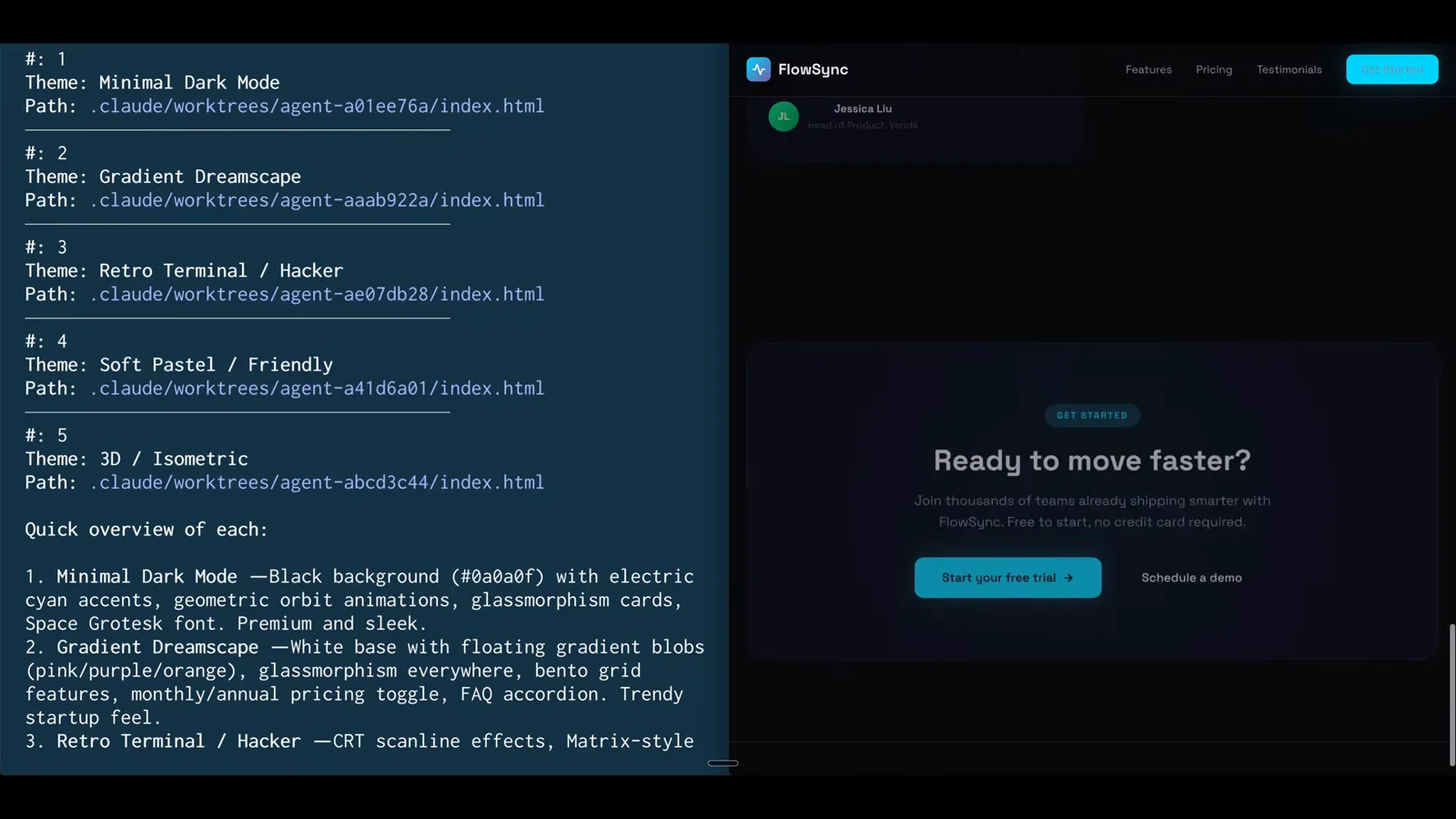
The summary names each variation and its .claude/worktrees path, with one rendered result open next to the list.Watch at 4:22 - 11
Save isolation as a reusable subagent
To make worktree isolation permanent, just ask: "create a front-end developer subagent, use the Haiku model, and have it leverage worktree isolation." Claude Code researches its own agent documentation and writes a new file under .claude/agents/ for you.
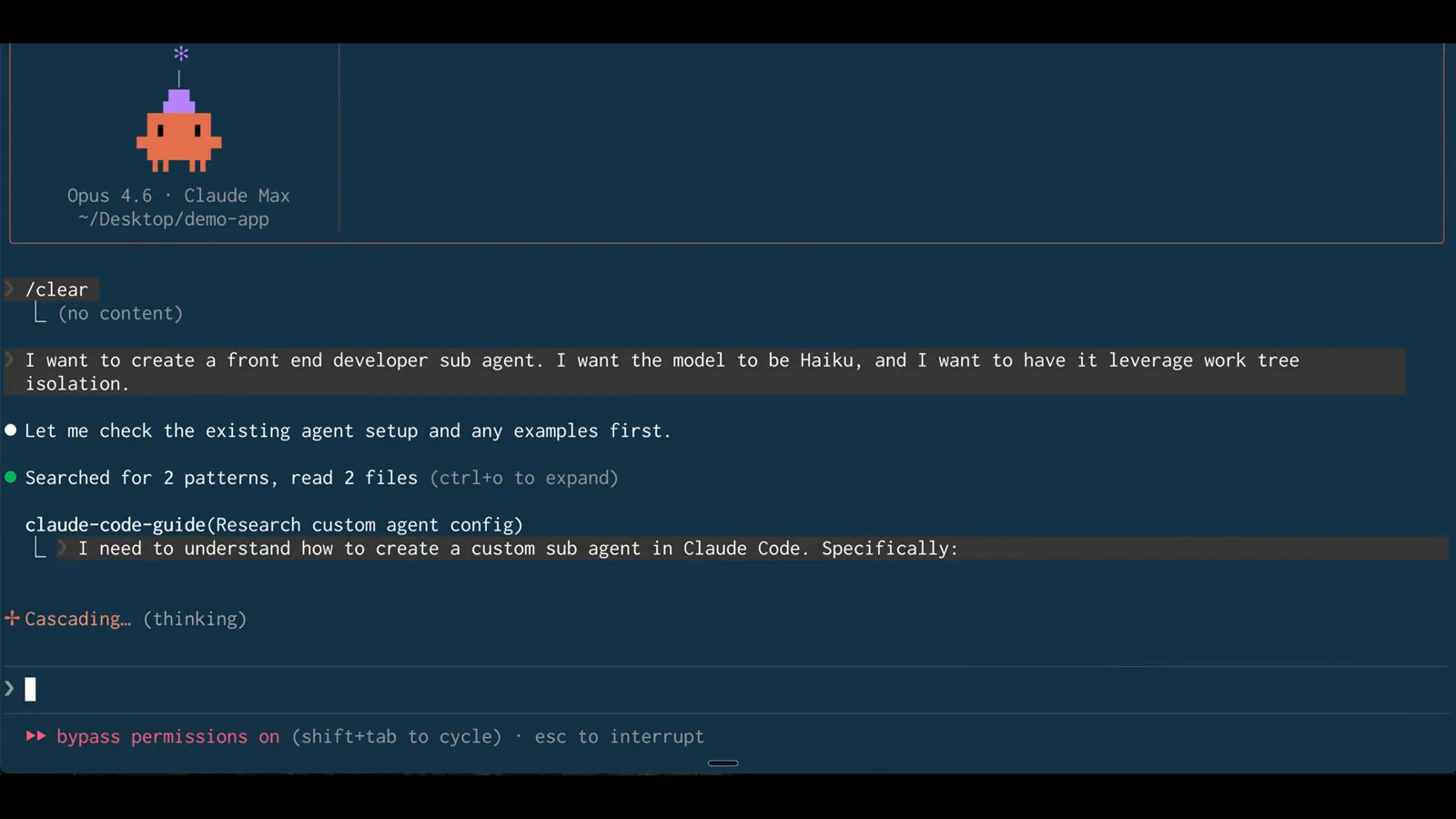
Natural language is enough — Claude Code checks its own docs for the custom agent format before writing the file.Watch at 5:42 - 12
Check the isolation: worktree frontmatter
The generated frontend-dev.md carries name, description, model: haiku, a tools whitelist and — the new line — isolation: worktree. Every future run of this subagent now happens in a temporary worktree that is removed automatically if it finishes without changes.
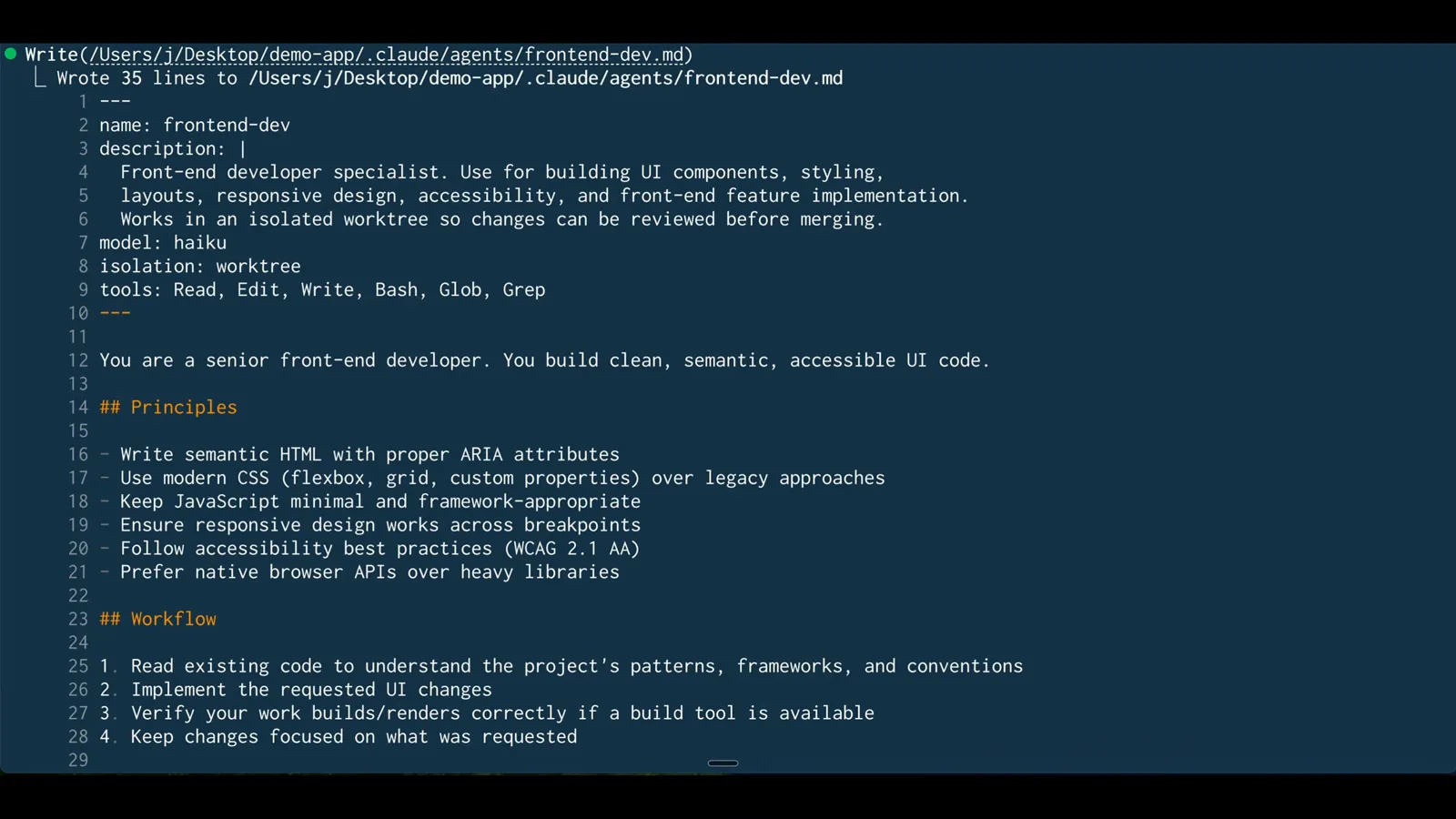
Line 8 of the frontmatter — isolation: worktree — is what gives every run of this subagent its own worktree.Watch at 6:42 - 13
Merge, then let Claude clean up
When you quit a session, Claude Code inspects the worktree: clean unnamed worktrees are removed automatically, and anything with work prompts you to keep or remove — keeping prints the claude --worktree <name> --resume command for later. Headless -p runs never clean up, so remove those with git worktree remove.
Claude Code worktrees vs. manual git worktree add
Worktrees have been part of Git for years — what's new is that Claude Code manages their whole lifecycle. The differences that matter:
- 1Creation: by hand you run git worktree add ../project-feature -b feature, cd into it, then start Claude. With claude --worktree the session lands inside .claude/worktrees/<name> in one step, named for you or by you.
- 2Base commit: worktree.baseRef controls the starting point — fresh (default) branches from the remote default branch, head carries your unpushed local commits. The flag can't target a specific branch; the docs say to use manual git worktree add for that.
- 3Dotfiles: a .worktreeinclude file at the project root copies gitignored files such as .env into each new worktree. Hand-made worktrees don't get this treatment.
- 4Cleanup: Claude Code inspects a worktree on exit, auto-removes clean unnamed ones, prompts before touching work in progress, and sweeps abandoned subagent worktrees periodically. Manual worktrees are entirely your responsibility.
- 5Guardrails: isolation checks stop subagents from editing the main checkout, and resuming a session drops you back into its worktree. Plain git worktree add has no equivalent safety net.
Underneath, it's still ordinary Git. VS Code's Source Control panel lists each worktree with its changes, merges are regular git merges, and hand-made and Claude-made worktrees coexist in the same repository — pick the tool per task.
When a worktree doesn't behave
Most gotchas are Git fundamentals showing through, not bugs in the feature. These five cover almost every rough edge you'll hit:
- 1The push lands on main. A fresh worktree branch tracks the origin default branch, so an unqualified git push can target main. Push explicitly with git push origin worktree-<name> and keep main protected.
- 2Files or tools are missing. Gitignored files (.env, vendor directories) and repo-local filter drivers such as LFS don't propagate into a new worktree. List them in .worktreeinclude, or run git lfs pull and your setup commands inside the worktree.
- 3Launch fails with a trust error. In an untrusted directory claude --worktree exits with an error prompting you to accept the workspace first — approve it and rerun. (Non-interactive -p runs skip the check.)
- 4Two worktrees collide at merge time. If both tasks edit the same file — routes, a sidebar, package.json — you'll resolve conflicts when merging, like any Git workflow. Worktrees remove mid-run collisions, not overlapping intent.
- 5Leftover worktrees after headless runs. -p runs never clean up after themselves; delete them manually with git worktree remove (run git worktree unlock first if one is locked).
Deleting a worktree out from under a session isn't fatal either: the next resume falls back to the launch directory and the binding clears. Nothing else in the session breaks.