
Claude Code Statusline: Set Yours Up With /statusline (2026)
Turn the bottom of your terminal into a live dashboard — model, context window bar, git branch, folder and cost. Twelve illustrated steps from the built-in /statusline command to a polished, colored bar, plus the fixes for when it won't show.
TL;DR
- /statusline is built into Claude Code. Run it, describe the bar you want in one sentence, and a statusline-setup agent writes the script and wires the statusLine block in ~/.claude/settings.json for you.
- On Windows the agent offers three routes: convert your PowerShell profile, point at a WSL or Git Bash config, or set up a fresh default showing user, directory, model and context usage.
- The script reads one JSON document on stdin — model.display_name, workspace.current_dir, context_window.used_percentage, cost.total_cost_usd and more — and whatever it echoes becomes your bar. ANSI colors and multiple rows are fair game.
- It all runs locally and costs no tokens. Updates fire on session events (or every N seconds with refreshInterval), and /statusline clear removes the whole thing when you want a clean slate.
How to Set Up a Custom Status Line in Claude Code CLI to Track API Costs and Context Usage (2026)
Channel:ProgrammingKnowledge23:32
Claude Code最該裝的不是Skill,是這個腳本|彩色進度條、費用、git 分支一眼看完
Channel:YAHA學堂8:44
Your Claude Code Terminal Should Look Like This (Status Line Setup)
Channel:Leon van Zyl9:02
How to Add a Custom Status Line in Claude Code on Windows 11 (Project-Level Setup)
Channel:Devtamin7:27
Status line — Claude Code documentation
Docs:code.claude.com
Steps 1–4 were recorded on Windows PowerShell and steps 5–12 on macOS; stills come only from clean screen recordings — frames carrying creator face-cams or burned-in overlays were excluded.
Setup tips — stating your operating system, keeping the script global and in its own file, the jq requirement and the debug-file trick — come from the two additional videos credited above. Field names and refresh behavior in the deep-dive sections follow the official status line documentation.
The /statusline walkthrough — 12 illustrated steps
Run /statusline and let Claude wire it up
- 1
Start Claude Code in your terminal
Launch claude in PowerShell, Terminal or any shell. A fresh session shows only the welcome box and an empty prompt — the strip under the input, where your statusline will live, doesn't exist until a statusLine block is added to ~/.claude/settings.json.
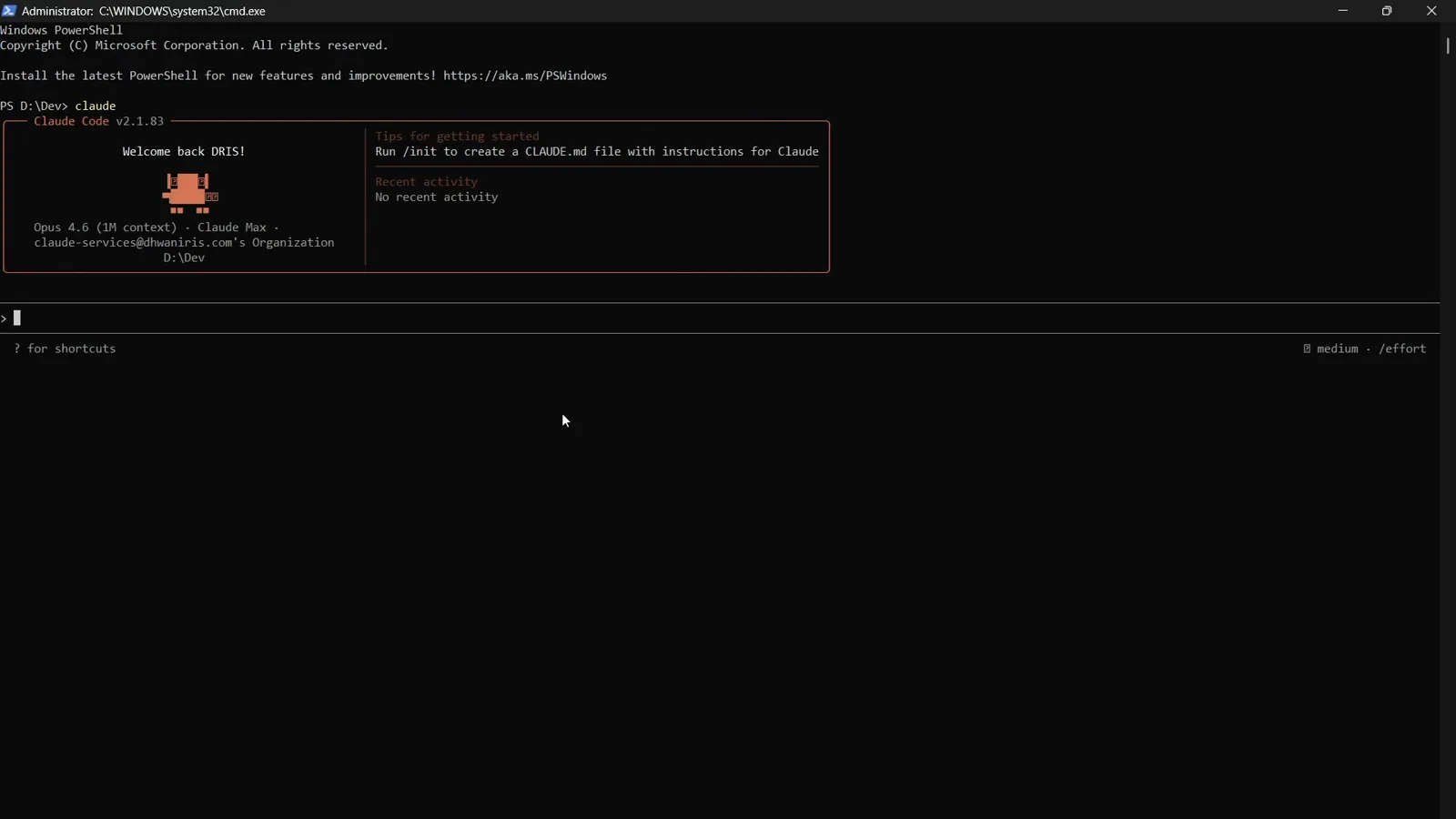
A fresh Claude Code v2.1.83 session in Windows PowerShell — welcome box, empty prompt, no status line yet.Watch at 0:22 - 2
Type the /statusline command
The slash-command menu describes it plainly: set up Claude Code's status line UI. Press Enter. This built-in command understands natural language, so you never have to hand-write a script — although you're free to edit whatever it generates afterwards.
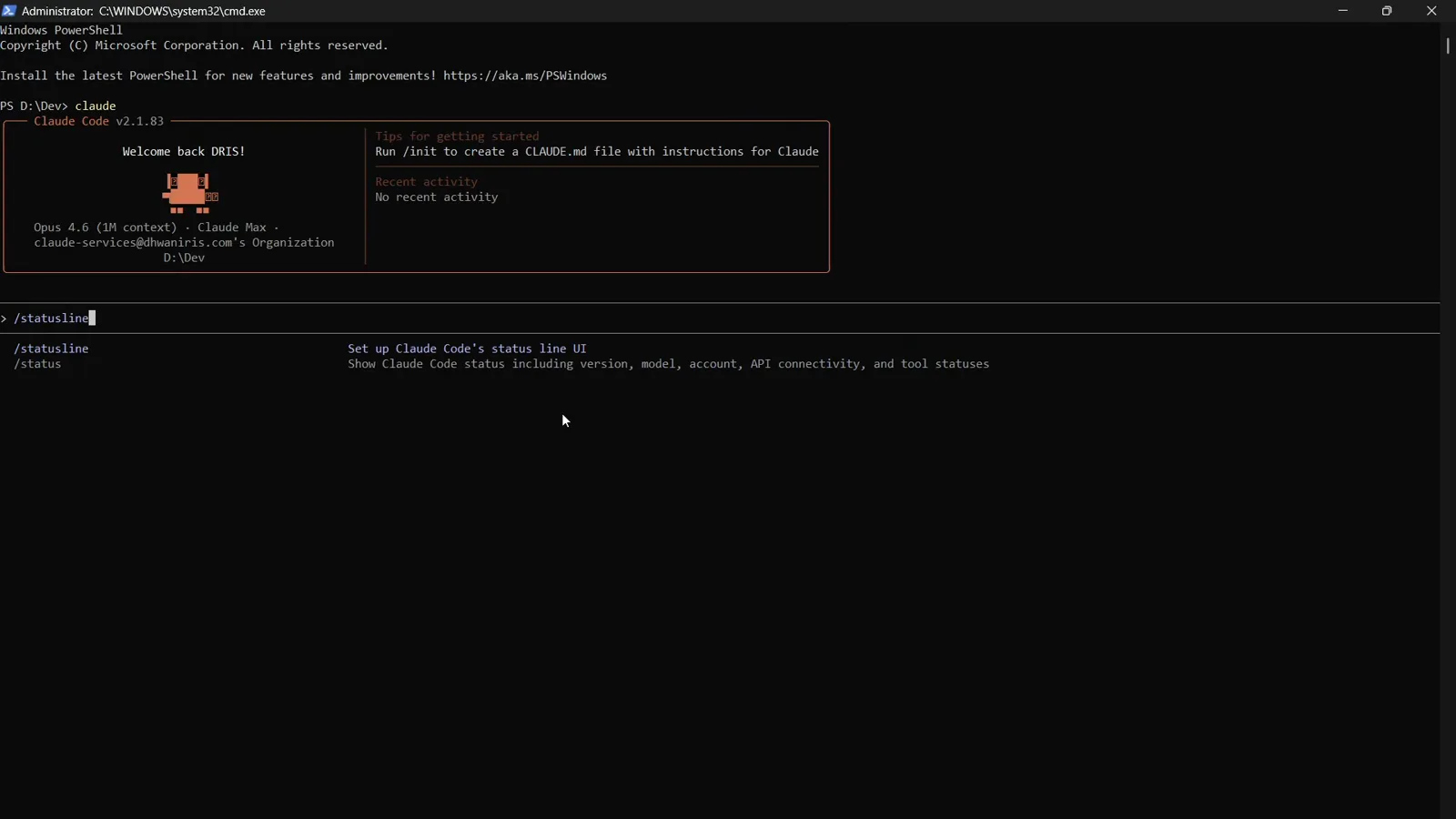
Autocomplete bills /statusline as the command that sets up Claude Code's status line UI.Watch at 0:32 - 3
Answer the setup agent's questions
A dedicated statusline-setup agent takes over. On Windows it reports that no standard shell config was found and offers three routes: paste your PS1 profile so it can be converted, point at a WSL or Git Bash config, or take a fresh default showing user, directory, model and context usage. All three end in the same settings.json block.
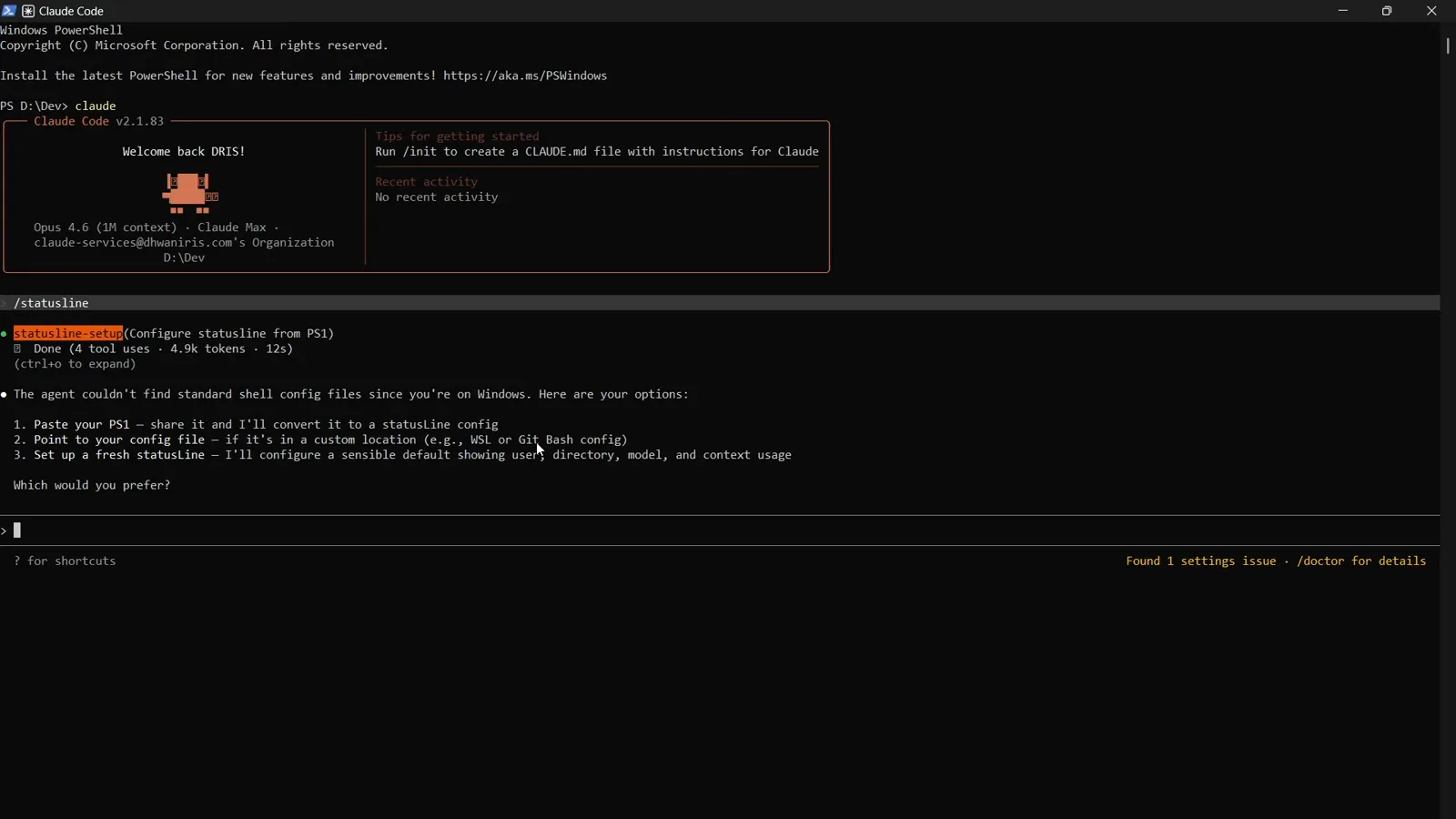
The agent's three Windows options: convert a PS1, point at a custom config, or start from a sensible default.Watch at 1:20 - 4
Check the config and script it wrote
When the agent finishes it prints a preview of the bar — username, directory, git branch, model, context percentage — and says exactly where everything landed: the config in ~/.claude/settings.json, the script at ~/.claude/statusline-command.sh. On macOS and Linux the same flow can convert your existing .zshrc or .bashrc prompt instead of starting fresh.
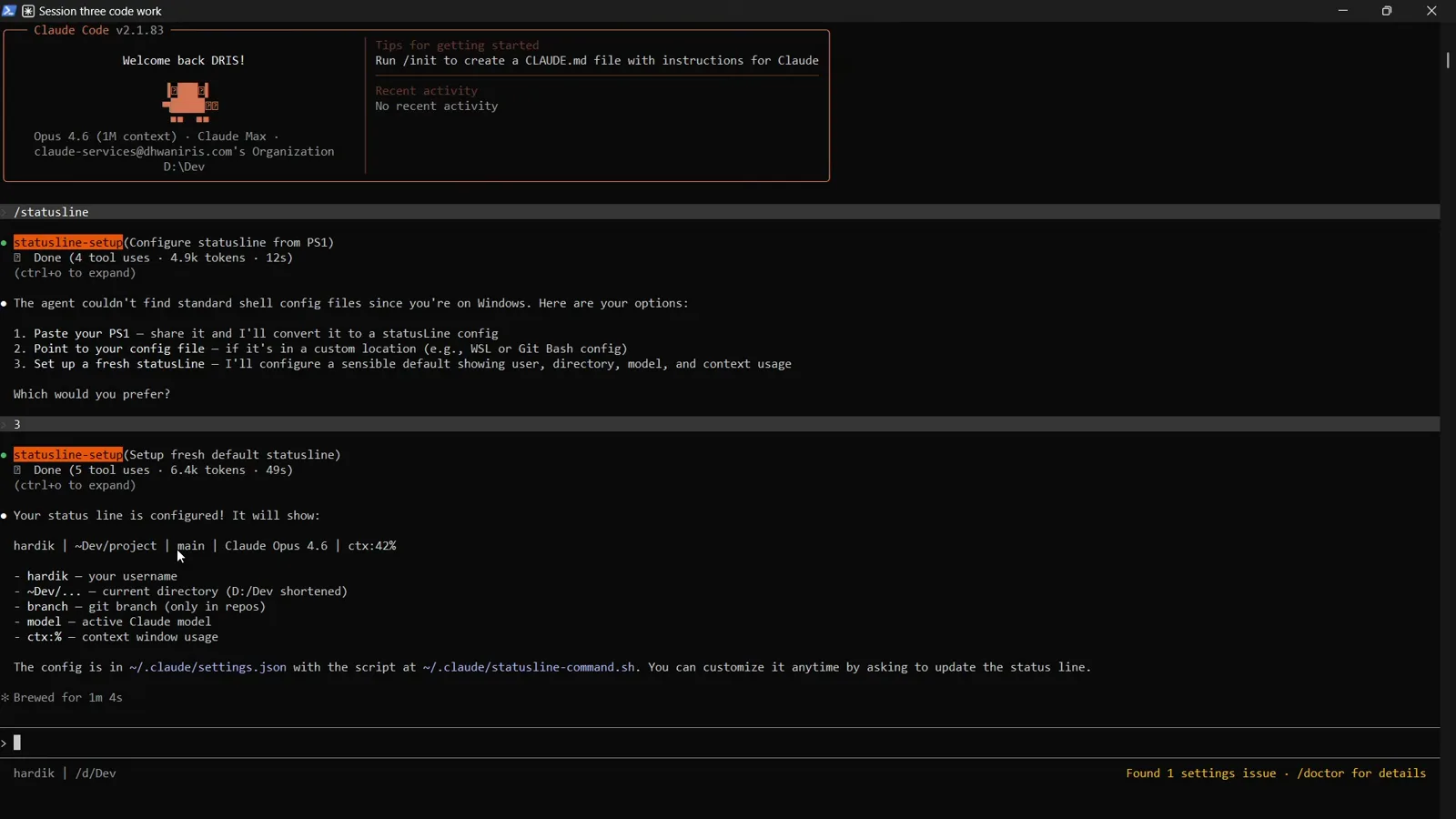
Setup confirmed with a preview of hardik | ~/Dev/project | main | Claude Opus 4.6 | ctx:42% and both file paths.Watch at 3:06
Describe the bar you want in plain English
- 5
Ask for the exact bar you want
Re-run /statusline whenever you like and describe the bar in one sentence: show model name and context percentage with a progress bar. Requests in other languages work too — the command is simply a prompt to the agent. Each new request rewrites the same script rather than stacking duplicates.
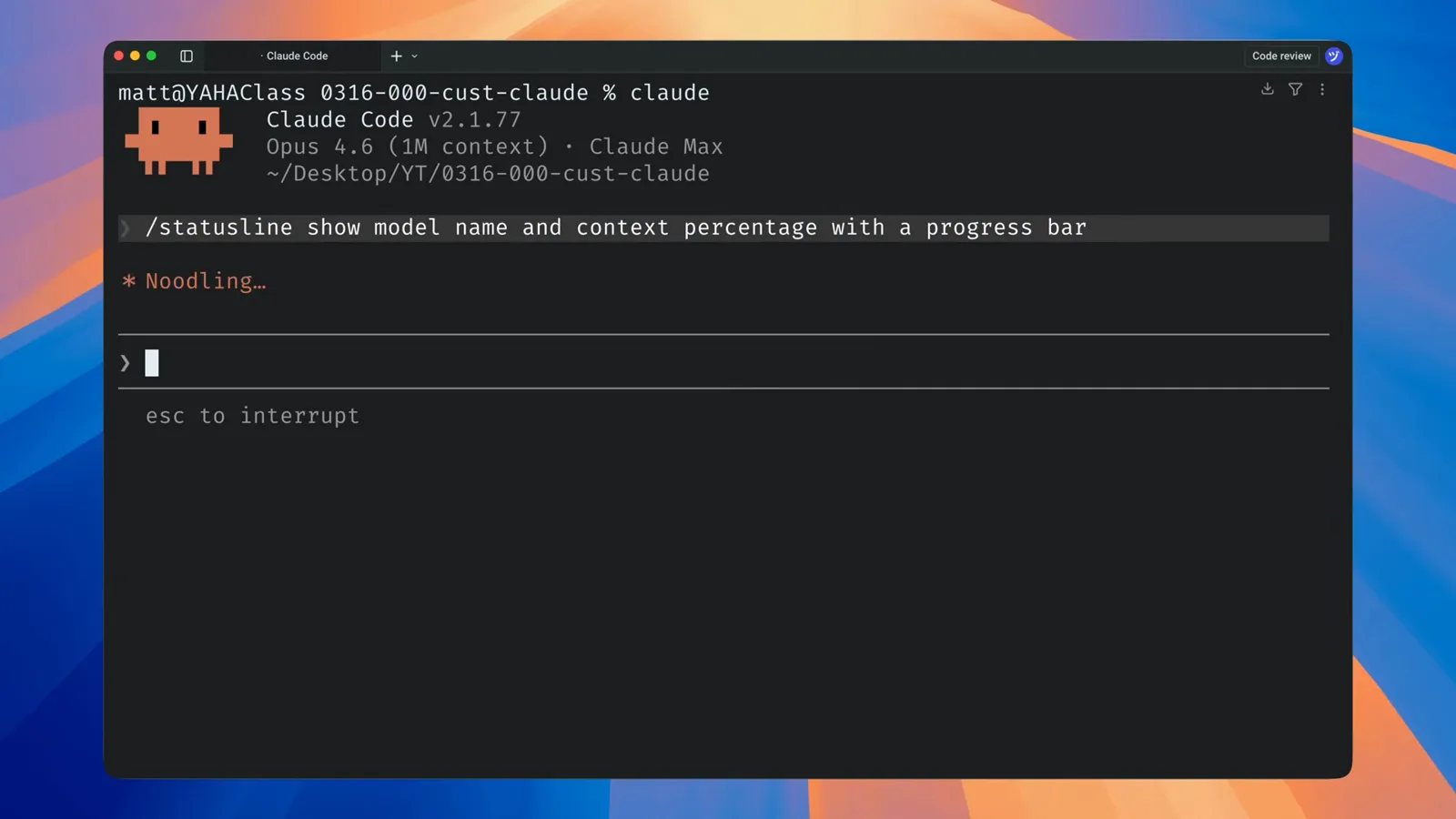
One plain-language request — model name plus a context percentage progress bar — is the whole interface.Watch at 1:07 - 6
Watch the statusline-setup tool at work
Claude Code dispatches a built-in statusline-setup tool that reads your current ~/.claude/settings.json and statusline script, then rewrites them. Claude's own hover card sums up the feature: configure a custom status bar to monitor context window usage, costs, and git status.
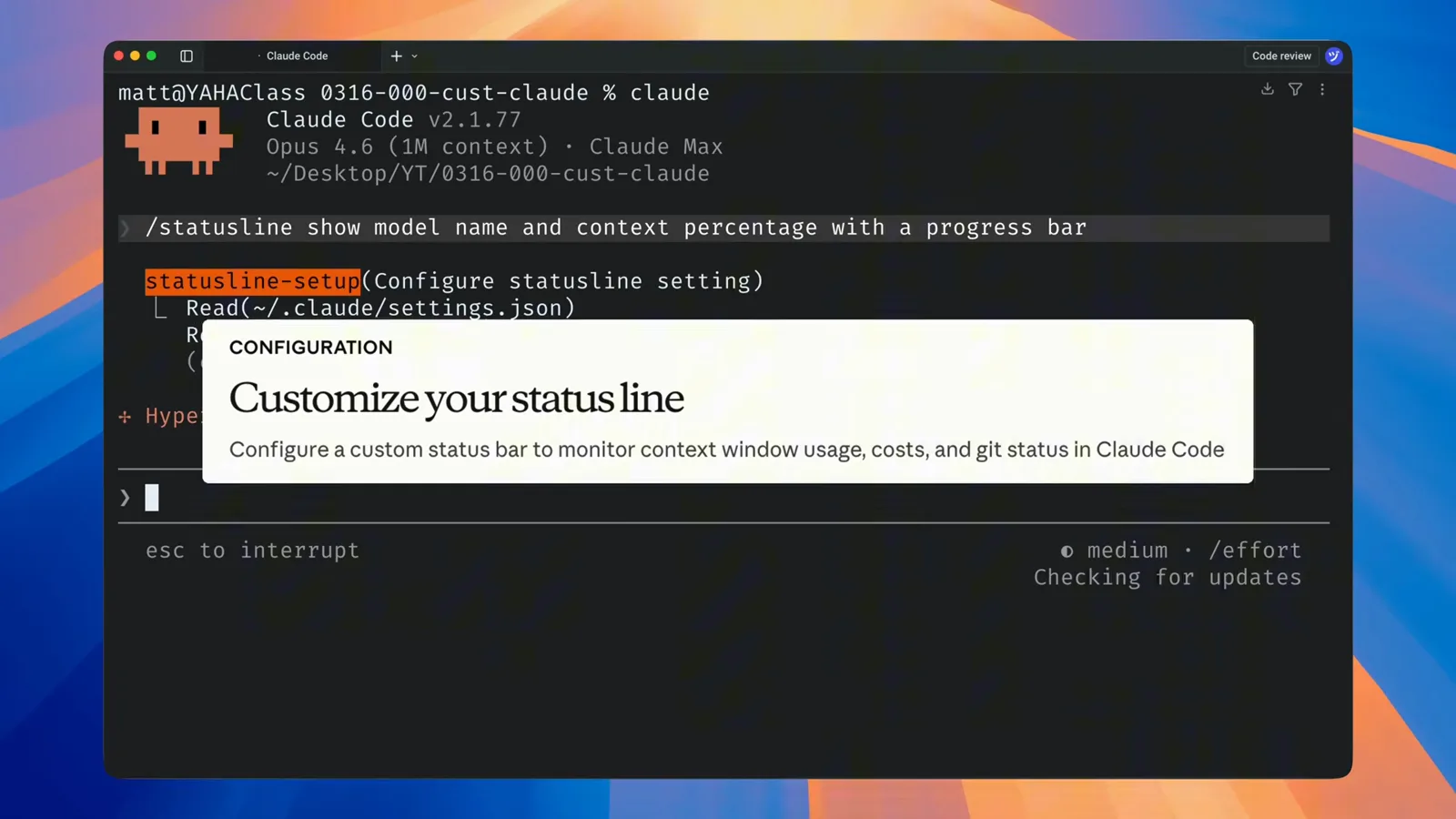
The statusline-setup tool mid-run, reading settings and script, with the feature description on hover.Watch at 1:12 - 7
Meet your new bar
When it finishes, the agent recaps the design — model name in bold cyan, a twenty-character context bar that stays green to 49%, turns yellow at 50% and red at 80% — and the bar is already live at the bottom of your terminal. No restart needed; ask for tweaks in the same session.
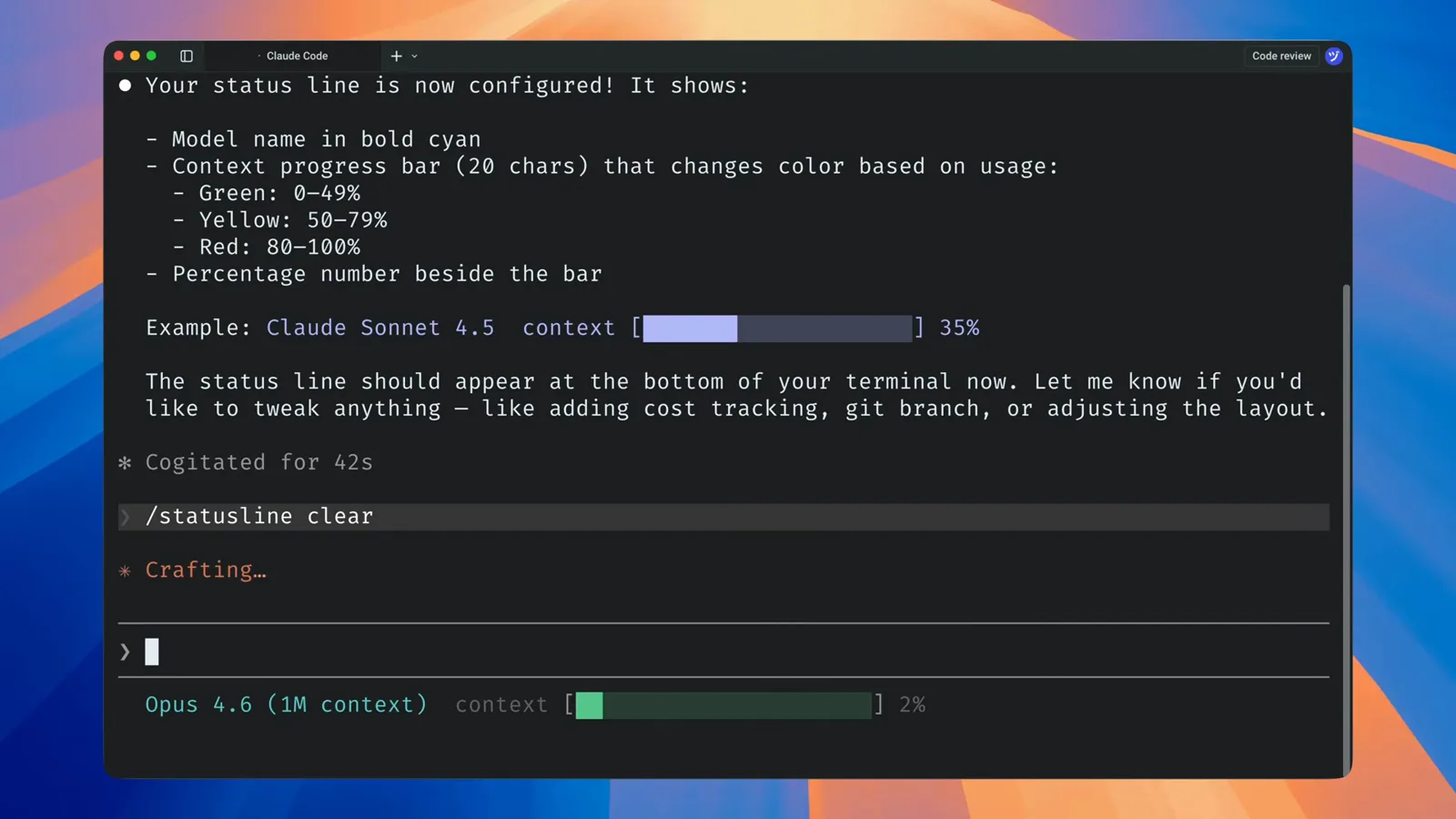
The agent's recap above the live Opus 4.6 (1M context) bar reading 2% context.Watch at 1:27
Read the script it generated
- 8
One JSON document arrives on stdin
Open the generated script — ~/.claude/statusline.sh on macOS and Linux, or the .ps1 / statusline-command.sh variant on Windows. On every update Claude Code pipes a JSON snapshot of the session into the script's standard input. The generated Bash parses it with jq: .model.display_name, .workspace.current_dir, .cost.total_cost_usd, .cost.total_duration_ms and .context_window.used_percentage.
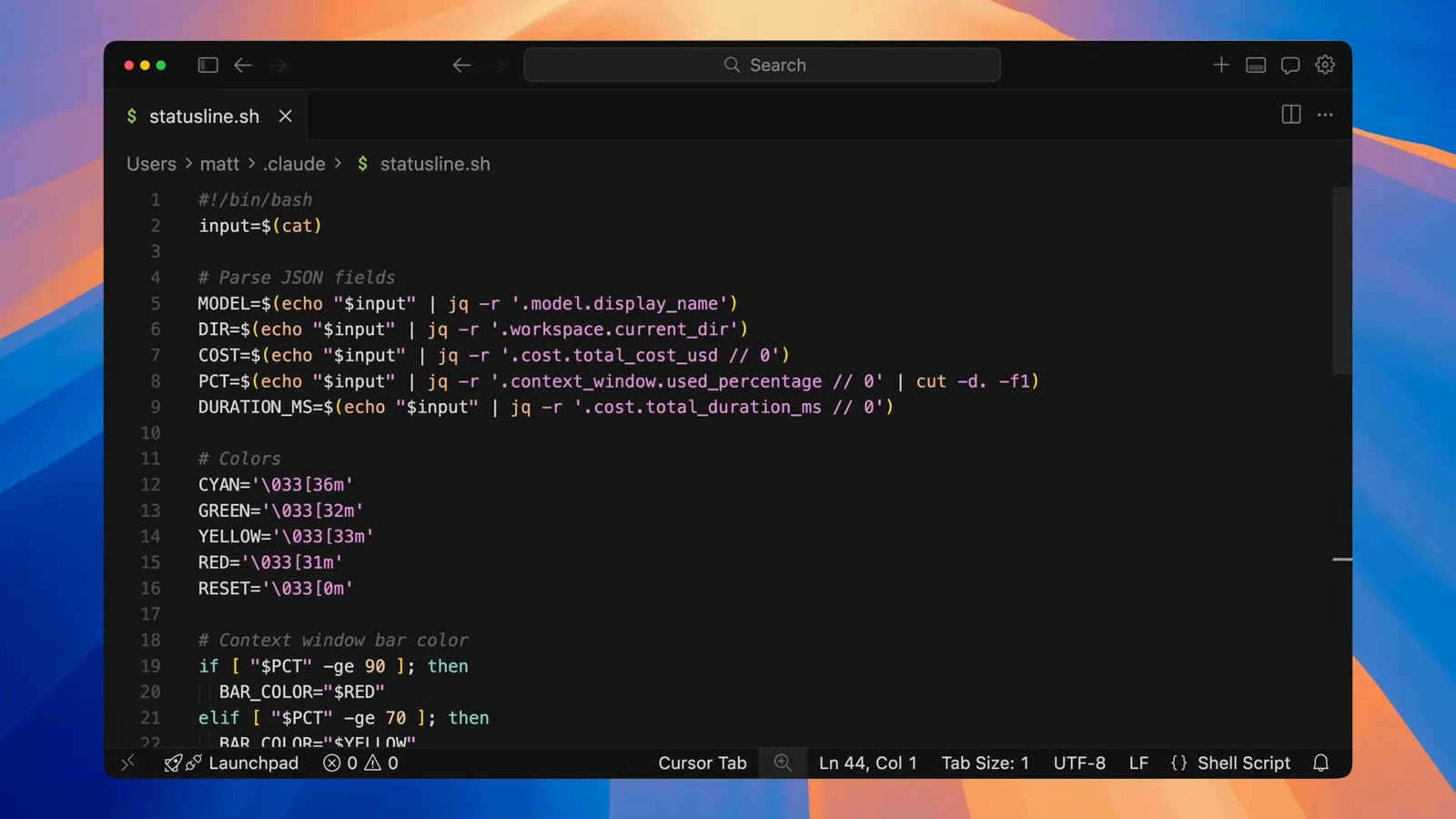
The parser: five jq reads off stdin, then a BAR_COLOR chosen at 90% and 70% context thresholds.Watch at 5:46 - 9
Whatever you echo becomes the bar
The tail of the script is pure presentation: cost formatted with printf, milliseconds turned into minutes and seconds, and one echo per statusline row — model with folder and git branch on the first, bar, percentage, cost and timer on the second. ANSI color escapes are welcome, and each extra echo simply adds a row.
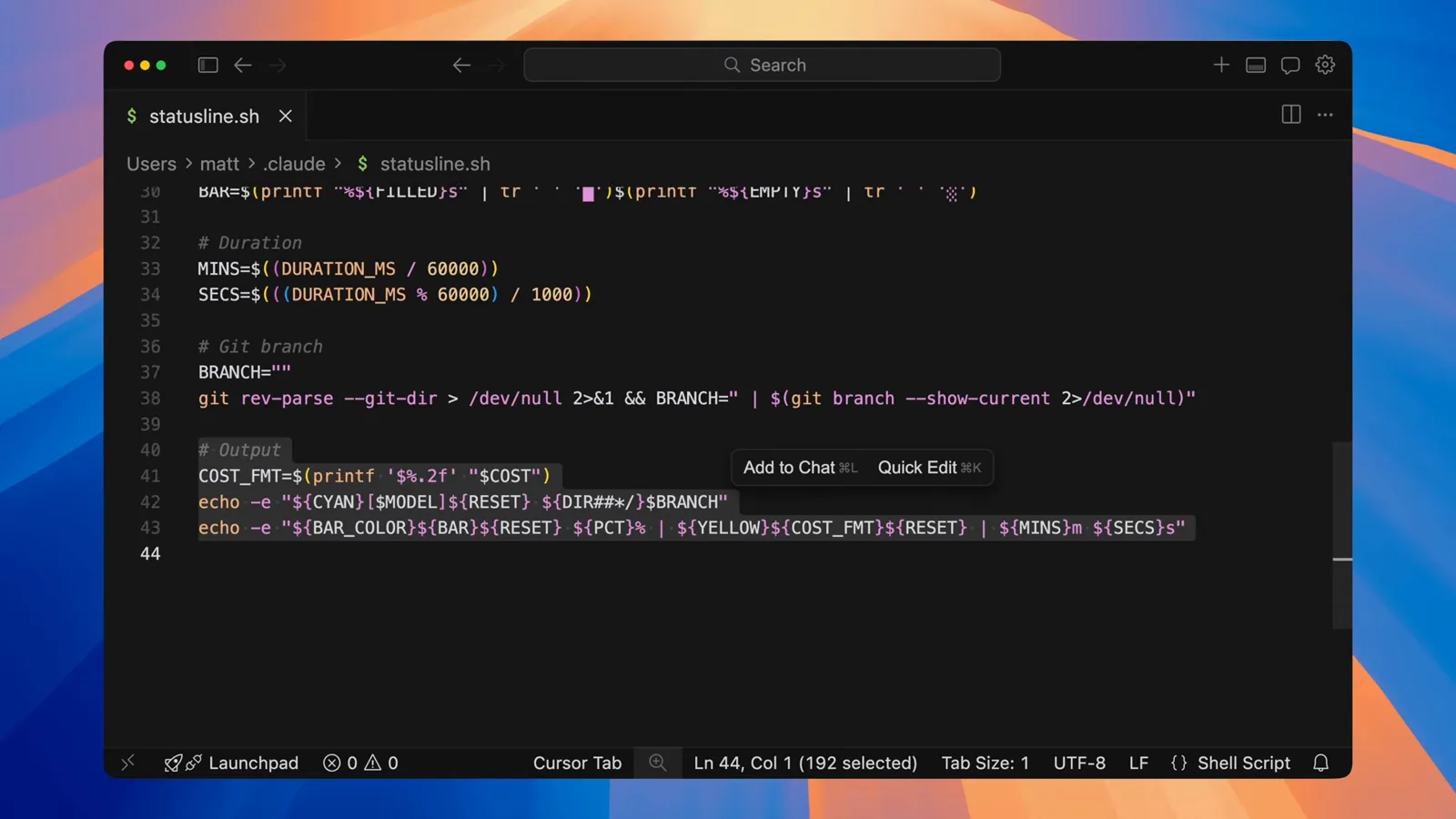
Two echo lines, two rows: model with directory and branch, then bar, percent, cost and timer.Watch at 6:13 - 10
Add git awareness the same way
Git data is one subprocess away: git rev-parse --git-dir detects a repository, git branch --show-current names the branch, and git diff --cached --numstat and --numstat count staged and modified files. The generated examples color staged counts green and modified counts yellow — a cheap safeguard if you keep several Claude Code sessions open across branches.
GIT_STATUS assembled from staged and modified counts, colored green and yellow with ANSI codes.Watch at 5:01
Own the block: clear, rewrite, go multi-line
- 11
Everything hangs off one settings.json block
Peek at ~/.claude/settings.json and the whole feature is one statusLine object: type "command" plus the command to run — bash ~/.claude/statusline-command.sh in this setup. Run /statusline clear and the agent removes the block; describe a new bar and it rewrites it. A project-level .claude/settings.json works too, should you want a per-repo bar.
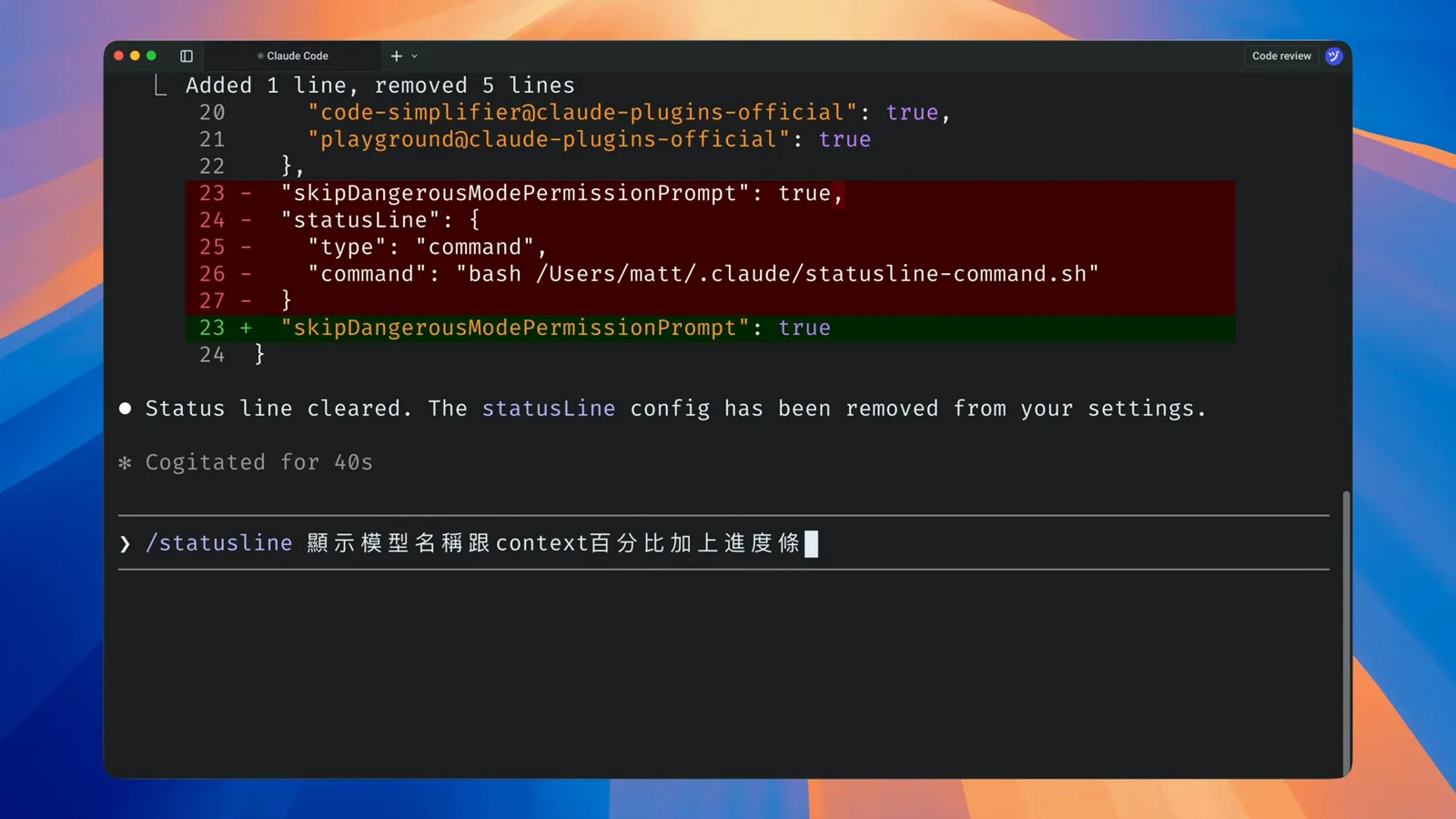
A /statusline clear diff: the statusLine block leaves settings.json, ready to be rewritten.Watch at 1:41 - 12
Go multi-line with cost, duration and repo links
Rows stack for free, so the official docs' multi-line example prints a clickable repo link using OSC 8 escape sequences, then a second row carrying the context bar, the session cost formatted with printf '$%.2f', and elapsed minutes and seconds. Thresholds, rate-limit percentages, vim mode — request any combination and iterate until the dashboard fits.
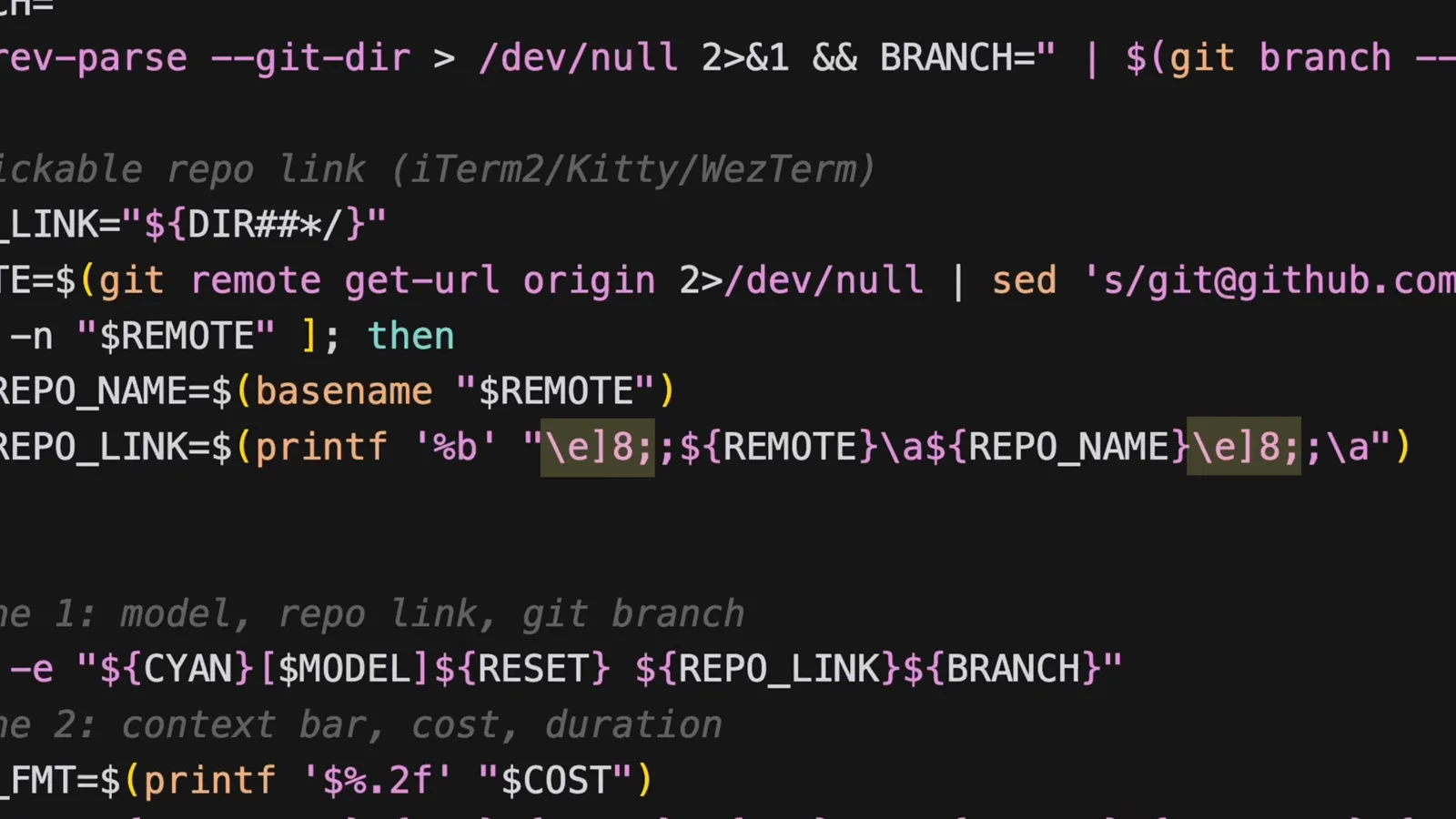
An annotated example: an OSC 8 repo link on line one; bar, cost and duration on line two.Watch at 7:31
The stdin JSON your statusline script receives
Claude Code calls your script with a JSON snapshot of the session on standard input. These are the fields worth knowing, per the official documentation — mention any of them in a /statusline sentence and the agent wires them for you:
- 1Session basics — session_id, transcript_path, cwd and version, plus session_name and prompt_id once you've sent a prompt.
- 2model.id and model.display_name — the active Claude model your bar usually leads with.
- 3workspace.current_dir, workspace.project_dir and workspace.added_dirs, plus workspace.git_worktree and repo.owner / repo.name when the folder belongs to a hosted repository.
- 4context_window.used_percentage and remaining_percentage — the used figure counts input, cache-creation and cache-read tokens but not output tokens.
- 5context_window.current_usage breaks that down into input_tokens, output_tokens, cache_creation_input_tokens and cache_read_input_tokens; it is null before the first API call and right after /compact.
- 6cost.total_cost_usd, cost.total_duration_ms, cost.total_api_duration_ms, cost.total_lines_added and cost.total_lines_removed for spend-and-pace style bars.
- 7rate_limits.five_hour and rate_limits.seven_day with used_percentage and resets_at on Pro/Max plans (a spend_limit pair appears for gateway setups) — each window may be independently absent, so guard for it.
- 8Extras — exceeds_200k_tokens, fast_mode, effort.level, thinking.enabled, output_style.name, vim.mode, agent.name, pr.number / pr.url / pr.review_state and the worktree.* family.
Field names follow the official status line documentation, which also ships ready-made scripts for Bash, Python and Node.js, a Windows PowerShell variant, and a cached-git recipe for slower machines.
Troubleshooting: statusline missing, wrong or stale
Most statusline failures come down to one of five causes. All of them are fixable from the same session — no reinstallation required.
- 1Nothing shows at all — check ~/.claude/settings.json for broken JSON first; one recorded Windows setup stayed silent until a stray character in the command path was fixed and the session restarted. The bar also hides while permission prompts are open, and a workspace must be trusted before scripts run.
- 2Blank bar with no error — your script exited non-zero or printed nothing. Run it by hand, e.g. echo '{"model":{"display_name":"Opus"}}' | bash ~/.claude/statusline.sh, and read the output; claude --debug also logs script stderr.
- 3Works in one project only — the block landed in a project-level .claude/settings.json instead of your home directory. Move it to ~/.claude/settings.json for a bar in every project.
- 4Numbers look wrong — the script is probably reading the wrong property. Ask Claude to dump the raw stdin JSON to a debug file, read that file and correct the field; the recorded macOS session fixed its own percentage exactly this way.
- 5Script exists but renders nothing on macOS or Linux — jq is missing. Install it (brew install jq, sudo apt install jq or the Windows equivalent), then ask Claude to update the status line so the script is regenerated against it.
How often the bar refreshes (and what it costs)
The script runs once at session start, then again whenever something happens: a new assistant message, a /compact finishing, a permission-mode or vim-mode change, an edit to the command itself, a rate-limit window resetting, or a warm prompt cache expiring. Updates are debounced at 300 milliseconds, and an in-flight run is cancelled when a newer one arrives.
Because updates are event-driven, the bar can go quiet while you idle — waiting on a long subagent run, say. Add refreshInterval to the statusLine block to re-run the script every N seconds for time-based data. None of this touches the API: the script runs locally and consumes no tokens, and each extra echo line renders as another row.
Two more dials exist for tinkerers: hideVimModeIndicator suppresses the built-in -- INSERT -- text if your script renders vim mode itself, and a separate subagentStatusLine setting gives subagents their own custom rows in the agent panel.