
Claude Skills Tutorial: Build, Run and Share Your First Skill
A screenshot-verified walkthrough built from a full video tutorial and Anthropic's official docs: create a skill on claude.ai for free, trigger it with a slash command, carry it into Cowork and Claude Code, then share it with your team.
TL;DR
- A Claude Skill is a folder with a SKILL.md file: YAML frontmatter (name + description) tells Claude when to trigger, and the markdown body is the actual prompt. Complex skills bundle scripts and reference files on top.
- You can build one free on claude.ai: Customize → Skills → Create with Claude. The built-in skill-creator interviews you, drafts the SKILL.md and tests it against real examples before you save.
- Run a skill by typing / plus its name — more reliable than waiting for Claude to auto-trigger. The same skill follows you into the desktop apps: Chat, Cowork and Claude Code.
- Claude Code keeps its own list: personal skills live in ~/.claude/skills/ and project skills in .claude/skills/. Teams share via zip upload, organization skills, or a synced cloud-drive folder.
Claude Skills Tutorial (2026): Build, Run, and Share
Video walkthrough:Kevin Stratvert14:33
What are skills?
Official intro:Claude (Anthropic)2:54
Screenshots come from the walkthrough video; facts were cross-checked against Anthropic's Agent Skills documentation and engineering blog.
All screenshots remain the property of their creators, credited above; each step links back to the exact moment in the source video.
From blank account to shared team skill in 14 steps
- 1
Open Customize → Skills on claude.ai
Sign in at claude.ai and click Customize in the sidebar. Skills, connectors and plugins all live here — and creating skills does not require a paid plan. Everything you install or build will be listed under Skills from now on.
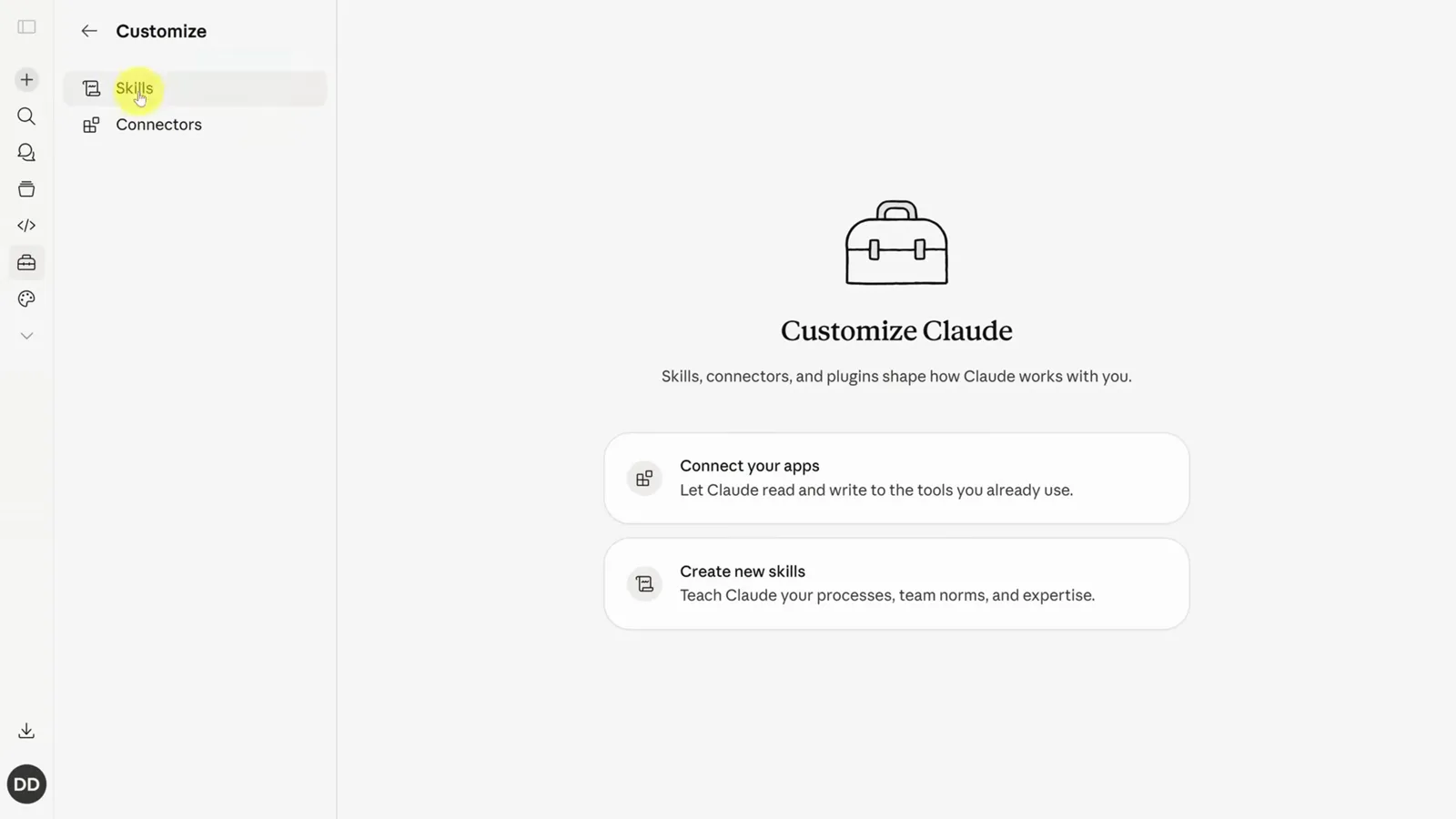
The Customize page groups skills, connectors and plugins in one place.Watch at 0:40 - 2
See what a skill actually is: one markdown file
Open any example skill, like gmail-summary, and switch to the code view. A skill is literally a text file: frontmatter between --- markers holding the name and description, then the markdown instructions. More complex skills, like dashboard-updater, also bundle Python scripts.
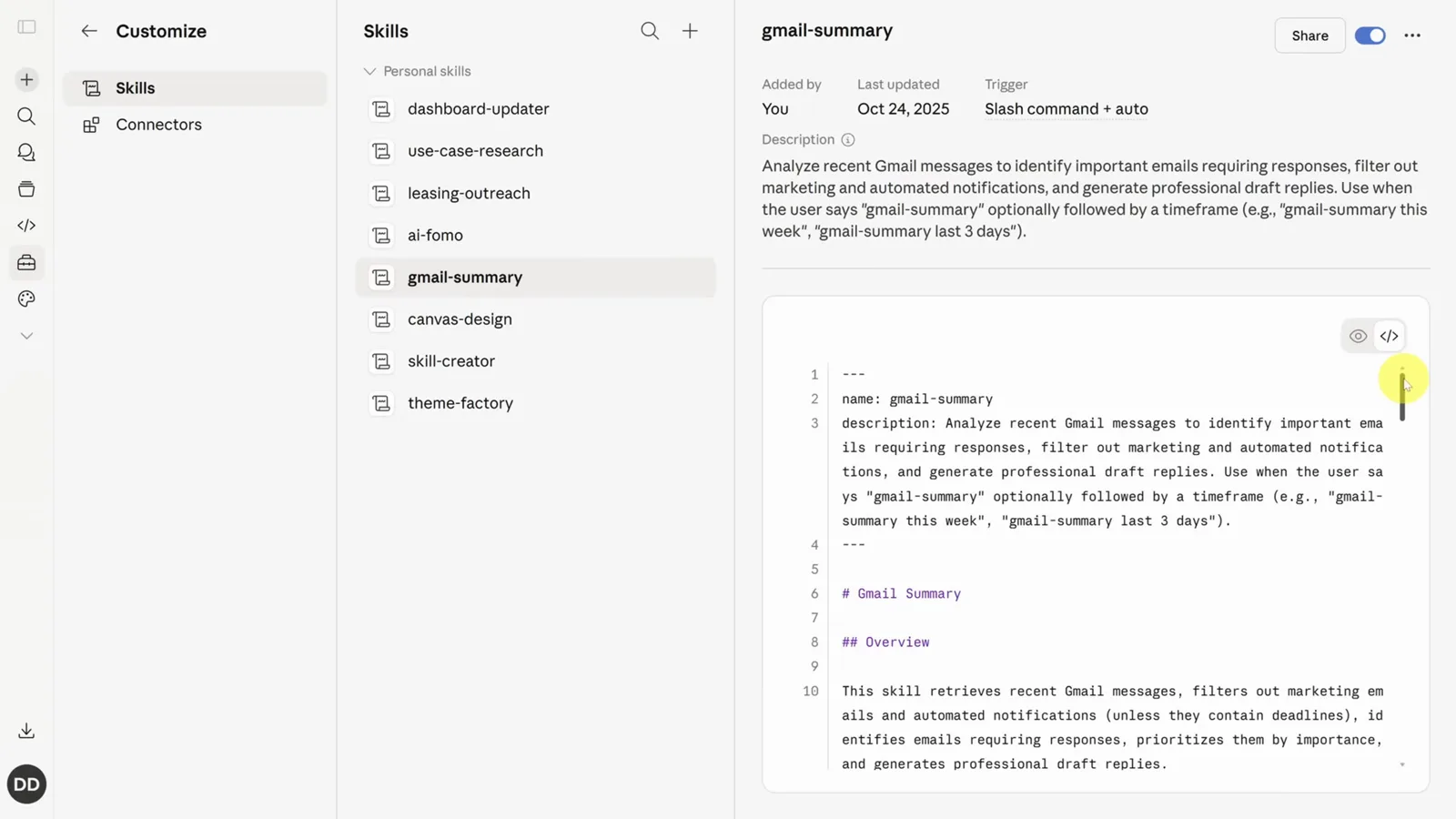
gmail-summary's raw SKILL.md: frontmatter on top, prompt body below.Watch at 1:00 - 3
Start the skill-creator: Plus → Create skill → Create with Claude
Click the + button in the Skills panel and choose Create skill → Create with Claude. This kicks off Anthropic's skill-creator skill — a skill that builds skills. You can also write instructions yourself or upload a zip, but the guided flow is the fastest way to a working first draft.
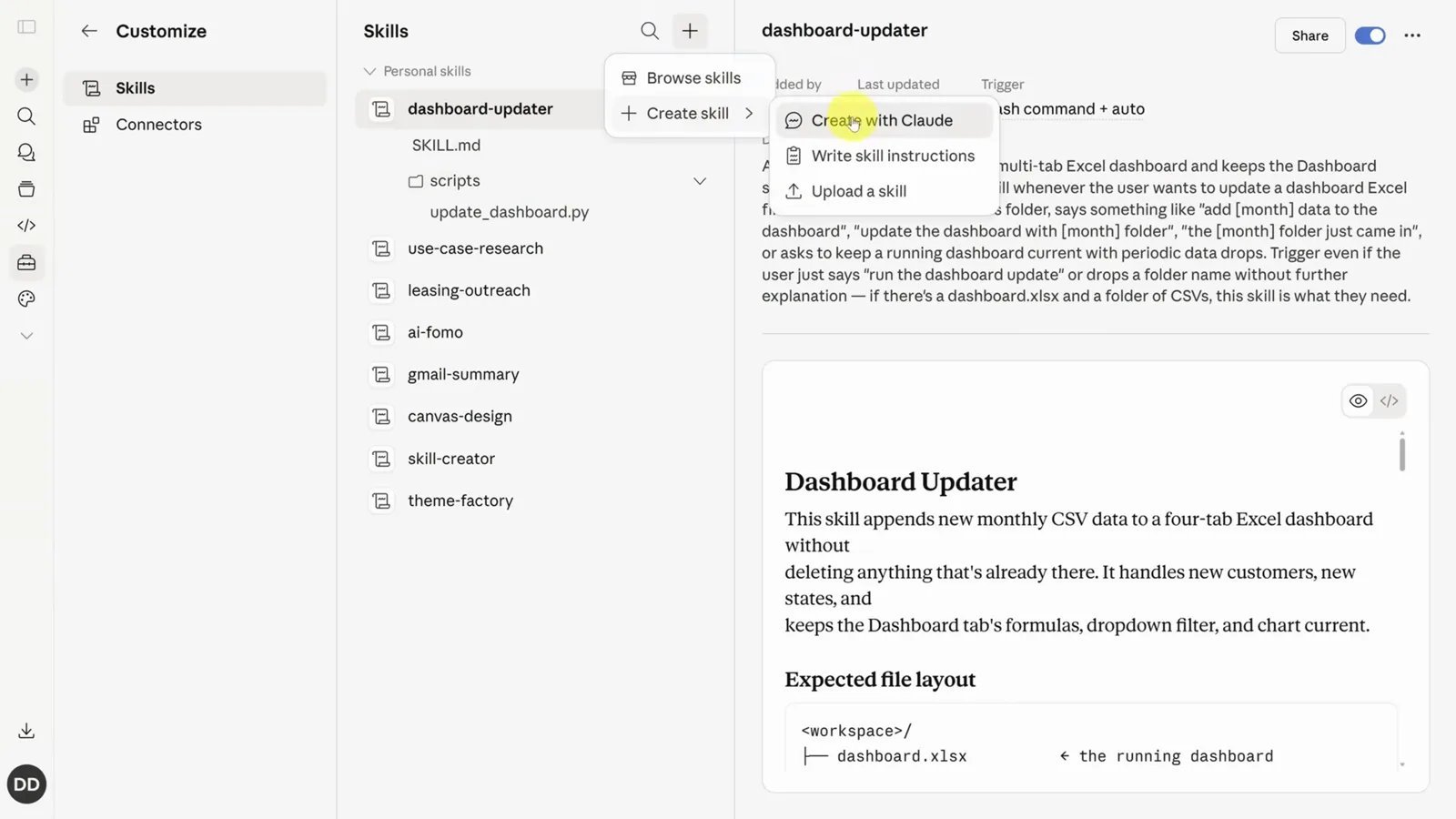
The plus menu offers Browse skills, Create with Claude and Upload a skill.Watch at 1:20 - 4
Brief it, then answer the clarifying questions
Describe the task in plain words — for a thread-reply skill: summarize long email threads, call out action items, draft a response. Adding "What else should I clarify?" stops Claude from guessing: it asks about tone references, input format and the exact trigger phrase instead.
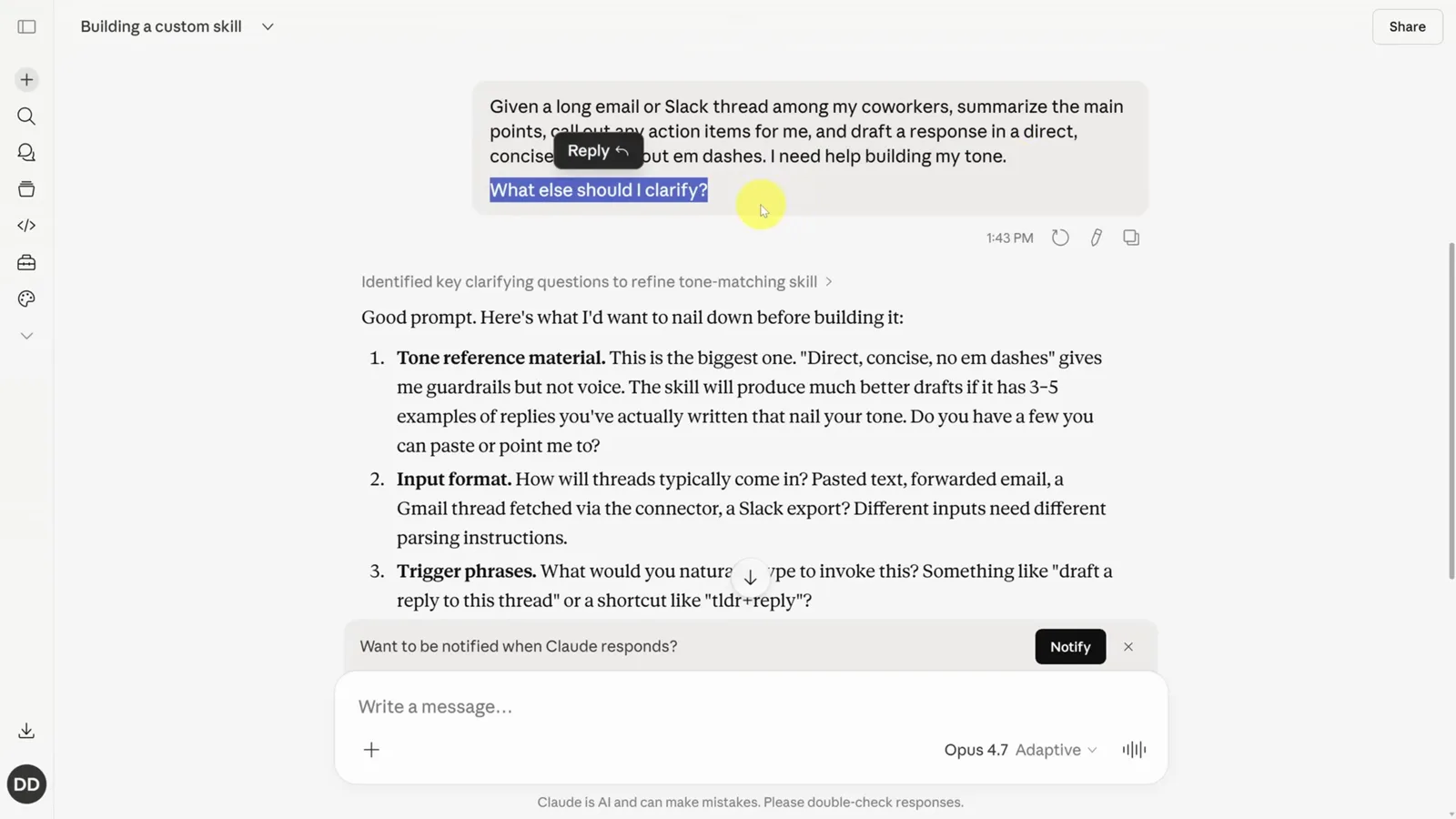
Skill-creator asks about tone, input format and trigger phrases before drafting.Watch at 2:00 - 5
Review the draft: frontmatter vs body
Claude drafts the SKILL.md and splits it in two: the frontmatter (trigger phrases plus a description written per skill-creator guidance) and the body — the actual prompt with sections like Summary → Action Items → Draft. This split is what lets Claude read only the description until the skill actually fires.
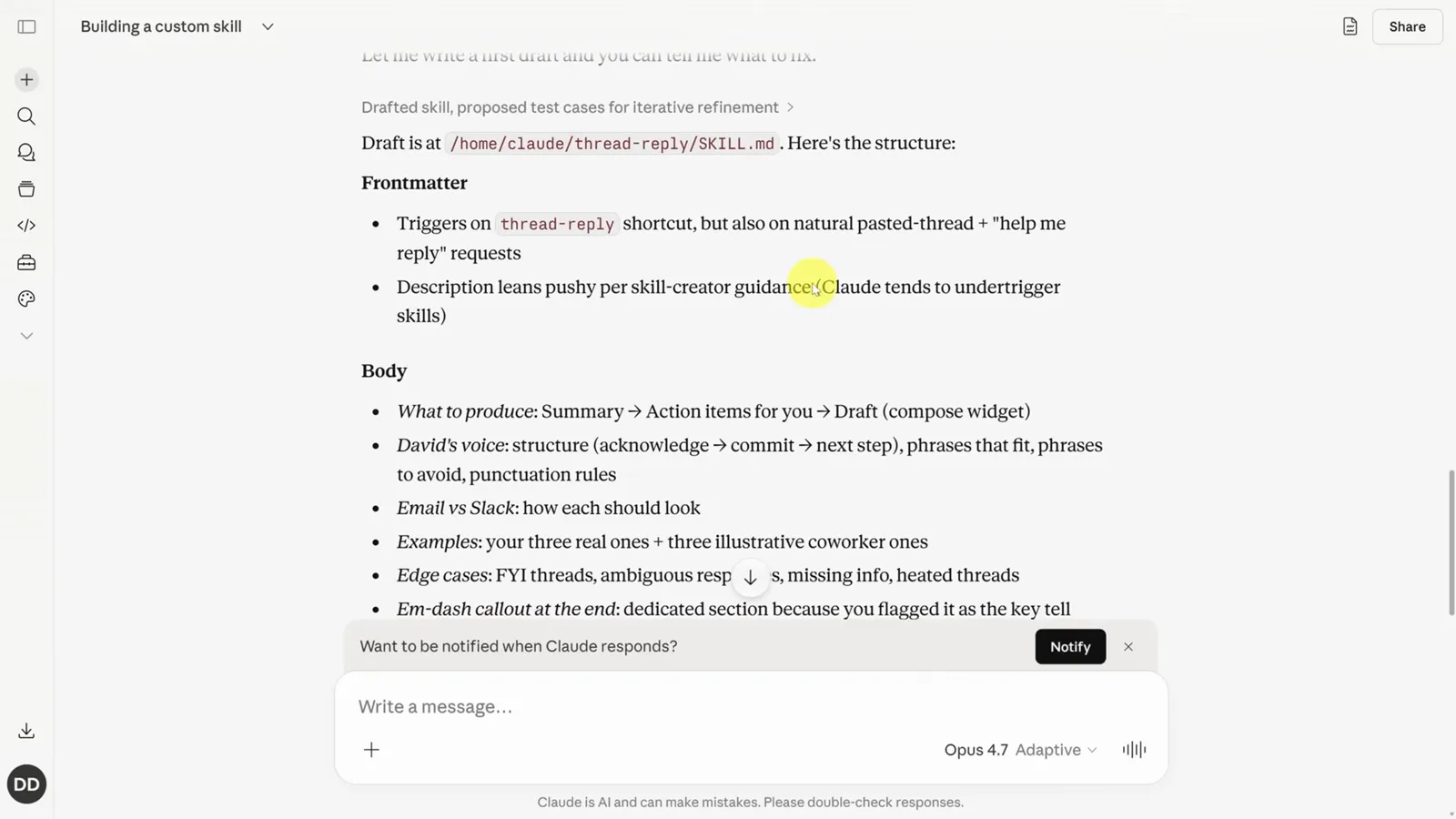
The drafted SKILL.md separates machine-facing frontmatter from the prompt body.Watch at 2:48 - 6
Test against real examples before you commit
skill-creator proposes test cases — a coworker email thread, a scope-creep Slack thread, a tricky client thread — and can run each one through the draft. Paste your own examples for the most honest results; every round of feedback here makes the saved skill better.
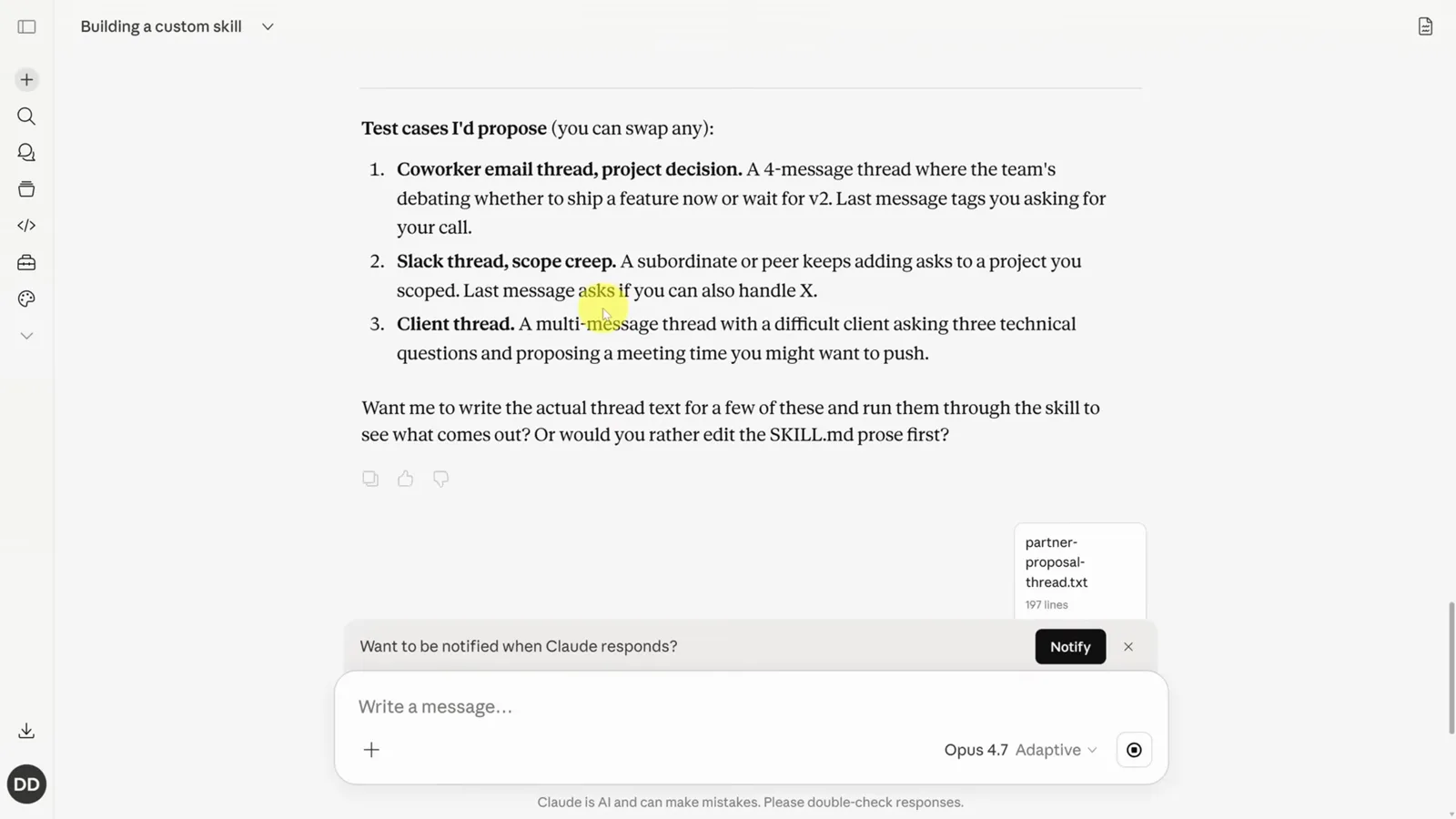
Three proposed test cases, each a different flavor of messy inbox thread.Watch at 3:25 - 7
Save the skill and find it in your list
Happy with the tests? Click Create the skill, then Save skill. Your skill now appears in Customize → Skills with its description and editable prompt — reopen it any time to tune the rules, or just ask Claude to update the skill from chat.
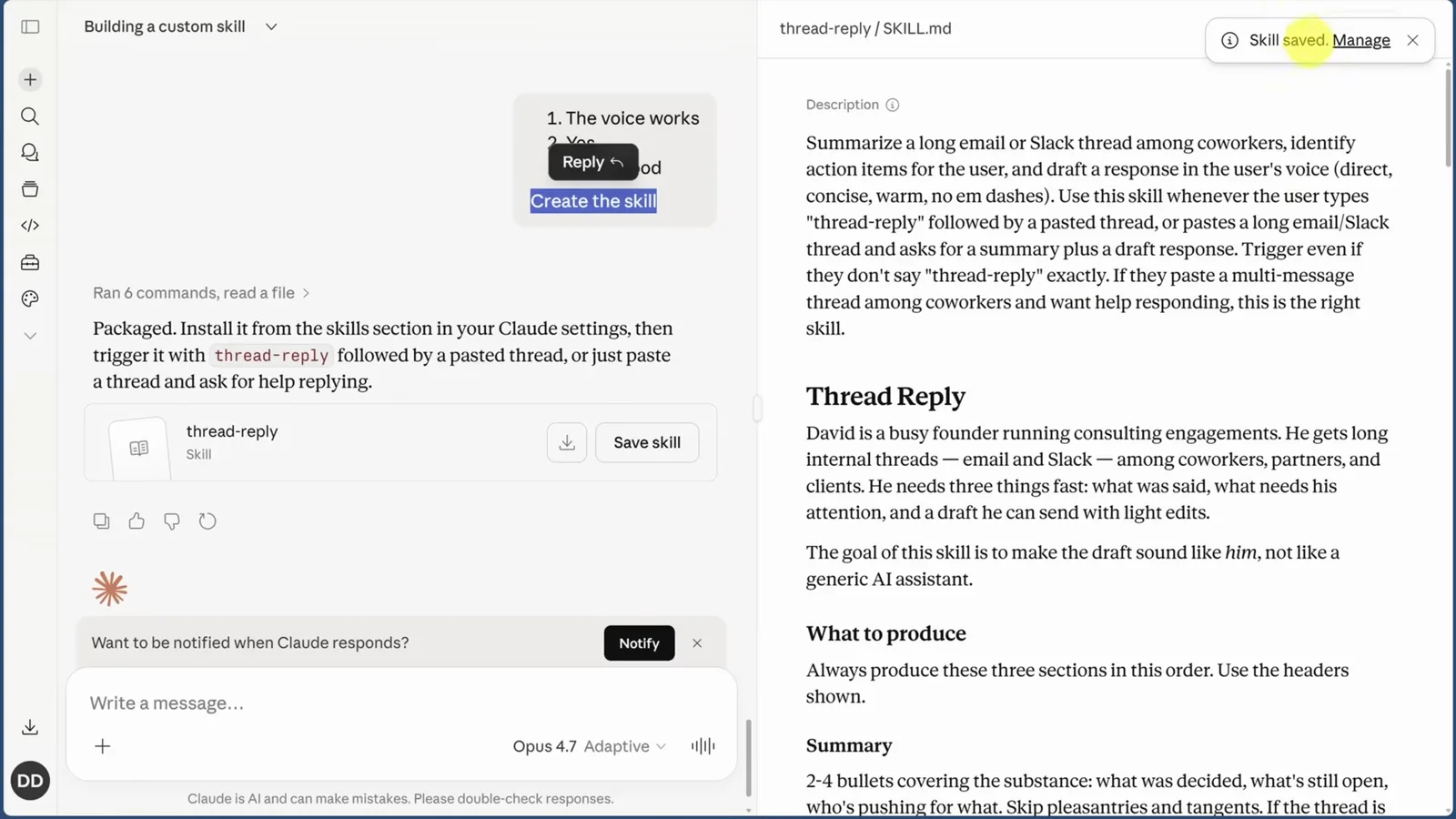
Thread reply saved and shown with its final SKILL.md ready to reuse.Watch at 4:20 - 8
One skill, every Claude app
Install the Claude desktop app and you get Chat, Cowork and Claude Code in one place. The skill you just built on the web is already there — skills sync across the ecosystem, including Claude in Word, Excel and PowerPoint. No reinstalling.
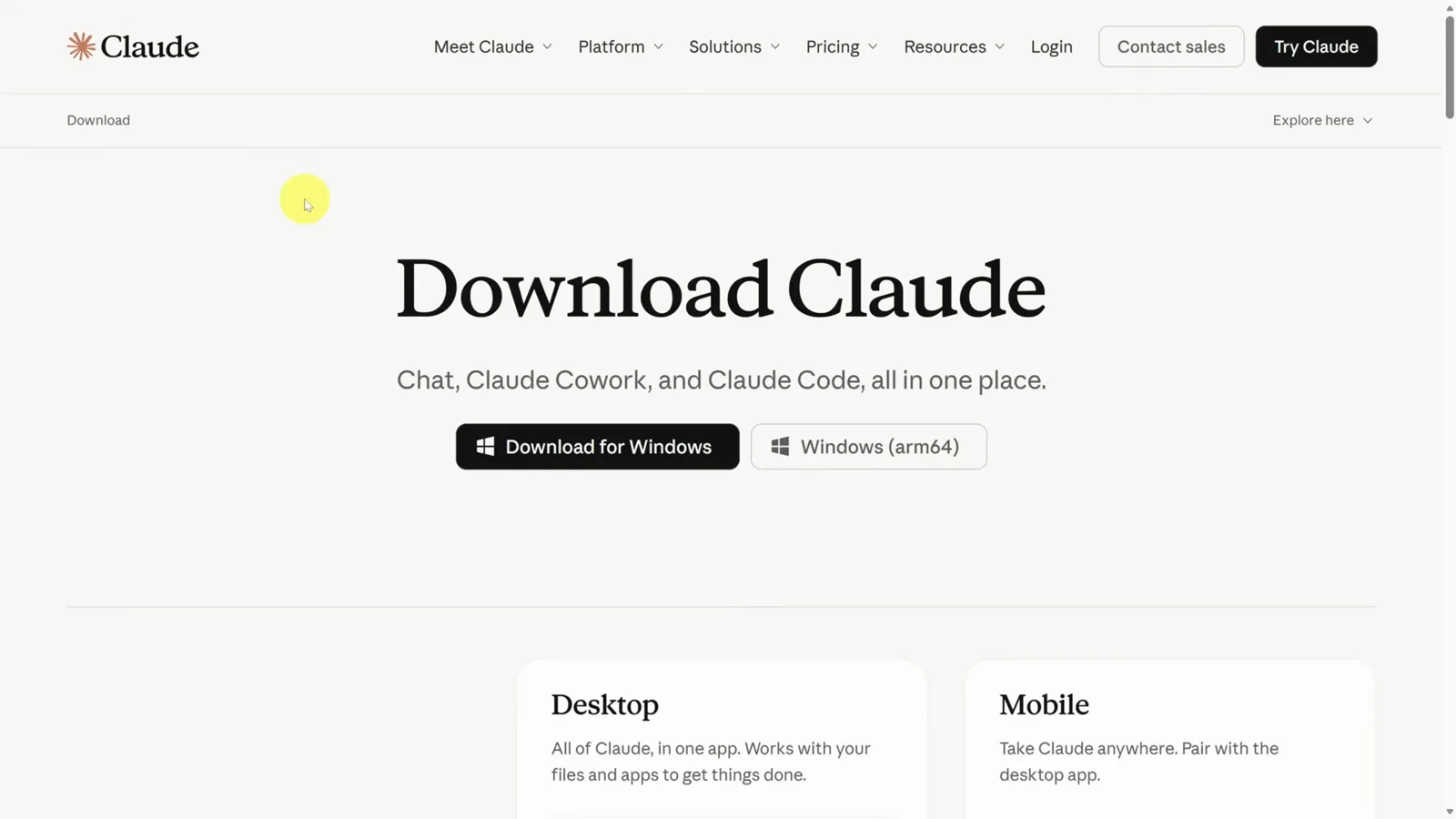
The desktop app bundles Chat, Claude Cowork and Claude Code in a single download.Watch at 7:00 - 9
Run it inside Cowork with your folder's context
In Cowork, attach a working folder — say your business notes — then prompt: "Use the business context in this folder to thread-reply…". The panel on the right shows which files and skills Claude is using, and the answer comes back in the same summary → action items → draft shape.
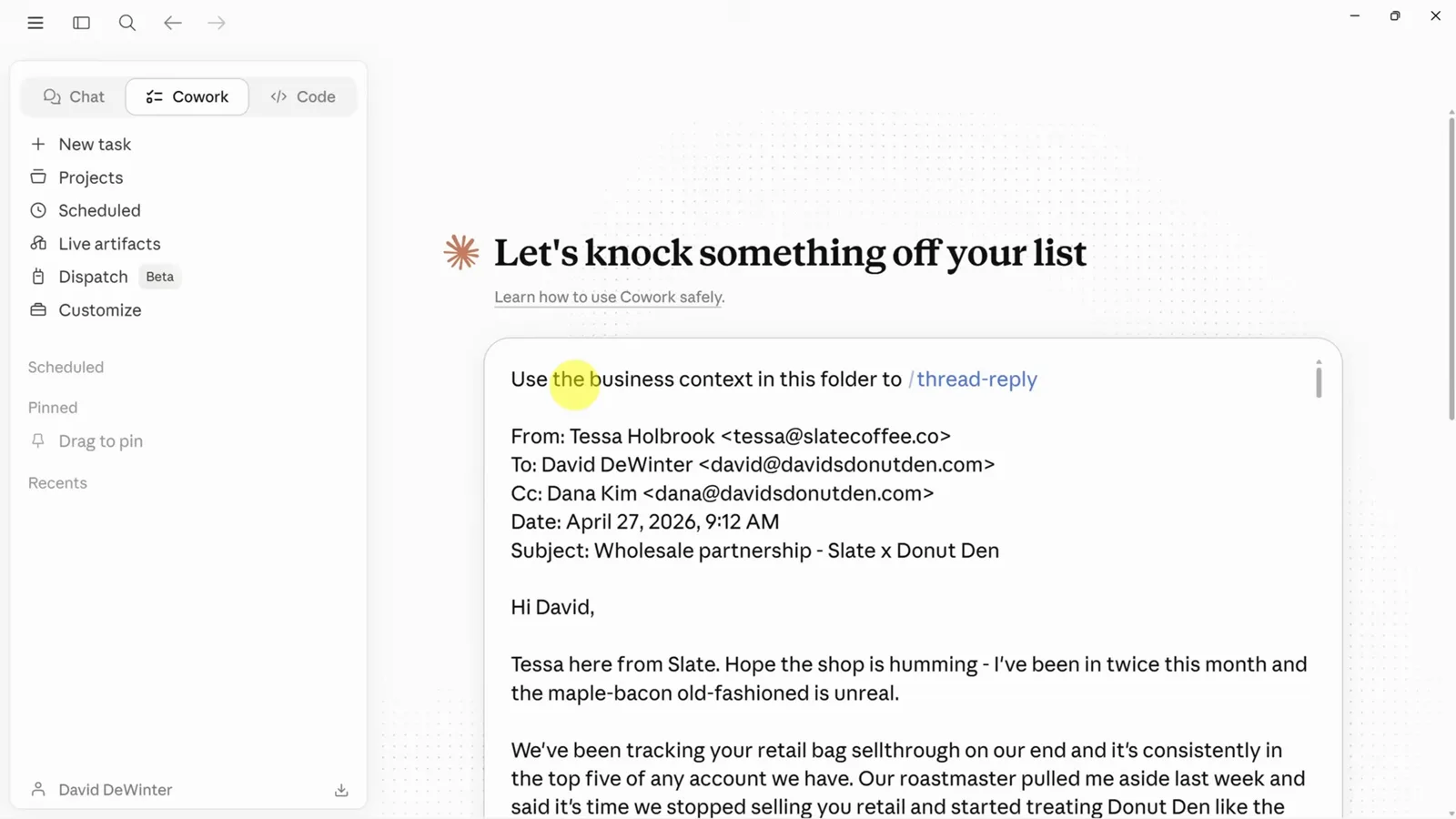
Cowork combines folder context with the thread-reply skill in one task.Watch at 8:00 - 10
Claude Code keeps its own skill list
Type / in Claude Code and your claude.ai skills won't appear — they install differently. Ask it where global vs project skills are installed and it explains: global skills live in ~/.claude/skills/ and work across every project, while project skills sit in the repo's .claude/skills/ folder.
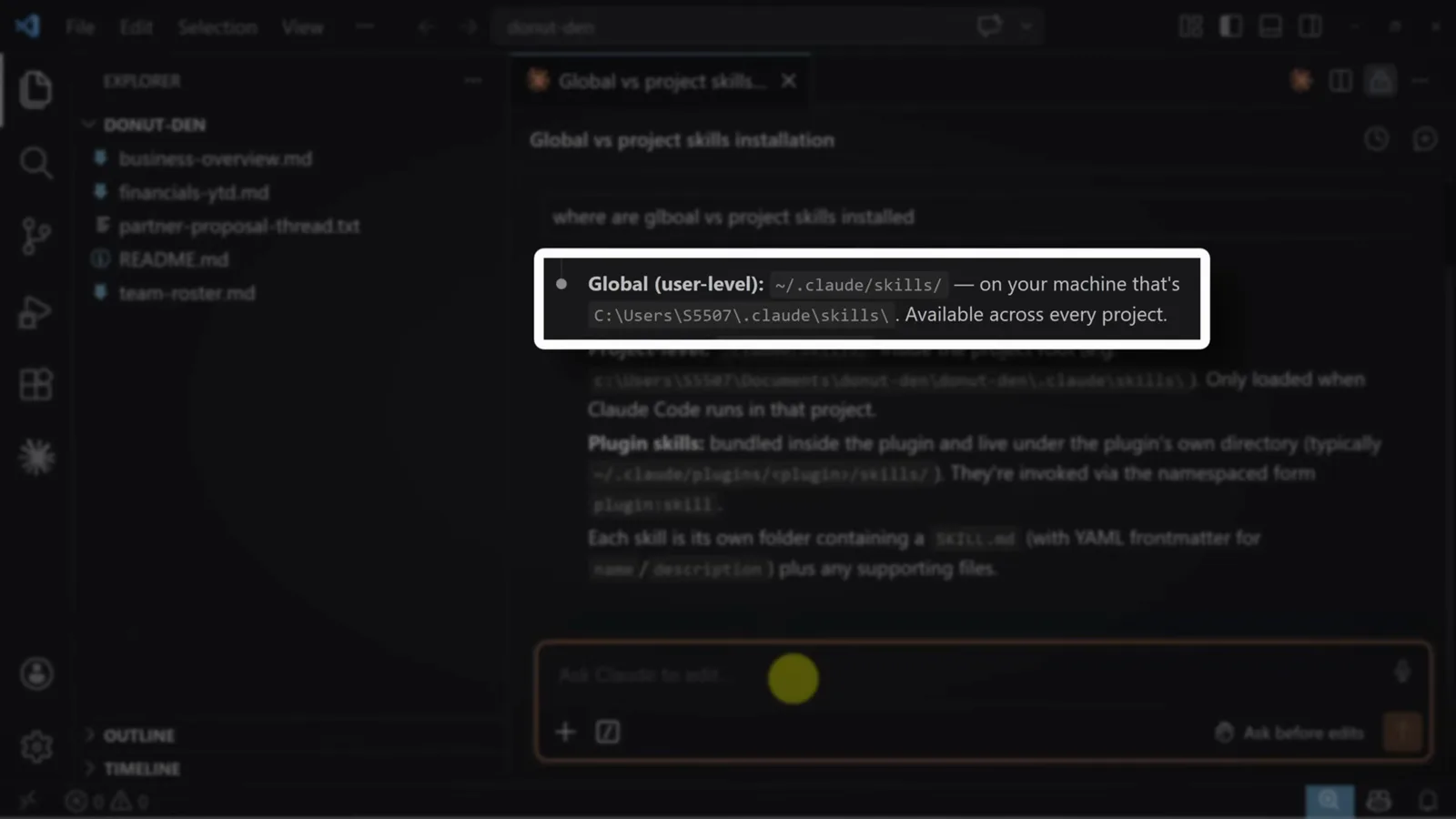
Claude Code explaining its two skill scopes: global user-level and per-project.Watch at 9:12 - 11
Move the skill folder into .claude/skills
To import a web skill: open Customize → Skills, hit the three-dot menu and Download, rename the file to .zip, and extract it. Copy the whole skill folder — not just SKILL.md — into .claude/skills/ inside your project. Claude Code can also write this structure for you if you describe the skill.
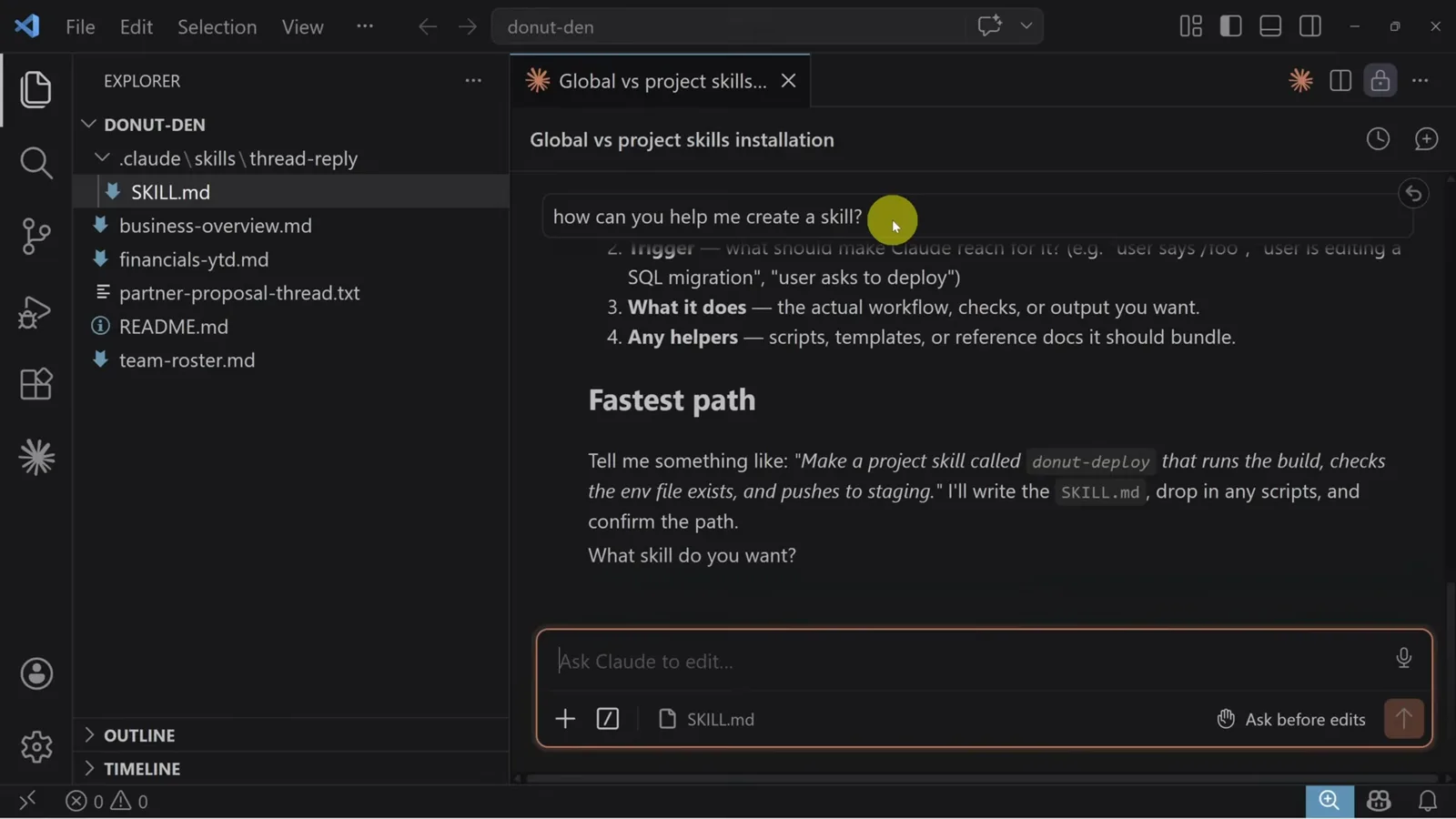
The thread-reply folder now sits inside the project's .claude/skills directory.Watch at 10:20 - 12
Start a new session and run /thread-reply
The current Claude Code session won't see the new folder — start a fresh one, type / and the skill appears in the slash-command list. Select it, paste the thread, and the same summary-action-draft output renders right inside your editor.
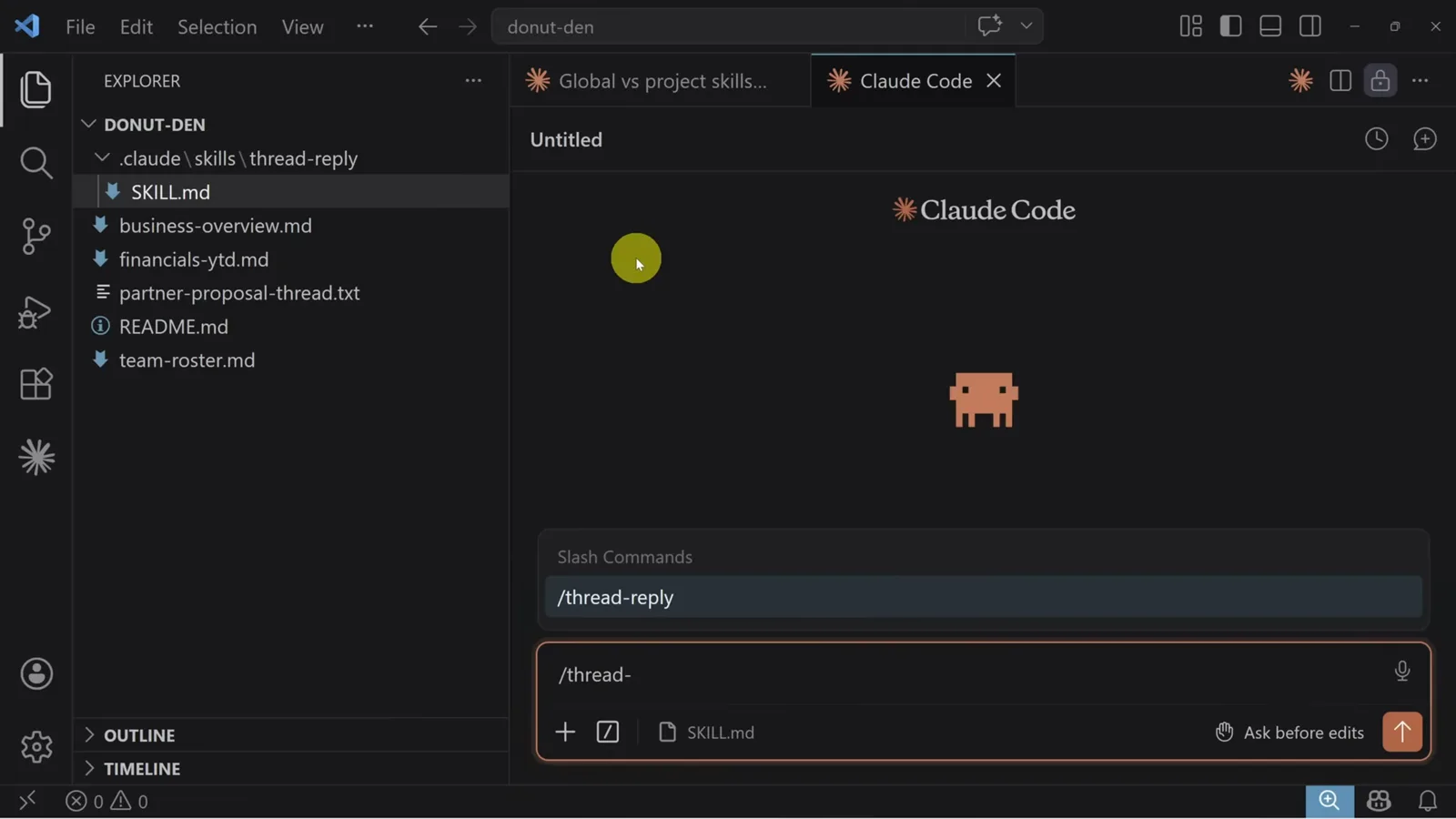
Slash commands in Claude Code now list thread-reply after the restart.Watch at 10:40 - 13
Roll skills out to your whole organization
On Claude Team or Enterprise, admins open Organization settings → Skills and enable skill sharing. Skills uploaded under Organization skills become available to every member — usable by all, editable only by the admin, so nobody's copy drifts out of sync.
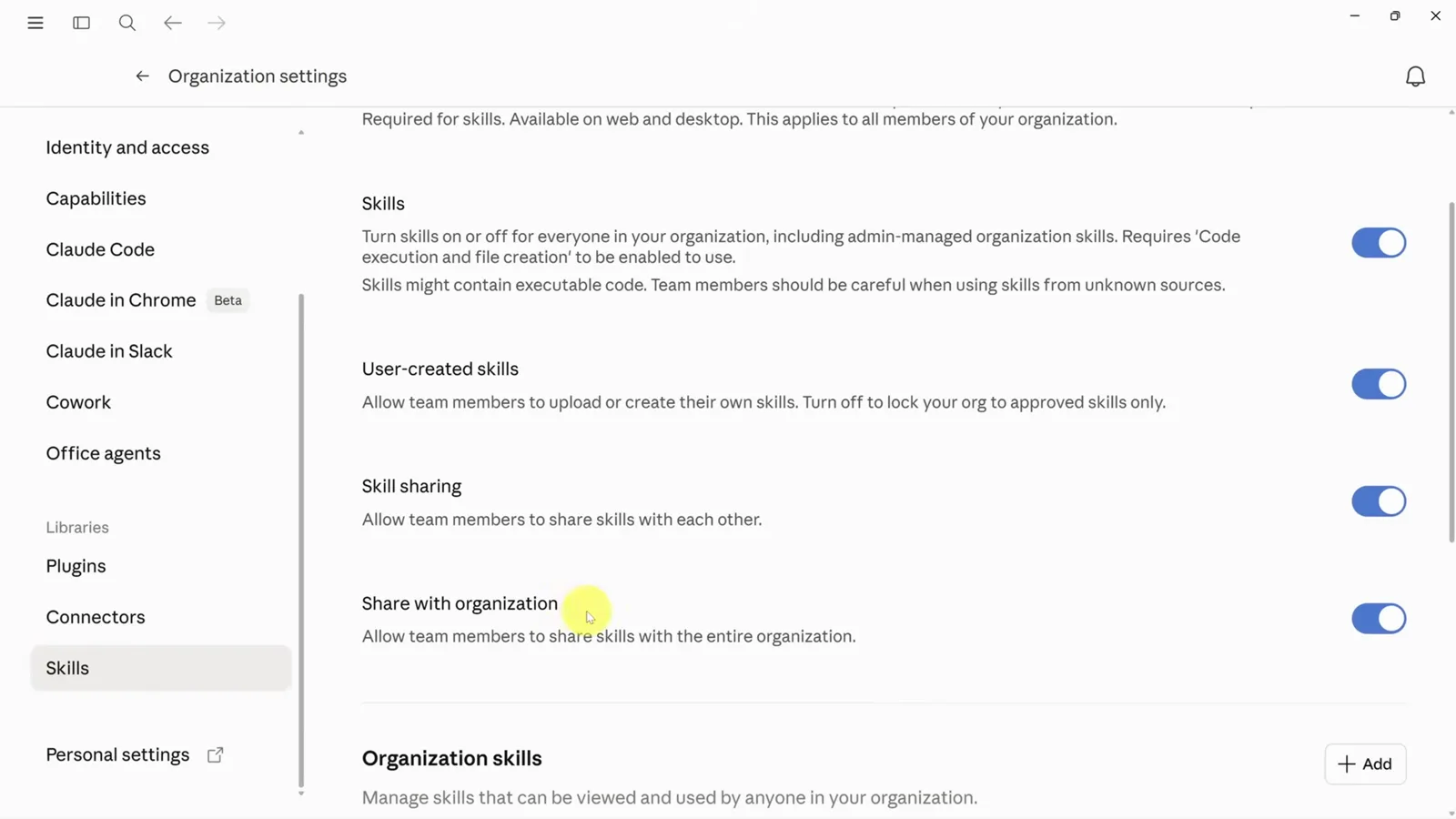
Organization settings let admins manage skills for every member at once.Watch at 11:40 - 14
Or share skills through a synced cloud folder
No Team plan? Keep the skill in a project folder on OneDrive or Google Drive, sync it locally, and point Cowork at that folder. Cowork reads the skill straight from the folder — watch it find the SKILL.md, follow the workflow and read deal-notes.txt without any install step.
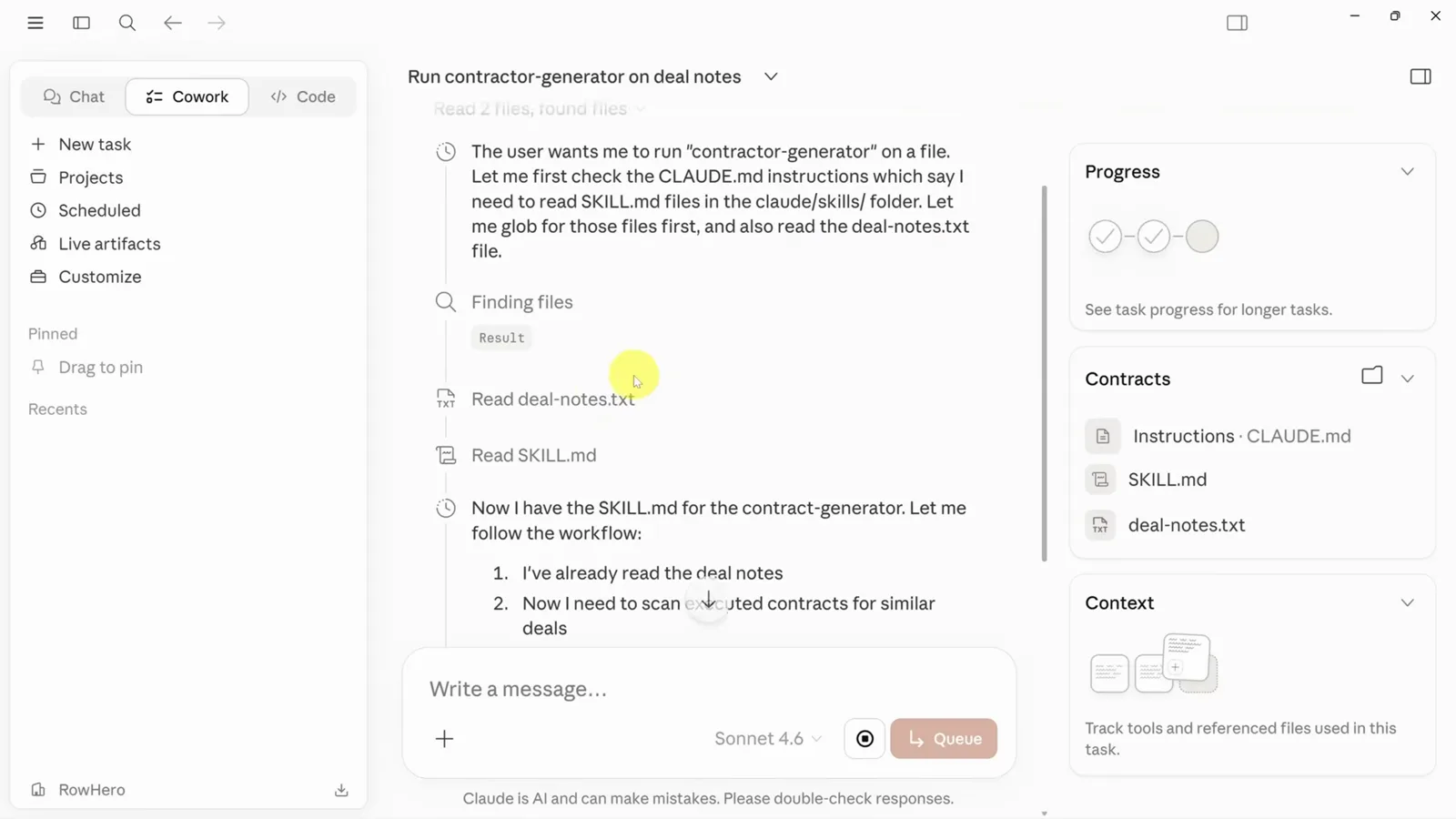
Cowork runs the contract-generator skill straight from the shared folder.Watch at 13:28