
Claude Code Status Bar Customization: Scripts & Ideas
Go beyond the first setup: the JSON your statusline script receives, the fields worth showing — model, tokens, cost, context, git — color and layout ideas, and a community script worth stealing.
TL;DR
- /statusline writes the script for you. State your OS, ask for global scope and a separate .sh/.ps1 file, then approve the two files: a statusLine entry in ~/.claude/settings.json plus the script it points to.
- The script reads one JSON object on stdin — model.display_name, workspace.current_dir, context_window.used_percentage, cost.total_cost_usd, rate_limits — and prints whatever you want to see.
- Order fields with a numbered list, color the context bar by threshold (green under 50%, red past 75%), round tokens to K units, and go multi-line when one row gets crowded.
- Or install a community script: npx contextbricks gets you the model, git branch and commit, a bricks-style token meter and a weekly-limit warning — so you can /compact or /clear on your own schedule.
Claude Code's Hidden Status Line: Tokens, Model and Project, Your Way
Channel: 호두의 AI 분석실 (Waldo AI Lab)5:27
ContextBricks: My Custom Claude Code Status Line
Community script: Jeremy Dawes6:17
Status line — official documentation
Docs: code.claude.com/docs
Facts on this page are cross-checked against the official status line documentation and the two recordings above; the JSON field names quoted here match the official reference exactly. Screenshots are frames from those recordings.
Screenshots are frames from the tutorials by 호두의 AI 분석실 and Jeremy Dawes (ContextBricks), used with attribution and linked back to the source timestamp on every step.
Customize the status bar, step by step
Prompt /statusline once, correctly
- 1
Write one /statusline prompt that names your OS, scope, and script file
Run /statusline and state three things up front: the system you are on (Mac, Linux, Windows, or WSL), that the line must be set up globally, and that you want a separate .sh file — .ps1 on Windows. The setup agent otherwise guesses your environment and can target the wrong shell, and a project-level script only shows up in one repo. The prompt fits in four lines; keep it in a note for re-use.
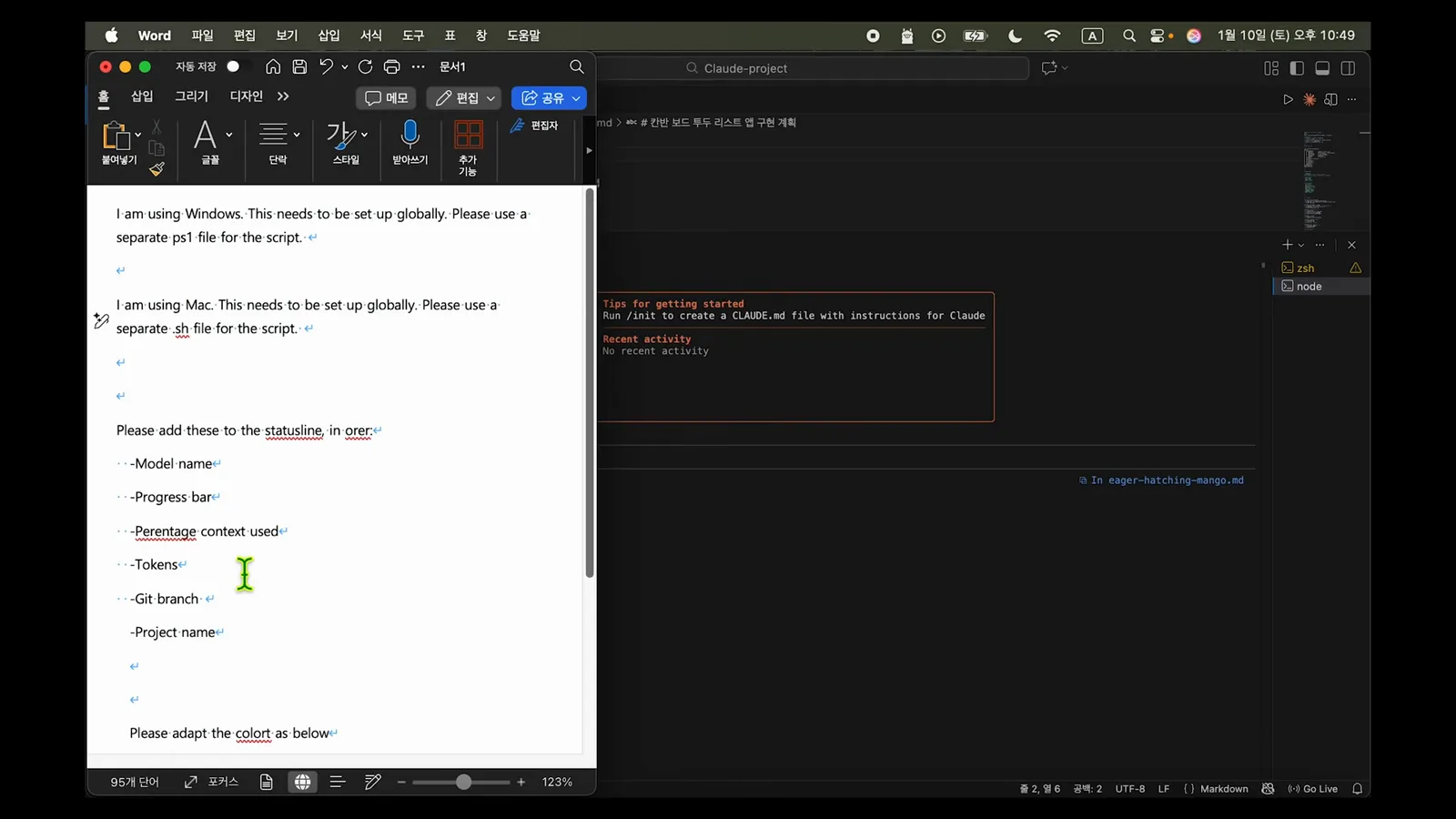
A prepared /statusline prompt: OS, global scope, separate script file — ready to paste.Watch at 1:15 - 2
Approve the two files the setup agent creates
Grant the read and write prompts and the agent reports exactly what it touched: ~/.claude/settings.json now contains the statusLine configuration, and a script such as ~/.claude/statusline-command.sh generates the status line content. Keeping the logic in a separate file means Claude edits the script later — not your settings. Restart Claude Code so the line appears.
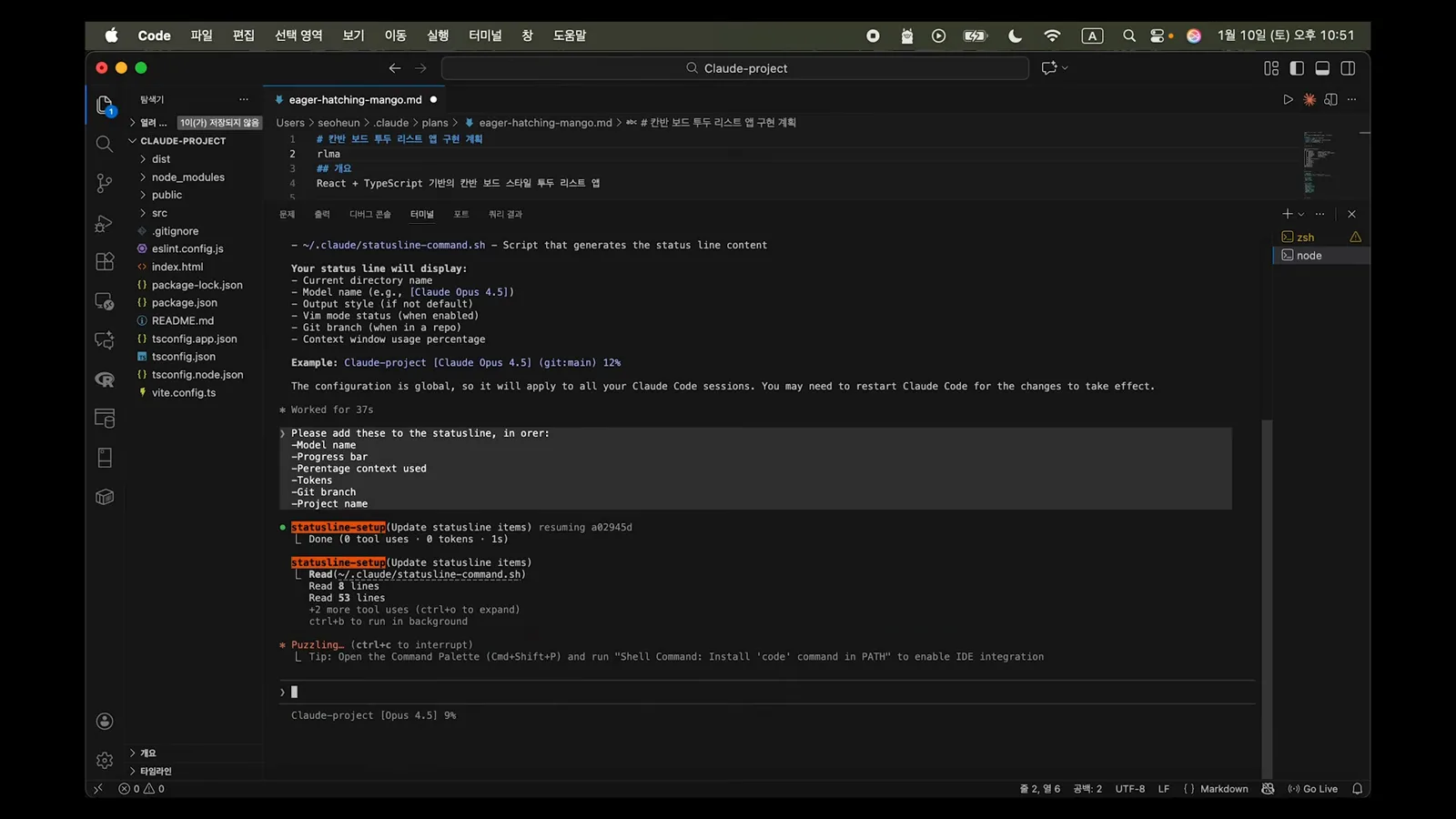
Files created/updated: settings.json holds the statusLine entry; the script builds the content.Watch at 3:20 - 3
Read the default line spec before adding more
Out of the box the generated line shows your current directory, the model name like [Claude Opus 4.5], the output style when it is not default, vim mode, the git branch when you are in a repo, and context window usage percentage — for example Claude-project [Claude Opus 4.5] (git:main) 12%. Because the configuration is global, it applies to every Claude Code session on the machine.
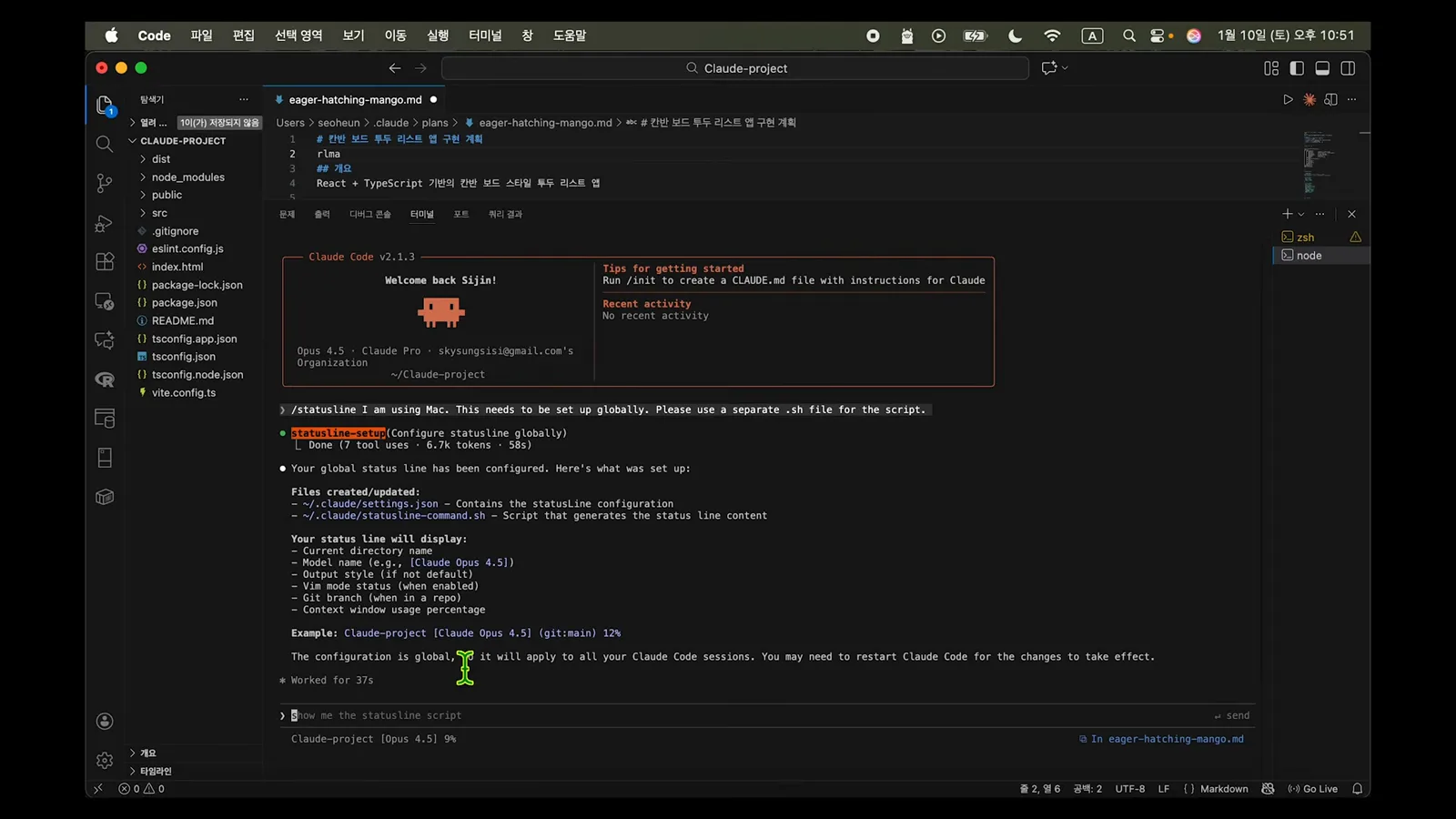
The default display list and a rendered example of the generated status line.Watch at 2:45
Decide what the line shows
- 4
Order the fields you actually want — numbered
Ask for additions as an ordered list and the agent returns a numbered display order. This run produced: model name, a 20-character progress bar, a percentage like 20%, tokens as 40000/200000, git:main, then the project directory — rendered as Claude 3.5 Sonnet [==== ] 20% 40000/200000 git:main Claude-project. The changes land in the script file; restart Claude Code to see them.
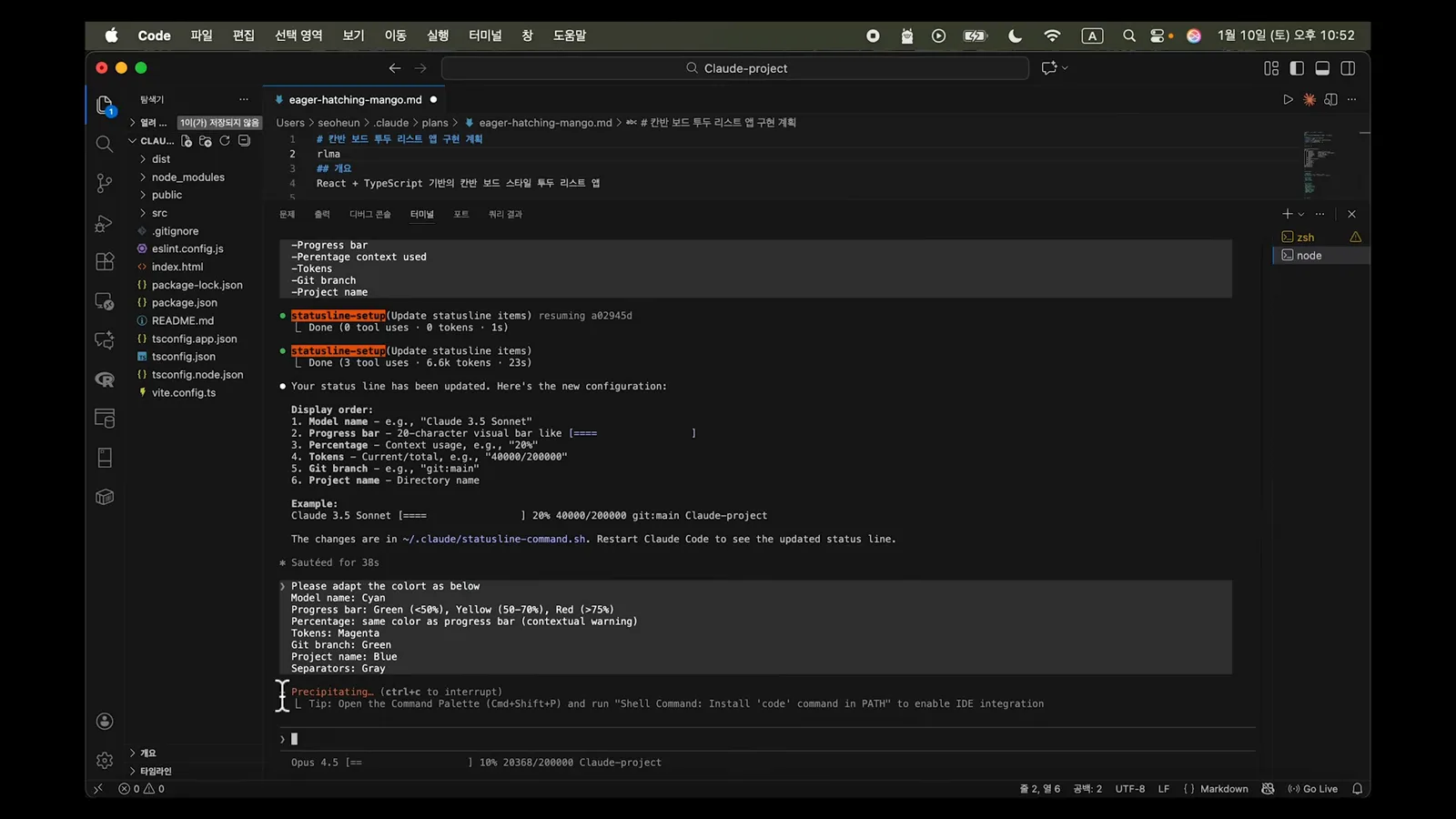
Display order 1-6 with a rendered example line, written into the script.Watch at 3:45 - 5
Give each element a color with meaning
Ask for a color per element and the script gets ANSI codes with thresholds. The table this run agreed on: model name cyan; progress bar green below 50%, yellow from 50-75%, red above 75%; percentage matches the bar; tokens magenta; git branch green; project name blue; separators gray. Keep red tied to the context bar so the alarm color stays reserved for real pressure.
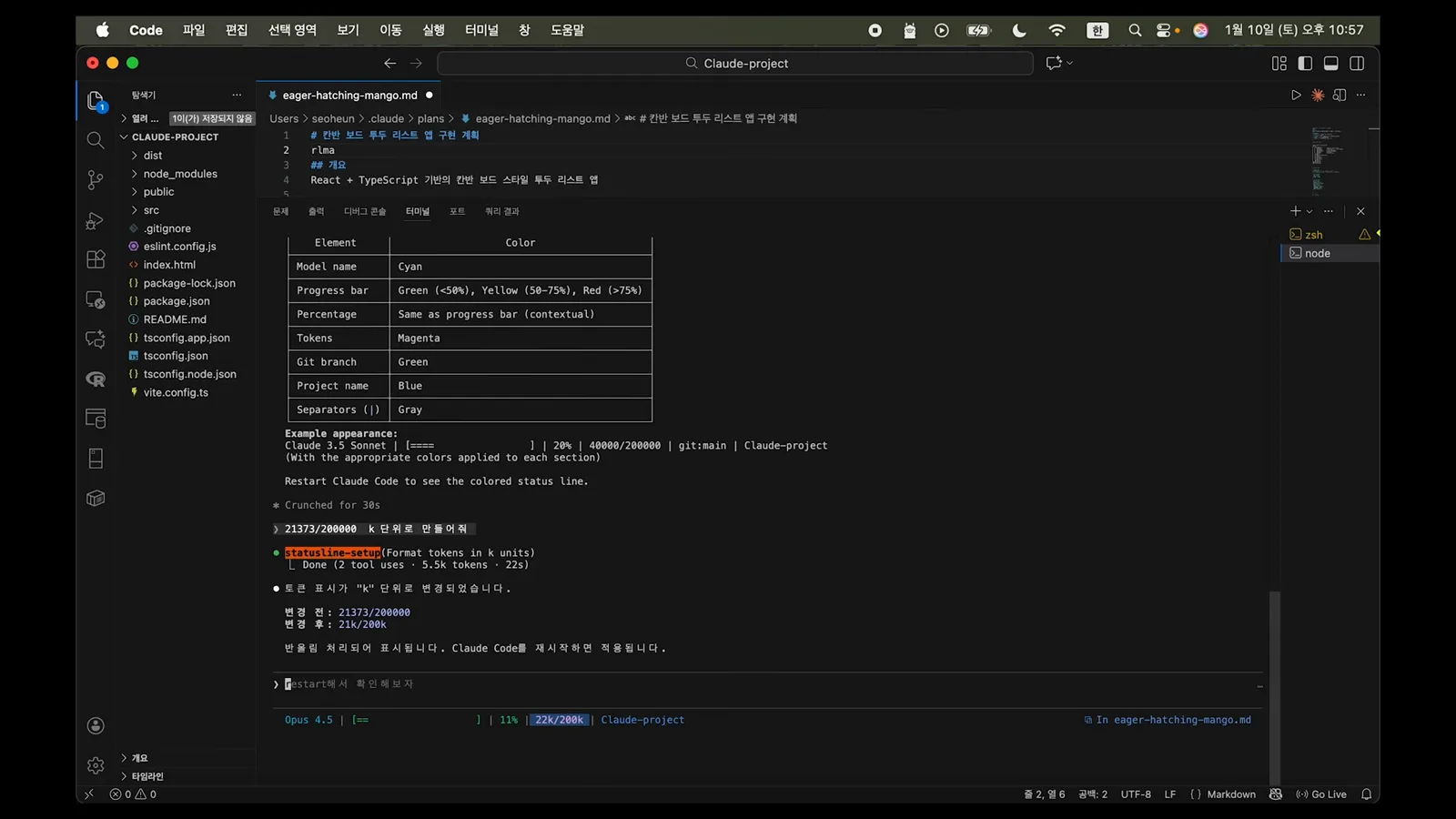
Element-by-element color table with thresholds for the progress bar.Watch at 4:15 - 6
Round tokens to K units and check them against /context
Raw counters like 21373/200000 are hard to scan. Ask for K units and the line reads 21k/200k — the agent notes the value is rounded. Then verify: run /context in the same session and compare; the totals agree. One quirk from the demo: after rounding, a 22k and a 23K session can display the same — close enough for a glanceable line.
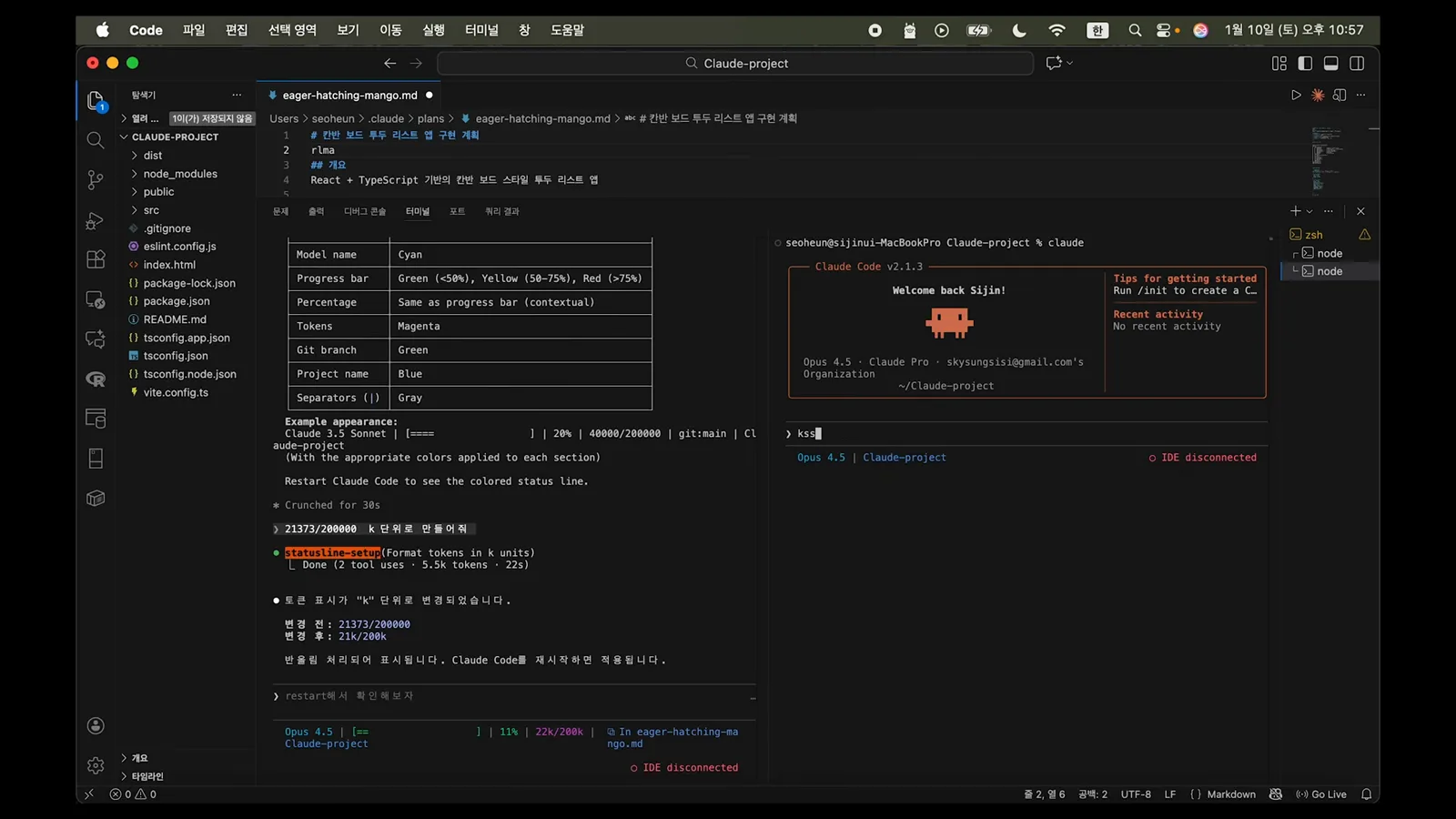
21373/200000 becomes 21k/200k; /context confirms the same totals.Watch at 4:30 - 7
Run two sessions and confirm each line tracks itself
Open two terminals and start Claude Code in both. Each status line reports its own session: 11% and 22k/200k on the left, 9% and 18k/200k on the right, while /context in each window agrees with its line. This is why branch and project belong on the line — with several tabs running you can see which session is heavy at a glance instead of running /context everywhere.
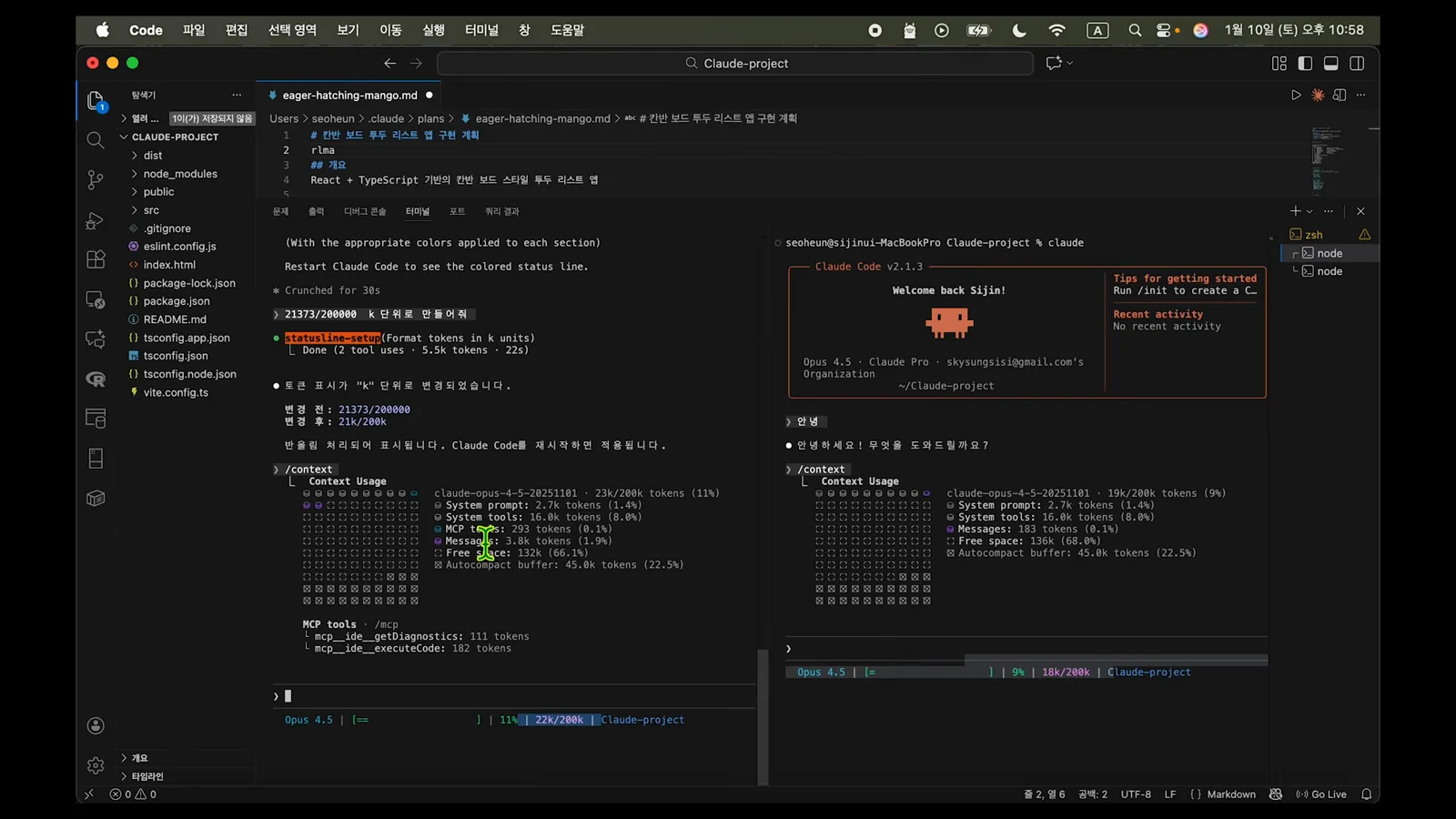
Two Claude Code sessions, each status line reporting its own context usage.Watch at 5:15
Steal a script, read it daily
- 8
Skip the authoring: install a community script with npx
You do not have to write the script yourself. ContextBricks installs with one command — npx contextbricks — writing ~/.claude/statusline.sh and updating settings.json, with a backup saved first. Its checklist: model name, git repo:branch [commit] message, indicators for uncommitted changes, ahead and behind, lines changed this session, real-time context usage with brick visualization, and a token breakdown. Uninstall is ./uninstall.sh; the printed backup path restores the previous script.
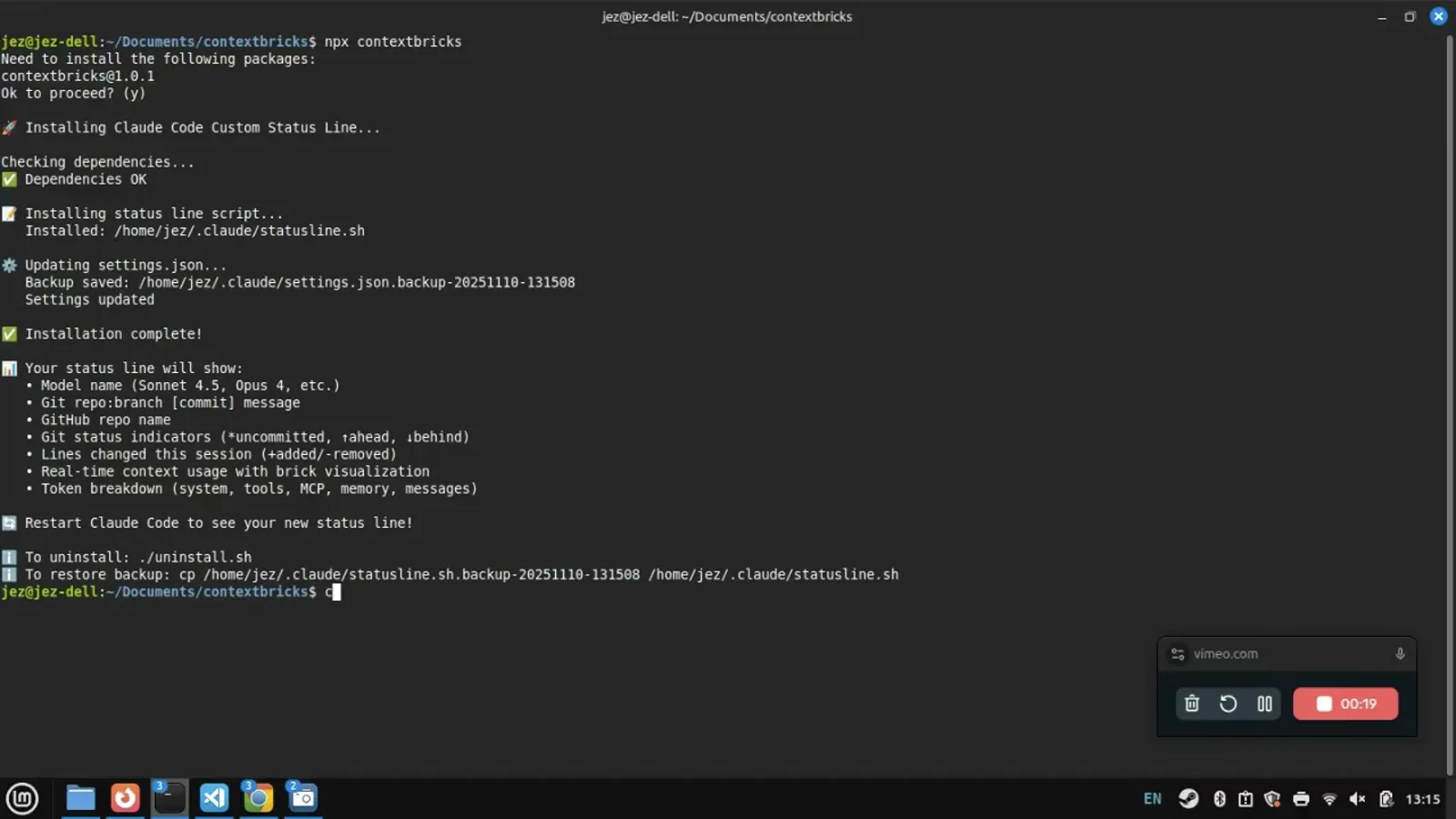
npx contextbricks: script installed, settings.json updated, capabilities listed.Watch at 0:20 - 9
Read the meter while the agent works
The custom line pays off mid-session. In the demo it reads [Sonnet 4.5], +2381/-0 lines, then a context bar at 18% (36k/200k tokens) with the split sys:4k tools:16k mcp:2k mem:10k msg:4k and 163k free. The author counts tokens by parsing the conversation transcript — an estimate, not an API number — which he considers exact enough to decide when to compact or clear.
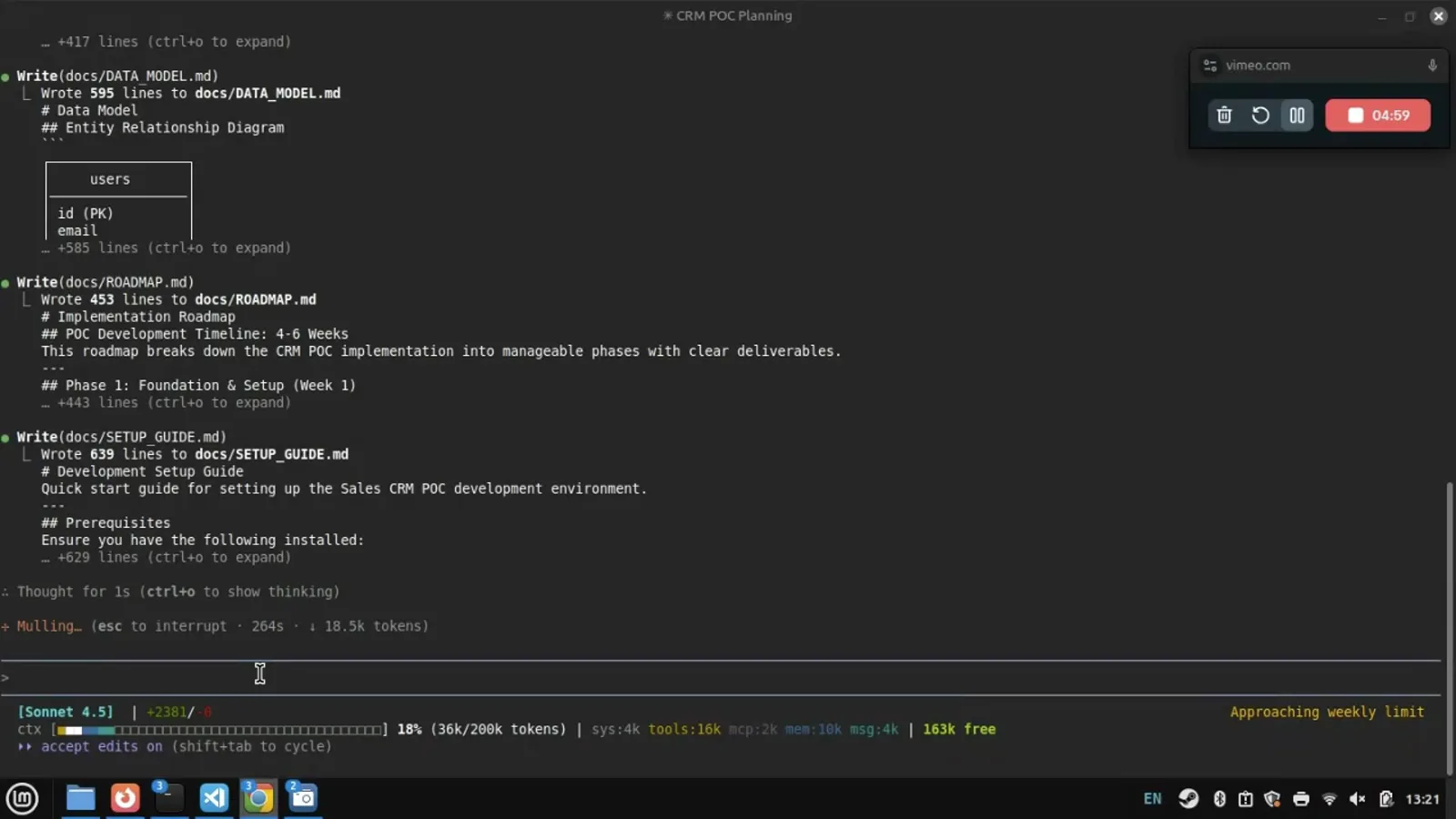
36k/200k tokens with a per-category breakdown while planning docs are written.Watch at 5:00 - 10
Wrap up on signal: commits land, the weekly limit nears
After a git commit the line picks up the branch and commit: contextbricks:master [ffe9523] Add comprehensive planning documentation. The right edge adds a second signal — Approaching weekly limit. Between the context percentage, the commit marker and the limit warning, you can tell when to run /compact or /clear on purpose instead of letting auto compaction interrupt mid-task.
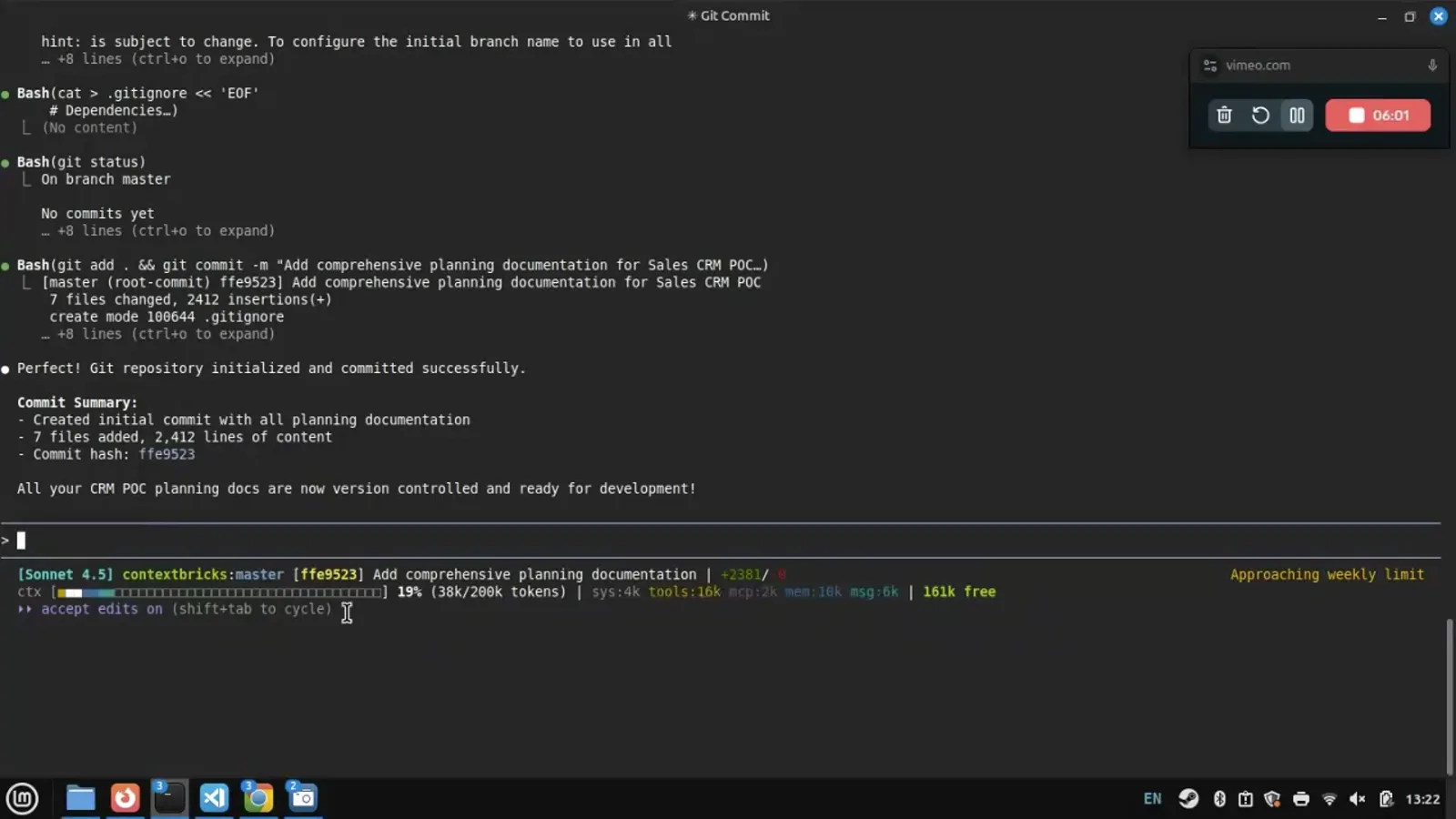
Branch and commit appear in the line; the weekly-limit warning sits on the right.Watch at 6:02
What your script can read — field by field
Everything on the line comes from one JSON object the script receives on stdin — at session start and again after every update: a new assistant message, a finished /compact, a permission-mode change. These are the official fields worth building a row around.
- 1Model and effort — model.display_name for the label (Sonnet 4.5, Opus 4.5), and effort.level when you want the reasoning setting visible next to it.
- 2Place — workspace.current_dir is the preferred current-directory field, workspace.project_dir is the launch directory, and workspace.repo.owner/.name identify the repo parsed from the origin remote; pair them with git branch --show-current for the branch.
- 3Context — context_window.used_percentage and remaining_percentage are pre-calculated for you, context_window.current_usage breaks input, output, cache creation and cache read apart, and context_window.context_window_size is 200000 by default (1000000 extended).
- 4Money and time — cost.total_cost_usd for the session cost (it resets on /clear), cost.total_duration_ms and total_api_duration_ms for wall-clock versus API wait, plus cost.total_lines_added and total_lines_removed.
- 5Limits — rate_limits.five_hour and rate_limits.seven_day expose used_percentage and resets_at on Pro and Max plans; the docs also include a prompt_cache object with hit_ratio and expires_at for cache-aware rows.
Practicalities from the docs: each echo or print is its own row, so multi-line layouts are just more print statements; ANSI codes color them; the COLUMNS and LINES environment variables tell you the terminal width; and every conditionally absent field deserves a jq fallback like .context_window.used_percentage // 0 so the line survives the first seconds of a session.
When the line misbehaves
Most broken status lines trace back to five causes — and every fix is one prompt or one command away.
- 1Blank line or dashes (--) — those are null fields before the first API response. The docs recommend jq fallbacks (// 0, // empty), and the workspace trust prompt must be accepted or the line stays empty.
- 2Script not running — make it executable with chmod +x, print to stdout rather than stderr, and run claude --debug to see the script's errors.
- 3Numbers that look wrong — the ContextBricks author says Claude got the token calculation wrong a few tries in a row. Ask the agent to dump the raw JSON to a debug file and rewrite the script against that, then compare the line with /context.
- 4Windows shell confusion — Claude Code uses Git Bash when it is installed and PowerShell otherwise; use forward slashes in paths and keep the script in its own .ps1 file.
- 5Too much on one row — ask for multi-line (the path and repo info move to a second line), or trim: K-unit tokens, one separator color, and drop fields you never glance at.
And when you want out entirely: /statusline delete (or /statusline clear) removes the feature, a community installer's uninstall.sh undoes it, and the settings backup the installer made restores your previous script.