
Claude Code Keybindings: Remap Keys, Vim Mode & Shortcuts
Every way to change how keys behave in Claude Code: edit keybindings.json, switch on vim mode with /vim or /config, and learn the default keyboard shortcuts that matter.
TL;DR
- Keybindings live in ~/.claude/keybindings.json — run /keybindings to create and open it. Edits apply as soon as you save; no restart.
- Bindings are grouped by context (Chat, Autocomplete, Agents, Scroll…) and map a key like "ctrl+e" to an action like chat:externalEditor. Set a key to null to unbind it.
- Vim mode: run /vim, or /config → Editor mode → Space → Enter. Escape toggles INSERT/NORMAL, and visual mode (v/V) arrived in v2.1.118.
- Some keys are off-limits: Ctrl+C, Ctrl+D and Ctrl+M can't be rebound, and tmux's Ctrl+B prefix swallows shortcuts before Claude Code sees them.
How to Enable Vim Editor in Claude Code CLI
Channel: ProgrammingKnowledge21:32
Claude Code v2.1.118 — Vim Visual Mode & Custom Themes
Channel: Claude Code Updates0:41
How to use Vim in Claude Code
Channel: HAMY LABS5:41
Claude Code release notes — v2.1.118 & v2.1.288
Release notes: github.com/anthropics/claude-code
Keybindings — official documentation
Docs: code.claude.com/docs
Facts on this page are cross-checked against the official keybindings docs and the v2.1.118 & v2.1.288 changelog entries; the screenshots come from the videos above. Behavior matches Claude Code v2.1.288 (October 2026).
Screenshots are frames from the featured videos, used with attribution and linked back to the source timestamp on every step.
Remap keys and switch on vim mode, step by step
Remap keys in keybindings.json
- 1
Launch Claude Code and check your setup
Run claude in your terminal to start a session. Keybinding customization and vim mode are CLI features, so everything on this page happens in the same prompt. On v2.1.288 or later you also get the newest agent view shortcuts: Ctrl+F search and Alt+↑/↓ group jumps.
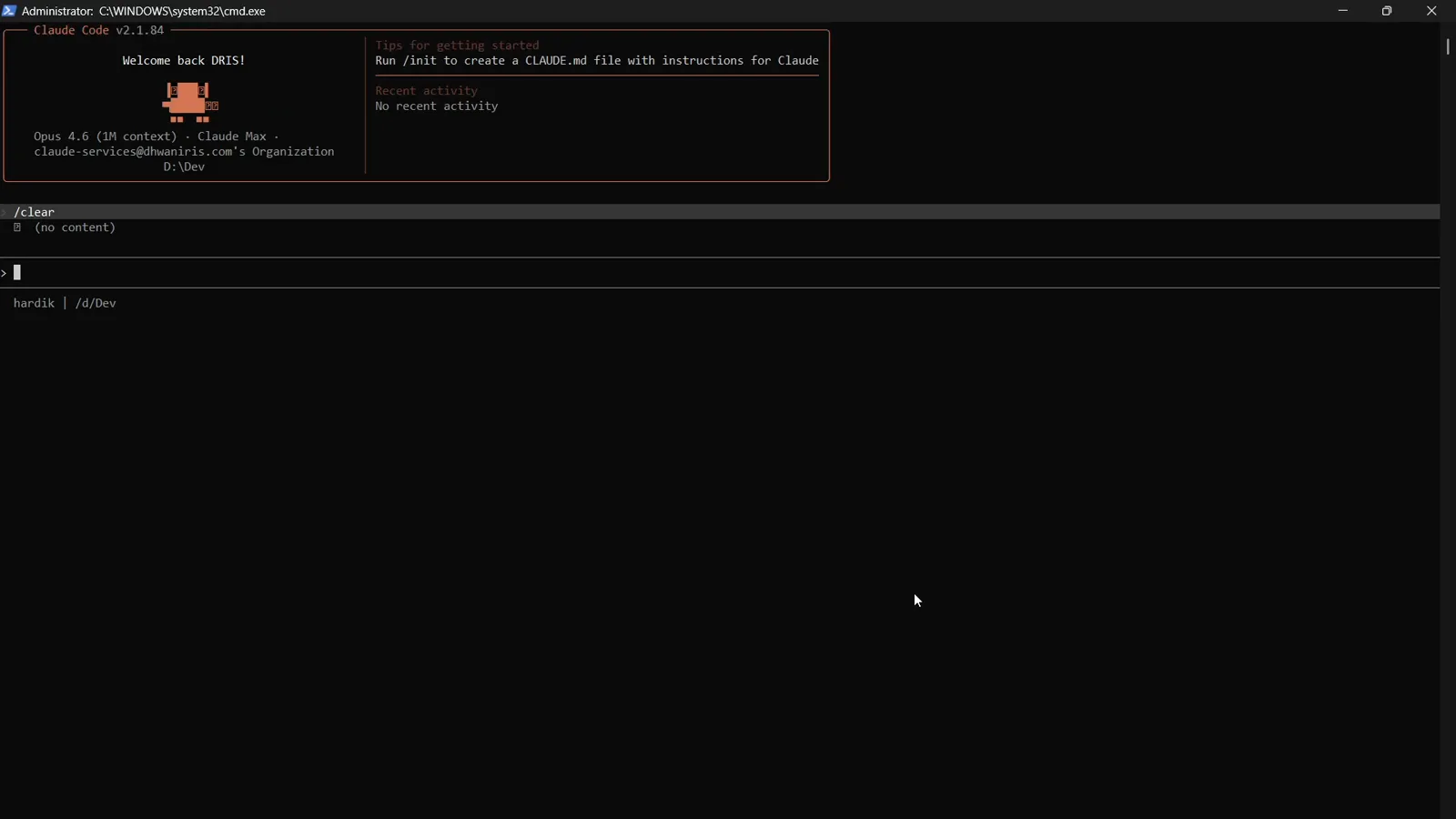
A fresh Claude Code session, ready for customization.Watch at 0:17 - 2
Open keybindings.json with /keybindings
Type /keybindings in the prompt. Claude Code creates ~/.claude/keybindings.json if it doesn't exist yet and opens it in your editor. Any change you save is detected automatically — no restart needed.
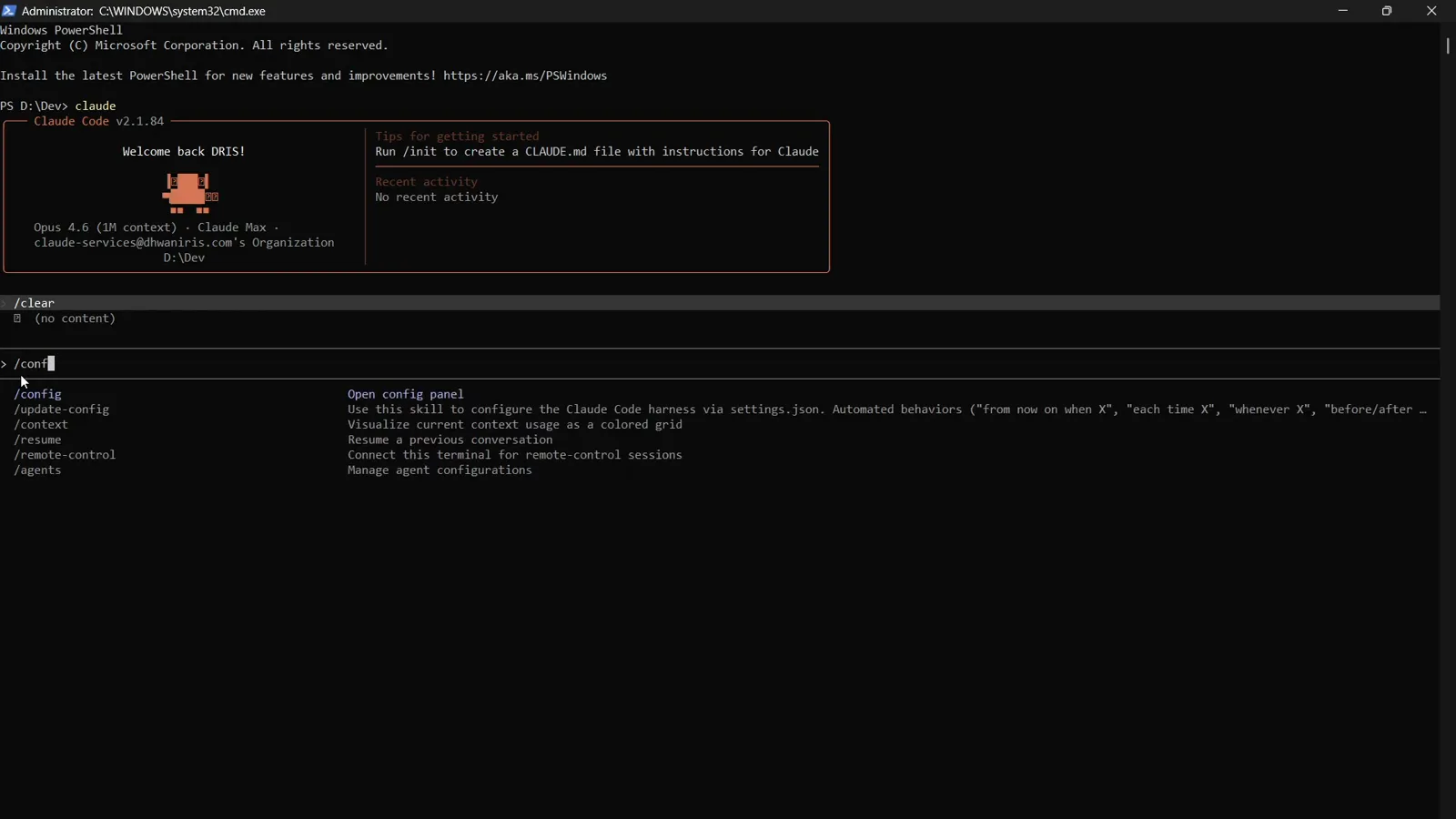
The slash menu filters as you type — /keybindings is one of the entries.Watch at 0:34 - 3
Map a key to an action inside a context
The file holds a bindings array grouped by context — Chat, Autocomplete, Agents, Task, Scroll and more. Each block maps a key to an action name: undefined }. Add the $schema field at the top and your editor autocompletes every action name.
- 4
Unbind with null and chain chords
Set a key to null to switch a default off — "ctrl+s": null disables the input stash. Chords are space-separated, so "ctrl+x ctrl+k" means press Ctrl+X, then Ctrl+K within three seconds. A few combos are reserved and can't be rebound: Ctrl+C, Ctrl+D, Ctrl+M, Ctrl+[ and Ctrl+I.
Turn on vim mode
- 5
Open the settings panel with /config
Prefer a toggle to hand-editing JSON? /config opens the settings panel shown in the walkthrough, with Status, Config and Usage tabs and a search box that filters the list as you type.
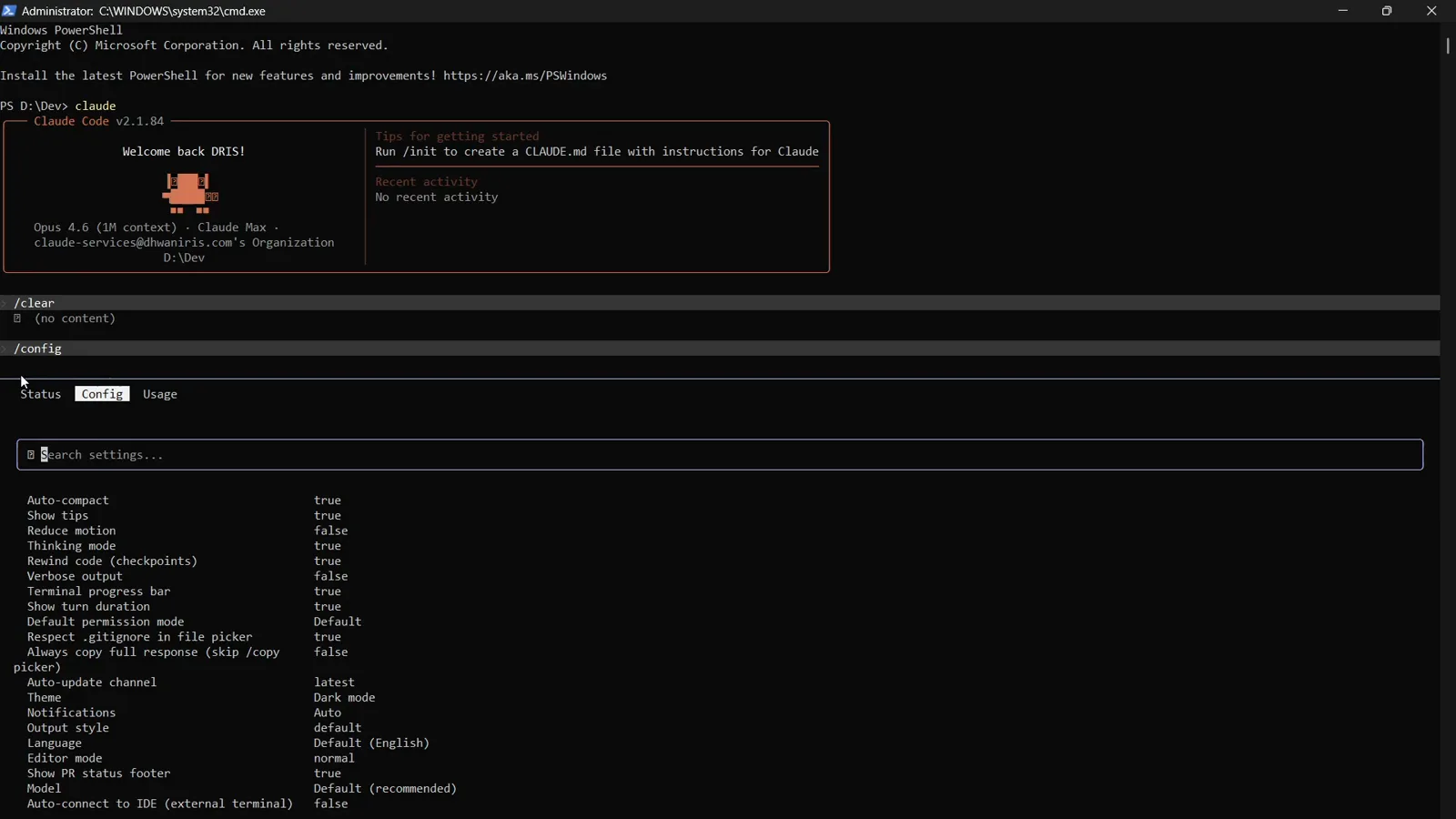
The /config panel lists every setting, including Editor mode.Watch at 0:40 - 6
Filter the list to Editor mode
Type edit into the search box and the list narrows to the Editor mode setting. Out of the box it reads normal — Claude Code's readline-style editing, familiar if you're coming from bash or Emacs keybindings.
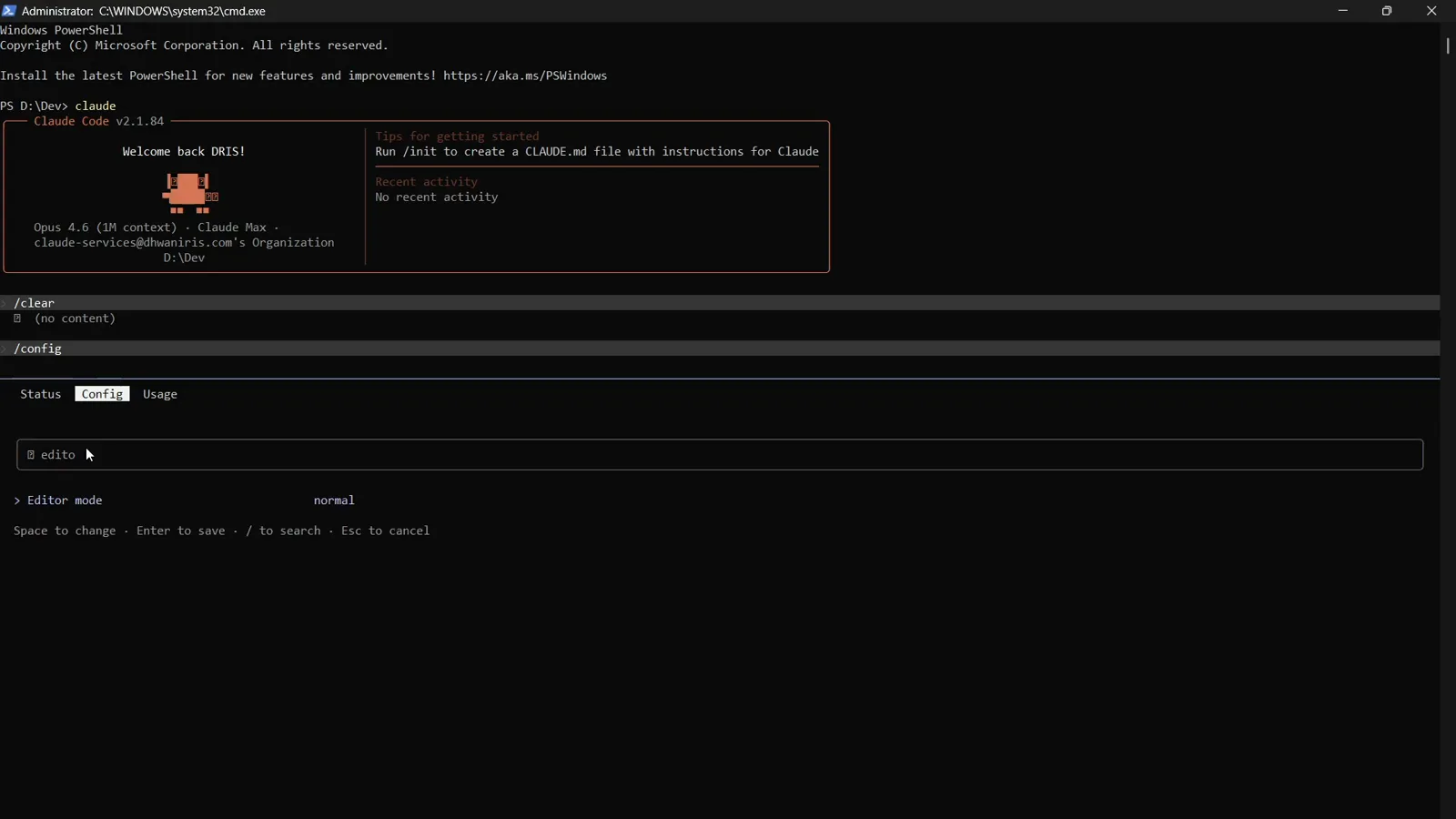
Editor mode starts on normal; Space flips it.Watch at 1:08 - 7
Press Space to switch to vim
With the Editor mode row highlighted, press Space — the value flips from normal to vim. The hint line spells out the contract: Space to change, Enter to save, / to search, Esc to cancel.
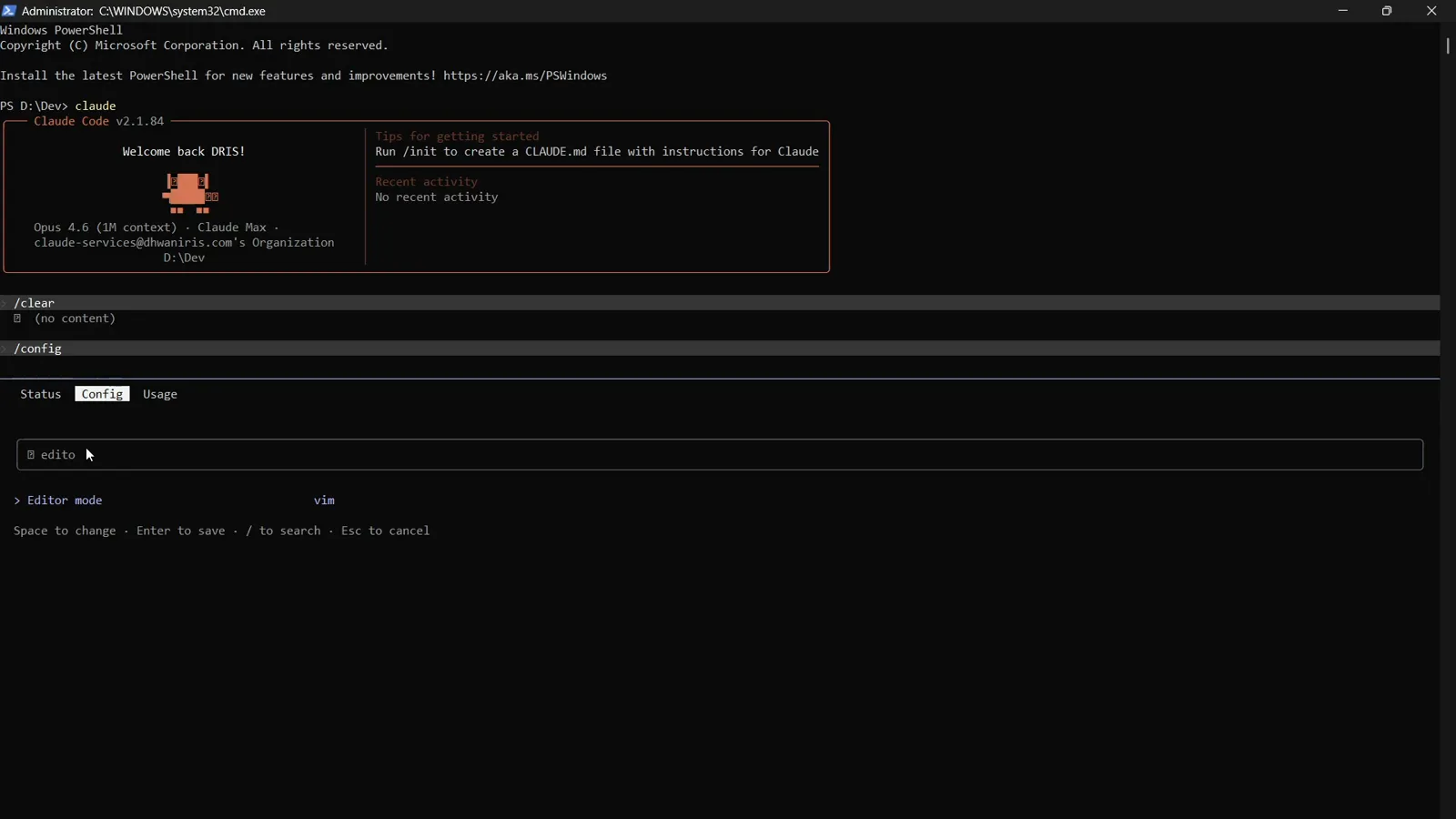
One Space press is all it takes to select vim.Watch at 1:11 - 8
Save and look for -- INSERT --
Press Enter to save. Claude Code prints "Set editor mode to vim" and the status footer gains vim's -- INSERT -- marker. The choice persists across sessions on the same machine — it's stored as editorMode inside ~/.claude.json, a runtime file you shouldn't symlink into your dotfiles because it also holds OAuth caches and session state.
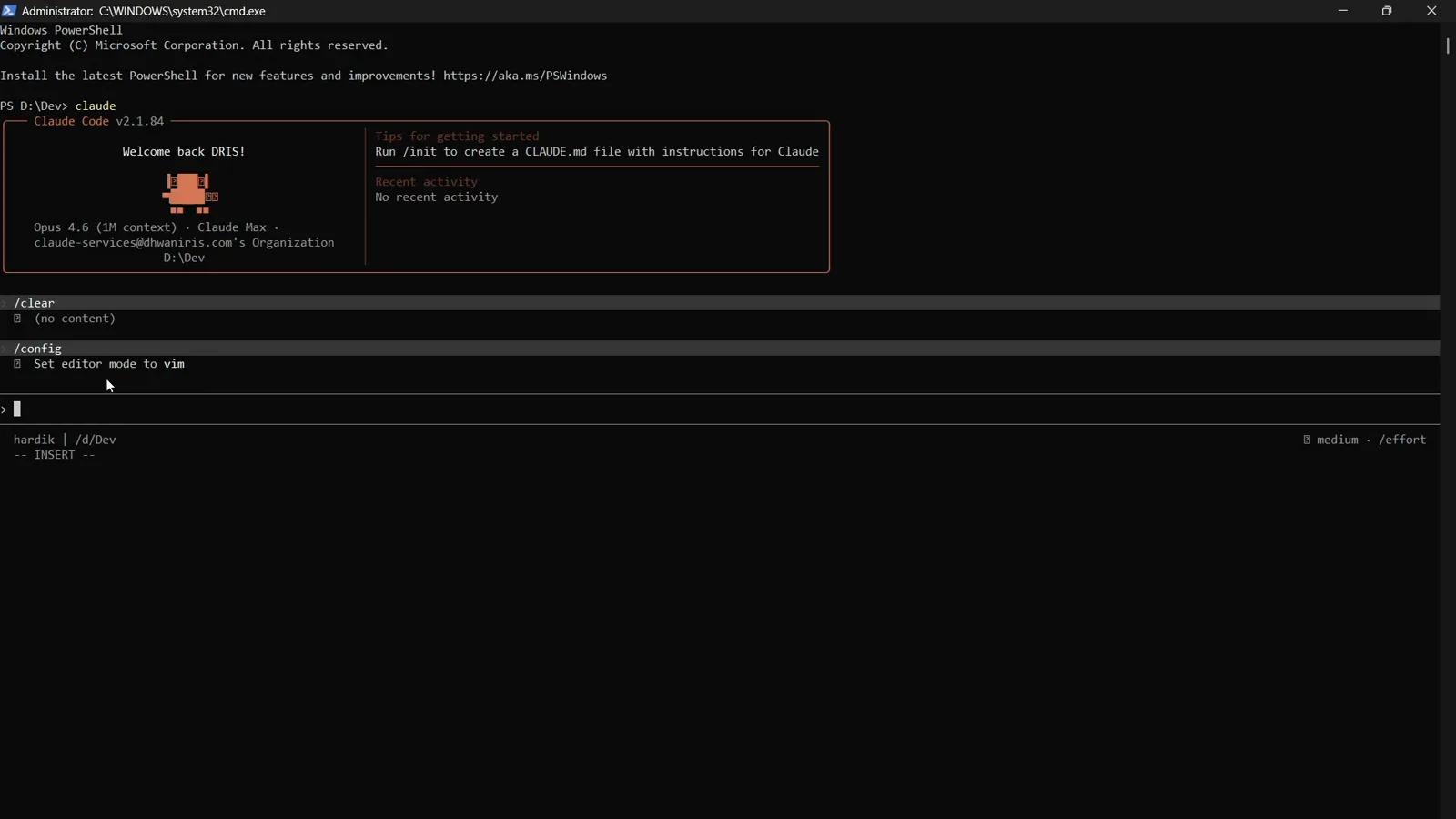
Saved — the footer now shows vim's -- INSERT -- indicator.Watch at 1:28 - 9
Edit in insert mode, command in normal mode
Insert mode works like plain typing. Escape switches to normal mode: h, j, k, l move the cursor, b and w jump between words, d deletes, c changes, r replaces. Running /vim again toggles the whole mode back off. Vim's own keys aren't remappable through keybindings.json — vimInsertModeRemaps is the setting for INSERT-mode sequences like jj.
- 10
Select text with visual mode (v2.1.118+)
Older tutorials report that visual mode is missing — that's out of date. The v2.1.118 release added visual mode (v) and visual-line mode (V) with selection, operators and visual feedback: press v plus a motion to select characters, V plus a motion for whole lines, then d, y or c to act on the selection.
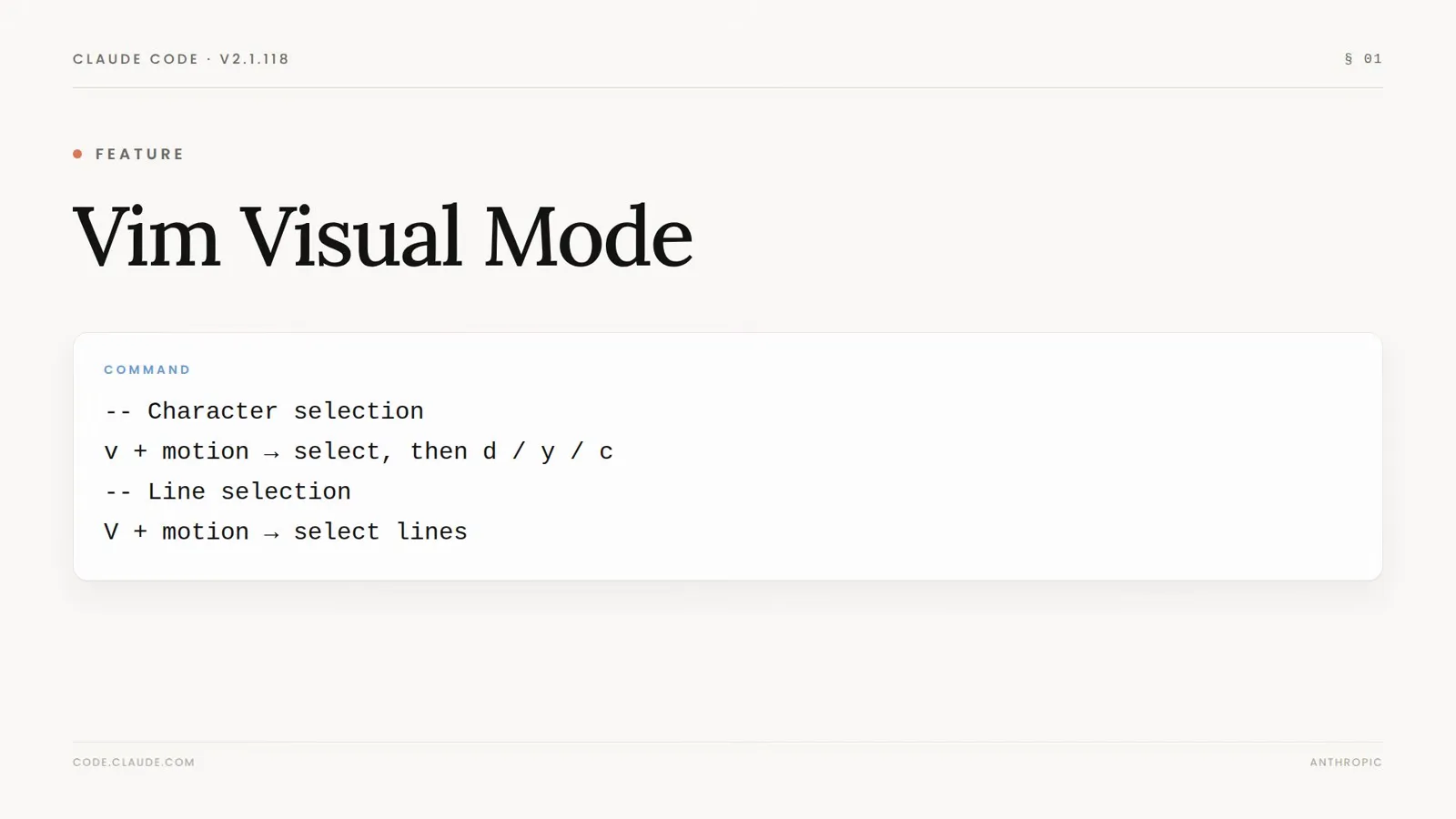
v2.1.118 brought v and V selection to Claude Code's vim mode.Watch at 0:16
Default keyboard shortcuts worth memorizing
- 11
Learn the default shortcuts that matter most
Shift+Tab cycles permission modes, Enter submits, Ctrl+J adds a newline, Ctrl+L clears the input, Ctrl+R searches history, Ctrl+O toggles the transcript, Ctrl+T shows todos, Ctrl+B backgrounds a task, and Ctrl+X Ctrl+K kills agents. In the agents view on v2.1.288 or later, Ctrl+F finds a session by name and Alt+↑/↓ jump between groups — and every one of these is rebindable in keybindings.json.
keybindings.json vs /config vs /vim: which changes what
Three layers control what your keystrokes do in Claude Code. They stack rather than compete — pick the layer that matches the change you want.
- 1keybindings.json remaps individual actions. Move chat:externalEditor onto ctrl+e, unbind chat:stash, add a ctrl+x chord. Granular, portable, and safe to keep in version control.
- 2/config → Editor mode switches the whole editing model between normal (readline) and vim. One toggle, saved instantly, applied to every future session on that machine.
- 3/vim does exactly the same as the Editor mode toggle — it's the fastest path, and the command the HAMY LABS walkthrough relies on. Run it again to go back to normal.
- 4Your terminal intercepts some keys before Claude Code ever sees them: tmux's Ctrl+B prefix, GNU screen's Ctrl+A, and Ctrl+Z suspending the process. Fix those at the terminal level, not in keybindings.json.
- 5Inside vim mode, vimInsertModeRemaps is the only way to remap vim behavior such as jj to escape — keybindings.json deliberately doesn't touch vim's internal keys.
Rule of thumb: one annoying shortcut → keybindings.json; a different editing style overall → vim mode; a key that never arrives → check the terminal first.
Keybinding not working? Fix it in order
Most keybinding complaints trace back to five causes. Walk down the list before re-editing the file.
- 1Nothing changes after editing: make sure the file is ~/.claude/keybindings.json (not settings.json) and that the JSON parses. Start Claude Code with --debug to surface binding warnings such as misspelled actions or unknown contexts.
- 2A key refuses to rebind: Ctrl+C, Ctrl+D, Ctrl+M (always Enter), Ctrl+[ (always Escape) and Ctrl+I (always Tab) are reserved. Printable characters typed in text fields go to the input, not to bindings.
- 3Ctrl+B or Ctrl+A never arrives: tmux and GNU screen consume those as their prefixes. Rebind the shortcut in keybindings.json or change the multiplexer's prefix.
- 4Reusing a chord prefix fails: if ctrl+x starts several chords, you must unbind every ctrl+x chord before ctrl+x alone works as a plain key.
- 5Vim keys ignore your bindings: by design — vim mode handles its own keys. Use vimInsertModeRemaps for insert sequences, and update Claude Code if v or V selection does nothing (needs v2.1.118+).
To restore any default, delete its line from keybindings.json — removal, not a saved "default" value, is what brings the original binding back.