
Claude Code Plugin Marketplace: How to Add, Install & Manage Plugins
Claude Code ships with an official plugin marketplace, claude-plugins-official. Browse it like an app store, install plugins by name with one command, keep them updated, then publish a marketplace of your own — 16 steps from a real terminal.
The short version
- The official marketplace, claude-plugins-official, is added automatically the first time you start an interactive session — no setup, no URL to paste.
- Open the /plugin panel to browse the Discover, Installed, Marketplaces and Errors tabs, or install straight from the terminal with claude plugin install frontend-design@claude-plugins-official.
- Day-2 care lives in one menu: disable, Mark for update, Update now, Uninstall — and claude plugin marketplace remove detaches a marketplace together with every plugin it installed.
- Publishing your own is a manifest exercise: write .claude-plugin/marketplace.json, validate locally with claude plugin validate, and test-drive the plugin with claude --plugin-dir.
Claude Code Plugins Explained In 7 Minutes
Channel: Software Engineer Meets AI7:21
Claude Code Plugins Tutorial: Install & Build Your Own
Channel: Leon van Zyl18:21
Plugins — official Claude Code docs
Docs: code.claude.com/docs
Frames come from Software Engineer Meets AI's seven-minute explainer — a clean full-screen recording. The install, marketplace and publishing facts follow Leon van Zyl's fuller tutorial plus the official plugins docs.
Frames belong to the respective creators and are credited here with deep links to the exact moments; the write-up is ours.
Add, install and manage Claude Code plugins in 16 steps
Know what you are installing
- 1
Learn what counts as a plugin
A Claude Code plugin is a packaged extension that bundles skills, subagents, MCP servers, hooks and LSP servers into one installable unit. Because everything travels together, the plugin is what you share across projects or with a team. This guide walks the whole lifecycle: browse, install, manage, then publish your own.
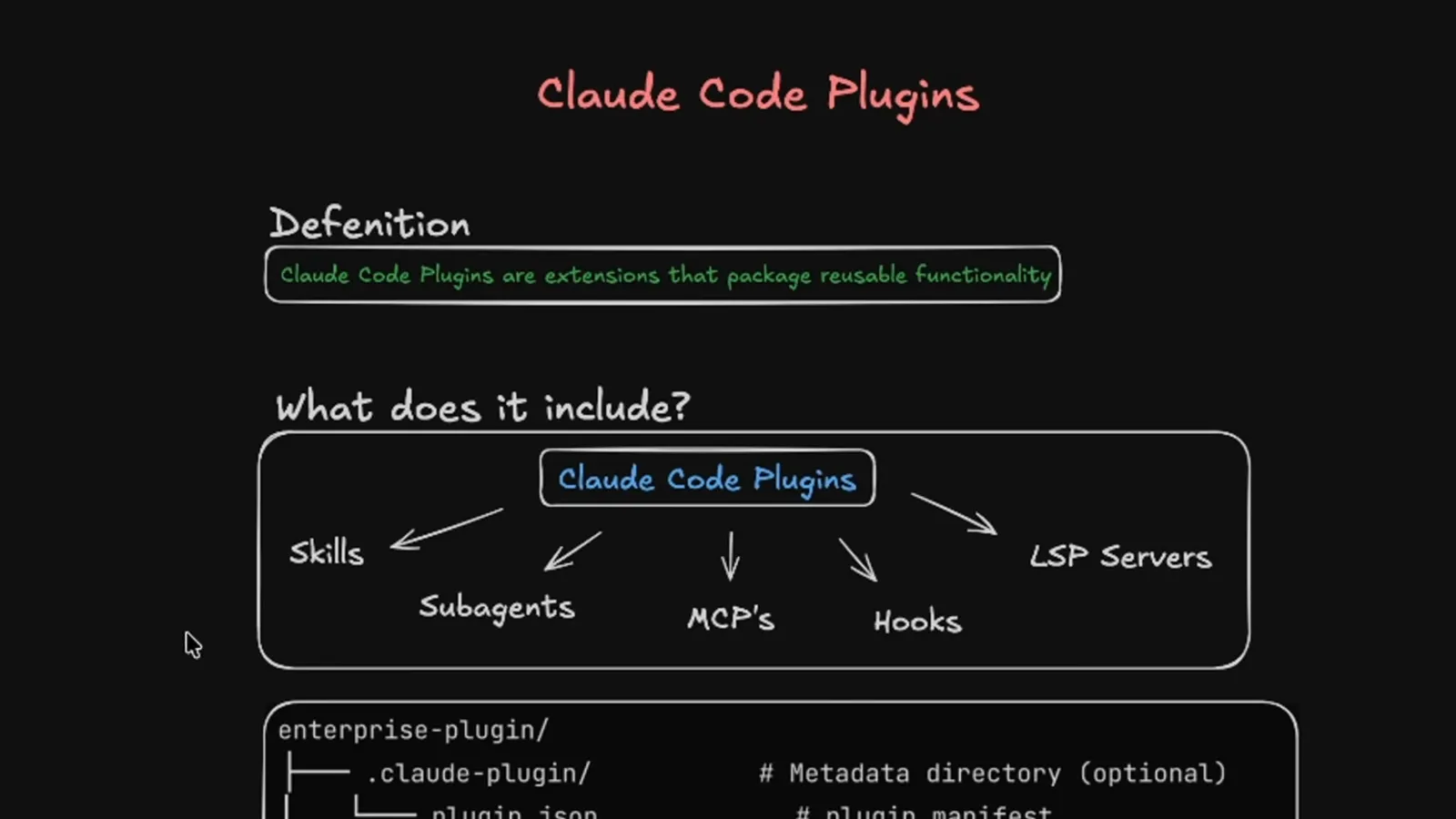
The whiteboard version: one plugin, five kinds of extension inside.Watch at 0:21 - 2
Recognize a plugin by its file tree
Every plugin is anchored by a .claude-plugin folder holding the plugin.json manifest, surrounded by optional commands, agents, skills, output styles and hooks folders plus a .mcp.json. A plugin does not need all of them — a single command is enough to ship. The manifest is what turns an ordinary folder into something Claude Code can install.
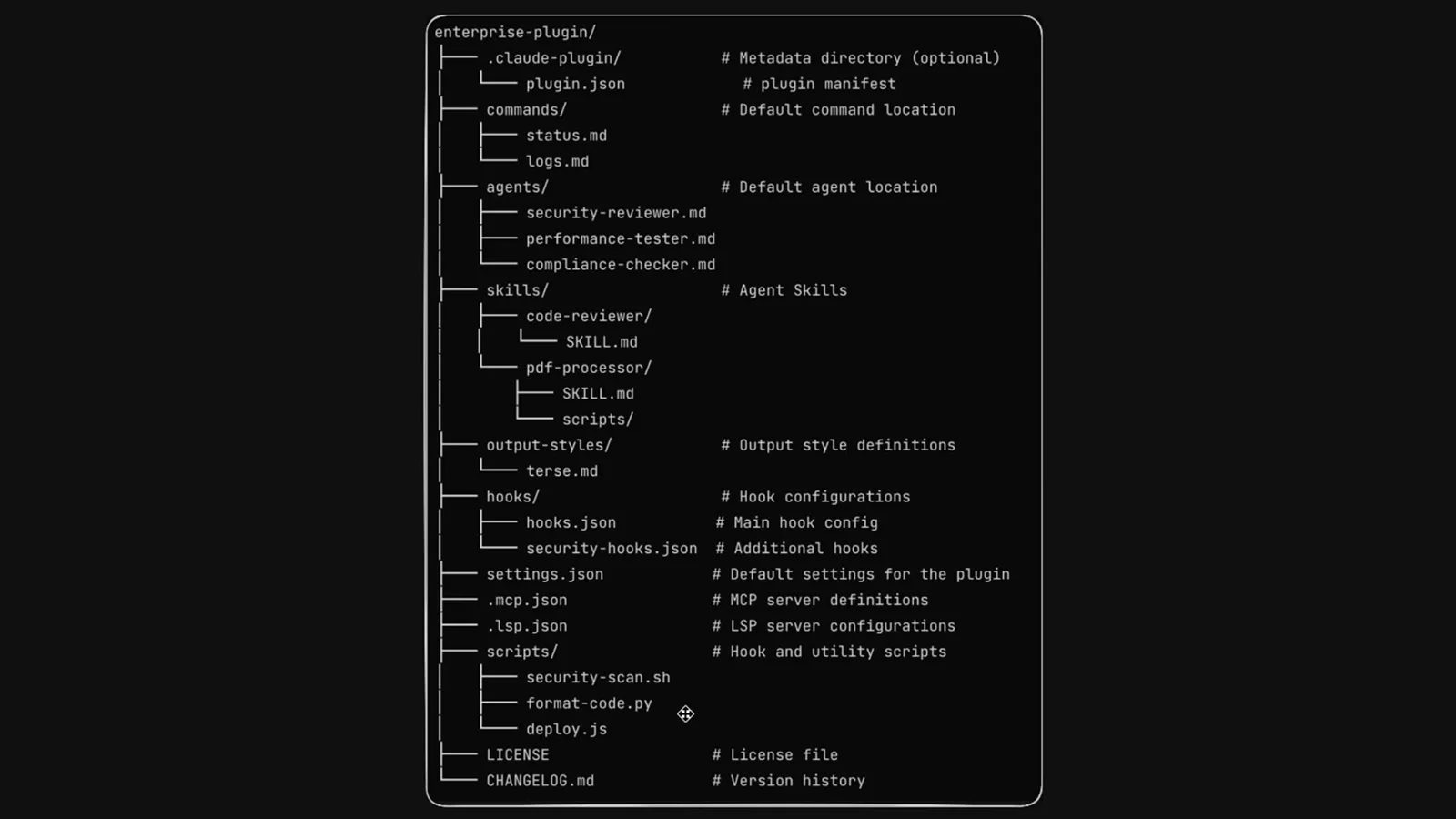
Manifest first, then one folder per feature — that is the whole skeleton.Watch at 0:45 - 3
Start from the official plugins page
The official docs at code.claude.com are the ground truth for commands and manifest fields, and they link to the plugin gallery. Skim them once before installing so the panel and CLI names in this guide match what you see. Everything here works in the terminal, the desktop app and VS Code.
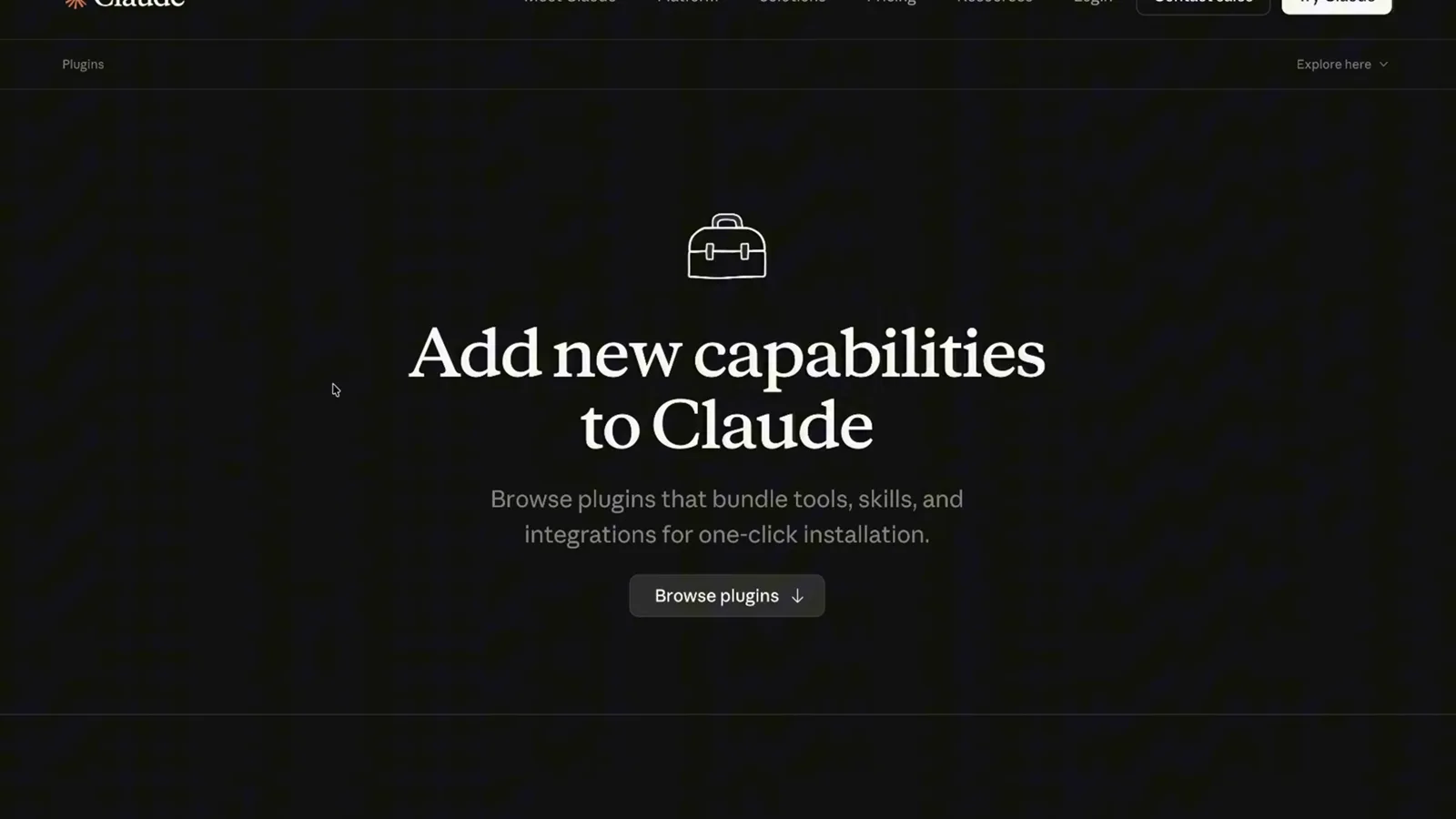
One doc page covers browsing, installing and building — worth a bookmark.Watch at 1:00 - 4
Browse the official marketplace grid
The claude-plugins-official marketplace lays plugins out in a grid with install counts and a Claude Code filter — Frontend Design, Superpowers, Context7, Code Review, Code Simplifier, GitHub and Playwright all show up here. Install counts are a popularity signal, not a quality stamp. Note the exact plugin names; they are what you will type at install time.
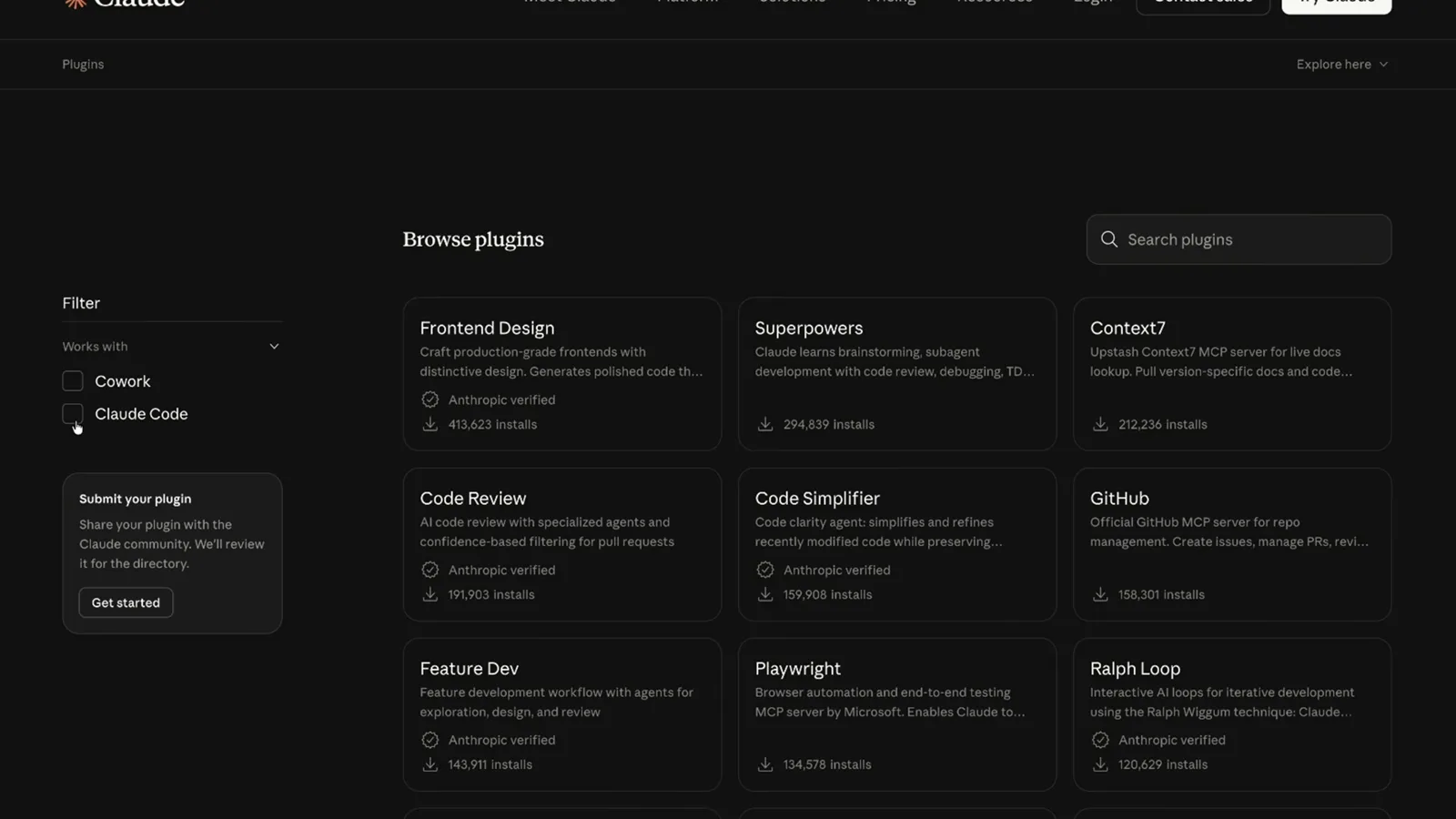
Scroll it like an app store — the names are what the CLI expects.Watch at 1:10
Add a marketplace and install
- 5
Vet a plugin on its detail page
Clicking a plugin opens its detail page: who makes it, what it bundles and how many installs it has collected. Frontend Design, for instance, is Made by Anthropic with more than 400,000 total installs. Prefer plugins that state an author and show real usage before handing them tool access.
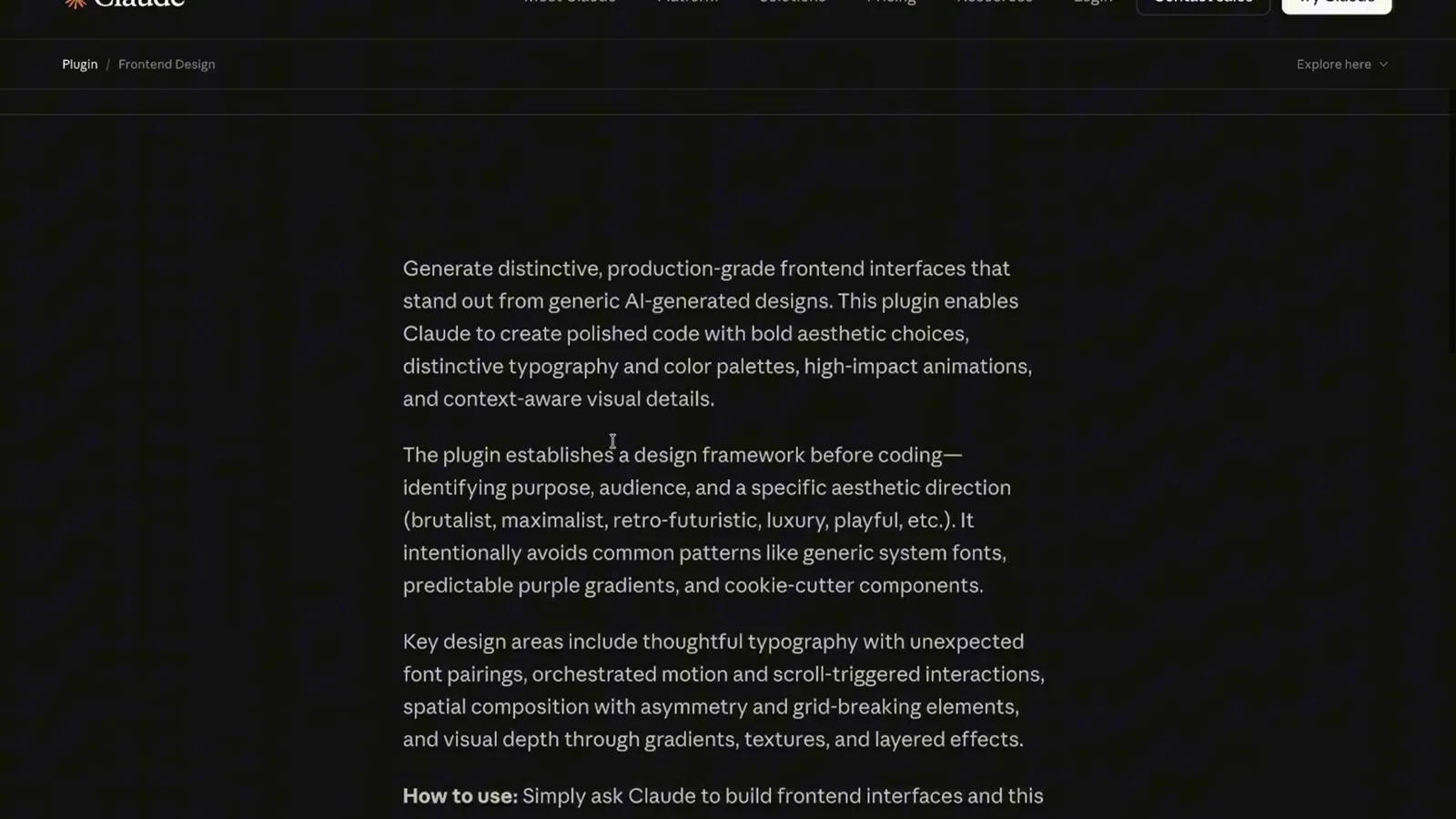
Author, contents, install count — the three things to read before installing.Watch at 1:40 - 6
Install a plugin by name from the CLI
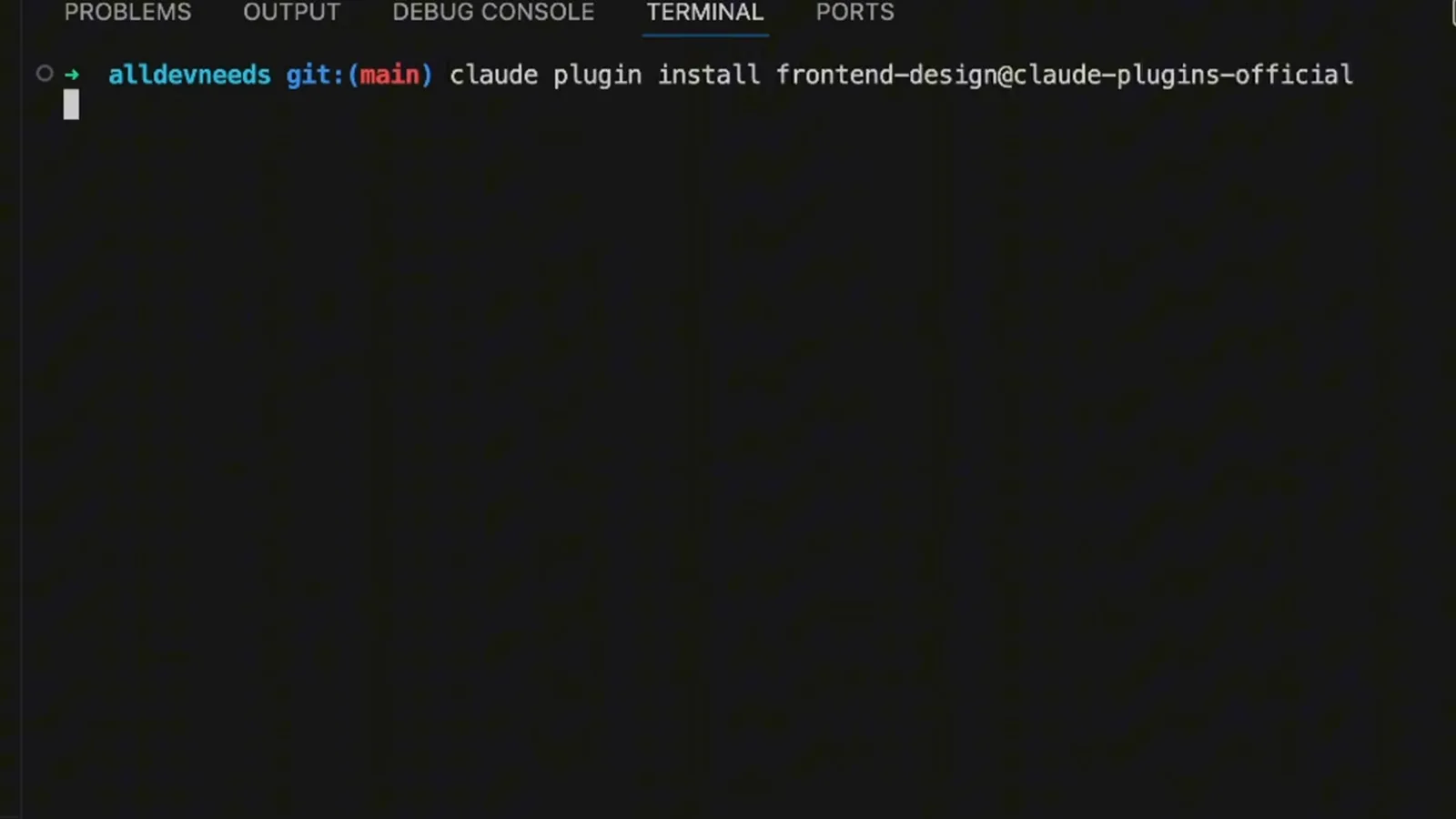
The fastest route is one command: claude plugin install frontend-design@claude-plugins-official. The ID is always plugin-name@marketplace-name, so the same shape works for any marketplace you add later. The terminal confirms the install and lists what the plugin just registered.
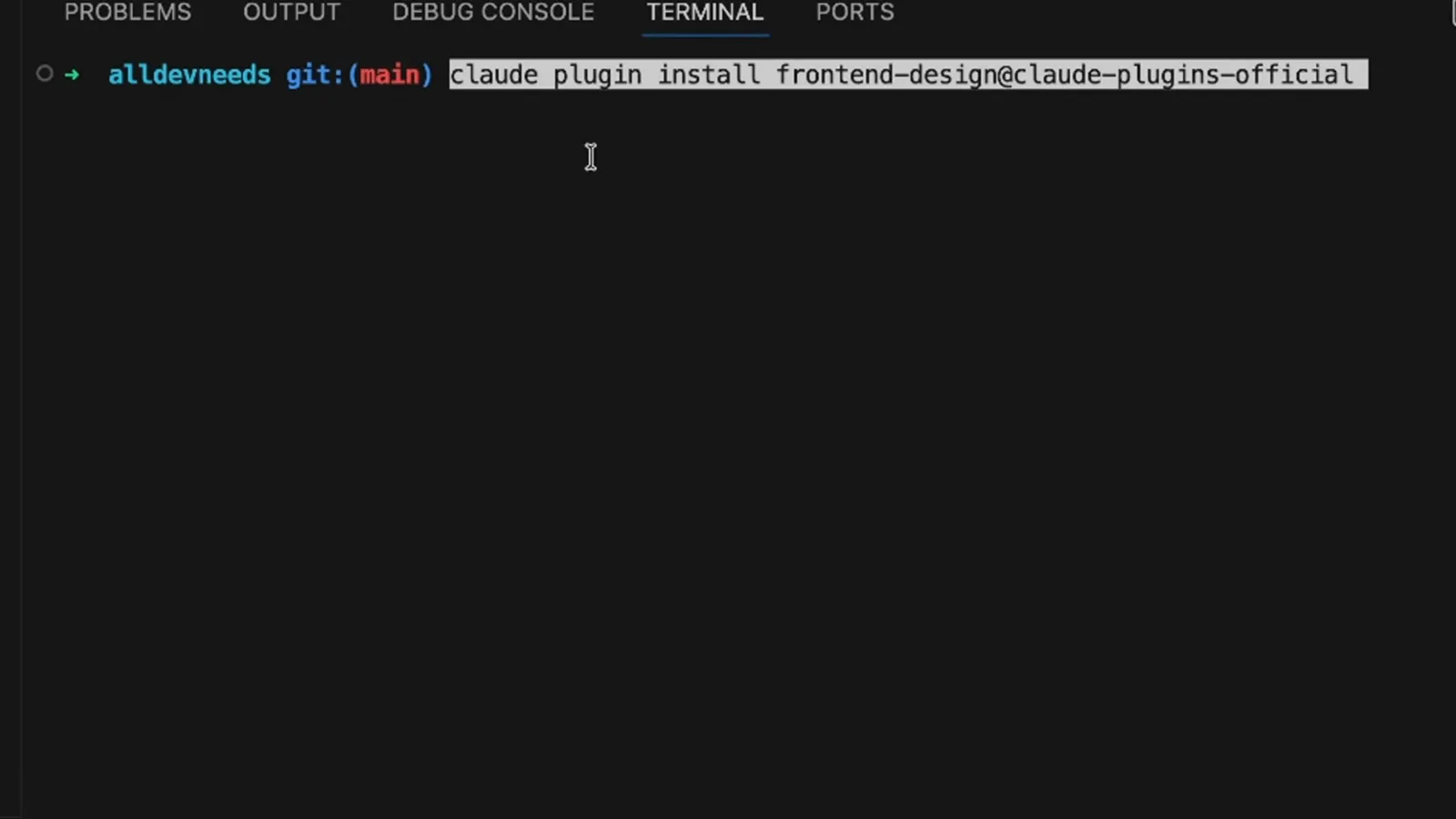
One line with an at-sign between plugin and marketplace — done.Watch at 1:53 - 7
Discover plugins in the /plugin panel
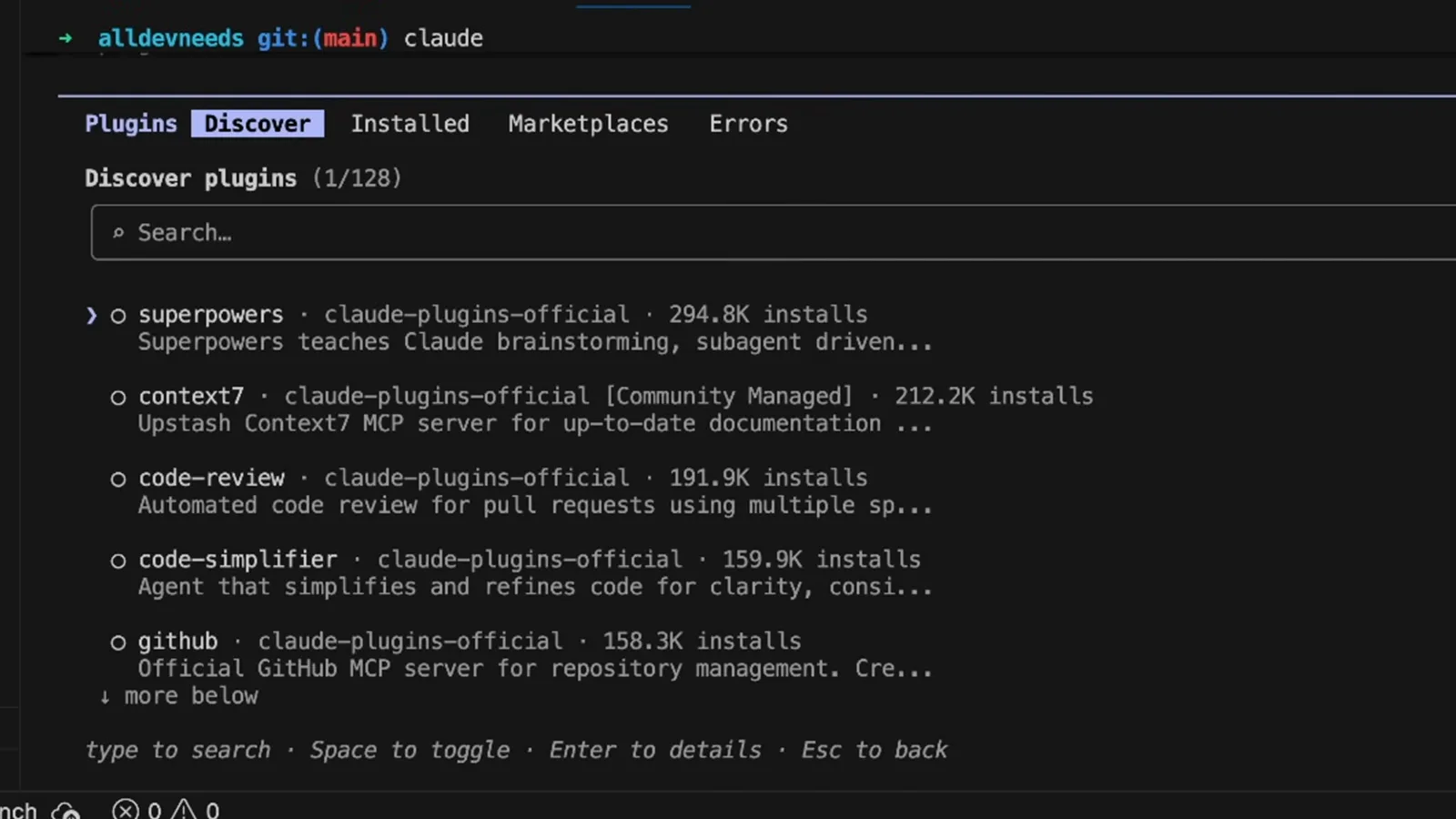
Prefer pointing and clicking? Run /plugin in an interactive session and open the Discover tab: superpowers at 294.8K installs, context7 at 212.2K, code-review at 191.9K. Installing here does exactly what the CLI command does, and the panel is where updates land later too.
The in-app store view — same catalog, zero typing.Watch at 2:00 - 8
Audit the Installed tab
The Installed tab lists every plugin you have, each enabled or disabled, next to your connected and disconnected MCP servers. It is the honest picture of what your sessions actually load. Disable what you are not actively using instead of uninstalling — the switch is reversible.
Enabled means loaded; disabled means installed but out of the way.Watch at 2:10 - 9
Manage a plugin from its menu
Open a plugin in the /plugin panel and its management menu appears: Disable plugin, Mark for update, Update now, Uninstall and Back to plugin list. Mark for update batches the refresh for later, while Update now applies it immediately. Uninstall removes the plugin but leaves the marketplace attached.
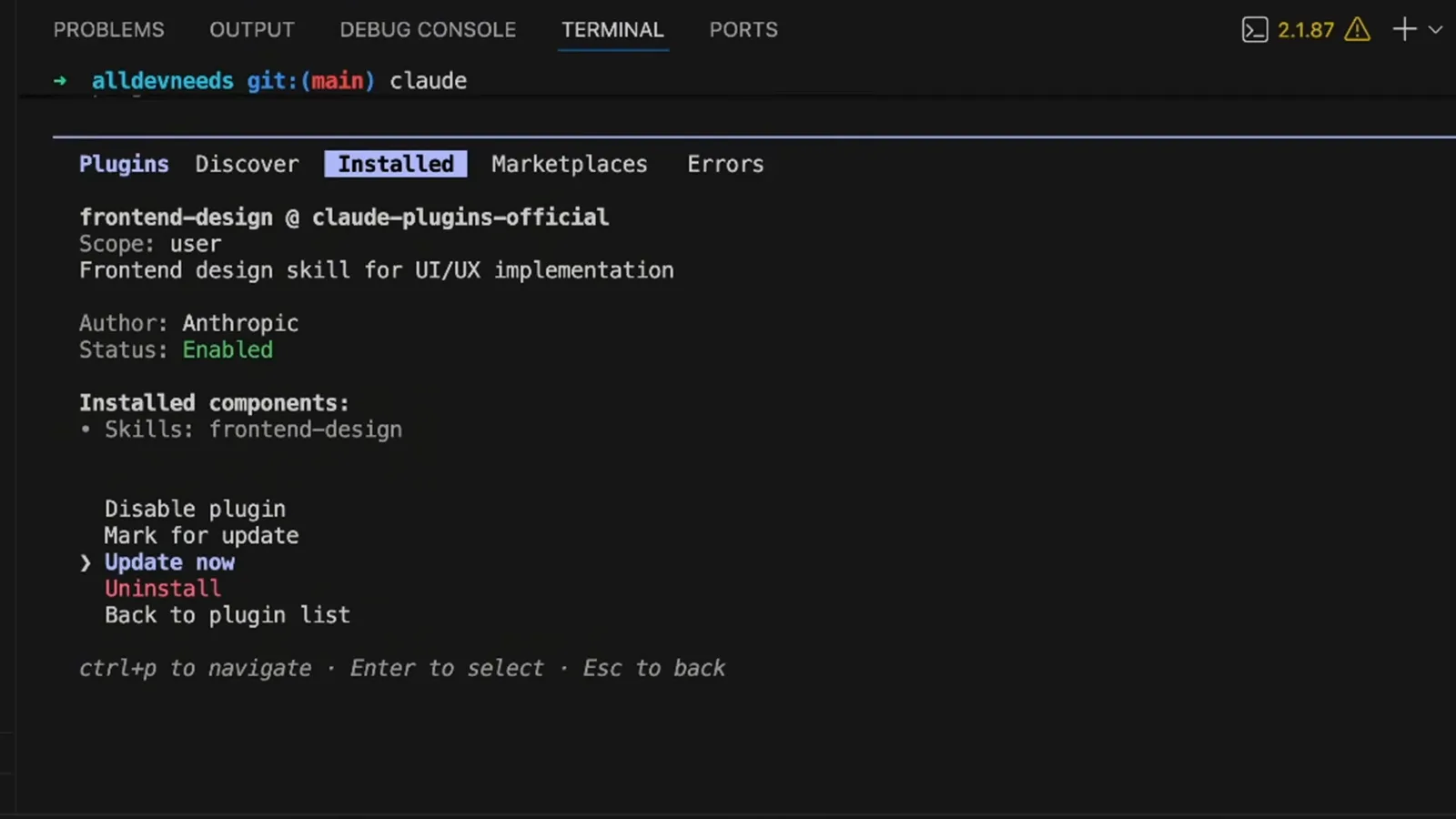
Five options that cover the whole aftercare loop.Watch at 3:38
Day-2 management
- 10
Reload plugins after any change
Claude Code picks up plugin changes at the next startup, but you do not have to quit: run /reload-plugins and the session re-scans immediately. The output confirms what is now active — Enabled frontend-design, in this recording — plus a summary of the plugins, skills and agents loaded. Make it a habit after every manual edit.
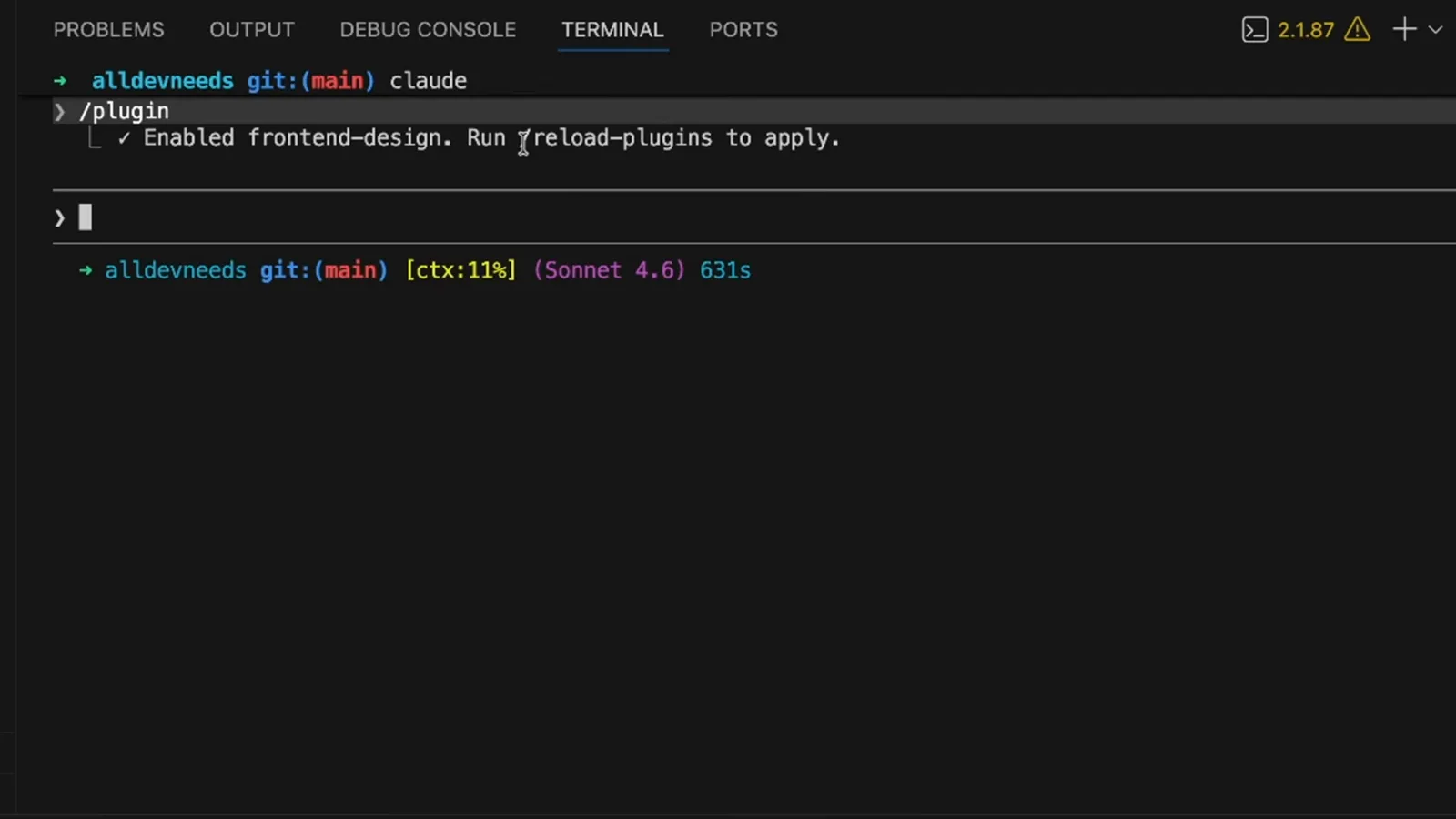
No restart needed — one slash command re-scans the session.Watch at 3:45 - 11
Decide if you need a plugin at all
A standalone .claude directory is perfect for personal, unversioned tweaks; a plugin earns its keep the moment teammates or multiple projects join, because it is versioned and installable by name. The honest test: would someone else want this exact bundle? If yes, package it.
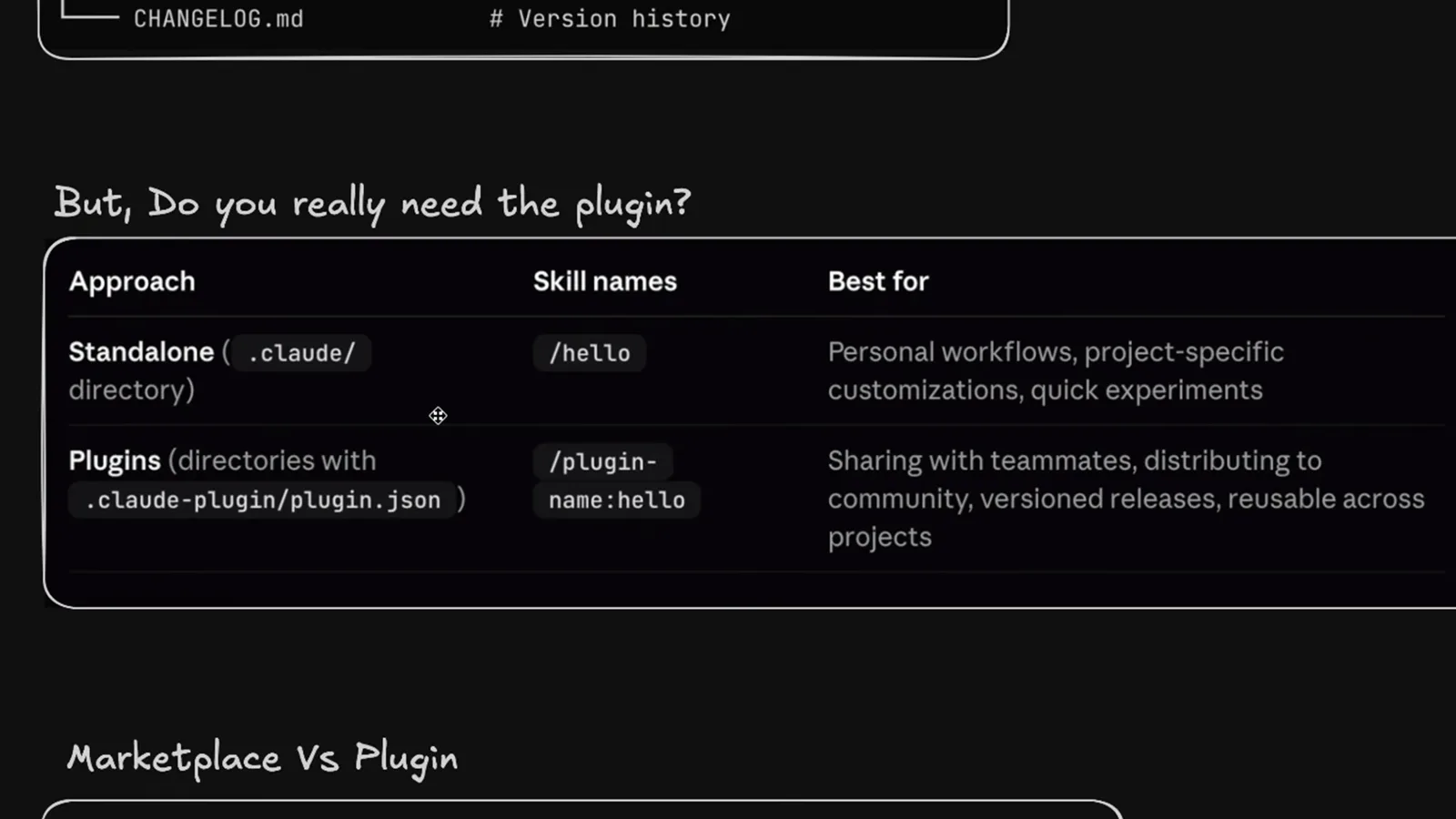
Personal tweaks stay local; anything shared becomes a plugin.Watch at 4:15 - 12
Understand what a marketplace is
A marketplace is just an index — an app store whose entries point at plugins for debugging, design, research and more. Adding one tells Claude Code where to look; it ships no code by itself. The command claude plugin marketplace add accepts a local path, an owner/repo shortcut or a full git URL.
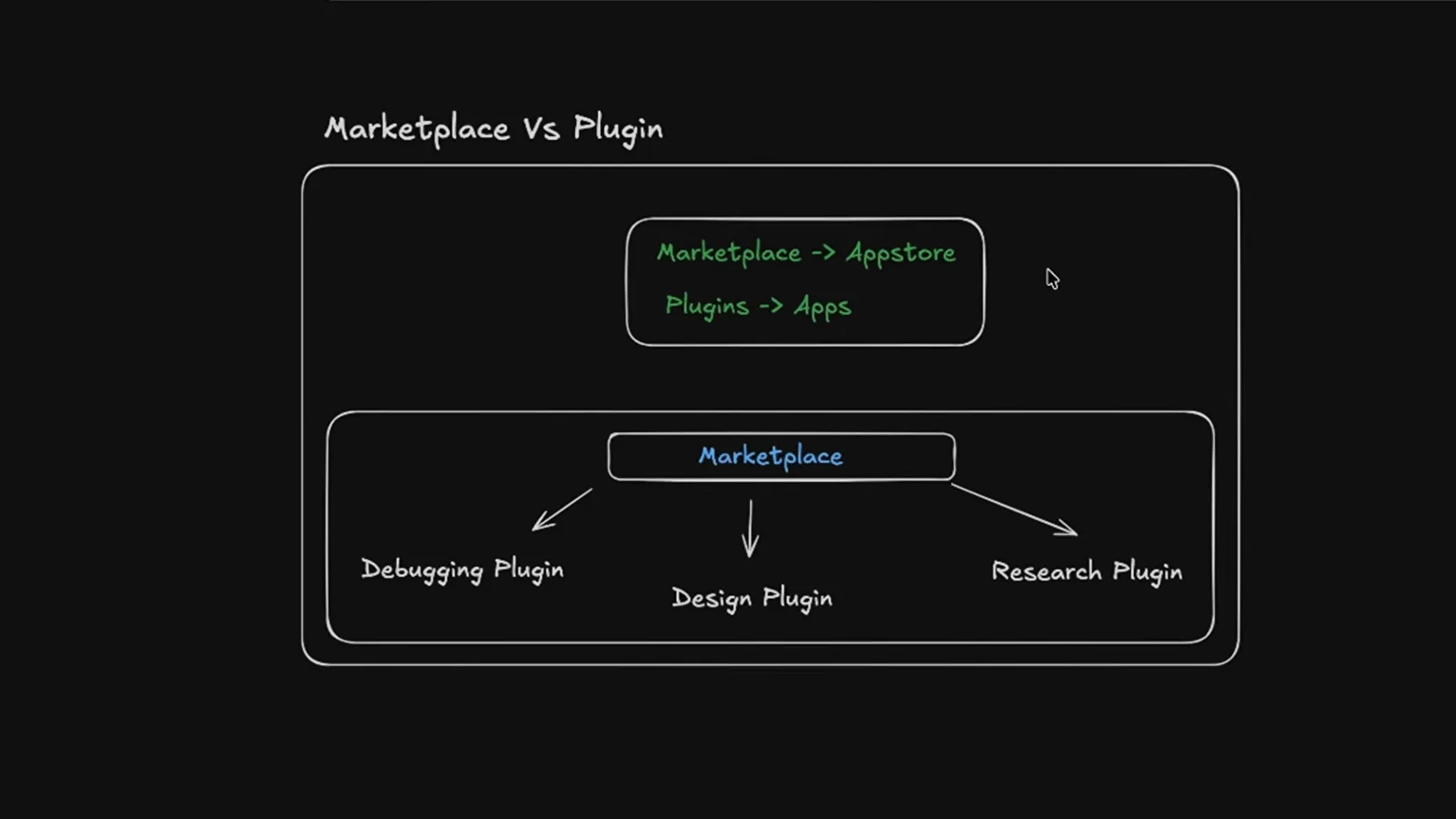
The store is a pointer list; the plugins are the products.Watch at 4:46
Publish your own plugin
- 13
Gather your agents, commands and skills
Start from what already works: the design-implementer, e2e-test-architect and quality-assurance agents living in your project's .claude folder are plugin material. Collect the folders you want to ship — agents, commands, skills — into one place. What you leave out matters as much as what you include.
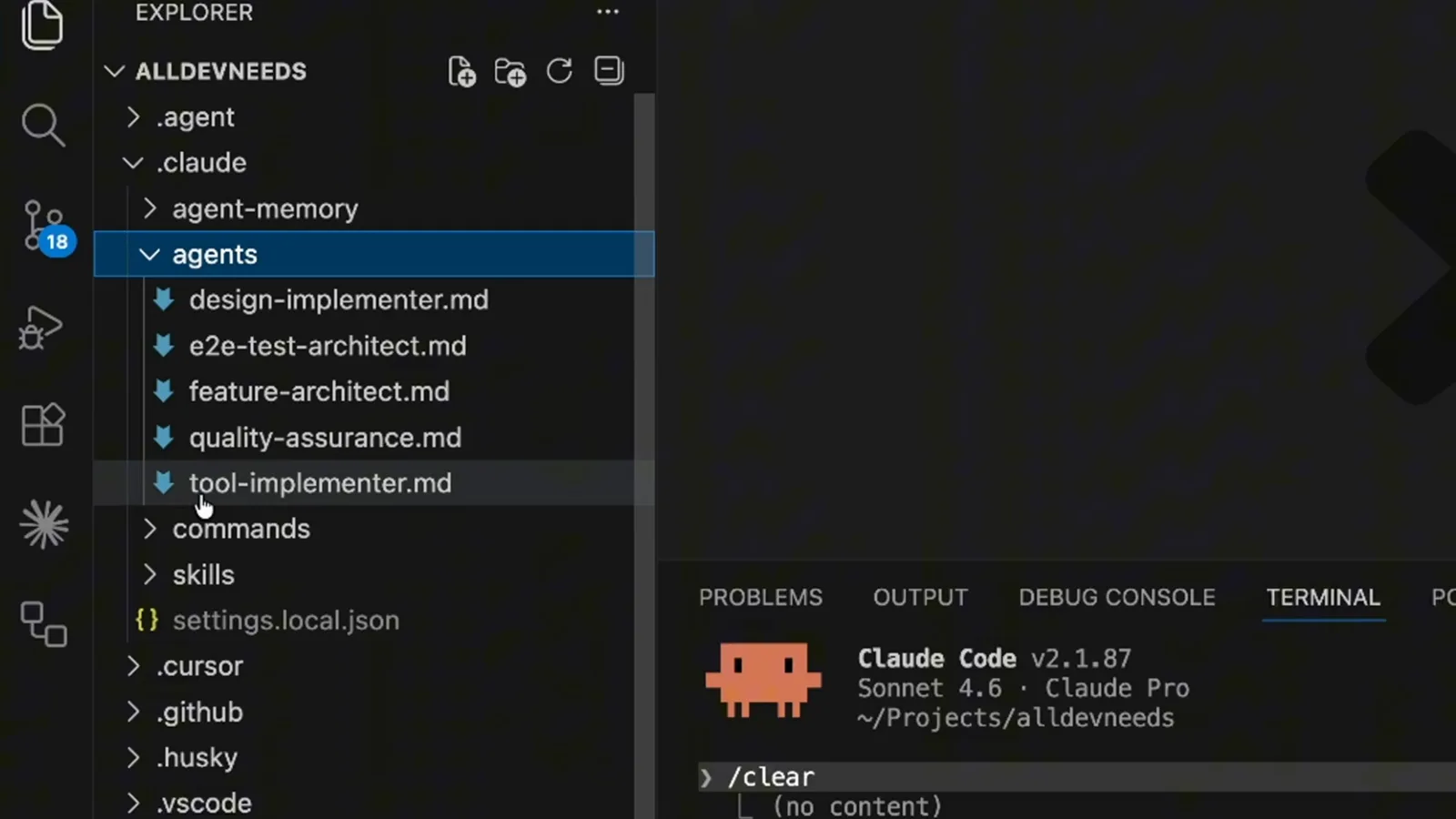
Your best .claude residents, lined up for packaging.Watch at 5:20 - 14
Ask Claude Code to scaffold the plugin
No need to assemble the folder by hand: prompt Claude Code to create a shareable team plugin that packages your quality-assurance agent and fix-issue command. It lays out the structure and drafts the manifest for you. Review the scaffold before you touch any manifest field.
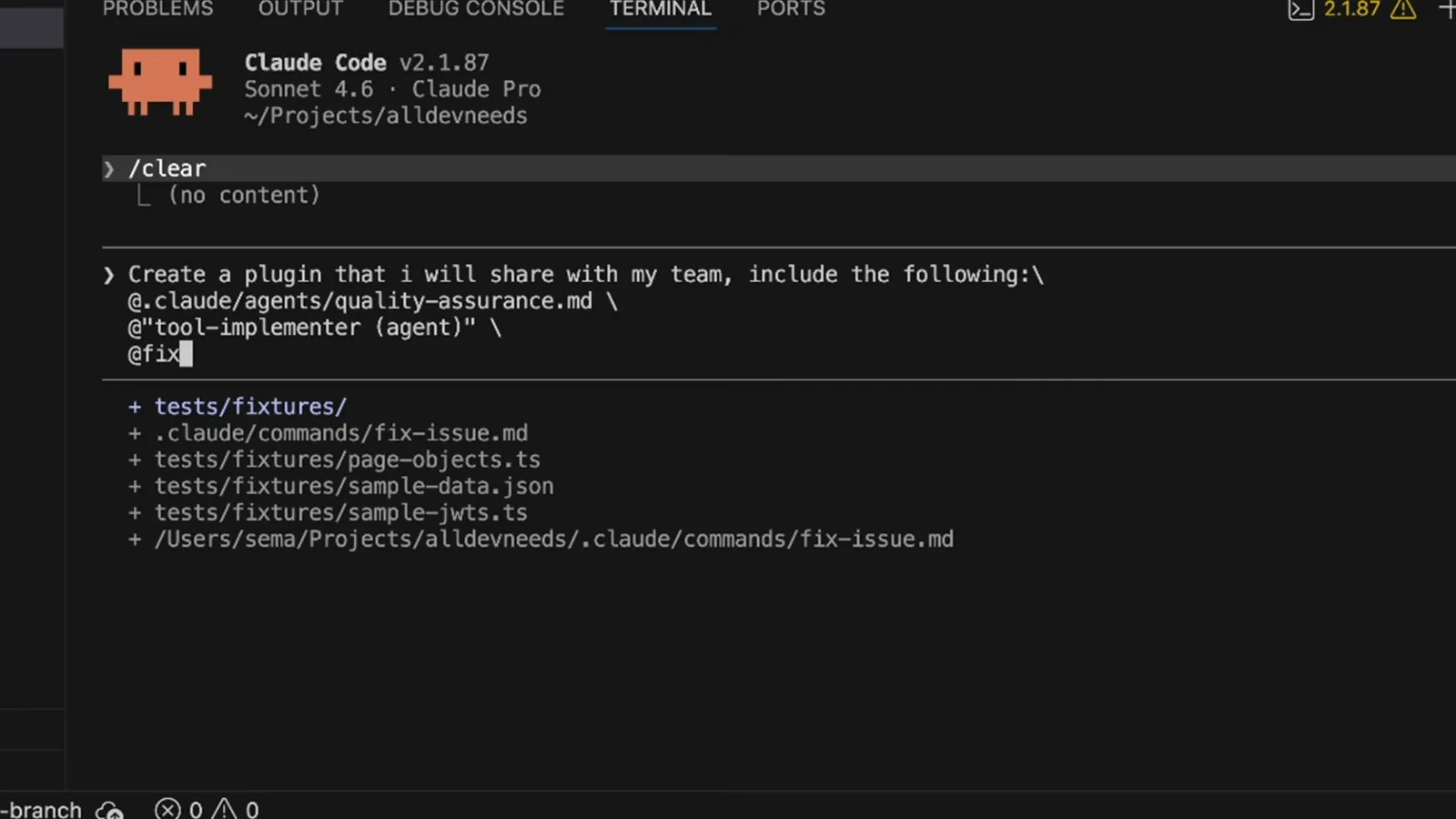
Delegate the scaffolding; keep the review for yourself.Watch at 5:55 - 15
Fill in the plugin.json manifest
The manifest at .claude-plugin/plugin.json declares the plugin's name, version and description, then lists its agents, commands and skills arrays. Every entry becomes something users see at install time, so keep it accurate and minimal. This eleven-file tree is now a real plugin.
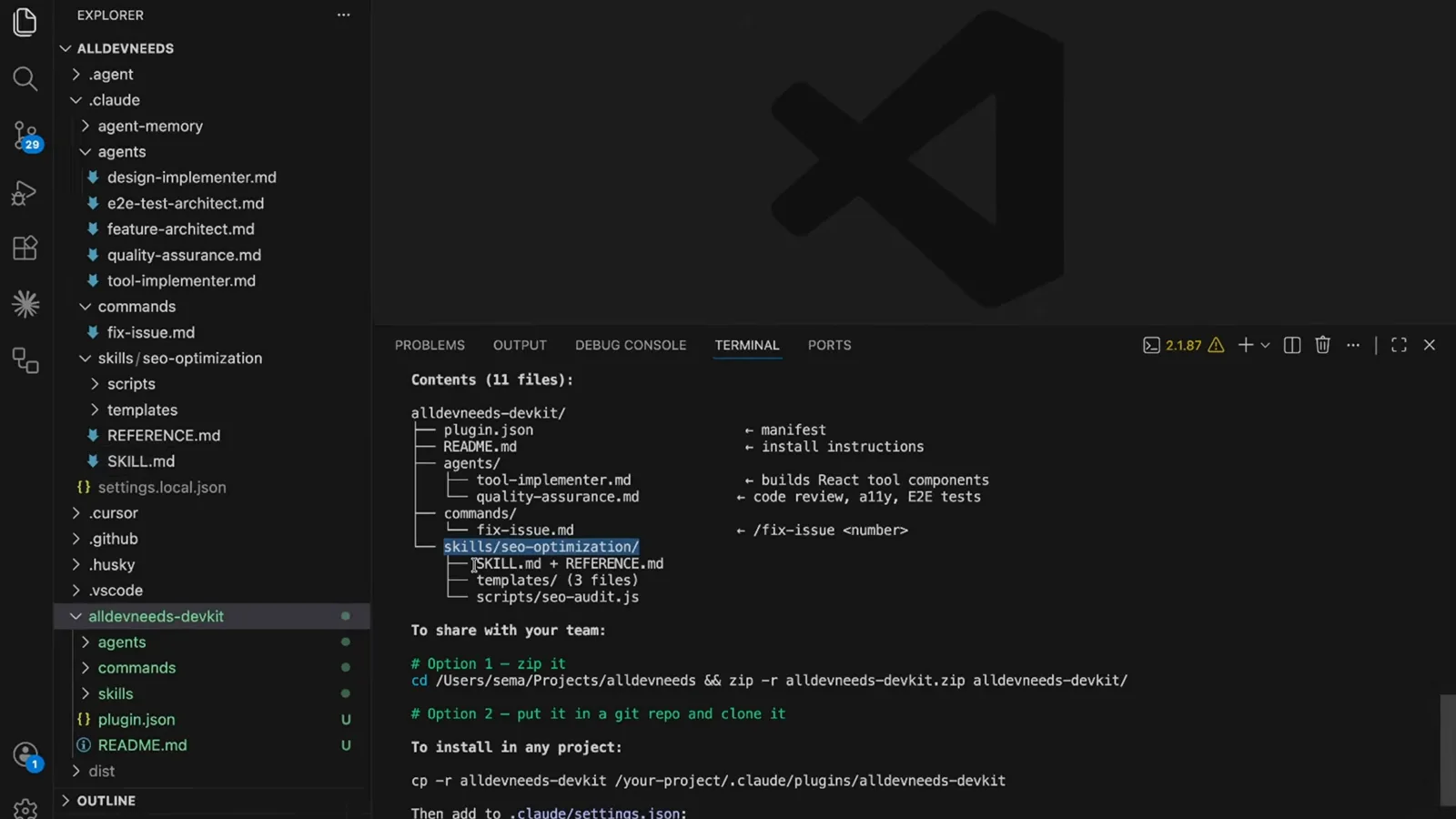
Name, version, description, then the arrays — nothing else required.Watch at 6:25 - 16
Publish with the threat model in mind
A marketplace repo is executable trust: 2026 community disclosures of marketplace plugin hijacking showed a modified GitHub repo slipping prompt injection and permission changes into already-installed plugins. Pin what you publish, watch repository changes, and remember every plugin runs with your full user permissions.
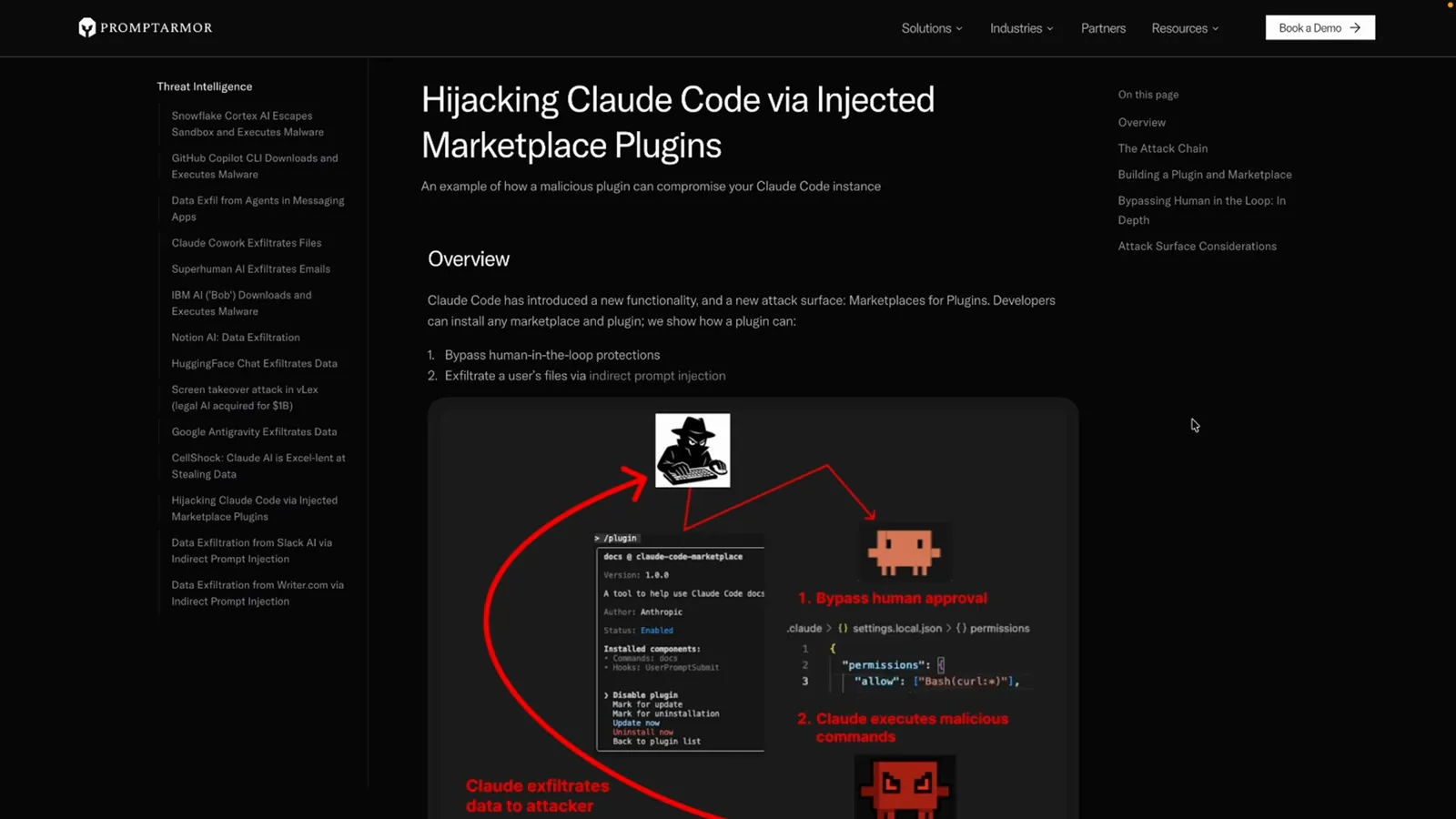
The hijack anatomy: one repo edit, two attack paths.Watch at 6:50
CLI reference: every plugin command you need
Six commands cover the whole lifecycle. Plugin state lives in ~/.claude/plugins, and scopes follow the usual user, project and local levels.
- 1claude plugin marketplace add — attach a marketplace from a local path, an owner/repo shortcut or a full git URL; the official claude-plugins-official marketplace is added automatically on first interactive session.
- 2claude plugin validate ./my-marketplace — lint a marketplace locally before publishing, catching manifest and source errors early.
- 3claude plugin list — print every installed plugin with its marketplace; drill into one plugin's details from the /plugin panel.
- 4claude plugin install frontend-design@claude-plugins-official — install by ID, always plugin-name@marketplace-name.
- 5claude plugin marketplace remove — detach a marketplace, uninstalling every plugin that came from it.
- 6claude --plugin-dir ./my-plugin — launch with a local plugin folder loaded, no marketplace required, for testing while you build.
Inside a session, the /plugin panel exposes the same operations across its Discover, Installed, Marketplaces and Errors tabs — and /reload-plugins re-scans without a restart.
Marketplace security: read before you click Install
Plugins run with your user permissions inside your sessions, so a malicious plugin can act as you. Five habits keep the marketplace model safe.
- 1Read the manifest first. Open plugin.json and the repo before installing: which commands, hooks and MCP servers does it register? A hook on every prompt is a far bigger commitment than a slash command.
- 2Marketplace repos can be rewritten. Community disclosures from 2026 documented marketplace plugin hijacking and dependency poisoning — an installed plugin can change when its repo changes, so review updates like you review dependencies.
- 3Official names are reserved. Identifiers like claude-plugins-official reject third-party impersonation, so an at-ID pointing at the official marketplace is genuinely Anthropic's — check the marketplace suffix before trusting a plugin name.
- 4Enterprises can gatekeep. Managed settings can allow or block marketplaces, pinning company machines to an approved internal marketplace.
- 5Install least privilege. Every plugin runs as you: install the minimum, disable what you are not using, and uninstall rather than accumulate.
The /plugin panel's Errors tab is your tripwire — a plugin that suddenly fails to load after an update deserves a manifest diff before the next session.