
Best Local Model for Cline: Ollama & LM Studio Setup
Which local models are actually good enough for agentic coding in Cline, how to point Cline at Ollama or LM Studio, and the fixes for context length, connection refused and a missing model list — 13 steps verified against the recordings and the official docs.
TL;DR
- The local-model shortlist for Cline is qwen3-coder:30b (19GB, 256K context, tool calling), devstral:24b and gpt-oss:20b. All three carry a tools badge on their runtime's model page; a code model without a tool-calling template will chat about your code instead of editing it.
- Two runtimes cover everything: Ollama on http://localhost:11434 and LM Studio on http://127.0.0.1:1234. In Cline Settings → API Configuration set the matching API Provider and leave Use custom base URL off unless you moved the port.
- Nearly every "Cline local model not working" report is one of three things: the server is not running (connection refused), the model is not loaded (empty dropdown), or the context window is too small (the agent forgets and restarts its reasoning).
- Ollama's Cline integration page puts the floor at 32K tokens of context for coding, and Cline's own quick start ends with Enable Use Compact Prompt. Cline v4.1.21 added one compaction retry for local models that run out of room, because llama.cpp, Ollama and LM Studio cap generation at whatever context is left.
Which local models are actually good enough for agentic coding in Cline?
Cline is not a chat box. It sends a large tool-calling system prompt, then loops through tool calls, file diffs, terminal output and follow-ups. A model only works here if its chat template exposes tool calling through the runtime's API and it can hold a long enough chain of thought. That filters the field fast — check the tools badge on the model page before you download 19GB.
- 1Built for agents — qwen3-coder:30b is 30B total with 3.3B active per token, 19GB, a 256K context window and tool support; it is the strongest agentic coder you can run on a 24-32GB machine. devstral:24b is Mistral's coding-agent model. gpt-oss:20b is OpenAI's open-weight model with tool calling, reasoning and a 16GB sweet spot.
- 2Usable with the compact prompt on — qwen3 in its 4B to 14B tags and gemma3:12b do support tool calls and can finish small tasks such as the script, rename and game tasks in this guide. They burn their window quickly, so raise the context length and keep Use compact prompt enabled.
- 3Skip for agent work — deepseek-coder-v2 is a genuinely strong code model but has no tools badge on Ollama, so Cline's tool calls never reach it; the same is true of small non-tool models and of any "coder" tag whose model page shows no tool support. Benchmarks do not predict whether the tool loop closes.
- 4If what you want is agentic quality rather than offline privacy, think twice about paying the local hardware tax: Cline's free model tier already includes DeepSeek — DeepSeek V4 Flash is listed there with a 1M-token context window — so the same agent loop runs without a 19GB download or a 32GB RAM upgrade. Keep local inference for privacy, air-gapped work and learning, and see the DeepSeek + Cline guide linked below for the hosted route.
- 5Hardware rule of thumb from Cline's local-models page: 16-32GB runs small or quantized models, 32-64GB runs mid-size coding models, 64GB+ buys larger models and bigger context windows. In practice it is the context length, not the parameter count, that breaks a local agent loop first.
How to Use Cline with LM Studio for 100% Local AI Vibe Coding
Channel:Bootable USBs7:04
Install Qwen 3 Locally in Minutes with Ollama
Channel:Bonverium Studio4:04
Local models — Cline documentation
Docs:docs.cline.bot
Cline with Ollama — Ollama integration guide
Docs:docs.ollama.com
Cline v4.1.21 release notes (local model compaction)
Docs:github.com/cline/cline
Stills come from two screen recordings: the LM Studio + Cline walkthrough supplies every VS Code, Cline Settings and LM Studio frame, and a separate Ollama recording supplies the installer, model picker and terminal frames. Frames with creator overlays, faces or burned-in captions were dropped, and one context-length frame was re-extracted at an exact timestamp after fast seeking landed on the wrong scene.
Product names, menu labels and version numbers were checked against docs.cline.bot (Local models), docs.ollama.com/integrations/cline, the ollama.com model pages and the cline/cline v4.1.21 release notes. Stills quote brief excerpts from the recordings for commentary.
Set Cline up on local models in 13 steps
Install Cline and the Ollama runtime
- 1
Install the Cline extension in VS Code
Open the Extensions view (Ctrl+Shift+X) and search for Cline, then install the extension published by cline.bot. The marketplace list is crowded with look-alikes — Cline Chinese, Cline Max, Cline Pro - CodeAI, Bao Cline — and only the cline.bot listing is the official one. Cline Desktop and the CLI use the same provider settings described below.
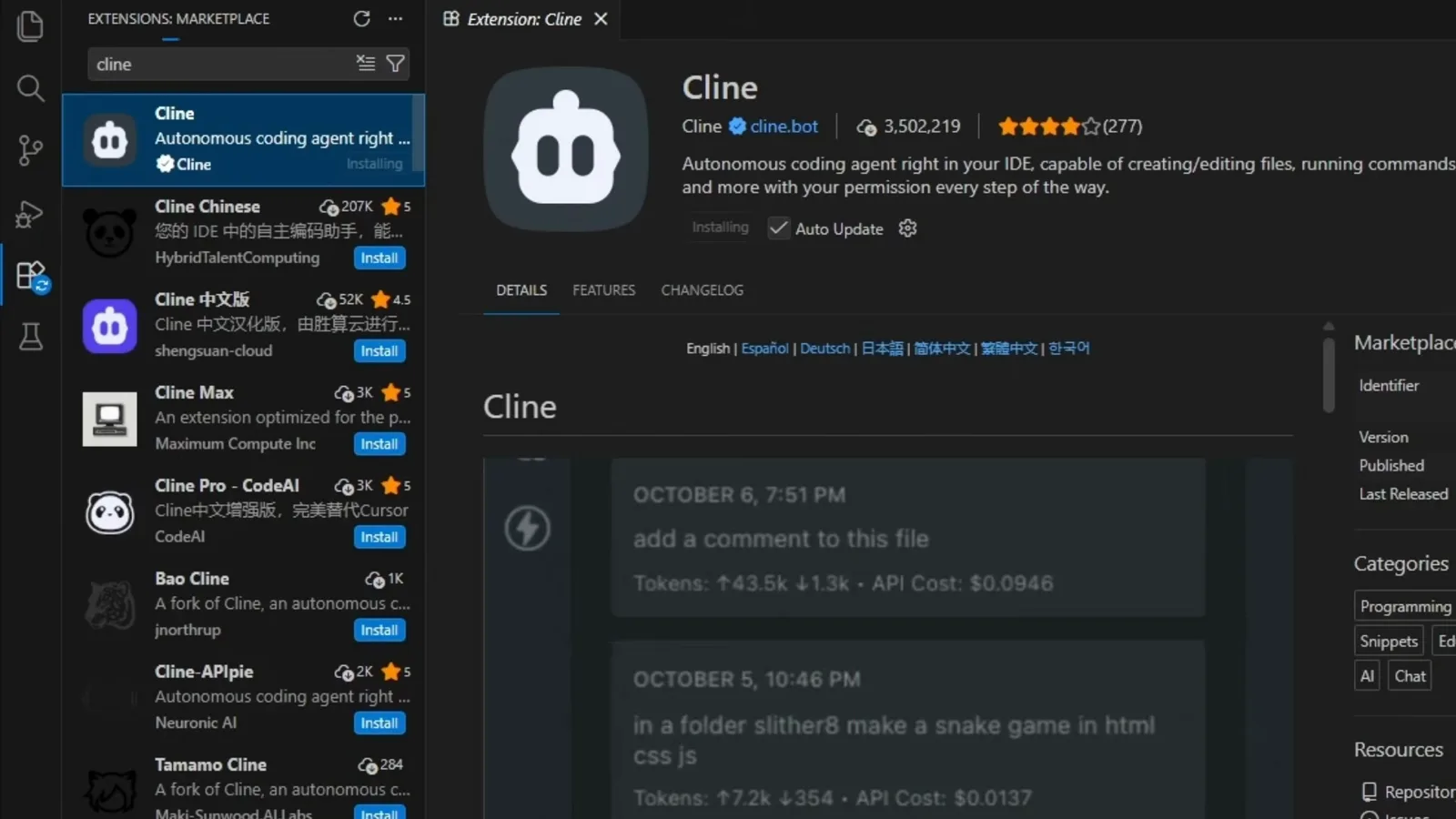
The official listing is the one published by cline.bot, not the look-alikes stacked underneath it.Watch at 0:50 - 2
Install Ollama with the setup wizard
Download Ollama for your OS and run the installer. The Windows wizard is a single confirmation screen; macOS and Linux behave the same way. When it finishes, Ollama is left running as a background service that answers an OpenAI-compatible API on port 11434 — that service, not the app window, is what Cline talks to.
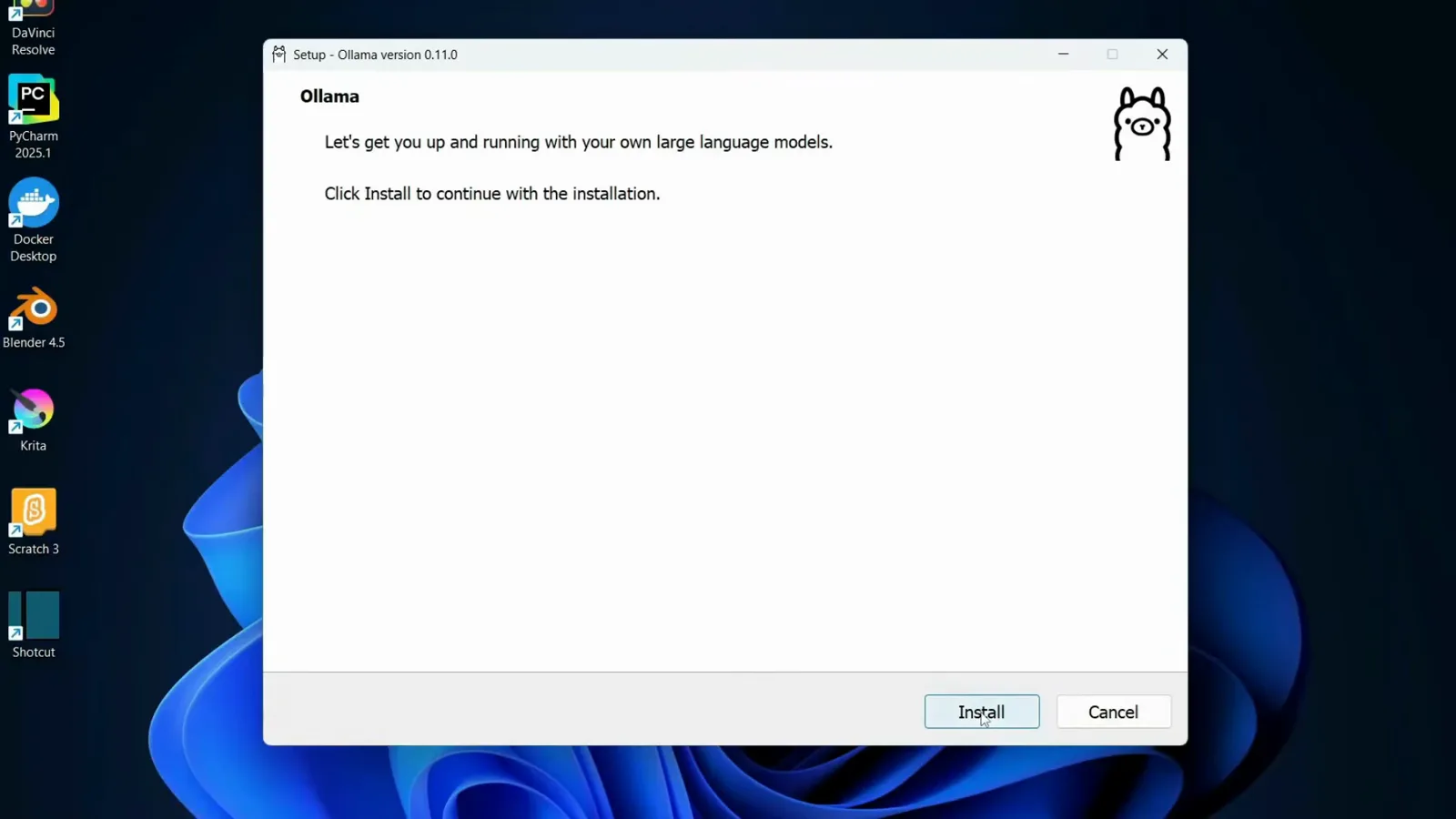
One screen, one Install button — the wizard leaves a background service listening on 11434.Watch at 1:00 - 3
Pick a model that can call tools
The Ollama app has a Find model… picker; from a terminal the same thing is ollama pull <model>. For Cline, stay inside the tool-calling families — gpt-oss:20b, qwen3-coder:30b-a3b or devstral:24b. Every model page on the Ollama library shows capability badges above the tags; if the tools badge is missing, as it is for deepseek-coder-v2, Cline's tool calls will not be handled.
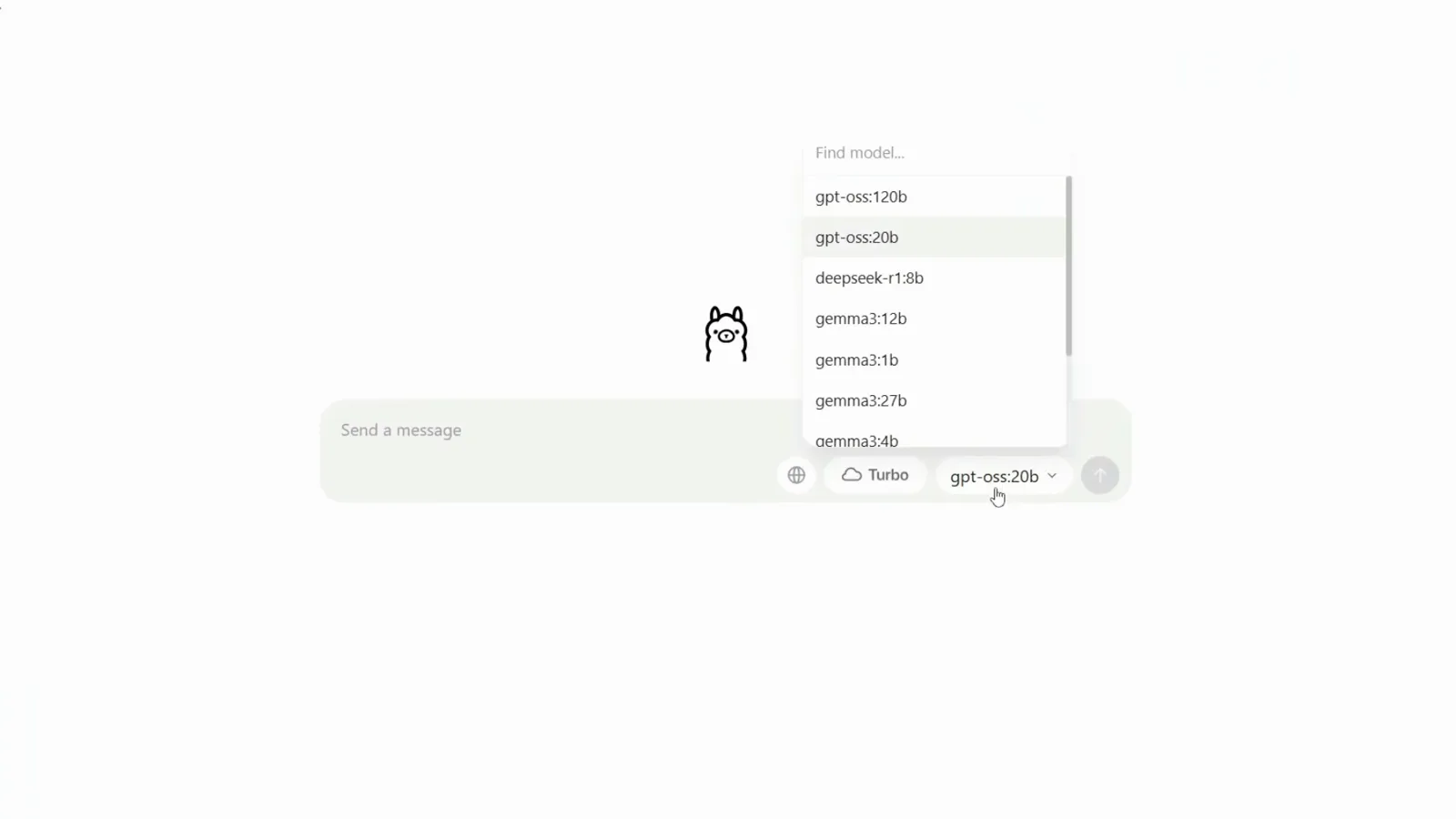
The app's model picker lists gpt-oss, deepseek-r1 and gemma3 — the tools badge on the library page is the part that matters.Watch at 2:40 - 4
Pull it and confirm what is on disk
ollama run qwen3 pulls the manifest, verifies the digest and drops you into a prompt. ollama list then shows every installed model with its size, which is the quickest way to catch a download that never finished. Sizes vary wildly inside one family: the smallest qwen3 tag is well under a gigabyte while the 30B coder tag is 19GB.
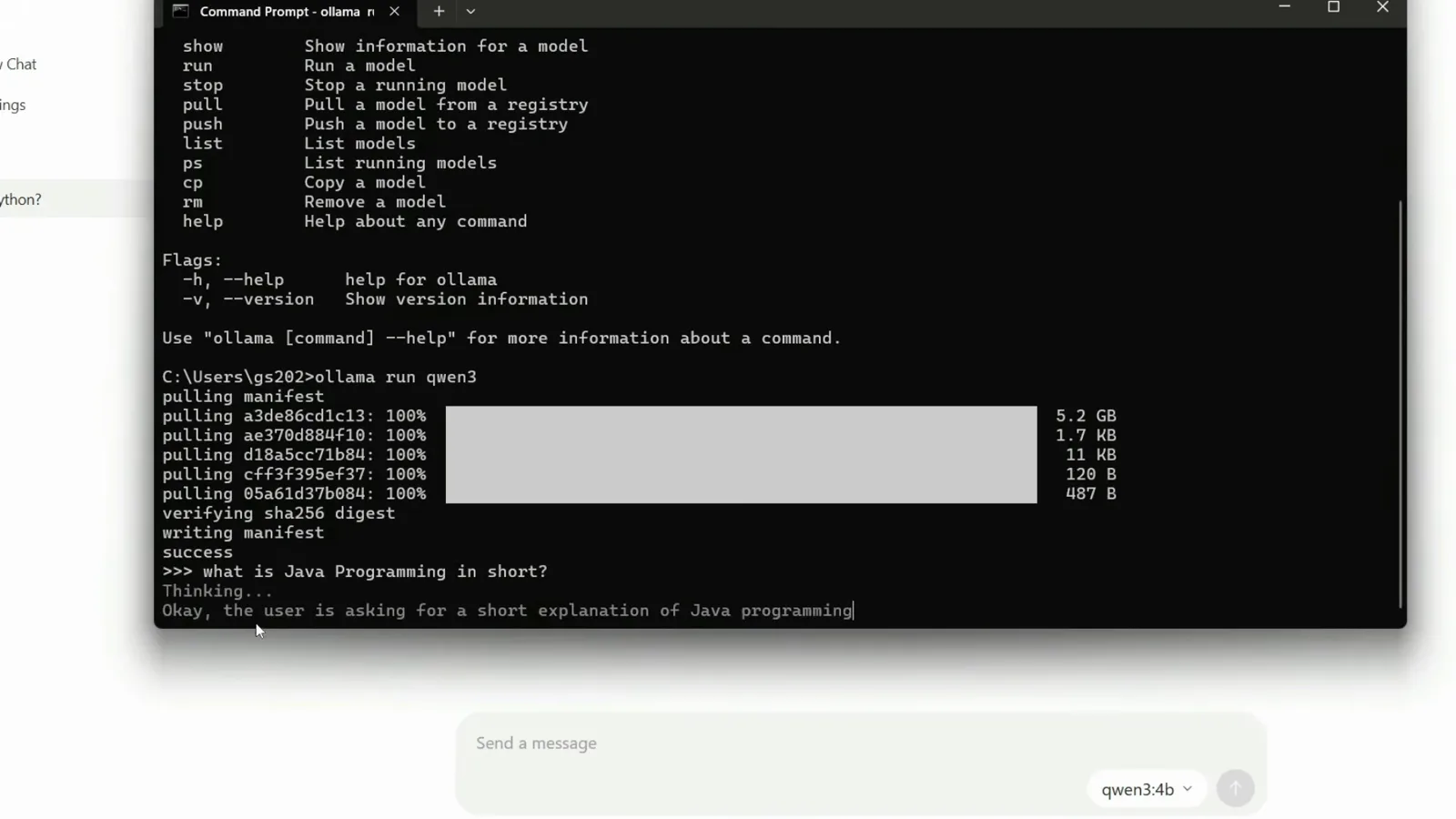
Manifest, digest, then a live prompt — Cline only needs the first two to have succeeded.Watch at 3:20
Load a model in LM Studio and open its server
- 5
Download the model inside LM Studio
LM Studio's Discover tab searches its own catalog. Staff Picks are labelled for what they are good at — Qwen3 Coder Next is described as an 80B MoE with 3B active parameters designed for coding agents, excelling at long-horizon reasoning and complex tool usage, and the community results include DeepSeek-Coder-V2 builds. Read the download size before you commit: the Q4_K_M build shown here is 48.49GB.
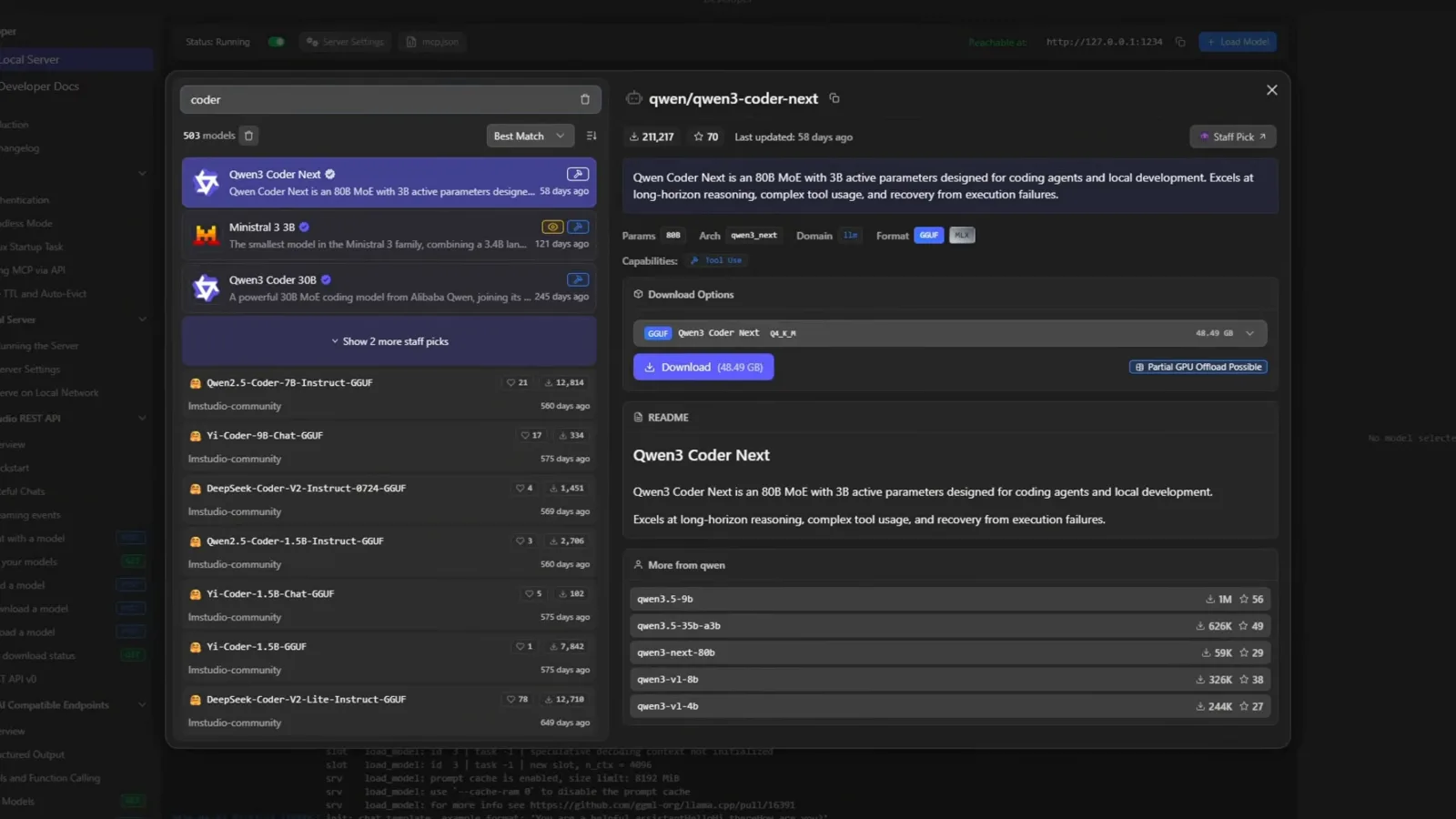
Tool Use is a labelled capability here, and so is the download size — check both before the transfer starts.Watch at 1:45 - 6
Start LM Studio's local server
Open the Developer tab → Local Server and switch the server on; Status: Running means other applications can connect. LM Studio advertises an OpenAI-compatible endpoint on http://127.0.0.1:1234 and lists the supported endpoints (LM Studio API, OpenAI-compatible, Anthropic-compatible) right under the toggle. The server is off until you turn it on, which is the most common cause of a connection error in Cline.
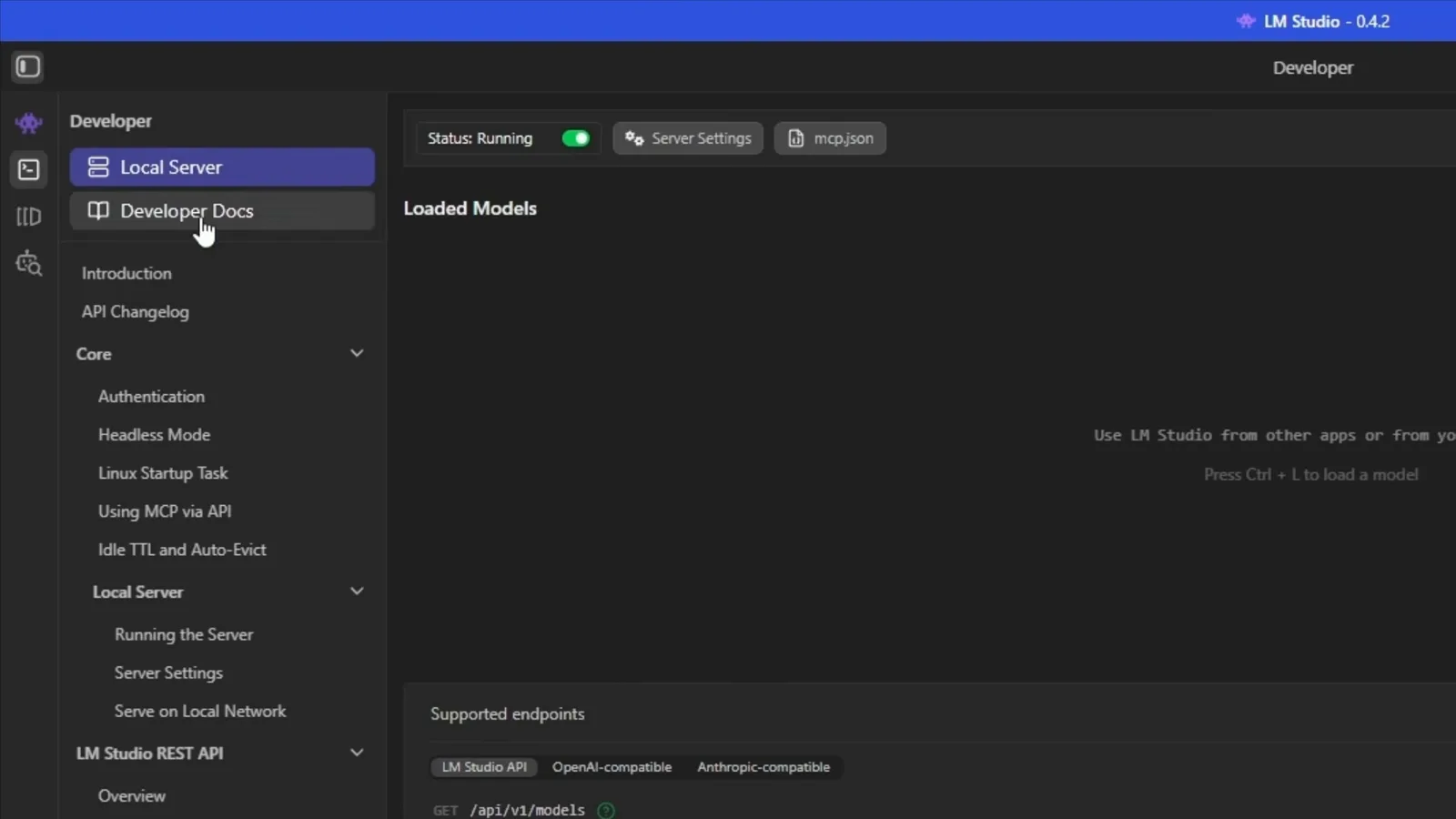
Status: Running is the green light — the endpoint is OpenAI-compatible on 127.0.0.1:1234.Watch at 2:10
Point Cline at the local server
- 7
Set the API provider in Cline Settings
Open Cline's Settings → API Configuration and set API Provider to LM Studio (or Ollama). Leave Use custom base URL unchecked while you are on the default local ports, and only fill it in if the server moved to another port or another machine. Read Cline's own note in this panel: it says Cline uses complex prompts, works best with Claude models, and that less capable models may not work as expected.
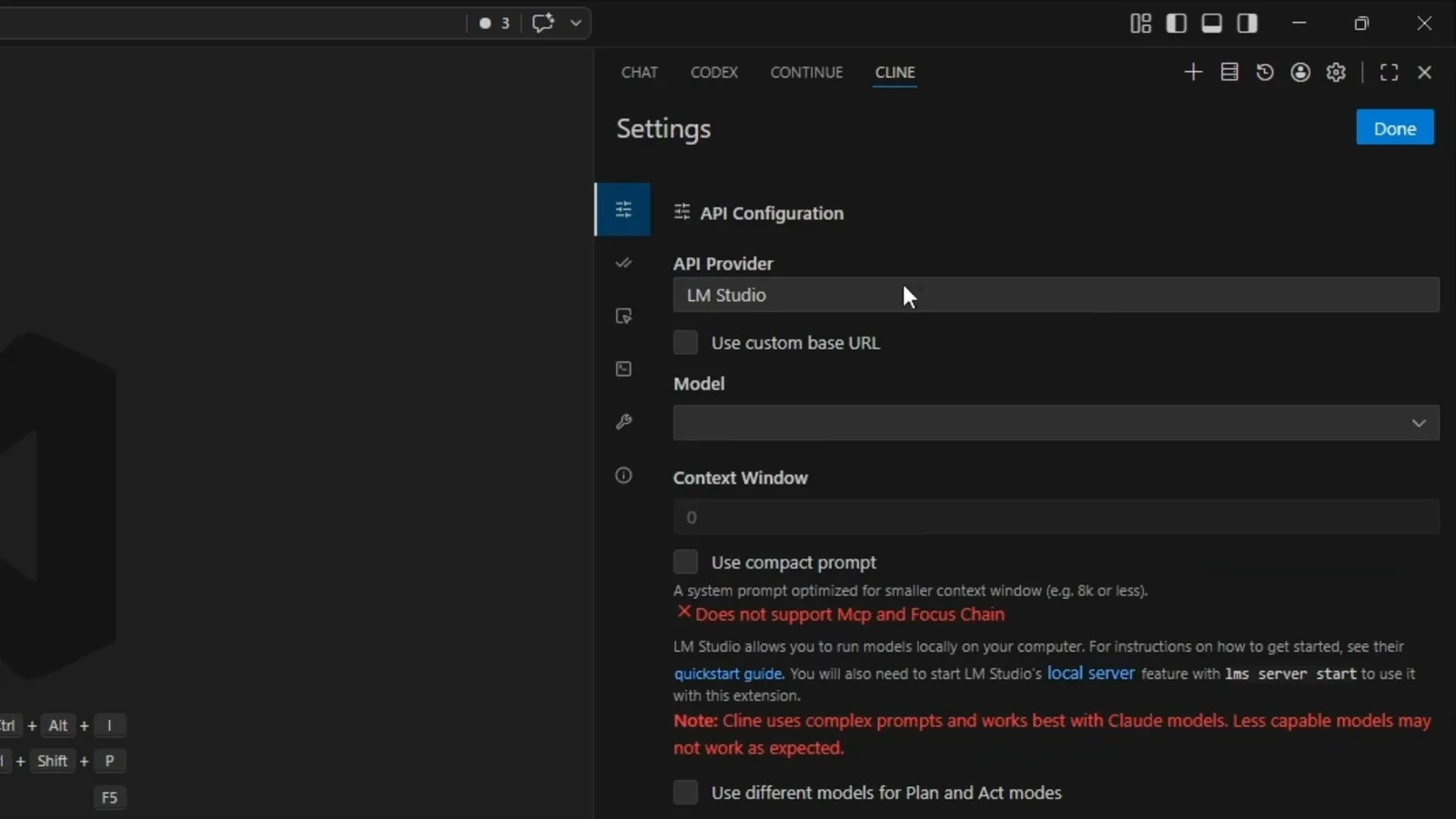
Provider first; the base URL stays untouched unless you actually moved the server.Watch at 3:00 - 8
Select the model the server is serving
The Model dropdown is filled from the running server, so it lists what the runtime is actually holding — in this recording qwen/qwen3-4b, qwen2.5-coder-7b-instruct, qwen2.5-coder-3b-claude_opus_4.6-distilled, gemma-3-27b-it-abliterated, meta-llama-3-8b-instruct, yi-coder-1.5b and an embedding model. If your model is absent from this list it is not loaded in LM Studio, or not pulled in Ollama; selecting a 1.5B or embedding model here is how people conclude that local models do not work.
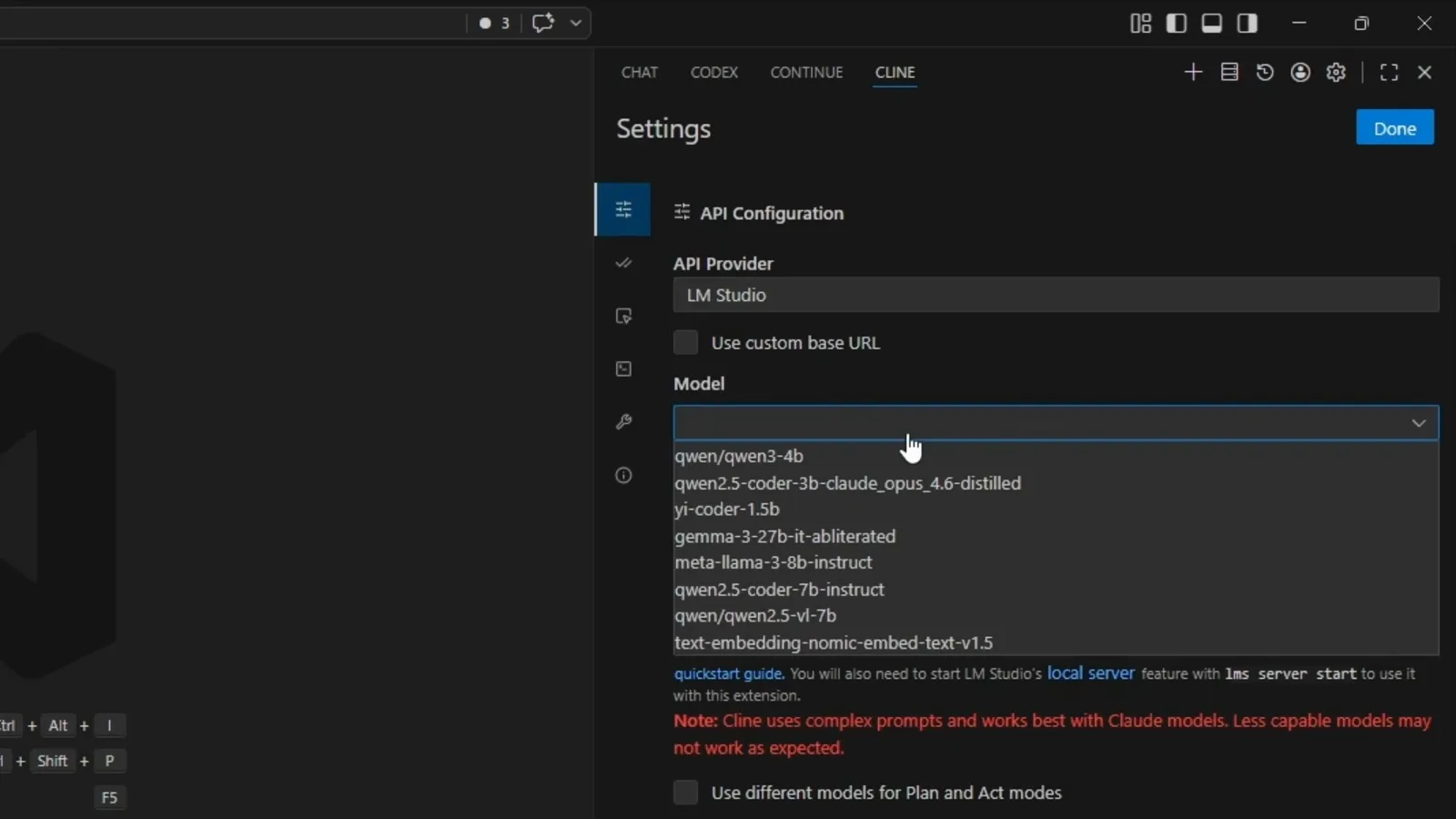
Everything the server reports shows up here — an embedding model in the list is one to leave alone.Watch at 3:03 - 9
Read the Context Window and enable Use compact prompt
Cline inherits the context size the runtime loaded: this frame shows Context Window 4096, taken straight from the 4K load setting of qwen/qwen3-4b, which is far too small for an agent loop. Cline's local-models quick start ends with enabling Use compact prompt, and its Ollama integration page puts the floor for coding at 32K tokens. That toggle swaps in a system prompt sized for windows of about 8K or less, and it costs you MCP and Focus Chain support — so raise the window first, and use it as the fallback.
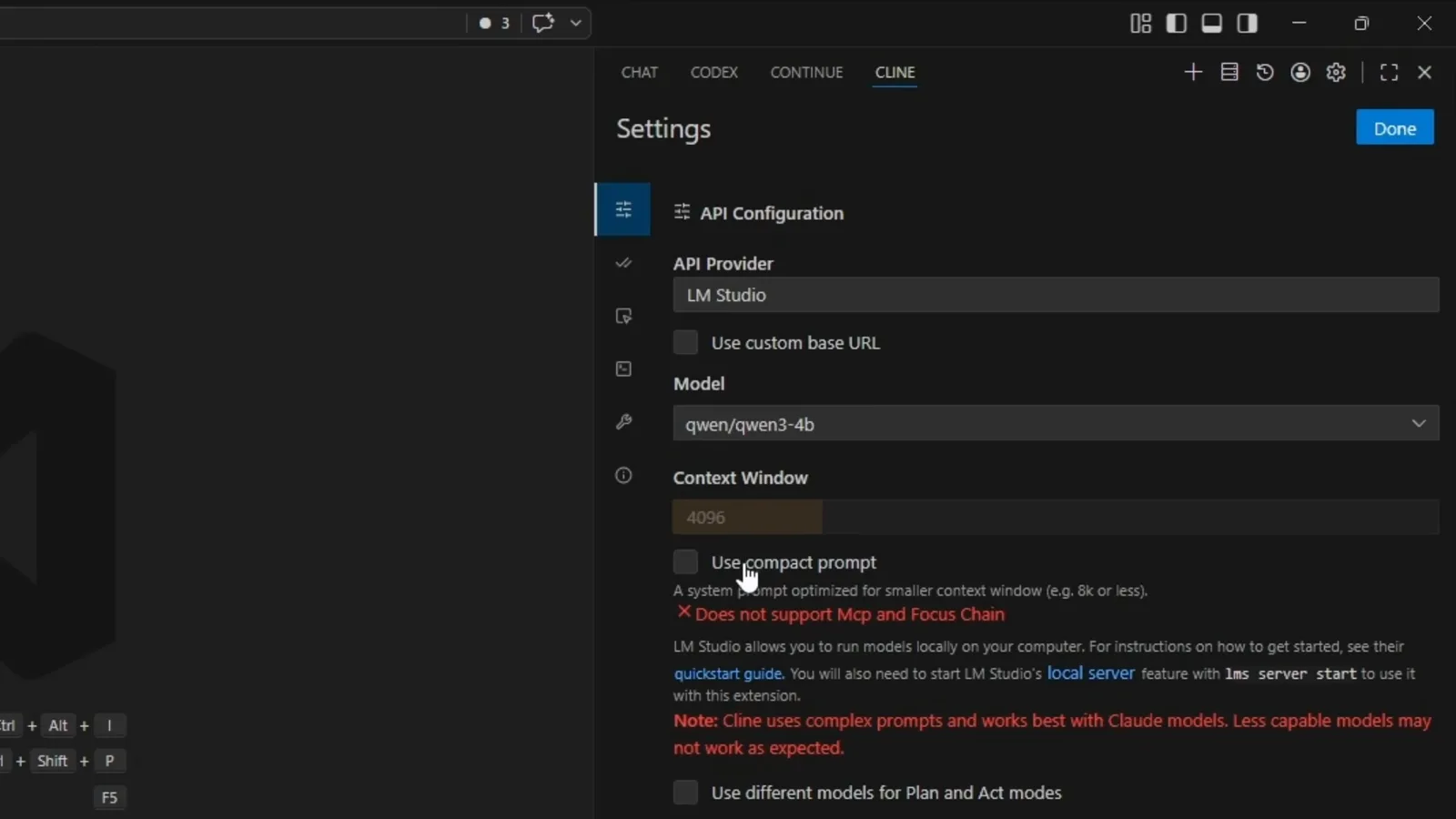
4096 is the tell. Raise it in the runtime, then keep the compact prompt on if you are stuck near 8K.Watch at 3:15
Run it, then fix what breaks
- 10
Run a small task with auto-approve on
Ask for something small and verifiable — list the files in this folder, write a script, run it. With auto-approve set to YOLO the agent writes the file, shows you the diff, and keeps going without stopping at every step; the editor, Problems panel and terminal stay visible so you can see what it actually executed. Leave auto-approve off until you trust the model you loaded.
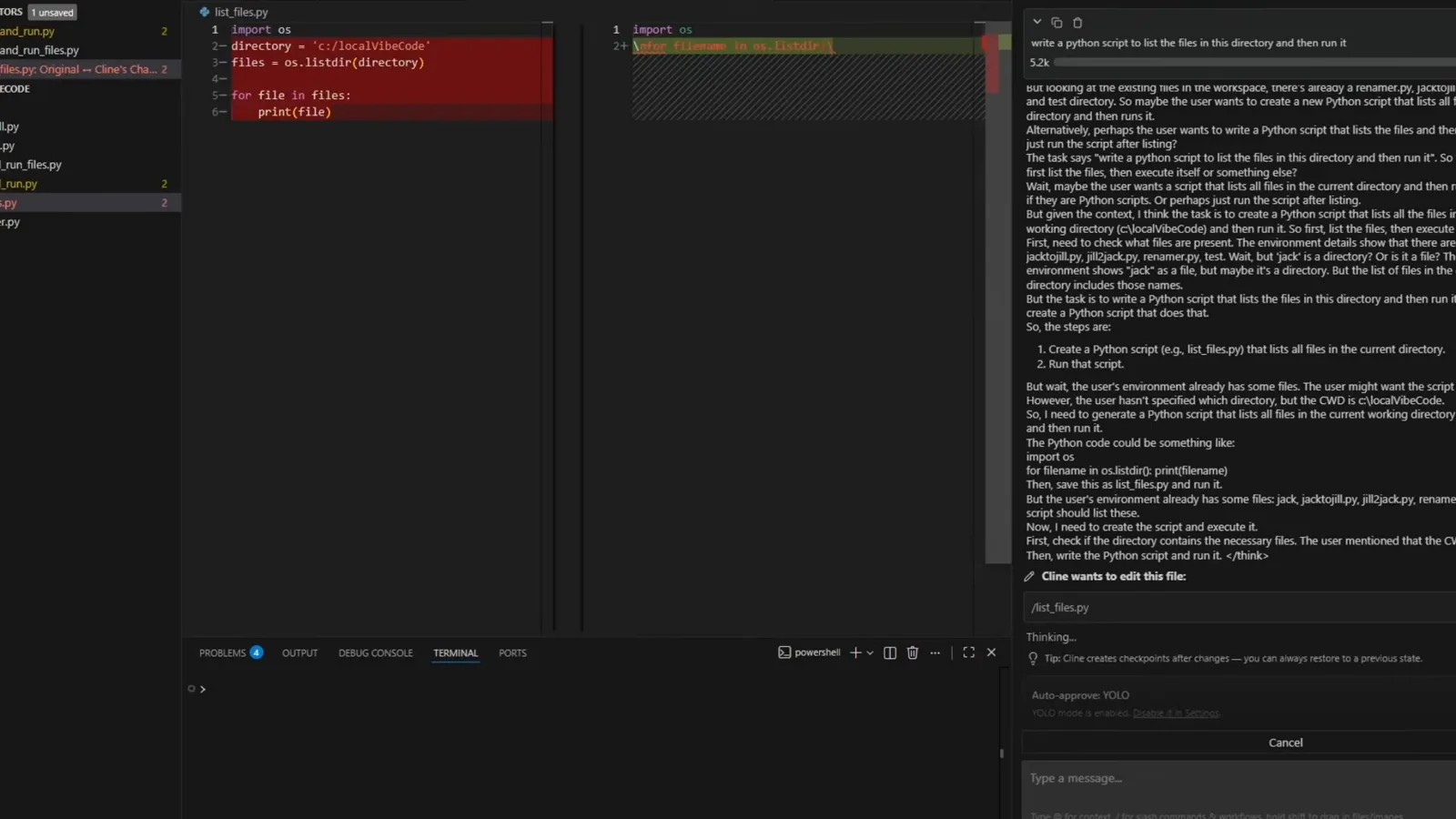
A real local-model task: the file exists, Cline wants to edit it, and YOLO mode is doing the approving.Watch at 4:45 - 11
Fix "model not listed" by loading it again
Cline's dropdown is the server's model list, and LM Studio only advertises models that are currently loaded. That is why the Developer → Local Server page can read Loaded Models with nothing under it while Cline shows no models at all. Load one again (Ctrl + L opens the picker in LM Studio), then reopen Cline's Model dropdown. In Ollama the equivalent check is ollama list in a terminal — Cline can also take a model tag typed by hand.
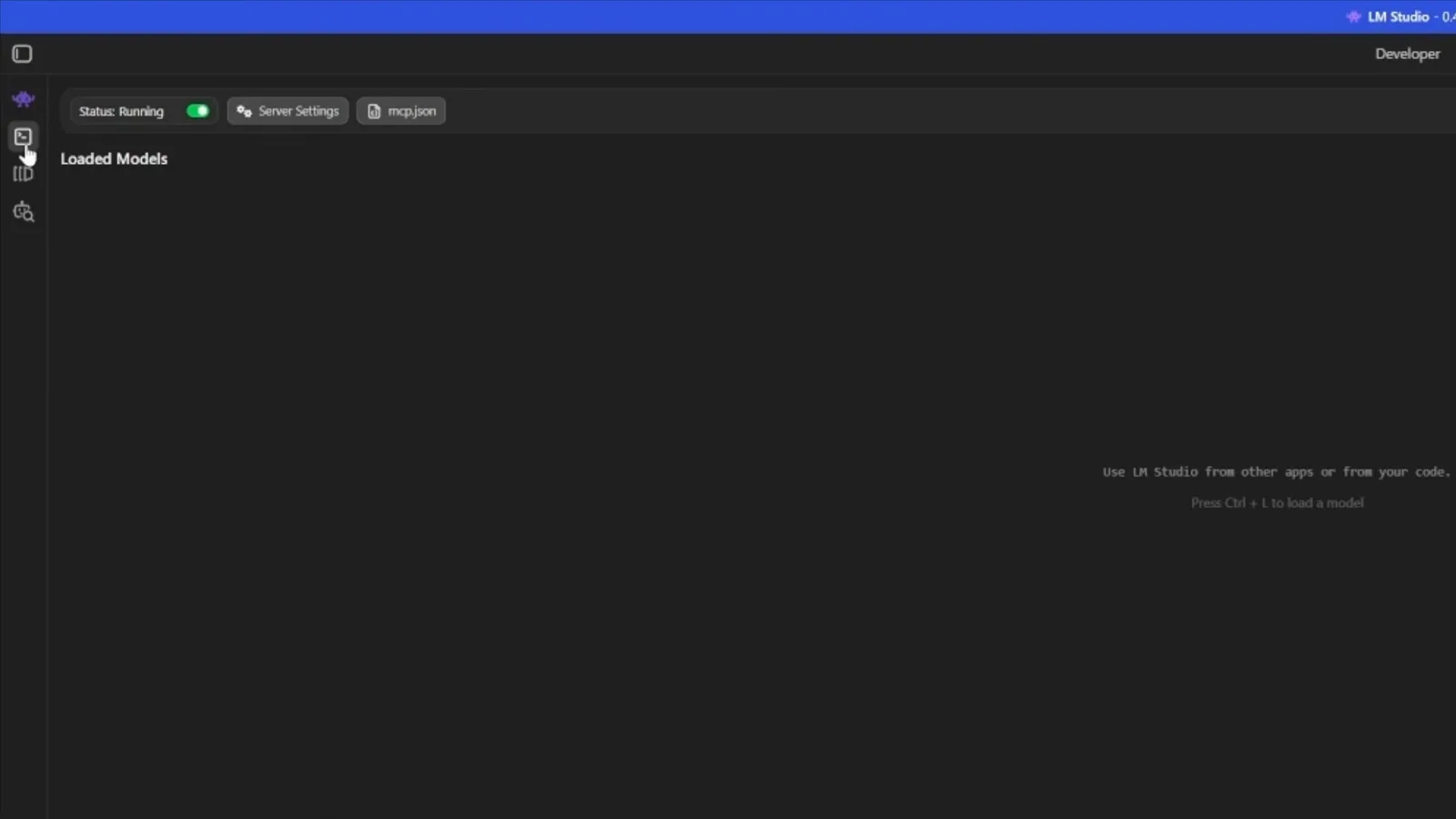
Loaded Models is Cline's menu: nothing loaded, nothing to select.Watch at 4:54 - 12
Fix the reasoning loop with a bigger context length
When the window is too small the model restarts its reasoning on every turn and the agent appears to forget the task. Eject the model in LM Studio, then load it again with Manually choose model load parameters enabled and raise Context Length before pressing Load Model — this dialog sat at 2048 while noting the model supports up to 262144 tokens. Cline v4.1.21 also added a safety net: a long reply on llama.cpp, Ollama or LM Studio that hits the output-token limit now compacts the conversation and retries once instead of ending the task.
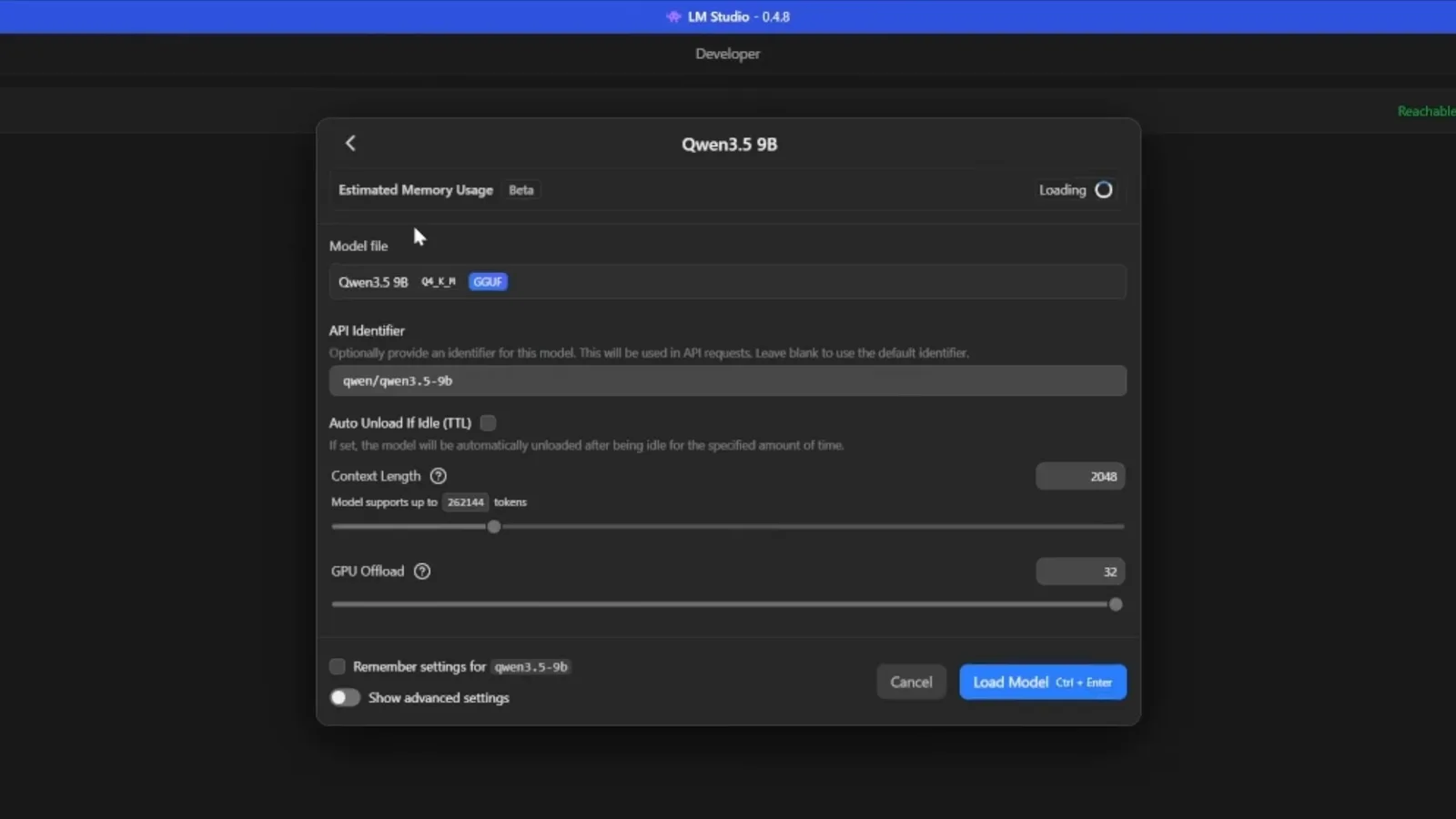
Context Length is the lever, and the "supports up to" note tells you how much ceiling the model has.Watch at 5:06 - 13
Confirm with a task that needs a long loop
The same setup then built a working Snake game with a high-score counter: created on the first pass, revised once after the author reported that the game was not responding, and playable in the browser. All of it ran locally with no API key and no subscription. If a rename succeeds but a build fails, the limit is context or tool calling — not Cline's configuration.
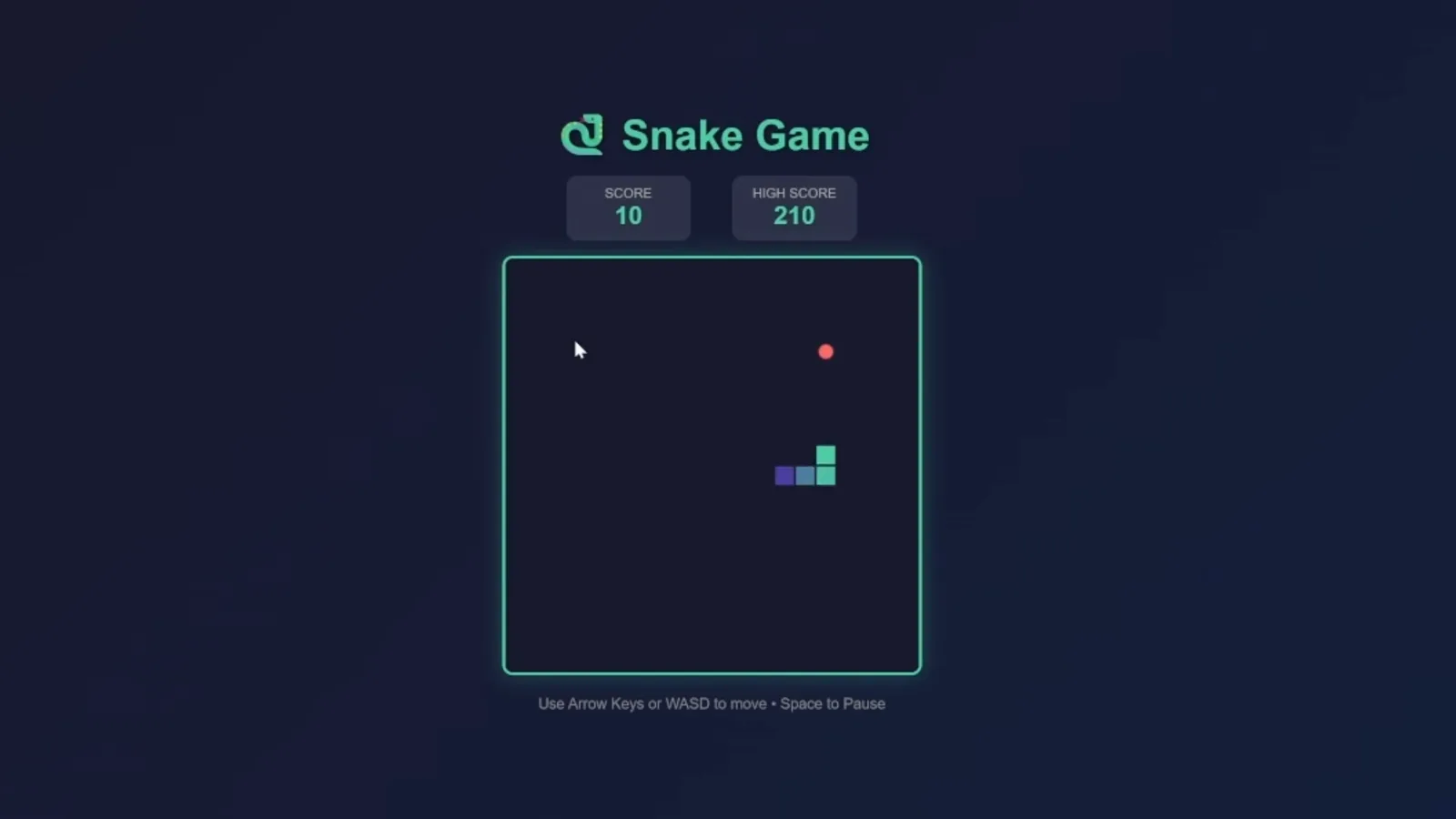
The end state: an agent-built game running locally, with no key and no subscription.Watch at 5:44
Cline + LM Studio context length: why the agent forgets
Cline sends a large system prompt plus your task, every tool result and the model's own reasoning. A local runtime loads the model with a context length of its own choosing — LM Studio's default for a freshly downloaded GGUF is small, the recording shows 2048 in the load dialog and 4096 inherited into Cline's Context Window field — and the server refuses anything past that. The failure is rarely an error message: the model simply loses the thread and answers its own first thought again.
The fix lives on the runtime side. Eject the model, reload it with the manual parameter option, and set Context Length as high as your memory allows; Ollama's Cline integration page puts the floor for coding at 32K tokens, and Cline's local-models page points at the same context-window setting. Then check what Cline displays in Context Window and keep Use compact prompt on when you cannot raise the load size.
Version matters here. Before v4.1.21 a long reply that exhausted the local server's context ended the task; since v4.1.21 Cline compacts the conversation and retries once, then falls back to its concise retry and keeps the partial answer. The release notes are explicit about the cause — those servers cap generation at whatever context is left, regardless of the output budget you configured. Raising the loaded context length is still the real fix; compaction only buys you a second attempt.
Cline + Ollama not working after an update: the three real causes
Almost every report reduces to one of three causes, and only the first one is Cline's problem.
- 1Tool-call format drift. Cline 4.1.x changed its tool syntax again, and open issue cline#13008 documents local Ollama with Qwen3.6 breaking as a direct result; the matching tolerance work landed on the Ollama side for the qwen3.6 and qwen3-coder tool-call formats. Update both the extension and the runtime, then re-test with a model whose template both sides agree on — gpt-oss, qwen3-coder or devstral.
- 2Connection refused. Nothing is listening. LM Studio's local server is off until you toggle it on in Developer → Local Server, and Ollama's background service has to be running on 11434. If you moved the port, tick Use custom base URL in Cline and enter the full address; if the runtime is on another machine, switch on LM Studio's Serve on Local Network and open the port in your firewall.
- 3Model not listed. Cline asks the server for its model list, so LM Studio returns only loaded models and Ollama returns only pulled ones. Load or pull the model, then reopen the dropdown — Ollama's Cline page also allows typing a model tag by hand, which is the fastest way past a stale list.
- 4The runtime's own warning is worth believing. Cline's LM Studio panel states that Cline uses complex prompts, works best with Claude models, and that less capable models may not work as expected. A 1.5B coder is a completion model, not an agent model — no setting turns it into one.
Runtime and hardware requirements for local Cline
Cline itself is the same VS Code extension you would use with a hosted provider; the model runs behind a runtime you install. Cline's local-models page names three supported runtimes — Ollama, LM Studio and Atomic Chat — and reduces the whole setup to five lines: install a runtime, start its local server, pick the matching provider in Cline Settings, select a local model, and enable Use Compact Prompt.
Endpoints and ports: Ollama answers an OpenAI-compatible API on http://localhost:11434 and LM Studio on http://127.0.0.1:1234, under /v1. Both bind to localhost by default, so nothing leaves your machine unless you explicitly expose the server to the network.
- 116-32GB RAM — small or quantized models in the 7B-14B range, modest context windows, CPU-only inference is possible but slow.
- 232-64GB RAM — mid-size coding models such as qwen3-coder:30b-a3b (19GB) or devstral:24b, with room for a 32K or larger window.
- 364GB+ RAM or a large GPU — bigger models and bigger context windows together; a 30B model at a 64K window needs the memory and enough VRAM to offload it.
The recording makes the same point the docs do: you can run these on a CPU, but a stronger GPU gives noticeably better performance, and total system RAM decides both how big a model and how big a context window you can load. Budget for the window, not just the weights.