
Cline Desktop Tutorial: Free DeepSeek Coding in 15 Steps
Cline Desktop turns the Cline coding agent into a standalone app — no editor required. This 15-step walkthrough follows a real screen recording: download the beta, sign in, run DeepSeek V4.1 Flash from the free section, choose between ClinePass and your own API key, then watch the agent build and self-test a working expense tracker in your folder.
TL;DR — what Cline Desktop is
- Cline Desktop is the Cline coding agent as a native app — download the Mac or Windows (beta) build from cline.bot/desktop, sign in with Cline or plug in an API key, and optionally import your Claude Code and Codex sessions.
- Free route: open the model picker and take DeepSeek V4.1 Flash from the FREE section ("Try with limited usage at no cost") — the free lineup changes, so check what your account shows.
- Flat route: ClinePass is $9.99/month for roughly 2-5× the usage of standard API rates on bundled open-weight models (DeepSeek, GLM, Kimi and others) — re-check the ClinePass page since plans move; BYOK through OpenRouter or OpenAI Compatible also works.
- Desktop-specific flow: pick a real folder, brief the agent, approve write permissions — it codes, runs and self-tests inside that folder. The recording builds and debugs a working expense tracker entirely on the free tier.
I Tested Cline Desktop: Build Apps with Free AI Models
Video walkthrough:Code With Yousaf9:49
Cline Docs — Cline Desktop (beta)
Product facts:docs.cline.botDocs
Every screenshot is a still from Code With Yousaf's screen recording of Cline Desktop on Windows; model names and provider labels come from that recording, and plan pricing and platform status from Cline's official pages and release feed.
Frames are credited screenshots from the source video, each deep-linked to its timestamp. This guide's text is our own, with product facts checked against the official Cline docs and Desktop release notes.
Cline Desktop, step by step
1 · Download and set up Cline Desktop
- 1
Download Cline Desktop from cline.bot
cline.bot pins Desktop, IDE, CLI and SDK in the header, and the Desktop page is headed "Cline for Desktop (Beta)" — the coding agent as a native app, no editor required. Grab Download for Mac or Download for Windows (the recording uses Windows). That page still advertised build v0.0.27 while Cline had already shipped Desktop v0.0.32 on September 18, so read the build line and Release notes before installing.
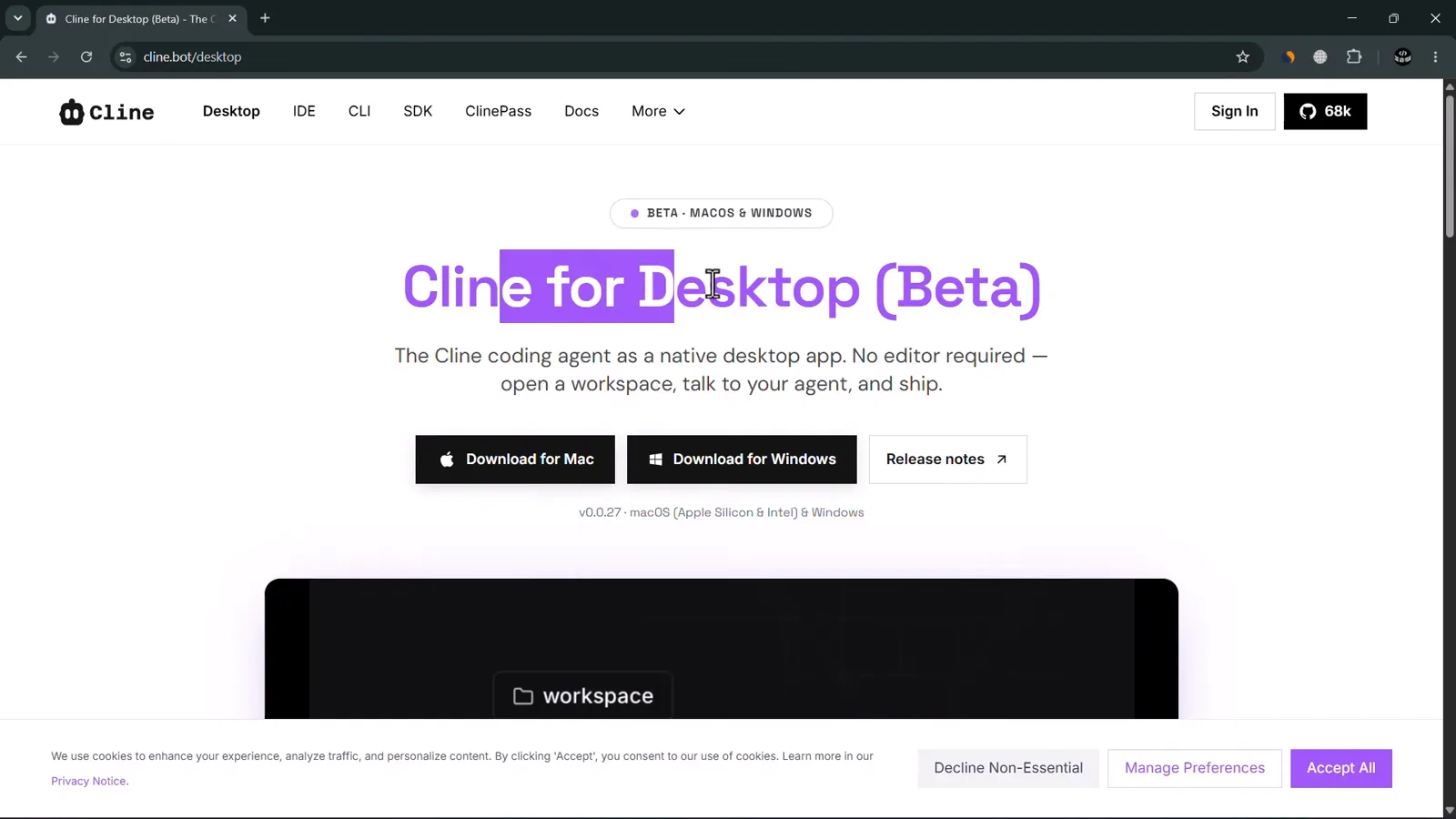
The official Cline for Desktop (Beta) page with Mac and Windows installers.Watch at 1:31 - 2
Run the installer like any desktop app
Setup is a standard Windows wizard: click through to Completing Cline Setup, leave both Run Cline and Create desktop shortcut checked, then Finish. On macOS you drag the app to Applications instead — either way the whole install takes under a minute.
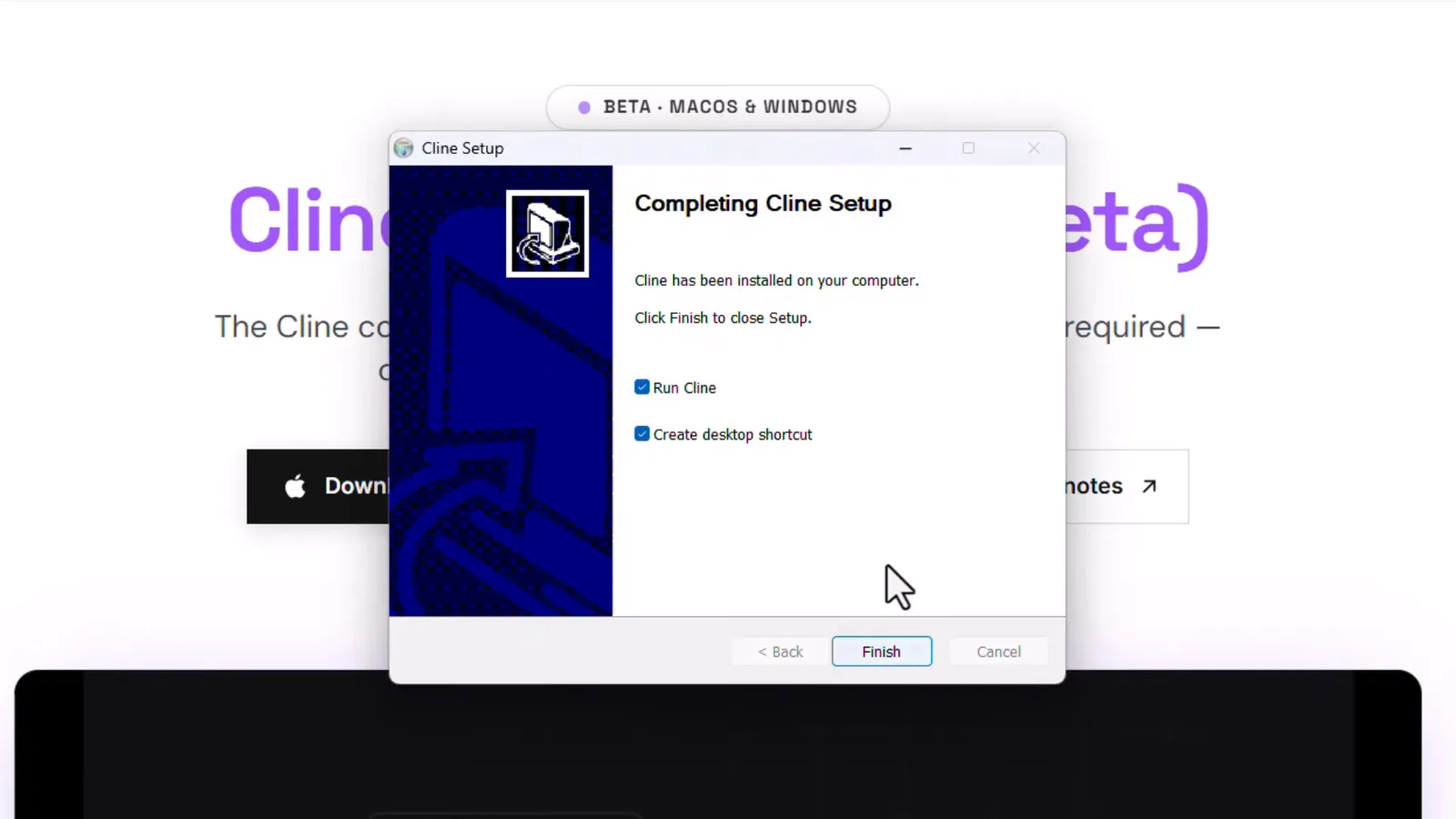
Completing Cline Setup with Run Cline and Create desktop shortcut enabled.Watch at 2:06 - 3
Sign in — or bring your own API key
First launch asks how Cline connects to models. Sign in with Cline (Recommended) is the no-key route: latest models with regular free promos, no API keys needed. Use your own API key accepts Anthropic, OpenAI, OpenRouter and more — and you can add providers later in Settings, so nothing is locked in now.
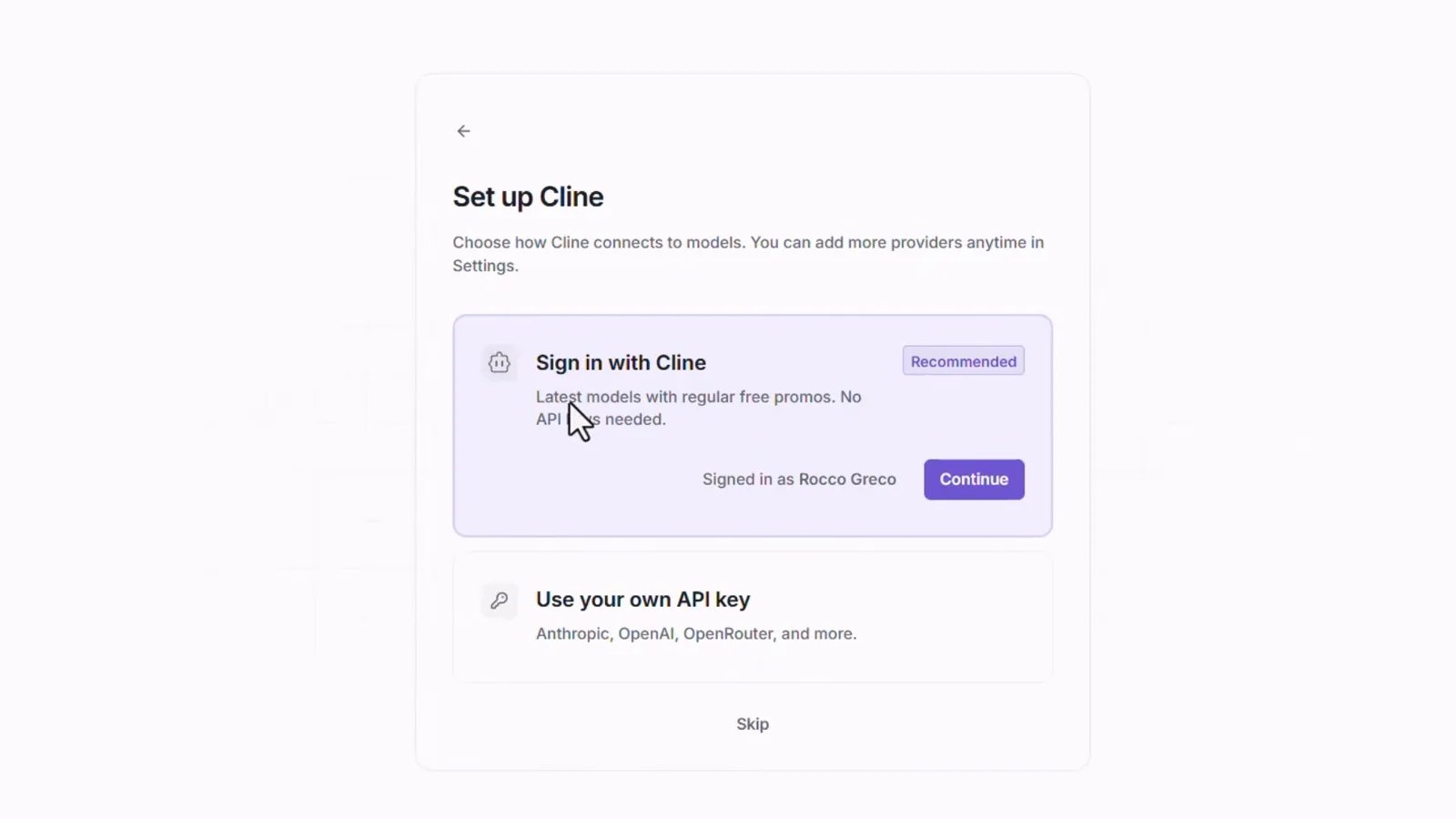
Set up Cline: sign in with an account or plug in your own provider key.Watch at 2:27 - 4
Import old sessions (or skip)
Signed in with Cline, the desktop app scans your machine for sessions from Claude Code, Codex and opencode — the recording found 54 — and offers to import them so past conversations continue here. Choose sessions + import, or Skip for now; either way you land on an empty workspace ready to build.
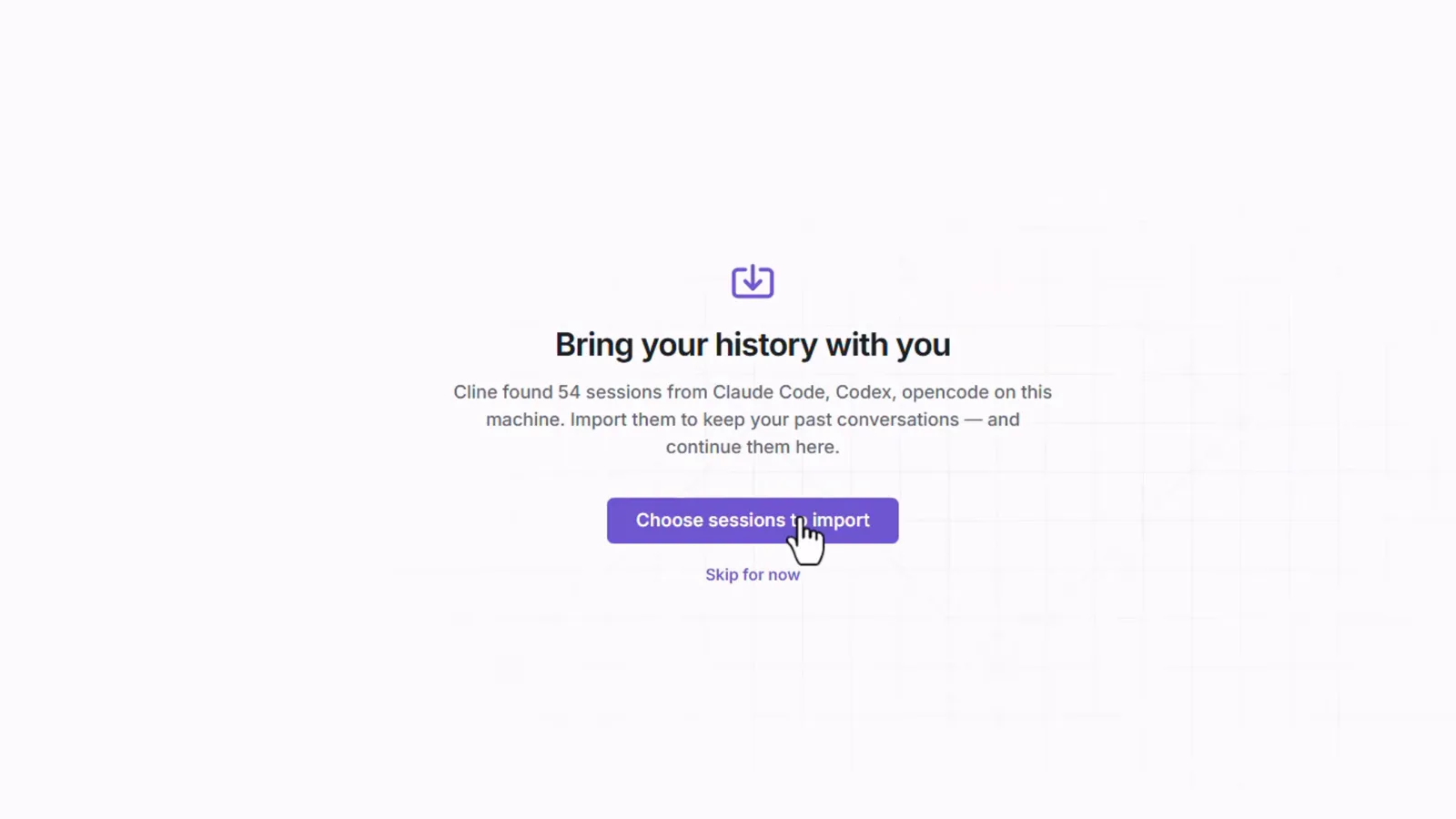
The desktop app found 54 sessions from Claude Code, Codex and opencode to import.Watch at 2:43
2 · Connect a model — free DeepSeek, ClinePass or BYOK
- 5
Meet the desktop workspace
The left rail is Session, Schedule and Customize; Session is open and lists past chats, including one called "Build a modern, highly animate…". The composer hint reads "Ask to make changes, @mention files, reference #PRs, or run /commands." Under it sit three pickers — provider, model and effort — and the folder chip above the box still reads Cline. This is Cline outside the editor — no VS Code needed.
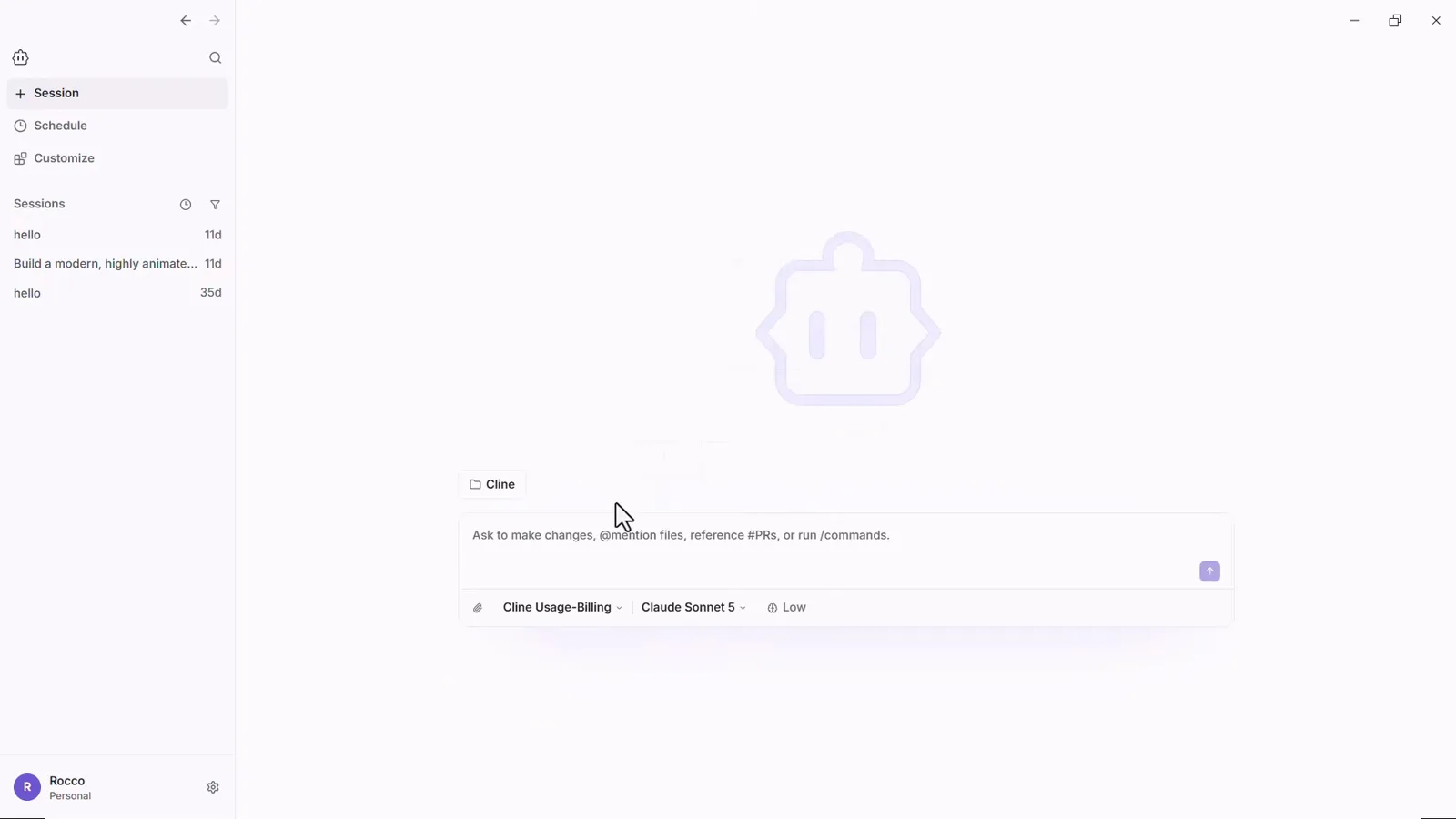
First look: Session, Schedule and Customize on the left, provider-model-effort in the footer.Watch at 2:57 - 6
Open the model picker
The model segment of the footer opens a Search models box over the whole catalog: alphabetical and hundreds deep, from Aion and the Claude families through GPT, GLM and Solar to Step, Trinity and Voxtral. Everything in that list bills per token. Keep going — the part that matters for a free start sits one section higher in the same dropdown.
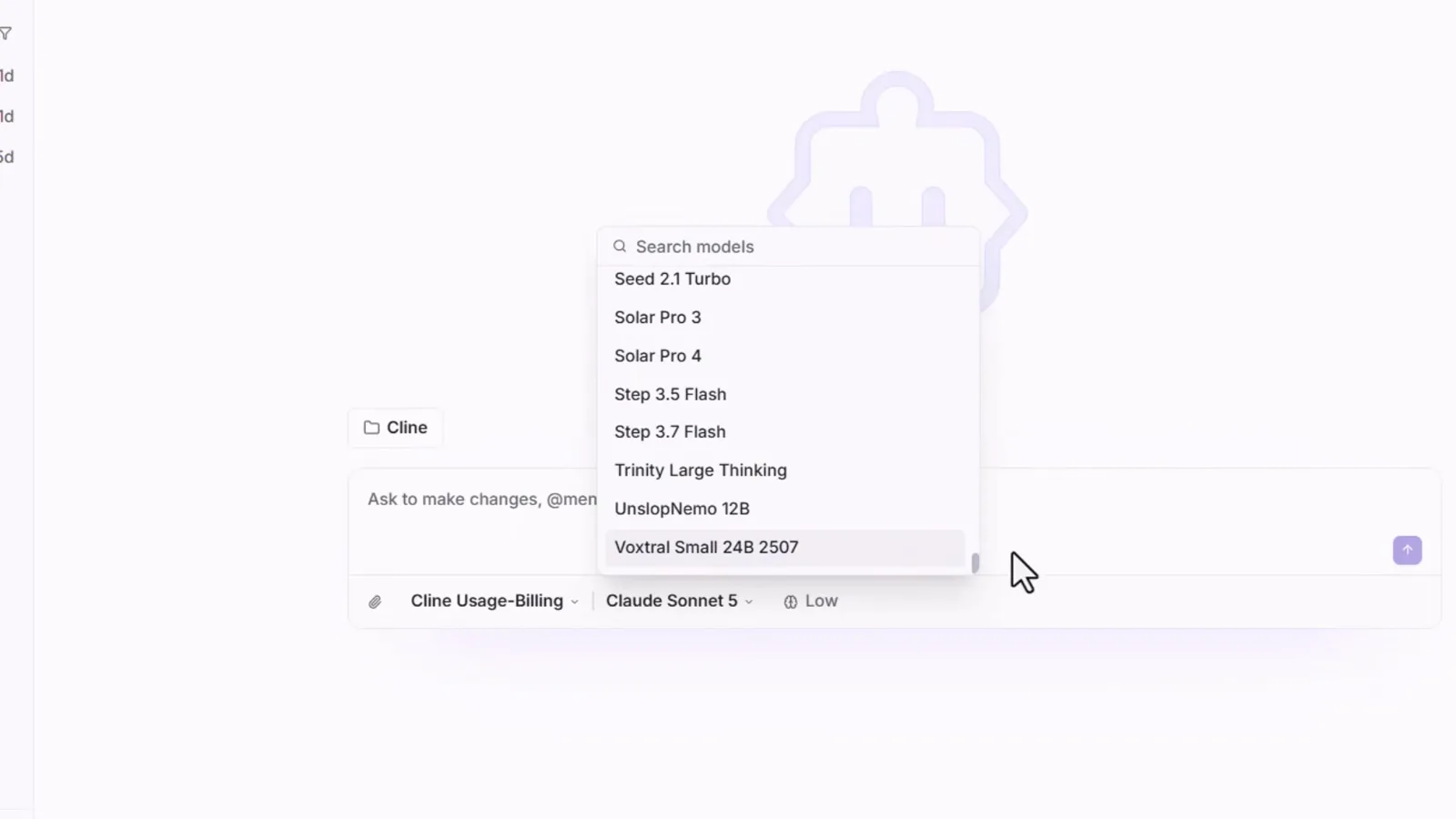
The full model catalog opens from the model segment in the composer footer.Watch at 3:16 - 7
Pick DeepSeek V4.1 Flash from the FREE section
The top of the picker is a FREE section labeled "Try with limited usage at no cost". The recording shows DeepSeek V4.1 Flash (free) — "Fast and efficient with 1M context window" — beside Muse Spark 1.3 Contributor (free), GLM 5.3 Flash and Solar Pro 4 (free). The lineup rotates, so check what your account lists today, but DeepSeek's free tier is the headliner of this walkthrough.
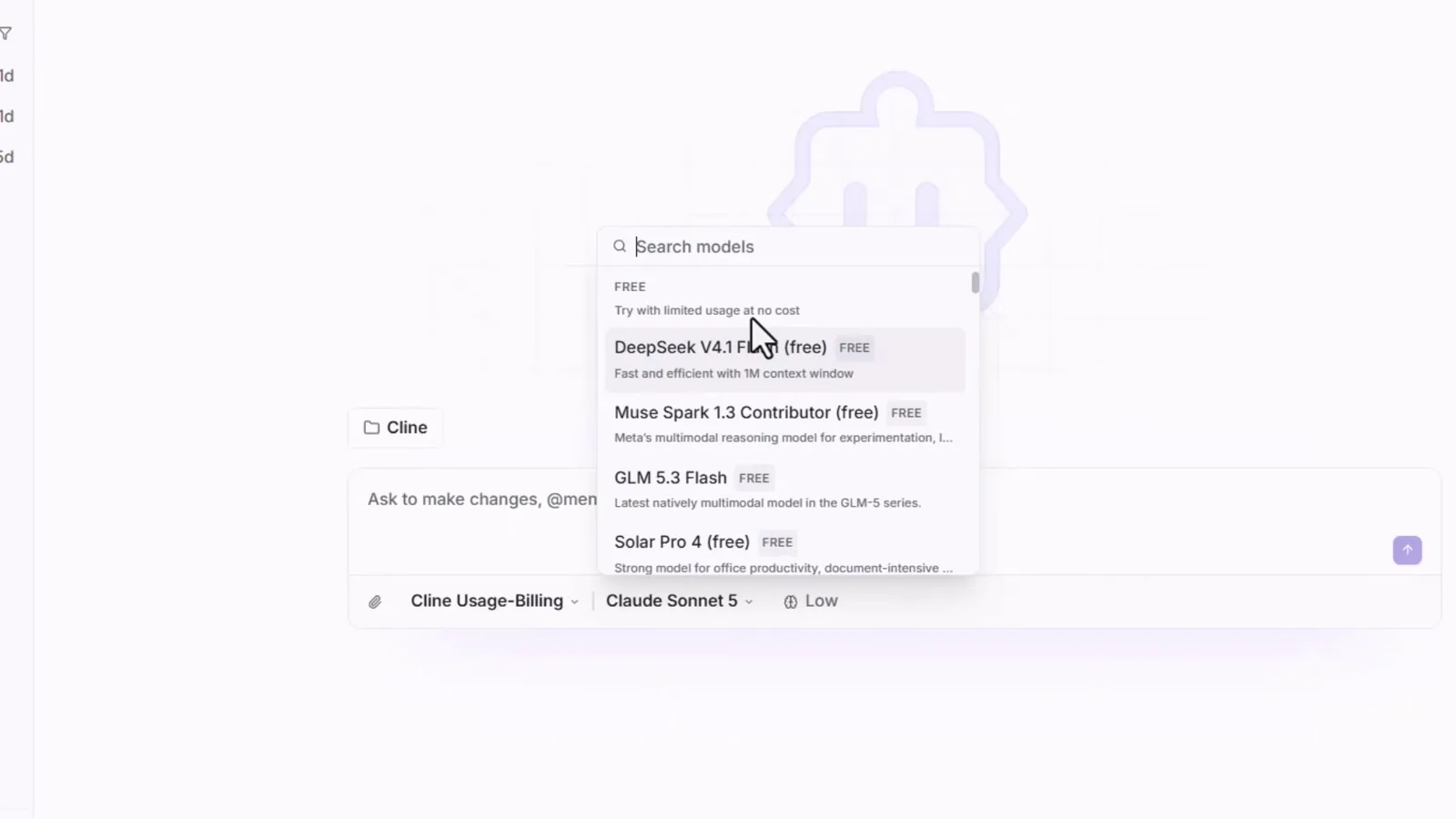
FREE section: DeepSeek V4.1 Flash sits first among the no-cost models.Watch at 3:35 - 8
Set reasoning effort to High
The last footer segment controls how hard the model thinks per message: None, Low, Medium, High. The recording bumps Low to High before the first prompt — more thinking per step, still inside the free allowance. Usage is limited and the limits change, so treat effort as a dial to turn down if you hit the cap.
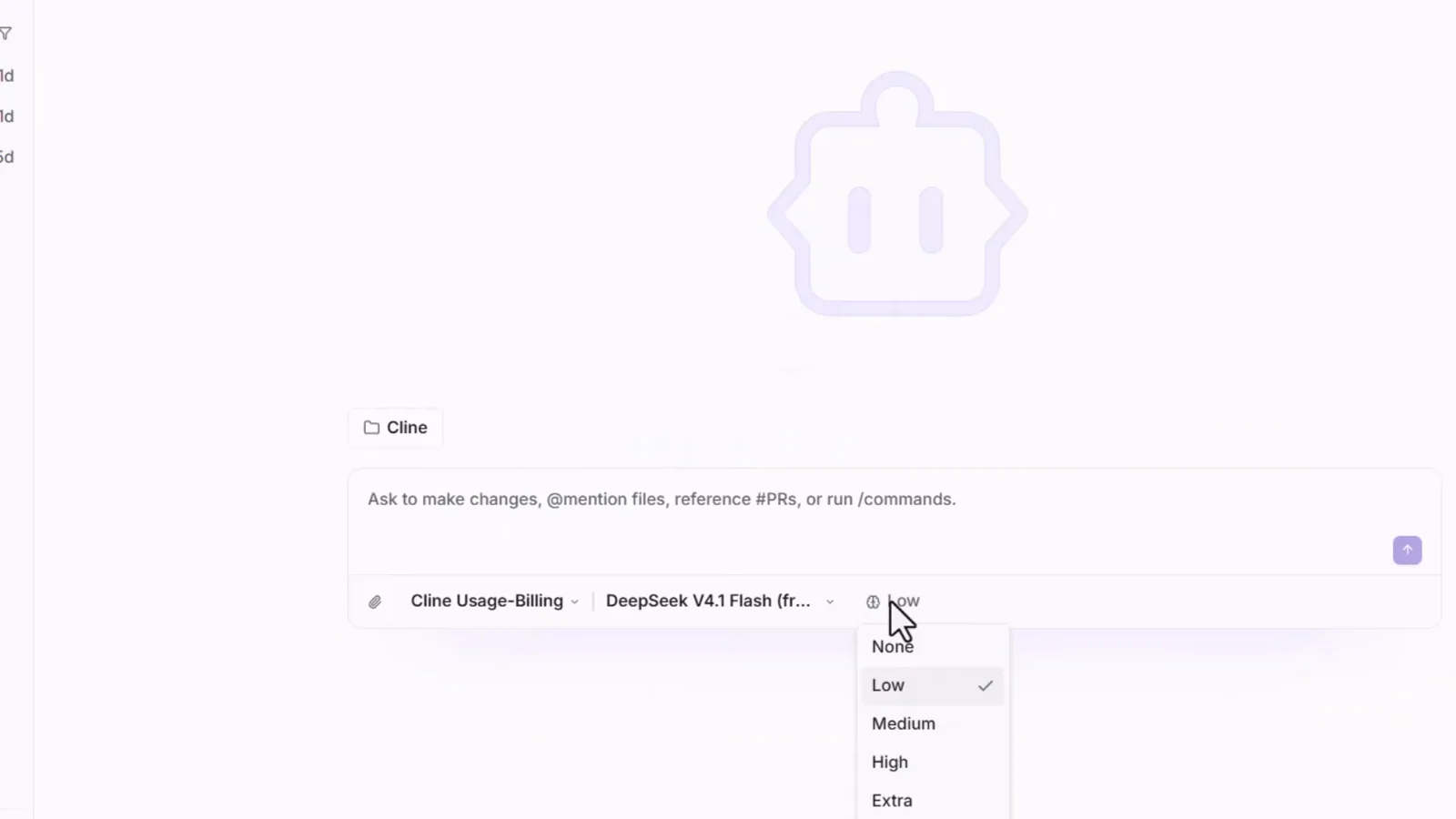
Effort menu moved from Low to High before the first build.Watch at 4:16 - 9
Know your three ways to pay (or not)
The provider menu lists Cline Usage-Billing (pay-as-you-go), ClinePass, Anthropic, OpenRouter, Google Gemini, OpenAI Compatible, SAP AI Core and Set up another provider. ClinePass is the flat monthly plan instead of per-token billing — $9.99/month at the time of writing, which Cline pitches as roughly 2-5× the usage of standard API rates on its bundled open-weight models (DeepSeek, GLM, Kimi and others). Plans and lineups move, so confirm the numbers on the ClinePass page. Staying free? Leave Cline Usage-Billing selected; the FREE section needs no plan.
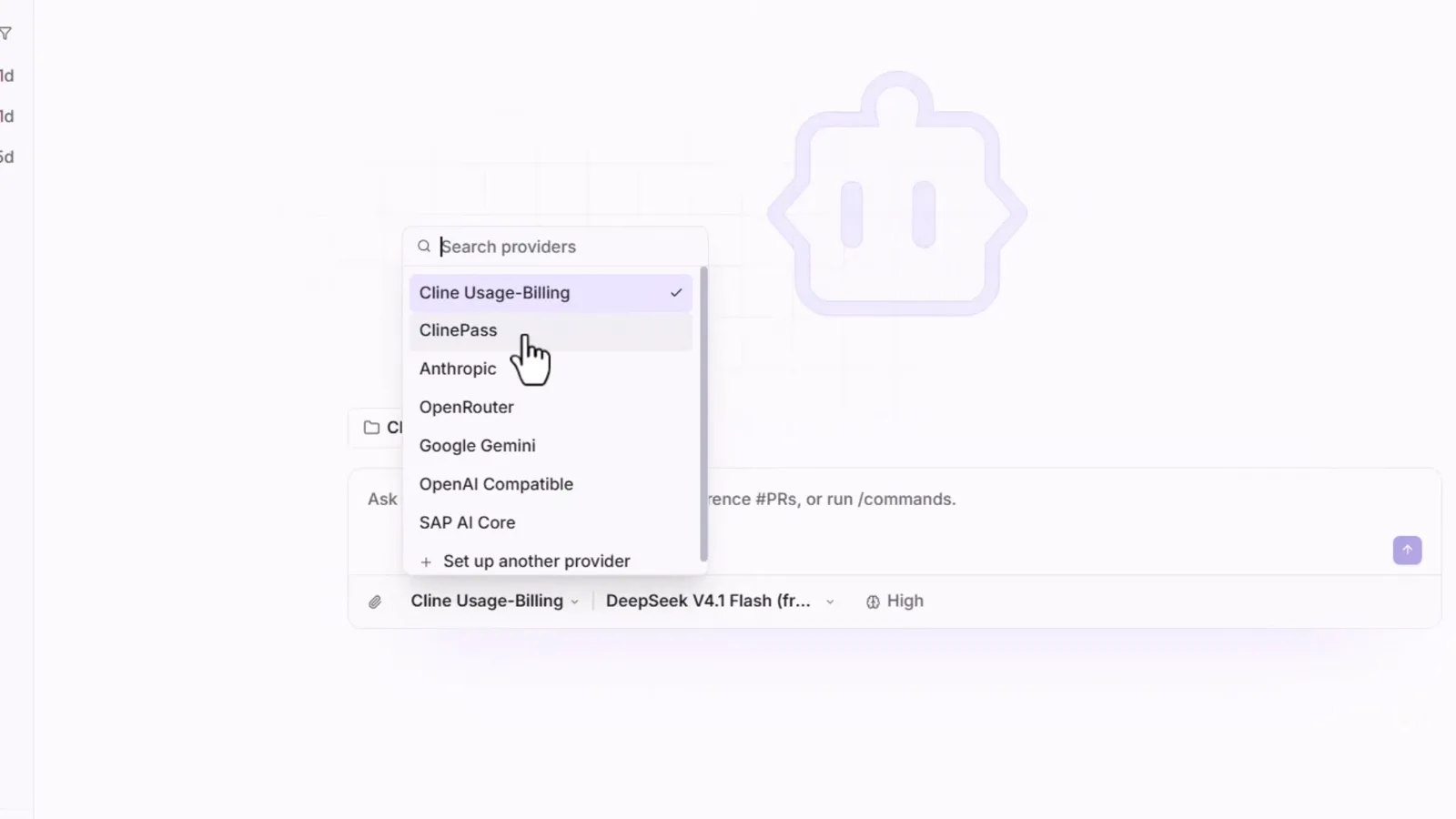
Provider menu: Usage-Billing, ClinePass or your own keys — pick per task.Watch at 4:27
3 · Pick a folder, brief the agent, build
- 10
Point Cline at a real folder
The folder chip above the composer opens the workspace picker — the recording picks an ai-test directory through the OS Open dialog. Desktop writes files straight into that folder, exactly like the extension does in your repo. Pick an empty directory for throwaway builds; from then on the chip shows the active workspace name.
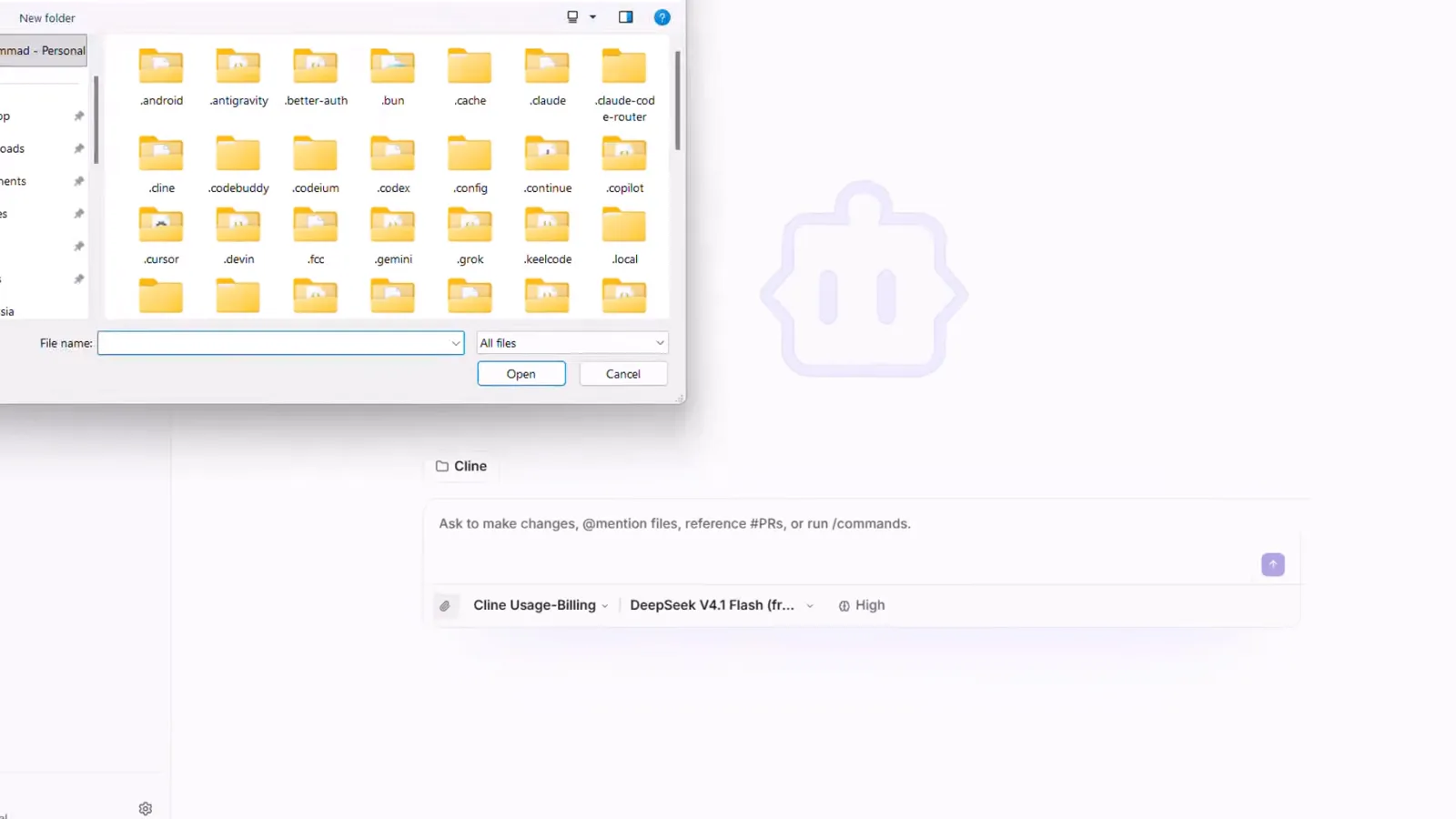
The Windows Open dialog Cline Desktop brings up to choose the workspace folder.Watch at 4:52 - 11
Brief it like a product spec
One clear paragraph is enough. The recording: "Build a beautiful expense tracker in a single HTML file. Let users add expenses, choose categories, and see their total spending. Make it responsive and use a clean dark design." The paperclip attaches files for context. Send it, then approve the permission prompts when Cline asks to write inside your folder.
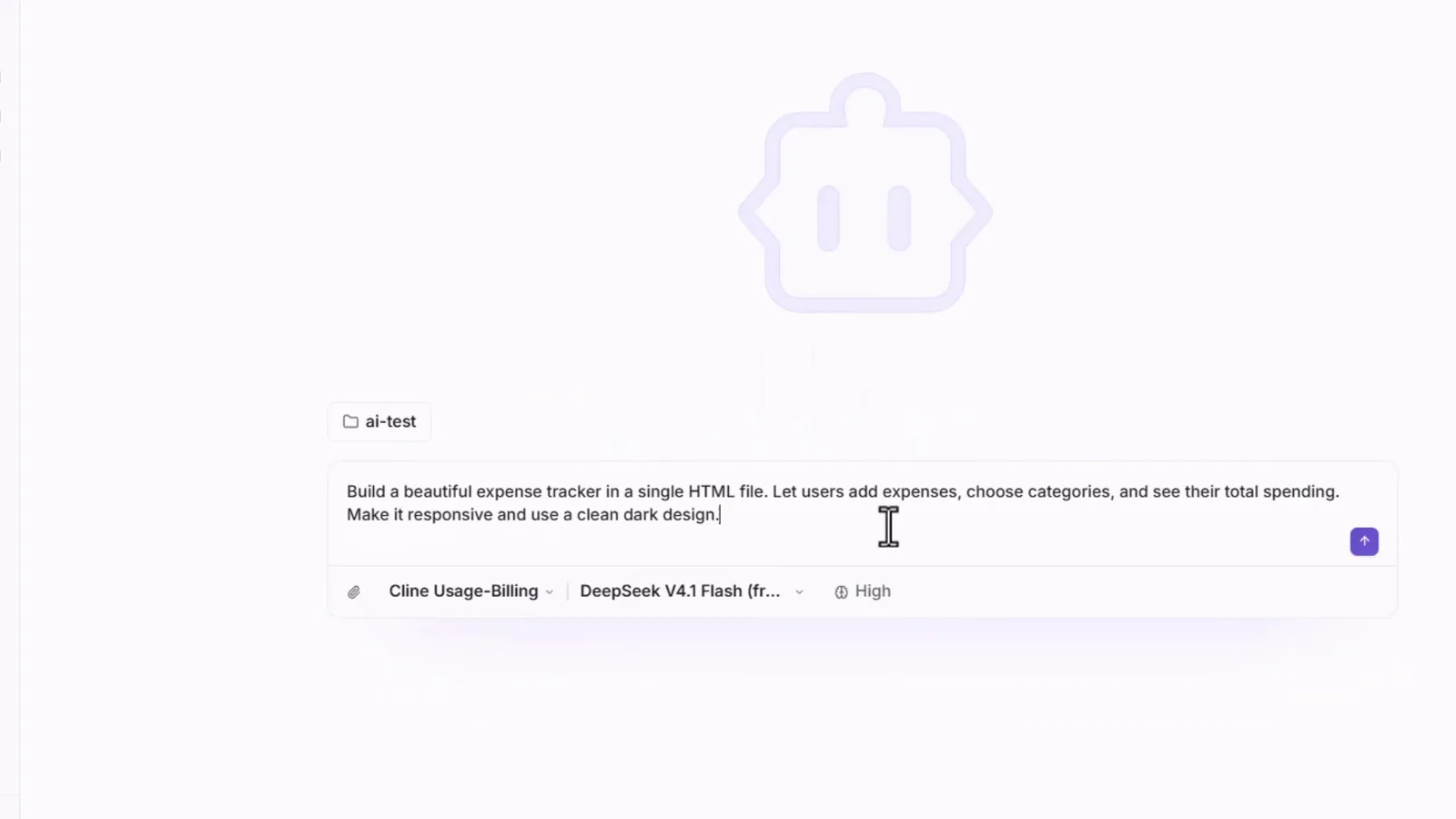
The full expense-tracker prompt, with ai-test active and effort at High.Watch at 5:37 - 12
Watch it plan, code and run commands
The agent reads the workspace, writes the HTML/JS — currency switching, running totals and localStorage persistence appear line by line in the built-in editor view — and runs commands to test its own output. While it works, the composer queues your next message instead of interrupting.
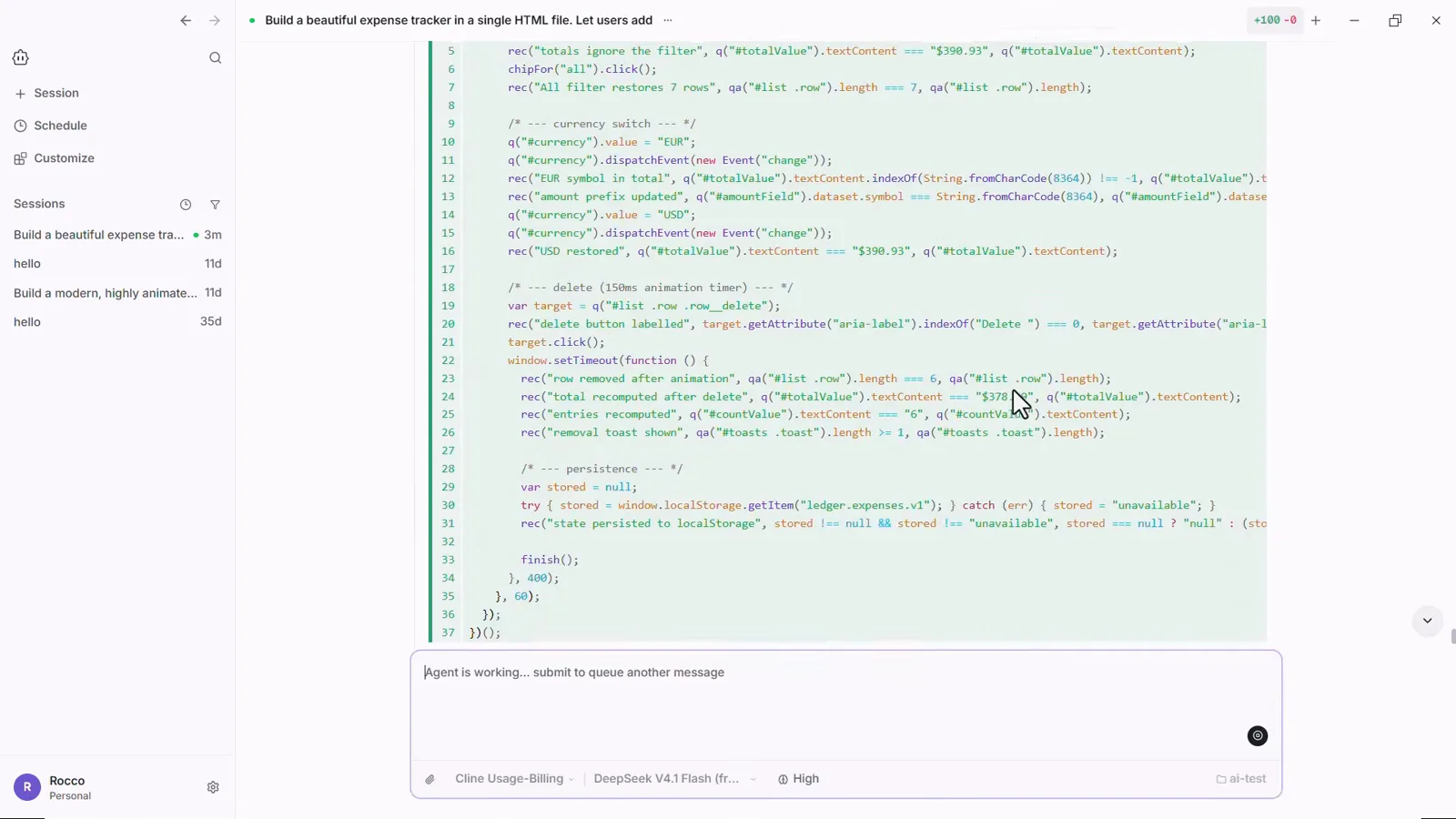
Generated JavaScript streaming into Cline's editor view, added lines tinted green and the composer reading Agent is working.Watch at 6:25 - 13
Read the self-verification report
Rather than declaring done, the agent hands back a "Verification performed (not just written — actually run)" summary: a numbered list of checks it actually executed — a Headless Edge functional suite with a pass count, a reload-and-restore persistence test, layout diagnostics, inspected desktop and mobile screenshots, a markup integrity pass — then "Two real bugs I found and fixed during testing" and a Notes / limitations list. That self-testing habit is what makes a free-tier model feel expensive.
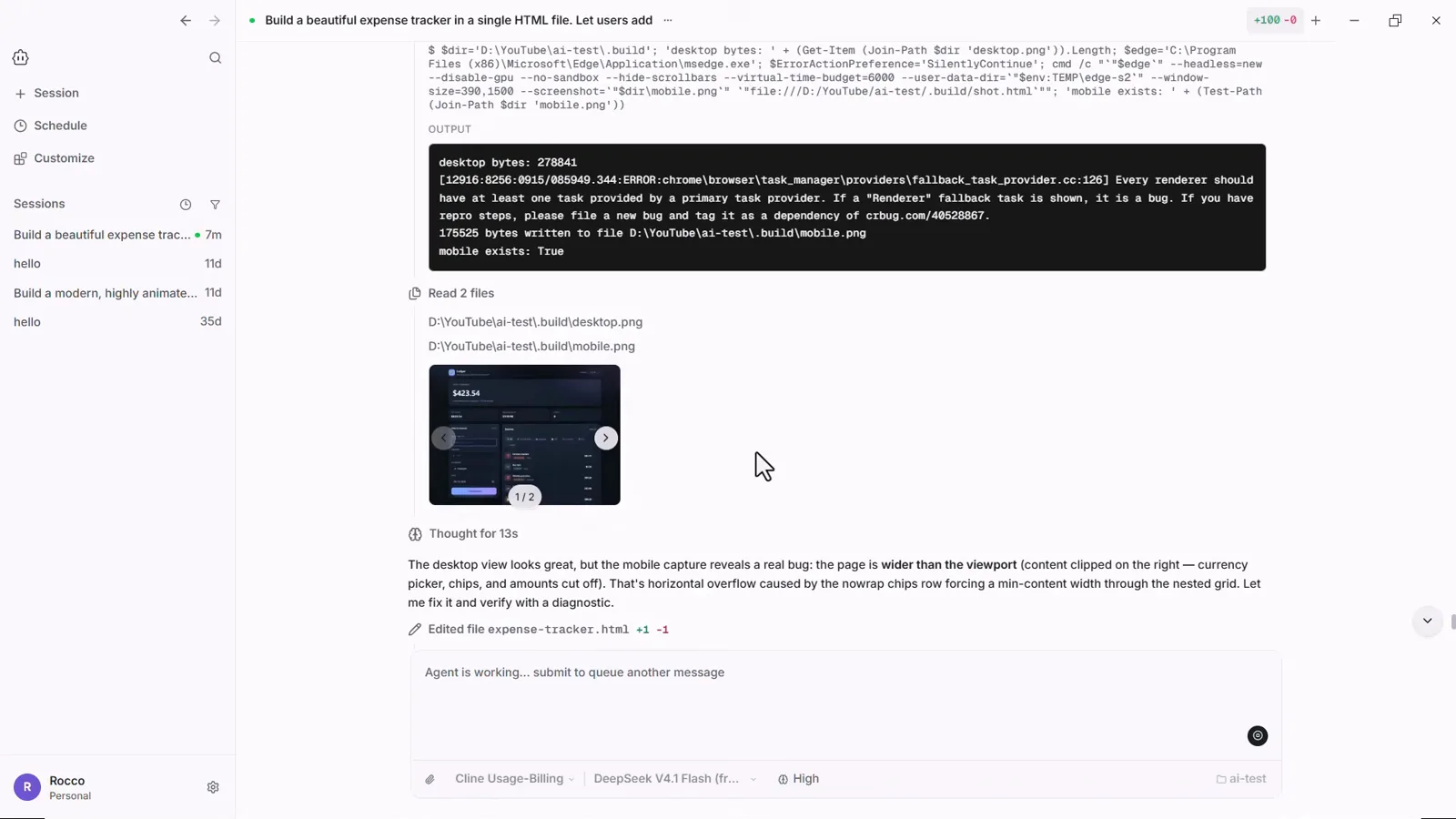
The agent's own report: checks run, bugs found and fixed, screenshots attached.Watch at 9:20
4 · Test, iterate and switch models
- 14
Open the app it built — then iterate in chat
The file lands in your folder — expense-tracker.html in ai-test, opened here in Chrome. It is a working Ledger app: add Coffee $5 under Food & drink and the totals, biggest expense and per-category chart all update. Anything off? Back in Cline Desktop, describe the fix or the next feature in the same session and it edits the file again.
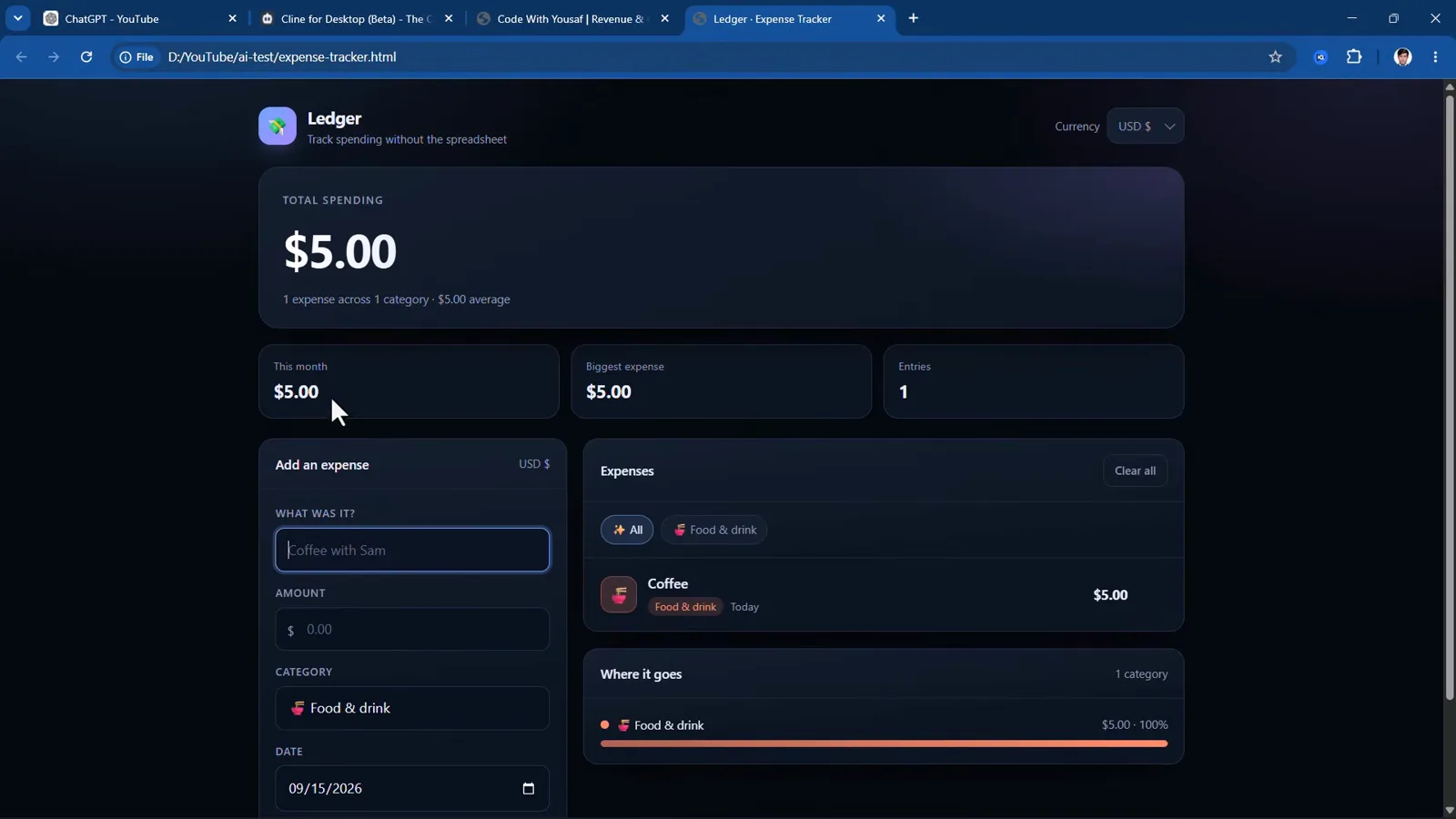
The finished Ledger tracker running in Chrome, produced by one prompt.Watch at 7:35 - 15
Switch models any time
You are not locked to the model that started the task. Reopen the picker mid-session and the paid catalog is right there — Claude Opus 4.5 through Claude Sonnet 4.6 in the recording — with the FREE section (DeepSeek V4.1 Flash, Muse Spark 1.3, GLM 5.3 Flash, Solar Pro 4, Laguna S 2.1) a scroll above it. Draft on free DeepSeek, switch to a stronger model for the hard step, or wire an API key into OpenRouter or OpenAI Compatible once a task outgrows the free limits.
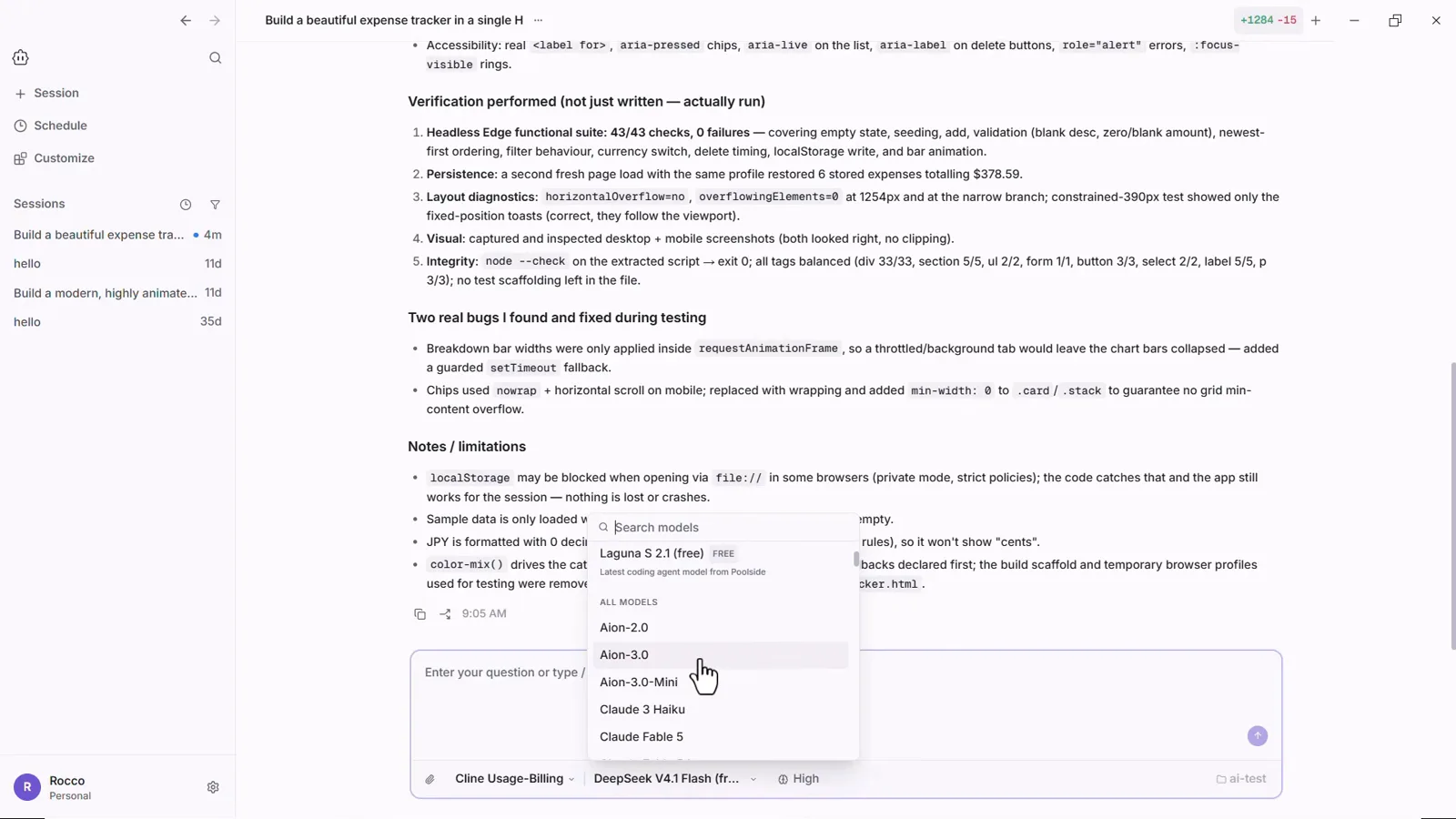
Mid-session picker: the paid Claude catalog, with the free section one scroll away.Watch at 9:13