
Antigravity Plan Mode: Where It Went and How /plan Works
The Plan/Fast toggle vanished from Antigravity's agent panel and "plan mode missing" searches went with it. Here's how the v2.17.0 /plan command works, step by step — and how to get planning back when it's not showing.
TL;DR
- Antigravity's Plan/Fast mode picker quietly disappeared in the 2026 agent-panel redesign — the changelog never announced it, and "plan mode missing" became the community's top complaint.
- v2.17.0 (September 22, 2026) brings planning back as /plan — "Plan before you build": the agent drafts a plan you read and edit before it writes any code.
- Two entry points: type /plan (with or without a goal) in the agent prompt, or pick Plan from the + menu; the Plan chip toggles it per prompt.
- /plan produces an editable Implementation Plan artifact — inline comments, scope adjustments, a Proceed button — free tier included, IDE and CLI alike.
How to Switch Between Planning Mode and Fast Mode in Antigravity
Channel:Checkmark Academy1:35
Learn the basics of Google Antigravity
Channel:Google Antigravity13:54
Antigravity changelog & /plan docs
Official source:antigravity.google
The official walkthrough video predates the 2026 agent-panel redesign: it shows the launch-era UI, so we use it only to illustrate the artifacts that /plan still produces today (Implementation Plan, Task list, walkthrough). Behavior facts follow the v2.17.0 changelog and the official /plan documentation, which correct the older recordings.
Stills from "How to Switch Between Planning Mode and Fast Mode in Antigravity" by Checkmark Academy and "Learn the basics of Google Antigravity" by Google Antigravity (YouTube), plus the official changelog at antigravity.google/changelog. Timestamps deep-link to the source videos.
Use /plan in 11 steps
Find planning in the agent panel
- 1
Open the agent panel
Launch Antigravity and look at the right-hand Agent panel. If it's collapsed, toggle it from the top bar — planning is driven from this panel, not from a menu buried in settings.
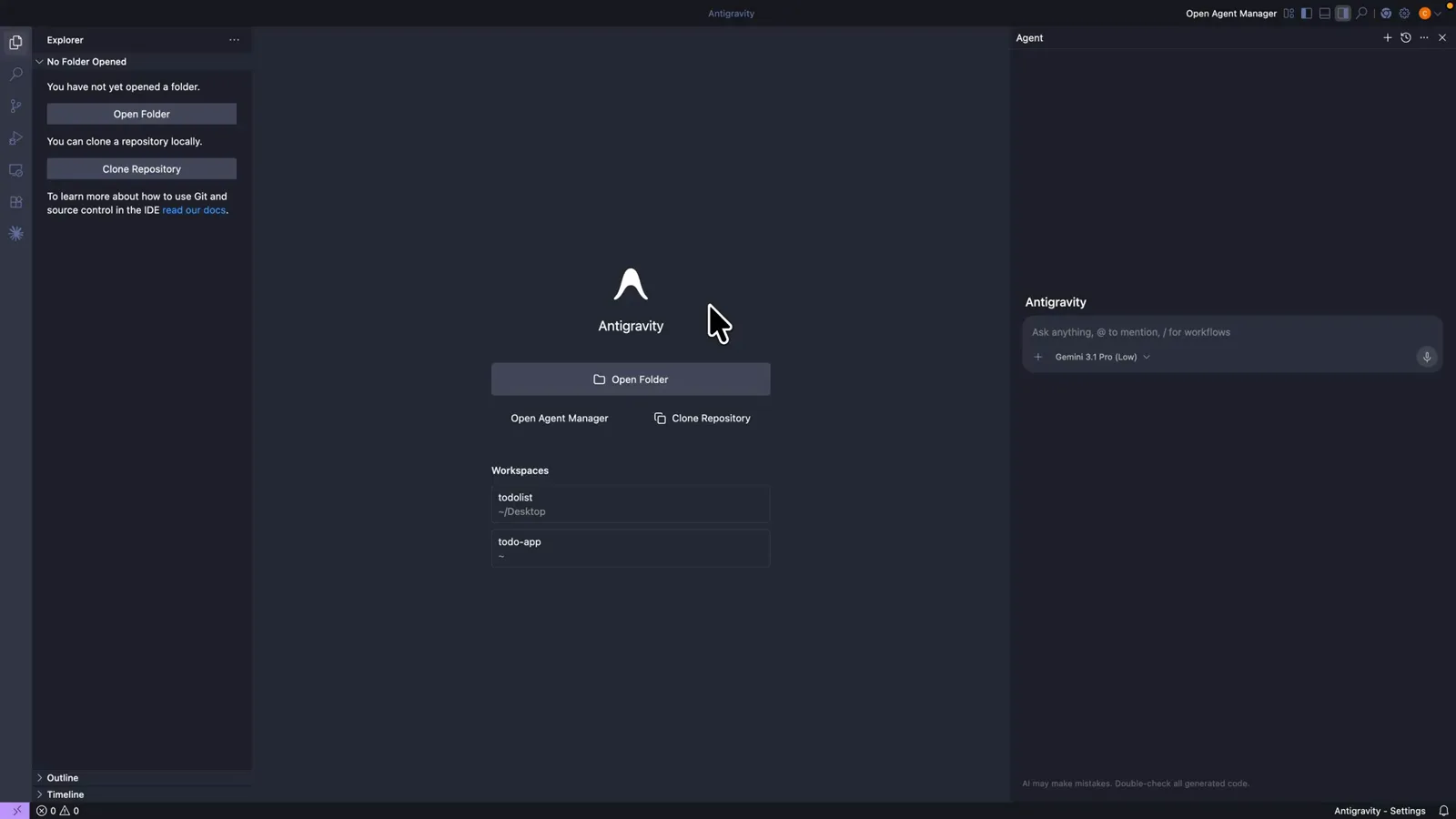
The Agent panel docks on the right — recall it from the top bar if collapsed; every plan starts here.Watch at 0:06 - 2
Click into the prompt input
The input's placeholder reads "Ask anything, @ to mention, / for workflows" — that slash hint is your way in. Next to it sit the model chip (here Gemini 3.1 Pro (Low)) and the + button that opens the attachments menu.
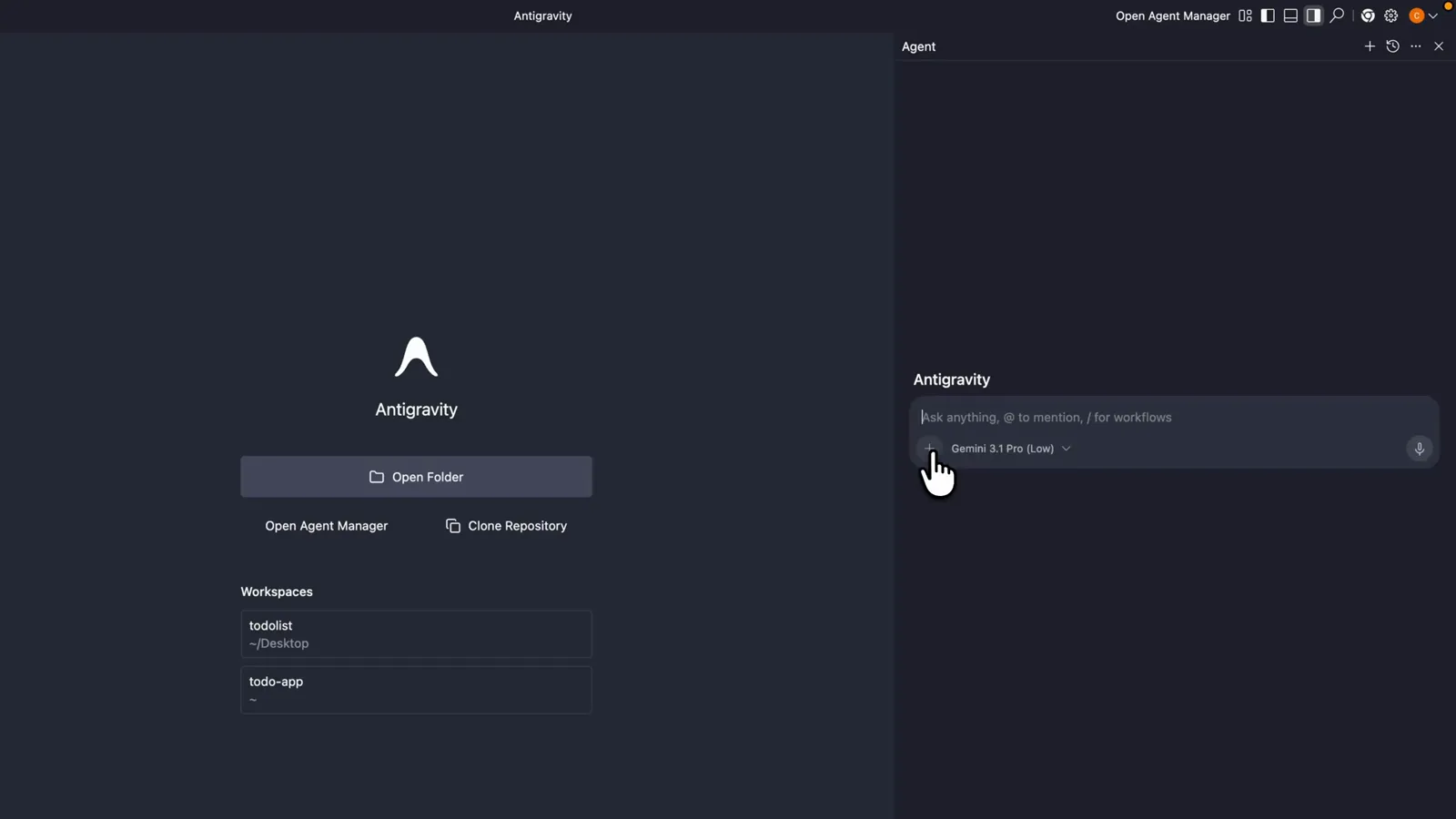
The "/ for workflows" hint in the placeholder is your slash-command entry, right beside the model chip and the + button.Watch at 0:19 - 3
Trigger planning: + menu or /plan
Click + and pick Plan (alongside Media, Mentions and Workflows), or simply type /plan in the input. Both paths arm the same planning workflow that v2.17.0's "Plan before you build" ships with.
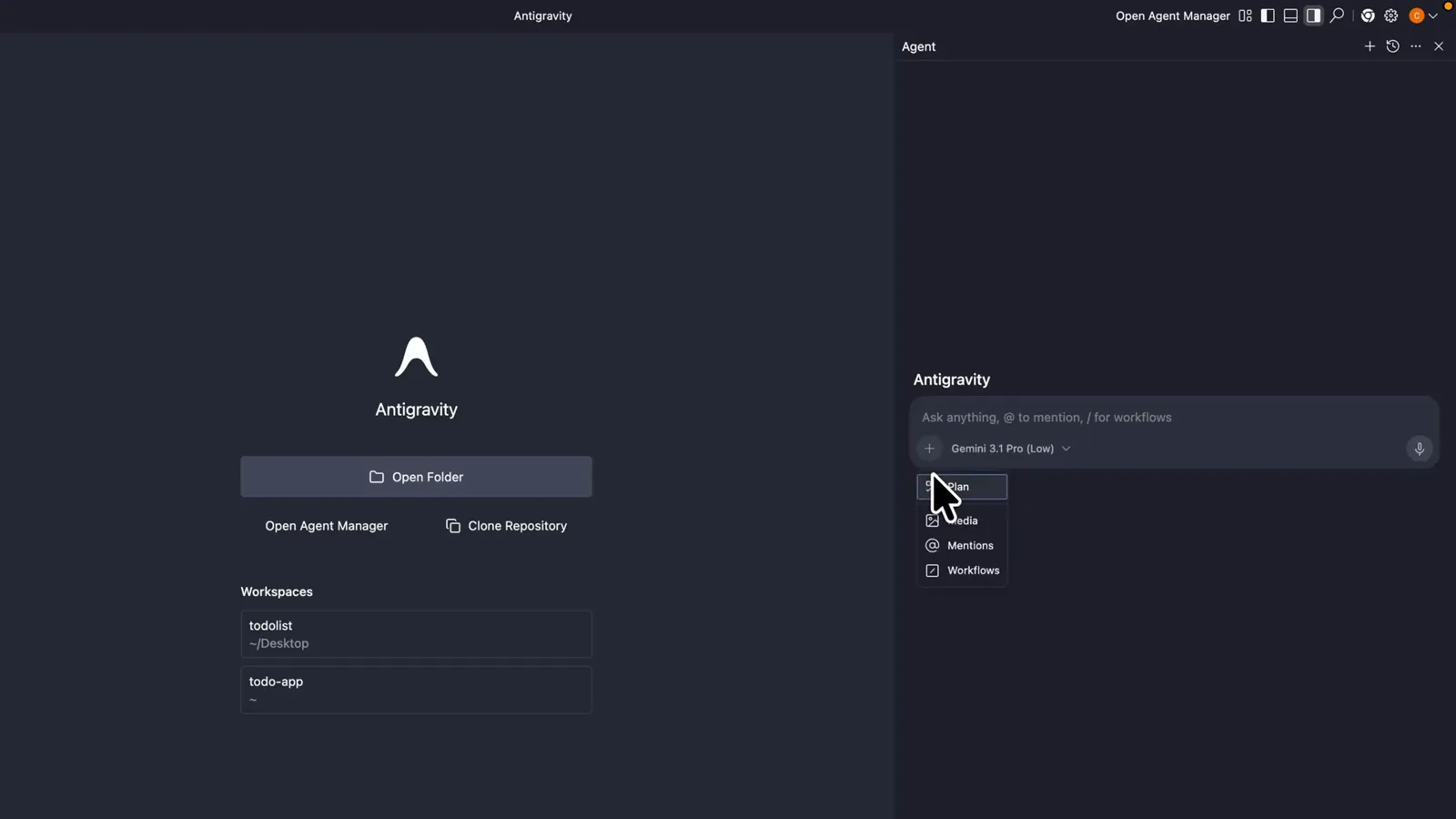
Pick Plan from the + menu or type /plan — both routes start the same planning flow.Watch at 0:22
Plan before you build: a full /plan run
- 4
Pair /plan with a complex goal
Type /plan plus the task: "Build me a landing page with contact form, animations, and mobile layout." Multi-step work across several surfaces is exactly what planning is for — a variable rename is not.
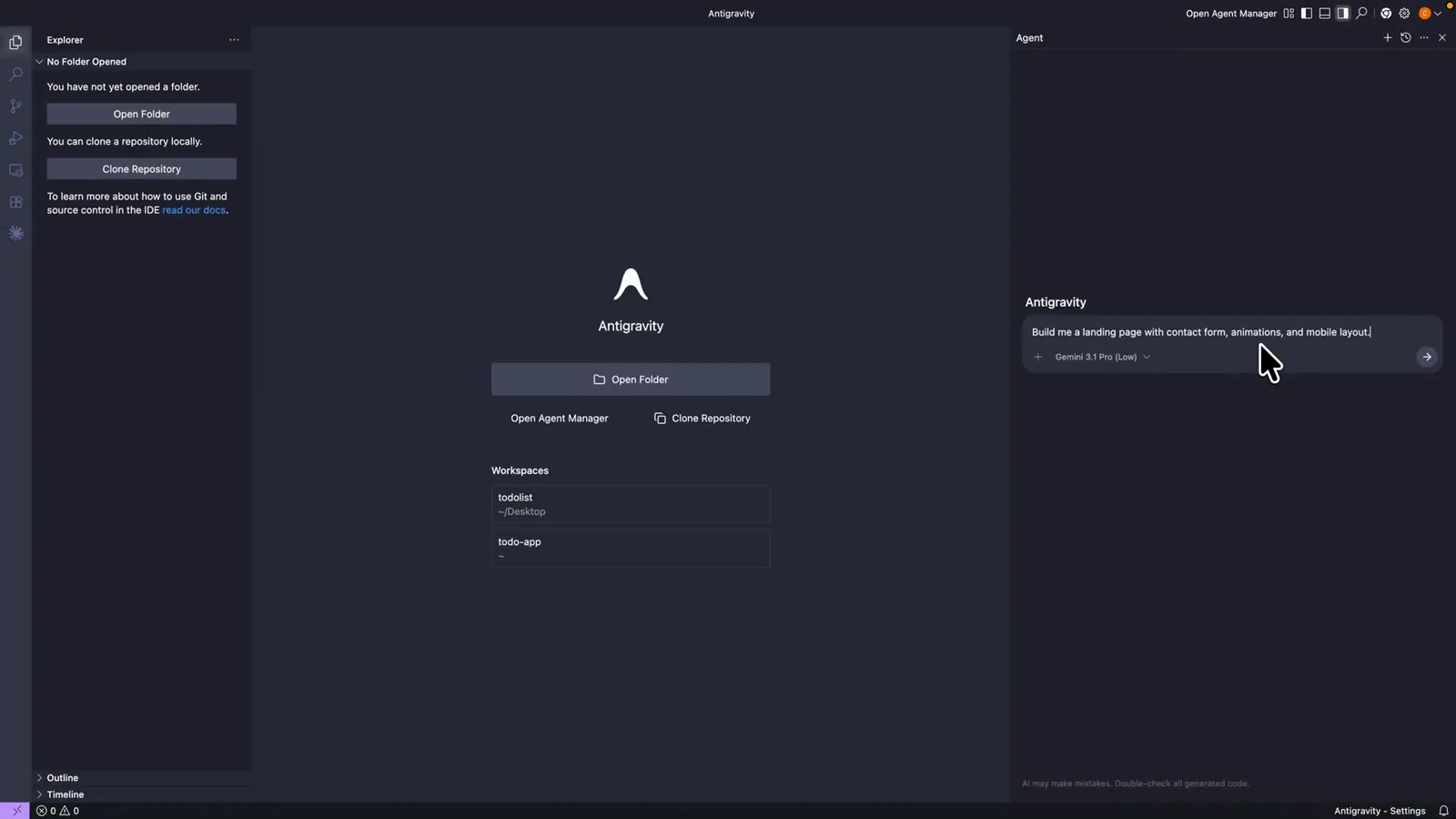
Save /plan for complex multi-step builds: a landing page plus forms, animations and a mobile layout.Watch at 0:35 - 5
Read the Implementation Plan artifact
The agent researches the codebase, interviews you if requirements are ambiguous, then drafts an Implementation Plan artifact: goal description, what needs your review, and proposed changes broken into sections. Nothing has touched your code yet.
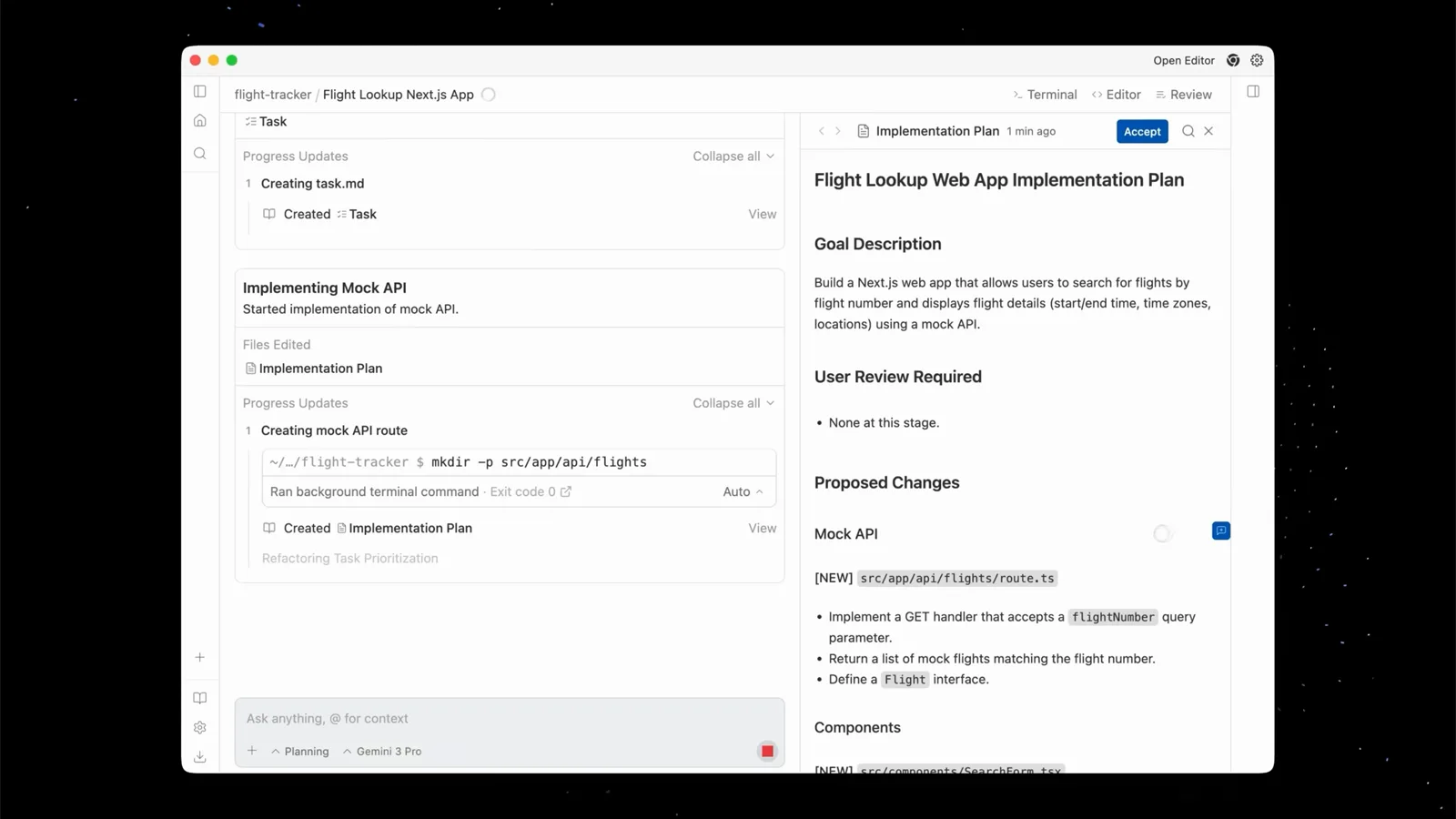
/plan produces an Implementation Plan artifact — goals, items to review and per-section change proposals — before a single line of code.Watch at 4:40 - 6
Track artifacts from the editor too
Jump into the editor and the same artifacts stack up in the sidebar: the Implementation Plan plus the Task list it spawns. You can watch progress without switching back to the agent manager.
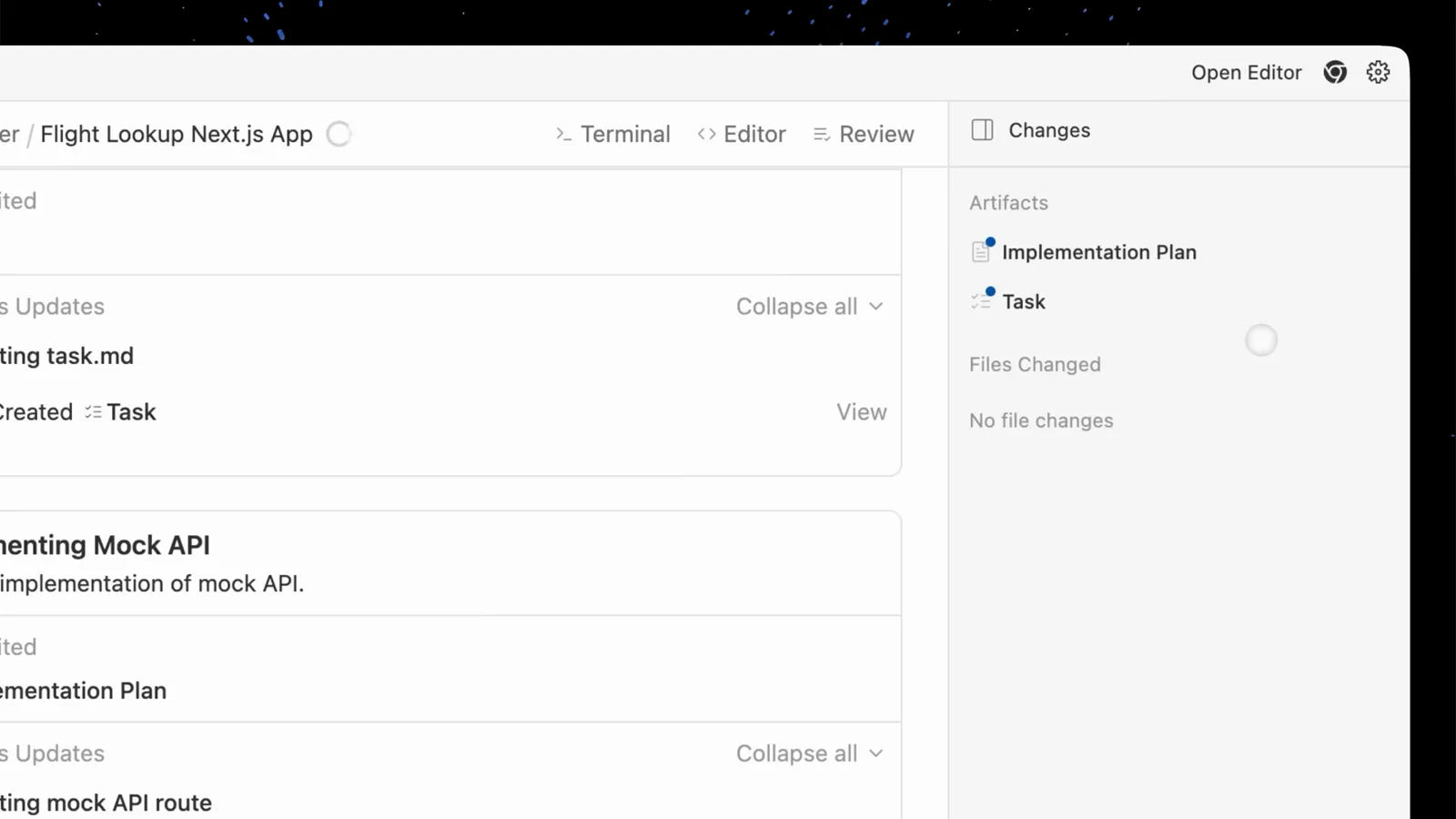
The editor sidebar lists the Implementation Plan and Task artifacts side by side, so progress never leaves the window.Watch at 3:45 - 7
Let the plan verify itself
Approval isn't the end — each milestone carries verification checkpoints. The agent opens its built-in browser (blue frame means the agent is driving) and exercises the app, so the plan's claims get tested, not just written.
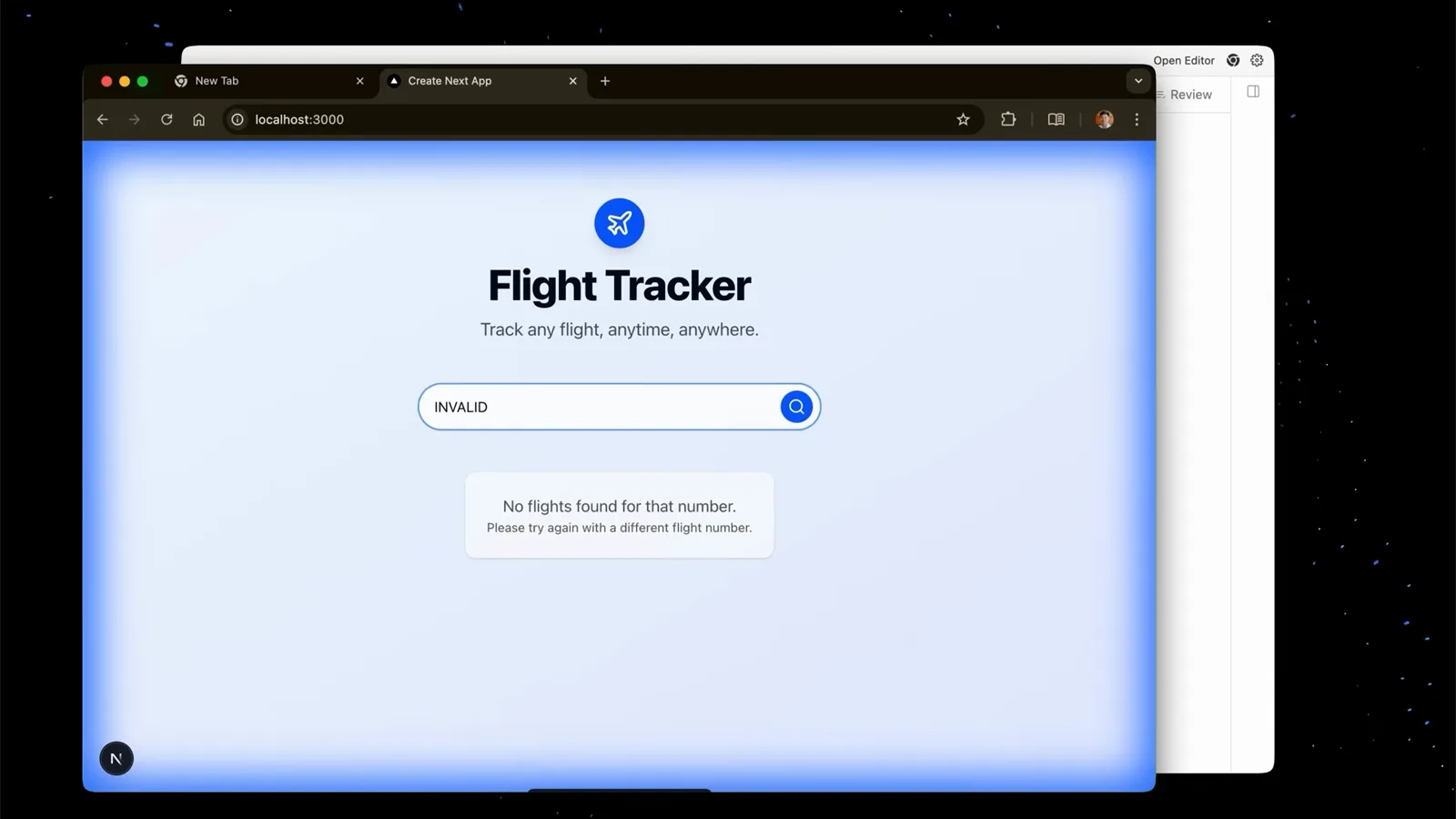
The blue frame means the agent is driving the browser: each verification step in the plan gets actually run.Watch at 5:45 - 8
Close out with the walkthrough
When the last task lands, a walkthrough artifact summarizes what was implemented and how it was verified, with screenshots and recordings attached. That's the full /plan lifecycle: plan, execute, prove.
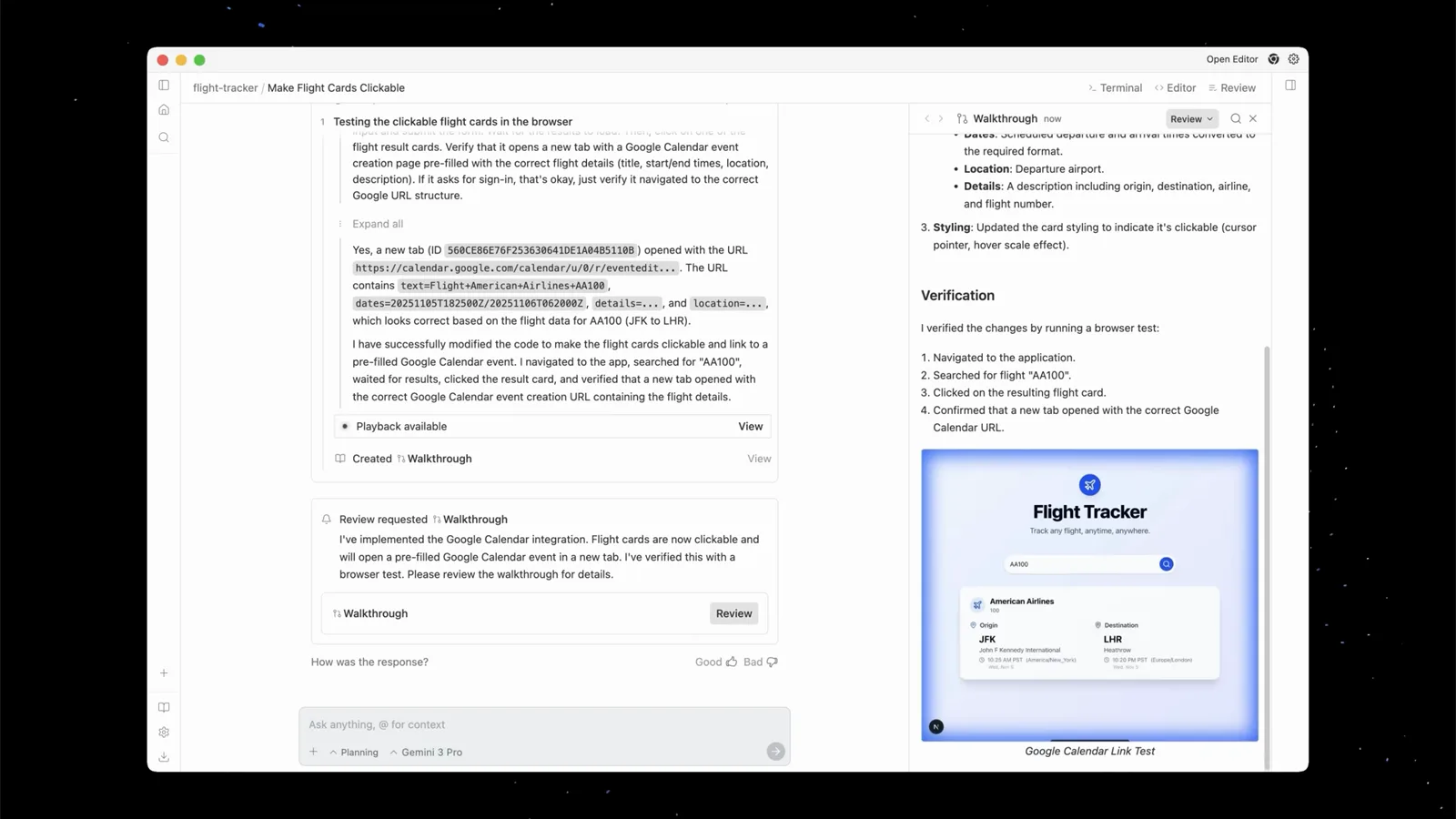
A closing Walkthrough artifact sums up what was built, how it was verified, with screenshots attached.Watch at 12:50
Plan or fast: choose per prompt
- 9
Skip planning for mechanical edits
"Rename this variable from userData to userInfo across all files" needs no plan. Type it plain — no Plan chip, no /plan — and the agent just executes. Planning overhead on one-line intents is wasted seconds.
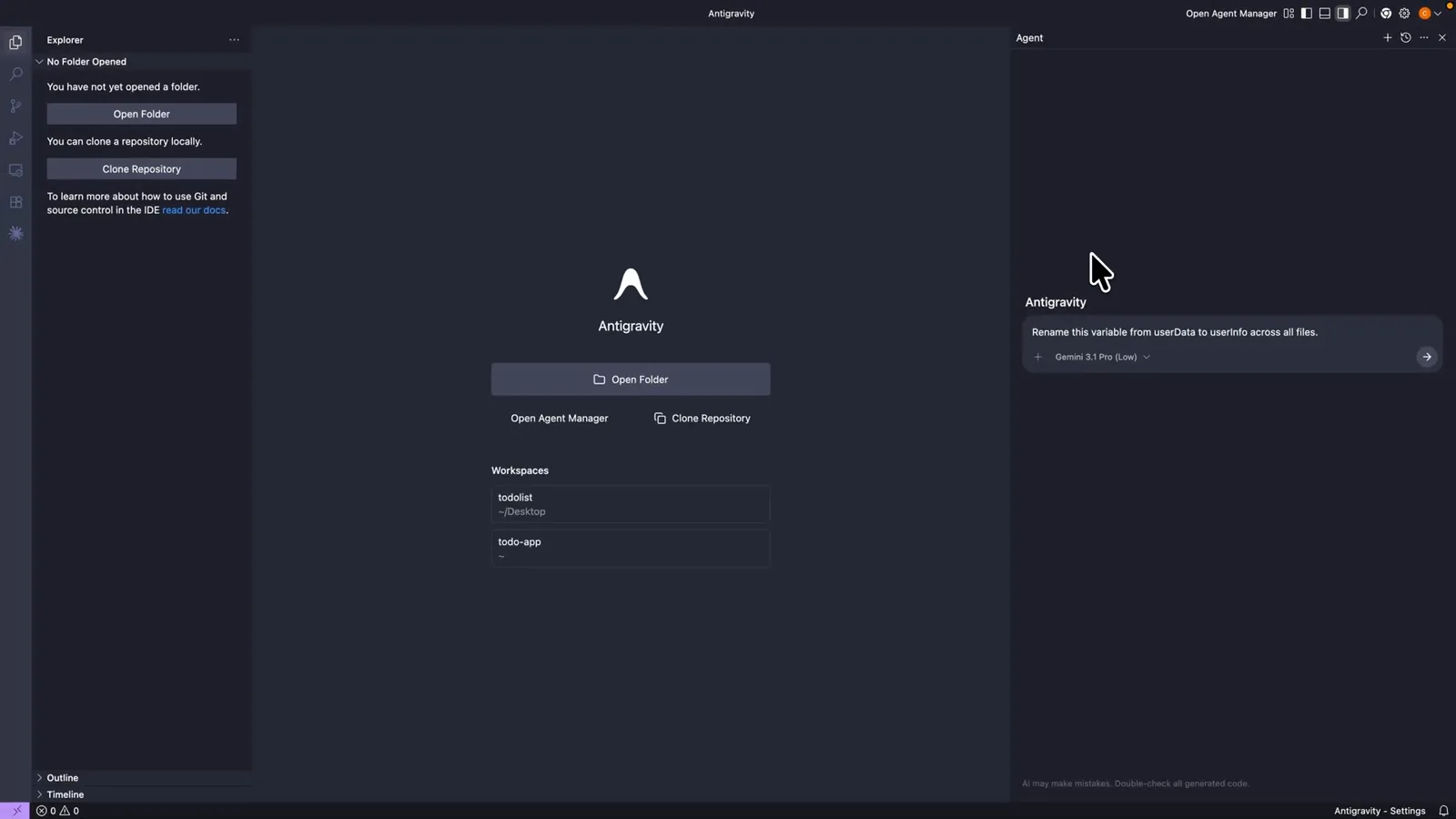
Mechanical edits go straight through: no Plan chip, the agent executes at once.Watch at 0:47 - 10
Add the Plan chip when you want oversight
For anything riskier, open the + menu and pick Plan: the Plan chip appears next to the model chip. With Plan Review Policy set to review every plan, the agent pauses on the drafted plan before writing code.
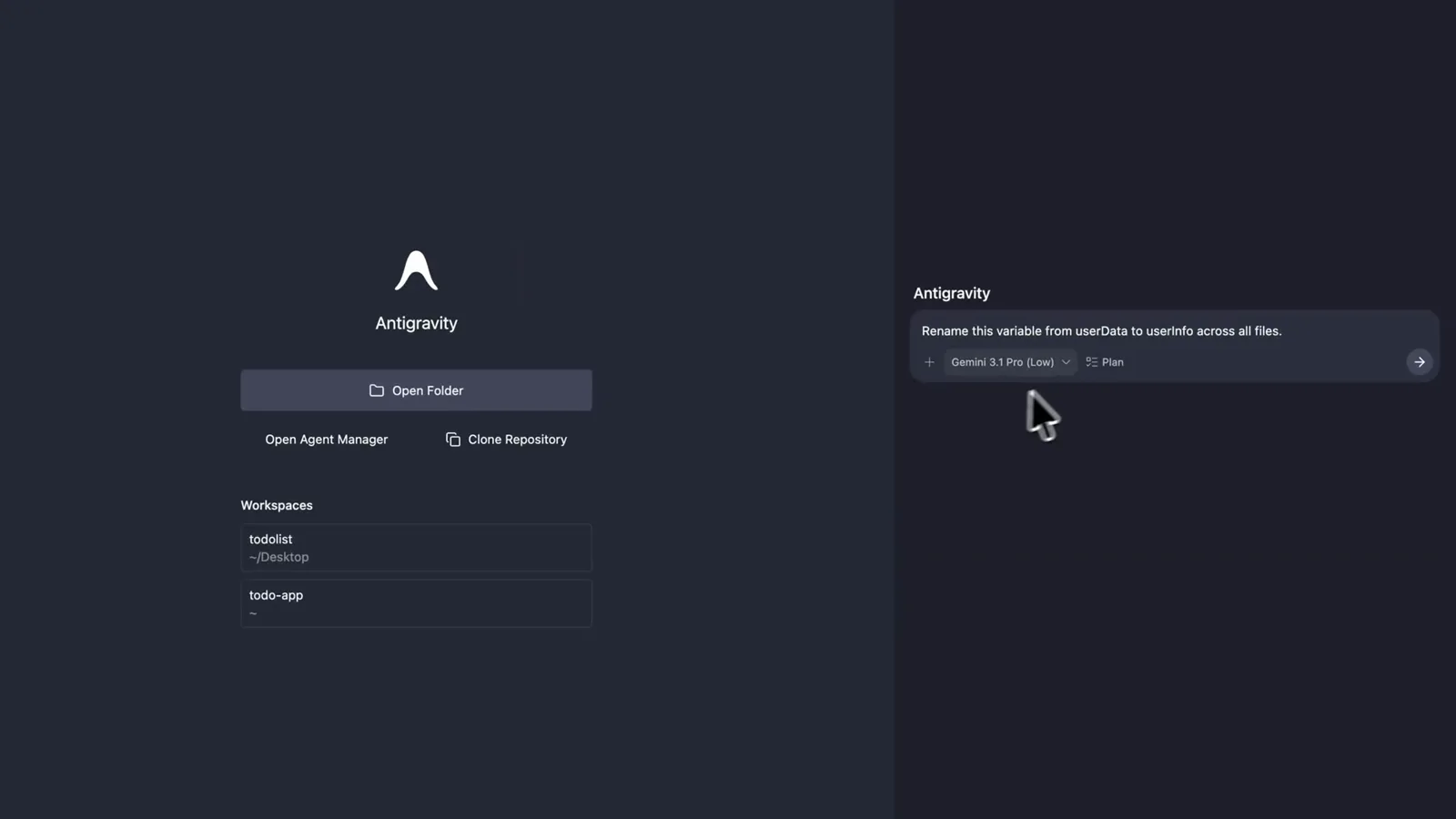
Light up the Plan chip when a change needs your sign-off — the agent stops before writing code.Watch at 1:05 - 11
Remove the chip to go fast again
Click the Plan chip once to detach it and you're back to direct execution — the old Plan/Fast dichotomy, now a per-prompt toggle instead of a hidden mode. Planning when you need it, speed when you don't.
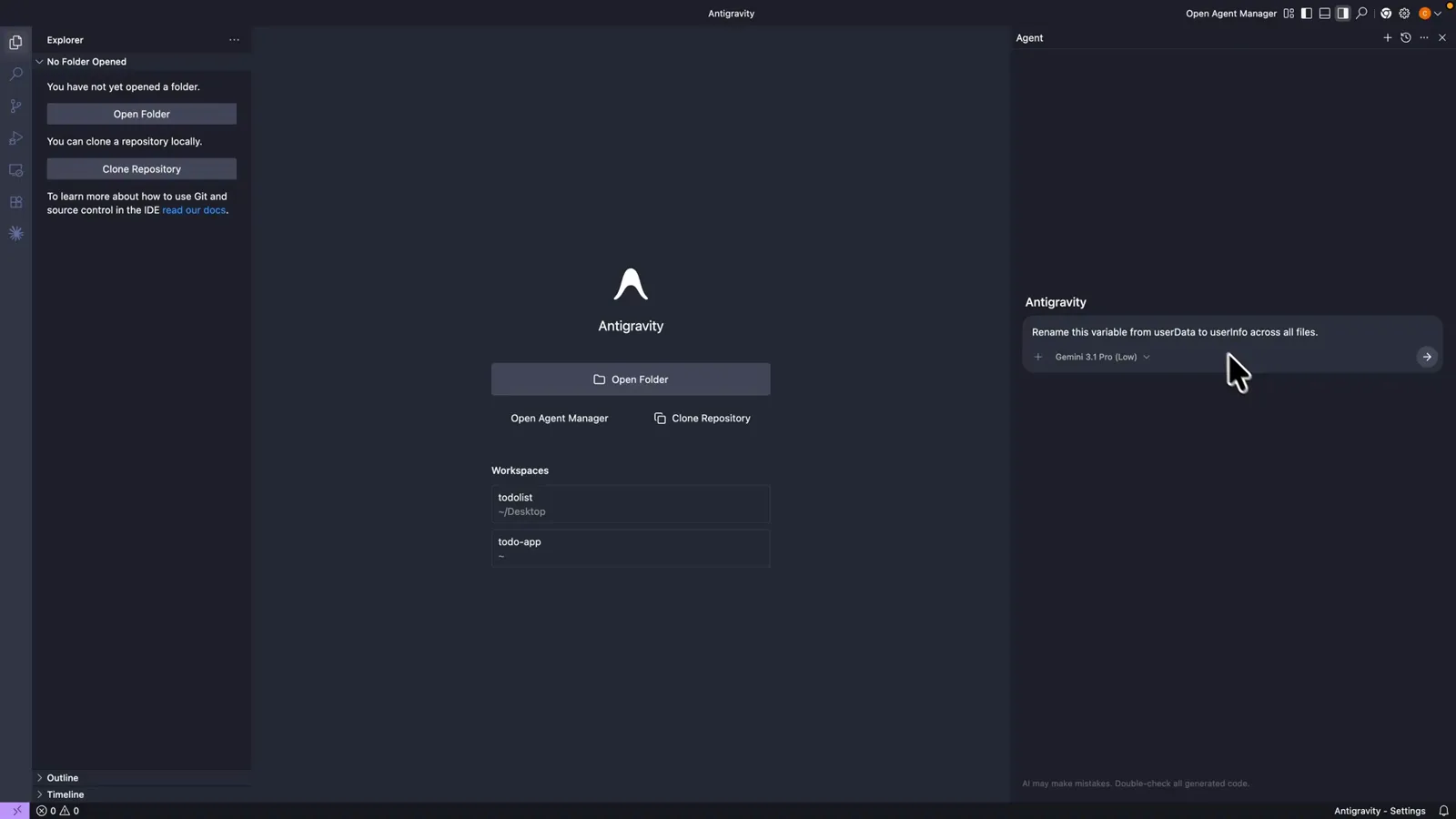
Click the Plan chip again to remove it, switching between planning and direct execution any time.Watch at 1:24
How /plan fits the agent panel
/plan is not a hidden settings page — it's a slash command scoped to the conversation you're in. The agent panel is where it lives in the IDE: type it into the prompt (or pick Plan from the + menu) and the resulting Implementation Plan artifact opens right there in the panel's review flow. From the editor, the same artifacts are one sidebar away.
The plan itself is the third artifact type, next to the task list and the walkthrough. That's why removing the old mode dropdown never killed planning — the machinery moved from a persistent mode into per-conversation commands and reviewable artifacts. The Plan Review Policy setting in Agent settings decides whether the agent pauses on every plan, only when it judges it worthwhile, or never.
The CLI gets the same command: /plan in the Antigravity CLI enters planning mode, analyzes the codebase and renders the structured plan in the terminal. A bare /plan with no goal starts an open-ended discovery session — the agent inspects your active file and recent history, then interviews you before drafting anything.
Before and after v2.17.0
Planning's 2026 timeline, reconstructed from the official changelog and the community threads that filled its silence.
- 1At launch, planning was a Plan/Fast mode picker in the agent panel: plan for complex work, fast for everything else.
- 2Spring 2026: the agent-panel redesign removed the picker. The changelog never announced the removal — "antigravity plan mode missing" searches and Reddit threads filled the gap.
- 3August 7, 2026 (v2.6.0): Antigravity 2.0's new agent panel shipped without the toggle, and the plan-mode threads kept climbing.
- 4September 22, 2026 (v2.17.0): "Plan before you build" — type /plan and the agent drafts a plan you can read and edit before it writes any code. The governing setting becomes Plan Review Policy with three review levels.
- 5Now: planning is a command plus an artifact instead of a mode — per-prompt, reviewable, and paired with verification checkpoints the agent has to actually pass.
The /plan command works on every Antigravity plan tier, including free, in both the IDE and the CLI. The paid-tier extras are separate commands: /boost and /teamwork-preview for deeper multi-agent reasoning, /grill-me for Socratic design interviews.