
Google Antigravity YOLO Mode Tutorial: Turbo, Always Proceed and the Skip-Permissions Flag
YOLO mode is the community name for never being asked twice. In Antigravity 2.0 it is the Turbo permission preset (Always Proceed on Windows); in the Antigravity CLI it is the always-proceed tool permission or the --dangerously-skip-permissions flag. Six verified screenshots, plus the official steps for everything no clean recording shows.
TL;DR — what Antigravity YOLO mode is
- YOLO mode is not an official switch name. It is what the community calls any setup where the agent stops asking: the Turbo permission preset in Antigravity 2.0, Always Proceed on Windows, and always-proceed or --dangerously-skip-permissions in the Antigravity CLI.
- Turbo turns the Terminal Sandbox off, runs every command without prompting and gives the agent full read-write access to your filesystem. Google's own permission guide says to prefer scoped allow rules unless you fully trust the prompt and environment.
- In the CLI, /config (the alias of /settings) exposes a Tool Permission row with request-review, proceed-in-sandbox, always-proceed and strict — one keystroke on always-proceed is the CLI's YOLO switch.
- You never have to go all-in: per-project overrides, Deny > Ask > Allow rules and the Shift+Tab execution-mode cycle let you keep review exactly where it matters.
Google Antigravity CLI Full Walkthrough
Video walkthrough:Google Antigravity7:09
Learn the basics of Google Antigravity
Video walkthrough:Google Antigravity13:54
Agent Settings — Permission Settings (Antigravity 2.0)
Official docs:antigravity.googleDocs
Steps 1-2 use stills from Google's official "Learn the basics" recording; steps 7-10 use stills from Google's official "CLI Full Walkthrough". The settings-window steps (3-6, 11-13) carry no screenshot: every third-party recording of them ships a face cam or burned-in captions, so they are documented from the official Agent Settings, Permissions and CLI guides instead.
Frames are credited screenshots from the source videos, each deep-linked to its timestamp. This guide's text is original — not a transcript.
Antigravity YOLO mode, step by step
1 · What YOLO mode replaces
- 1
See what you are switching off: the default approval prompt
Out of the box, Antigravity 2.0 asks before it touches anything sensitive. The recording catches a real one: while the agent runs the dev server it stops on "Antigravity would like to use the browser" with Setup and Deny buttons. Every prompt you answer like this is what YOLO mode removes.
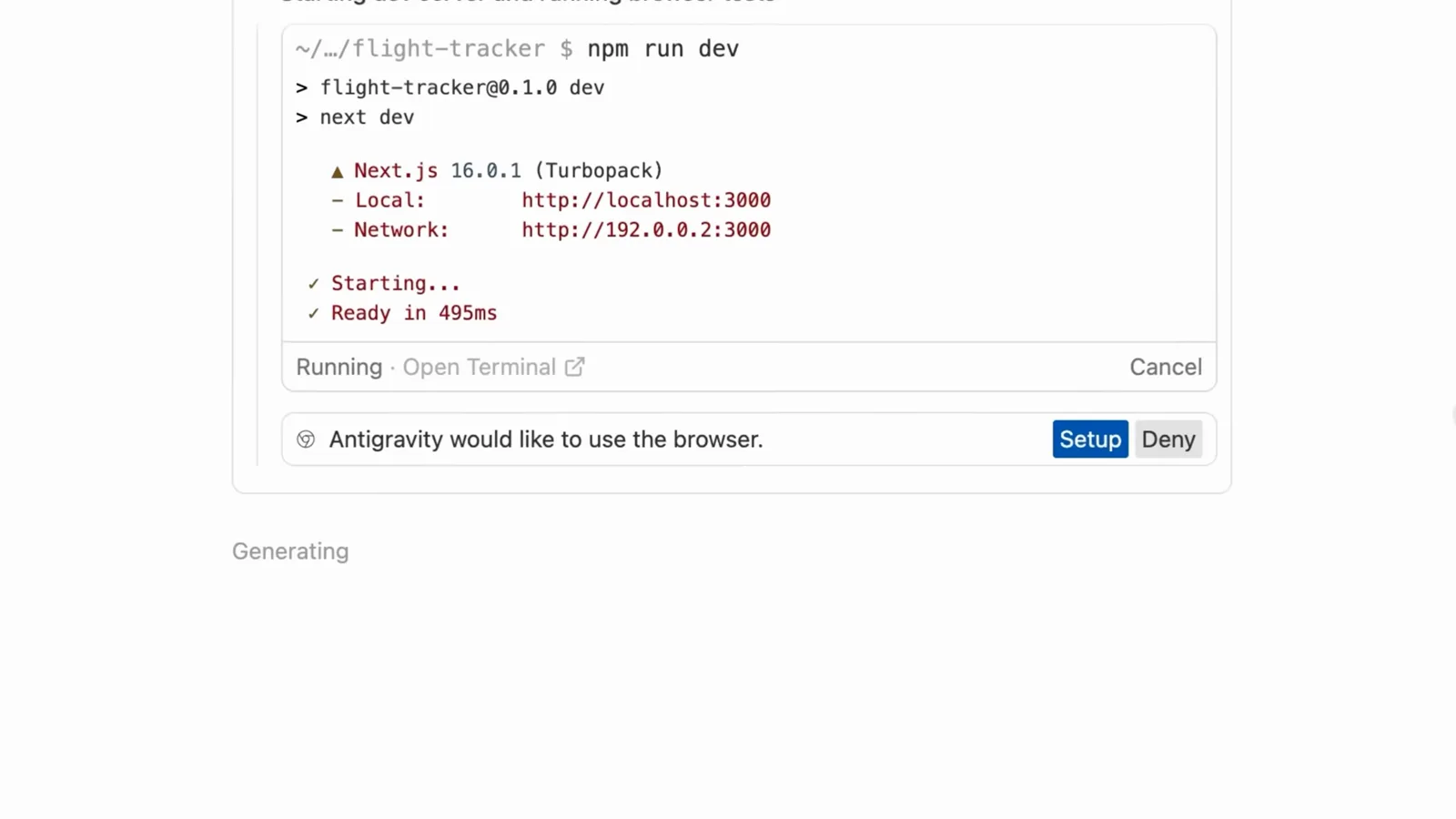
A default Antigravity 2.0 permission prompt: Setup or Deny before the agent drives the browser.Watch at 1:30 - 2
Pick your autonomy level at first run
On first launch Antigravity asks "How do you want to use Antigravity?" with four presets: Agent-driven development, Agent-assisted development, Review-driven development and Custom configuration. The default, Agent-assisted, lets the agent use its own judgement on when to run terminal commands locally and asks for a review when making changes — and the dialog notes you can change it later in the settings window, which is where the next steps go.
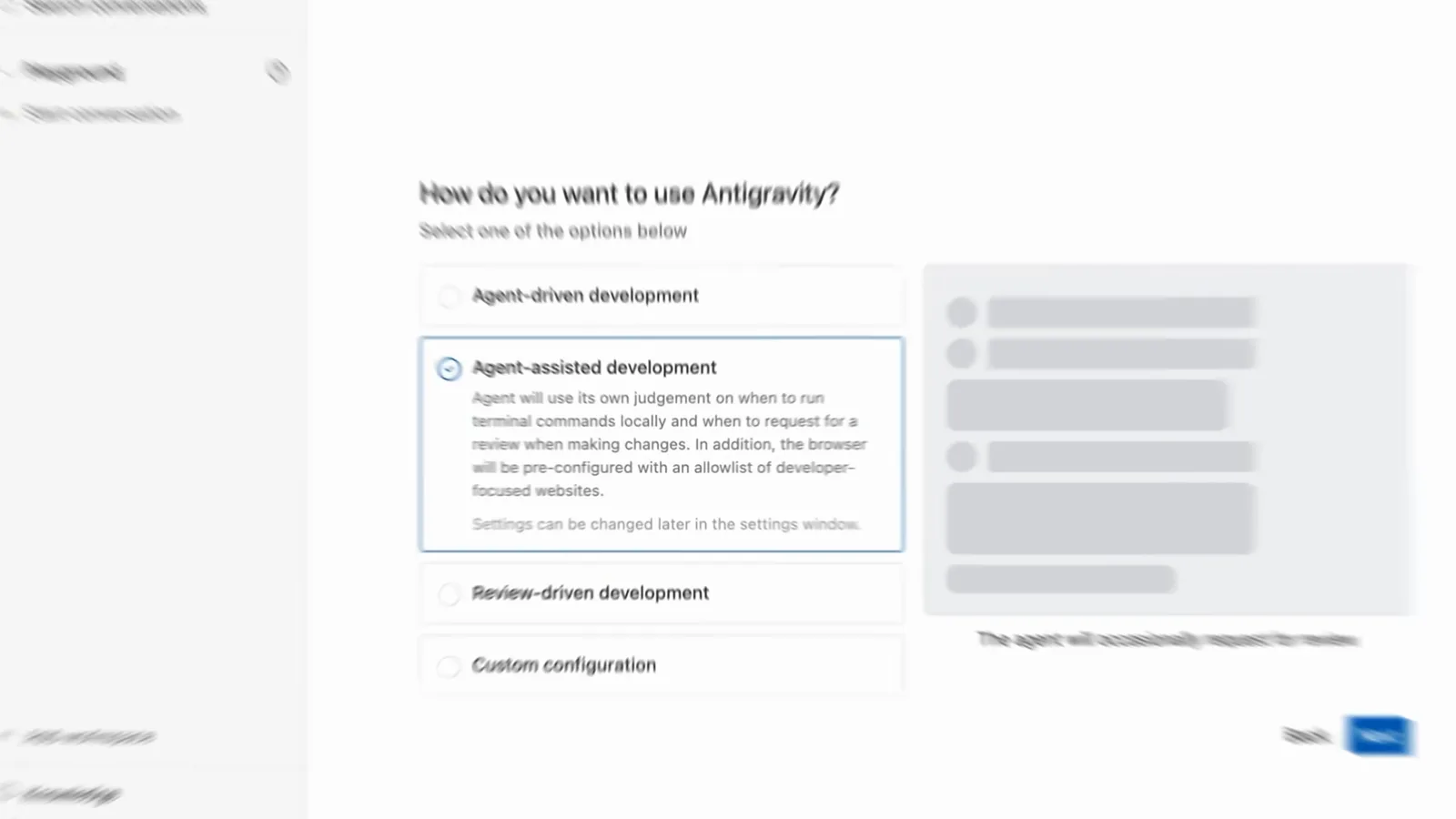
The first-run dialog: Agent-driven, Agent-assisted, Review-driven or Custom configuration.Watch at 1:48
2 · Turn on Turbo in Antigravity 2.0
- 3
Open Settings → General → Permission Settings
Antigravity's updated permission system (macOS and Linux) lives under Settings → General → Permission Settings; the 2.14.0 update on September 15, 2026 renamed this section "Global Permissions". This step and the next three are documented from the official Agent Settings guide — no third-party screen recording of this settings window ships without a face cam or burned-in captions, so it gets no screenshot here.
- 4
Switch the preset to Turbo
Three presets are on offer. Default keeps the Terminal Sandbox on and only prompts for commands that need to leave it. Request Review turns the sandbox off and asks before every command. Turbo — the YOLO setting — disables the sandbox, runs all commands without prompting and gives the agent full read and write access to your filesystem, with MCP tools and web access allowed. Community reviewers call this Antigravity's version of YOLO mode.
- 5
On Windows: Always Proceed under Terminal Command Auto Execution
The updated permission system is macOS and Linux only for now; Windows keeps the previous settings. There you pick Request Review, Proceed in Sandbox or Always Proceed under Terminal Command Auto Execution, alongside Agent Non-Workspace File Access and Terminal Sandbox Mode toggles. Always Proceed executes everything except your Deny list — the Windows name for YOLO.
- 6
Keep rules layered on top of the preset
Whichever preset you choose, your allow/deny/ask rules always take precedence, evaluated in strict Deny > Ask > Allow order. Rules use an action(target) format — command(git), write_file(src/), read_url(domain), mcp(server/*) — so a sensible YOLO setup still denies the dangerous stuff and asks about the rest. Mind the exact-match rule: commands hiding execution behind $(...), backticks or redirections only auto-approve when a rule matches the whole line.
3 · YOLO in the Antigravity CLI (agy)
- 7
Launch the Antigravity CLI with agy
In the terminal, agy starts a session — the banner shows the CLI version, the active model (Gemini 3.5 Flash in the recording) and your working directory. The default toolPermission is request-review: exactly the IDE's review-first posture, with every sensitive tool pausing for a y/n answer.
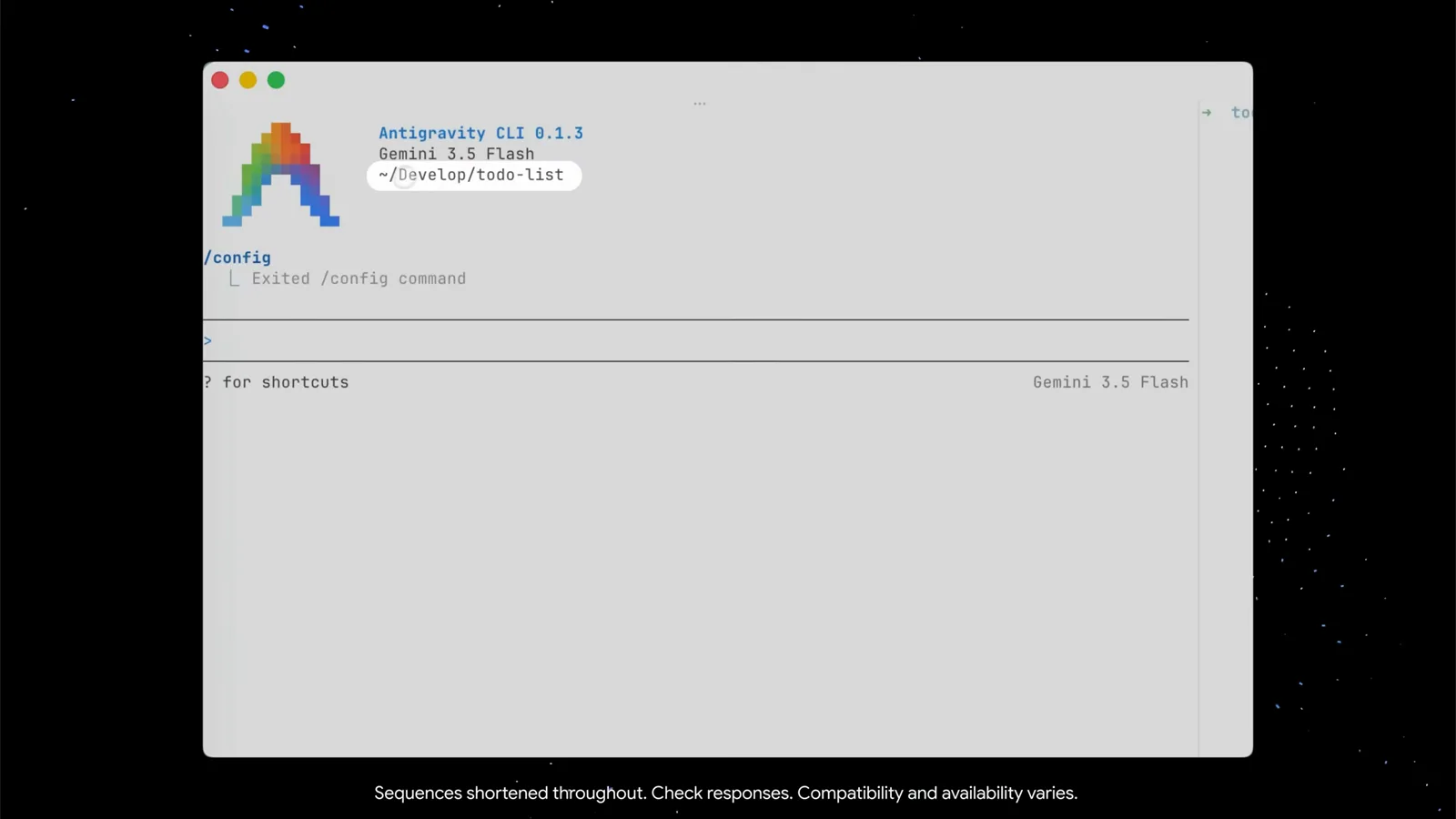
The agy welcome banner with model and working directory, right after leaving /config.Watch at 0:38 - 8
Recognize the approval queues you will stop seeing
In request-review the CLI queues anything that needs a human: this frame catches "Action required (2 left)" over two artifacts, with the keyboard bar ↑/↓ Navigate, y/n Approve/reject, shift+a Approve all, p Preview, esc Done. Useful — and exactly the clicking that YOLO mode exists to skip when you are running three projects at once.
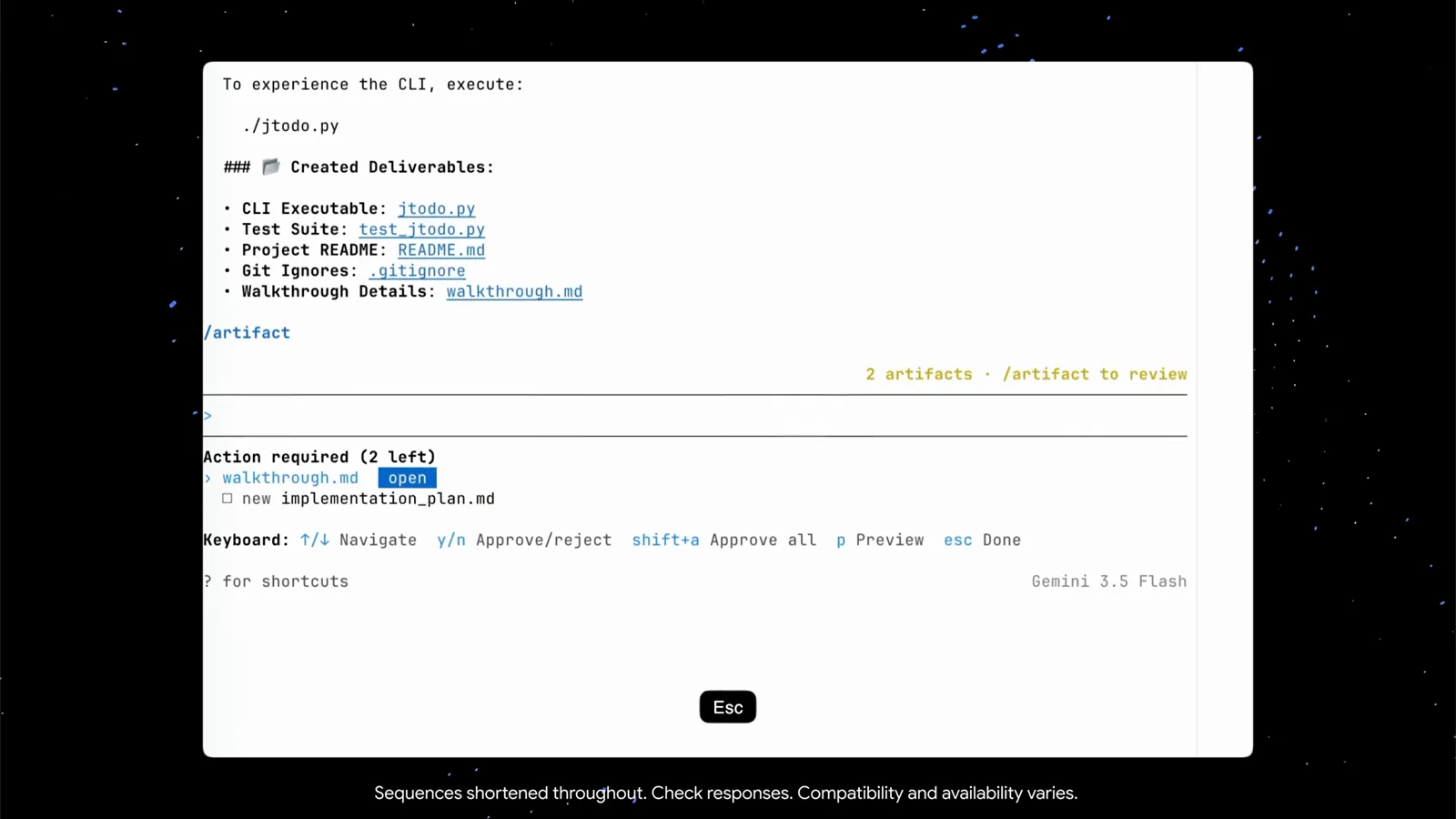
The Action required queue with y/n Approve/reject and shift+a Approve all shortcuts.Watch at 2:02 - 9
Open /config and find the Tool Permission row
Type /config (the alias of /settings) and the interactive settings editor opens with a search field and rows from Animation Speed to Verbosity. The one that matters here is Tool Permission — the CLI's global safety preset, persisted to settings.json exactly as Google's CLI reference documents it.
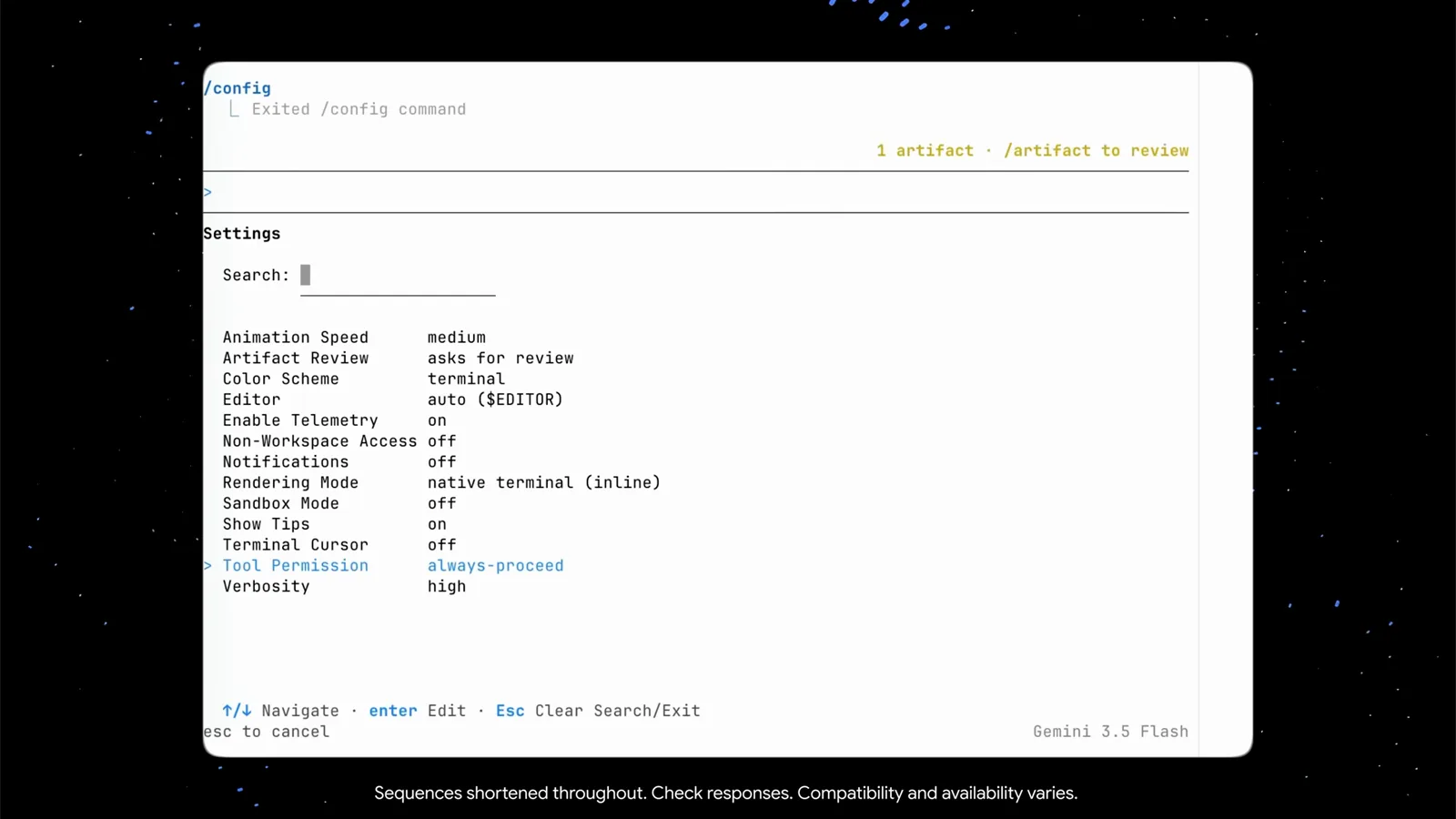
The /config settings panel with Tool Permission set to always-proceed.Watch at 6:05 - 10
Choose always-proceed — the CLI's YOLO switch
Press enter on the row and the preset dropdown opens: request-review, always-proceed, strict — the docs add proceed-in-sandbox to the list. always-proceed never prompts; that is YOLO. strict is the opposite, prompting for every non-read tool. Google's reference records the same values for the toolPermission key in ~/.gemini/antigravity-cli/settings.json.
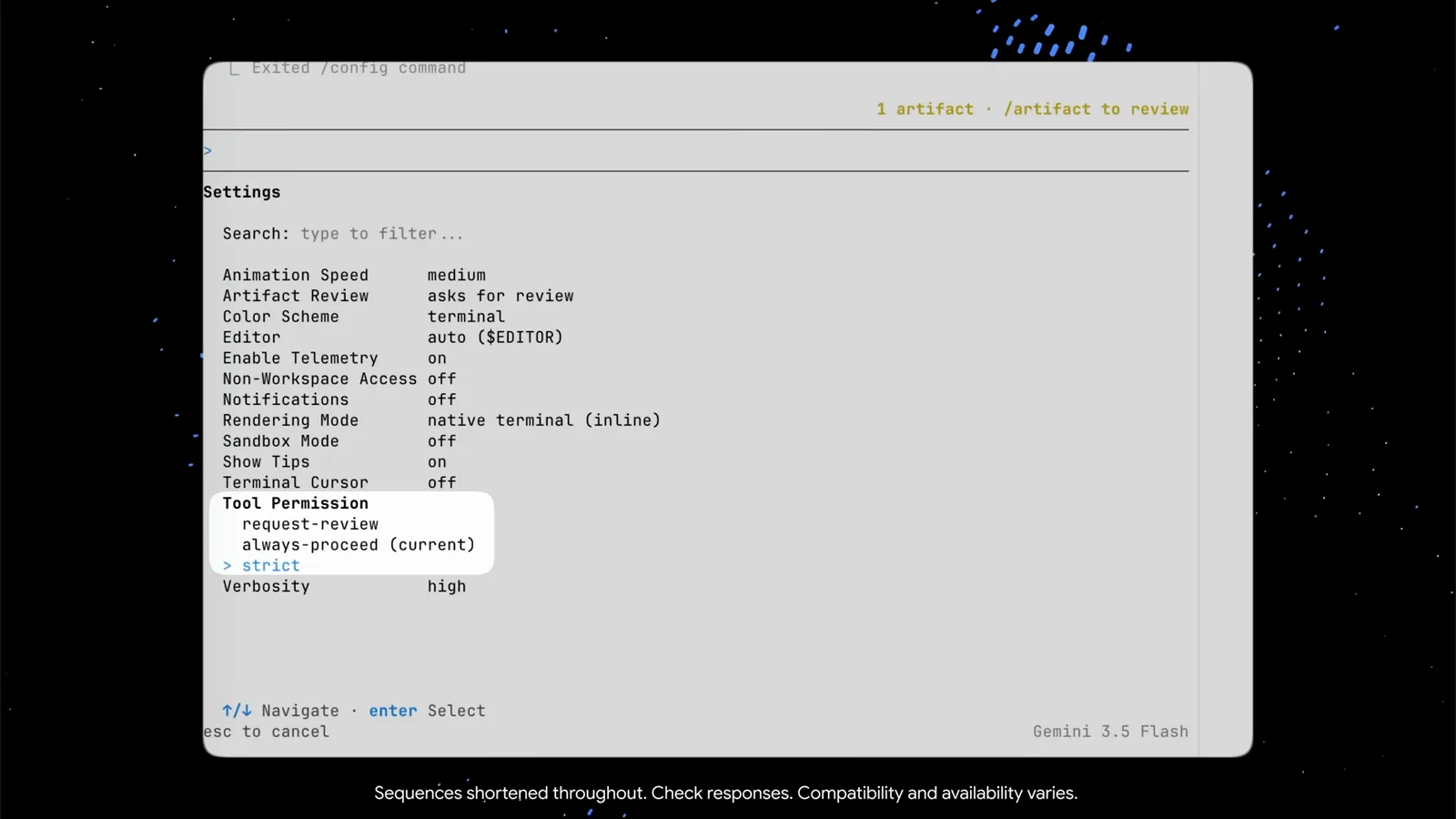
The Tool Permission dropdown: request-review, always-proceed (current) or strict.Watch at 6:18 - 11
Loosen edits only: accept-edits mode and Shift+Tab
Full YOLO is often more than you need. agy --mode=accept-edits auto-approves file writes and creations while command approval still applies; Shift+Tab cycles default → accept-edits → plan mid-session, and flipping to accept-edits straight from a pending-edit prompt sweeps everything queued. The choice persists via Agent Mode in /settings or the agentMode key in settings.json.
4 · Headless YOLO and guardrails
- 12
Headless YOLO: --dangerously-skip-permissions
For one-shot runs, agy -p "Run the test suite and report failures" --dangerously-skip-permissions auto-approves every tool call for that invocation; the JSON stream's init event then reports permission_mode always-proceed instead of request-review. Google's own warning applies: prefer scoped permissions.allow rules unless you fully trust the prompt and environment.
- 13
Set your own limits before you go YOLO
Keep a kill switch ready: Esc halts the active stream and Ctrl+C exits (it asks for confirmation while the agent works). Fence the blast radius with the Terminal Sandbox or a container, and grant only what a task needs — command(git) rather than command(*). Regulars who live in YOLO mode also cap runaway loops with a maximum-iterations limit, and /permissions keeps the allow, deny and ask lists editable mid-session.