
Trae SOLO Tutorial: Build Apps Autonomously (2026)
Trae's SOLO mode is an autonomous agent that plans the work, asks you clarifying questions and ships real deliverables. This walkthrough follows a real build — from raw data reports to a finished React dashboard — in 13 illustrated steps.
TL;DR
- SOLO is Trae's autonomous mode: instead of autocompleting code, it plans a project, asks clarifying questions and produces finished deliverables — documents, decks and working apps.
- The core loop shown here: attach your raw data in MTC mode, answer the deliverable questions, review the auto-generated to-do list, then let SOLO draft the PRD.
- Switch to Code with SOLO for the build: it extracted brand colors from a brand-book image, styled the app with them and produced a working dashboard you can open in the browser.
- SOLO runs on the web and desktop, executes tasks in the cloud, and is included with paid plans — Pro is $10/month with up to 2 concurrent cloud tasks. Credits get consumed fast on heavy builds.
TRAE SOLO Tutorial - 2026 | How I Built a React App From Raw Data Reports
Video walkthrough:Dan - Smart Tutorials6:35
Get Started with SOLO Builder
Official demo:Trae8:29
Screenshots come from the walkthrough video; SOLO Builder facts were cross-checked against the official Trae channel demo and docs.trae.ai.
All screenshots remain the property of their creators, credited above; each step links back to the exact moment in the source video.
From raw reports to a working dashboard in 13 steps
- 1
Start in MTC mode and attach your raw data
Open Trae SOLO (web or desktop) and stay in the default More Than Coding mode. Attach the data you want the agent to work from — here a user-behaviour Excel export — then type a goal like researching the market behind the numbers. SOLO Auto Mode leaves the tool and skill choices to the agent itself.
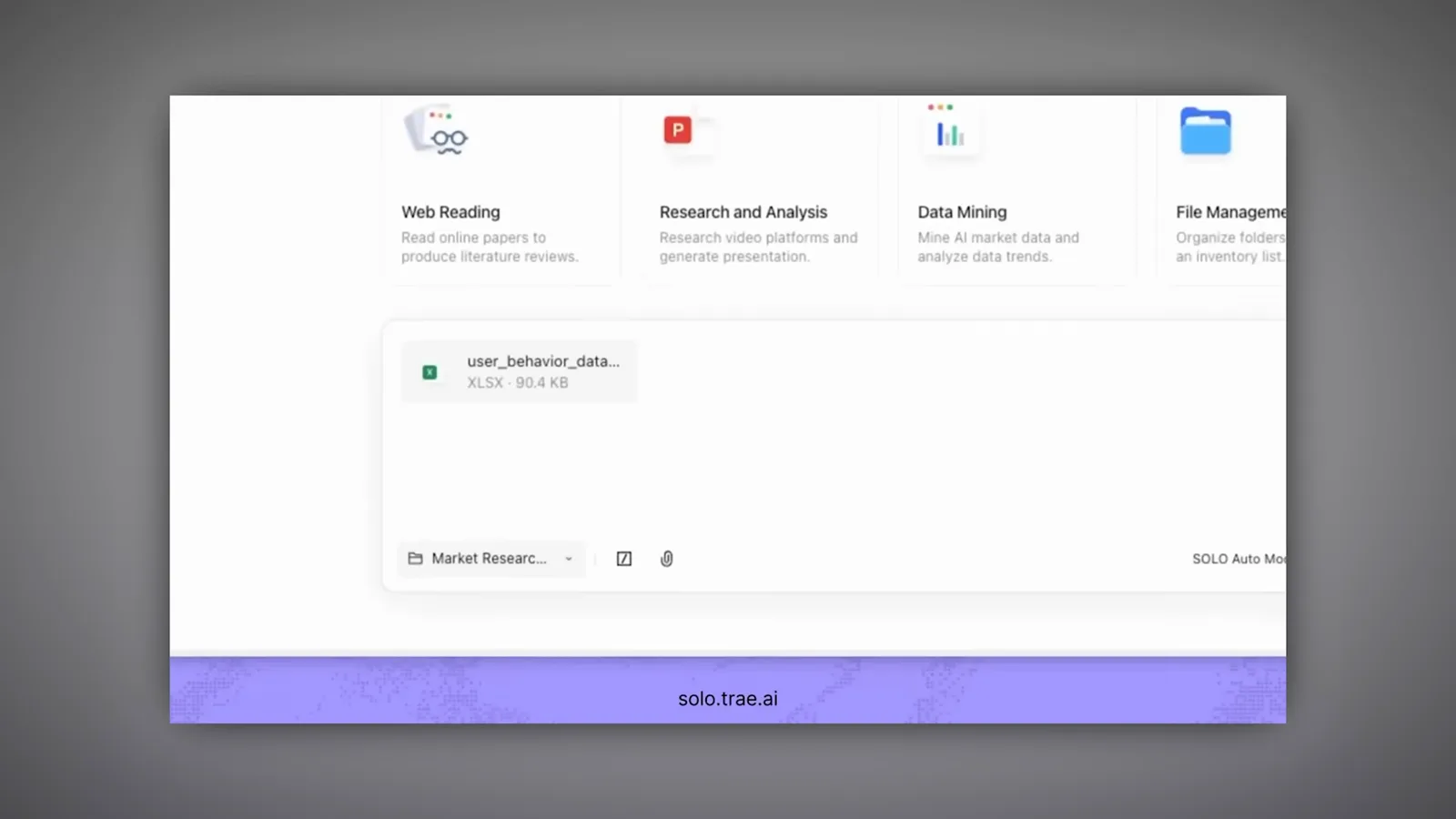
The MTC composer with the dataset attached and the research goal typed out.Watch at 1:00 - 2
Answer the deliverable question
Before doing any work, SOLO asks what "done" looks like. The first questionnaire wants to know the final deliverable: a written DOCX report with charts and citations, a PPTX deck, both, or an annotated Excel workbook. Pick the one your stakeholders actually need — everything downstream is shaped by this choice.
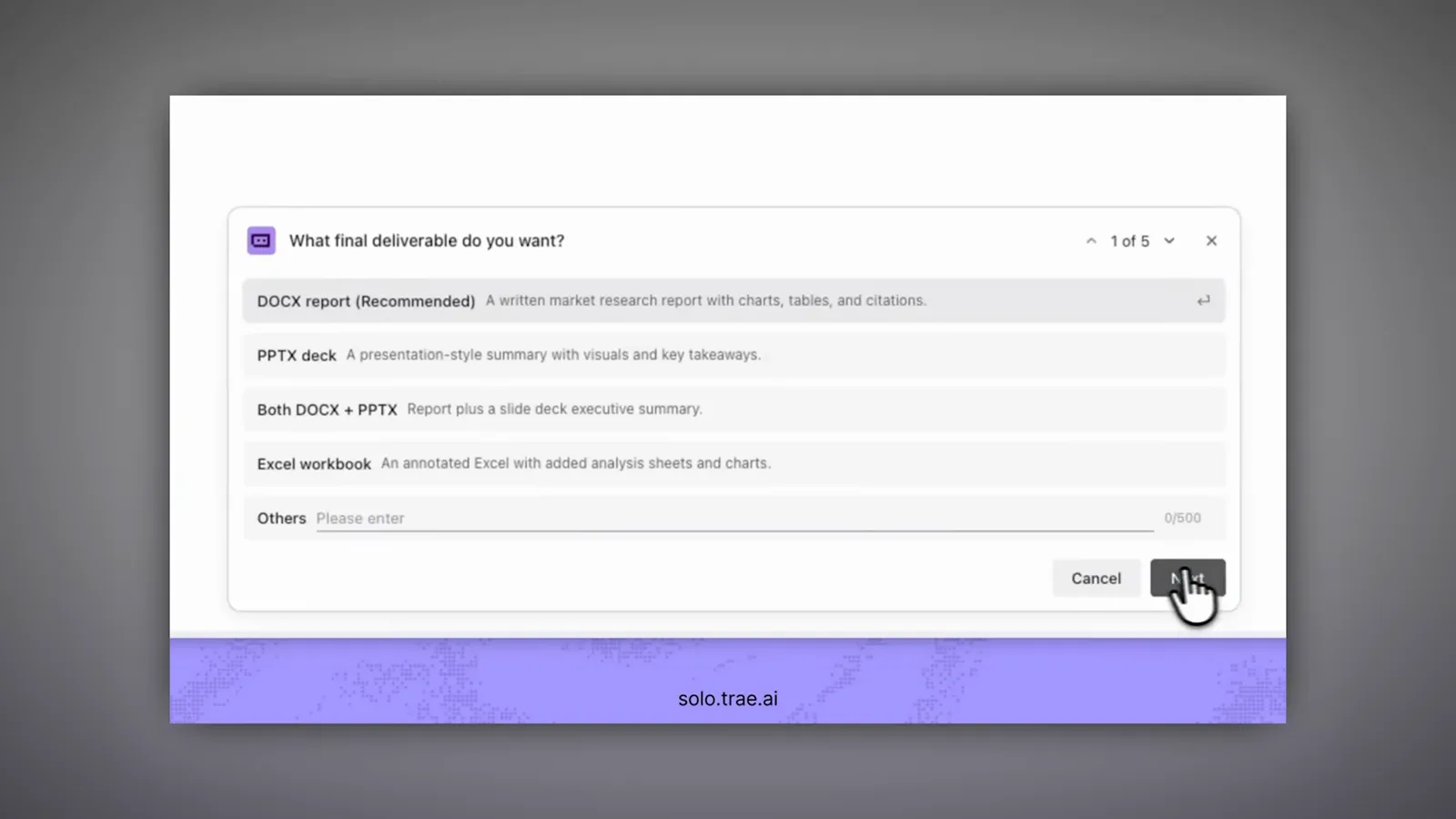
The "What final deliverable do you want?" dialog with four output options.Watch at 1:05 - 3
Let SOLO draft the project to-do list
Once it knows the goal and the output format, SOLO generates a structured to-do list for the whole job and runs it as a tracked task in the purple workspace. Each checklist row becomes a unit of work the agent monitors, and the window title names the job — here "Generate PRD from To-Do List".
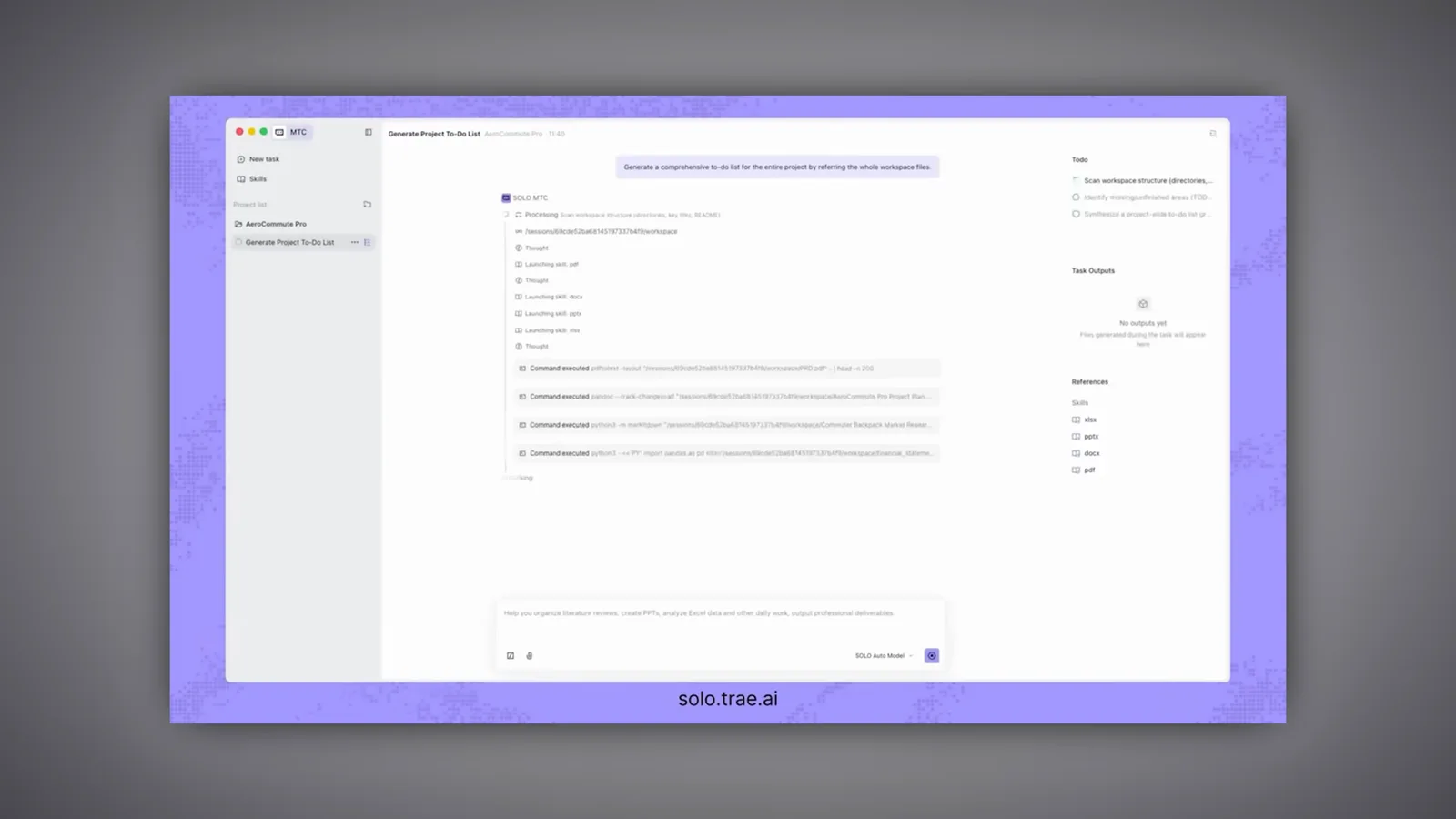
The generated to-do list running as a tracked task in the SOLO workspace.Watch at 1:06 - 4
Stack on more sources — any format
Real projects never live in one file. SOLO accepts several attachments at once and mixes formats freely: a JavaScript KPI export, an xlsx of channel performance, a PDF research brief and a DOCX of measurement notes were all attached to one follow-up prompt asking for a PDF summary with growth recommendations.
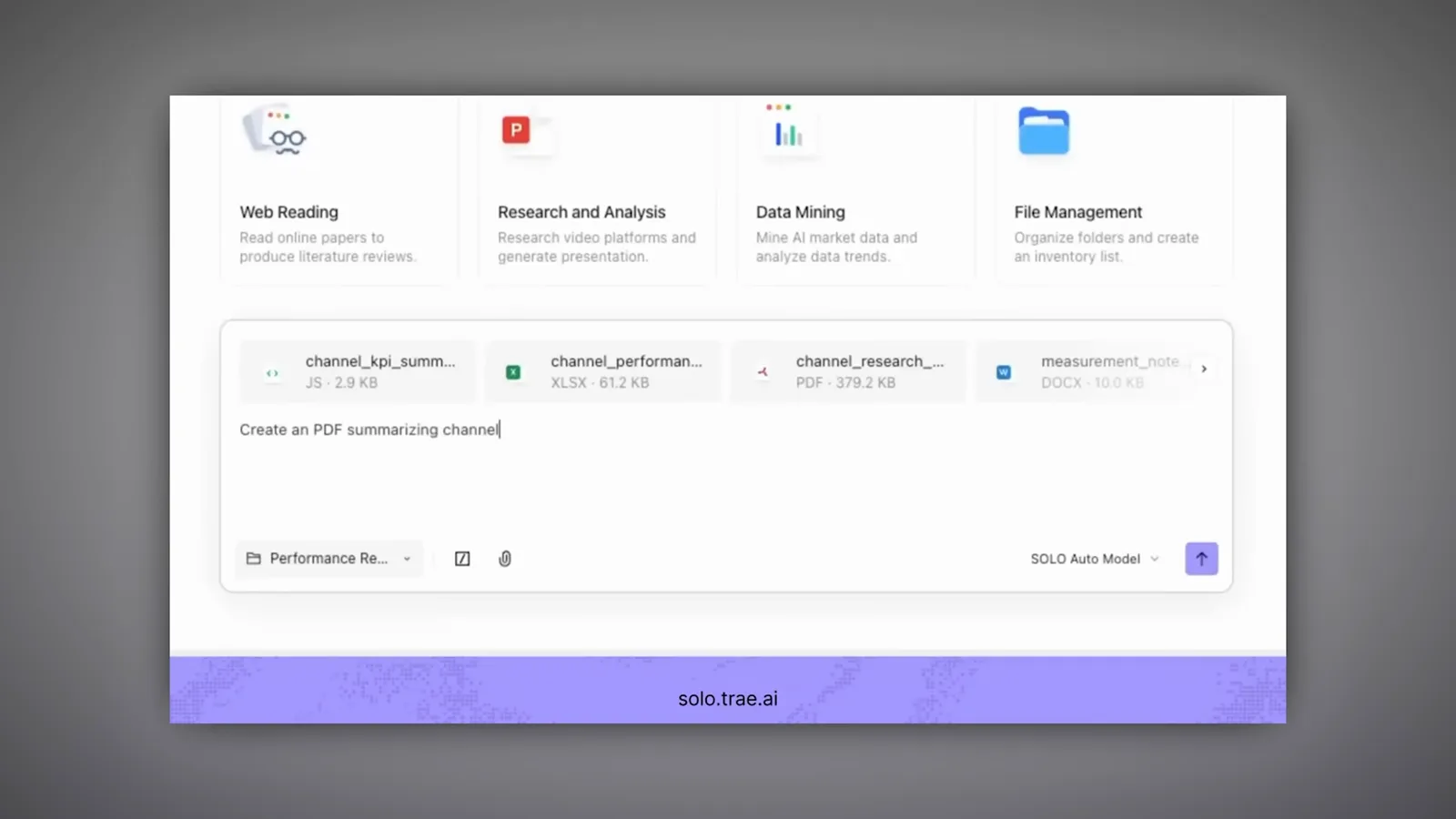
Four different file types attached to a single summarise-to-PDF prompt.Watch at 1:31 - 5
Watch SOLO read: thoughts, skills, files
While it works, the MTC panel narrates the agent's behaviour — a Thought line, then Launching skill pdf and Launching skill data as it opens the right capability for each attachment. This is the moment to start a second task: everything runs in the cloud, so your machine stays free while SOLO keeps reading.
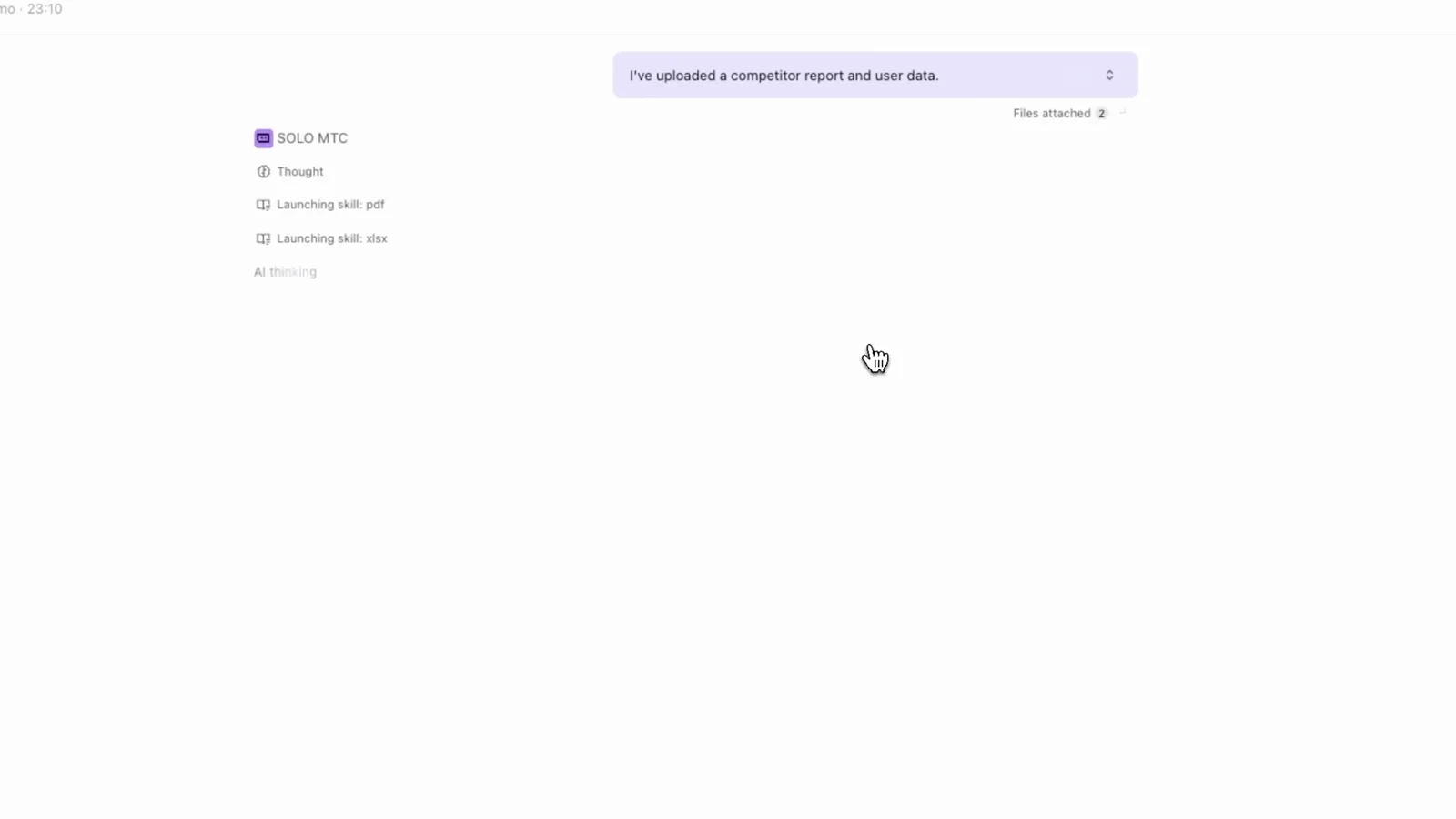
The activity feed showing SOLO launching its PDF and data skills on the uploads.Watch at 2:48 - 6
Switch to Code with SOLO for the build
For the app itself, start a Code with SOLO task. The composer offers task-type cards — Application Development, Project Understanding, Game Creativity, Automation Tools — and accepts a brand book image. Attaching the TraeWISE brand guidelines here is what keeps the coming React build on-brand.
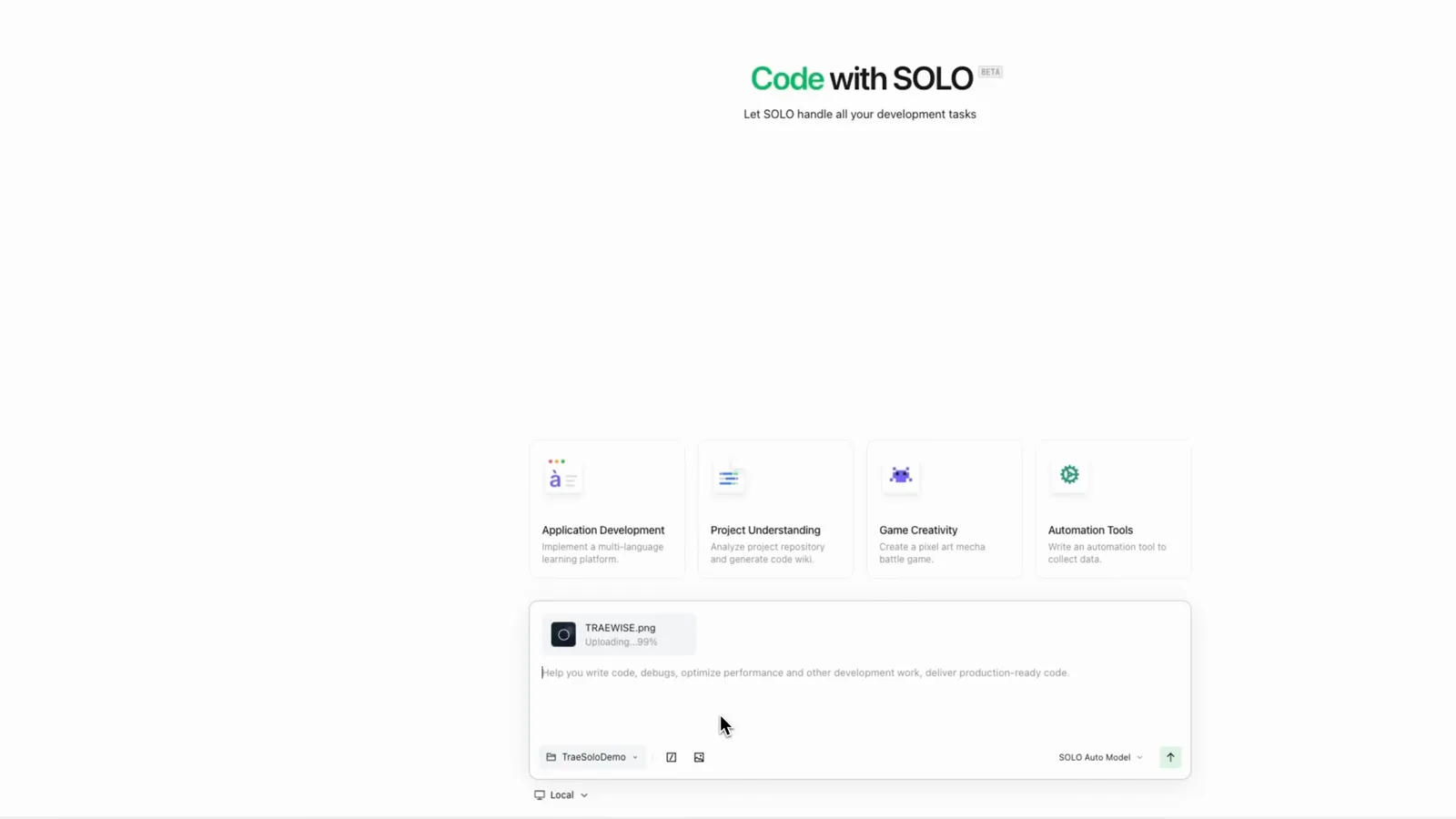
The Code with SOLO composer with the brand book image attached.Watch at 3:19 - 7
Brand book in, design system out
SOLO reads the brand-book image and extracts a working design language: logo variations, the exact color palette with hex codes (#009669 green, #0F173A navy, #FFFFFF white) and the Inter Light typography specimen. Those values become the styling tokens for the app — no manual copying.
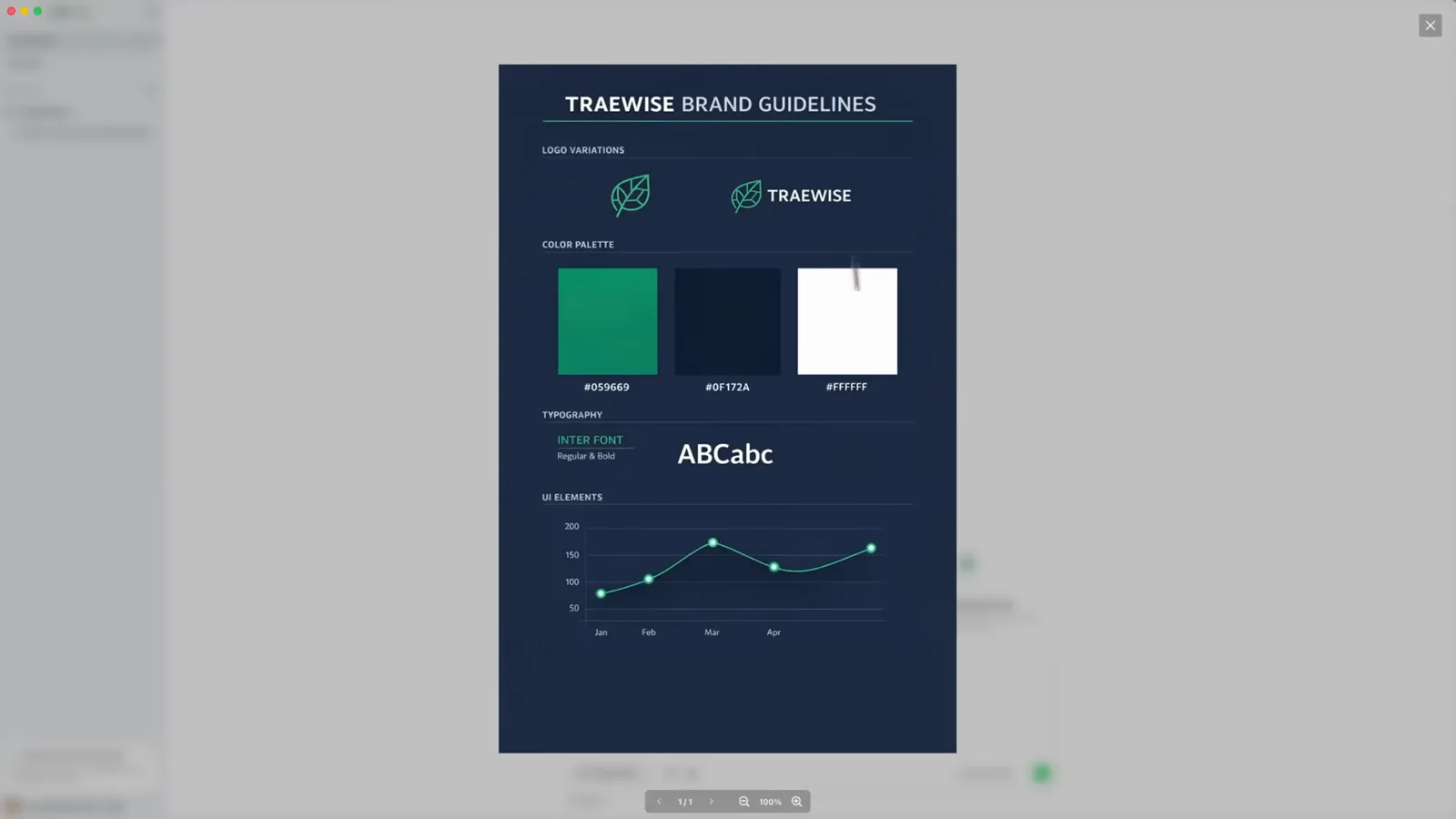
The extracted TraeWISE brand guidelines: palette hex codes and typography.Watch at 3:21 - 8
Answer the PRD questionnaire
Next SOLO prepares the PRD and asks how you want it: DOCX is recommended for shareable internal docs, Markdown is best if you will version it in the repo, PDF suits distribution, or take both DOCX and Markdown together. This is the first of several questions — later ones cover depth and scope.
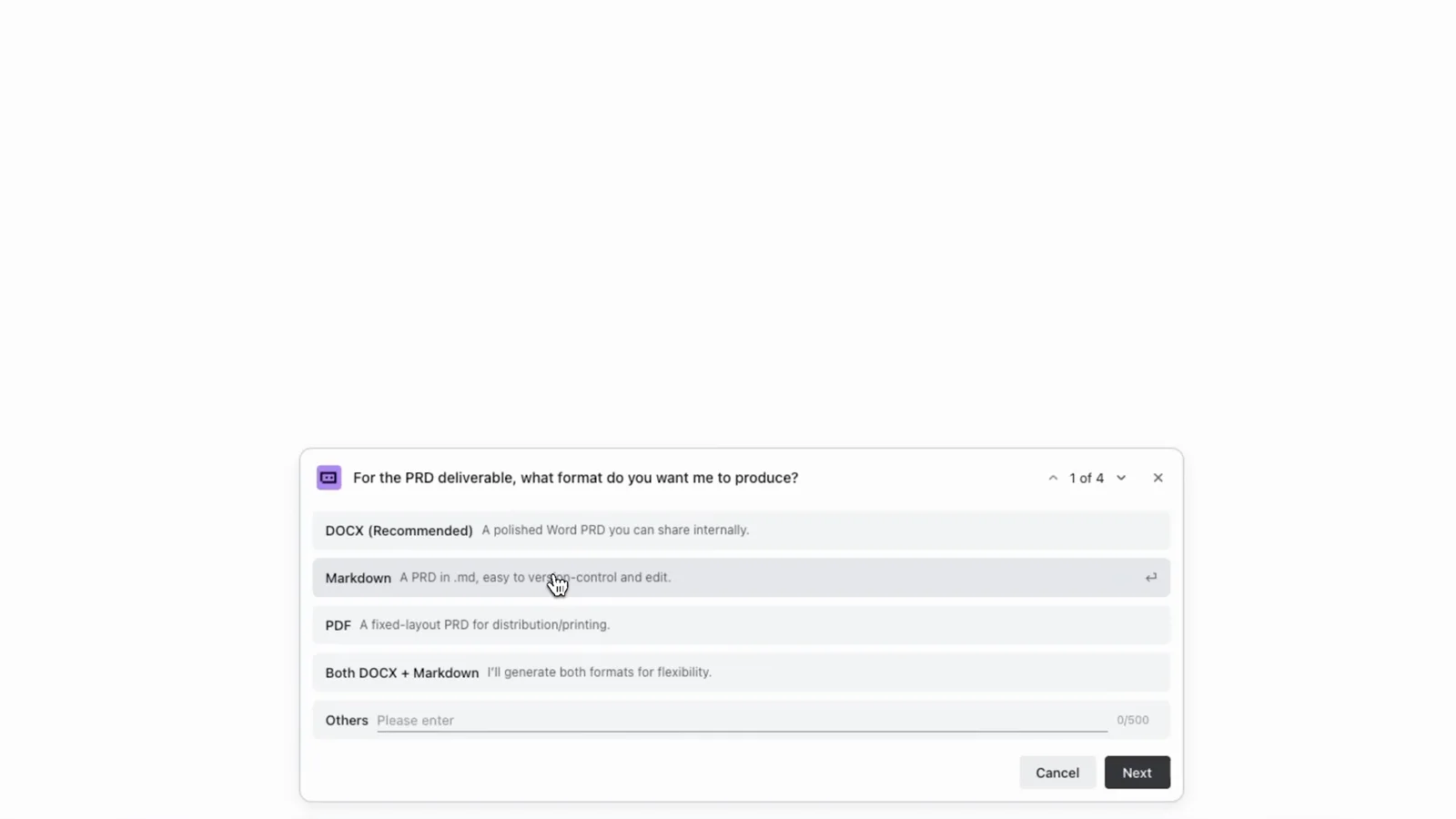
The PRD format question with DOCX marked as recommended.Watch at 3:45 - 9
Review the generated PRD
The finished PRD renders as a proper document in the workspace: a cover block, a "Why this dashboard now" argument and a "Three critical market gaps (and our wedge)" section that came straight out of the uploaded research. Read it critically — anything you correct here flows into the build.
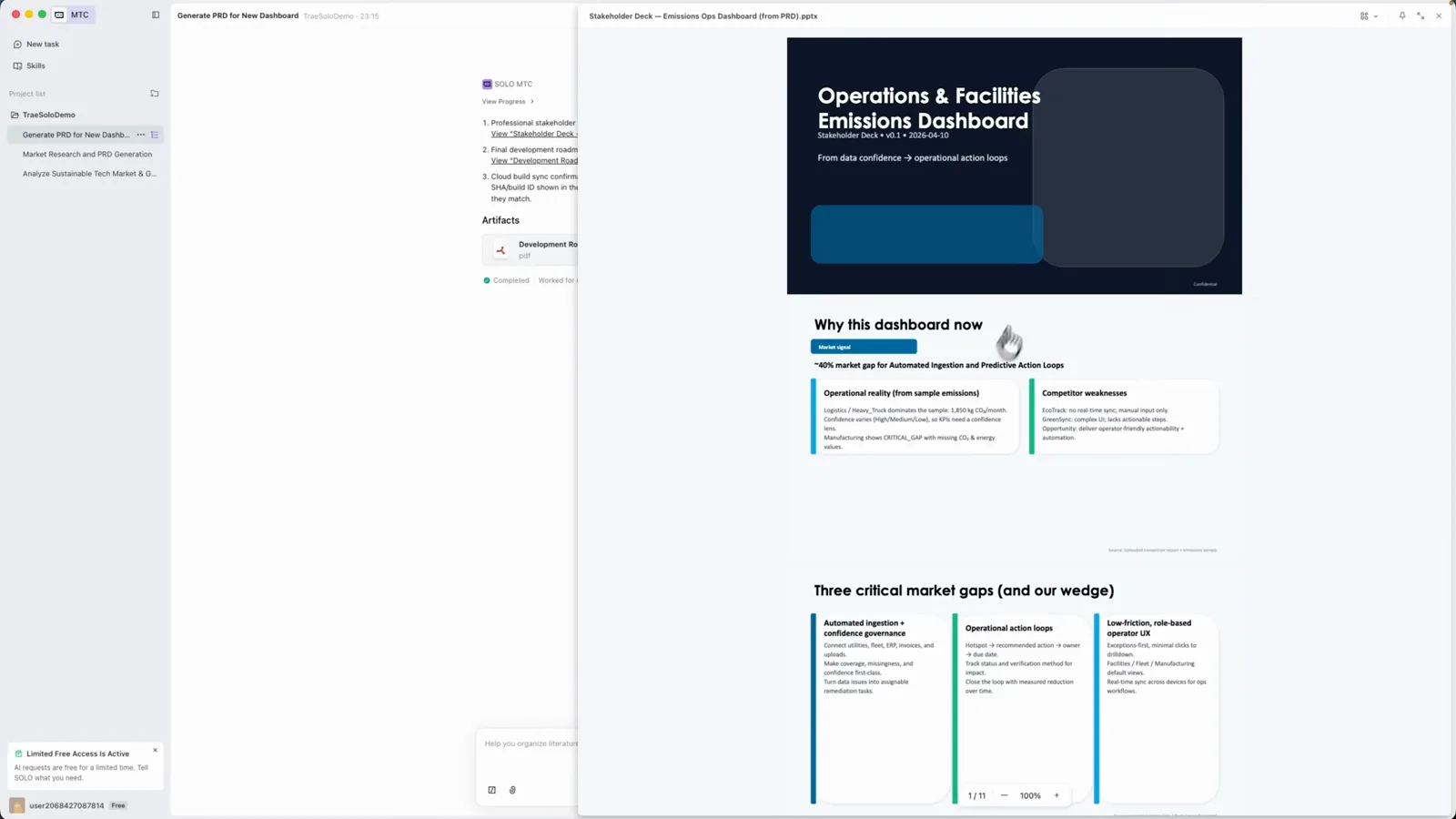
The Operations & Facilities Emissions Dashboard PRD open beside the task list.Watch at 4:31 - 10
Check the analysis document
Alongside the PRD, SOLO assembles the analysis deliverable you asked for in step 2: solution overview modules, the insight-to-verified-reduction action loop and a data-confidence table flagging hotspots and gaps in the source data. This document is what non-technical stakeholders will actually read.
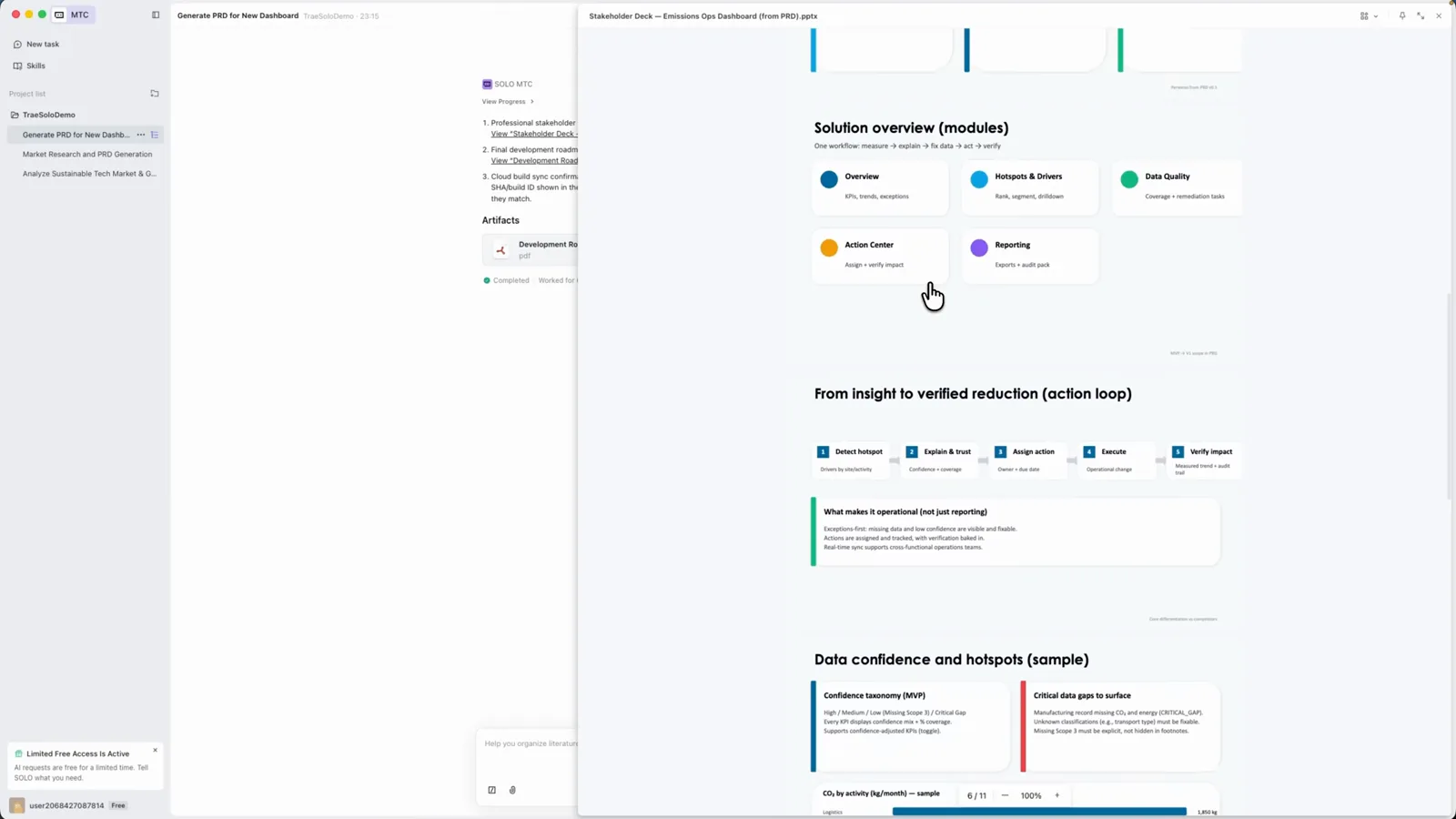
Solution modules, the action loop and the data-confidence table in the report.Watch at 4:35 - 11
Open the finished dashboard
The build lands as a real, running app: the TraeWISE dashboard opens with an energy-savings figure of 142.5 MWh, emissions and water KPI cards, an energy-savings line chart, recent activities and a 92 sustainability score — all styled from the palette extracted in step 7. The agent verified its own production build along the way.
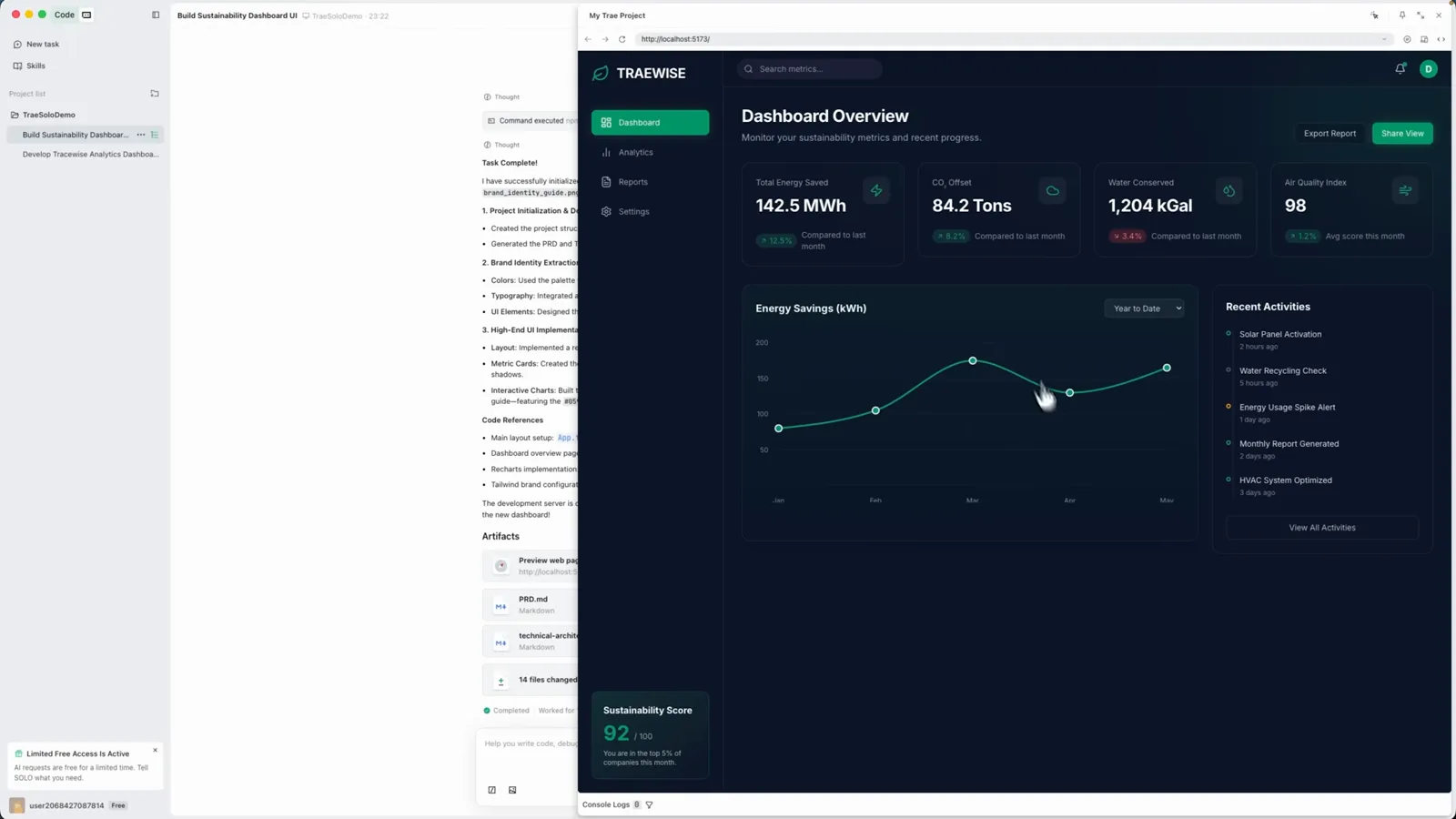
The finished TraeWISE sustainability dashboard with KPI cards and charts.Watch at 4:50 - 12
Inspect the completed task and artifacts
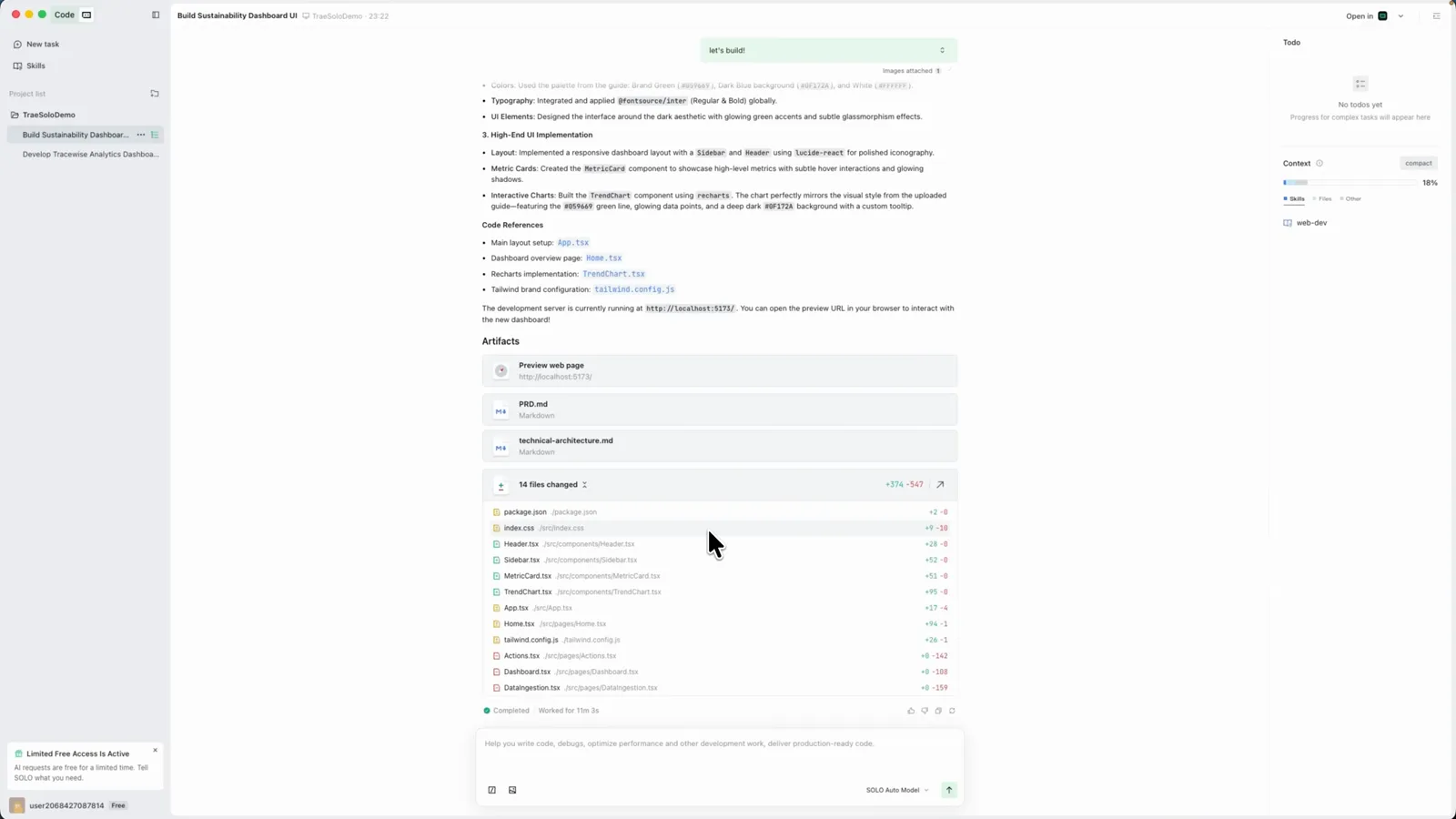
When the task completes, its summary lists everything that was delivered and collects the artifacts: PRD.md, sustainability-architecture.md, a prototype PNG and KPI output JSON, plus a count of changed files. Artifacts are the contract between what you asked for and what the agent produced.
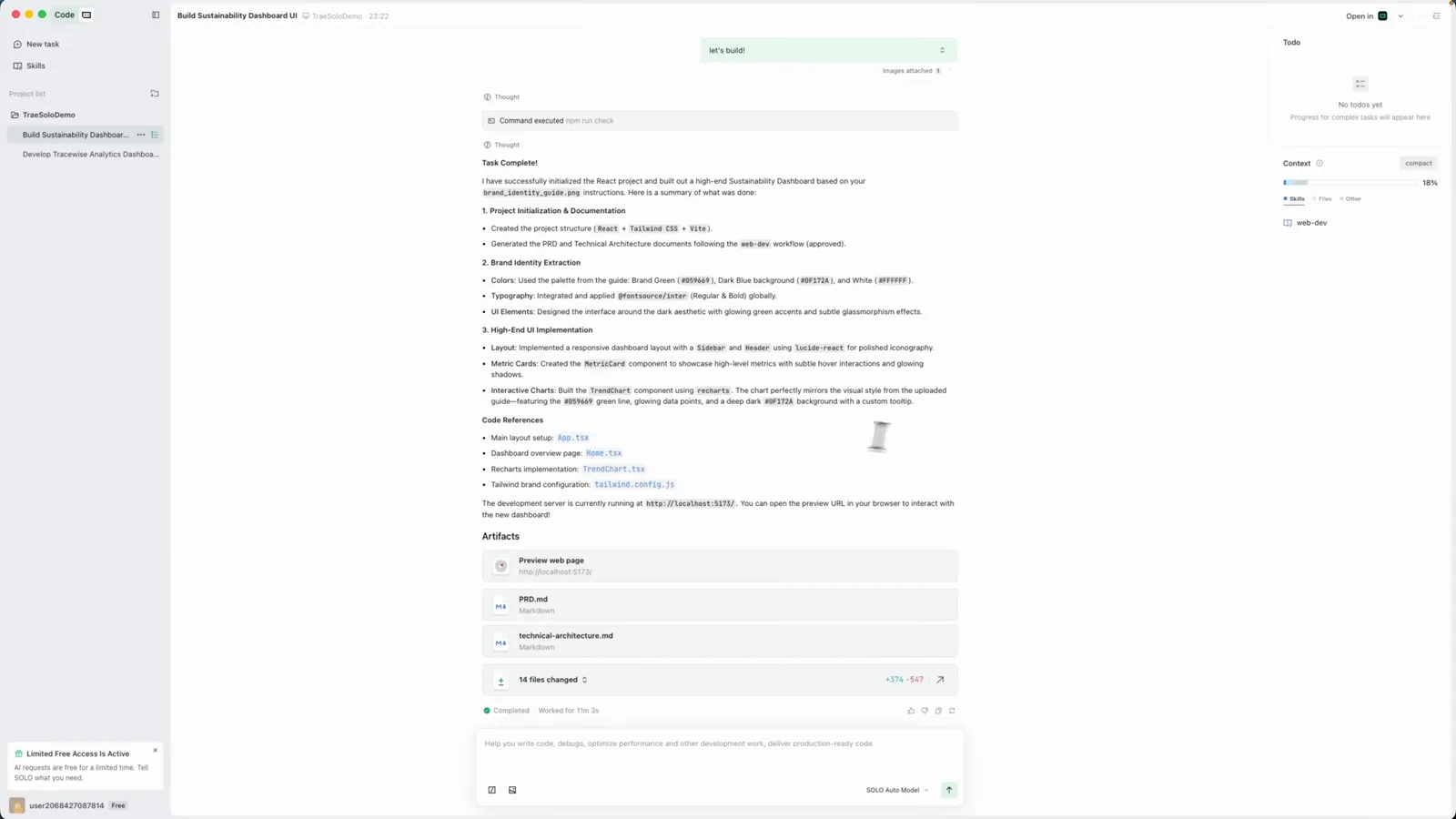
Task summary with the Artifacts section listing PRD.md, architecture and prototype.Watch at 5:05 - 13
Browse the workspace files
Every file the agent wrote stays in the task workspace: index.html, the assets and src folders, Analysis.pdf, even a Testing.mp4 and Testing.zip. From here you can jump between parallel tasks in the left sidebar and keep iterating — SOLO keeps the full project context for follow-ups.
The workspace file browser with the generated project files.Watch at 5:12