
Mocha AI App Builder Tutorial: From Prompt to Published App
A step-by-step Mocha AI walkthrough — write your first prompt, add Google sign-in and Stripe, publish to a mocha.app subdomain and export your code. Plus the full story of the August 2026 shutdown, verified against Mocha's own docs.
TL;DR
- Mocha (getmocha.com) was an AI full-stack app builder: you describe an app in plain English, it writes a real React + TypeScript app with database, auth and hosting, and publishes it to a mocha.app subdomain in one click.
- The workflow: prompt, review the AI's plan, test in the live preview, then iterate by chat. Discuss mode plans without touching code; Direct Edit changes text without spending credits.
- You owned the code: a download button sat behind the app name in the header, the stack was portable (React, Hono, SQLite), and the database could export to CSV.
- Mocha shut down on August 1, 2026. This walkthrough documents exactly how the builder worked, and the FAQ covers what happened to apps, billing and exports.
Build A Full App In 15 Minutes + Stripe Monetization (Mocha AI Guide)
Channel:Wanderloots28:57
Mocha AI App Builder 101: Everything You Need To Build Your App
Channel:Mocha (official channel)13:57
Mocha documentation (getting started, billing, limits, hosting)
Docs:docs.getmocha.com
Mocha is shutting down on August 1 (announced May 15, 2026)
Announcement:getmocha.com/blog
Facts were cross-checked against Mocha's official documentation and the shutdown announcement in September 2026. Pricing figures come from the pricing page shown in the walkthrough video (December 2025) and Mocha's docs.
Screenshots come from the video above, used with attribution and deep links to the exact timestamp of each step.
How to use Mocha AI: from prompt to published app, step by step
Part 1 · From idea to first build
- 1
Create your account and open the builder
Sign up free at getmocha.com and click "Create new app" from the dashboard. Every project starts in the "What do you want to build?" box: type your idea, attach reference screenshots, and keep the app Private until you're ready for visitors. Inspiration, Templates and Prompting 101 sit under the box if you need a starting point.
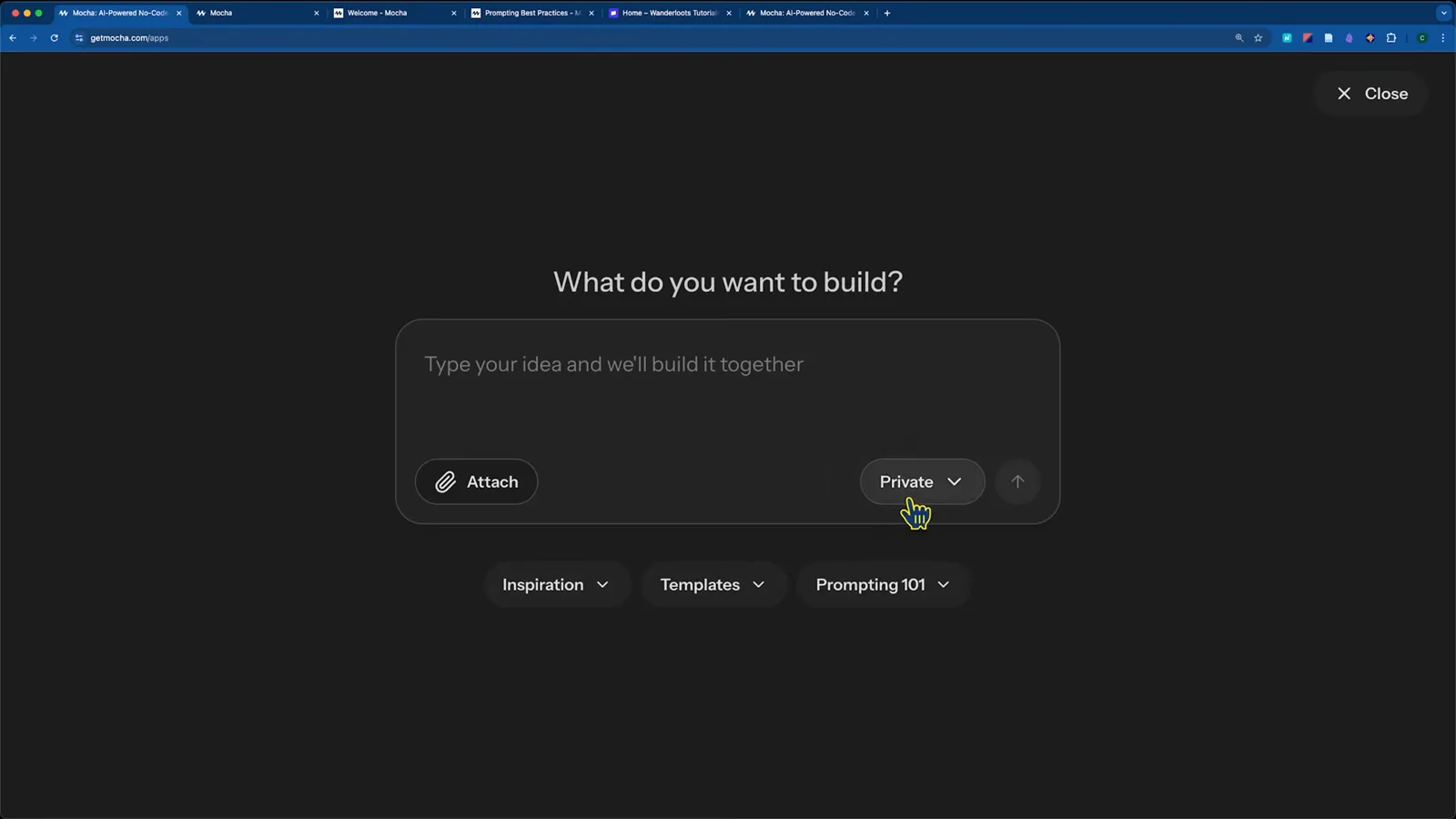
The "What do you want to build?" box where every Mocha app startsWatch at 3:06 - 2
Write a brief, not a one-liner
Name the features and the look. The demo prompt asked for an e-commerce and membership store with a product grid, categories, filters, a shopping cart, Stripe integration, email/password plus Google sign-in, and an admin login — then asked Mocha to start with the core features and list what comes next. Specific beats vague: "add a blue Contact Us button in the header" outperforms "make it look better".
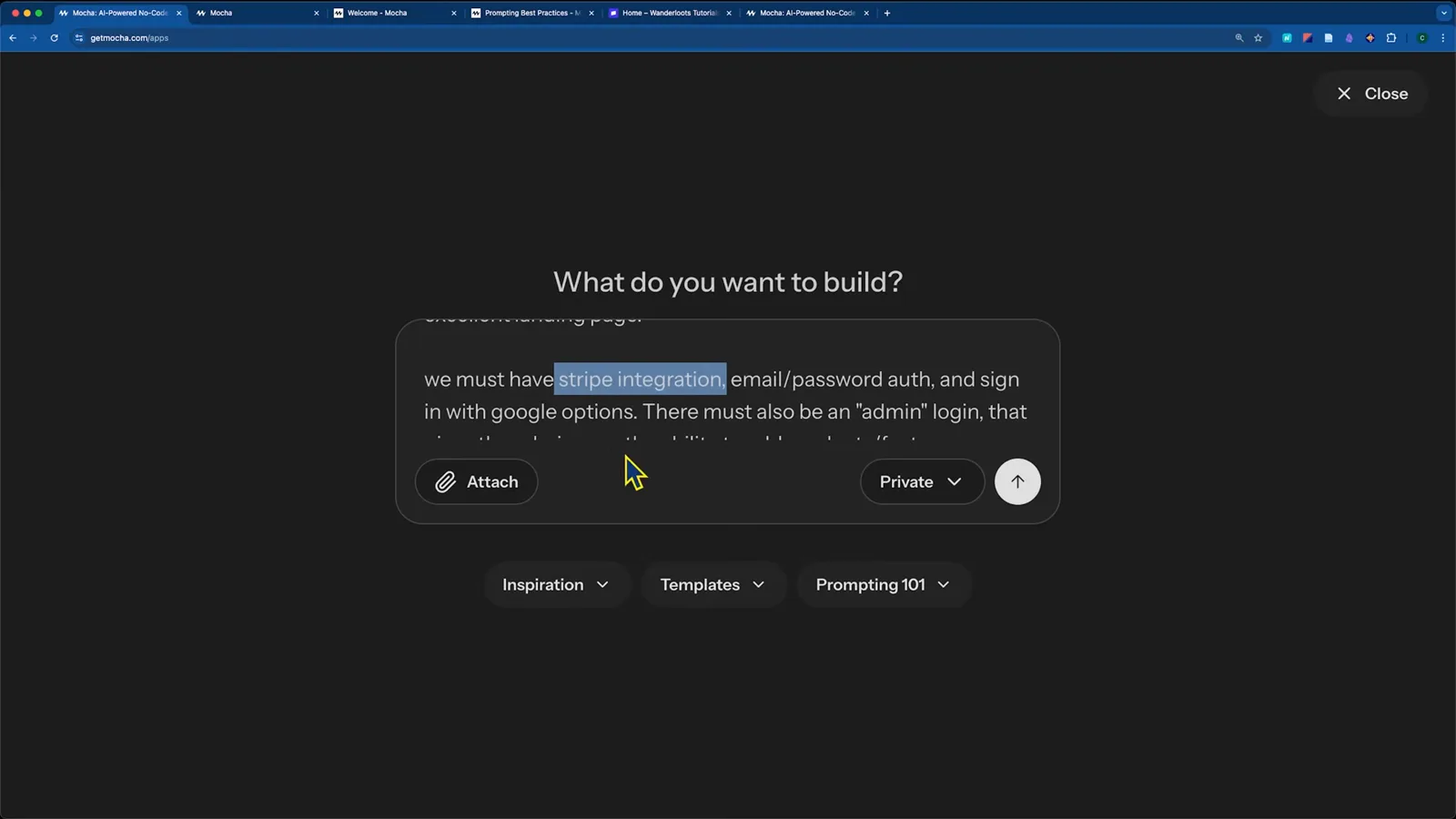
The demo brief: an e-commerce membership store with Stripe, Google sign-in and an admin roleWatch at 3:15 - 3
Let Mocha build, then test in the preview
Submit and Mocha plans first, then writes code — the first build of the demo store took about 3 minutes 24 seconds and 19 credits, ending with a "13 changes made" summary you can review. The center preview is a real interactive app: filter products, toggle dark mode, add to cart, switch between desktop and mobile, and sign in with Google to test the built-in auth.
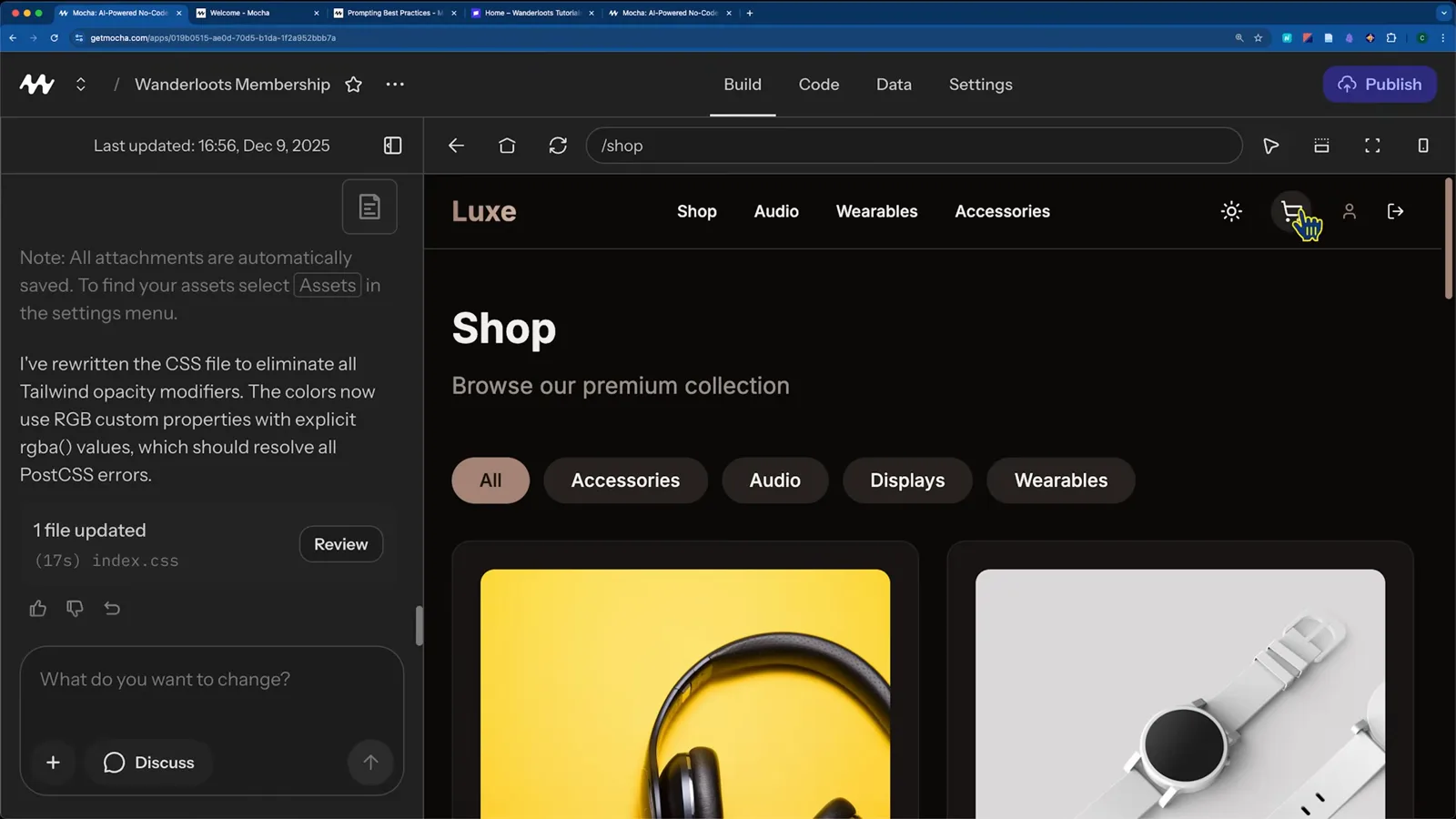
The generated storefront with category filters, product grid and dark modeWatch at 9:54
Part 2 · Under the hood: code, data and fixes
- 4
Browse the generated code
The Code tab shows the full React + TypeScript project Mocha wrote. You can add files, add folders and edit code directly; a few platform files stay locked, and everything is read-only while the AI is building. This is where technical users — or a technical partner — can take over.
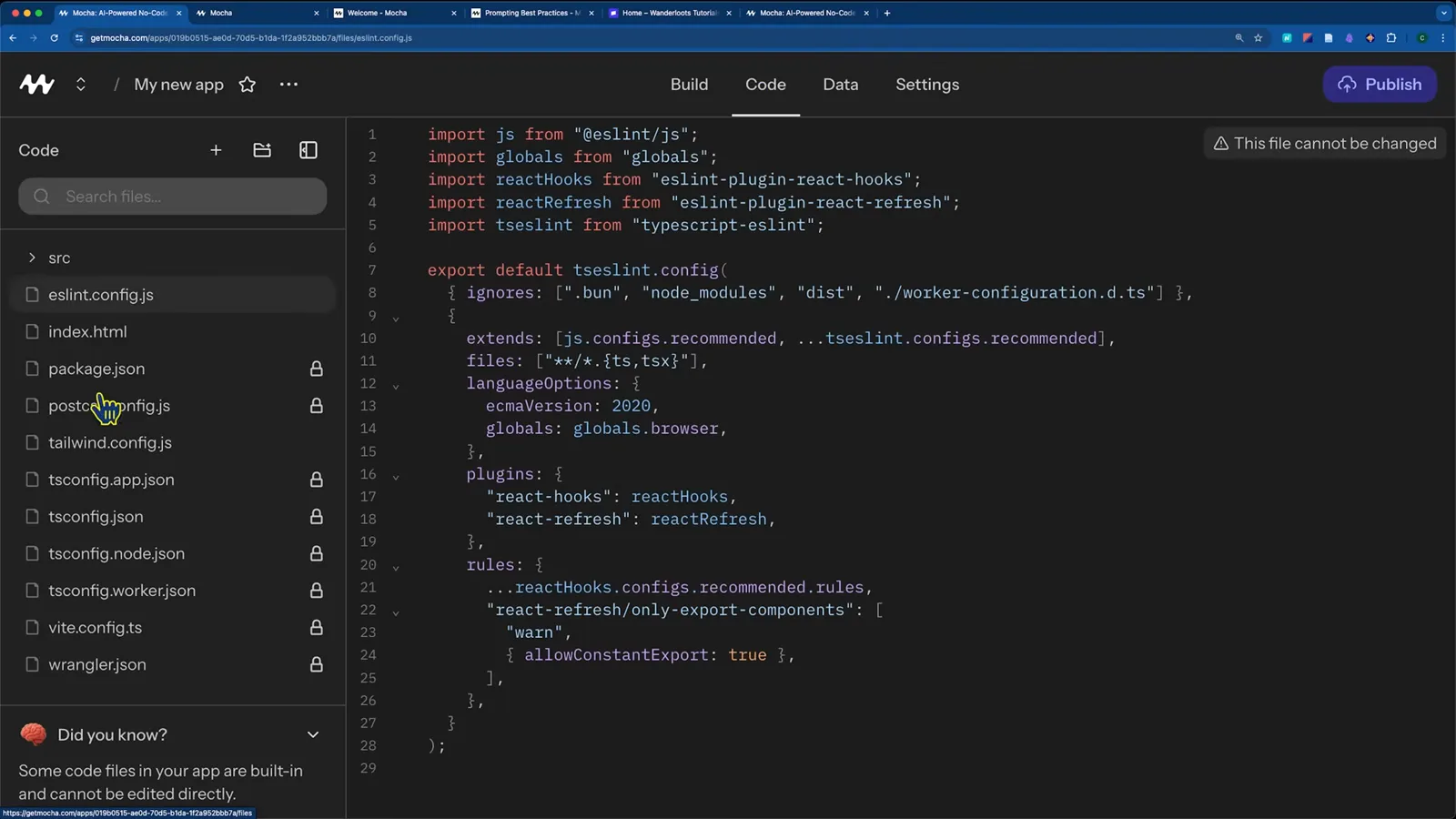
The Code tab with the full project — platform files stay locked during buildsWatch at 5:12 - 5
Inspect the development database
The Data tab lists your tables — users, products, cart_items, memberships — pre-filled with mock data for development. Production data stays separate and empty until you publish, so experimenting here never touches real users. Mocha won't edit production data directly; add products through an admin panel in the app instead.
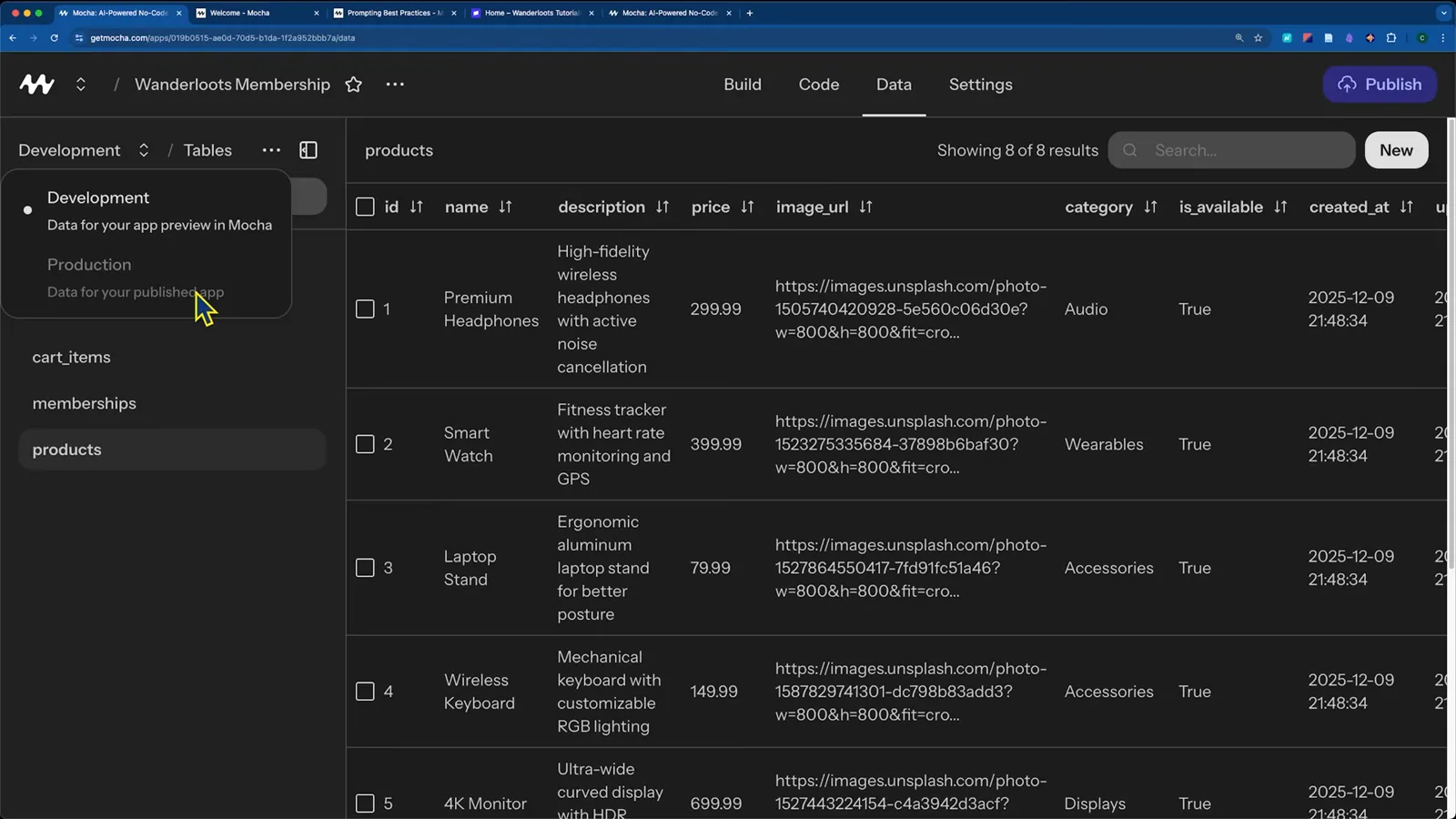
The Data tab: development tables pre-filled with mock productsWatch at 10:38 - 6
Recover from errors with Fix with AI
When a preview fails, Mocha shows the error and offers Quick restart and "Fix with AI". In the demo, one click fixed a TypeScript crash (each fix costs 1-3 credits). For stubborn bugs, toggle Discuss mode, walk through the error with the AI, then let it build the fix.
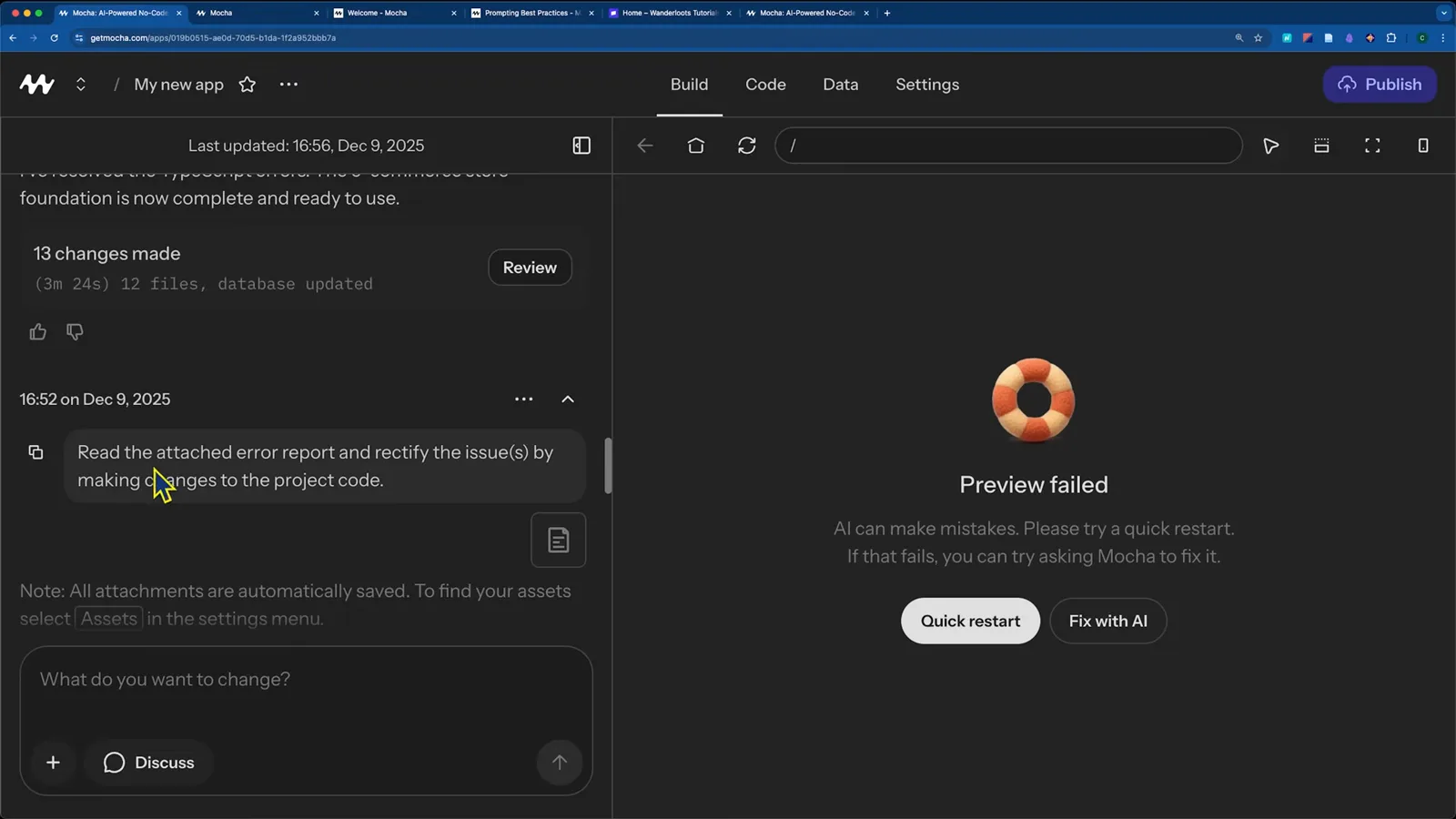
Preview failed? Fix with AI resolved most demo errors in one clickWatch at 7:36 - 7
Turn on Sign in with Google
Mocha apps ship with Google sign-in ready. In Settings, open Google Sign In, paste your Google OAuth Client ID and secret, and add the Mocha redirect URI shown in the panel to your Google Cloud Console. Custom branding for the login page is a separate setting — skip it on your first pass.
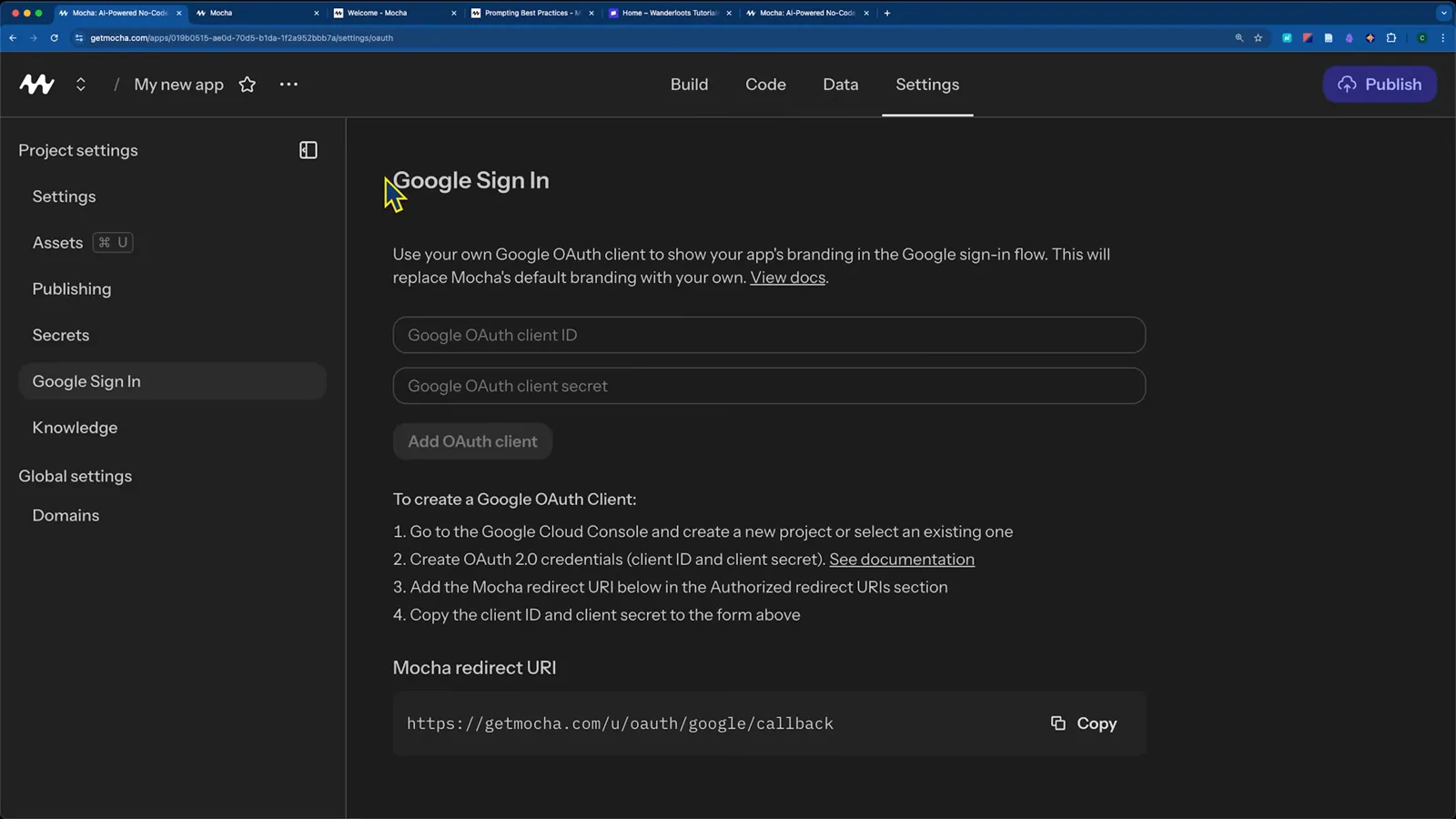
Google Sign In settings: paste your OAuth client and the Mocha redirect URIWatch at 6:27 - 8
Plan in Discuss mode before you build
Flip the composer to Discuss and the AI answers questions without touching code. Ask "what are our next steps?" and it surveys your app and proposes priorities — the demo used it to sequence Stripe checkout, order history, then memberships. When the plan looks right, switch back to build mode and say "build it".
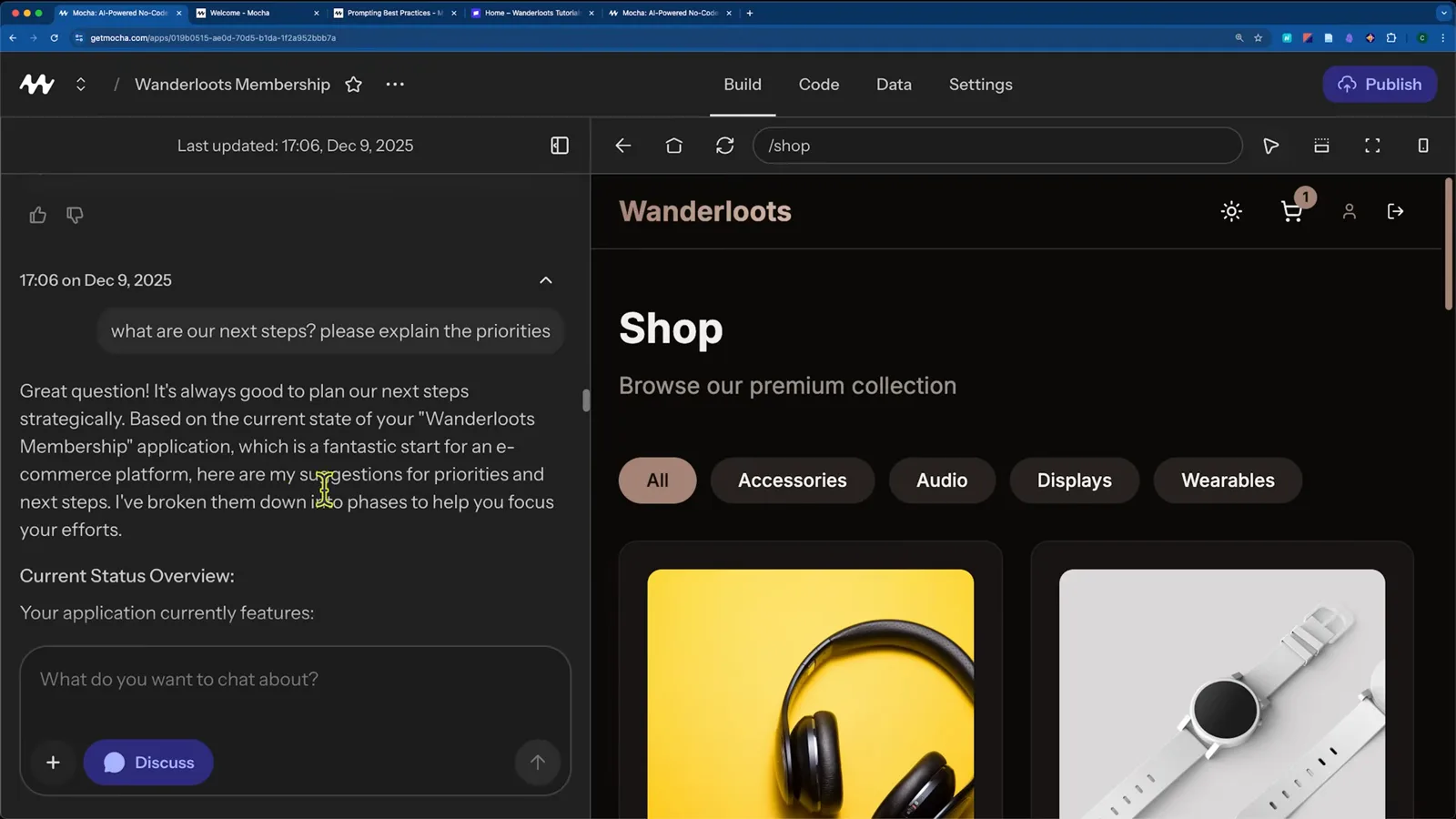
Discuss mode answers "what are our next steps" without changing any codeWatch at 12:21
Part 3 · Payments, publish and costs
- 9
Connect Stripe with the guided secret flow
Ask for Stripe payments and Mocha adds a STRIPE_SECRET_KEY secret to your project, with a Walkthrough button listing every click inside the Stripe dashboard — including test-mode versus live keys. Paste the sk_test key, submit, and checkout is wired. Secrets are stored as environment values and hidden from app users after publish.
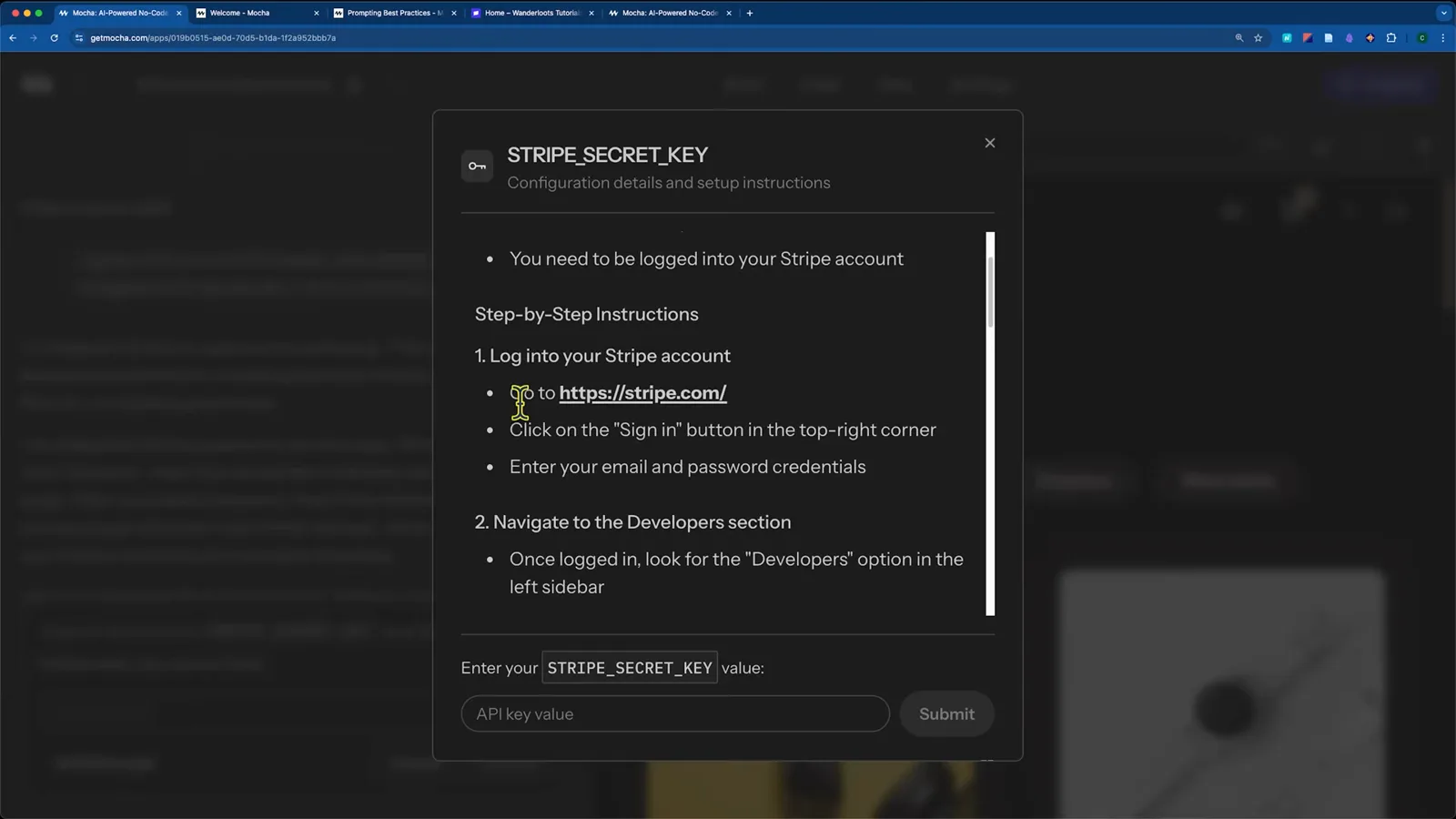
The STRIPE_SECRET_KEY dialog with the built-in Stripe walkthroughWatch at 14:23 - 10
Publish to your mocha.app subdomain
The Publish button opens a dialog with your URL, a Status dropdown and visibility. Keep Status on Unpublished to stay hidden while testing, set visibility to Private, and click Publish app — the demo redeployed in about 15 seconds. Stripe test payments only work on the published URL because the in-editor sandbox blocks redirect-based checkouts.
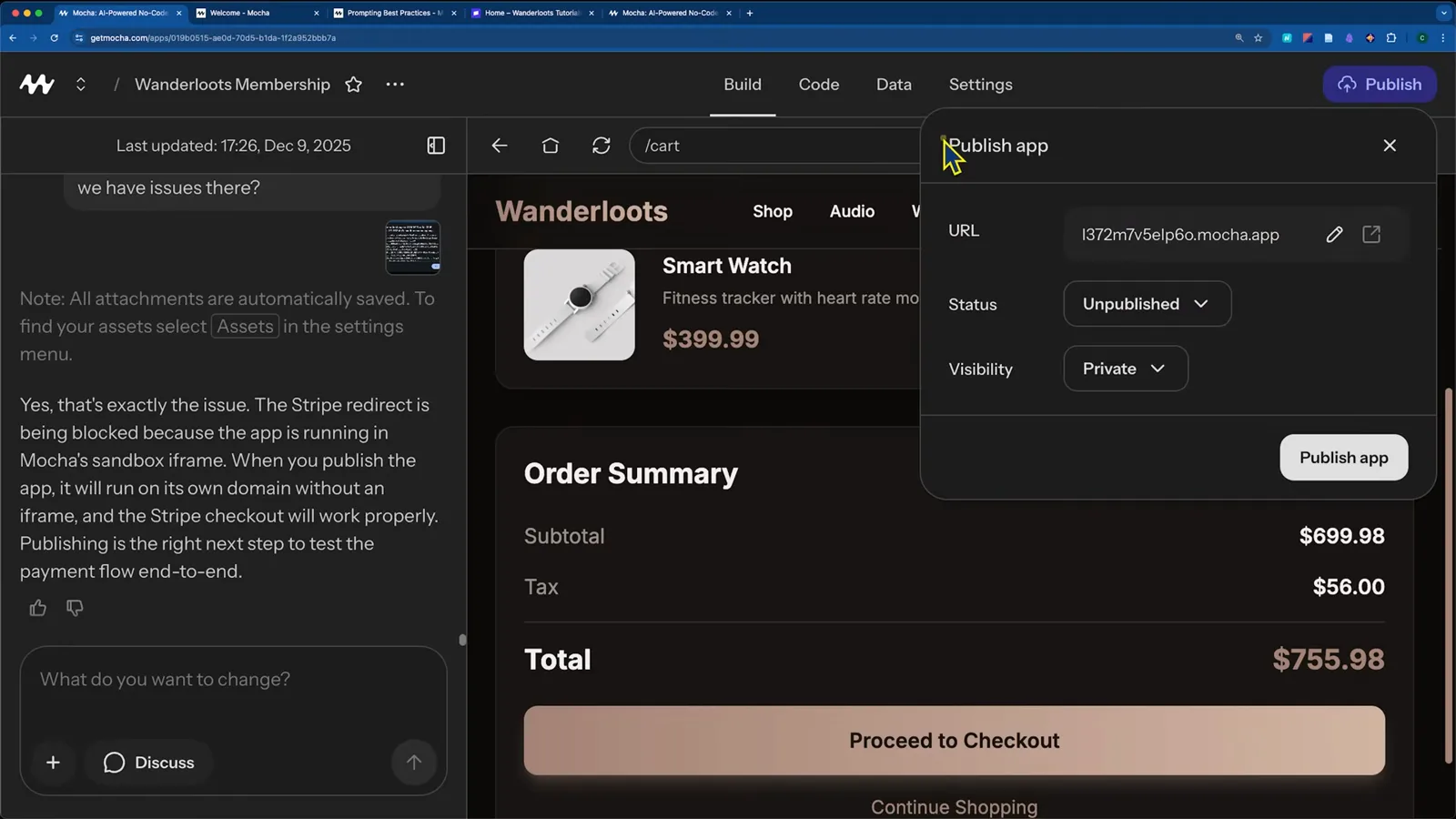
Publish app: pick your mocha.app subdomain and stay Unpublished while testingWatch at 17:30 - 11
Run a test checkout on the live app
Add products through your admin panel, proceed to checkout on the published URL, and pay with Stripe's test card 4242 4242 4242 4242. The demo saw "Payment Successful" and the transaction appear in the Stripe dashboard. When everything works, flip Status to Published and share the link.
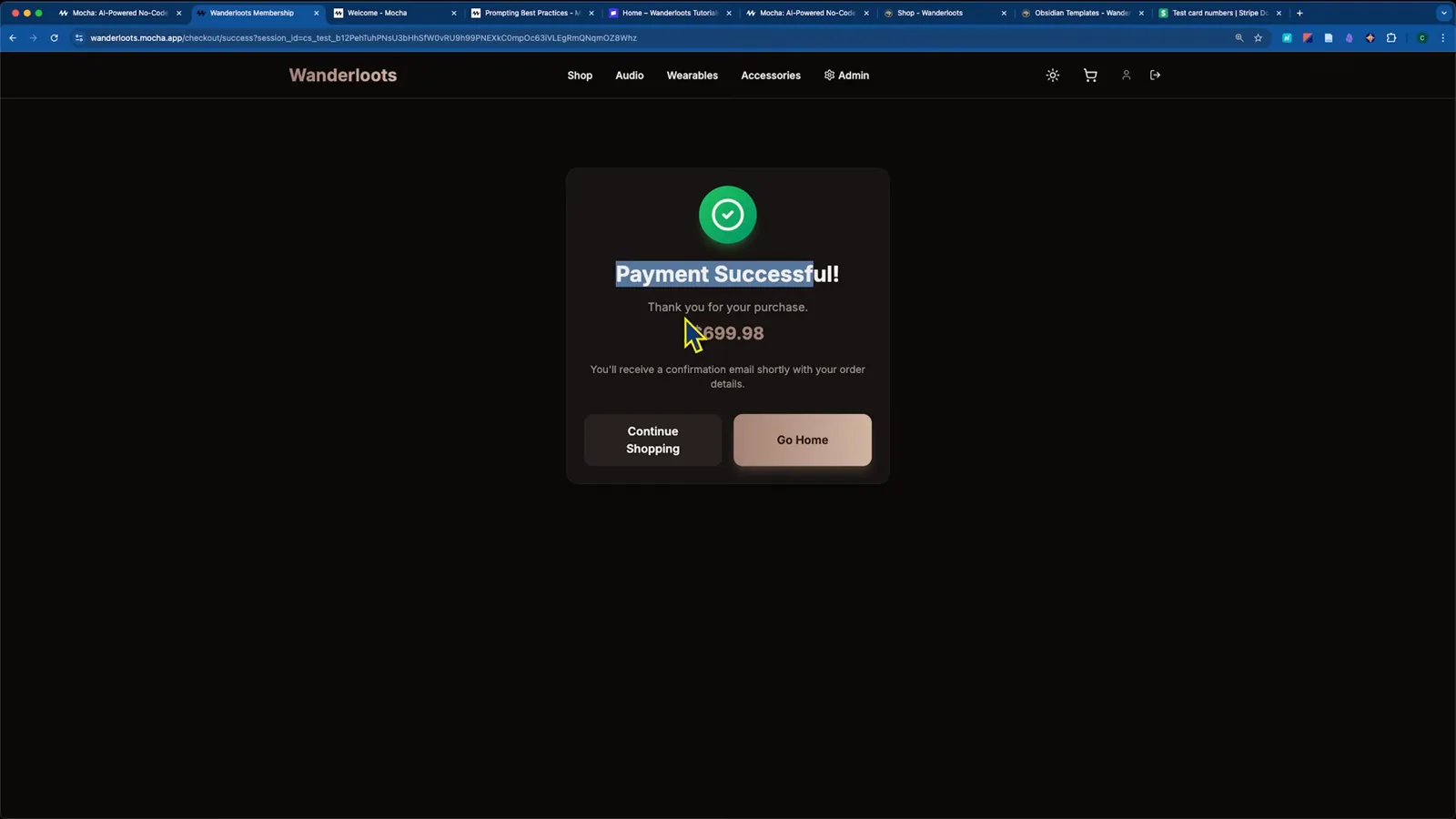
Payment Successful: a $699.98 test checkout on the published URLWatch at 19:51 - 12
Know what it costs before you commit
The free tier starts with 20 credits per Mocha's docs. On the pricing page shown in the walkthrough (December 2025), Bronze ran $20/month for 1,500 credits, Silver $50 for 4,500 and Gold $200 for 25,000. Credits are deducted only when an AI operation succeeds — publishing, Direct Edit and restores are always free.
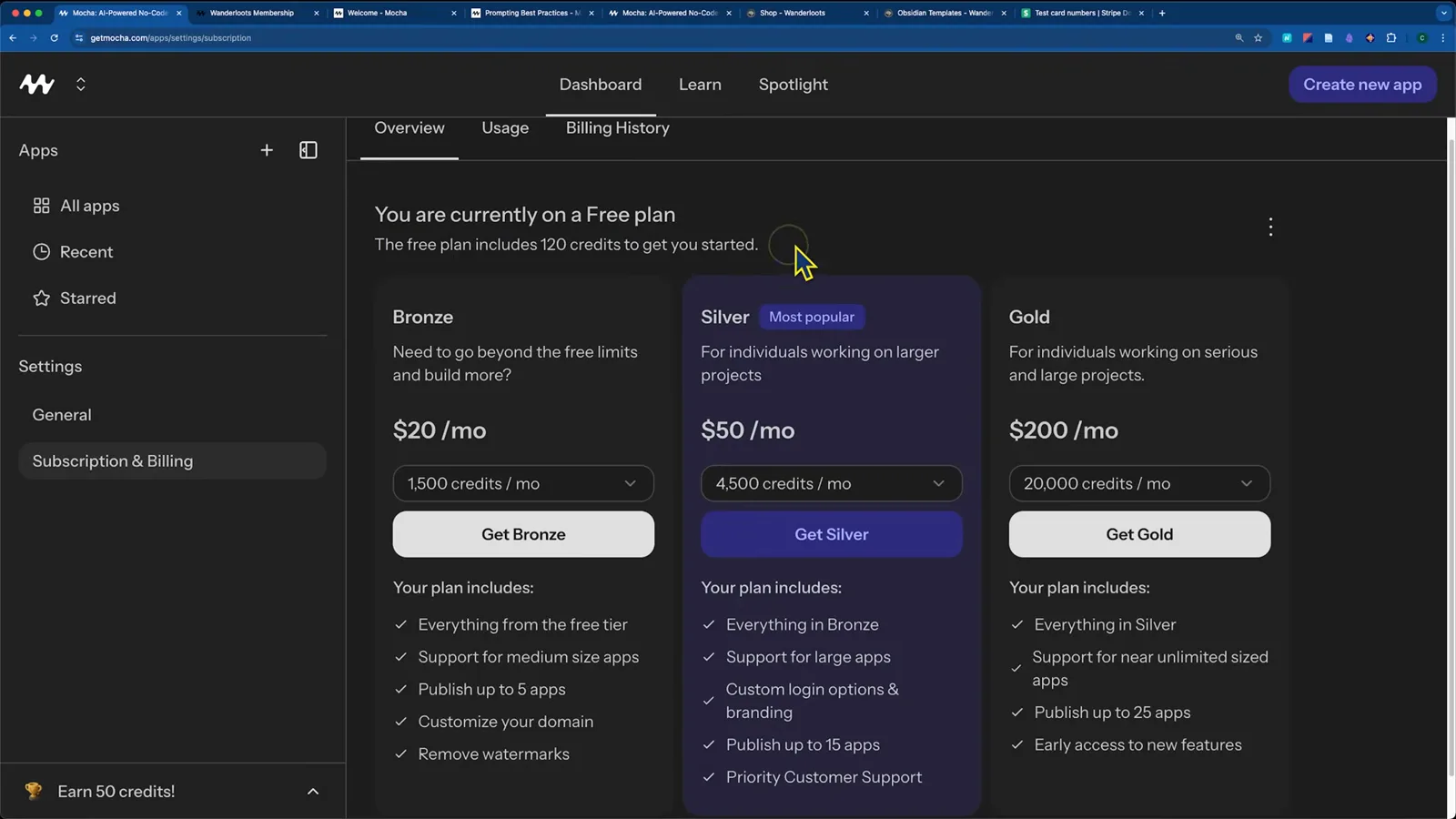
The pricing page as shown in December 2025: Bronze, Silver and Gold plansWatch at 27:15
The export truth: you owned the code — and what happens now
"Can I get my code out?" was always the deciding question for Mocha, and the honest answer has two halves: generous export while the platform lived, and a hurried escape window when it died. Here is the record, with dates.
- 1Download code (while Mocha was live): click the app name in the header and a download code button appears. Mocha's own FAQ said everything you build with Mocha belongs to you and suggested exporting to Cursor, Windsurf or any IDE. The stack was portable: TypeScript, React, Hono for APIs and SQLite.
- 2The limits: no GitHub sync and no publishing to Vercel, Netlify or any external host — Mocha only deployed to its own Cloudflare infrastructure. Reading the code was always free, even with zero credits.
- 3Database: you could ask Mocha to build CSV export features into the app itself, and the Data tab exposed development and production data for inspection.
- 4Shutdown export tool: the May 15, 2026 announcement shipped an export tool under app Settings → Export to download code and data, while warning that running the app outside Mocha "will require engineering effort".
- 5Migration: Mocha's recommended path was a one-click migration to Anything, a similar integrated builder that also ships mobile apps, with $20 in credits for post-migration edits. The builder stopped on August 1, 2026; migration and export links were slated to stay up 30 days after.
The lesson generalizes beyond Mocha: before you build a business on any AI app builder, check where the code lives, whether the stack runs elsewhere, and what a shutdown exit would look like. The guides linked below — from Lovable to DeepSeek in Cursor — are good next stops if you're migrating.
Mocha pricing and credits, explained
Mocha was freemium. Credits paid for AI work, and tiers paid for credits plus limits. The numbers below come from Mocha's documentation (checked September 2026) and the pricing page captured in the walkthrough video (December 2025).
- 1Free tier: 20 starter credits, a "Made in Mocha" watermark on published apps (removable on paid plans), and room for small projects. The demo's full app — auth, Stripe, memberships, admin — used about 100 credits in total.
- 2Paid tiers (December 2025 pricing page): Bronze $20/month with 1,500 credits, Silver $50/month with 4,500 (the most popular), Gold $200/month with 25,000. Docs confirm the same credit allowances, refilled monthly, with unused subscription credits rolling over up to 2× the monthly allowance.
- 3What credits bought: simple text or style changes 5-15 credits, a new component 15-40, a new page 30-60, a complex feature with database 50-100+. Failed AI operations cost nothing — credits were only deducted when a change succeeded.
- 4Always free: browsing your project, Direct Edit Mode text changes, viewing the database, publishing your app and restoring versions. App size limits applied on Bronze; Silver and up were effectively unlimited for normal apps.
Billing after the shutdown: subscriptions continued at their current rate until August 1, 2026, auto-cancelled on that date, and nobody was charged afterwards. The announcement listed support contacts for billing questions — though the 30-day post-shutdown window has now passed.