
Claude Code for JetBrains: IntelliJ & WebStorm Plugin Guide
Install the Claude Code [Beta] plugin in IntelliJ IDEA, WebStorm, PyCharm or GoLand, sign in, and review agent plans and diffs inside your IDE — plus fixes for the IntelliJ plugin not working.
TL;DR
- Install the Claude Code CLI first (curl script, npm or Homebrew), then add the Claude Code [Beta] plugin from the JetBrains Marketplace and restart your IDE — IntelliJ IDEA, PyCharm, WebStorm, PhpStorm, GoLand and Android Studio all work.
- Sign in once with your Claude account (Pro, Max, Team or Enterprise) or Anthropic Console billing — no separate API key needed. On managed machines, the gateway sign-in regression is fixed in Claude Code 2.1.296.
- Day to day: pick Claude Agent in the AI tools picker, prompt with Plan or Build modes, review the generated plan, then accept or decline — every change lands in the IDE diff viewer first.
Introducing Claude Agent in JetBrains IDEs
Channel: JetBrains0:52
Installing Claude Code
Channel: Claude3:02
JetBrains IDEs — official documentation
Official source: code.claude.com/docs
Claude Code [Beta] — marketplace listing
Official source: plugins.jetbrains.com
Steps are verified against the official JetBrains integration docs; the two official recordings above are the visual sources for the screenshots. The plugin’s name, vendor and current version (Claude Code [Beta] 0.1.14-beta by Anthropic PBC) were verified on the JetBrains Marketplace.
Screenshots are attributed to their creators with deep links to the exact timestamps. No face-cam frames are used.
Set up Claude Code in your JetBrains IDE
Install
- 1
Install the Claude Code CLI first
The JetBrains plugin drives the Claude Code CLI — it doesn’t bundle it. Install the CLI with the curl script for macOS, Linux or WSL (or the npm, Homebrew and PowerShell alternatives) and verify with claude --version before touching the IDE.
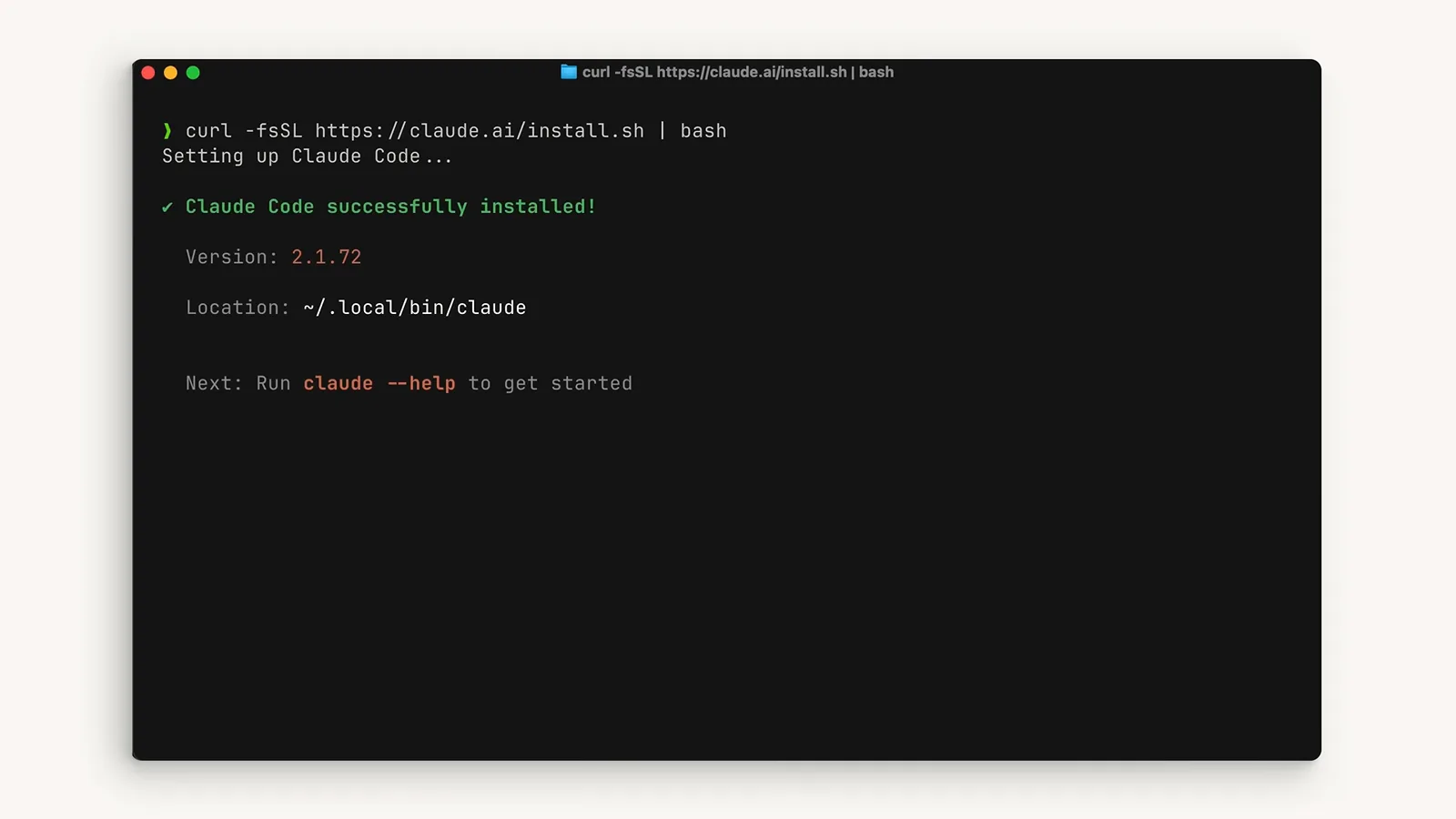
The official installer finishes with the Claude Code version and the ~/.local/bin/claude location.Watch at 0:24 - 2
Add the Claude Code [Beta] plugin from the Marketplace
In your IDE, open Settings → Plugins → Marketplace and search for “Claude Code”. Pick the one by Anthropic PBC — currently version 0.1.14-beta — and hit Install. The same plugin covers IntelliJ IDEA (Community and Ultimate), PyCharm, WebStorm, PhpStorm, GoLand and Android Studio.
- 3
Restart the IDE and open the tool window
A full restart activates the plugin. You get a Claude Code tool window with a New Session launcher, plus the Claude logo in the toolbar. If the window never appears, the troubleshooting section below is your friend.
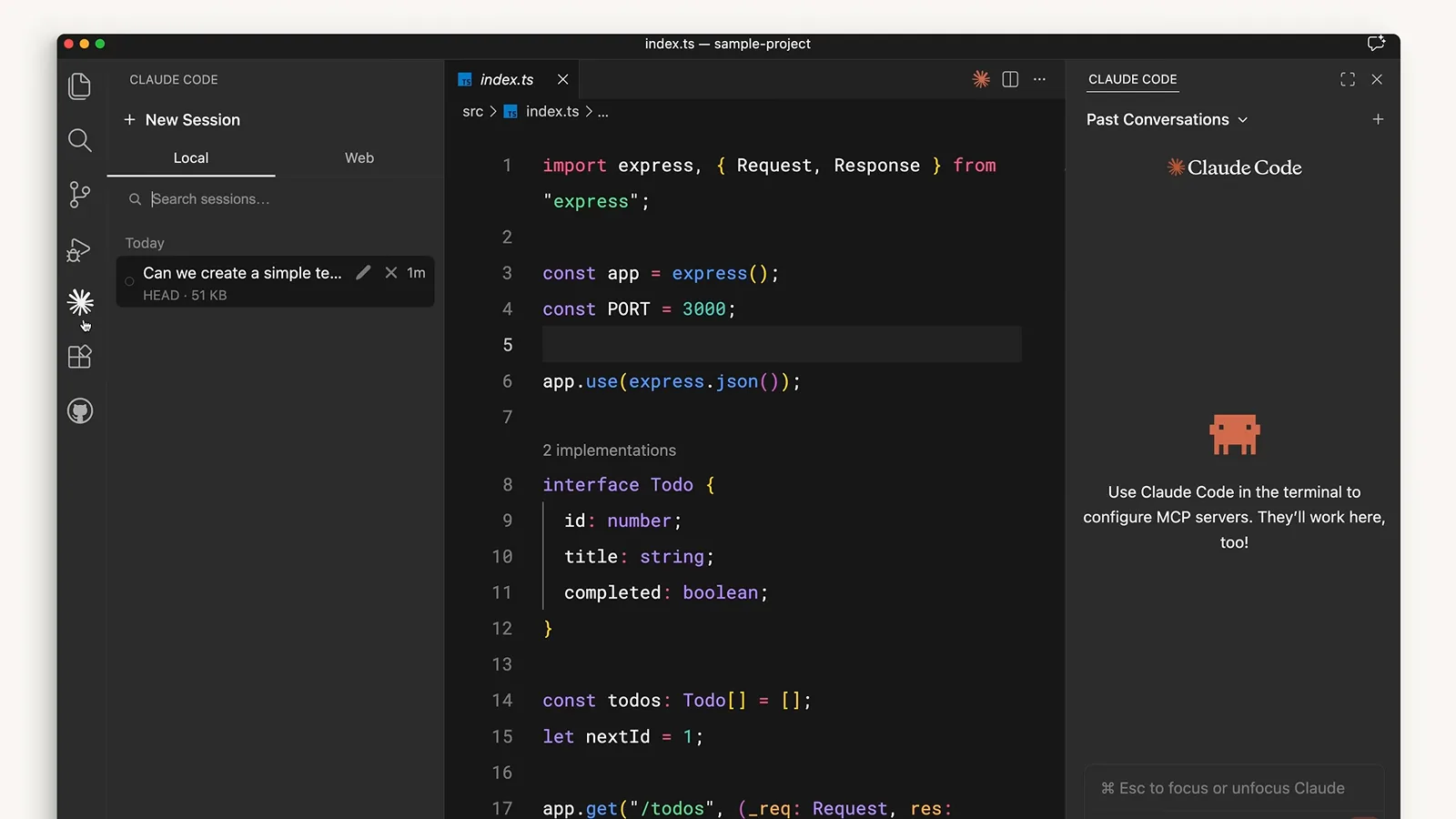
IntelliJ IDEA after the restart: the New Session launcher on the left, Past Conversations on the right.Watch at 1:05
Sign in
- 4
Sign in with your Claude account
The first run asks how to bill Claude Code: 1) a Claude account with a Pro, Max, Team or Enterprise subscription, 2) Anthropic Console API billing, or 3) a 3rd-party platform (Amazon Bedrock, Microsoft Foundry, Vertex AI). Subscription sign-in needs no API key.
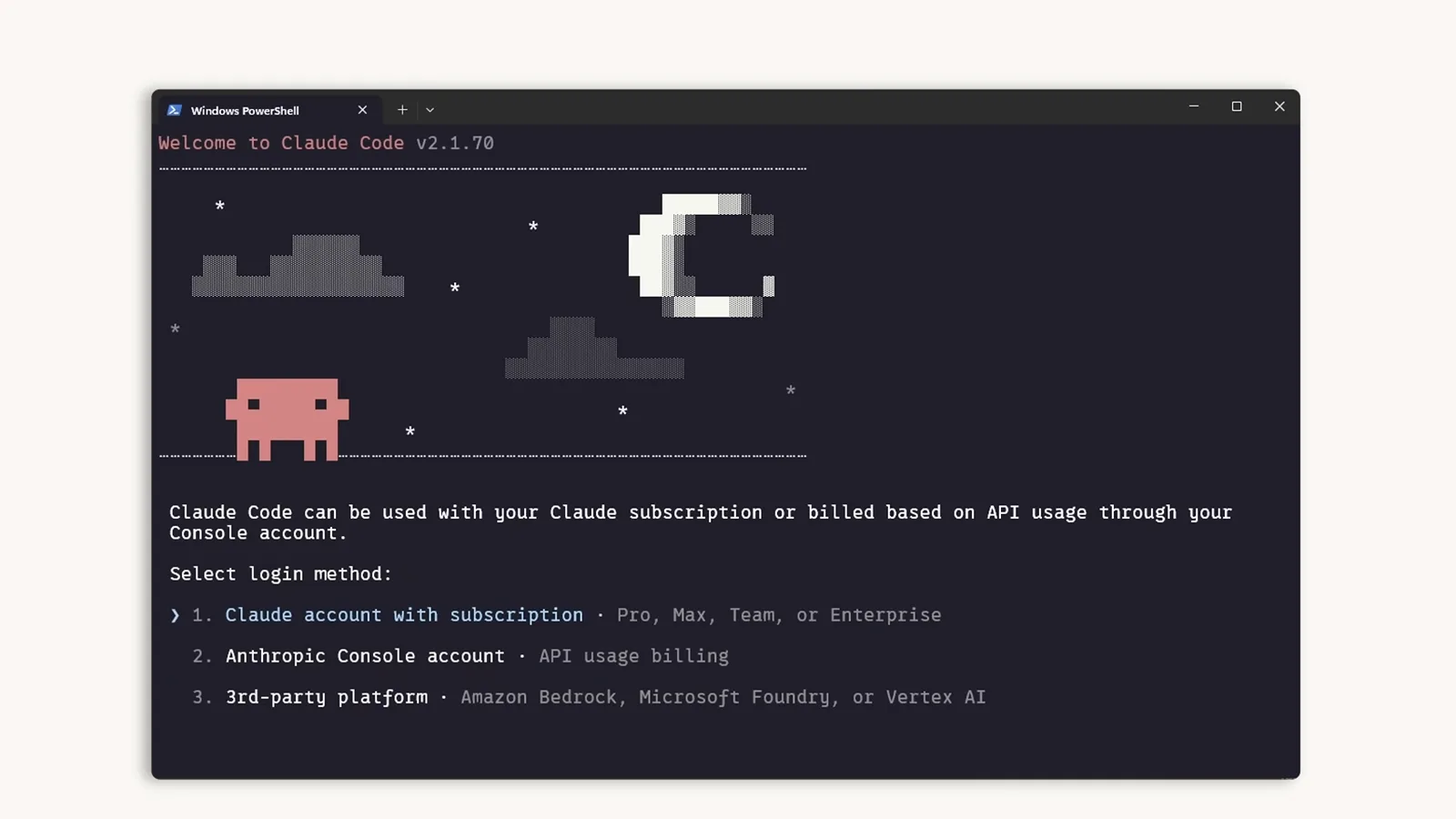
The login picker on first run — option 1 covers Pro, Max, Team and Enterprise plans.Watch at 0:48
Use it every day
- 5
Pick Claude Agent in the AI tools picker
JetBrains IDEs expose several AI tools in one picker: Junie by JetBrains, Claude Agent and Quick Edit. With a JetBrains AI subscription, Claude Agent runs natively in that panel and picks up new models automatically; with the Anthropic plugin, your own Claude login and billing are used instead.
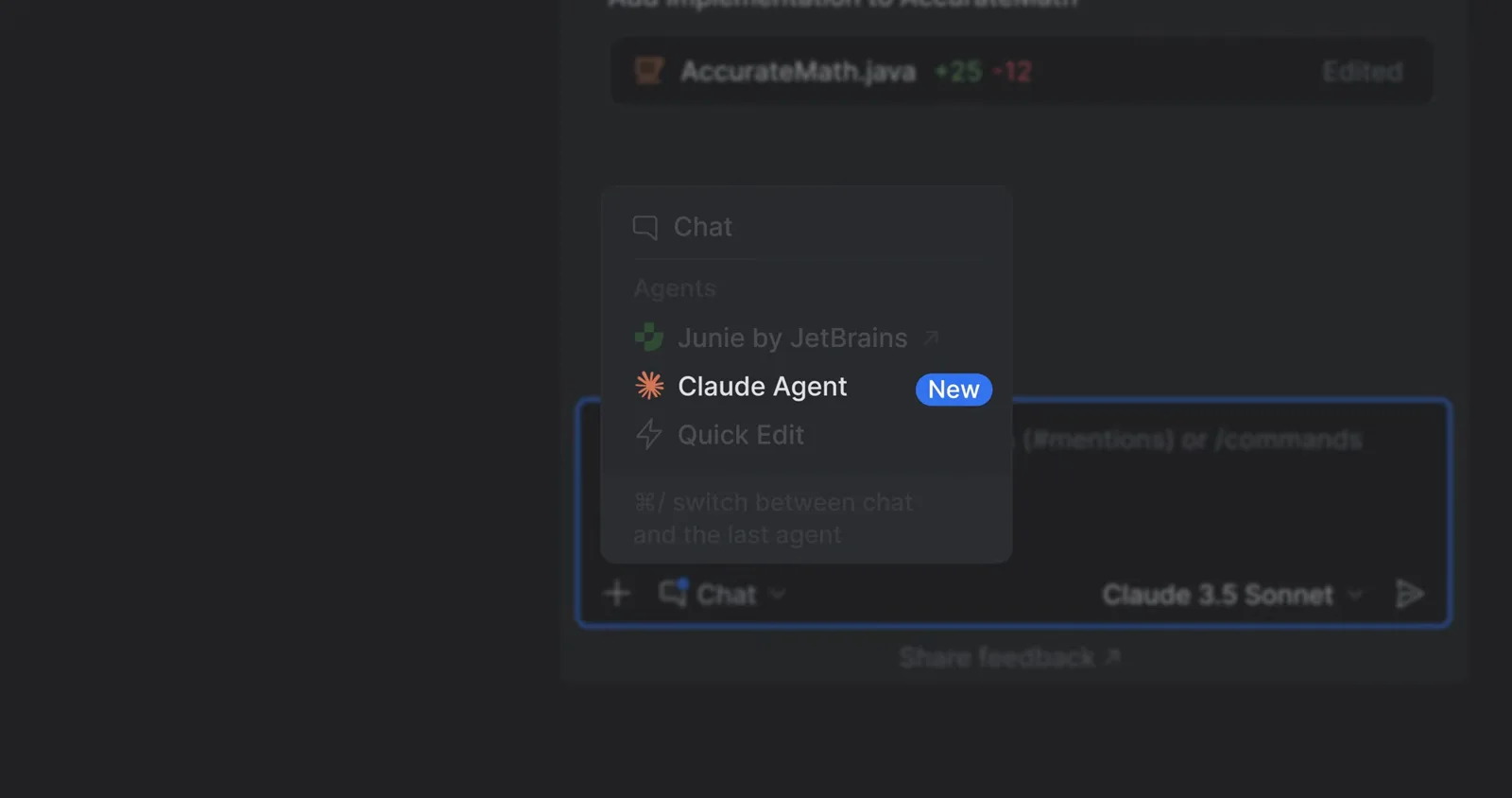
The AI tools picker — Claude Agent carries the New badge next to Junie by JetBrains.Watch at 0:10 - 6
Prompt with Plan or Build mode
Type a request like “Refactor this class” into the AI input. Toggle Plan when you want a reviewed approach first, Build when you want edits straight away. The model picker in the same row switches Claude versions without leaving the editor.
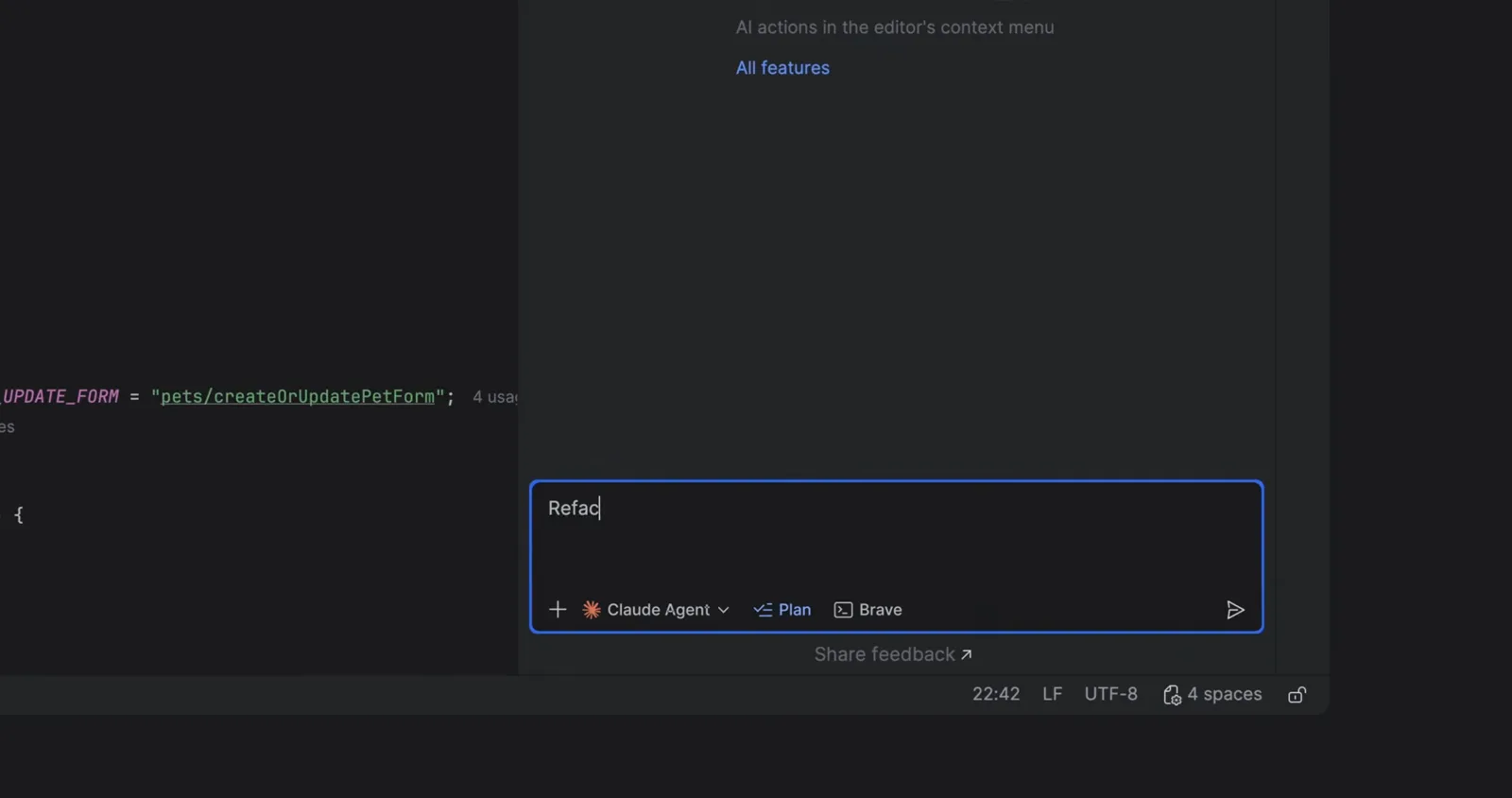
A refactor request with the Plan and Build toggles — Plan answers with a blueprint before touching code.Watch at 0:26 - 7
Review the agent’s plan
In Plan mode the agent first lists what it found — here six issues in a Spring PetController, from inconsistent field injection to scattered validation — followed by numbered refactoring steps. Correct the plan in chat before any file changes.
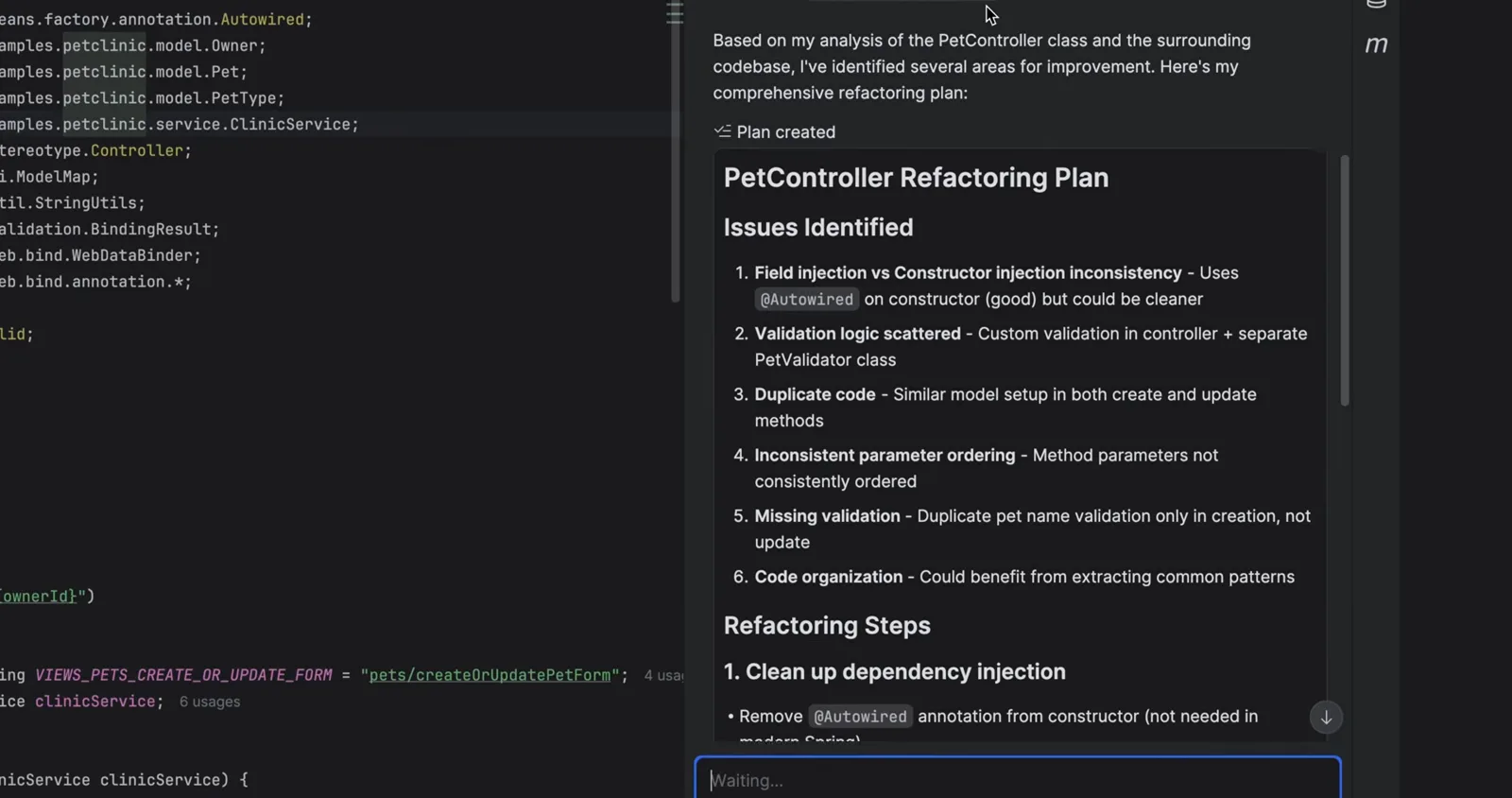
The PetController refactoring plan: issues identified first, then the numbered steps.Watch at 0:32 - 8
Accept or decline the result
When the run finishes you get a summary of the improvements plus the token usage for the run. Nothing is final until you press Accept — Decline throws the changes away, which is what makes aggressive refactors safe to attempt.
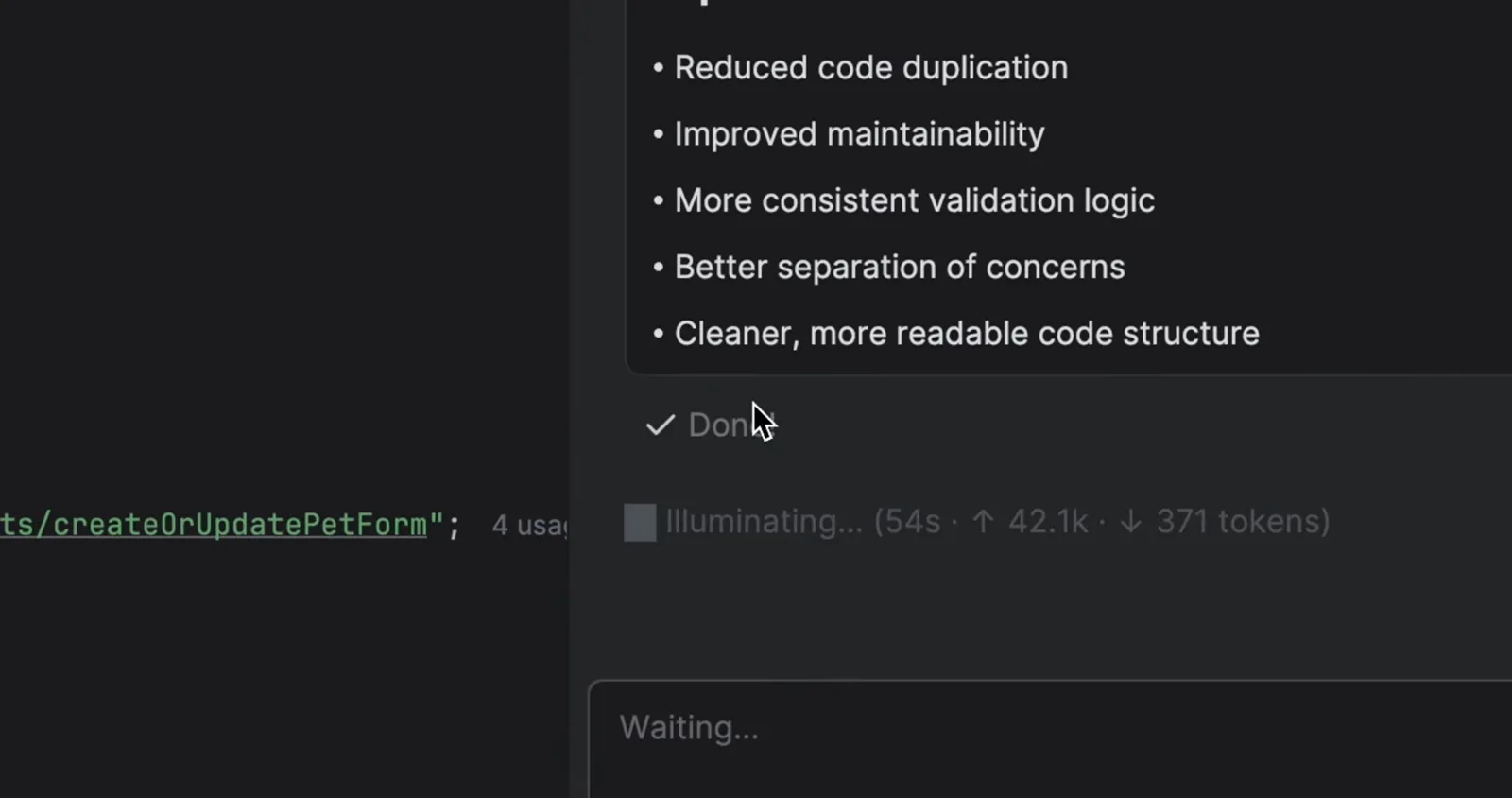
The run summary with usage stats — Accept and Decline stay one keystroke away.Watch at 0:34 - 9
Inspect every change in the diff viewer
Edits arrive in the IDE’s native diff viewer: original and current versions side by side with green and red inline markers, exactly like a git diff. You can also change the diff tool Claude Code uses with /config.
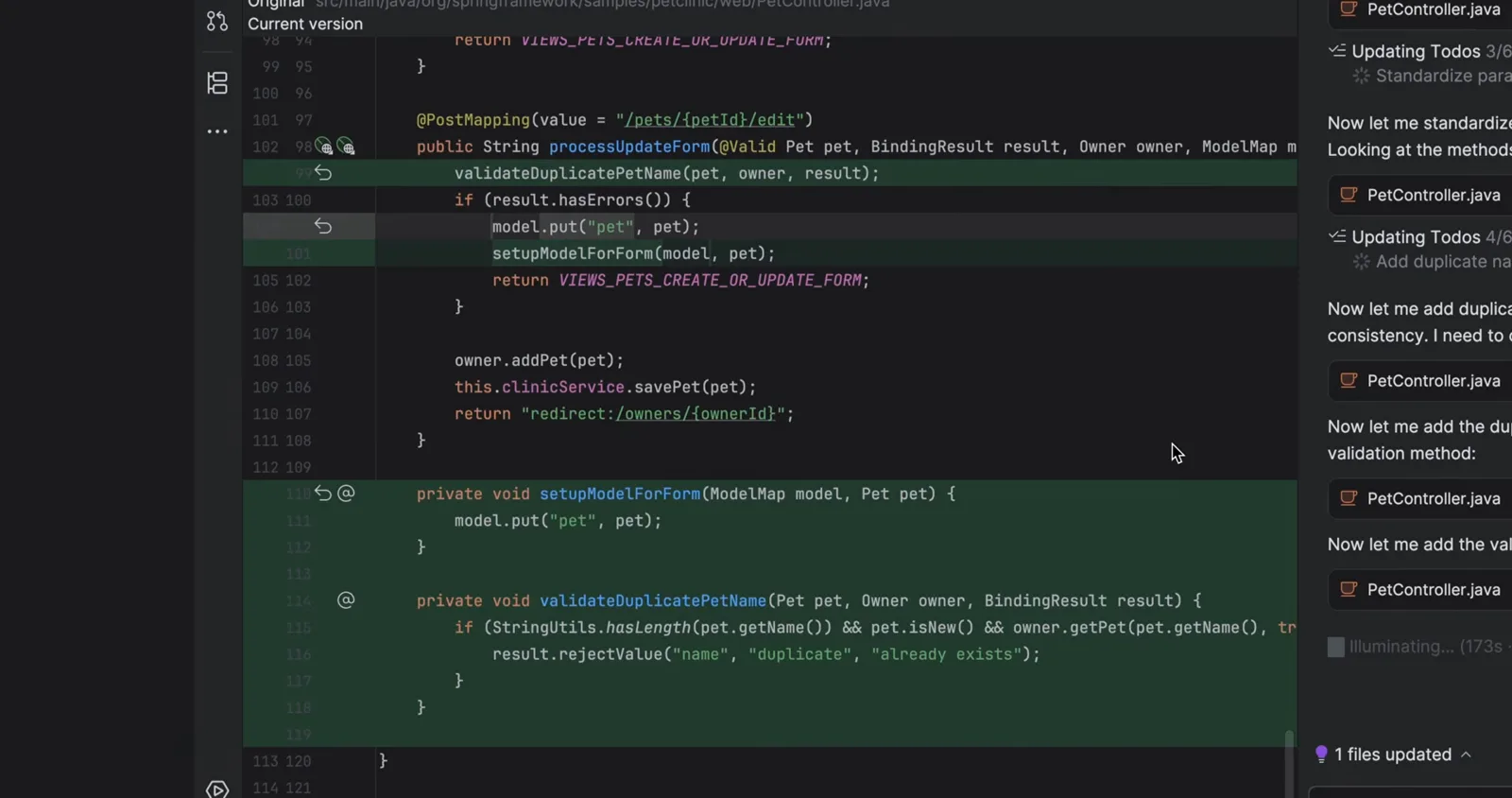
The IntelliJ diff viewer with Claude’s edits highlighted line by line.Watch at 0:36
IntelliJ, WebStorm, PyCharm, GoLand: what differs
One plugin covers every JetBrains IDE, but the day-to-day details shift a little per editor. The official docs list IntelliJ IDEA, PyCharm, Android Studio, WebStorm, PhpStorm and GoLand as supported.
- 1IntelliJ IDEA — the deepest integration and the IDE shown in Anthropic’s own walkthrough. Both Community and Ultimate editions install the same plugin from the JetBrains Marketplace.
- 2WebStorm — identical tool window and shortcuts; your JavaScript and TypeScript workflows (Angular, Vue, React refactors) drive the agent exactly like Java does in IDEA.
- 3PyCharm — run claude from the project root so the CLI sees your virtualenv and the plugin attaches diagnostics to the right interpreter.
- 4GoLand and PhpStorm — same plugin, same login; the Marketplace compatibility range is what decides whether your IDE version needs an update first.
- 5Android Studio — install from the JetBrains Marketplace (not Google’s channel) and expect one extra restart on first activation.
Rider is not in the official supported list yet — .NET developers currently run the Claude Code CLI in Rider’s terminal and wait for Marketplace compatibility to catch up.
Claude Code IntelliJ plugin not working? Fix it in order
Most “the plugin does nothing” reports collapse into one of six causes. Work top to bottom — each step rules out a whole class of failures.
- 1Plugin won’t install or isn’t listed — search the Marketplace for the exact name Claude Code [Beta] by Anthropic PBC (current version 0.1.14-beta). If your IDE build is older than the plugin’s compatibility range, update the IDE first; otherwise the entry simply won’t show.
- 2Installed but no Claude tool window or logo — check the plugin is enabled under Settings → Plugins → Installed, then completely restart the IDE; the docs recommend a couple of full restarts, not just closing the project window.
- 3Sign-in ignored on managed machines — Claude Code 2.1.296 (2026-10-09) fixed a regression where a saved Claude apps gateway sign-in was ignored when managed settings set forceLoginMethod to gateway without forceLoginGatewayUrl (introduced in 2.1.295). Update the CLI past 2.1.296 before re-provisioning.
- 4“No available IDEs detected” or /ide finds nothing — launch claude from the IDE’s integrated terminal so it inherits the workspace, verify the plugin is installed on the IDE you actually run (including the remote-development host), and on WSL2 enable mirrored networking or forward the IDE port.
- 5claude: command not found — the plugin never bundles the CLI. Install it, then set the absolute path in Settings → Tools → Claude Code [Beta] under “Claude command” and confirm claude --version works in a plain terminal.
- 6Breaks after a CLI update — restart the IDE so the plugin picks up the new binary and re-check the configured command path; a stale session in the tool window can survive the update and block new ones.
Still stuck? The docs’ troubleshooting section also covers MCP connections, WSL2 NAT/firewall quirks and automatic-update settings — and the FAQ below answers the version questions that come up most.
Claude Code in JetBrains vs VS Code
Both integrations drive the same CLI, so the agent’s behavior, plans and diffs are identical. What differs is the shell around it.
- 1JetBrains gives you a dedicated tool window plus the native diff viewer, and Ctrl+Esc (Cmd+Esc on macOS) bounces you between editor and agent.
- 2VS Code ships the spark icon in the editor toolbar, @-file references with Alt+Ctrl+K / Cmd+Opt+K, and generally receives UI experiments a little earlier.
- 3Selection context works in both: select code, ask, and the editor attaches the exact range plus its diagnostics automatically.
- 4JetBrains has a second route — the built-in Claude Agent that comes with a JetBrains AI subscription, with automatic model updates. The Anthropic plugin keeps your own Claude login and billing instead.
- 5Switching costs nothing: same ~/.claude credentials, same CLAUDE.md project memory, same slash commands — your prompts and history follow the CLI, not the IDE.
If you work across both editors, keep the CLI as the source of truth and treat each plugin as a view on it.
We cover the VS Code side in detail here: Claude Code for VS Code.