
Cursor Remote Control: Run Cursor Agents from Your Phone
The full remote-control workflow in 12 verified steps: open cursor.com/agents or the Cursor iOS app, launch a background agent against your repo, dictate a follow-up, create the PR and merge it — without opening your laptop.
TL;DR
- Remote control (launched October 6, 2026) lets the Cursor iOS app see and reply to agents running on your computer — the agent never leaves your machine, the phone is just the control surface.
- cursor.com/agents in any browser is the same dashboard: launch background agents against a GitHub repo, watch them work and read the result — no IDE needed.
- The demo fixes two production bugs from a phone: pick the repo, send the task by voice, review the summary, create the PR, test the Vercel preview URL, squash-merge.
- You need the same Cursor account on desktop and phone, GitHub connected and a paid plan — and your computer must stay powered on and online.
CURSOR ON YOUR PHONE (First look at the new web app!)
Channel: Ian Nuttall7:13
Introducing Cursor for iOS
Channel: Cursor (official channel)1:15
Remote control for local agents — changelog
Official changelog: cursor.com/changelog
Every button, picker state and screen on this page was verified frame-by-frame against Ian Nuttall's screen recording, which is the visual source for the whole phone-only workflow. Cursor's official launch clip and the remote-control changelog entry contribute the feature facts: what remote control is, when it shipped and how pairing works.
Screenshots belong to their creators and deep-link to the matching timestamp; no facecam frames are used.
Control Cursor agents from your phone, step by step
1. Open the agents dashboard from anywhere
- 1
Open cursor.com/agents and sign in
The web dashboard is where every remote session starts: a compose box that says "Ask Cursor to build, fix, or explore", a Background agent toggle with the model picker, a repository selector and your recent agent runs listed underneath. In the video, an email carrying a Laravel crash — "Undefined constant Illuminate\Console\Command::OUTPUT_BUFFER" — is about to become the first task.
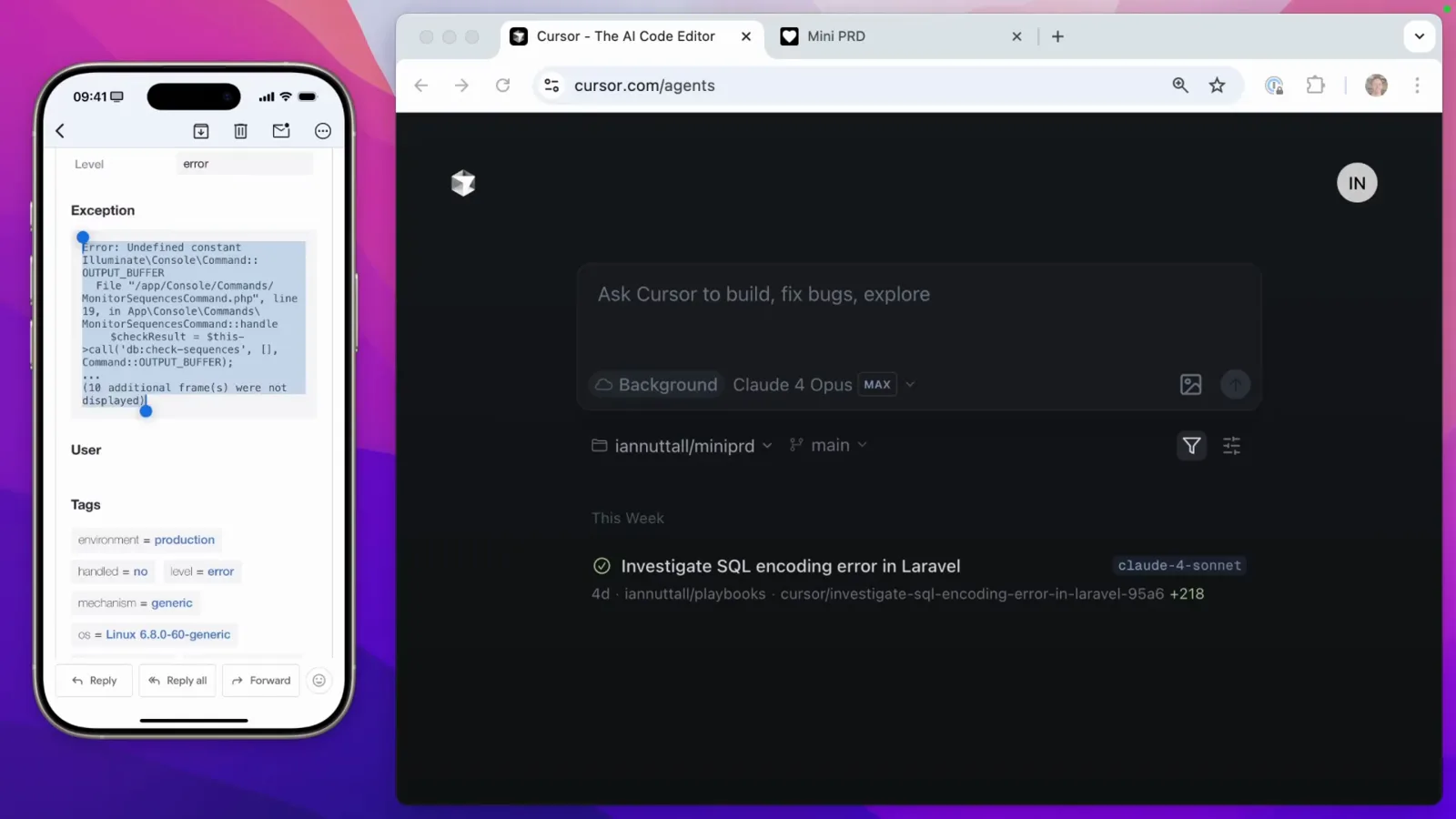
The cursor.com/agents dashboard beside the bug-report email — the starting line for every remote session.Watch from 0:32 - 2
Install the iOS app — it mirrors the web
The Cursor iPhone app signs into the same account and renders the same screen as cursor.com/agents: same compose box, same Background toggle, same Claude 4 Opus model picker, same repository selector (here iamnuttall/playbooks on main). Use whichever surface is in your hand — the video switches between them constantly.
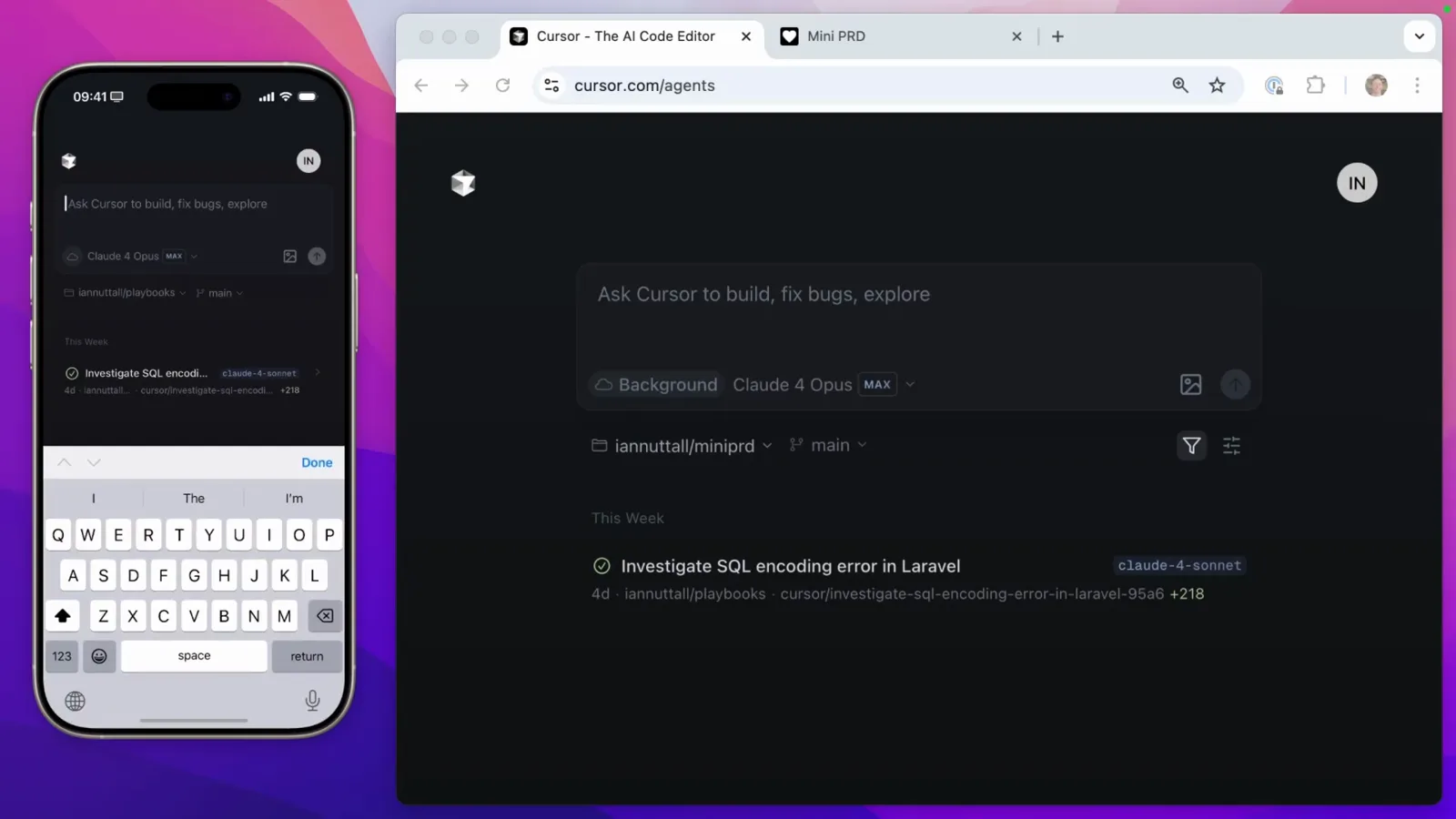
Same account, same controls — the app and the website are interchangeable.Watch from 0:50 - 3
Send the task and watch it appear in the list
Paste the error, add a sentence like "review and fix this error", and send. A background agent starts on the model you picked and shows up as "Just now" in the agents list — visible on the phone and on cursor.com/agents at the same time. You can pocket the phone; the agent keeps working and notifies you when it is done.
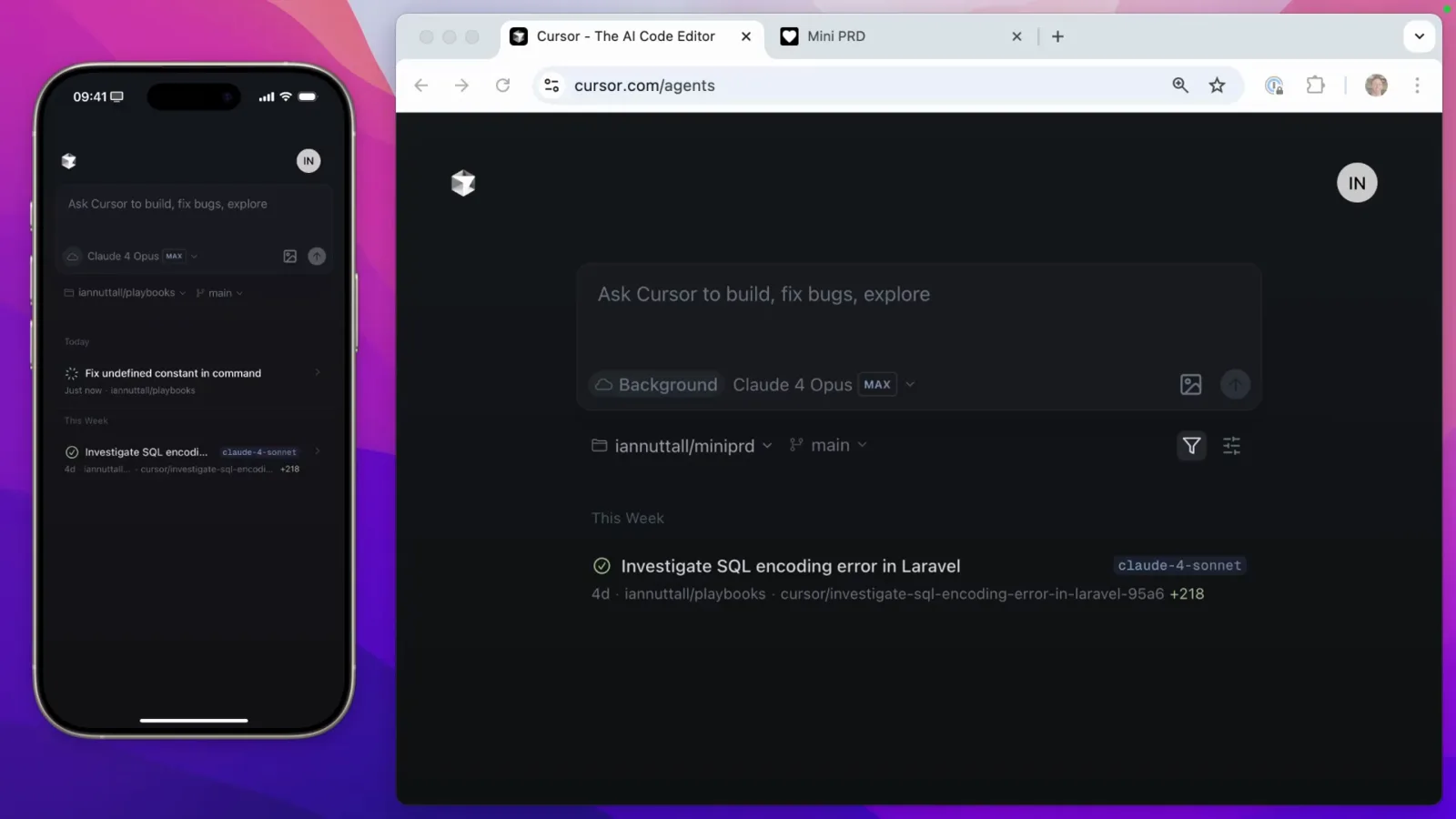
The new run sits at the top of the list on both devices while it works.Watch from 1:10
2. Queue a second fix without typing
- 4
Point the agent at the next broken thing
While the first agent runs, a second job turns up: the Mini PRD web app dies with a red banner — "Error: Failed to send a request to the Edge Function" — because the Supabase project behind it was deleted. This is exactly what remote control is for: you notice a problem on the go and queue the fix from the same phone.
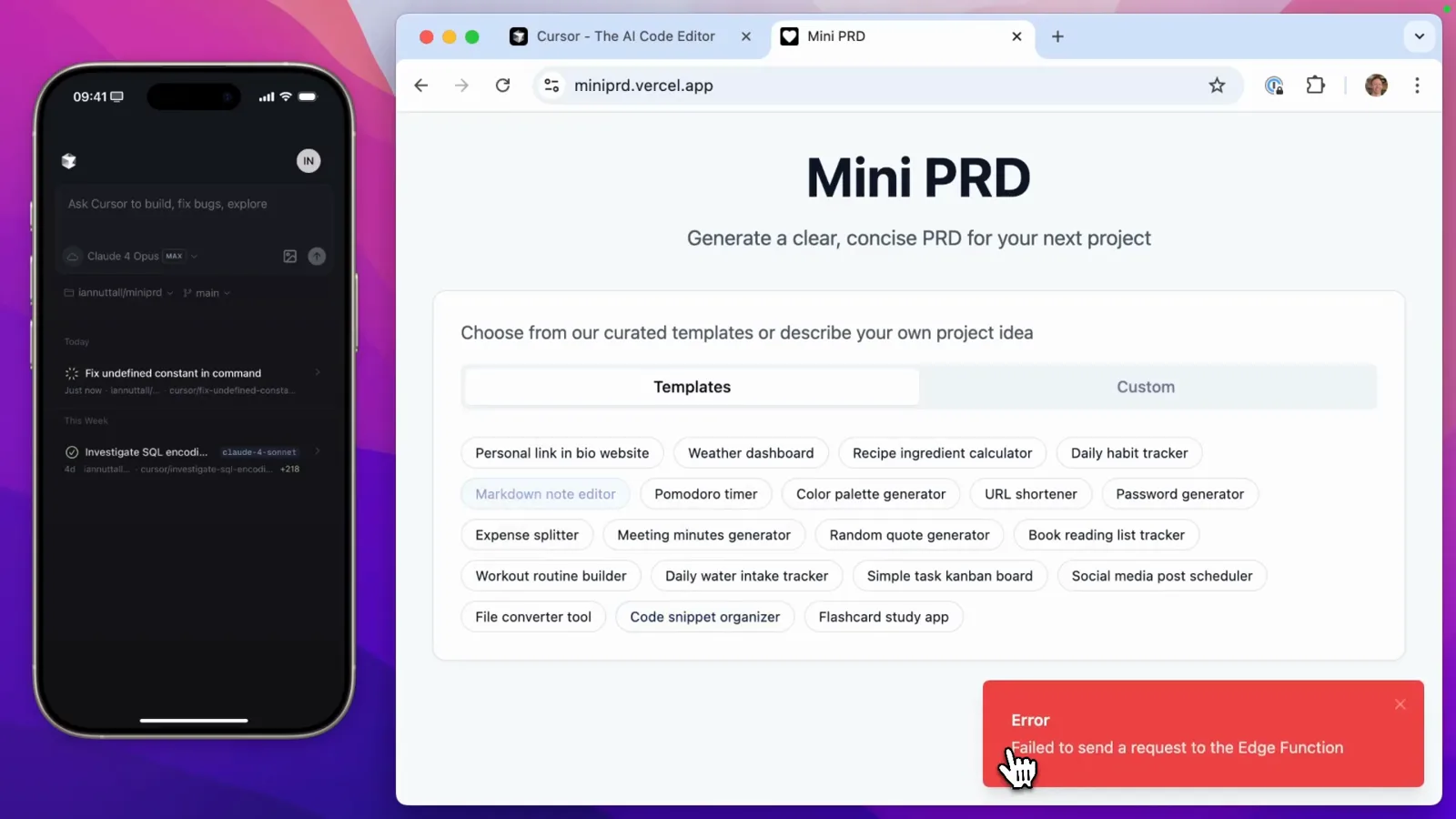
The broken app he is about to fix — without ever opening a laptop.Watch from 1:40 - 5
Dictate the fix instead of typing it
Tap the microphone in the compose box and a "Listening" overlay takes over the screen. The repository is switched to iamnuttall/miniprd first, then the migration is dictated: move the app from Supabase edge functions to Vercel functions, remove the Supabase dependencies, make sure it runs again. Voice input is what makes phone-only sessions practical.
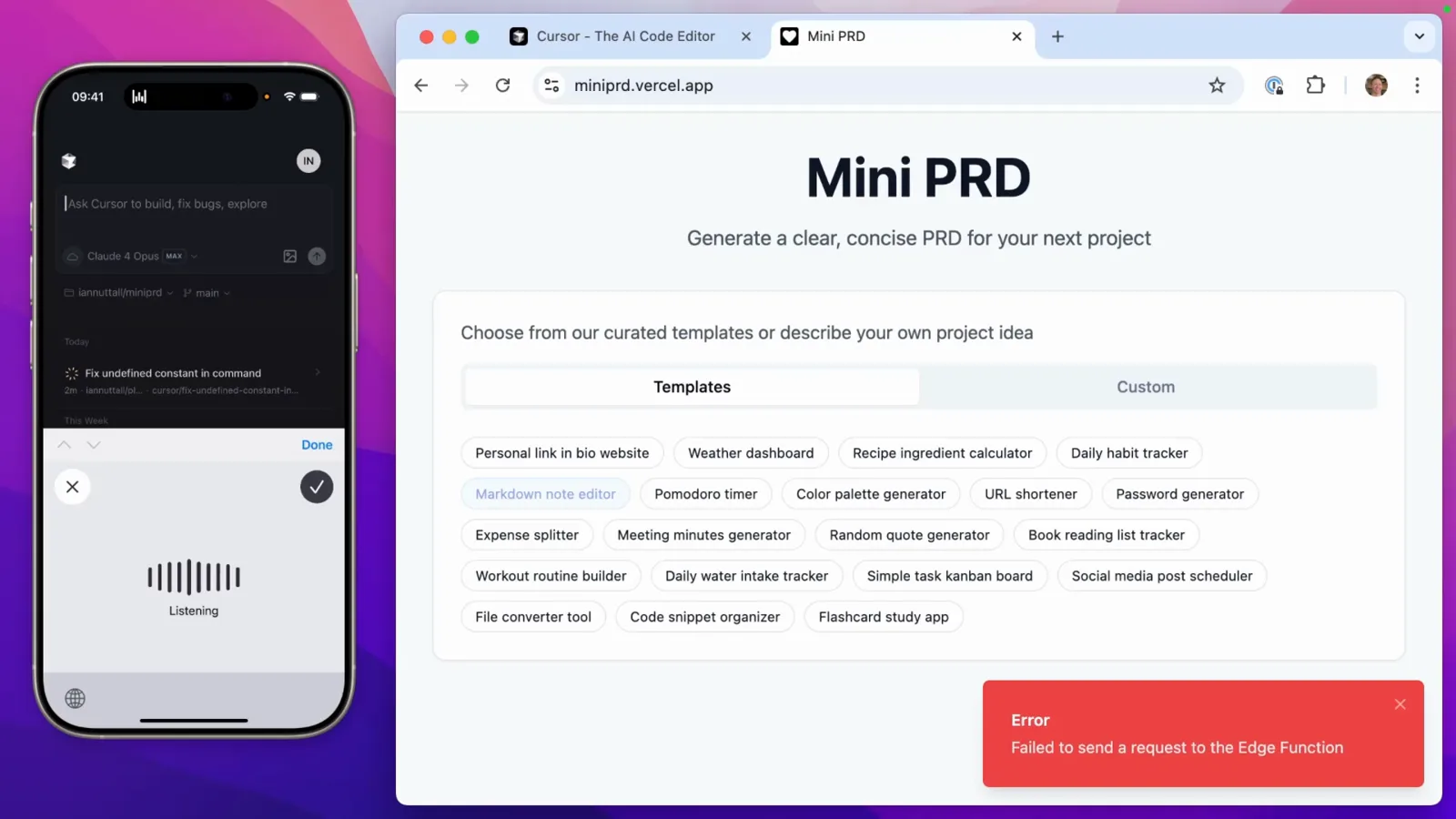
"Listening" — a dictated migration prompt for the second repository.Watch from 2:30 - 6
Confirm the second agent started
Send, and a toast confirms "Started background agent · Using claude-4-opus". The list now shows "New Background Agent · Just now · iamnuttall/miniprd" above the still-running Laravel fix. Both jobs proceed in parallel on Cursor's side; your phone is free to pocket again.
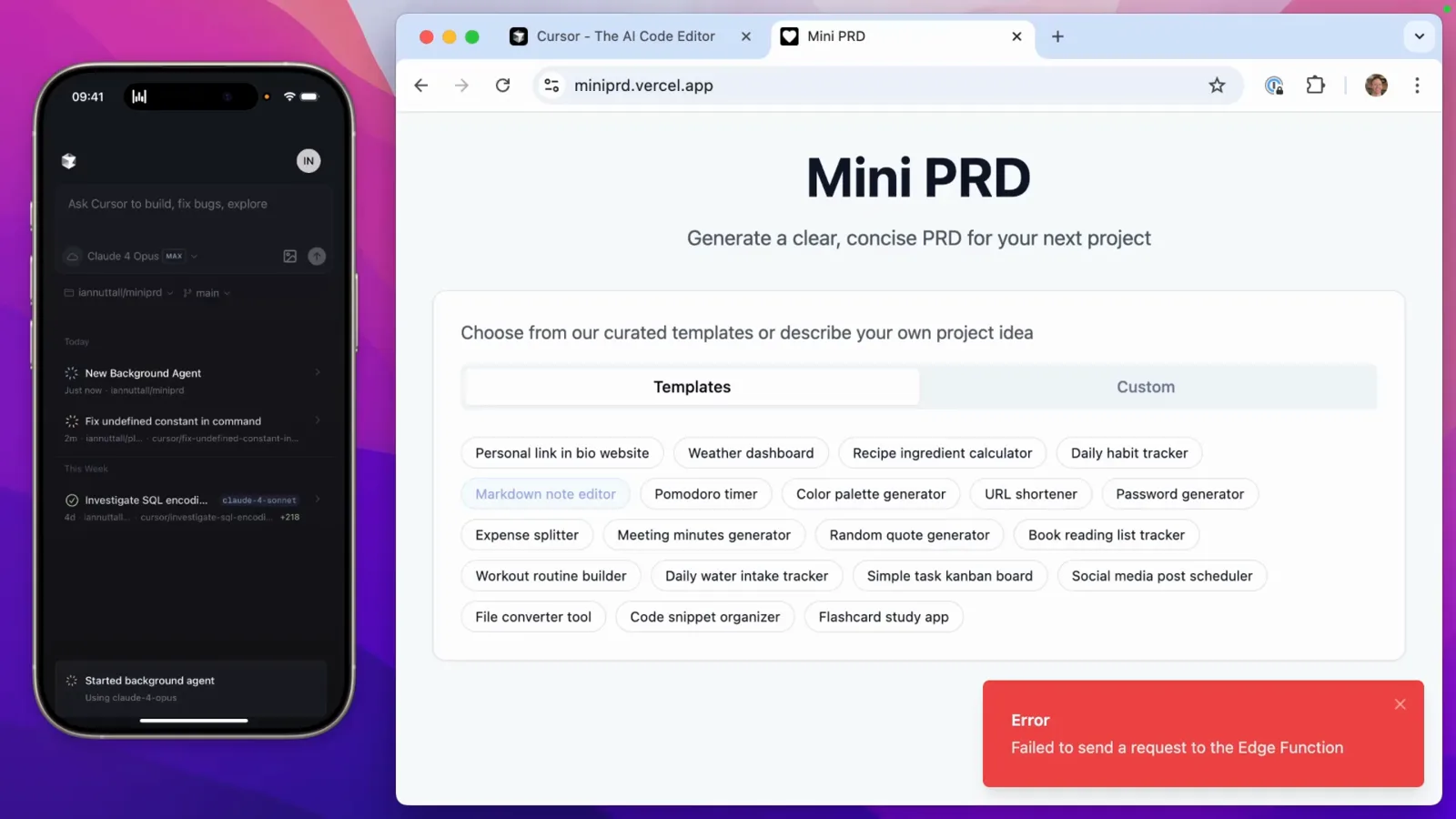
"Started background agent" — the second job is off and running.Watch from 2:42
3. Read the results and test on the phone
- 7
Open the finished agent and read its work
When a run finishes, tap it: you get the fix summary plus Diff and Chat tabs — the diff shows what changed, the chat shows every tool call the agent made. The "Add a follow-up instruction" box at the bottom closes the remote-control loop: not happy? Type or dictate what to change and the agent keeps going.
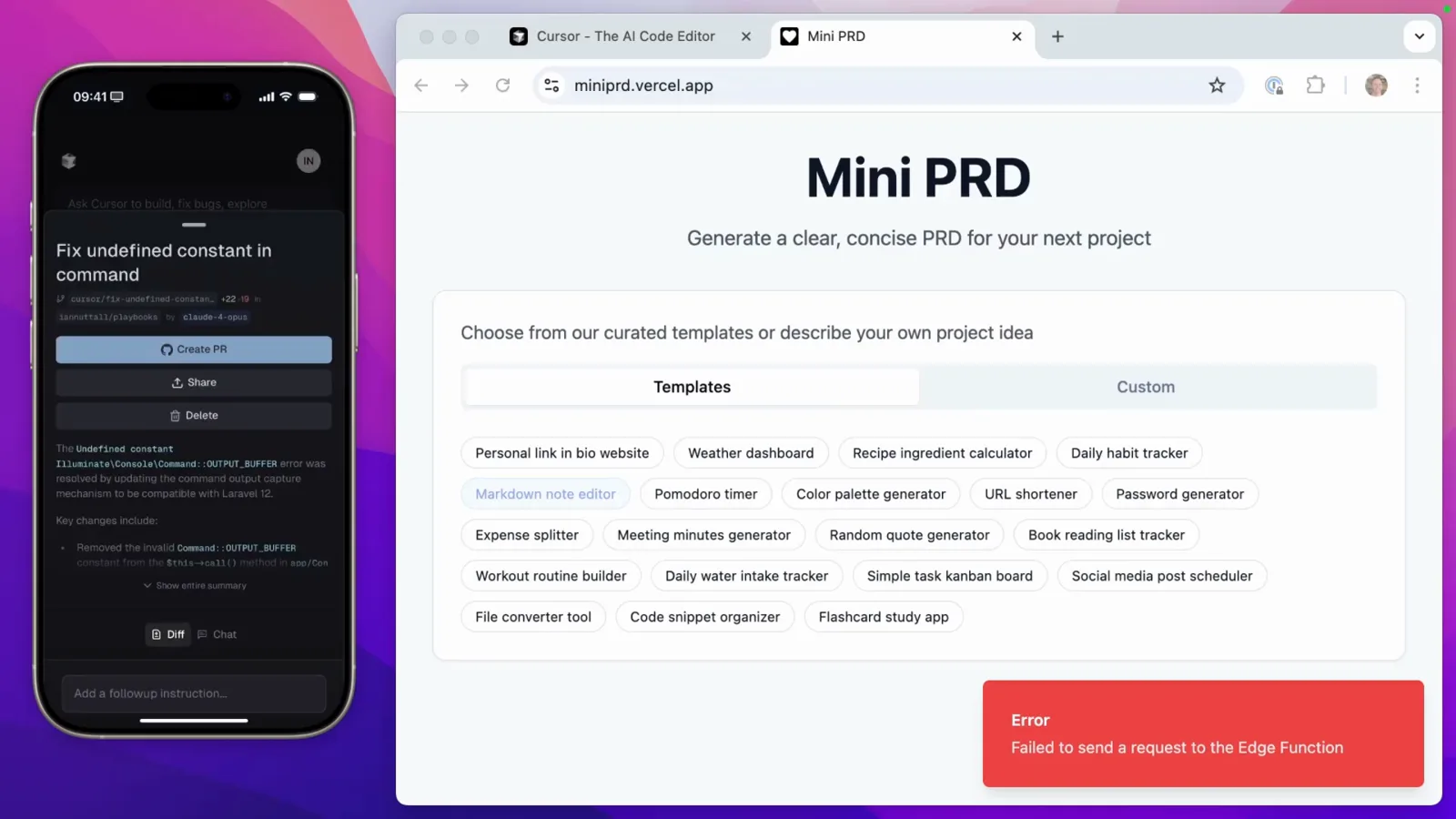
Diff and Chat tabs plus a follow-up box — the whole review loop lives on the phone.Watch from 2:50 - 8
Read the fix summary and create the PR
The Laravel agent's summary spells the fix out: the invalid Command::OUTPUT_BUFFER constant was removed, Artisan was imported, and the command execution flow now buffers output so the exit code can be checked. One tap on Create PR turns the agent's branch into a GitHub pull request; Share and Delete sit right next to it.
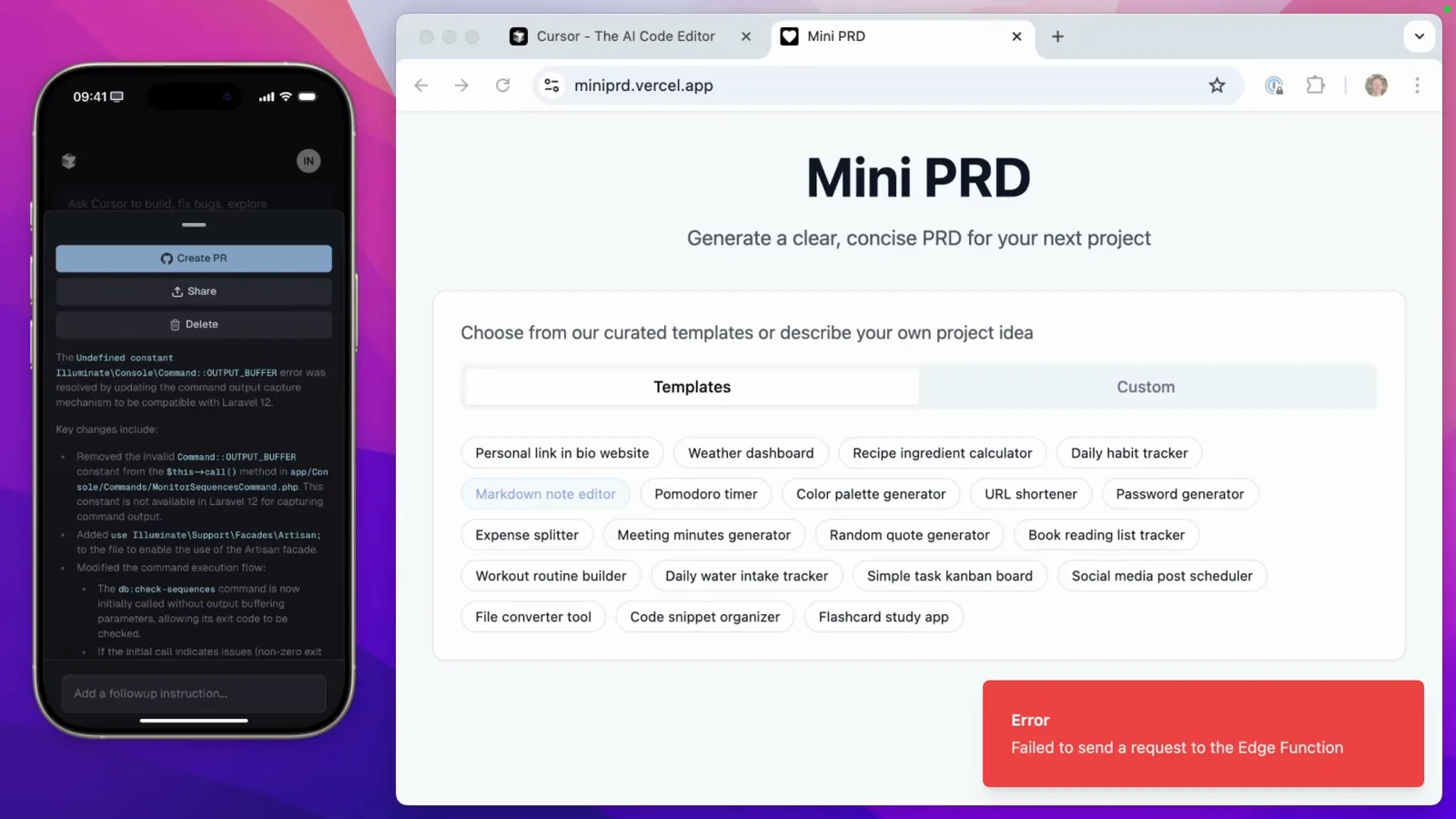
A summary you can actually evaluate before tapping Create PR.Watch from 3:00 - 9
Test the fix on the Vercel preview URL
Because the pull request triggers a Vercel preview deployment, the fix is verifiable before merging: the preview URL (…-ian-nuttalls-projects.vercel.app) opens in Safari on the phone and the Mini PRD app loads its template picker, error gone. Laravel apps without a preview deployment wait for a local test instead — the video says so explicitly.
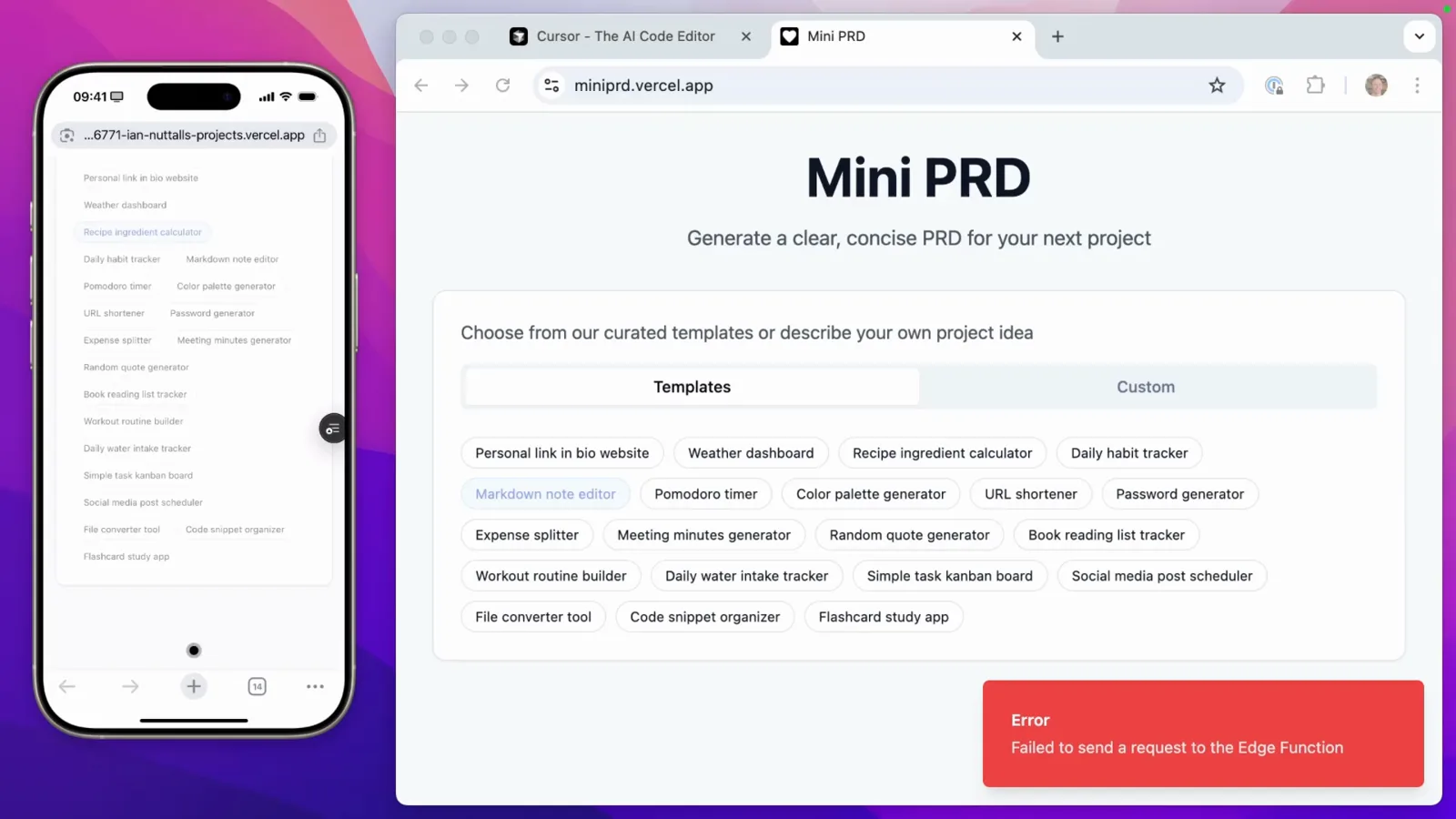
The preview deployment loads the fixed app right on the phone.Watch from 4:06
4. Merge, verify live, hand off to the desk
- 10
Merge from the phone
Back in the agent panel, the branch cursor/refactor-app-to-use-… carries every change made via claude-4-opus. View PR opens GitHub; the green squash-merge control folds all of the agent's commits into one on main and flips to "Merging…". Squash is the tidy option when an agent has piled up commits — the video recommends it for exactly that.
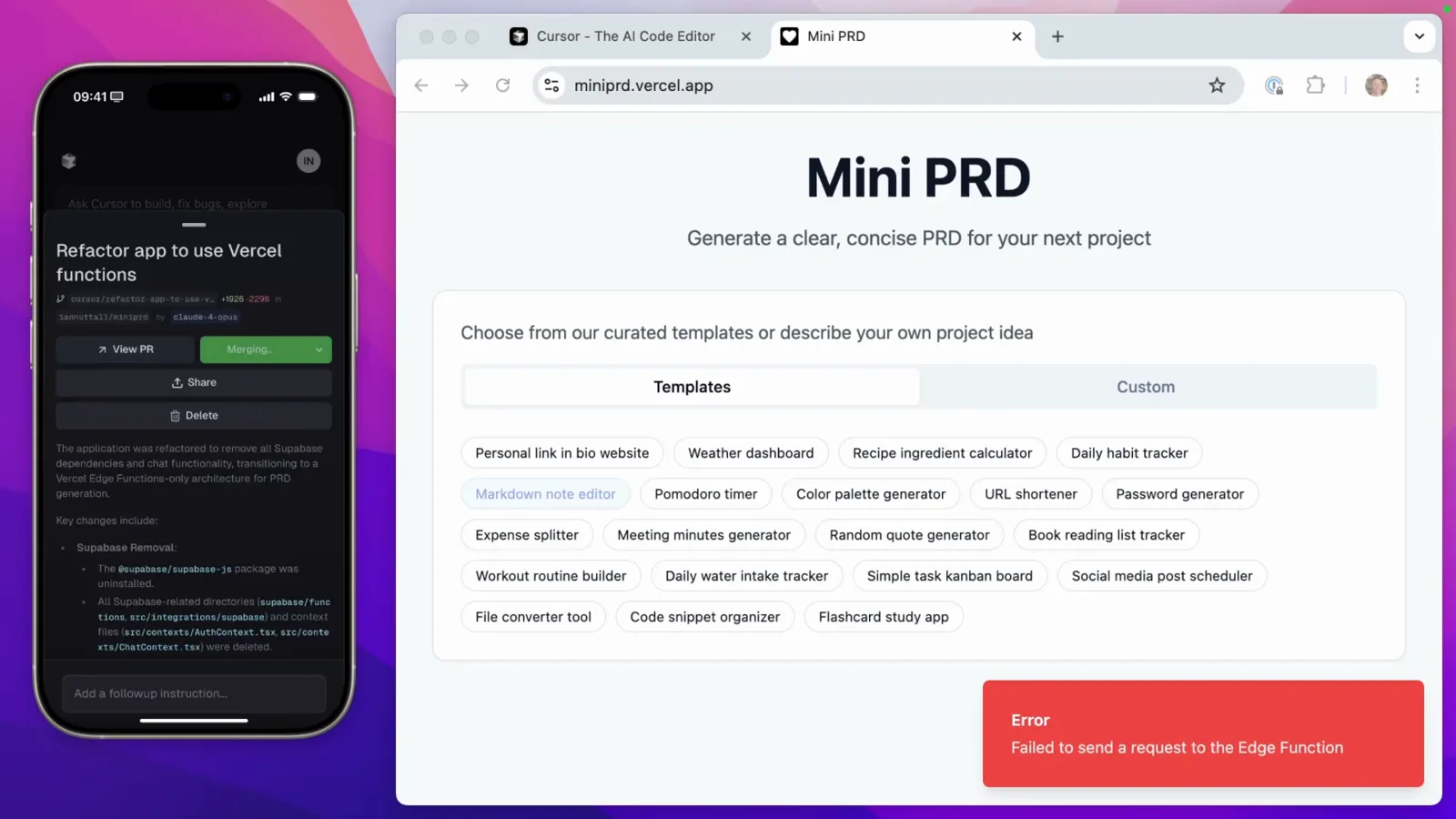
Squash merge in flight — one commit about to land on main.Watch from 4:40 - 11
Verify the live site, still on the phone
The merge deploys to production, so miniprd.vercel.app goes into the phone's browser, a template gets tapped, and the app generates a fresh PRD — the Edge Function error is gone. From bug report to fixed production site, the whole loop ran without the laptop being opened once.
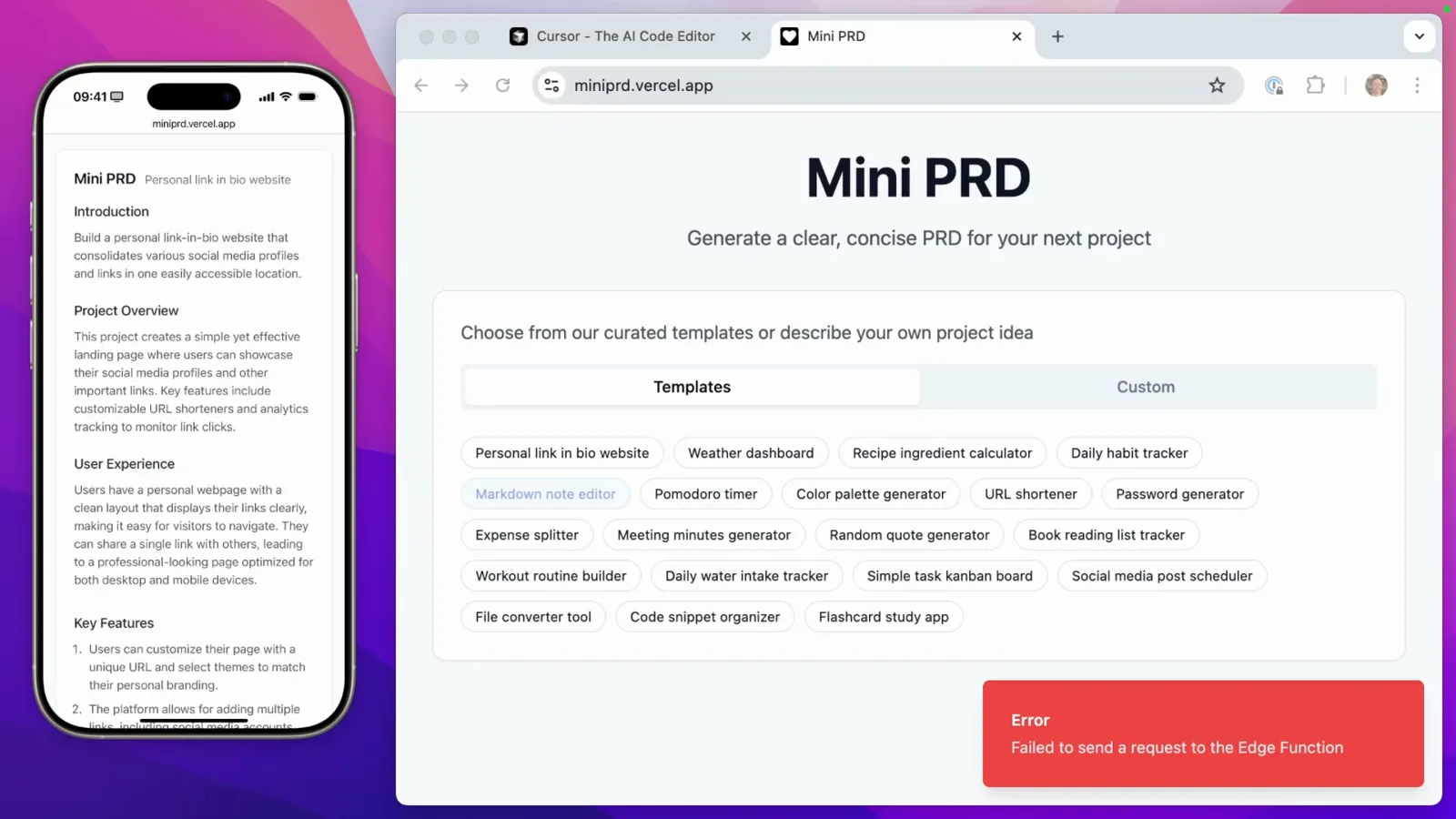
The live site generates a PRD — production is fixed.Watch from 5:10 - 12
Hand off to the desk when you are back
The same agent run opens inside Cursor on the computer: the Background Agent panel offers Create Pull Request, Checkout Locally and Apply Changes Locally, lists the changed files and even the agent's forwarded port (50001). Ian runs the Laravel command locally to double-check the fix, then merges the PR from the phone — desktop for verification, phone for shipping.
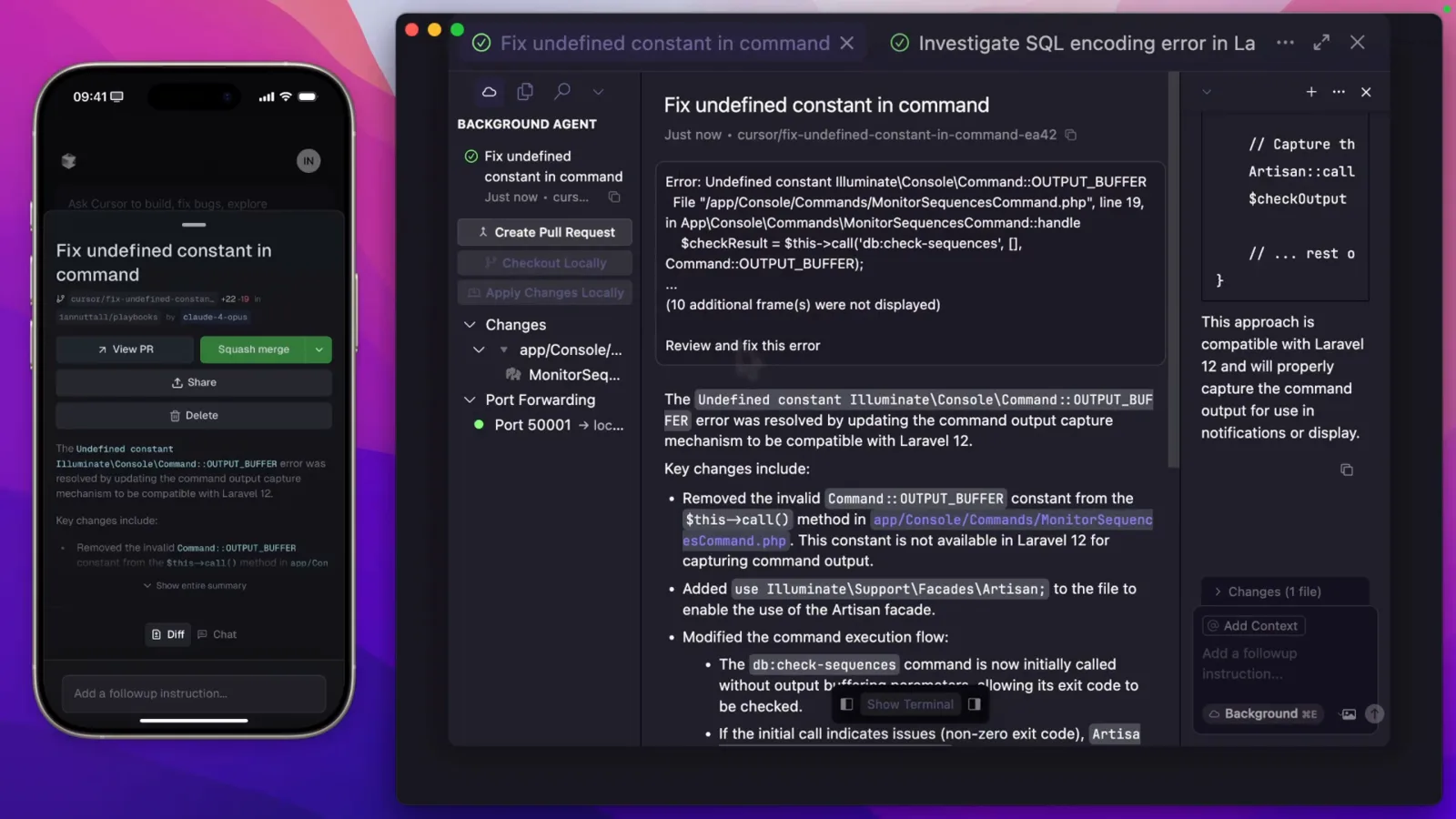
The agent run inside desktop Cursor — Checkout Locally continues the work on your machine.Watch from 5:52
Cursor remote control vs the other ways to run agents
Cursor agents can now live in three places: on your computer, in Cursor's cloud, and in your pocket as a control surface. Remote control is the third piece, and it changes the trade-offs compared with staying at the desk, with cloud agents, and with dedicated remote agents like Devin.
- 1vs sitting at the desk: the agent still runs on your machine with your files, your settings and your local tools — the phone is just a window onto it. Nothing about the work moves; only you do.
- 2vs Cursor cloud agents: cloud agents run in isolated virtual machines and keep working with your laptop closed. Remote control needs your computer powered on and online — Cursor ships a "keep this computer awake" setting for exactly this, and it requires the lid open and the machine plugged in.
- 3vs Devin: Devin is a fully autonomous agent that works in its own cloud environment and hands back finished work. Remote control is the opposite bet — your agent, your repo, your hardware, with you steering from anywhere instead of delegating outright.
- 4vs GitHub Copilot coding agent: Copilot's agent also runs in the cloud and hands back pull requests. Remote control keeps your own model choice (the demo runs Claude Opus), your local dev server via port forwarding, and the option to interrupt mid-run.
- 5vs SSH from your phone: no terminal gymnastics and no fragile tunnel. The app mirrors the same agents UI as the website, and push notifications tell you when an agent finishes, fails or wants input.
- 6vs waiting until you are back: a broken edge function, a typo in production, an idea worth prototyping — these get done in dead time. The video's own caveat applies: complex features still deserve a proper local test before they ship.
The honest limitation: the agent is only as reachable as your computer. If the machine sleeps, loses power or goes offline, the phone shows an agent it cannot reach — which is also the first thing to check when remote control seems not to work.