
Run Claude Artifacts Locally: The No-Install HTML Route (2026)
Every Claude artifact is one self-contained HTML file. This walkthrough covers the full export workflow — copy the code, save it as .html, double-click, and the app runs in your own browser — plus the built-in download shortcut and the Vite route for React artifacts.
The short version
- A Claude artifact ships as a single HTML file: the chat sits on the left and the full code panel on the right, so everything you need to run it outside Claude is already on your screen.
- Copy path: select all of the code, paste it into a new text file, save it with a .html extension, then double-click — the artifact opens in your default browser.
- Download path: Claude also offers a Download button on the artifact itself, which saves the .html file straight into your computer's Downloads folder.
- Watch the extension: Notepad defaults to .txt, and a browser will not render an app from a .txt file — the save-as-HTML rename is the step that makes it run.
Make an HTML File from a Claude.ai Game File
Channel:Karl Kapp1:53
This guide transcribes the workflow demonstrated in the video into original step-by-step text; the screenshots are stills from that recording, each linked to the exact moment it was taken.
The Vite + React + shadcn/ui route described in the FAQ comes from Matt Palmer's "Editing Claude Artifacts locally with Vite, React, and Shadcn/ui" — credited as a second source.
Run your artifact outside Claude, step by step
- 1
Open the artifact's code panel
In Claude, open the conversation that contains your artifact and expand the code panel so the chat and the source sit side by side. You are looking for one continuous HTML document — styles and scripts included — because that single file is the whole app.
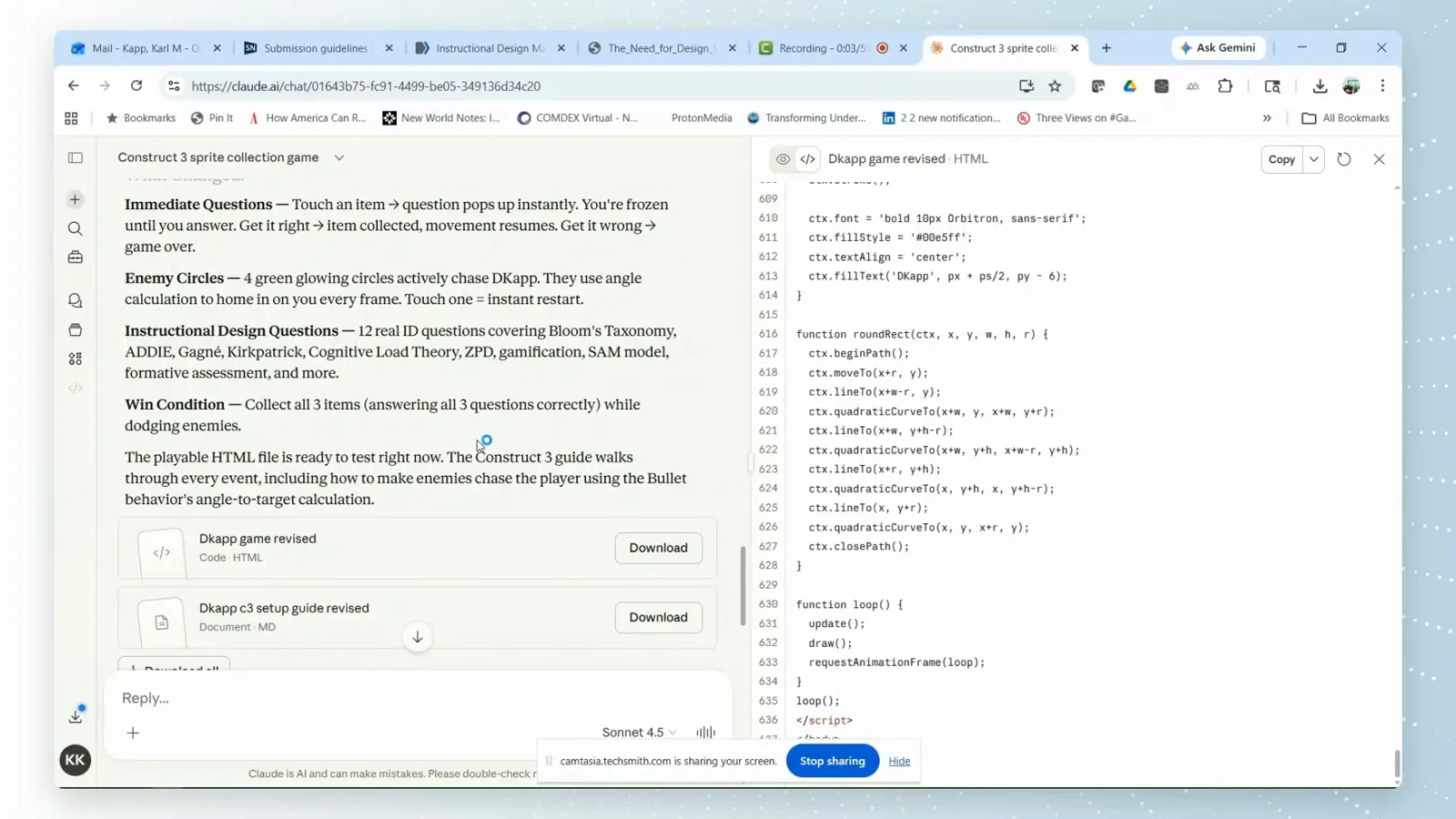
Chat on the left, the artifact's HTML source on the right — this one file is the entire app.Watch at 0:02 - 2
Find the Copy button on the code panel
The code panel header shows the artifact's name with an HTML tag next to a Copy control. That button copies the entire current version of the source in one click — no manual selection needed.
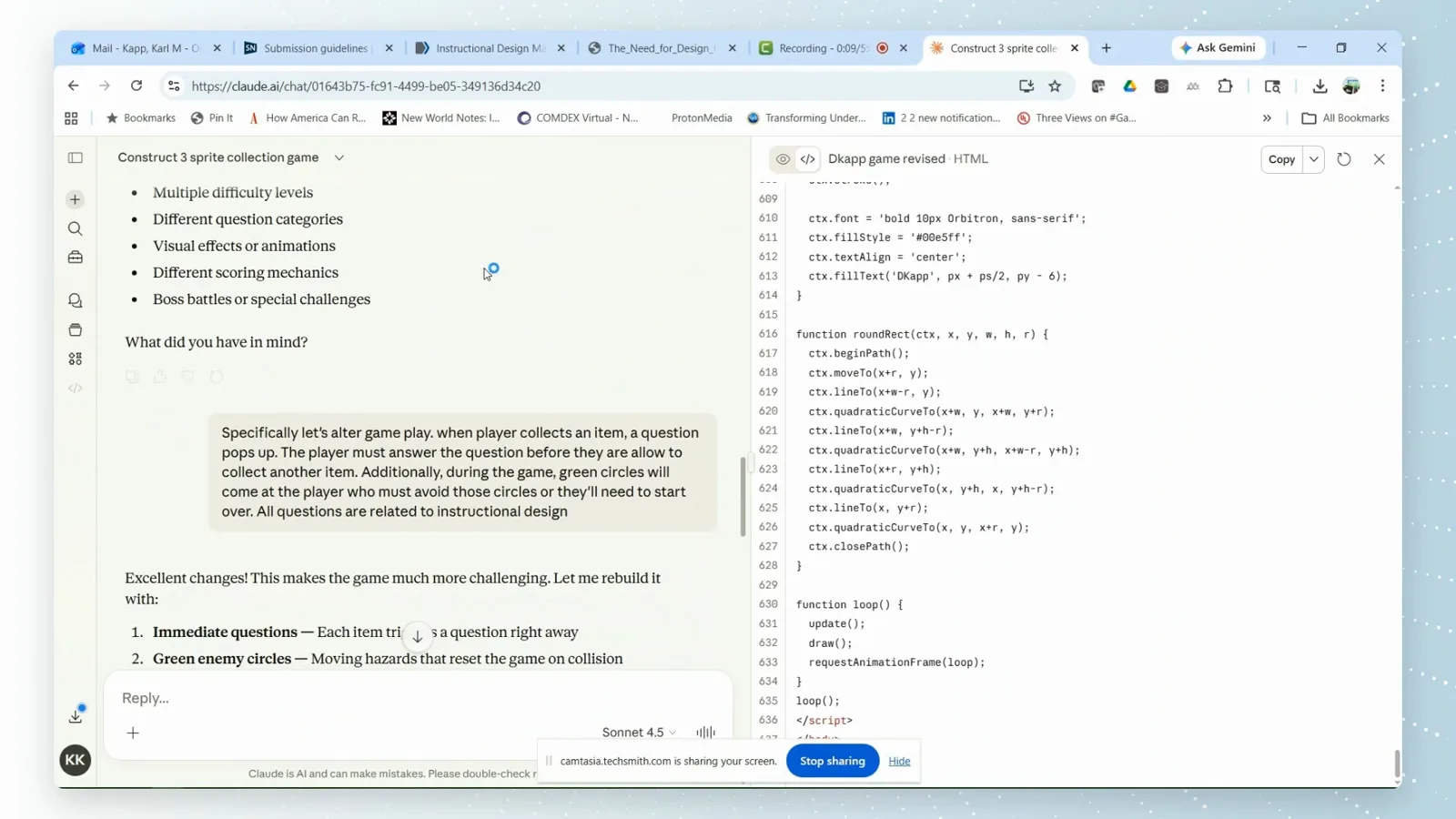
One click on Copy grabs the whole current revision of the artifact.Watch at 0:08 - 3
Play-test the artifact before exporting
Switch to the preview and actually use the app — in this example a spot-collection game with enemy circles, a score counter, and question pop-ups. Confirm the latest revision behaves the way you want; whatever state Claude shows in the preview is what you are about to export.
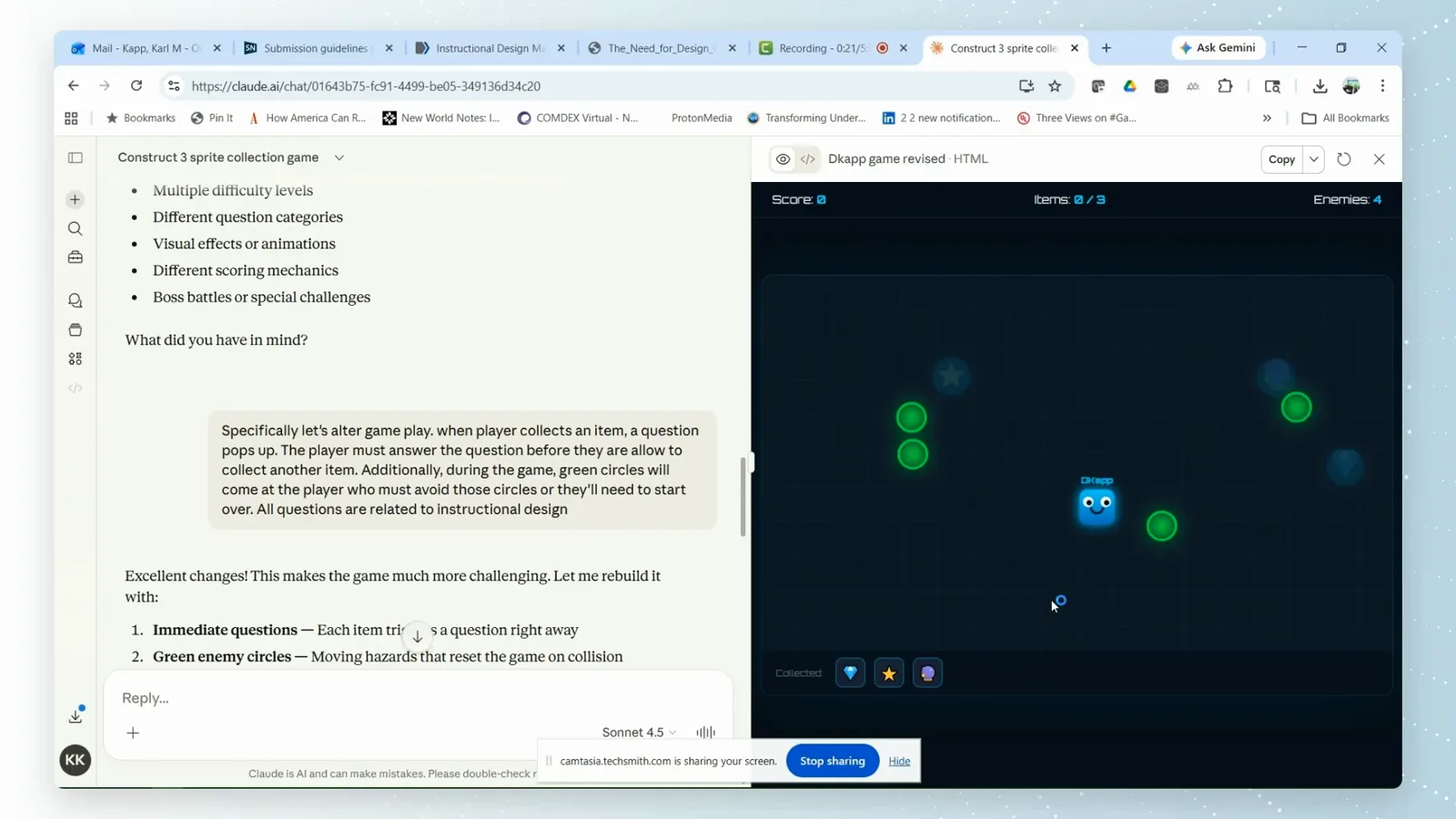
The preview runs the exact revision you are about to copy — test it here first.Watch at 0:20 - 4
Copy the entire HTML source
Scroll the code panel from the opening DOCTYPE to the closing script tag to see that nothing is missing, then copy all of it. If you ever paste and the result does not run, an incomplete copy is the first thing to suspect.
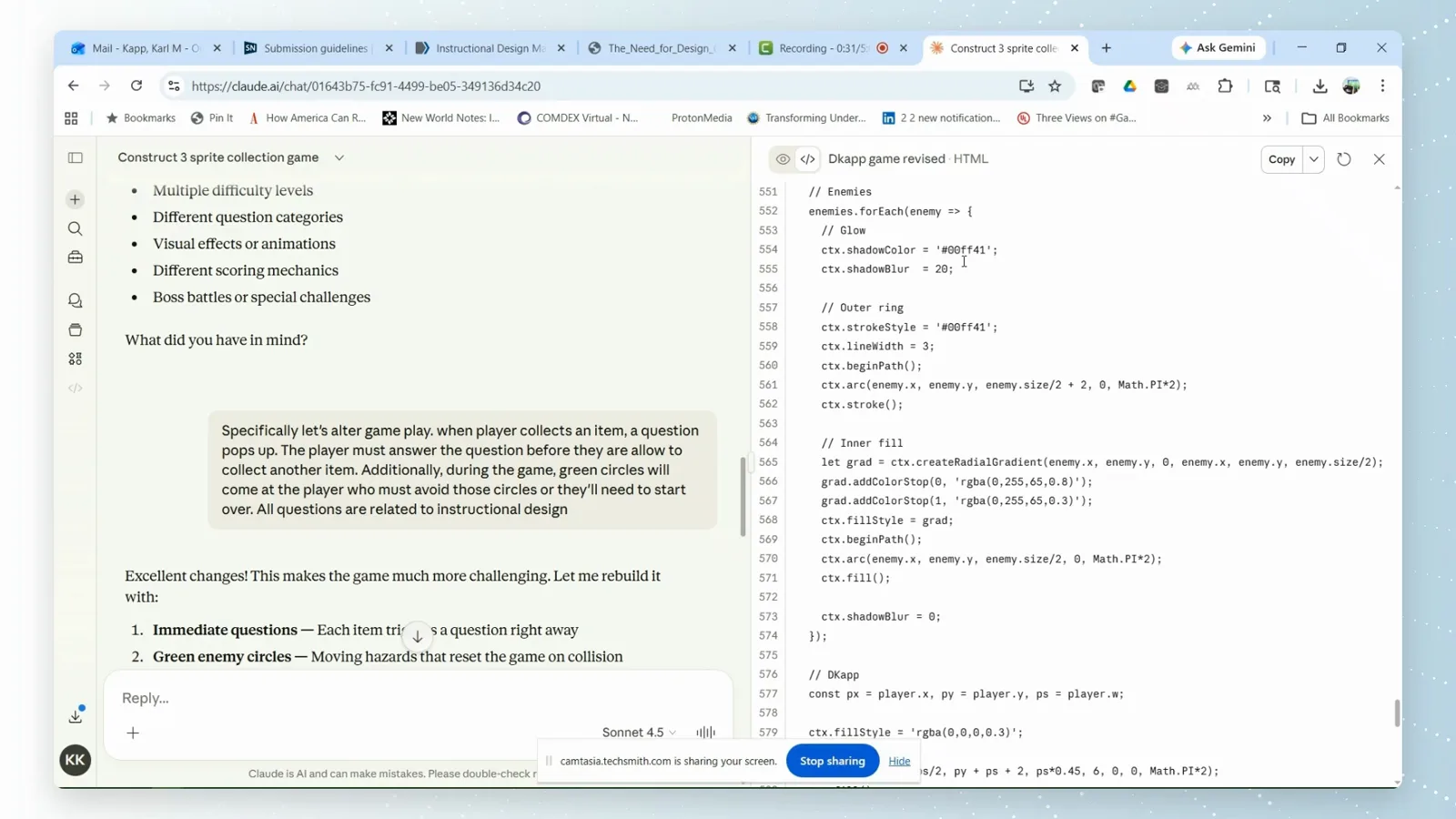
From DOCTYPE to the last script tag — the copy has to be complete.Watch at 0:30 - 5
Create a new text document on your desktop
On Windows, right-click an empty spot on the desktop and choose New, then Text Document. This gives you a blank file to receive the code — no editor install required, Notepad is enough.
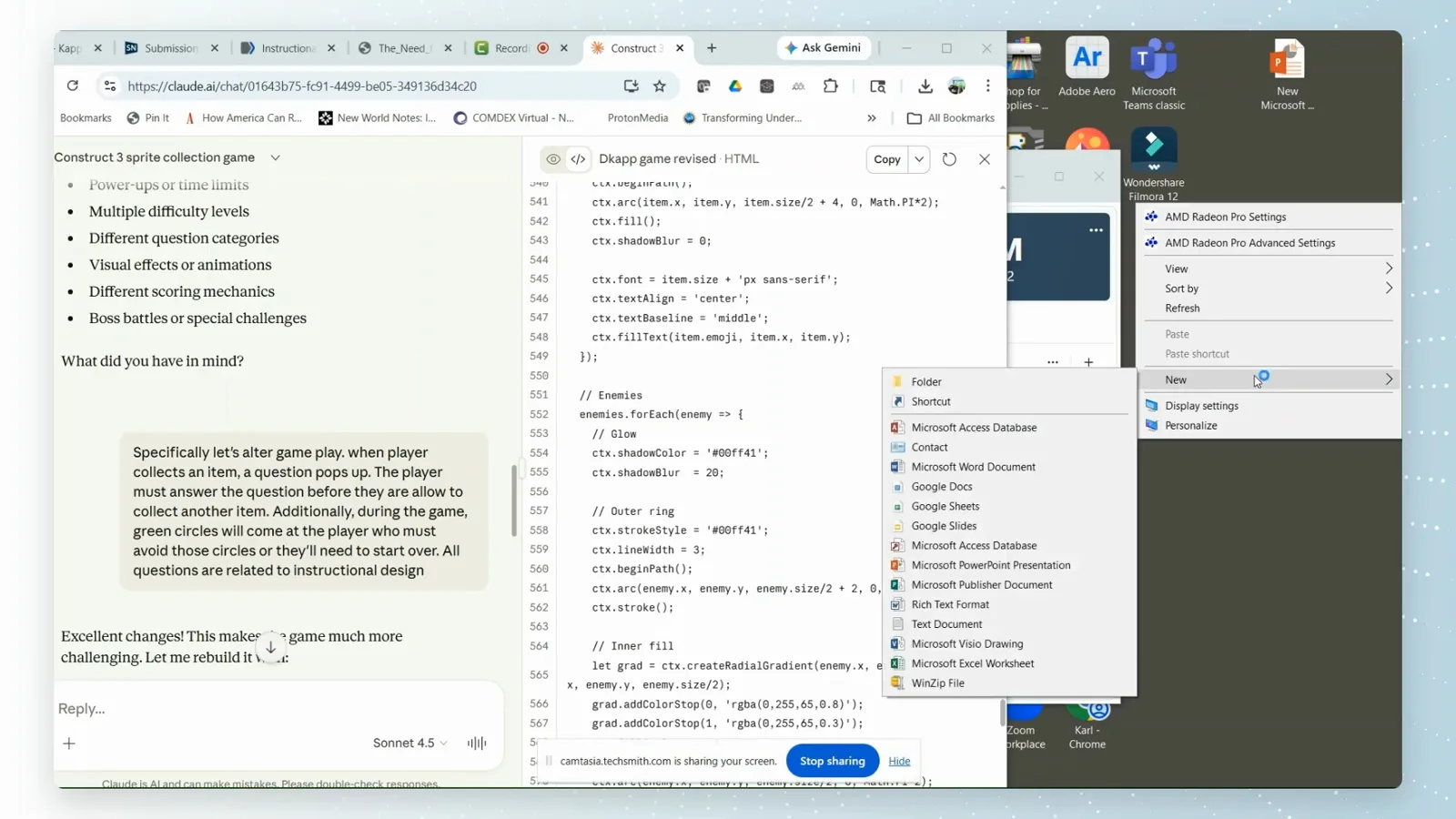
Right-click the desktop, New, Text Document — Notepad is the only tool this route needs.Watch at 0:47 - 6
Open the blank file in Notepad
Double-click the new document so it opens in Notepad with the cursor at line 1, column 1 of an empty file. Keep the Claude tab open behind it — you will bounce between the two for a minute.
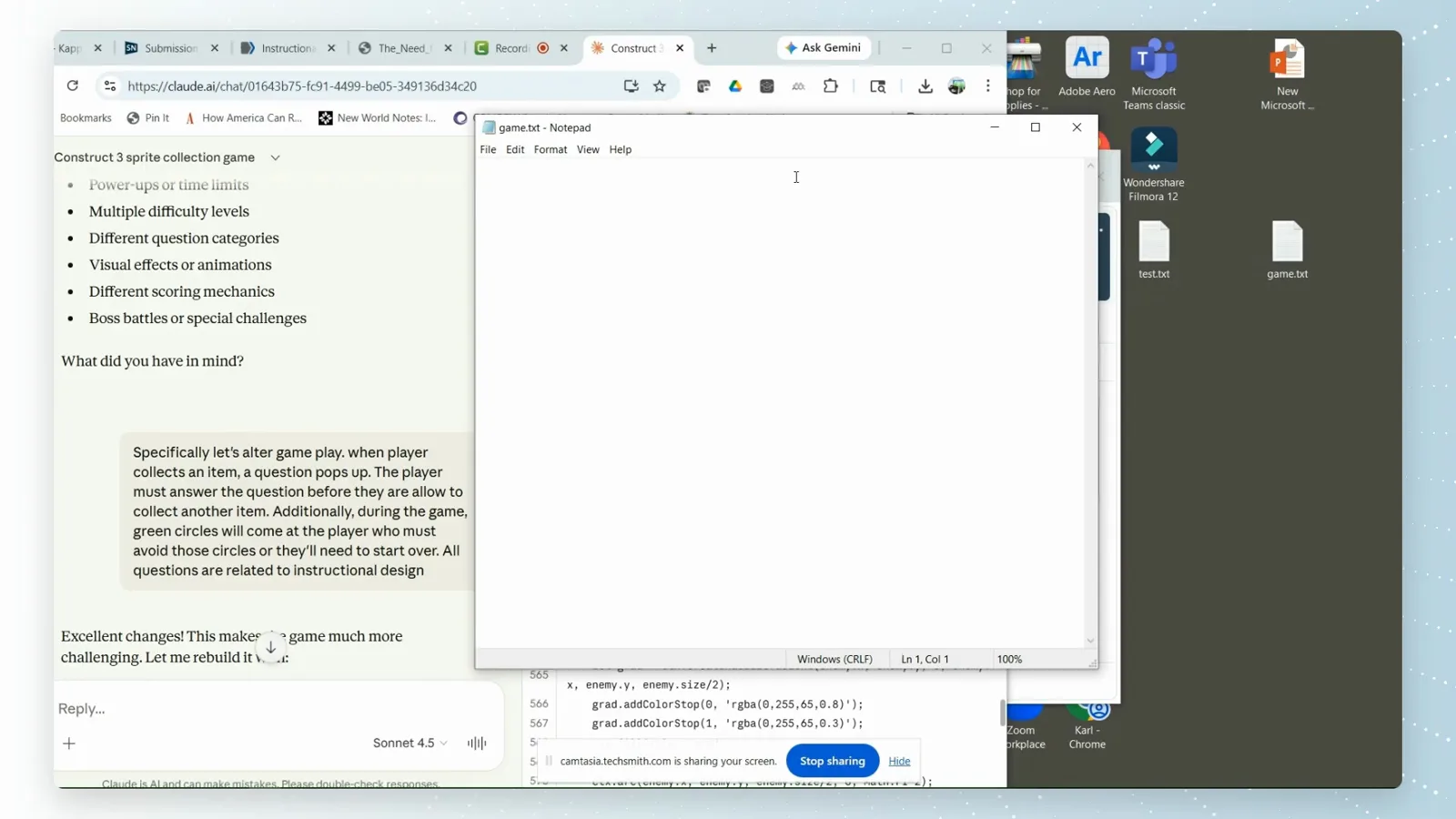
An empty Notepad at Ln 1, Col 1, with Claude waiting behind it.Watch at 0:55 - 7
Paste the artifact code into the file
Paste everything you copied. The file should instantly fill with HTML and JavaScript — in this example the canvas game's drawing helpers and its game loop. If the paste looks truncated, go back to step 4 and copy again.
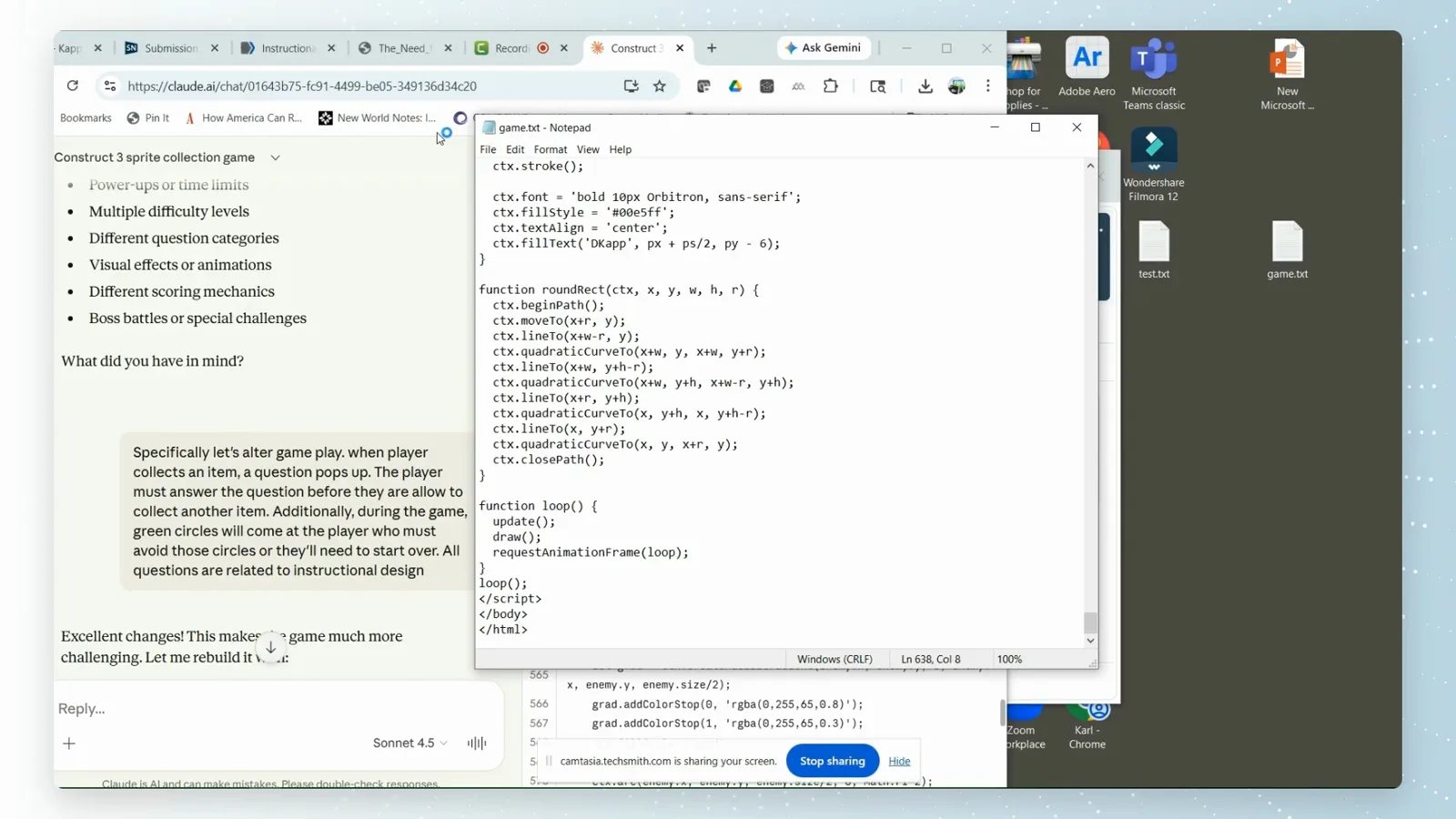
The whole artifact now lives in one plain text file on your machine.Watch at 0:57 - 8
Save it with a .html extension
Open File, Save As, and give the file a real name ending in .html. The dialog's Save as type still reads Text Documents — that is fine; what matters is the .html you type into the name, because browsers only render pages they recognize as HTML.
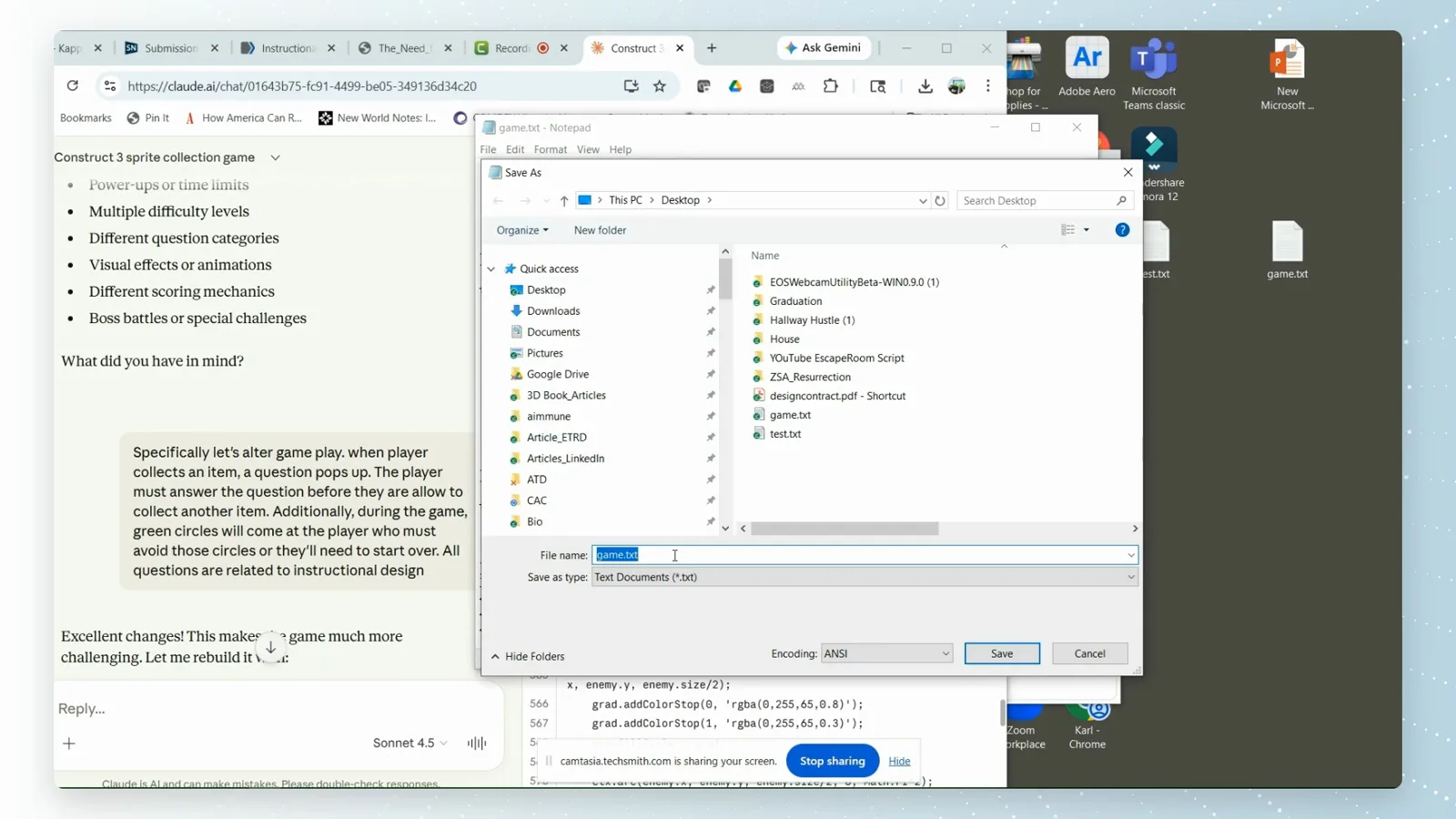
The name you type decides everything: game.html runs, game.txt does not.Watch at 1:01 - 9
Resolve the replace warning by renaming
If Windows warns that the file already exists, choose No and pick a fresh name — the recording saves game.html earlier, so the second export becomes game2.html. Distinct names keep every version of your artifact on disk instead of overwriting them.
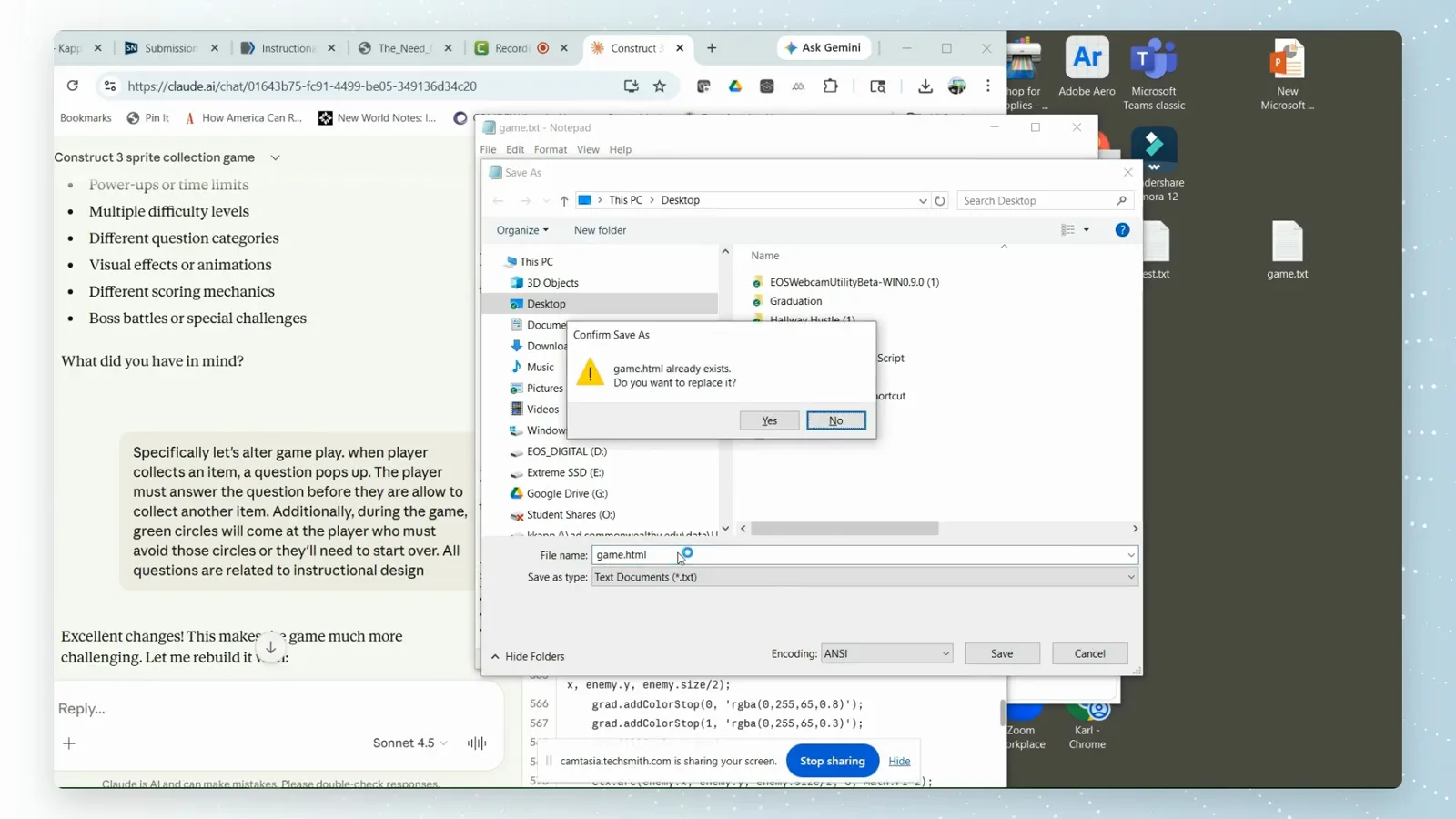
No to replace, new name: game2.html keeps the earlier export intact.Watch at 1:07 - 10
Double-click the file and play
Find the saved file on your desktop and double-click it. It opens in your default browser from a file:/// address on your own machine — the game's start screen, score, and enemy circles all run exactly as they did inside Claude, with no server and no claude.ai tab.
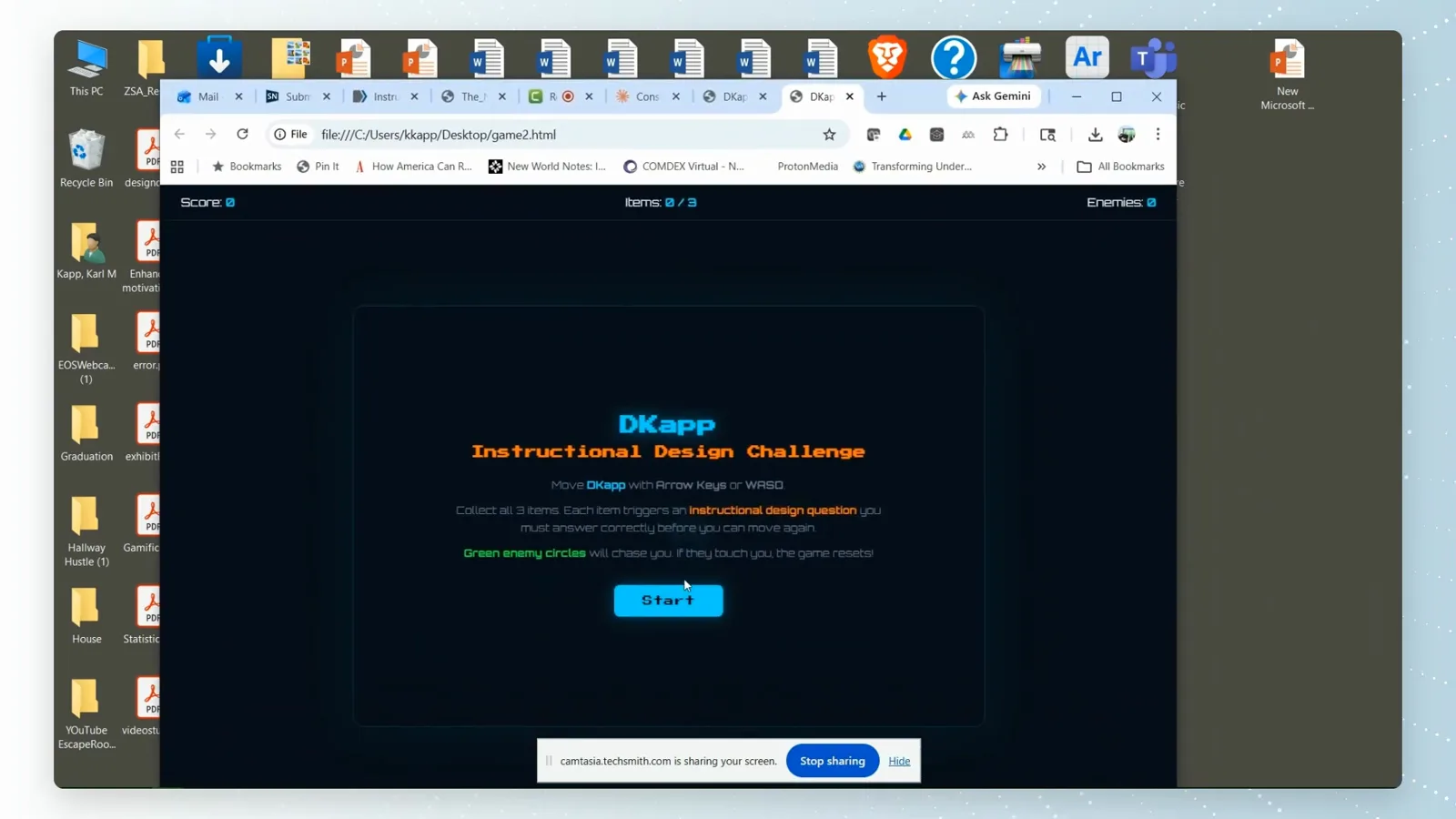
file:///...Desktop/game2.html — the artifact now runs entirely on your machine.Watch at 1:32 - 11
Shortcut: use Claude's own Download button
Copying by hand is not the only route. Claude also shows a Download button under the artifact card — sometimes alongside a second file such as a setup guide, plus a Download all option. One click saves the .html straight into your Downloads folder, no Notepad involved.
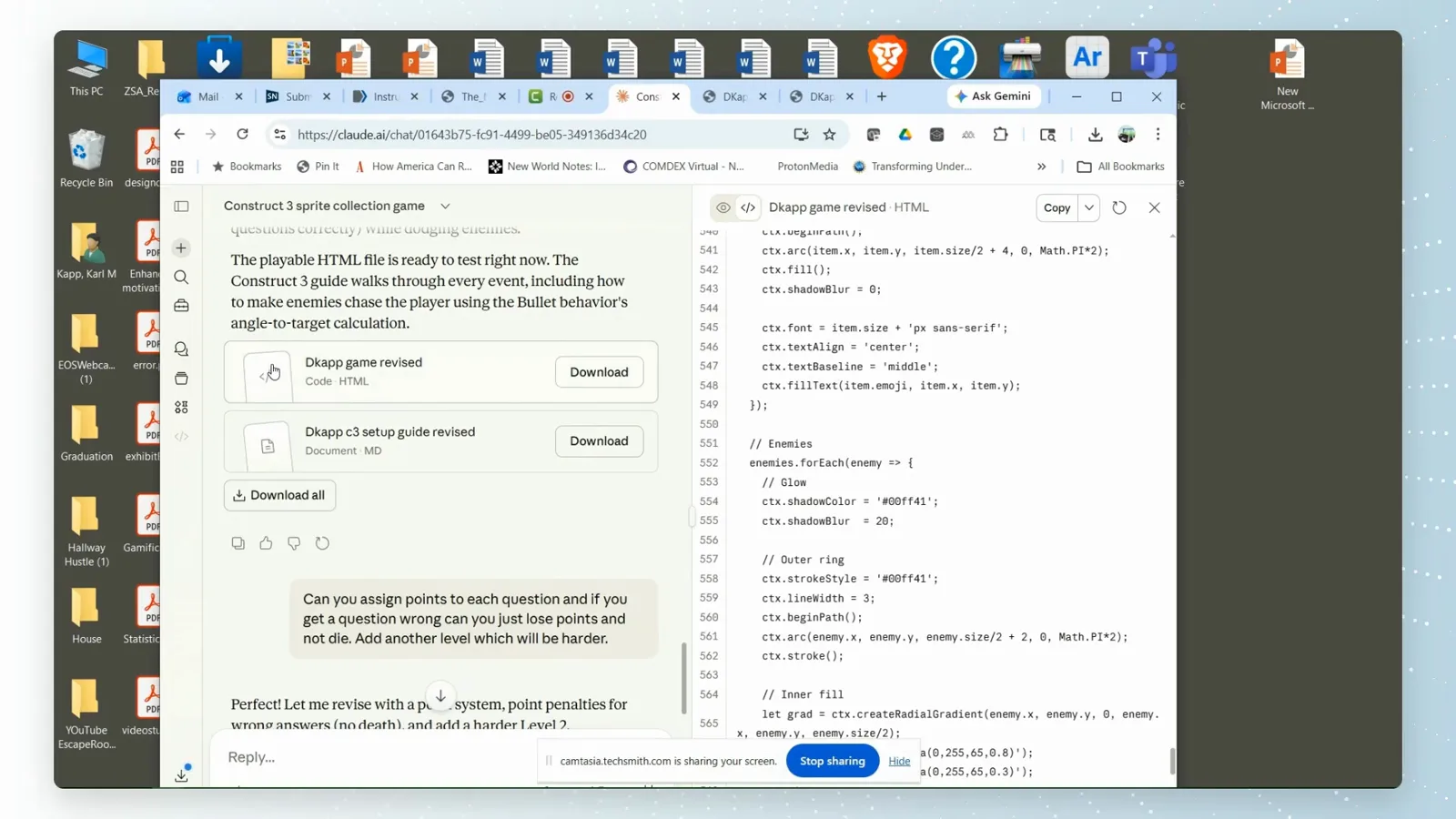
The artifact card's Download button saves the .html directly — no copy-paste needed.Watch at 1:44 - 12
Check what landed in your downloads
The browser's download list confirms the exported files — here DKapp_Game_Revised.html at roughly 20 KB. Double-click any of them to run it locally exactly as in step 10, or open it in a text editor to read the source.
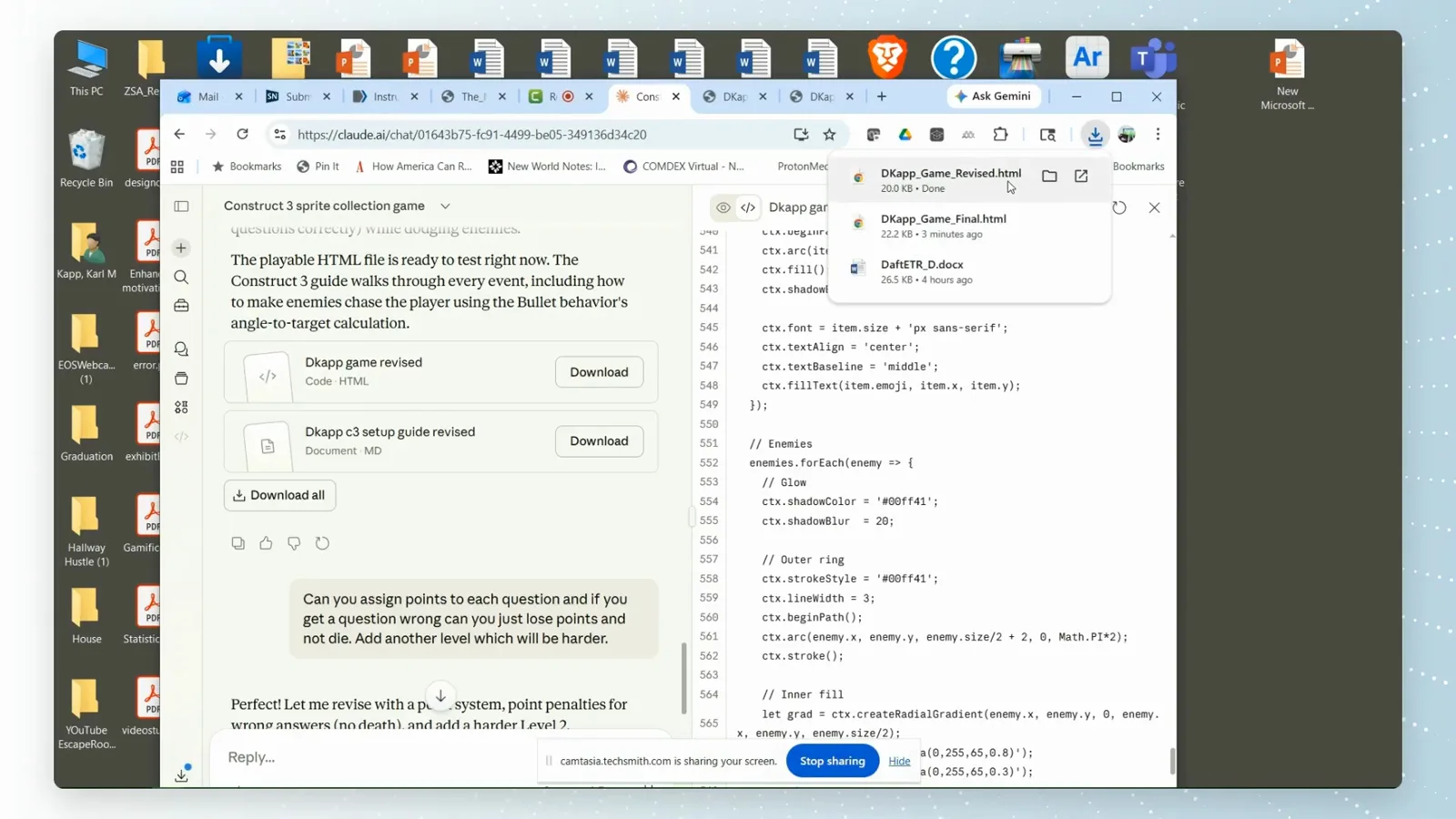
A 20 KB .html in the downloads list — the whole artifact, ready to run offline.Watch at 1:50