
太长不看
- 先装 Claude Code CLI(curl 脚本、npm 或 Homebrew),再从 JetBrains Marketplace 安装 Claude Code [Beta] 插件并重启 IDE——IntelliJ IDEA、PyCharm、WebStorm、PhpStorm、GoLand 和 Android Studio 都支持。
- 用 Claude 账号(Pro、Max、Team 或 Enterprise)或 Anthropic Console 计费登录一次即可,无需单独的 API key。受管设备上的 gateway 登录回归已在 Claude Code 2.1.296 修复。
- 日常用法:在 AI 工具选择器里选 Claude Agent,用 Plan 或 Build 模式提问,先审计划再点接受或拒绝——每处改动都先过一遍 IDE diff 查看器。
Introducing Claude Agent in JetBrains IDEs
频道:JetBrains0:52
Installing Claude Code
频道:Claude3:02
JetBrains IDEs — official documentation
官方来源:code.claude.com/docs
Claude Code [Beta] — marketplace listing
官方来源:plugins.jetbrains.com
步骤已对照官方 JetBrains 集成文档核实;上面两支官方录屏是截图的画面来源。插件的名称、供应商与当前版本(Anthropic PBC 出品的 Claude Code [Beta] 0.1.14-beta)已在 JetBrains Marketplace 核实。
截图版权归各自创作者所有,均附来源标注并深链到原视频的精确时间点。未使用任何真人出镜帧。
在 JetBrains IDE 里装好 Claude Code
安装
- 1
先装 Claude Code CLI
JetBrains 插件只是驱动 Claude Code CLI,并不自带它。macOS、Linux 或 WSL 用 curl 脚本安装(也可以选 npm、Homebrew、PowerShell 方式),动 IDE 之前先用 claude --version 验证。
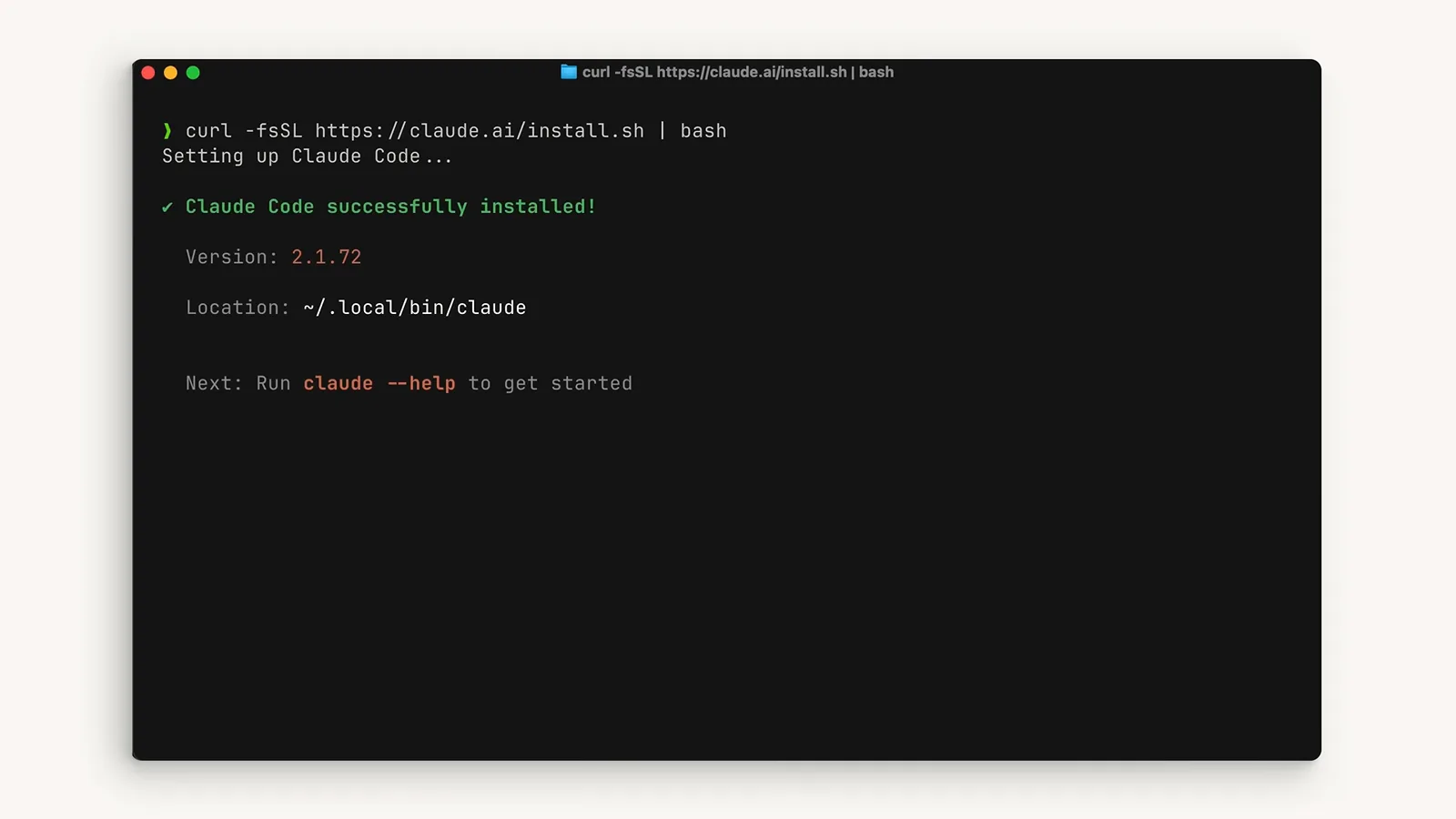
官方安装脚本跑完会显示 Claude Code 版本号和 ~/.local/bin/claude 的安装位置。看第 0:24 处 - 2
从 Marketplace 安装 Claude Code [Beta] 插件
在 IDE 里打开 Settings → Plugins → Marketplace,搜索“Claude Code”。认准 Anthropic PBC 出品的那一个——当前版本 0.1.14-beta——点 Install。同一个插件覆盖 IntelliJ IDEA(社区版与旗舰版)、PyCharm、WebStorm、PhpStorm、GoLand 和 Android Studio。
- 3
重启 IDE 并打开工具窗口
完整重启一次,插件才会激活。你会得到一个带 New Session 启动器的 Claude Code 工具窗口,工具栏上也会多出 Claude 图标。窗口没出现?下面排障节见。
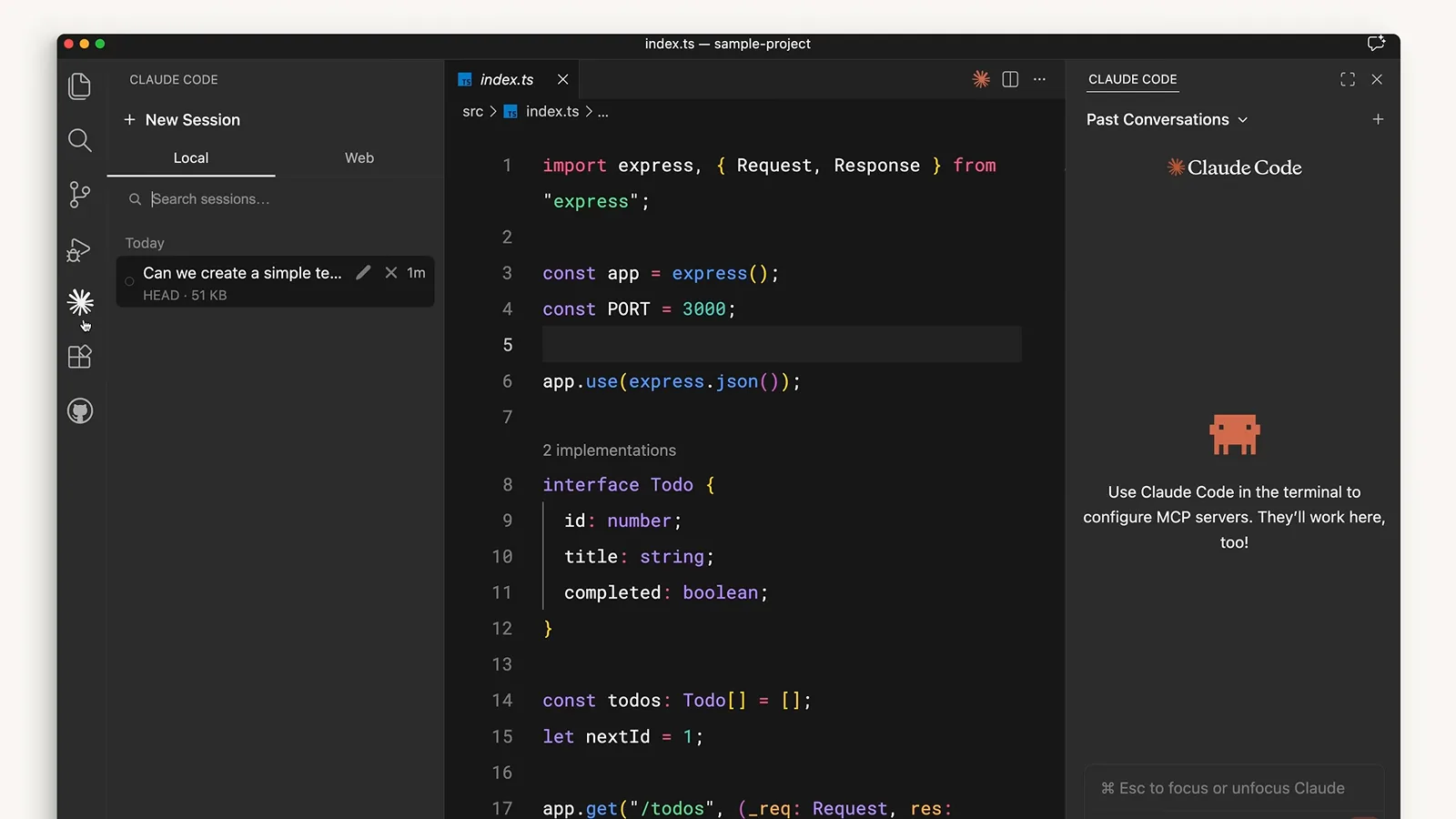
重启后的 IntelliJ IDEA:左边是 New Session 启动器,右边是 Past Conversations。看第 1:05 处
登录
- 4
登录你的 Claude 账号
首次运行会问你怎么给 Claude Code 计费:1) 绑定 Pro、Max、Team 或 Enterprise 订阅的 Claude 账号;2) Anthropic Console API 计费;3) 第三方平台(Amazon Bedrock、Microsoft Foundry、Vertex AI)。订阅登录不需要 API key。
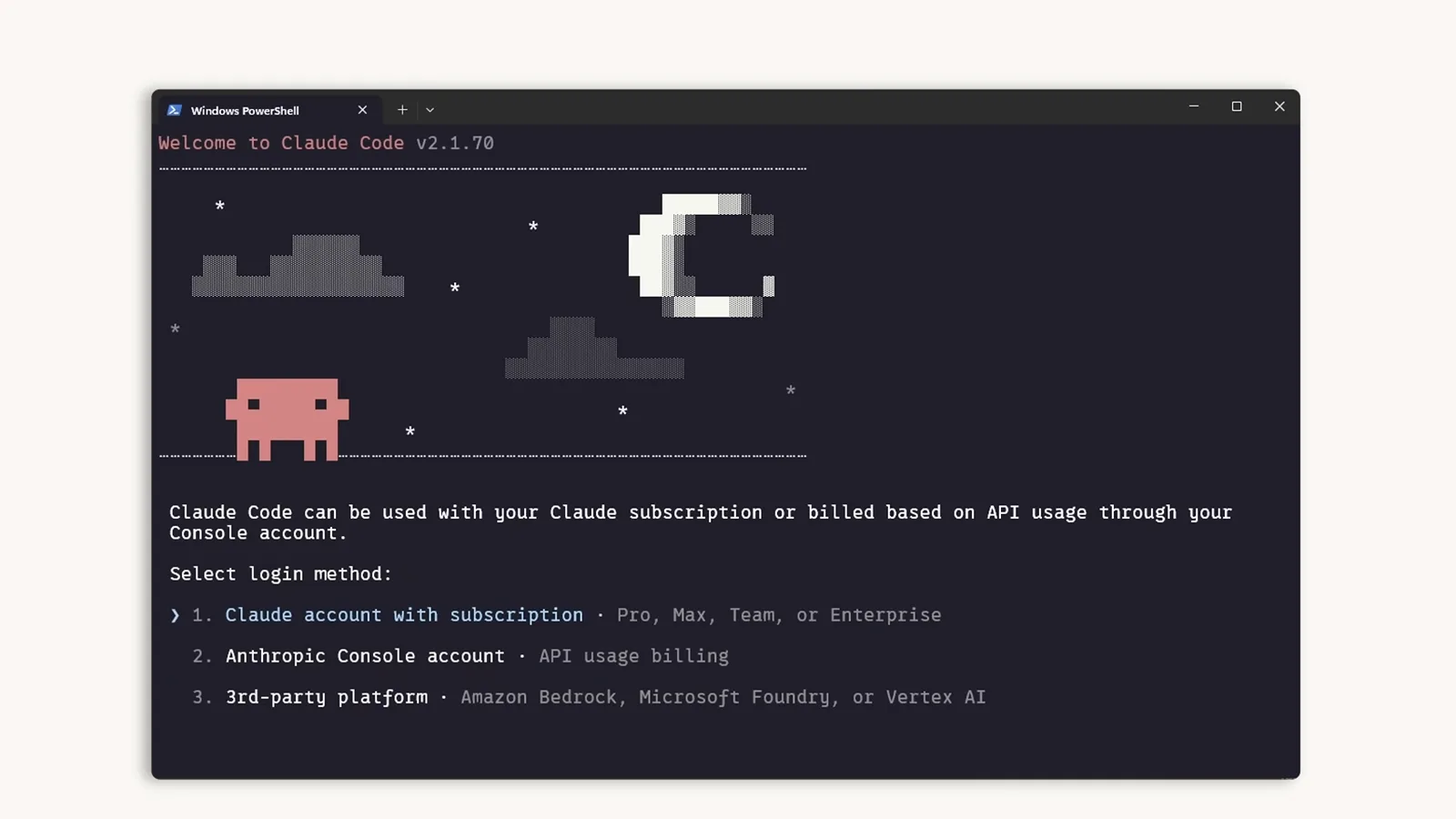
首次运行的登录方式选择——选项 1 覆盖 Pro、Max、Team 和 Enterprise 订阅。看第 0:48 处
日常使用
- 5
在 AI 工具选择器里选 Claude Agent
JetBrains IDE 把多个 AI 工具放进同一个选择器:Junie by JetBrains、Claude Agent 和 Quick Edit。买 JetBrains AI 订阅的话,Claude Agent 直接原生跑在这个面板里、模型自动更新;用 Anthropic 插件则走你自己的 Claude 登录与计费。
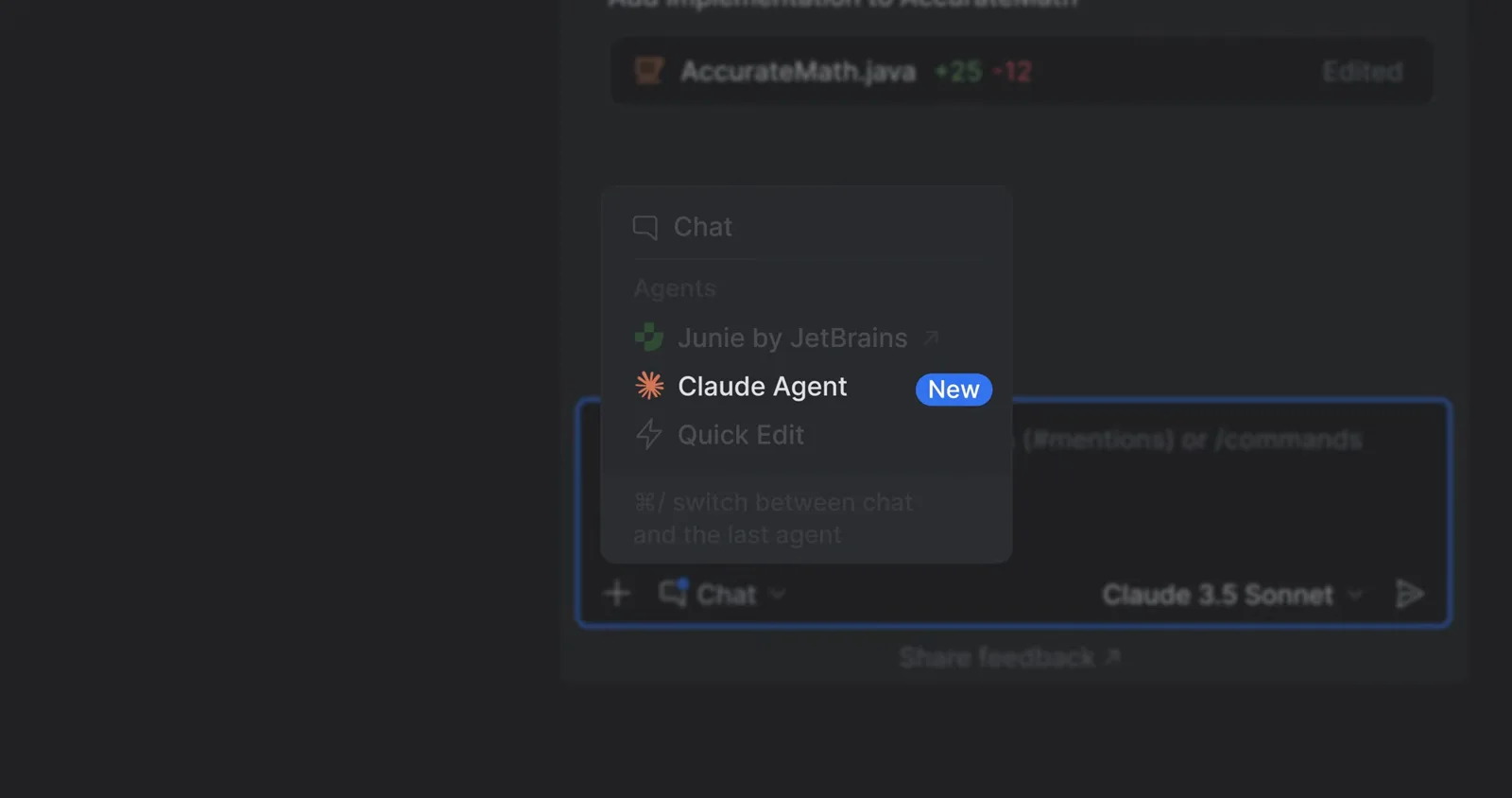
AI 工具选择器——Claude Agent 带着 New 徽标,排在 Junie by JetBrains 旁边。看第 0:10 处 - 6
用 Plan 或 Build 模式提问
在 AI 输入框里输入“Refactor this class”这类请求。想先审方案就切 Plan,想直接改代码就切 Build。同一行的模型选择器不用离开编辑器就能换 Claude 版本。
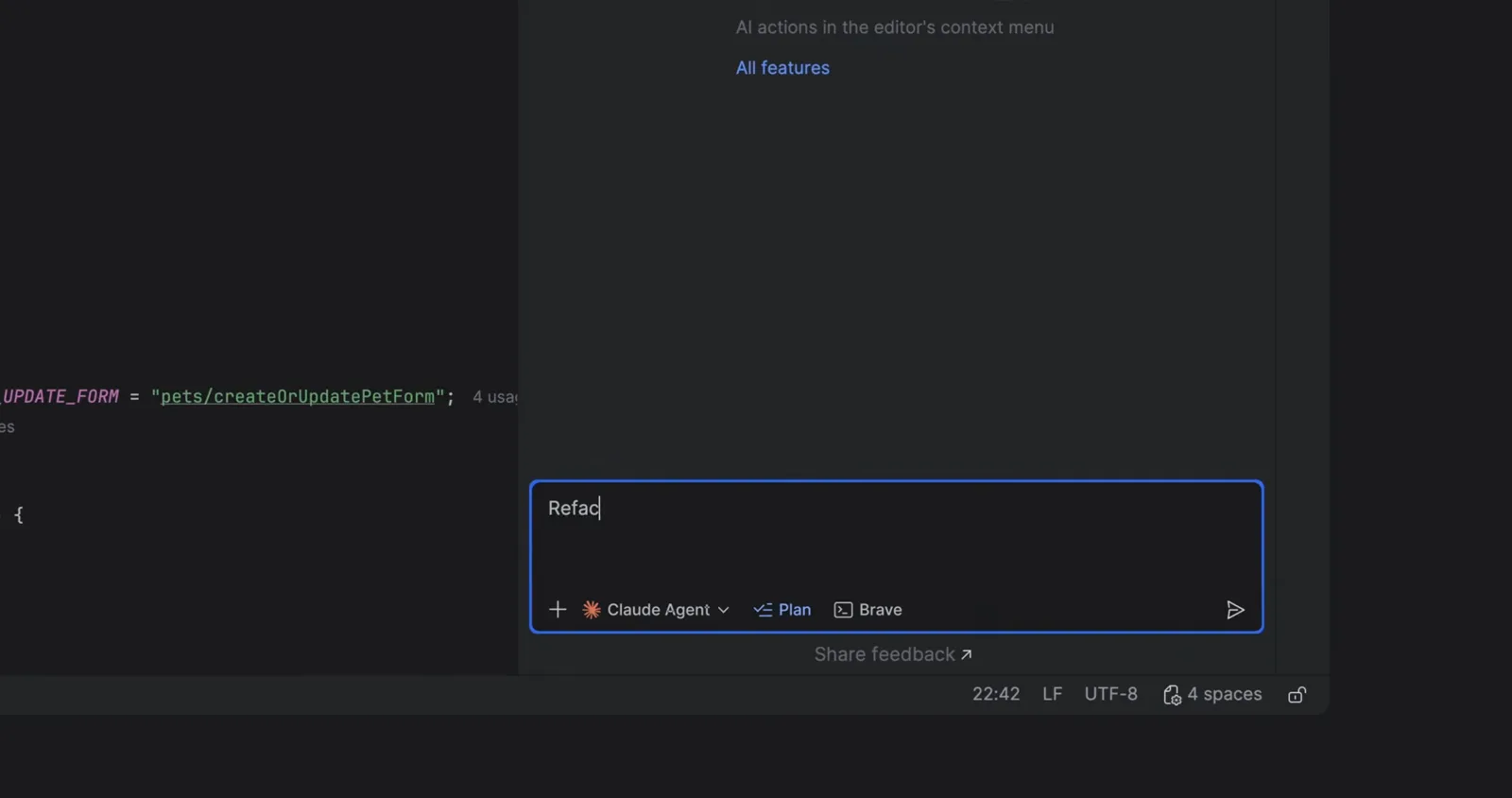
带着 Plan / Build 切换的重构请求——Plan 会先给蓝图再动代码。看第 0:26 处 - 7
审一遍智能体的计划
Plan 模式下,智能体会先列出它发现的问题——这个 Spring PetController 就被揪出六处,从不一致的字段注入到散落的校验逻辑——后面跟着编号的重构步骤。动任何文件之前,先在对话里把计划改到满意。
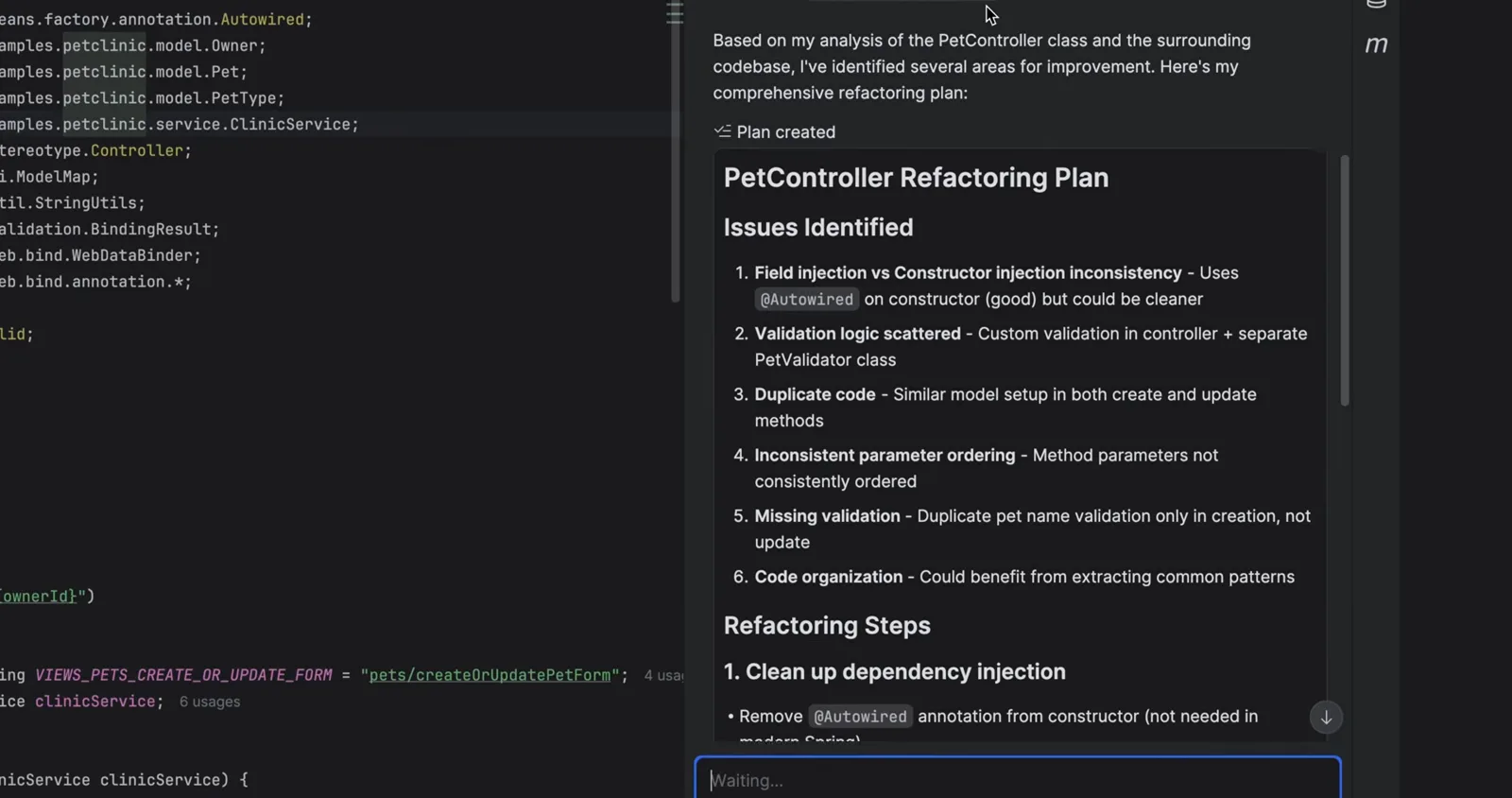
PetController 重构计划:先列问题,再给编号步骤。看第 0:32 处 - 8
接受或拒绝结果
跑完会出现改进点摘要和本次运行的 token 用量。点 Accept 之前一切都不算数——点 Decline 则全部丢弃。激进重构敢放心试,靠的就是这道闸。
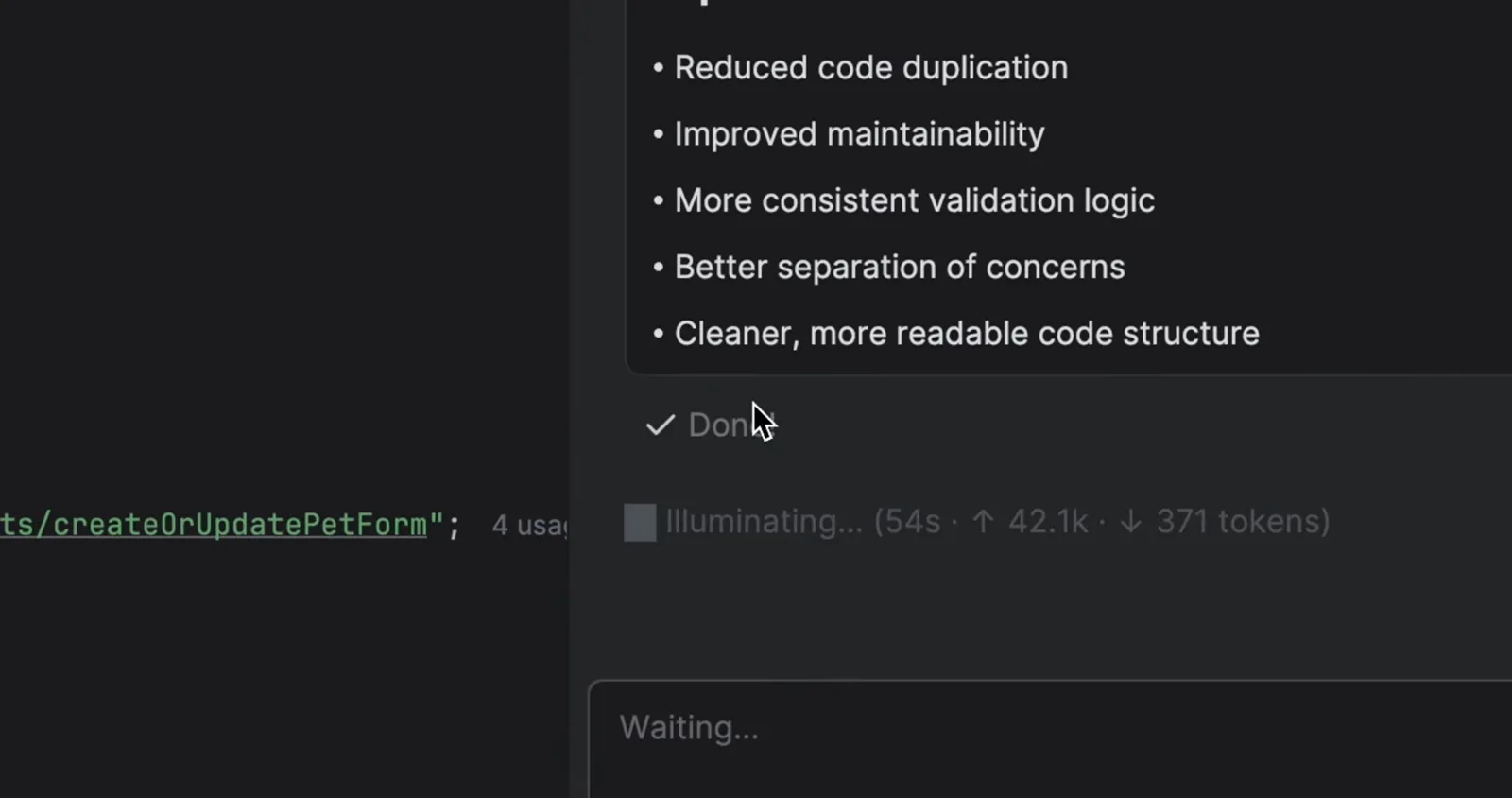
带用量统计的运行摘要——Accept 和 Decline 永远只差一次按键。看第 0:34 处 - 9
在 diff 查看器里逐行检查改动
改动以 IDE 原生 diff 查看器呈现:原版本与当前版本并排,绿红行内标记,跟 git diff 一模一样。Claude Code 用哪个 diff 工具也可以用 /config 改。
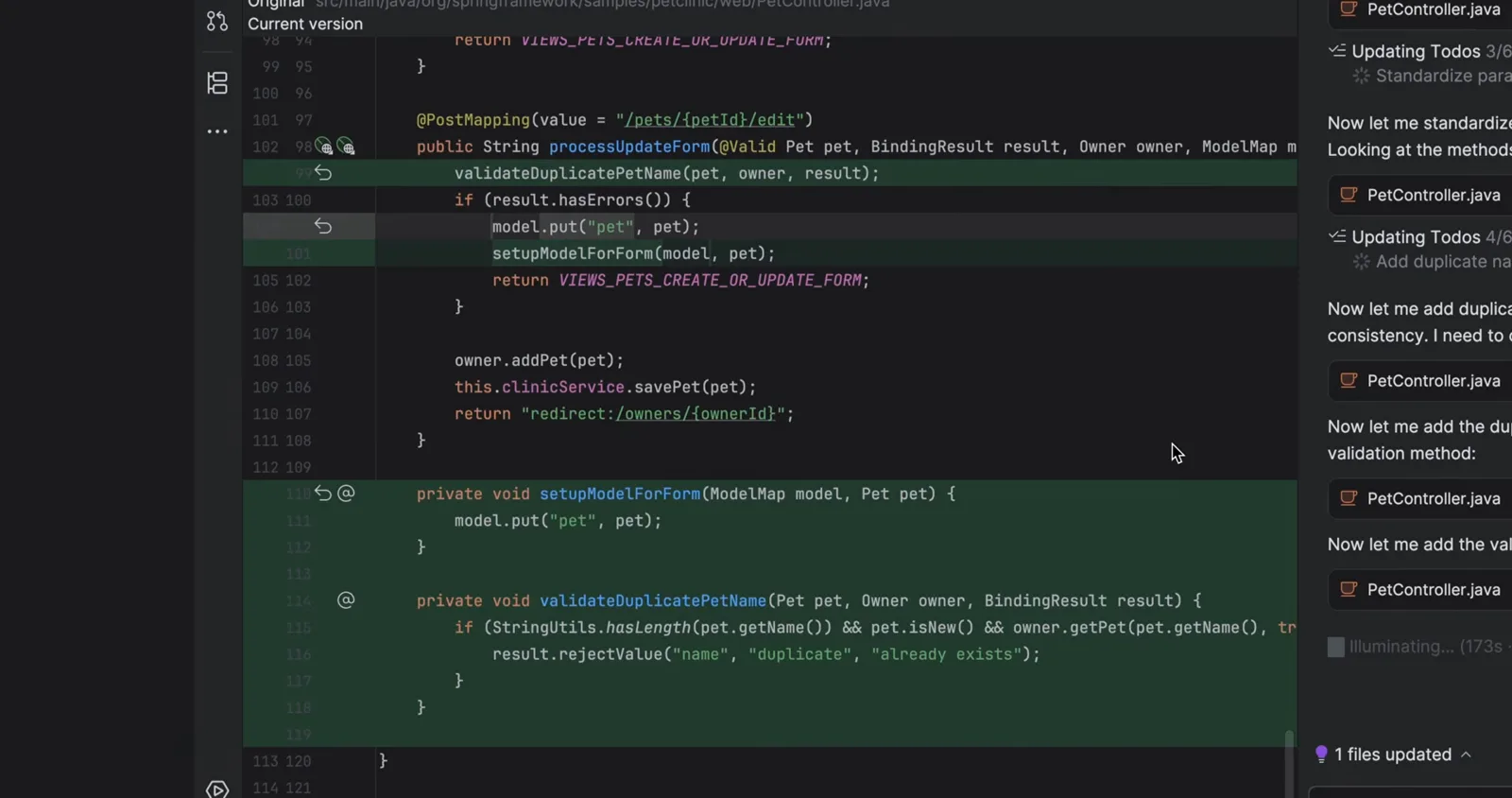
IntelliJ diff 查看器里,Claude 的改动逐行高亮。看第 0:36 处
IntelliJ、WebStorm、PyCharm、GoLand:差异在哪
一个插件通吃所有 JetBrains IDE,但日常细节因编辑器而异。官方文档列出的支持名单是 IntelliJ IDEA、PyCharm、Android Studio、WebStorm、PhpStorm 和 GoLand。
- 1IntelliJ IDEA——集成最深,Anthropic 官方演示用的就是它。社区版和旗舰版装的 都是 Marketplace 上同一个插件。
- 2WebStorm——工具窗口和快捷键完全一致;你的 JavaScript / TypeScript 工作流(Angular、Vue、React 重构)驱动智能体的方式,和 IDEA 里的 Java 一模一样。
- 3PyCharm——从项目根目录启动 claude,CLI 才能看到你的虚拟环境,插件也才能把诊断挂到正确的解释器上。
- 4GoLand 和 PhpStorm——同样的插件、同样的登录;你的 IDE 版本要不要先升级,取决于 Marketplace 的兼容区间。
- 5Android Studio——从 JetBrains Marketplace 安装(不是 Google 渠道),首次激活要多重启一次。
Rider 还不在官方支持名单里——.NET 开发者目前只能在 Rider 终端里跑 Claude Code CLI,等 Marketplace 兼容性跟上。
Claude Code IntelliJ 插件不工作?按顺序修
大多数“插件没反应”的求助都能归到六种原因。从上往下排查——每一步都排除一整类故障。
- 1插件装不上或搜不到——在 Marketplace 里精确搜索 Anthropic PBC 出品的 Claude Code [Beta](当前版本 0.1.14-beta)。IDE build 低于插件的兼容区间时条目根本不显示,先把 IDE 升级。
- 2装了但没有 Claude 工具窗口或图标——去 Settings → Plugins → Installed 确认插件已启用,然后完整重启 IDE;官方文档建议多来几次完整重启,光关项目窗口没用。
- 3受管机器上登录被无视——Claude Code 2.1.296(2026-10-09)修复了一个回归:当受管设置把 forceLoginMethod 设为 gateway 却没给 forceLoginGatewayUrl 时,已保存的 Claude apps gateway 登录会被忽略(回归始于 2.1.295)。重新配置前先把 CLI 升到 2.1.296 以上。
- 4“No available IDEs detected”或 /ide 找不到 IDE——从 IDE 集成终端启动 claude,让它继承工作区;确认插件装在你真正运行的那份 IDE 上(含远程开发主机);WSL2 则开镜像网络或转发 IDE 端口。
- 5claude: command not found——插件从不自带 CLI。先装 CLI,再到 Settings → Tools → Claude Code [Beta] 的“Claude command”里填绝对路径,并在普通终端里确认 claude --version 能跑。
- 6CLI 更新后就坏了——重启 IDE 让插件加载新二进制,再检查配置的命令路径;工具窗口里残留的旧会话可能熬过更新、堵住新会话。
还没解决?官方文档的排障节还覆盖 MCP 连接、WSL2 NAT/防火墙怪癖和自动更新设置——下面的 FAQ 则回答最高频的版本问题。
Claude Code:JetBrains 对比 VS Code
两边驱动的是同一个 CLI,智能体的行为、计划和 diff 完全一致,不同的只是外面那层壳。
- 1JetBrains 给你独立工具窗口加原生 diff 查看器,Ctrl+Esc(macOS 是 Cmd+Esc)在编辑器和智能体之间来回跳。
- 2VS Code 有编辑器工具栏的火花图标、Alt+Ctrl+K / Cmd+Opt+K 的 @ 文件引用,而且新 UI 实验通常先到。
- 3选中即上下文两边都支持:选中代码、提问,编辑器自动附上精确范围和诊断信息。
- 4JetBrains 还有第二条路——随 JetBrains AI 订阅提供的内置 Claude Agent,模型自动更新;Anthropic 插件则保留你自己的 Claude 登录与计费。
- 5切换零成本:同一份 ~/.claude 凭据、同一份 CLAUDE.md 项目记忆、同一组斜杠命令——提示词和历史跟着 CLI 走,不跟 IDE。
两个编辑器都用的话,把 CLI 当唯一事实源,把每个插件当成它的一层视图。
VS Code 那边我们另有一篇详解: Claude Code 的 VS Code 扩展.