
Claude Cowork + DeepSeek 徹底連携ガイド
Claude Cowork デスクトップエージェントを DeepSeek API につなげば、ファイル整理・ダッシュボード作成・Google Drive・Zapier MCP まで、Claude 購読なしで本格的な仕事を任せられます。
要点まとめ
- DeepSeek API は Anthropic プロトコルにネイティブ対応しているため、Cowork をそのまま動かせます。ベース URL は https://api.deepseek.com/anthropic、認証に DeepSeek API キー、モデル名は deepseek-flash か deepseek-v4-pro です。
- Cowork は「任せきり型」エージェントです。フォルダとコネクタ、それに一枚の明確な指示書を渡せば、質問に答えるだけでなくファイルを実際に処理します。
- 動画のフルループ:販売データの入ったフォルダを接続し、ダッシュボードのアーティファクトを受け取り、Google Drive からデータを追記、最後は毎週月曜朝に自動実行されるスキルとして保存します。
- Cowork は作業前にプランを提示して承認を待つため、審査役は常にあなたです。セッションは端末内に保存され、作業中はデスクトップアプリを開いておく必要があります。
Claude Cowork Tutorial for Beginners
動画解説:Kevin Stratvert9:42
Getting started with Claude Cowork
公式解説:Anthropic4:17
画面はこの2本の動画から取得。手順内の設定値はすべて DeepSeek 公式ドキュメントで照合しています。
スクリーンショットは Kevin Stratvert(Claude Cowork Tutorial for Beginners)および Anthropic 公式(Getting started with Claude Cowork)の動画から、各ステップにタイムスタンプ付きで引用しています。DeepSeek の設定値は api-docs.deepseek.com の公式ドキュメントを参照しました。
Cowork を DeepSeek で動かす手順
- 1
Claude デスクトップアプリを入れ、Co-work タブを開く
Claude Cowork は macOS・Windows 向け Claude デスクトップアプリに同梱されています。Web 版はファイルのアップロードのみでローカルフォルダを扱えません。プロフィールメニューからアプリを導入してサインインしたら、入力欄を Chat から Co-work に切り替えましょう。Chat は質問、Co-work は完遂のためのモードです。左サイドの New task・Projects・Scheduled・Live artifacts が操作の起点になります。
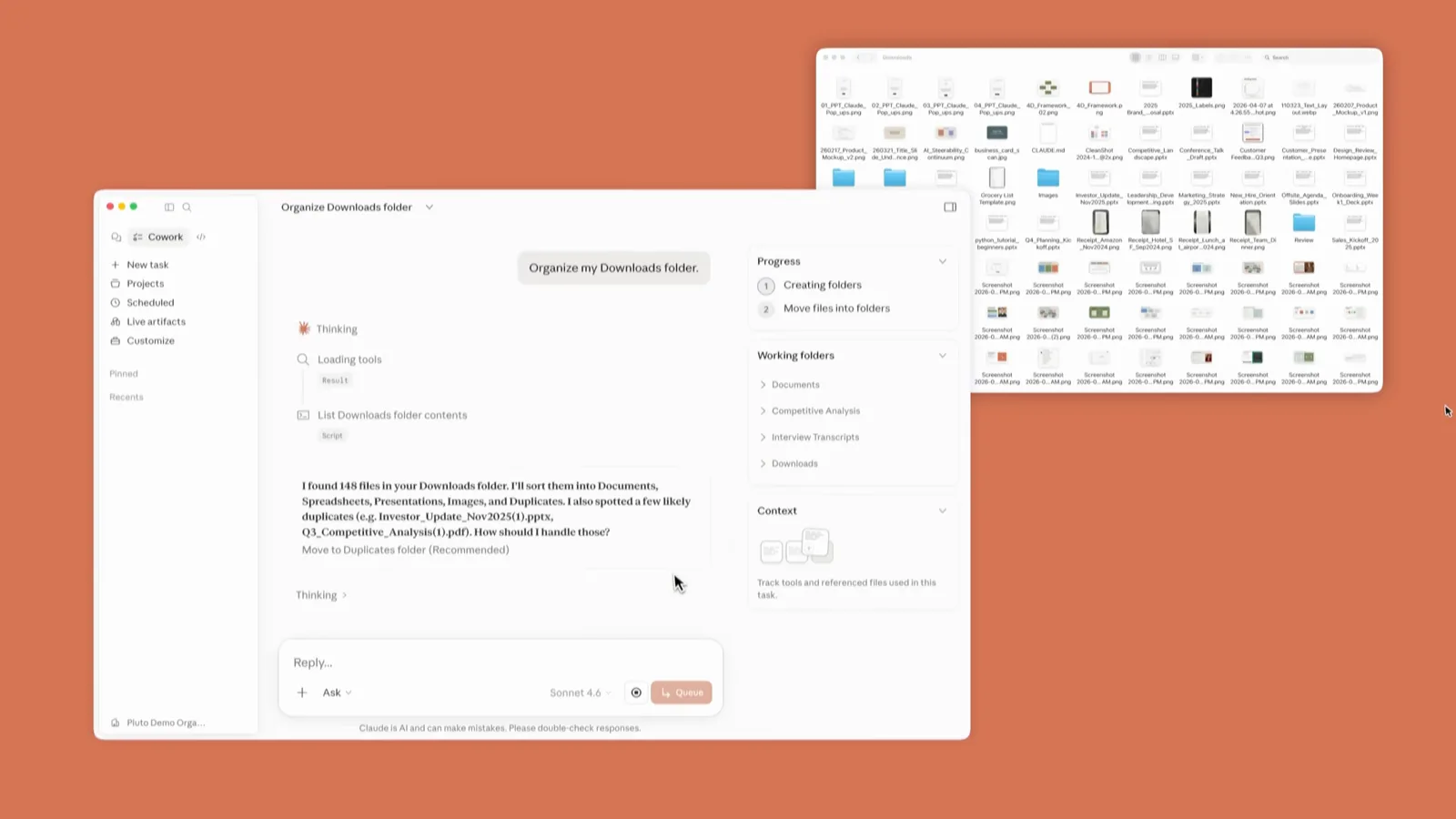
Co-work のホーム画面。Skills・Connectors・Plugins がワンクリックで開けます。0:30 の場面を見る - 2
Cowork のモデルゲートウェイを DeepSeek に向ける
設定の Cowork セクションで、推論ゲートウェイに DeepSeek の認証情報を入力します。ベース URL は https://api.deepseek.com/anthropic、認証トークンに DeepSeek API キー、モデル名は deepseek-flash(最上位に統一するなら deepseek-v4-pro)。DeepSeek API は Anthropic プロトコルを実装しているため、claude-sonnet や claude-opus という要求も自動でマッピングされます。opus は deepseek-v4-pro へ、sonnet と haiku は deepseek-flash へ。ついでに定番の指示を Global instructions に書けば、すべての Cowork セッションに適用されます。
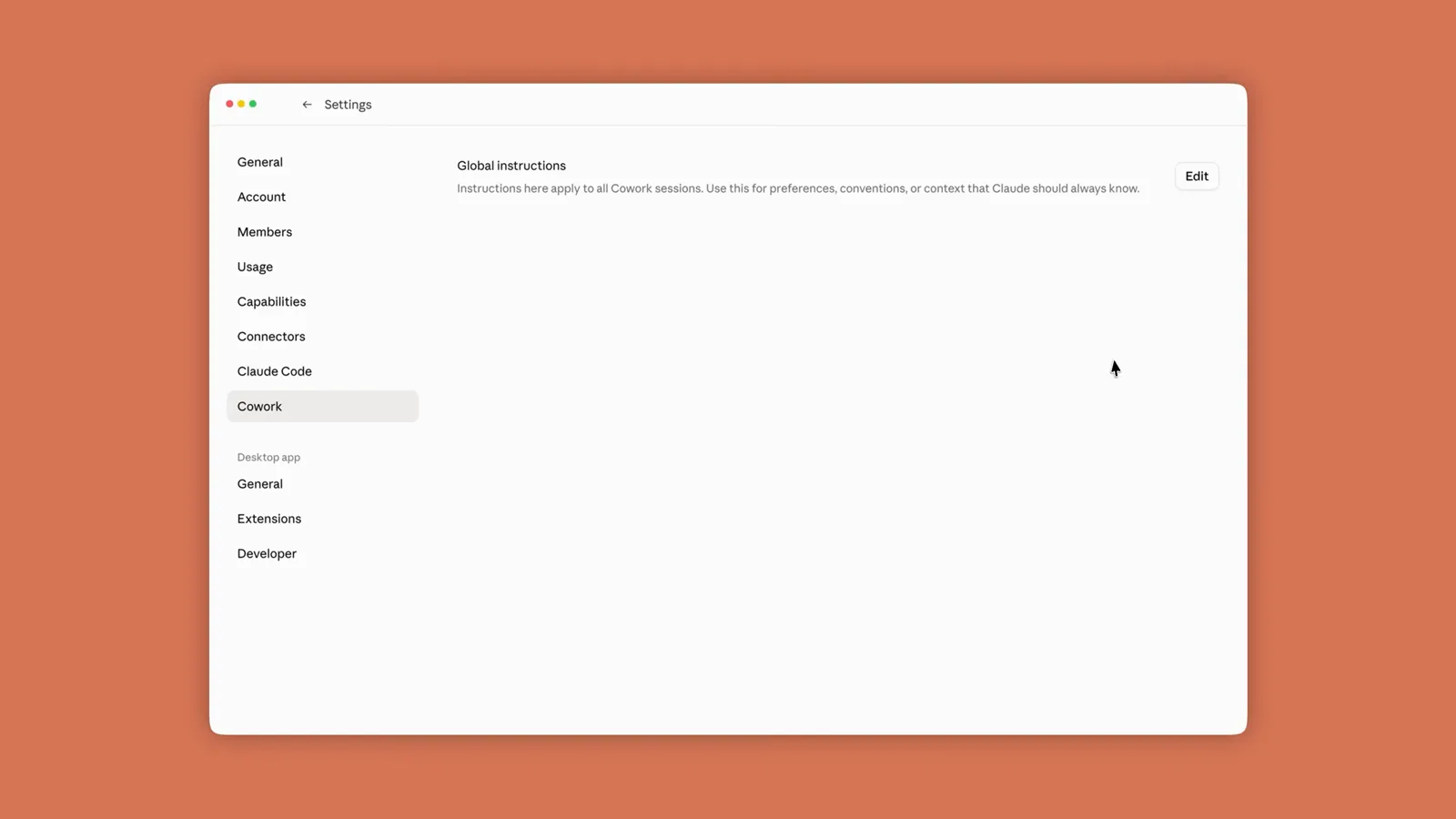
Cowork 設定画面。ゲートウェイ情報とグローバル指示の登録場所です。1:45 の場面を見る - 3
Cowork に作業フォルダを許可する
入力欄のフォルダコントロールから、Cowork に任せるディレクトリを選びます。動画では12週分の販売データをテキスト・PDF・表計算ファイルで保管した Sales Weeks 1 フォルダです。Select Folder で確定し、権限を求められたら Allow。以後このフォルダ内の読み書き・編集が可能になり、よく使うフォルダはお気に入り登録や複数接続もできます。
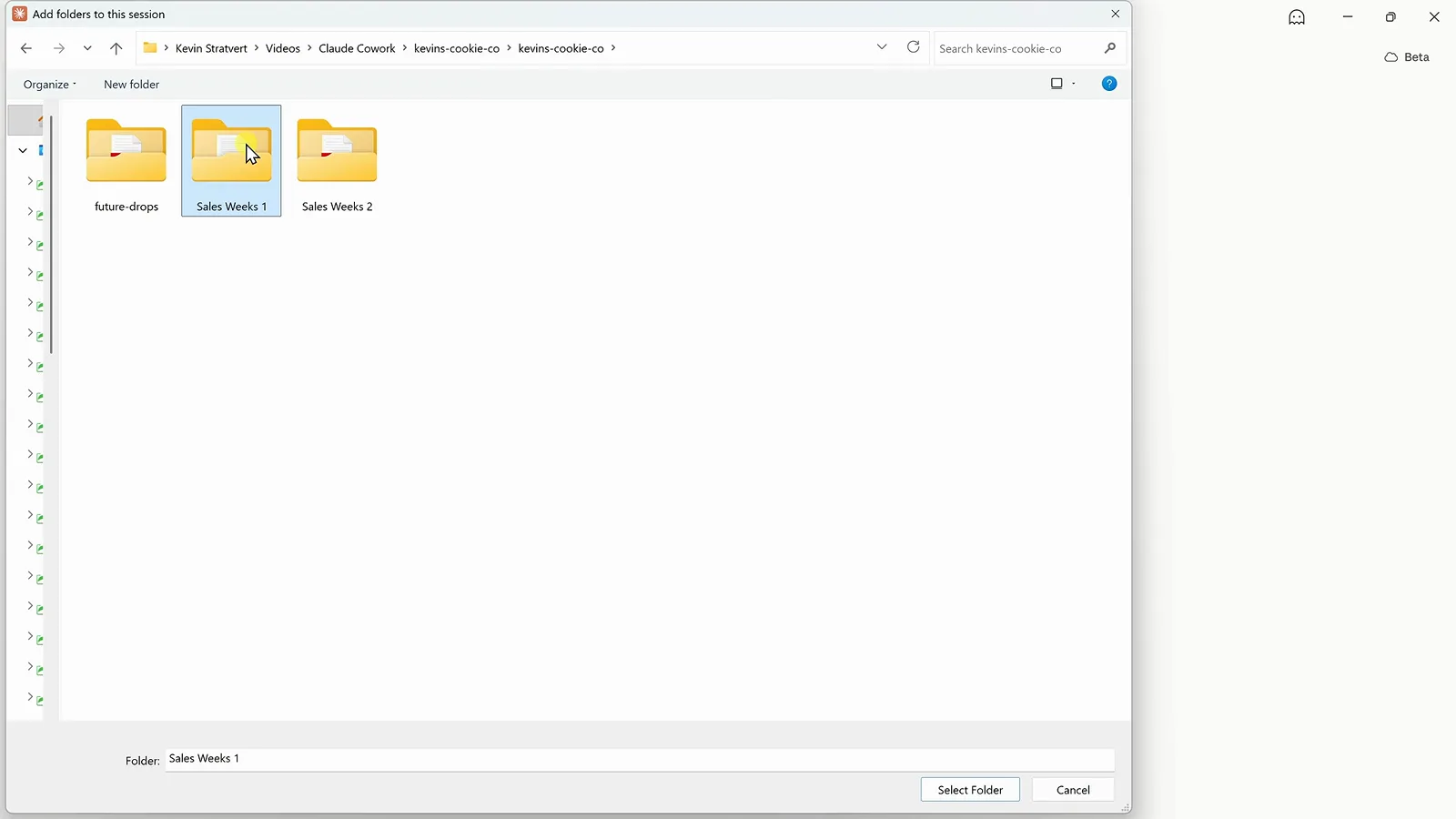
Add folders to this session ダイアログで Sales Weeks 1 を選択。2:14 の場面を見る - 4
タスクを一文のプロンプトで伝える
操作手順ではなく成果を書きます。デモのプロンプトは「Analyze all of the sales data in this folder and create an interactive dashboard that shows how the business is performing. Include the most important KPIs, trends, and insights.」Chat の横で Cowork トグルが選ばれ、フォルダパスが入力欄の下に添付されている点がポイント。この組み合わせが質問を「任せ事」に変えます。
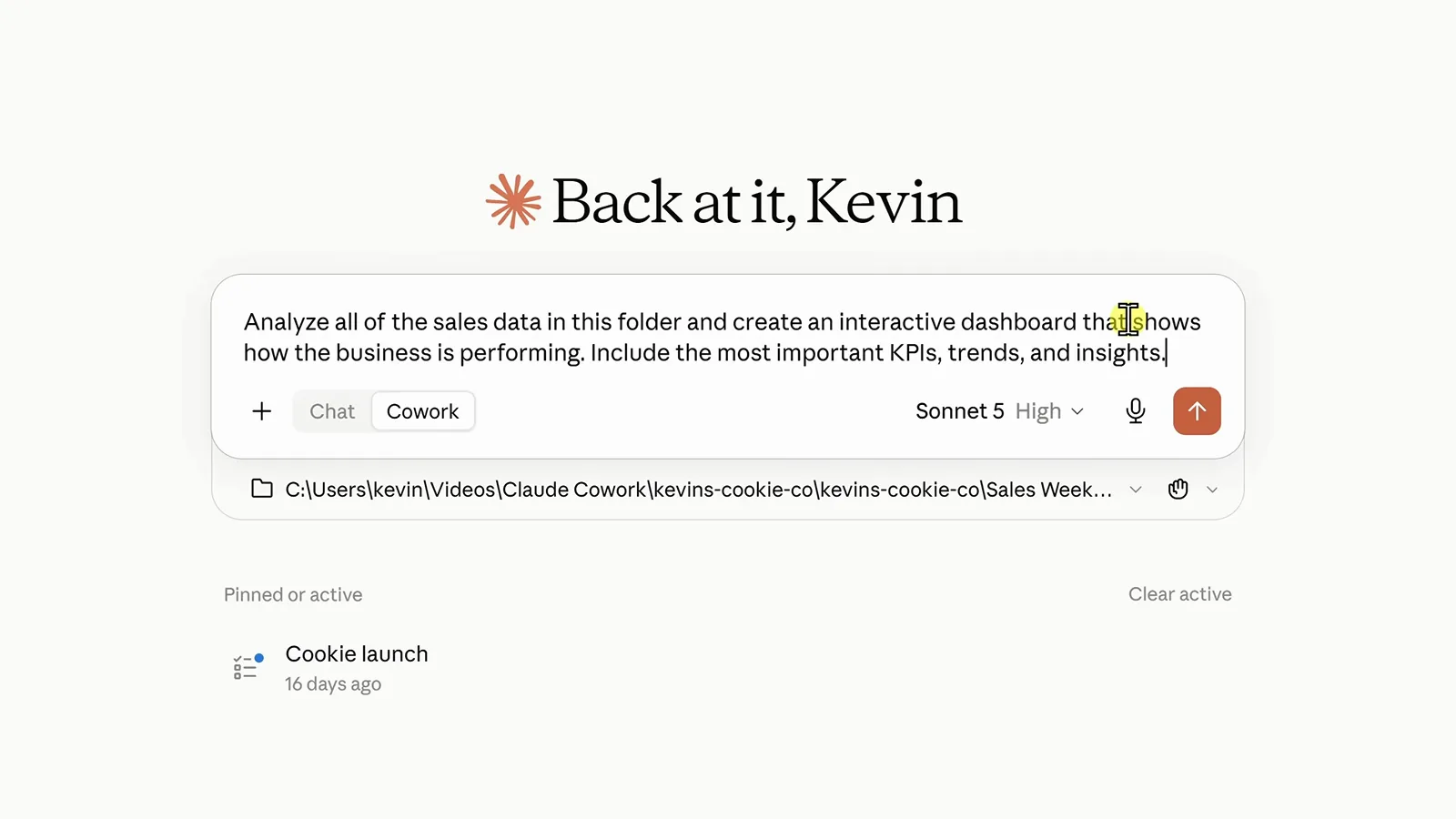
プロンプト1本、フォルダ1つ、Cowork トグル ON で送信準備完了。2:30 の場面を見る - 5
Cowork の作業工程を見守る
Cowork は各レポートを自ら開いて数値を統合し、進行状況を右側に表示します。ステップをクリックすれば詳細も確認可能。結果が出るとアーティファクト(サイドバーに残るインタラクティブページ)としての保存を提案します。Create で承認しても、先に修正指示してもOK。この「プラン提示→承認」のループが最大の安全装置です。
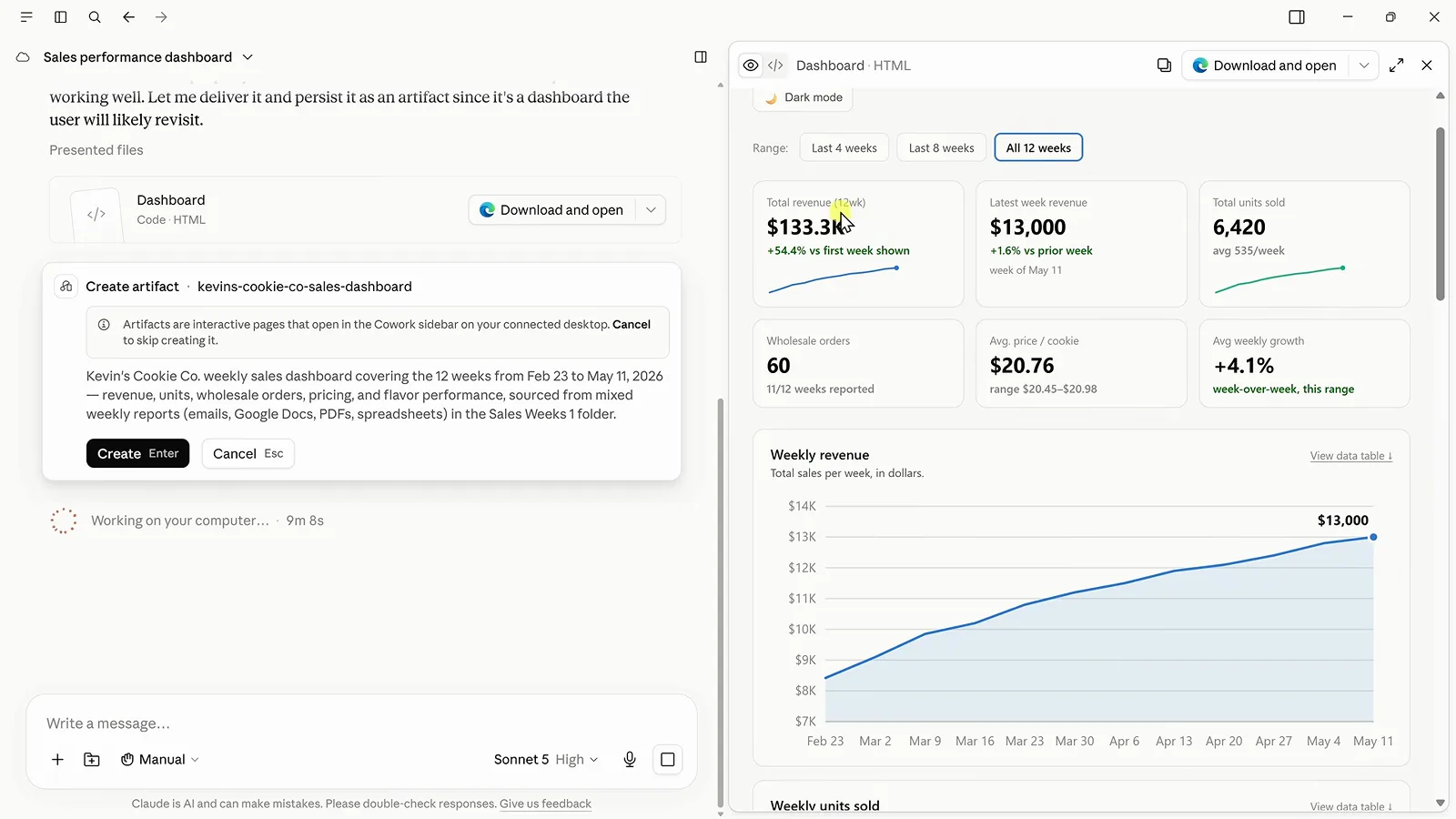
組み上げたダッシュボードを説明する Create artifact カード。3:00 の場面を見る - 6
ダッシュボードと洞察を確認する
完成したアーティファクトには KPI カード6枚、週次売上トレンド、文章による洞察が含まれます。注目は洞察欄です。Cowork は「4月27日レポートの数値が Total Revenue ではなく Gross Sales 表記」「5月11日レポートに卸売注文数が欠損」を勝手に混ぜずにフラグを立てて報告しています。Download and open から HTML を書き出せば、Claude の外でも使えます。
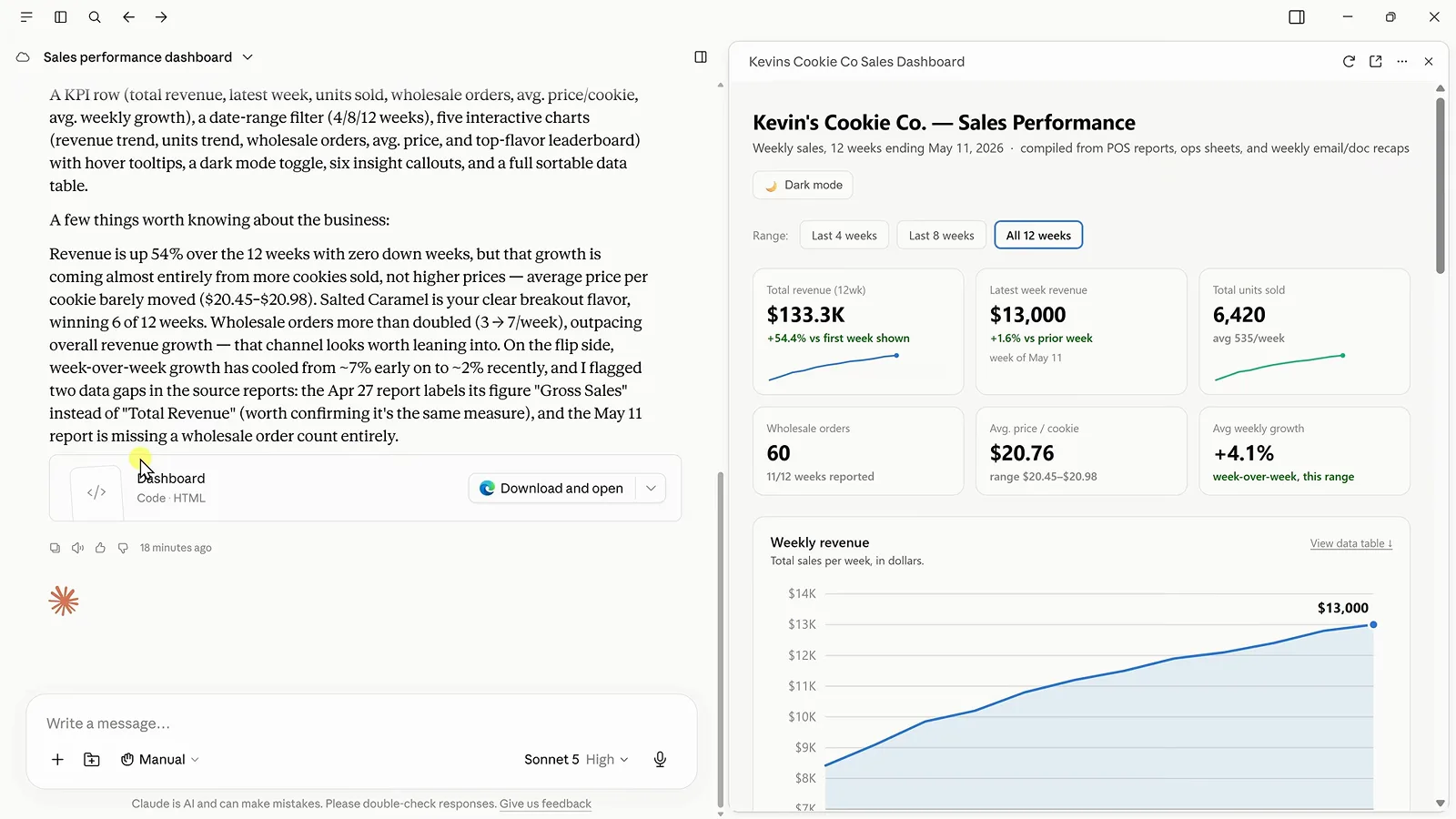
チャットの要約とデータ欠損の指摘に並ぶダッシュボード。3:30 の場面を見る - 7
クラウド分のデータに Google Drive を接続
残りのデータは Google Drive 上にあります。サイドバーメニューから Customize → Connectors を開きましょう。Popular 行に Google Drive・Slack・Google Calendar が並び、Connect ボタン一つで結線できます。下の一覧には接続済みサービスが表示され、Gmail は済み、Zapier は未接続。Drive は一度つなげば以後のセッション全てで使えます。
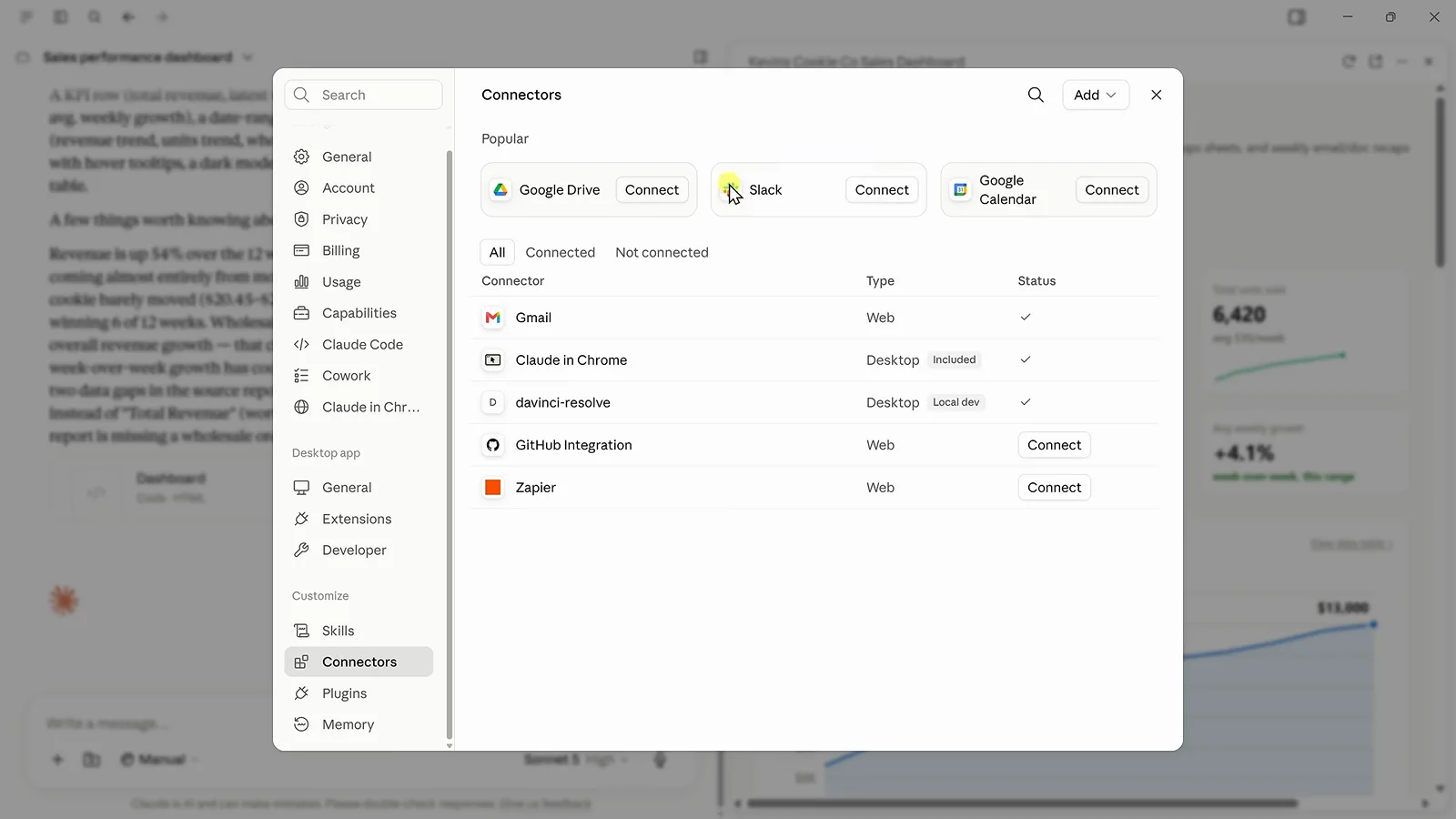
Popular 行に Google Drive が並ぶ Connectors ダイアログ。4:43 の場面を見る - 8
クラウドのファイルを同じアーティファクトへ取り込む
会話に戻って「Find the remaining Kevin Cookie Company sales data in Google Drive and use it to update our dashboard with the remaining 12 weeks of data.」と送信します。Cowork が自ら Drive を検索し、該当フォルダを見つけて新しい週をマージ、KPI・グラフ・洞察をその場で更新します。ダッシュボードは12週から24週に成長し、あなたがファイルに触れることはありません。
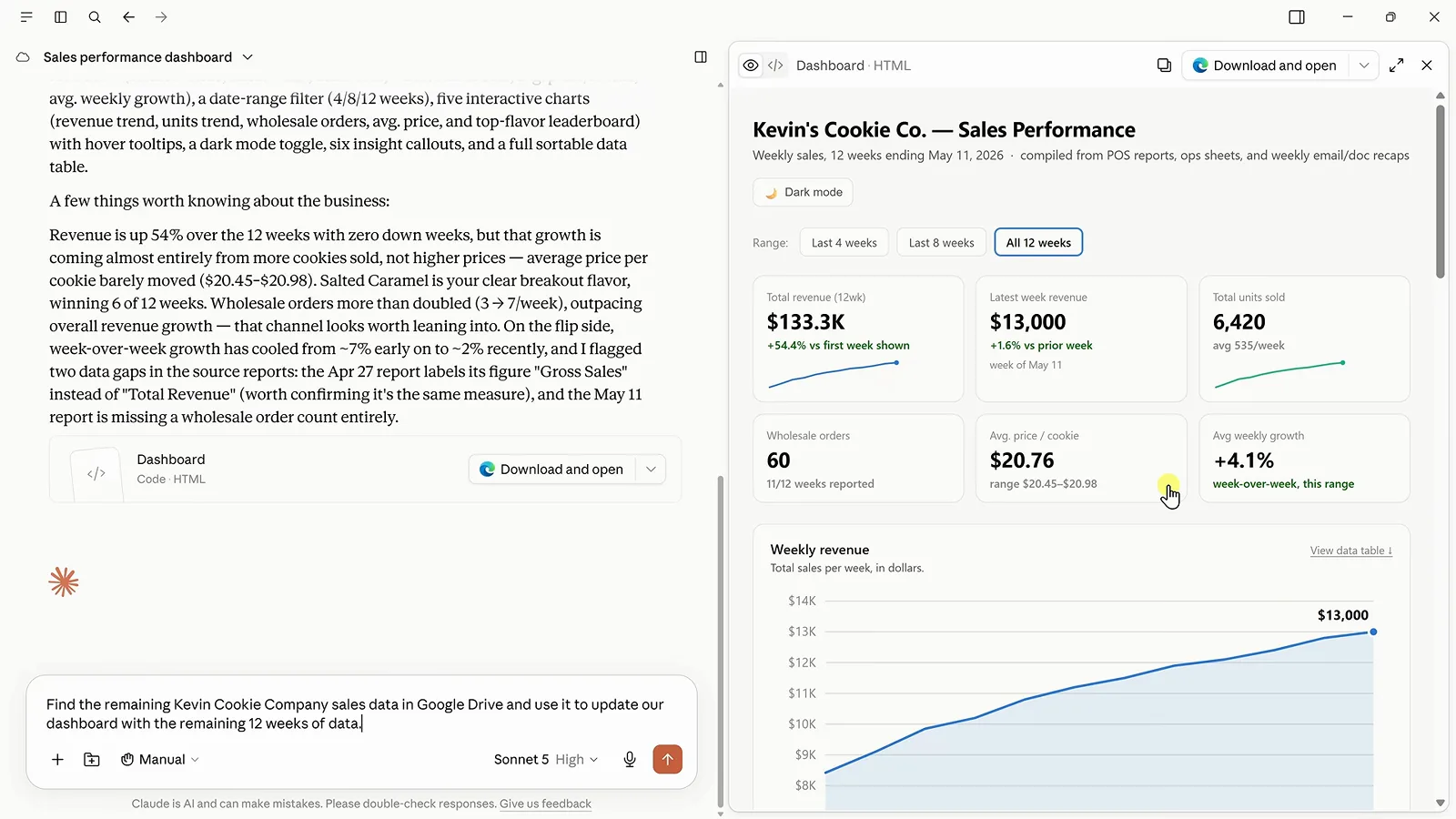
Drive 検索を指示したプロンプトと、12週のダッシュボード。5:08 の場面を見る - 9
フォローアップのプロンプトで磨く
動くけど配色がブランド色じゃない、そんな時は「Update the dashboard to use our brand colors of blue and maize.」と一言。返信も見どころで、Cowork は明るいトーンが色覚安全性チェックを通らなかったため深いゴールデンロッドの maize を選び、全バーを虹色にする代わりに首位フレーバーを青で強調したと説明してくれます。レイアウトも文案もグラフ種別も同じ要領で反復できます。
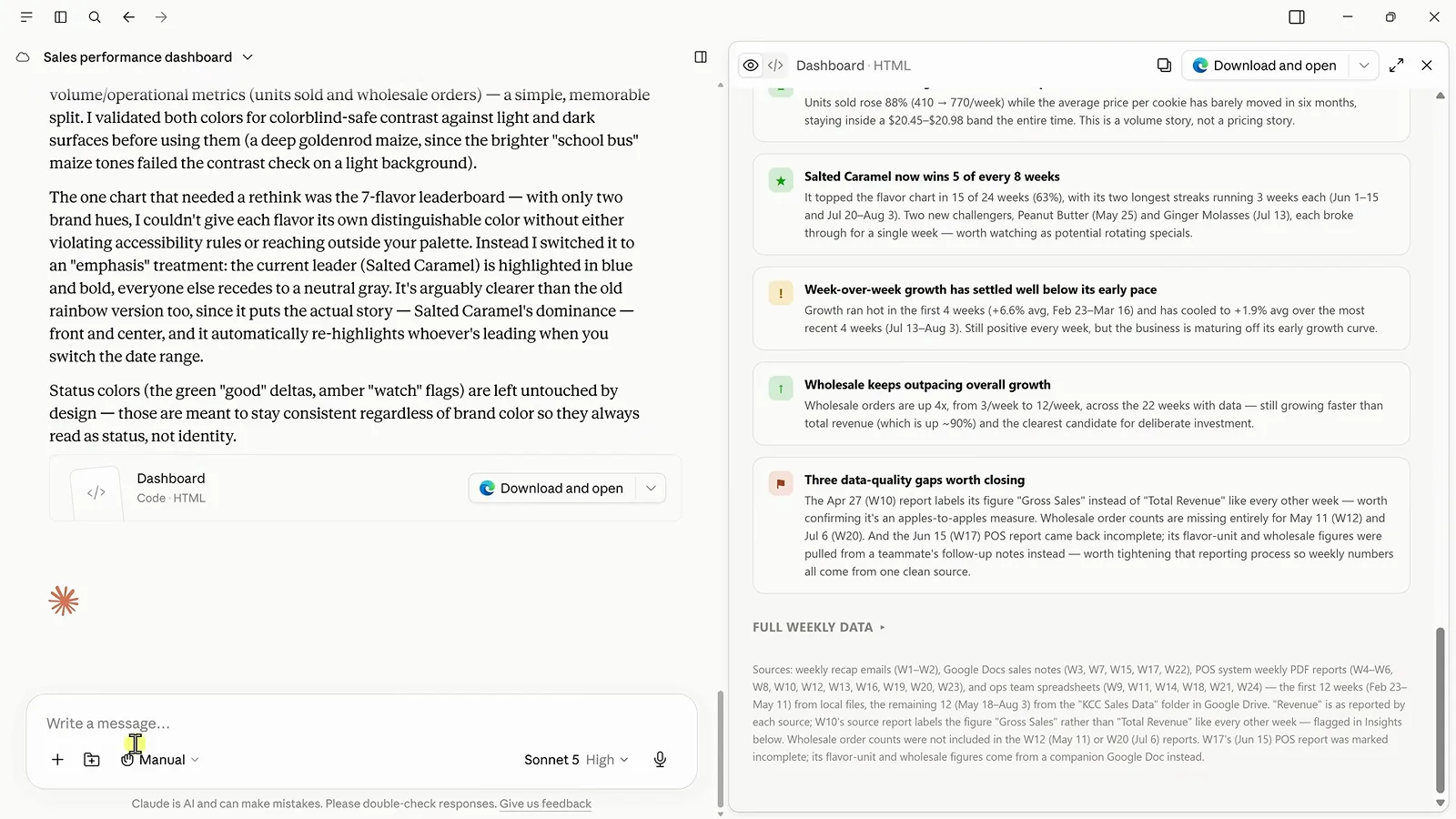
アクセシビリティに配慮した青×maize 設計を説明する Cowork。6:28 の場面を見る - 10
ワークフローを再利用可能なスキルに
スキルとは「この種の仕事は毎回こうする」という教え込みです。平文で「create a skill that checks for new sales data, compares it with the previous week, pulls out the most important insights, and updates our dashboard」と頼めば、Cowork が SKILL.md を書いてくれます。内容を確認し、返信で推敲し、保存。保存済みスキルは Gmail の週次メールから Drive フォルダまで、毎週のデータの在り処まできちんと文書化しています。
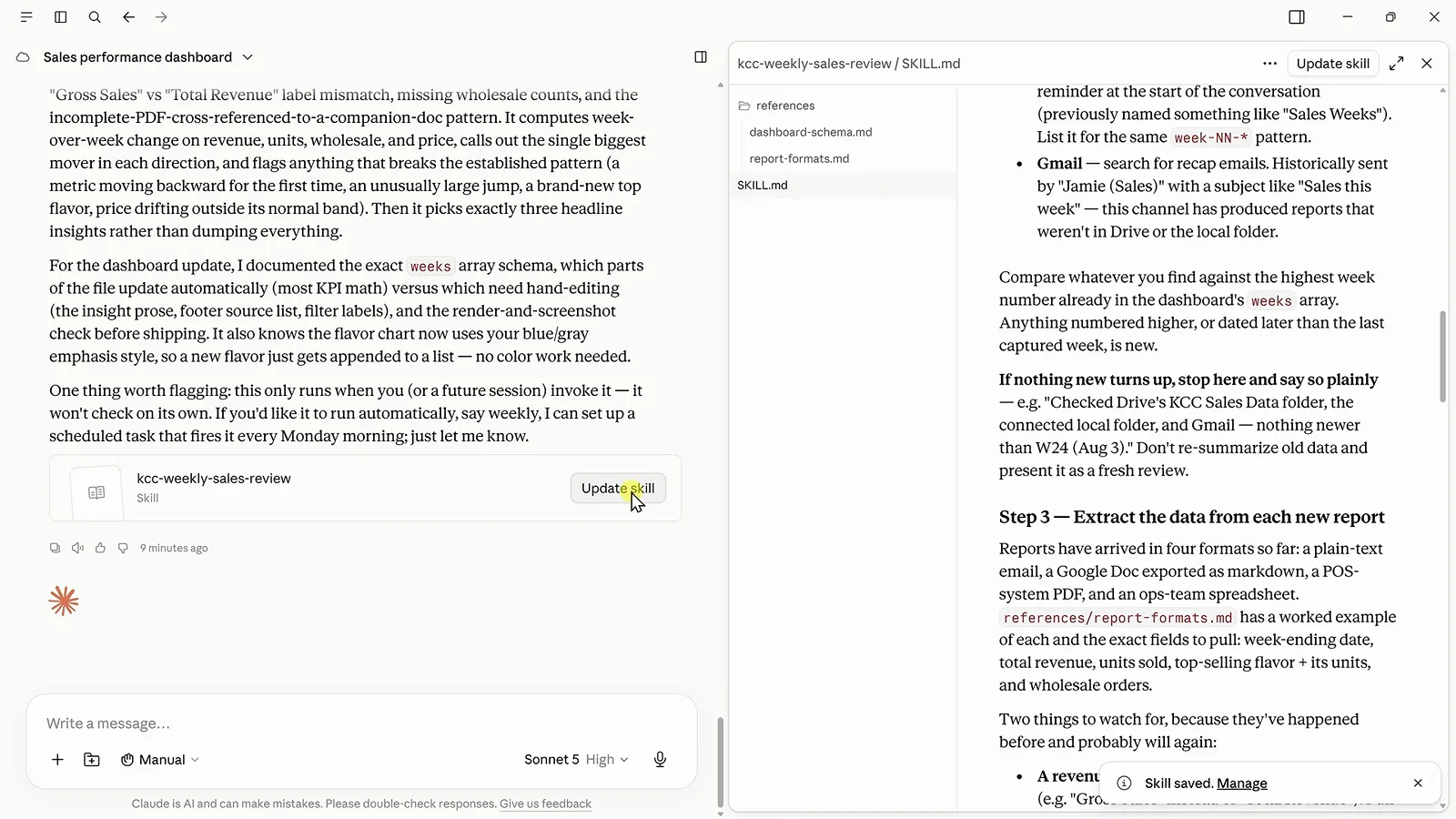
保存した kcc-weekly-sales-review スキル(SKILL.md として編集可)。7:00 の場面を見る - 11
スキルを毎週のスケジュールに登録
まず最新データで一度実行し(「run my weekly sales review skill using the latest sales data」)、続いてスケジュール化します。Cowork は「Created scheduled task: Weekly Sales Review … At 09:00 AM, only on Monday」と確認し、ダッシュボードは全27週分に更新されます。動画が強調する注意点は、ローカルフォルダのチェックはその時刻にデスクトップアプリが起動・接続済みのときだけ動き、そうでなければ Drive と Gmail へフォールバックするという点です。
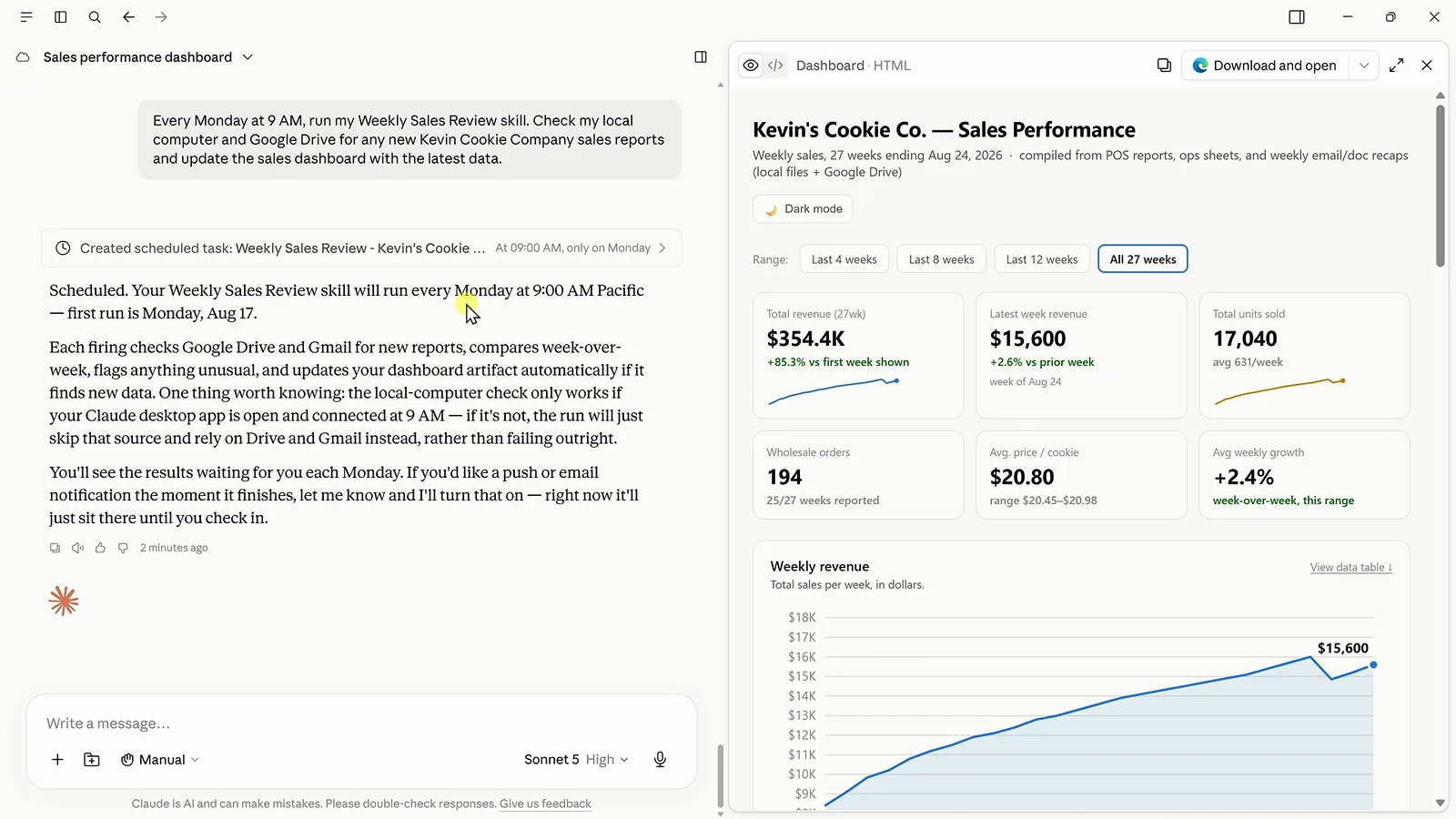
毎週月曜9時に設定し、27週へ更新されたダッシュボード。7:48 の場面を見る - 12
Zapier MCP で数千アプリとつなぐ
主要サービスは内蔵コネクタで、ロングテールは Zapier MCP が担います。無料の Zapier アカウントを作り、MCP Servers(MCP は Model Context Protocol の略で、AI ツールが他アプリを呼ぶ標準規格)を開き、Claude を選択、生成されたプロンプトを Cowork に貼り付けます。Zapier 側で Cowork に許すアプリとアクションを細かく選べるため、影響範囲は自分で定義できます。
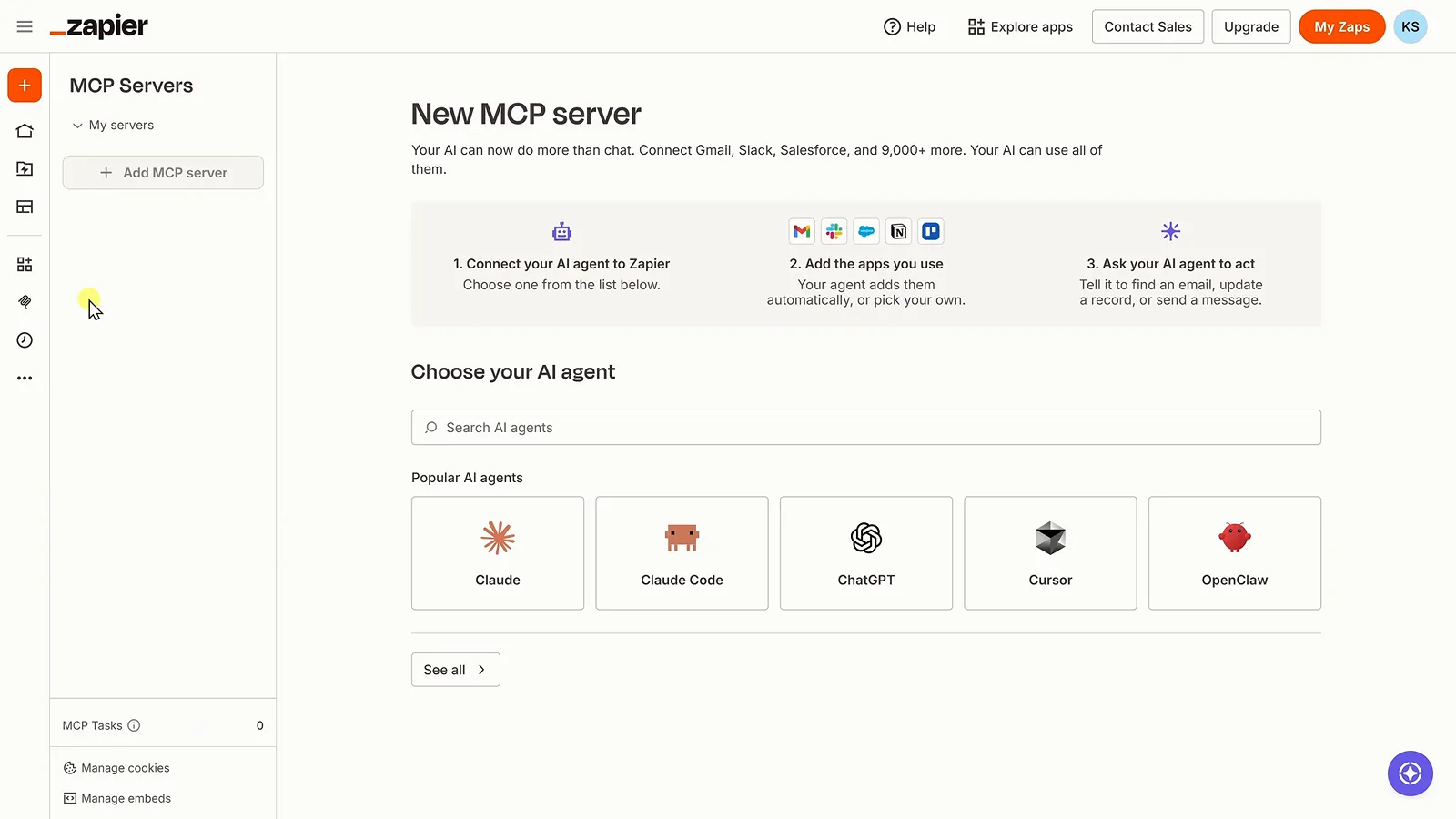
人気エージェントに Claude が並ぶ Zapier MCP の設定画面。8:32 の場面を見る - 13
答えではなく、アクションを委任する
仕上げのプロンプトはこれ。「Analyze our sales and create a marketing task in Trello.」Cowork は Snickerdoodle が24週間トップフレーバーの座を逃していると計算し、経緯・期日・推奨アクションプラン付きのカードを作成します。分析が完了済みタスクになります。DeepSeek はサブスクではなく API 利用量の従量課金なので、この一連のループは使った分だけの費用です。
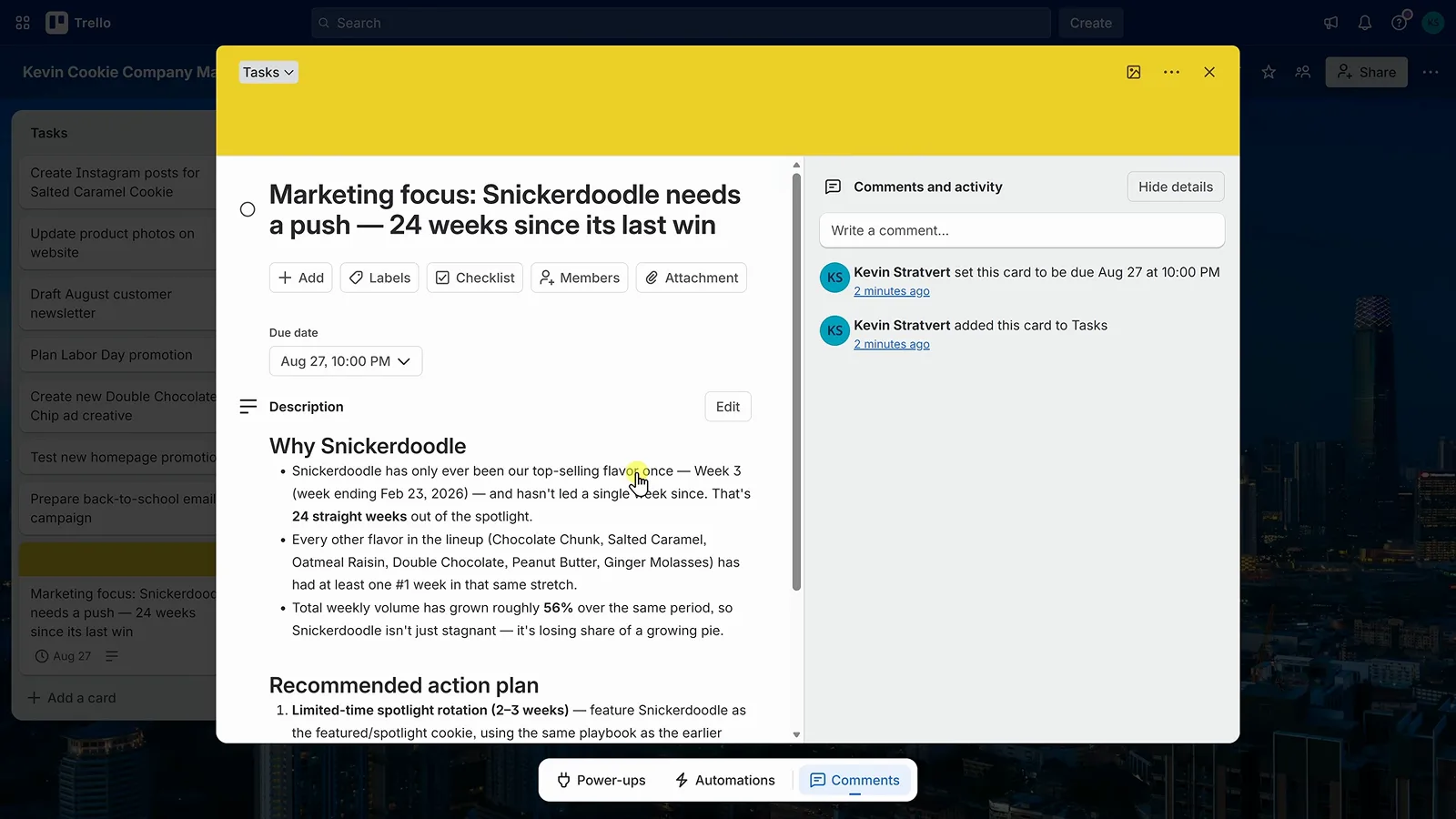
販売分析から Cowork が作成した Trello カード。9:30 の場面を見る